
How to generate PDF of Blitz Report output?
1.1 Uninstall the previous version of Libre Office
1.2 Download and install Libre Office for Linux
2 Post Processing template setup
3 Test your Report
4 Optional – Enable Excel cell borders
5 Summary
Blitz Report™ now offers a postprocessing feature that allows users to perform additional actions on the Blitz Report output files, e.g. scp them to a different server, transform them to a .pdf via external tools and etc.
In this article, we explain the pre-requisite Unix setup and EBS sysadmin steps involved to transform the Excel output to a PDF file format. We assume that you will have access to Blitz Report developer, EBS System Admin, and Unix access.
Steps:
- Download and install Excel to pdf conversion software on your Unix server.
- Modify your Blitz Report by assigning the post-processor function.
- Test your report generates the PDF file output
- Optionally, enable the Excel cell borders for the PDF file output
1 Install Libre Office
1.1 Uninstall the previous version of Libre Office
Verify if an older version of libreoffice is already installed on your application server.
su - root rpm -qa|grep libreoffice |
The latest libreoffice version tested for Blitz XLSX to PDF conversion is 7.6.7.2.
If the version returned by the above commands is older you may remove the outdated libreoffice package.
yum remove libreoffice* |
1.2 Download and install Libre Office for Linux
su - root cd /tmp wget https://downloadarchive.documentfoundation.org/libreoffice/old/7.6.7.2/rpm/x86_64/LibreOffice_7.6.7.2_Linux_x86-64_rpm.tar.gz tar -xzvf LibreOffice_7.6.7.2_Linux_x86-64_rpm.tar.gz cd LibreOffice_7.6.7.2_Linux_x86-64_rpm/RPMS yum install *.rpm |
If you have an older operating system like OEL/RHEL 5 32 bit, try to install an older version of libreoffice. E.g:
su - root cd /tmp wget https://downloadarchive.documentfoundation.org/libreoffice/old/4.4.7.2/rpm/x86/LibreOffice_4.4.7.2_Linux_x86_rpm.tar.gz tar -xzvf LibreOffice_4.4.7.2_Linux_x86_rpm.tar.gz cd LibreOffice_4.4.7.2_Linux_x86_rpm/RPMS rpm -ivh *.rpm |
After a successful installation, you can use the libreoffice from the command line. In our case we ran the following command for testing:
$ libreoffice7.6 --headless --convert-to 'pdf:calc_pdf_Export:{"SinglePageSheets":{"type":"boolean","value":"true"}}' --outdir $APPLCSF/out Test_Report.xlsx |
The example of the command for the older libreoffice version 4.4:
$ libreoffice4.4 --headless --convert-to 'pdf:calc_pdf_Export:{"SinglePageSheets":{"type":"boolean","value":"true"}}' --outdir $APPLCSF/out Test_Report.xlsx |
This creates a file called Test_Report.pdf
When you run a Blitz Report, an Excel output file is generated as usual. Example below:

The output Excel document can be found in the Unix directory determined by the system variable
$APPLCSF/out |
2 Post Processing template setup
Attach a “custom postprocess” script to the report. Please refer to this link for more information about Custom Postprocess scripts.
From the Options field on the run form, set the value in the Custom Postprocess field as shown below:

In this example, we assigned the “generate_pdf.sh” file. This custom post-process script file needs to be stored in the Bltiz Report custom top directory
$XXEN_TOP/bin/custom |
folder. The name entered here should match the filename on your Unix server.
Contents of generate_pdf.sh are:
libreoffice7.6 --headless --convert-to 'pdf:calc_pdf_Export:{"SinglePageSheets":{"type":"boolean","value":"true"}}' --outdir $APPLCSF/out $outfile_name |
3 Test your Report
Now, whenever you run a Blitz Report it generates a PDF file in the $APPLCSF/out directory, apart from the usual excel it generates.
The PDF file generated for the same report after attaching the postprocessing option is shown below:

You can view this generated PDF in the $APPLCSF/out directory.
4 Optional – Enable Excel cell borders
You can also generate PDF files with cell borders. This is achieved by setting the following profile option for the user(s) running the Blitz Report: Blitz Report XLSX Cell Borders.
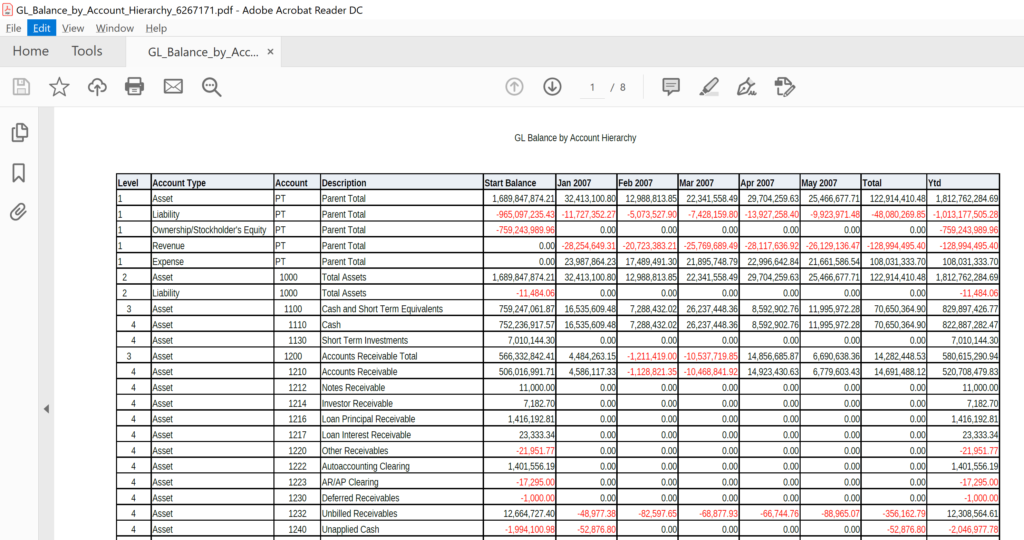
After setting the profile option to “Yes”, when you run a report, the generated excel and its corresponding PDF look like:

The pdf generated for this output is:
5 Summary
In this article, we showed how to use the postprocessing capability of Blitz Report on its output files to convert them to a pdf file.
The setup typically takes a few minutes to complete. The assumption is that the Blitz Report developer has Unix and System Administrator access in order to perform these.
If you would like assistance with this procedure please contact the Enginatics team and request a demo.