
QP Price List Upload

Description
QP Price List Upload creates and updates Oracle Advanced Pricing standard price lists from Excel – the price list header with its item and item category prices, price breaks, line pricing attributes, header qualifiers and secondary price list assignments. Individual lines, price breaks, pricing attributes, qualifiers and secondary price list assignments can also be deleted.
When to use it
- Load new standard price lists with many item or item category prices in one pass.
- Mass-update list prices, application methods or effective dates on existing price lists.
- Add or maintain price breaks (quantity or value based pricing tiers) across many lines.
- Attach header qualifiers in bulk, including copying a whole qualifier group onto a price list.
- Assign secondary price lists to many price lists at once.
- Introduce new prices from a future date while end-dating the prices they replace.
Before you start
- Use a responsibility with access to Blitz Report whose profile options QP: Pricing Transaction Entity and QP: Source System Code match the price lists you maintain (for example Order Fulfillment and Oracle Pricing), and with access to the operating units of non-global price lists.
- The items, item categories, units of measure, formulas, qualifier groups and secondary price lists you reference already exist.
- Currency, payment terms, freight terms and ship methods used on the header are set up and enabled.
Step 1 – Set the parameters
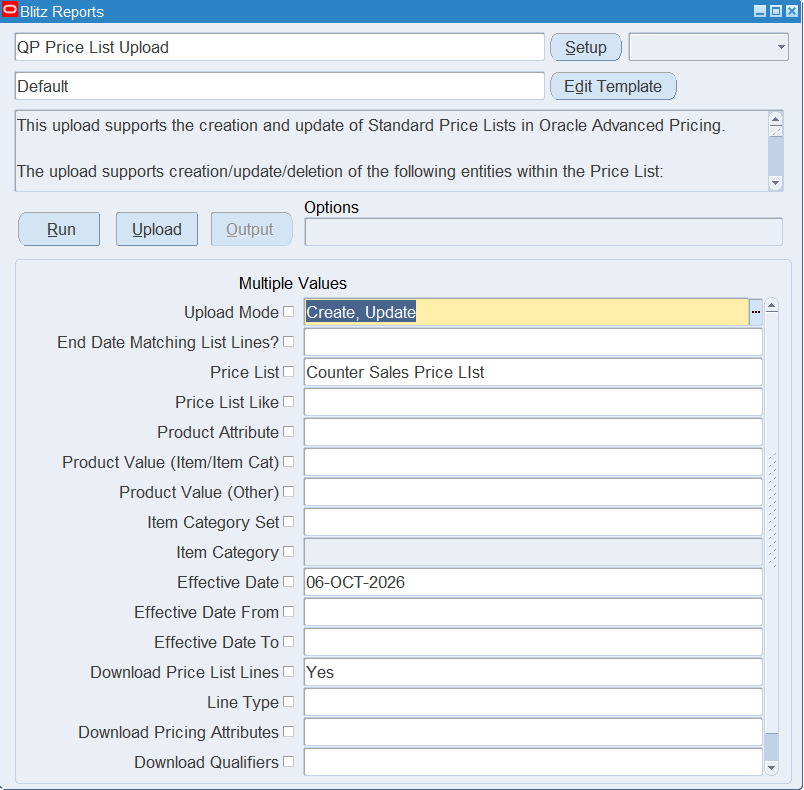
Open QP Price List Upload in Blitz Report and set the parameters:
| Parameter | Meaning |
|---|---|
| Upload Mode | Create opens an empty sheet; Create, Update (default) downloads existing price lists for editing and lets you add new ones. |
| End Date Matching List Lines? | Yes end-dates the active line with the same product and unit of measure when a new line is created, on the day before the new line’s start date. Downloaded lines then come down with Action Create, so you can use the current prices as the basis for the new ones. |
| Price List / Price List Like | The price list(s) to download, or all price lists whose name starts with this text. |
| Product Attribute / Product Value (Item/Item Cat) / Product Value (Other) | Downloads only lines for this product, for example a specific item number or item category. |
| Item Category Set / Item Category | Downloads the lines of all items assigned to this item category. |
| Effective Date | Downloads the lines active on this date (default today). |
| Effective Date From / Effective Date To | Downloads the lines active at any time within this date range. |
| Download Price List Lines | Yes (default) includes the price list lines and their price breaks; clear it to download the headers only. |
| Line Type | Downloads only lines of this type, for example Price List Line or Price Break Header. |
| Download Pricing Attributes, Download Qualifiers, Download Secondary Price Lists | Yes also downloads the lines’ pricing attributes, the header qualifiers or the secondary price list assignments, each on separate rows. Download Pricing Attributes defaults to the End Date Matching List Lines? value. |
Enter a price list or product parameter so the download contains only the prices you want to work on.
Step 2 – Run to download the Excel file
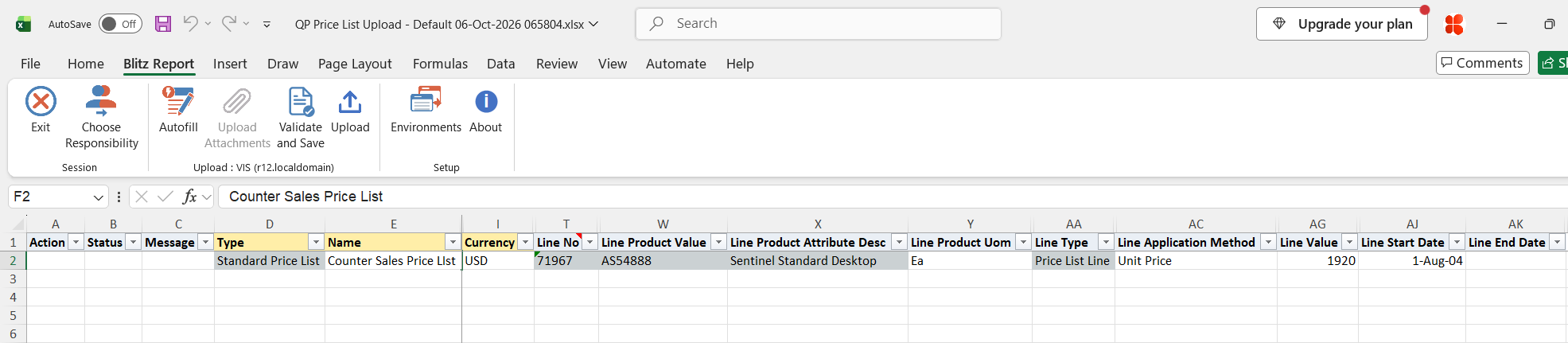
Click Run. The Excel file downloads and opens with one row per price list line and further rows for price breaks, pricing attributes, qualifiers and secondary price lists when they are included. In Create mode the sheet is empty.
Step 3 – Enter or change the price lists
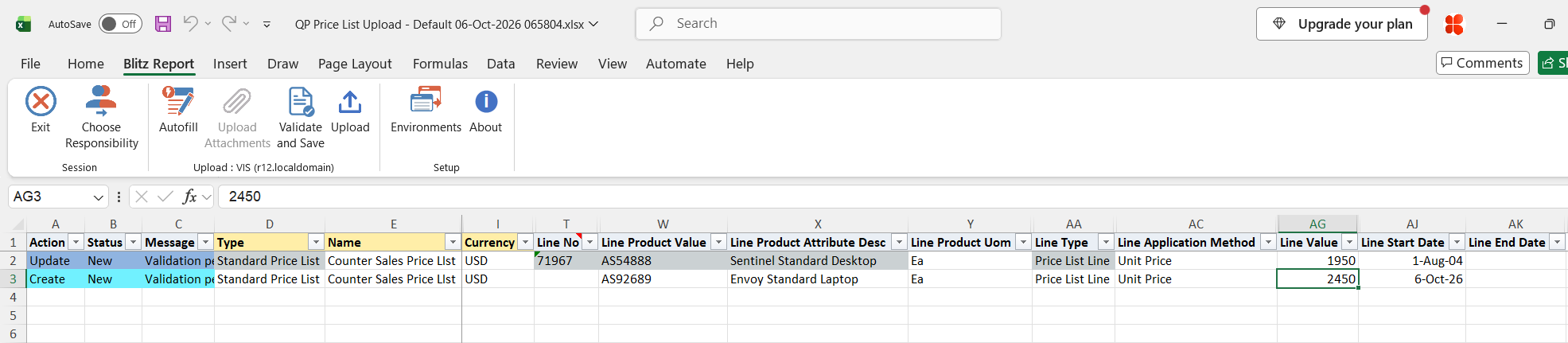
Change a downloaded row’s columns, such as Line Value (the list price), Line Application Method, Line Start Date or Line End Date, or header columns such as Description, Effective To or Payment Term. Header columns changed on one row apply to the whole price list.
To add a line to a price list, add a row with the header columns of the price list (Name, Currency, Global, or Operating Unit for a non-global list) and the line columns: Line Product Context, Line Product Attribute, Line Product Value, Line Product UOM, Line Type, Line Application Method and Line Value (or a Line Dynamic Formula or Line Static Formula), and optionally a Line Start Date. A row with a new price list name creates the price list.
- Line matching: rows with the same product, unit of measure and start date belong to the same line. If several lines share these values but have different pricing attributes, give each line its own Line No; the Line No is only used to group the rows and is not stored in Oracle.
- Price breaks: use Line Type Price Break Header with a Line Price Break Type, and repeat the line on one row per break with Price Break Value From / To and Price Break Price (or Price Break Formula).
- Pricing attributes: enter Pricing Attribute Context, Pricing Attribute, Pricing Attribute Operator and Pricing Attribute Value From (Value To only with the BETWEEN operator).
- Qualifiers: enter Qualifier Grouping Number, Context, Attribute, Operator and Value From. To copy all qualifiers of a qualifier group, select only the Qualifier Group on a row without other qualifier details; to copy single qualifiers, select the Qualifier Group Qualifier ID on one row per qualifier.
- Secondary price lists: enter the Secondary Price List and its precedence.
- Deleting: set Delete Line, Delete Price Break, Delete Pricing Attribute, Delete Qualifier or Delete Secondary Price List to Yes to delete that record only. The price list itself is not deleted; make it inactive or end-date it instead.
A header, a line, a price break, a pricing attribute, a qualifier and a secondary price list can all be entered on the same row.
Step 4 – Validate and Save
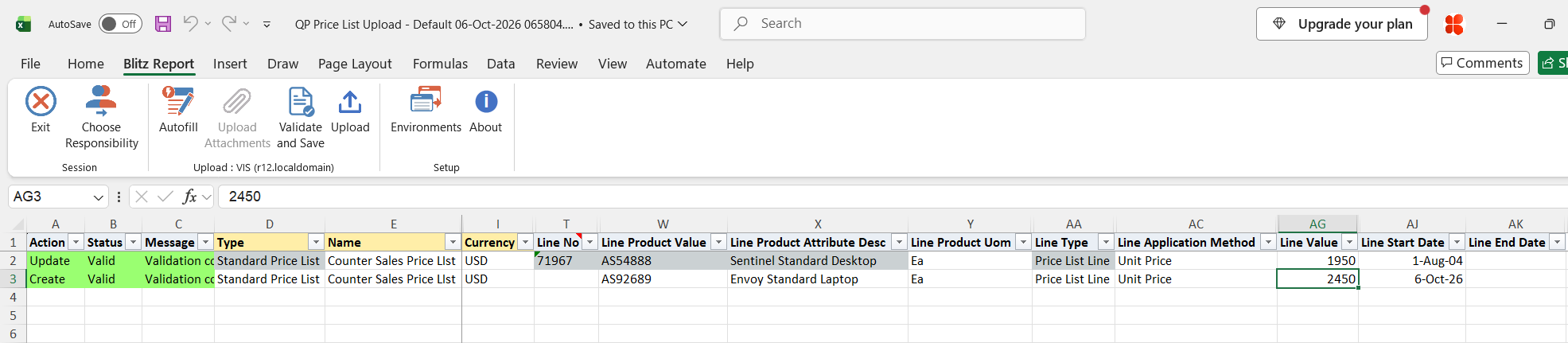
Click Validate and Save. This checks for missing required values and the upload’s own rules (for example a complete line, price break or qualifier, Global and Operating Unit consistency, price break columns only on Price Break Header lines) and saves the file. Correct any rows it flags before uploading.
Step 5 – Upload the file
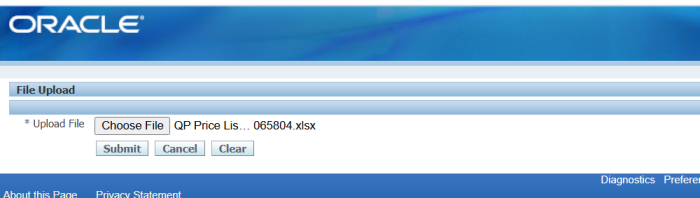
In Blitz Report click Upload and select the saved file. This submits the upload request, which creates or updates the price lists and their lines and child records through the Oracle Advanced Pricing price list API.
Step 6 – Review the result report
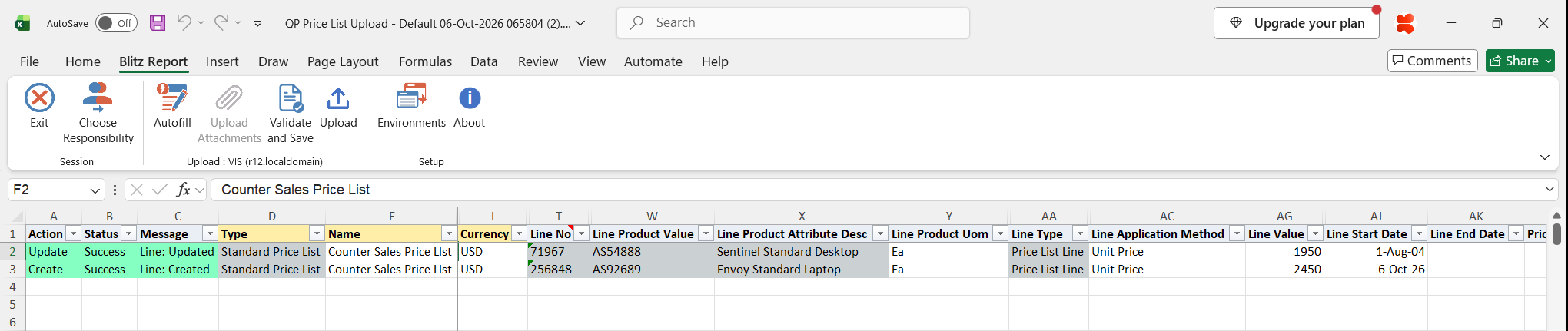
When the request completes, a result report opens listing every uploaded row with its status and a message showing what was done, for example Line: Updated, Line: Created, Price Break: Created or List Qual: Created. For new lines, the Line No column shows the line ID created in Oracle.
What’s produced
- Standard price lists created or updated, with their lines, price breaks, pricing attributes, qualifiers and secondary price list assignments.
- Active matching lines end-dated when End Date Matching List Lines? is Yes.
- A result report listing every row with a status (success or error) and a message.
Common questions
How does the upload decide between create and update?
Downloaded rows update the price list and line they were downloaded from. Other rows are matched on the price list name and, for lines, on product, unit of measure, start date, Line No and pricing attributes. A match is updated; otherwise a new record is created.
What is the Line No column for?
Downloaded rows show the line ID. On new rows, Line No only separates lines that share the same product, unit of measure and start date but have different pricing attributes. It is not stored in Oracle.
How do I introduce new prices from a date?
Set End Date Matching List Lines? to Yes and download the current lines: they come down with Action Create. Enter the new Line Value and a Line Start Date; on upload the new lines are created and the active matching lines are end-dated on the day before.
Can I delete a whole price list?
No. Lines, price breaks, pricing attributes, qualifiers and secondary price list assignments can be deleted; the price list itself can be made inactive or end-dated.
Does this upload maintain modifiers or GSA price lists?
No. Use the QP Modifier Upload for modifier lists and the QP GSA Pricing Upload for GSA pricing.
Can I maintain intercompany transfer price lists?
Yes. Run the upload from an Inventory responsibility. It then works with the pricing transaction entity Intercompany Transaction and the source system INV, and qualifiers can use the contexts Intercompany Invoicing and Inter Organization Transfer.
Troubleshooting
| Message | Cause | What to do |
|---|---|---|
| A List Header with this Name already exists with a different List Type, PTE Code, or Source System Code | The name is used by a modifier list or by a price list of another pricing transaction entity or source system. | Use a different name, or a responsibility whose QP profile options match the existing list. |
| Operating Unit must be specified for non Global Price Lists | Global is No and the Operating Unit is empty. | Enter the Operating Unit, or set Global to Yes. |
| Operating Unit can not be specified gor Global Price Lists | Global is Yes and an Operating Unit is entered. | Clear the Operating Unit, or set Global to No. |
| MOAC Security is not enabled, only Global Price Lists are supported | Pricing security is off, so operating unit specific price lists are not available. | Set Global to Yes. |
| Product Context, Product Attribute, Product Attribute Value, UOM and Line Type are required on Price List Lines | An incomplete line. | Complete the line columns, or clear them. |
| Line Value or Dynamic Formula or Static Formula is required | A Price List Line without a price. | Enter the Line Value or a formula. |
| Line Product Value is invalid | The product value does not exist for the Line Product Attribute. | Pick the value from the list. |
| Price Break columns are not applicable to standard Price List Lines | Price break values on a line that is not a Price Break Header. | Set Line Type to Price Break Header, or clear the price break columns. |
| Price Break Value From/To is required on Price Break Lines | A price break row without its range. | Enter Price Break Value From and Value To. |
| Qualifier Grouping Number, Context, Attribute, Operator and Value From are required when specifying a qualifier | An incomplete qualifier. | Complete the qualifier columns, or clear them. |
| Cannot override active Price List Line. Active Line Start Date (…) is equal to or later than the new Price List Line Start Date (…) | End Date Matching List Lines? is Yes and the active line does not start before the new line’s start date. | Use a later Line Start Date for the new line. |
| Cannot uniquely identify the Price List Line to be end dated | Several active lines match the new line. | Download the active lines and end-date the right one by updating its Line End Date. |
| Could not uniquely identify the Price List Line to Update | Several lines match the row’s product, unit of measure and start date. | Download the price list and update the line from its downloaded row, or use Line No. |
| Price List Line cannot be created when Delete Line Flag is set to Yes | Delete Line is Yes on a line that does not exist (the other Delete columns give similar messages). | Check the line values, or clear the Delete column. |
| Price List Header cannot be updated due to Function Security settings | Your user is not allowed to update this price list. | Ask your pricing administrator for update access to the price list. |
| Error in prior row for this list line | An earlier row of the same line failed. | Fix the first failing row of the line and upload again. |
| Upload Failed: followed by an Oracle message | Oracle Advanced Pricing rejected the record. | Correct the value named in the message and upload again. |
SQL 788 lines
select case when :p_override_list_line = 'Y' then xxen_upload.action_meaning(xxen_upload.action_create) else null end action_, case when :p_override_list_line = 'Y' then xxen_upload.status_meaning(xxen_upload.status_new) else null end status_, case when :p_override_list_line = 'Y' then xxen_util.description('U_EXCEL_MSG_VALIDATION_PENDING','XXEN_REPORT_TRANSLATIONS',0) else null end message_, null request_id_, null modified_columns_, :p_upload_mode upload_mode_, :p_override_list_line override_list_line_, to_number(null) price_list_row_id, to_number(null) qualifier_group_row_id, to_number(null) qualifier_row_id, to_number(null) secondary_price_list_row_id, to_number(null) price_list_line_row_id, to_number(null) price_break_line_row_id, to_number(null) pricing_attribute_row_id, qp.* from ( -- -- Q1 List Header Qualifiers -- select -- Price List Header qslhv.pte_code, qslhv.source_system_code, xxen_util.meaning(qslhv.list_type_code,'LIST_TYPE_CODE',661) type, qslhv.orig_system_header_ref list_orig_sys_ref, qslhv.name, qslhv.description, xxen_util.meaning(nvl(qslhv.global_flag,'Y'),'YES_NO',0) global, qp_util.get_ou_name(qslhv.orig_org_id) operating_unit, qslhv.currency_code currency, (select qclv.name from qp_currency_lists_vl qclv where qslhv.currency_header_id=qclv.currency_header_id) multi_currency_conversion, qslhv.rounding_factor round_to, xxen_util.meaning(nvl(qslhv.active_flag,'N'),'YES_NO',0) active, qslhv.start_date_active effective_from, qslhv.end_date_active effective_to, xxen_util.meaning(qslhv.freight_terms_code,'FREIGHT_TERMS',660) freight_terms, qslhv.ship_method_code ship_method, (select rtt.name from ra_terms_tl rtt where qslhv.terms_id=rtt.term_id and rtt.language(+)=userenv('lang')) payment_term, xxen_util.meaning(qslhv.mobile_download,'YES_NO',0) mobile_download, qslhv.comments, -- Price List DFF Attributes xxen_util.display_flexfield_context(661,'QP_LIST_HEADERS',qslhv.context) list_header_dff_context, xxen_util.display_flexfield_value(661,'QP_LIST_HEADERS',qslhv.context,'ATTRIBUTE1',qslhv.row_id,qslhv.attribute1) list_header_attribute1, xxen_util.display_flexfield_value(661,'QP_LIST_HEADERS',qslhv.context,'ATTRIBUTE2',qslhv.row_id,qslhv.attribute2) list_header_attribute2, xxen_util.display_flexfield_value(661,'QP_LIST_HEADERS',qslhv.context,'ATTRIBUTE3',qslhv.row_id,qslhv.attribute3) list_header_attribute3, xxen_util.display_flexfield_value(661,'QP_LIST_HEADERS',qslhv.context,'ATTRIBUTE4',qslhv.row_id,qslhv.attribute4) list_header_attribute4, xxen_util.display_flexfield_value(661,'QP_LIST_HEADERS',qslhv.context,'ATTRIBUTE5',qslhv.row_id,qslhv.attribute5) list_header_attribute5, xxen_util.display_flexfield_value(661,'QP_LIST_HEADERS',qslhv.context,'ATTRIBUTE6',qslhv.row_id,qslhv.attribute6) list_header_attribute6, xxen_util.display_flexfield_value(661,'QP_LIST_HEADERS',qslhv.context,'ATTRIBUTE7',qslhv.row_id,qslhv.attribute7) list_header_attribute7, xxen_util.display_flexfield_value(661,'QP_LIST_HEADERS',qslhv.context,'ATTRIBUTE8',qslhv.row_id,qslhv.attribute8) list_header_attribute8, xxen_util.display_flexfield_value(661,'QP_LIST_HEADERS',qslhv.context,'ATTRIBUTE9',qslhv.row_id,qslhv.attribute9) list_header_attribute9, xxen_util.display_flexfield_value(661,'QP_LIST_HEADERS',qslhv.context,'ATTRIBUTE10',qslhv.row_id,qslhv.attribute10) list_header_attribute10, xxen_util.display_flexfield_value(661,'QP_LIST_HEADERS',qslhv.context,'ATTRIBUTE11',qslhv.row_id,qslhv.attribute11) list_header_attribute11, xxen_util.display_flexfield_value(661,'QP_LIST_HEADERS',qslhv.context,'ATTRIBUTE12',qslhv.row_id,qslhv.attribute12) list_header_attribute12, xxen_util.display_flexfield_value(661,'QP_LIST_HEADERS',qslhv.context,'ATTRIBUTE13',qslhv.row_id,qslhv.attribute13) list_header_attribute13, xxen_util.display_flexfield_value(661,'QP_LIST_HEADERS',qslhv.context,'ATTRIBUTE14',qslhv.row_id,qslhv.attribute14) list_header_attribute14, xxen_util.display_flexfield_value(661,'QP_LIST_HEADERS',qslhv.context,'ATTRIBUTE15',qslhv.row_id,qslhv.attribute15) list_header_attribute15, -- Price List Lines null line_orig_sys_ref, to_number(null) line_no, null line_product_context, null line_product_attribute, null line_product_value, null line_product_attribute_desc, null line_product_uom, null line_primary_uom_flag, null line_type, null line_price_break_type, null line_application_method, null line_accumulation_attribute, null line_break_uom, null line_break_uom_attribute, to_number(null) line_value, null line_dynamic_formula, null line_static_formula, to_date(null) line_start_date, to_date(null) line_end_date, to_number(null) line_precedence, null delete_line, -- Price Breaks null price_break_orig_sys_ref, null price_break_pricing_context, null price_break_pricing_attribute, to_number(null) price_break_value_from, to_number(null) price_break_value_to, to_number(null) price_break_price, null price_break_application_method, null price_break_formula, to_number(null) price_break_recurring_value, null delete_price_break, -- Price List Line Pricing Attributes null pricing_attribute_orig_sys_ref, null pricing_attribute_context, null pricing_attribute, null pricing_attribute_operator, null pricing_attribute_value_from, null pricing_attribute_val_fr_desc, null pricing_attribute_value_to, null delete_pricing_attribute, -- Price List Line DFF Attributes null list_line_dff_context, null list_line_attribute1, null list_line_attribute2, null list_line_attribute3, null list_line_attribute4, null list_line_attribute5, null list_line_attribute6, null list_line_attribute7, null list_line_attribute8, null list_line_attribute9, null list_line_attribute10, null list_line_attribute11, null list_line_attribute12, null list_line_attribute13, null list_line_attribute14, null list_line_attribute15, -- Price List Qualifiers xxen_qp_upload.get_orig_sys_ref('QUALIFIER',qqv.qualifier_id) qualifier_orig_sys_ref, qqv.rule_name qualifier_group, to_number(null) qualifier_group_qualifier_id, qqv.qualifier_grouping_no qualifier_grouping_number, qp_util.get_context('QP_ATTR_DEFNS_QUALIFIER',qqv.qualifier_context) qualifier_context, qp_qp_form_pricing_attr.get_attribute('QP_ATTR_DEFNS_QUALIFIER',qqv.qualifier_context,qqv.qualifier_attribute) qualifier_attribute, xxen_util.meaning(qqv.qualify_hier_descendents_flag,'YES_NO',0) qualifier_applies_party_hier, qqv.qualifier_precedence, qqv.comparision_operator_code qualifier_operator, rtrim(replace( qp_util.get_attribute_value ('QP_ATTR_DEFNS_QUALIFIER', qqv.qualifier_context, qp_qp_form_pricing_attr.get_segment_name('QP_ATTR_DEFNS_QUALIFIER',qqv.qualifier_context, qqv.qualifier_attribute), qqv.qualifier_attr_value, qqv.comparision_operator_code ),chr(0),null) ) qualifier_value_from, rtrim(replace( qp_util.get_attribute_value_meaning ('QP_ATTR_DEFNS_QUALIFIER', qqv.qualifier_context, qp_qp_form_pricing_attr.get_segment_name('QP_ATTR_DEFNS_QUALIFIER',qqv.qualifier_context, qqv.qualifier_attribute), qqv.qualifier_attr_value, qqv.comparision_operator_code ),chr(0),null) ) qualifier_value_from_desc, qp_util.get_attribute_value ('QP_ATTR_DEFNS_QUALIFIER', qqv.qualifier_context, qp_qp_form_pricing_attr.get_segment_name('QP_ATTR_DEFNS_QUALIFIER',qqv.qualifier_context, qqv.qualifier_attribute), qqv.qualifier_attr_value_to, qqv.comparision_operator_code ) qualifier_value_to, qqv.start_date_active qualifier_start_date, qqv.end_date_active qualifier_end_date, null delete_qualifier, -- Qualifier DFF Attributes xxen_util.display_flexfield_context(661,'QP_QUALIFIERS',qqv.context) qualifier_dff_context, xxen_util.display_flexfield_value(661,'QP_QUALIFIERS',qqv.context,'ATTRIBUTE1',qqv.row_id,qqv.attribute1) qualifier_attribute1, xxen_util.display_flexfield_value(661,'QP_QUALIFIERS',qqv.context,'ATTRIBUTE2',qqv.row_id,qqv.attribute2) qualifier_attribute2, xxen_util.display_flexfield_value(661,'QP_QUALIFIERS',qqv.context,'ATTRIBUTE3',qqv.row_id,qqv.attribute3) qualifier_attribute3, xxen_util.display_flexfield_value(661,'QP_QUALIFIERS',qqv.context,'ATTRIBUTE4',qqv.row_id,qqv.attribute4) qualifier_attribute4, xxen_util.display_flexfield_value(661,'QP_QUALIFIERS',qqv.context,'ATTRIBUTE5',qqv.row_id,qqv.attribute5) qualifier_attribute5, xxen_util.display_flexfield_value(661,'QP_QUALIFIERS',qqv.context,'ATTRIBUTE6',qqv.row_id,qqv.attribute6) qualifier_attribute6, xxen_util.display_flexfield_value(661,'QP_QUALIFIERS',qqv.context,'ATTRIBUTE7',qqv.row_id,qqv.attribute7) qualifier_attribute7, xxen_util.display_flexfield_value(661,'QP_QUALIFIERS',qqv.context,'ATTRIBUTE8',qqv.row_id,qqv.attribute8) qualifier_attribute8, xxen_util.display_flexfield_value(661,'QP_QUALIFIERS',qqv.context,'ATTRIBUTE9',qqv.row_id,qqv.attribute9) qualifier_attribute9, xxen_util.display_flexfield_value(661,'QP_QUALIFIERS',qqv.context,'ATTRIBUTE10',qqv.row_id,qqv.attribute10) qualifier_attribute10, xxen_util.display_flexfield_value(661,'QP_QUALIFIERS',qqv.context,'ATTRIBUTE11',qqv.row_id,qqv.attribute11) qualifier_attribute11, xxen_util.display_flexfield_value(661,'QP_QUALIFIERS',qqv.context,'ATTRIBUTE12',qqv.row_id,qqv.attribute12) qualifier_attribute12, xxen_util.display_flexfield_value(661,'QP_QUALIFIERS',qqv.context,'ATTRIBUTE13',qqv.row_id,qqv.attribute13) qualifier_attribute13, xxen_util.display_flexfield_value(661,'QP_QUALIFIERS',qqv.context,'ATTRIBUTE14',qqv.row_id,qqv.attribute14) qualifier_attribute14, xxen_util.display_flexfield_value(661,'QP_QUALIFIERS',qqv.context,'ATTRIBUTE15',qqv.row_id,qqv.attribute15) qualifier_attribute15, -- Secondary Price Lists null sec_price_list_orig_sys_ref, null secondary_price_list, to_number(null) secondary_price_list_precedenc, null delete_secondary_price_list, -- IDs qslhv.list_header_id price_list_id, qqv.qualifier_id, to_number(null) sec_price_list_qualifier_id, to_number(null) price_list_line_id, to_number(null) price_break_line_id, to_number(null) pricing_attribute_id, 'Qualifier' row_type, 1 upload_row from qp_secu_list_headers_vl qslhv, qp_qualifiers_v qqv where 1=1 and :p_show_qualifiers = 'Y' and nvl(qslhv.pte_code,'ORDFUL') <> 'LOGSTX' and nvl(qslhv.pte_code,'ORDFUL') = :p_pte_code and nvl(qslhv.source_system_code,'QP') = :p_appl_sn and nvl(qslhv.list_source_code,'null') not in ('BSO','OKS') and qslhv.update_flag = 'Y' and (qslhv.global_flag = 'Y' or mo_global.check_access(qslhv.orig_org_id) = 'Y') and -- qslhv.list_header_id = qqv.list_header_id and qqv.list_line_id = -1 and qqv.qualifier_context != 'MODLIST' and qqv.qualifier_attribute != 'QUALIFIER_ATTRIBUTE4' and -- exists (select null from qp_list_lines_v qllv where 2=2 and qslhv.list_header_id = qllv.list_header_id and qllv.list_line_type_code in ('PBH','PLL') and qllv.product_attribute_context = 'ITEM' and ( (qllv.product_attribute = 'PRICING_ATTRIBUTE1' and exists (select null from mtl_system_items msi where msi.inventory_item_id = to_number(decode(translate(qllv.product_attr_value,'.0123456789','.'),null,qllv.product_attr_value,null)) and msi.organization_id = qp_util.get_item_validation_org) ) or (qllv.product_attribute != 'PRICING_ATTRIBUTE1' ) ) ) -- union -- -- Q2 List Header Secondary Price Lists -- select -- Price List Header qslhv.pte_code, qslhv.source_system_code, xxen_util.meaning(qslhv.list_type_code,'LIST_TYPE_CODE',661) type, qslhv.orig_system_header_ref list_orig_sys_ref, qslhv.name, qslhv.description, xxen_util.meaning(nvl(qslhv.global_flag,'Y'),'YES_NO',0) global, qp_util.get_ou_name(qslhv.orig_org_id) operating_unit, qslhv.currency_code currency, (select qclv.name from qp_currency_lists_vl qclv where qslhv.currency_header_id=qclv.currency_header_id) multi_currency_conversion, qslhv.rounding_factor round_to, xxen_util.meaning(nvl(qslhv.active_flag,'N'),'YES_NO',0) active, qslhv.start_date_active effective_from, qslhv.end_date_active effective_to, xxen_util.meaning(qslhv.freight_terms_code,'FREIGHT_TERMS',660) freight_terms, qslhv.ship_method_code ship_method, (select rtt.name from ra_terms_tl rtt where qslhv.terms_id=rtt.term_id and rtt.language(+)=userenv('lang')) payment_term, xxen_util.meaning(qslhv.mobile_download,'YES_NO',0) mobile_download, qslhv.comments, -- Price List DFF Attributes xxen_util.display_flexfield_context(661,'QP_LIST_HEADERS',qslhv.context) list_header_dff_context, xxen_util.display_flexfield_value(661,'QP_LIST_HEADERS',qslhv.context,'ATTRIBUTE1',qslhv.row_id,qslhv.attribute1) list_header_attribute1, xxen_util.display_flexfield_value(661,'QP_LIST_HEADERS',qslhv.context,'ATTRIBUTE2',qslhv.row_id,qslhv.attribute2) list_header_attribute2, xxen_util.display_flexfield_value(661,'QP_LIST_HEADERS',qslhv.context,'ATTRIBUTE3',qslhv.row_id,qslhv.attribute3) list_header_attribute3, xxen_util.display_flexfield_value(661,'QP_LIST_HEADERS',qslhv.context,'ATTRIBUTE4',qslhv.row_id,qslhv.attribute4) list_header_attribute4, xxen_util.display_flexfield_value(661,'QP_LIST_HEADERS',qslhv.context,'ATTRIBUTE5',qslhv.row_id,qslhv.attribute5) list_header_attribute5, xxen_util.display_flexfield_value(661,'QP_LIST_HEADERS',qslhv.context,'ATTRIBUTE6',qslhv.row_id,qslhv.attribute6) list_header_attribute6, xxen_util.display_flexfield_value(661,'QP_LIST_HEADERS',qslhv.context,'ATTRIBUTE7',qslhv.row_id,qslhv.attribute7) list_header_attribute7, xxen_util.display_flexfield_value(661,'QP_LIST_HEADERS',qslhv.context,'ATTRIBUTE8',qslhv.row_id,qslhv.attribute8) list_header_attribute8, xxen_util.display_flexfield_value(661,'QP_LIST_HEADERS',qslhv.context,'ATTRIBUTE9',qslhv.row_id,qslhv.attribute9) list_header_attribute9, xxen_util.display_flexfield_value(661,'QP_LIST_HEADERS',qslhv.context,'ATTRIBUTE10',qslhv.row_id,qslhv.attribute10) list_header_attribute10, xxen_util.display_flexfield_value(661,'QP_LIST_HEADERS',qslhv.context,'ATTRIBUTE11',qslhv.row_id,qslhv.attribute11) list_header_attribute11, xxen_util.display_flexfield_value(661,'QP_LIST_HEADERS',qslhv.context,'ATTRIBUTE12',qslhv.row_id,qslhv.attribute12) list_header_attribute12, xxen_util.display_flexfield_value(661,'QP_LIST_HEADERS',qslhv.context,'ATTRIBUTE13',qslhv.row_id,qslhv.attribute13) list_header_attribute13, xxen_util.display_flexfield_value(661,'QP_LIST_HEADERS',qslhv.context,'ATTRIBUTE14',qslhv.row_id,qslhv.attribute14) list_header_attribute14, xxen_util.display_flexfield_value(661,'QP_LIST_HEADERS',qslhv.context,'ATTRIBUTE15',qslhv.row_id,qslhv.attribute15) list_header_attribute15, -- Price List Lines null line_orig_sys_ref, to_number(null) line_no, null line_product_context, null line_product_attribute, null line_product_value, null line_product_attribute_desc, null line_product_uom, null line_primary_uom_flag, null line_type, null line_price_break_type, null line_application_method, null line_accumulation_attribute, null line_break_uom, null line_break_uom_attribute, to_number(null) line_value, null line_dynamic_formula, null line_static_formula, to_date(null) line_start_date, to_date(null) line_end_date, to_number(null) line_precedence, null delete_line, -- Price Breaks null price_break_orig_sys_ref, null price_break_pricing_context, null price_break_pricing_attribute, to_number(null) price_break_value_from, to_number(null) price_break_value_to, to_number(null) price_break_price, null price_break_application_method, null price_break_formula, to_number(null) price_break_recurring_value, null delete_price_break, -- Price List Line Pricing Attributes null pricing_attribute_orig_sys_ref, null pricing_attribute_context, null pricing_attribute, null pricing_attribute_operator, null pricing_attribute_value_from, null pricing_attribute_val_fr_desc, null pricing_attribute_value_to, null delete_pricing_attribute, -- Price List Line DFF Attributes null list_line_dff_context, null list_line_attribute1, null list_line_attribute2, null list_line_attribute3, null list_line_attribute4, null list_line_attribute5, null list_line_attribute6, null list_line_attribute7, null list_line_attribute8, null list_line_attribute9, null list_line_attribute10, null list_line_attribute11, null list_line_attribute12, null list_line_attribute13, null list_line_attribute14, null list_line_attribute15, -- Price List Qualifiers null qualifier_orig_sys_ref, null qualifier_group, to_number(null) qualifier_group_qualifier_id, to_number(null) qualifier_grouping_number, null qualifier_context, null qualifier_attribute, null qualifier_applies_party_hier, to_number(null) qualifier_precedence, null qualifier_operator, null qualifier_value_from, null qualifier_value_from_desc, null qualifier_value_to, to_date(null) qualifier_start_date, to_date(null) qualifier_end_date, null delete_qualifier, -- Qualifier DFF Attributes null qualifier_dff_context, null qualifier_attribute1, null qualifier_attribute2, null qualifier_attribute3, null qualifier_attribute4, null qualifier_attribute5, null qualifier_attribute6, null qualifier_attribute7, null qualifier_attribute8, null qualifier_attribute9, null qualifier_attribute10, null qualifier_attribute11, null qualifier_attribute12, null qualifier_attribute13, null qualifier_attribute14, null qualifier_attribute15, -- Secondary Price Lists xxen_qp_upload.get_orig_sys_ref('LIST_HEADER',qsplv.list_header_id) sec_price_list_orig_sys_ref, qsplv.name secondary_price_list, qsplv.precedence secondary_price_list_precedenc, null delete_secondary_price_list, -- IDs qslhv.list_header_id price_list_id, to_number(null) qualifier_id, qsplv.qualifier_id sec_price_list_qualifier_id, to_number(null) price_list_line_id, to_number(null) price_break_line_id, to_number(null) pricing_attribute_id, 'Secondary Price List' row_type, 2 upload_row from qp_secu_list_headers_vl qslhv, qp_secondary_price_lists_v qsplv where 1=1 and :p_show_secondary_price_lists = 'Y' and nvl(qslhv.pte_code,'ORDFUL') <> 'LOGSTX' and nvl(qslhv.pte_code,'ORDFUL') = :p_pte_code and nvl(qslhv.source_system_code,'QP') = :p_appl_sn and nvl(qslhv.list_source_code,'null') not in ('BSO','OKS') and qslhv.update_flag = 'Y' and (qslhv.global_flag = 'Y' or mo_global.check_access(qslhv.orig_org_id) = 'Y') and -- qslhv.list_header_id = qsplv.parent_price_list_id and -- exists (select null from qp_list_lines_v qllv where 2=2 and qslhv.list_header_id = qllv.list_header_id and qllv.list_line_type_code in ('PBH','PLL') and qllv.product_attribute_context = 'ITEM' and ( (qllv.product_attribute = 'PRICING_ATTRIBUTE1' and exists (select null from mtl_system_items msi where msi.inventory_item_id = to_number(decode(translate(qllv.product_attr_value,'.0123456789','.'),null,qllv.product_attr_value,null)) and msi.organization_id = qp_util.get_item_validation_org) ) or (qllv.product_attribute != 'PRICING_ATTRIBUTE1' ) ) ) -- union -- -- Q3 Price Lists Lines - Pricing Attributes -- select -- Price List Header qslhv.pte_code, qslhv.source_system_code, xxen_util.meaning(qslhv.list_type_code,'LIST_TYPE_CODE',661) type, qslhv.orig_system_header_ref list_orig_sys_ref, qslhv.name, qslhv.description, xxen_util.meaning(nvl(qslhv.global_flag,'Y'),'YES_NO',0) global, qp_util.get_ou_name(qslhv.orig_org_id) operating_unit, qslhv.currency_code currency, (select qclv.name from qp_currency_lists_vl qclv where qslhv.currency_header_id=qclv.currency_header_id) multi_currency_conversion, qslhv.rounding_factor round_to, xxen_util.meaning(nvl(qslhv.active_flag,'N'),'YES_NO',0) active, qslhv.start_date_active effective_from, qslhv.end_date_active effective_to, xxen_util.meaning(qslhv.freight_terms_code,'FREIGHT_TERMS',660) freight_terms, qslhv.ship_method_code ship_method, (select rtt.name from ra_terms_tl rtt where qslhv.terms_id=rtt.term_id and rtt.language(+)=userenv('lang'))payment_term, xxen_util.meaning(qslhv.mobile_download,'YES_NO',0) mobile_download, qslhv.comments, -- Price List DFF Attributes xxen_util.display_flexfield_context(661,'QP_LIST_HEADERS',qslhv.context) list_header_dff_context, xxen_util.display_flexfield_value(661,'QP_LIST_HEADERS',qslhv.context,'ATTRIBUTE1',qslhv.row_id,qslhv.attribute1) list_header_attribute1, xxen_util.display_flexfield_value(661,'QP_LIST_HEADERS',qslhv.context,'ATTRIBUTE2',qslhv.row_id,qslhv.attribute2) list_header_attribute2, xxen_util.display_flexfield_value(661,'QP_LIST_HEADERS',qslhv.context,'ATTRIBUTE3',qslhv.row_id,qslhv.attribute3) list_header_attribute3, xxen_util.display_flexfield_value(661,'QP_LIST_HEADERS',qslhv.context,'ATTRIBUTE4',qslhv.row_id,qslhv.attribute4) list_header_attribute4, xxen_util.display_flexfield_value(661,'QP_LIST_HEADERS',qslhv.context,'ATTRIBUTE5',qslhv.row_id,qslhv.attribute5) list_header_attribute5, xxen_util.display_flexfield_value(661,'QP_LIST_HEADERS',qslhv.context,'ATTRIBUTE6',qslhv.row_id,qslhv.attribute6) list_header_attribute6, xxen_util.display_flexfield_value(661,'QP_LIST_HEADERS',qslhv.context,'ATTRIBUTE7',qslhv.row_id,qslhv.attribute7) list_header_attribute7, xxen_util.display_flexfield_value(661,'QP_LIST_HEADERS',qslhv.context,'ATTRIBUTE8',qslhv.row_id,qslhv.attribute8) list_header_attribute8, xxen_util.display_flexfield_value(661,'QP_LIST_HEADERS',qslhv.context,'ATTRIBUTE9',qslhv.row_id,qslhv.attribute9) list_header_attribute9, xxen_util.display_flexfield_value(661,'QP_LIST_HEADERS',qslhv.context,'ATTRIBUTE10',qslhv.row_id,qslhv.attribute10) list_header_attribute10, xxen_util.display_flexfield_value(661,'QP_LIST_HEADERS',qslhv.context,'ATTRIBUTE11',qslhv.row_id,qslhv.attribute11) list_header_attribute11, xxen_util.display_flexfield_value(661,'QP_LIST_HEADERS',qslhv.context,'ATTRIBUTE12',qslhv.row_id,qslhv.attribute12) list_header_attribute12, xxen_util.display_flexfield_value(661,'QP_LIST_HEADERS',qslhv.context,'ATTRIBUTE13',qslhv.row_id,qslhv.attribute13) list_header_attribute13, xxen_util.display_flexfield_value(661,'QP_LIST_HEADERS',qslhv.context,'ATTRIBUTE14',qslhv.row_id,qslhv.attribute14) list_header_attribute14, xxen_util.display_flexfield_value(661,'QP_LIST_HEADERS',qslhv.context,'ATTRIBUTE15',qslhv.row_id,qslhv.attribute15) list_header_attribute15, -- Price List Lines xxen_qp_upload.get_orig_sys_ref('LINE',qllv.list_line_id) line_orig_sys_ref, qllv.list_line_no line_no, qp_util.get_context('QP_ATTR_DEFNS_PRICING',qllv.product_attribute_context) line_product_context, qp_qp_form_pricing_attr.get_attribute('QP_ATTR_DEFNS_PRICING',qllv.product_attribute_context, qllv.product_attribute) line_product_attribute, qllv.product_attr_val_disp line_product_value, xxen_qp_upload.get_product_description(qslhv.pte_code,qp_util.get_context('QP_ATTR_DEFNS_PRICING',qllv.product_attribute_context),qp_qp_form_pricing_attr.get_attribute('QP_ATTR_DEFNS_PRICING',qllv.product_attribute_context,qllv.product_attribute),qllv.product_attr_value,qllv.product_attr_val_disp) line_product_attribute_desc, qllv.product_uom_code line_product_uom, xxen_util.meaning(qllv.primary_uom_flag,'YES_NO',0) line_primary_uom_flag, xxen_util.meaning(qllv.list_line_type_code,'LIST_LINE_TYPE_CODE',661) line_type, xxen_util.meaning(qllv.price_break_type_code,'PRICE_BREAK_TYPE_CODE',661) line_price_break_type, xxen_util.meaning(qllv.arithmetic_operator,'ARITHMETIC_OPERATOR',661) line_application_method, replace(qllv.accum_attribute,chr(0),'') line_accumulation_attribute, qllv.break_uom_code line_break_uom, qp_qp_form_pricing_attr.get_attribute('QP_ATTR_DEFNS_PRICING',qllv.break_uom_context,qllv.break_uom_attribute) line_break_uom_attribute, qllv.operand line_value, nvl2(qllv.price_by_formula_id,qp_qp_form_pricing_attr.get_formula(qllv.price_by_formula_id),null) line_dynamic_formula, nvl2(qllv.generate_using_formula_id,qp_qp_form_pricing_attr.get_formula(qllv.generate_using_formula_id),null) line_static_formula, qllv.start_date_active line_start_date, qllv.end_date_active line_end_date, qllv.product_precedence line_precedence, null delete_line, -- Price Breaks null price_break_orig_sys_ref, null price_break_pricing_context, null price_break_pricing_attribute, to_number(null) price_break_value_from, to_number(null) price_break_value_to, to_number(null) price_break_price, null price_break_application_method, null price_break_formula, to_number(null) price_break_recurring_value, null delete_price_break, -- Price List Line Pricing Attributes qpa.orig_sys_pricing_attr_ref pricing_attribute_orig_sys_ref, qp_util.get_context('QP_ATTR_DEFNS_PRICING',qpa.pricing_attribute_context) pricing_attribute_context, qp_qp_form_pricing_attr.get_attribute('QP_ATTR_DEFNS_PRICING',qpa.pricing_attribute_context, qpa.pricing_attribute) pricing_attribute, qpa.comparison_operator_code pricing_attribute_operator, rtrim(replace( qp_util.get_attribute_value ('QP_ATTR_DEFNS_PRICING', qpa.pricing_attribute_context, qp_qp_form_pricing_attr.get_segment_name('QP_ATTR_DEFNS_PRICING',qpa.pricing_attribute_context, qpa.pricing_attribute), qpa.pricing_attr_value_from, qpa.comparison_operator_code ),chr(0),null) ) pricing_attribute_value_from, rtrim(replace( qp_util.get_attribute_value_meaning ('QP_ATTR_DEFNS_PRICING', qpa.pricing_attribute_context, qp_qp_form_pricing_attr.get_segment_name('QP_ATTR_DEFNS_PRICING',qpa.pricing_attribute_context, qpa.pricing_attribute), qpa.pricing_attr_value_from, qpa.comparison_operator_code ),chr(0),null) ) pricing_attribute_val_fr_desc, qp_util.get_attribute_value ('QP_ATTR_DEFNS_PRICING', qpa.pricing_attribute_context, qp_qp_form_pricing_attr.get_segment_name('QP_ATTR_DEFNS_PRICING',qpa.pricing_attribute_context, qpa.pricing_attribute), qpa.pricing_attr_value_to, qpa.comparison_operator_code ) pricing_attribute_value_to, null delete_pricing_attribute, -- Price List Line DFF Attributes xxen_util.display_flexfield_context(661,'QP_LIST_LINES',qllv.context) list_line_dff_context, xxen_util.display_flexfield_value(661,'QP_LIST_LINES',qllv.context,'ATTRIBUTE1',qllv.row_id,qllv.attribute1) list_line_attribute1, xxen_util.display_flexfield_value(661,'QP_LIST_LINES',qllv.context,'ATTRIBUTE2',qllv.row_id,qllv.attribute2) list_line_attribute2, xxen_util.display_flexfield_value(661,'QP_LIST_LINES',qllv.context,'ATTRIBUTE3',qllv.row_id,qllv.attribute3) list_line_attribute3, xxen_util.display_flexfield_value(661,'QP_LIST_LINES',qllv.context,'ATTRIBUTE4',qllv.row_id,qllv.attribute4) list_line_attribute4, xxen_util.display_flexfield_value(661,'QP_LIST_LINES',qllv.context,'ATTRIBUTE5',qllv.row_id,qllv.attribute5) list_line_attribute5, xxen_util.display_flexfield_value(661,'QP_LIST_LINES',qllv.context,'ATTRIBUTE6',qllv.row_id,qllv.attribute6) list_line_attribute6, xxen_util.display_flexfield_value(661,'QP_LIST_LINES',qllv.context,'ATTRIBUTE7',qllv.row_id,qllv.attribute7) list_line_attribute7, xxen_util.display_flexfield_value(661,'QP_LIST_LINES',qllv.context,'ATTRIBUTE8',qllv.row_id,qllv.attribute8) list_line_attribute8, xxen_util.display_flexfield_value(661,'QP_LIST_LINES',qllv.context,'ATTRIBUTE9',qllv.row_id,qllv.attribute9) list_line_attribute9, xxen_util.display_flexfield_value(661,'QP_LIST_LINES',qllv.context,'ATTRIBUTE10',qllv.row_id,qllv.attribute10) list_line_attribute10, xxen_util.display_flexfield_value(661,'QP_LIST_LINES',qllv.context,'ATTRIBUTE11',qllv.row_id,qllv.attribute11) list_line_attribute11, xxen_util.display_flexfield_value(661,'QP_LIST_LINES',qllv.context,'ATTRIBUTE12',qllv.row_id,qllv.attribute12) list_line_attribute12, xxen_util.display_flexfield_value(661,'QP_LIST_LINES',qllv.context,'ATTRIBUTE13',qllv.row_id,qllv.attribute13) list_line_attribute13, xxen_util.display_flexfield_value(661,'QP_LIST_LINES',qllv.context,'ATTRIBUTE14',qllv.row_id,qllv.attribute14) list_line_attribute14, xxen_util.display_flexfield_value(661,'QP_LIST_LINES',qllv.context,'ATTRIBUTE15',qllv.row_id,qllv.attribute15) list_line_attribute15, -- Price List Qualifiers null qualifier_orig_sys_ref, null qualifier_group, to_number(null) qualifier_group_qualifier_id, to_number(null) qualifier_grouping_number, null qualifier_context, null qualifier_attribute, null qualifier_applies_party_hier, to_number(null) qualifier_precedence, null qualifier_operator, null qualifier_value_from, null qualifier_value_from_desc, null qualifier_value_to, to_date(null) qualifier_start_date, to_date(null) qualifier_end_date, null delete_qualifier, -- Qualifier DFF Attributes null qualifier_dff_context, null qualifier_attribute1, null qualifier_attribute2, null qualifier_attribute3, null qualifier_attribute4, null qualifier_attribute5, null qualifier_attribute6, null qualifier_attribute7, null qualifier_attribute8, null qualifier_attribute9, null qualifier_attribute10, null qualifier_attribute11, null qualifier_attribute12, null qualifier_attribute13, null qualifier_attribute14, null qualifier_attribute15, -- Secondary Price Lists null sec_price_list_orig_sys_ref, null secondary_price_list, to_number(null) secondary_price_list_precedenc, null delete_secondary_price_list, -- IDs qslhv.list_header_id price_list_id, to_number(null)qualifier_id, to_number(null) sec_price_list_qualifier_id, qllv.list_line_id price_list_line_id, to_number(null) price_break_line_id, qpa.pricing_attribute_id, 'List Line' row_type, 3 upload_row from qp_secu_list_headers_vl qslhv, qp_list_lines_v qllv, qp_pricing_attributes qpa where 1=1 and 2=2 and :p_show_price_list_lines = 'Y' and nvl(qslhv.pte_code,'ORDFUL') <> 'LOGSTX' and nvl(qslhv.pte_code,'ORDFUL') = :p_pte_code and nvl(qslhv.source_system_code,'QP') = :p_appl_sn and nvl(qslhv.list_source_code,'null') not in ('BSO','OKS') and qslhv.update_flag = 'Y' and (qslhv.global_flag = 'Y' or mo_global.check_access(qslhv.orig_org_id) = 'Y') and -- qslhv.list_header_id = qllv.list_header_id and qllv.list_line_type_code in ('PBH','PLL') and qllv.product_attribute_context = 'ITEM' and ( (qllv.product_attribute= 'PRICING_ATTRIBUTE1' and exists (select null from mtl_system_items msi where msi.inventory_item_id = to_number(decode(translate(qllv.product_attr_value,'.0123456789','.'),null,qllv.product_attr_value,null)) and msi.organization_id = qp_util.get_item_validation_org) ) or (qllv.product_attribute != 'PRICING_ATTRIBUTE1' ) ) and -- nvl2(:p_show_pricing_attributes,qllv.list_line_id,null) = qpa.list_line_id (+) and qpa.pricing_attribute (+) is not null and -- ( (qllv.list_line_type_code = 'PLL') or (qllv.list_line_type_code = 'PBH' and (qpa.pricing_attribute is not null or not exists (select null from qp_price_breaks_v qpbv where qpbv.parent_list_line_id = qllv.list_line_id) ) ) ) union -- -- Q4 Price Breaks -- select -- Price List Header qslhv.pte_code, qslhv.source_system_code, xxen_util.meaning(qslhv.list_type_code,'LIST_TYPE_CODE',661) type, qslhv.orig_system_header_ref list_orig_sys_ref, qslhv.name, qslhv.description, xxen_util.meaning(nvl(qslhv.global_flag,'Y'),'YES_NO',0) global, qp_util.get_ou_name(qslhv.orig_org_id) operating_unit, qslhv.currency_code currency, (select qclv.name from qp_currency_lists_vl qclv where qslhv.currency_header_id=qclv.currency_header_id) multi_currency_conversion, qslhv.rounding_factor round_to, xxen_util.meaning(nvl(qslhv.active_flag,'N'),'YES_NO',0) active, qslhv.start_date_active effective_from, qslhv.end_date_active effective_to, xxen_util.meaning(qslhv.freight_terms_code,'FREIGHT_TERMS',660) freight_terms, qslhv.ship_method_code ship_method, (select rtt.name from ra_terms_tl rtt where qslhv.terms_id=rtt.term_id and rtt.language(+)=userenv('lang'))payment_term, xxen_util.meaning(qslhv.mobile_download,'YES_NO',0) mobile_download, qslhv.comments, -- Price List DFF Attributes xxen_util.display_flexfield_context(661,'QP_LIST_HEADERS',qslhv.context) list_header_dff_context, xxen_util.display_flexfield_value(661,'QP_LIST_HEADERS',qslhv.context,'ATTRIBUTE1',qslhv.row_id,qslhv.attribute1) list_header_attribute1, xxen_util.display_flexfield_value(661,'QP_LIST_HEADERS',qslhv.context,'ATTRIBUTE2',qslhv.row_id,qslhv.attribute2) list_header_attribute2, xxen_util.display_flexfield_value(661,'QP_LIST_HEADERS',qslhv.context,'ATTRIBUTE3',qslhv.row_id,qslhv.attribute3) list_header_attribute3, xxen_util.display_flexfield_value(661,'QP_LIST_HEADERS',qslhv.context,'ATTRIBUTE4',qslhv.row_id,qslhv.attribute4) list_header_attribute4, xxen_util.display_flexfield_value(661,'QP_LIST_HEADERS',qslhv.context,'ATTRIBUTE5',qslhv.row_id,qslhv.attribute5) list_header_attribute5, xxen_util.display_flexfield_value(661,'QP_LIST_HEADERS',qslhv.context,'ATTRIBUTE6',qslhv.row_id,qslhv.attribute6) list_header_attribute6, xxen_util.display_flexfield_value(661,'QP_LIST_HEADERS',qslhv.context,'ATTRIBUTE7',qslhv.row_id,qslhv.attribute7) list_header_attribute7, xxen_util.display_flexfield_value(661,'QP_LIST_HEADERS',qslhv.context,'ATTRIBUTE8',qslhv.row_id,qslhv.attribute8) list_header_attribute8, xxen_util.display_flexfield_value(661,'QP_LIST_HEADERS',qslhv.context,'ATTRIBUTE9',qslhv.row_id,qslhv.attribute9) list_header_attribute9, xxen_util.display_flexfield_value(661,'QP_LIST_HEADERS',qslhv.context,'ATTRIBUTE10',qslhv.row_id,qslhv.attribute10) list_header_attribute10, xxen_util.display_flexfield_value(661,'QP_LIST_HEADERS',qslhv.context,'ATTRIBUTE11',qslhv.row_id,qslhv.attribute11) list_header_attribute11, xxen_util.display_flexfield_value(661,'QP_LIST_HEADERS',qslhv.context,'ATTRIBUTE12',qslhv.row_id,qslhv.attribute12) list_header_attribute12, xxen_util.display_flexfield_value(661,'QP_LIST_HEADERS',qslhv.context,'ATTRIBUTE13',qslhv.row_id,qslhv.attribute13) list_header_attribute13, xxen_util.display_flexfield_value(661,'QP_LIST_HEADERS',qslhv.context,'ATTRIBUTE14',qslhv.row_id,qslhv.attribute14) list_header_attribute14, xxen_util.display_flexfield_value(661,'QP_LIST_HEADERS',qslhv.context,'ATTRIBUTE15',qslhv.row_id,qslhv.attribute15) list_header_attribute15, -- Price List Lines xxen_qp_upload.get_orig_sys_ref('LINE',qllv.list_line_id) line_orig_sys_ref, qllv.list_line_no line_no, qp_util.get_context('QP_ATTR_DEFNS_PRICING',qllv.product_attribute_context) line_product_context, qp_qp_form_pricing_attr.get_attribute('QP_ATTR_DEFNS_PRICING',qllv.product_attribute_context, qllv.product_attribute) line_product_attribute, qllv.product_attr_val_disp line_product_value, xxen_qp_upload.get_product_description(qslhv.pte_code,qp_util.get_context('QP_ATTR_DEFNS_PRICING',qllv.product_attribute_context),qp_qp_form_pricing_attr.get_attribute('QP_ATTR_DEFNS_PRICING',qllv.product_attribute_context,qllv.product_attribute),qllv.product_attr_value,qllv.product_attr_val_disp) line_product_attribute_desc, qllv.product_uom_code line_product_uom, xxen_util.meaning(qllv.primary_uom_flag,'YES_NO',0) line_primary_uom_flag, xxen_util.meaning(qllv.list_line_type_code,'LIST_LINE_TYPE_CODE',661) line_type, xxen_util.meaning(qllv.price_break_type_code,'PRICE_BREAK_TYPE_CODE',661) line_price_break_type, xxen_util.meaning(qllv.arithmetic_operator,'ARITHMETIC_OPERATOR',661) line_application_method, replace(qllv.accum_attribute,chr(0),'') line_accumulation_attribute, qllv.break_uom_code line_break_uom, qp_qp_form_pricing_attr.get_attribute('QP_ATTR_DEFNS_PRICING',qllv.break_uom_context,qllv.break_uom_attribute) line_break_uom_attribute, qllv.operand line_value, nvl2(qllv.price_by_formula_id,qp_qp_form_pricing_attr.get_formula(qllv.price_by_formula_id),null) line_dynamic_formula, nvl2(qllv.generate_using_formula_id,qp_qp_form_pricing_attr.get_formula(qllv.generate_using_formula_id),null) line_static_formula, qllv.start_date_active line_start_date, qllv.end_date_active line_end_date, qllv.product_precedence line_precedence, null delete_line, -- Price Breaks xxen_qp_upload.get_orig_sys_ref('LINE',qpbv.list_line_id) price_break_orig_sys_ref, qp_util.Get_Context('QP_ATTR_DEFNS_PRICING',qpbv.pricing_attribute_context) price_break_pricing_context, qp_qp_form_pricing_attr.get_attribute('QP_ATTR_DEFNS_PRICING',qpbv.pricing_attribute_context,qpbv.pricing_attribute) price_break_pricing_attribute, qpbv.pricing_attr_value_from_number price_break_value_from, qpbv.pricing_attr_value_to_number price_break_value_to, qpbv.operand price_break_price, xxen_util.meaning(qpbv.arithmetic_operator,'ARITHMETIC_OPERATOR',661) price_break_application_method, nvl2(qpbv.price_by_formula_id,qp_qp_form_pricing_attr.get_formula(qpbv.price_by_formula_id),null) price_break_formula, qpbv.recurring_value price_break_recurring_value, null delete_price_break, -- Price List Line Pricing Attributes null pricing_attribute_orig_sys_ref, null pricing_attribute_context, null pricing_attribute, null pricing_attribute_operator, null pricing_attribute_value_from, null pricing_attribute_val_fr_desc, null pricing_attribute_value_to, null delete_pricing_attribute, -- Price List Line DFF Attributes xxen_util.display_flexfield_context(661,'QP_LIST_LINES',qllv.context) list_line_dff_context, xxen_util.display_flexfield_value(661,'QP_LIST_LINES',qllv.context,'ATTRIBUTE1',qllv.row_id,qllv.attribute1) list_line_attribute1, xxen_util.display_flexfield_value(661,'QP_LIST_LINES',qllv.context,'ATTRIBUTE2',qllv.row_id,qllv.attribute2) list_line_attribute2, xxen_util.display_flexfield_value(661,'QP_LIST_LINES',qllv.context,'ATTRIBUTE3',qllv.row_id,qllv.attribute3) list_line_attribute3, xxen_util.display_flexfield_value(661,'QP_LIST_LINES',qllv.context,'ATTRIBUTE4',qllv.row_id,qllv.attribute4) list_line_attribute4, xxen_util.display_flexfield_value(661,'QP_LIST_LINES',qllv.context,'ATTRIBUTE5',qllv.row_id,qllv.attribute5) list_line_attribute5, xxen_util.display_flexfield_value(661,'QP_LIST_LINES',qllv.context,'ATTRIBUTE6',qllv.row_id,qllv.attribute6) list_line_attribute6, xxen_util.display_flexfield_value(661,'QP_LIST_LINES',qllv.context,'ATTRIBUTE7',qllv.row_id,qllv.attribute7) list_line_attribute7, xxen_util.display_flexfield_value(661,'QP_LIST_LINES',qllv.context,'ATTRIBUTE8',qllv.row_id,qllv.attribute8) list_line_attribute8, xxen_util.display_flexfield_value(661,'QP_LIST_LINES',qllv.context,'ATTRIBUTE9',qllv.row_id,qllv.attribute9) list_line_attribute9, xxen_util.display_flexfield_value(661,'QP_LIST_LINES',qllv.context,'ATTRIBUTE10',qllv.row_id,qllv.attribute10) list_line_attribute10, xxen_util.display_flexfield_value(661,'QP_LIST_LINES',qllv.context,'ATTRIBUTE11',qllv.row_id,qllv.attribute11) list_line_attribute11, xxen_util.display_flexfield_value(661,'QP_LIST_LINES',qllv.context,'ATTRIBUTE12',qllv.row_id,qllv.attribute12) list_line_attribute12, xxen_util.display_flexfield_value(661,'QP_LIST_LINES',qllv.context,'ATTRIBUTE13',qllv.row_id,qllv.attribute13) list_line_attribute13, xxen_util.display_flexfield_value(661,'QP_LIST_LINES',qllv.context,'ATTRIBUTE14',qllv.row_id,qllv.attribute14) list_line_attribute14, xxen_util.display_flexfield_value(661,'QP_LIST_LINES',qllv.context,'ATTRIBUTE15',qllv.row_id,qllv.attribute15) list_line_attribute15, -- Price List Qualifiers null qualifier_orig_sys_ref, null qualifier_group, to_number(null) qualifier_group_qualifier_id, to_number(null) qualifier_grouping_number, null qualifier_context, null qualifier_attribute, null qualifier_applies_party_hier, to_number(null) qualifier_precedence, null qualifier_operator, null qualifier_value_from, null qualifier_value_from_desc, null qualifier_value_to, to_date(null) qualifier_start_date, to_date(null) qualifier_end_date, null delete_qualifier, -- Qualifier DFF Attributes null qualifier_dff_context, null qualifier_attribute1, null qualifier_attribute2, null qualifier_attribute3, null qualifier_attribute4, null qualifier_attribute5, null qualifier_attribute6, null qualifier_attribute7, null qualifier_attribute8, null qualifier_attribute9, null qualifier_attribute10, null qualifier_attribute11, null qualifier_attribute12, null qualifier_attribute13, null qualifier_attribute14, null qualifier_attribute15, -- Secondary Price Lists null sec_price_list_orig_sys_ref, null secondary_price_list, to_number(null) secondary_price_list_precedenc, null delete_secondary_price_list, -- IDs qslhv.list_header_id price_list_id, to_number(null)qualifier_id, to_number(null) sec_price_list_qualifier_id, qllv.list_line_id price_list_line_id, qpbv.list_line_id price_break_line_id, to_number(null) pricing_attribute_id, 'Price Break' row_type, 3 upload_row from qp_secu_list_headers_vl qslhv, qp_list_lines_v qllv, qp_price_breaks_v qpbv where 1=1 and 2=2 and :p_show_price_list_lines = 'Y' and nvl(qslhv.pte_code,'ORDFUL') <> 'LOGSTX' and nvl(qslhv.pte_code,'ORDFUL') = :p_pte_code and nvl(qslhv.source_system_code,'QP') = :p_appl_sn and nvl(qslhv.list_source_code,'null') not in ('BSO','OKS') and qslhv.update_flag = 'Y' and (qslhv.global_flag = 'Y' or mo_global.check_access(qslhv.orig_org_id) = 'Y') and -- qslhv.list_header_id = qllv.list_header_id and qllv.list_line_type_code = 'PBH' and qllv.product_attribute_context = 'ITEM' and ( (qllv.product_attribute= 'PRICING_ATTRIBUTE1' and exists (select null from mtl_system_items msi where msi.inventory_item_id = to_number(decode(translate(qllv.product_attr_value,'.0123456789','.'),null,qllv.product_attr_value,null)) and msi.organization_id = qp_util.get_item_validation_org) ) or (qllv.product_attribute != 'PRICING_ATTRIBUTE1' ) ) and -- qllv.list_line_id = qpbv.parent_list_line_id -- ) qp where :p_upload_mode like '%' || xxen_upload.action_update and nvl(:p_category_set_id,-99) = nvl(:p_category_set_id,-99) |
Parameters 17
| Parameter | Type | List of values SQL | |
|---|---|---|---|
| Upload Mode | LOV | ||
| End Date Matching List Lines? | LOV | ||
| Price List | LOV |
| |
| Price List Like | Char |
| |
| Product Attribute | LOV |
| |
| Product Value (Item/Item Cat) | LOV |
| |
| Product Value (Other) | LOV |
| |
| Item Category Set | LOV | ||
| Item Category | LOV |
| |
| Effective Date | Date |
| |
| Effective Date From | Date |
| |
| Effective Date To | Date |
| |
| Download Price List Lines | LOV | ||
| Line Type | LOV |
| |
| Download Pricing Attributes | LOV | ||
| Download Qualifiers | LOV | ||
| Download Secondary Price Lists | LOV |