
FND Menu Entry Upload

Description
FND Menu Entry Upload creates, updates and deletes the entries of existing Oracle EBS menus – the sub-menu and function links with their prompts and descriptions – from Excel. It maintains the entries of a menu; it does not create or change the menu itself, sub-menus or functions.
When to use it
- Add several functions or sub-menus to an existing menu in one operation instead of entering them row by row in the Menus window.
- Attach a set of forms or sub-menus to navigation menus during a rollout.
- Change the prompts or descriptions of existing menu entries in bulk.
- Remove obsolete menu entries.
- Review the entries of a menu, of the menus calling a function, or of a responsibility’s main menu.
Before you start
- Access to the upload in Blitz Report. It is also available from the Menus window, where it opens with the current menu as User Menu Name.
- The menu, and any sub-menu or function you link to it, already exist.
Step 1 – Set the parameters
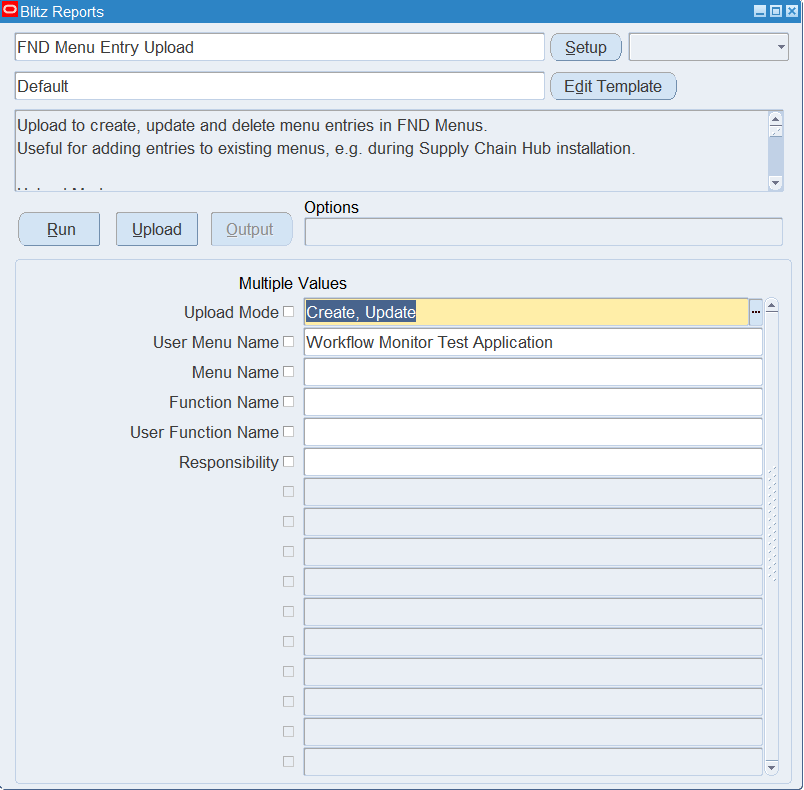
Open FND Menu Entry Upload in Blitz Report and set the parameters:
| Parameter | Meaning |
|---|---|
| Upload Mode | Create (default) opens an empty sheet for new entries; Create, Update downloads the existing entries for editing and lets you add new ones. |
| User Menu Name | Downloads the entries of this menu, by its user menu name. |
| Menu Name | Downloads the entries of this menu, by its internal name (e.g. INV_NAVIGATE). |
| Function Name | Downloads the entries that call this function, by its internal function name. |
| User Function Name | Downloads the entries that call this function, by its user function name. |
| Responsibility | Downloads the entries of the main menu of this responsibility (not of its sub-menus). |
Step 2 – Run to download the Excel file
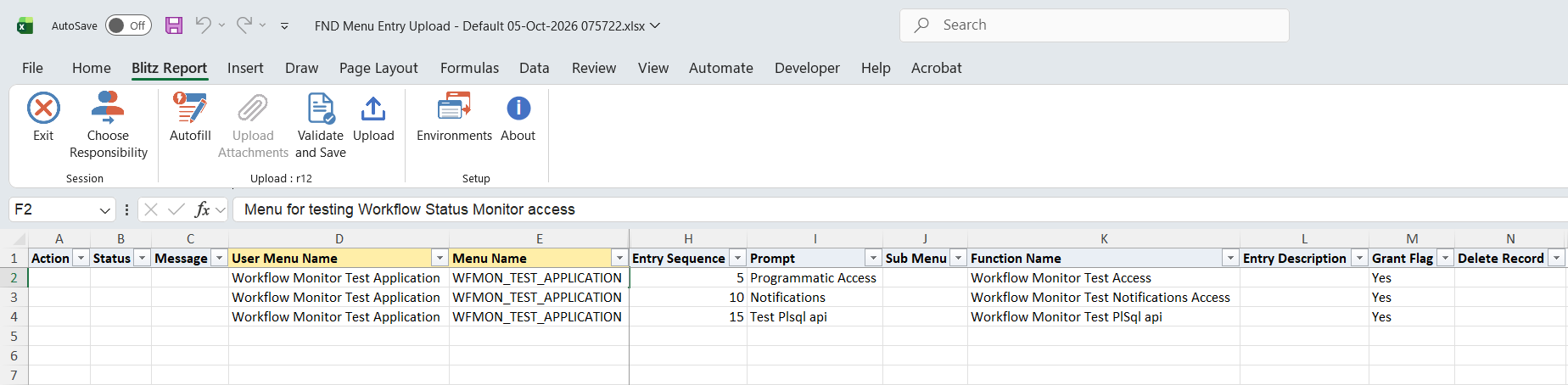
Click Run. The Excel file downloads and opens with one row per existing menu entry, or an empty sheet in Create mode.
Step 3 – Enter or change the menu entries
A menu entry is identified by its menu and Entry Sequence. On a downloaded row, change the Prompt, Sub Menu, Function Name or Entry Description. Changing the Entry Sequence of a downloaded row does not move the entry: it creates a new entry with that sequence and leaves the original in place.
To add an entry, enter the User Menu Name or Menu Name (the other one fills in), a Prompt, and a Sub Menu, a Function Name, or both. Entry Sequence defaults to the next multiple of 10 after the menu’s existing entries; if you clear it, the next free number is used. Grant Flag defaults to Yes, so the function is granted through the menu. Menu Description and Type show the menu’s details for reference and are not uploaded.
To remove an entry, set Delete Record to Yes on its row.
Step 4 – Validate and Save
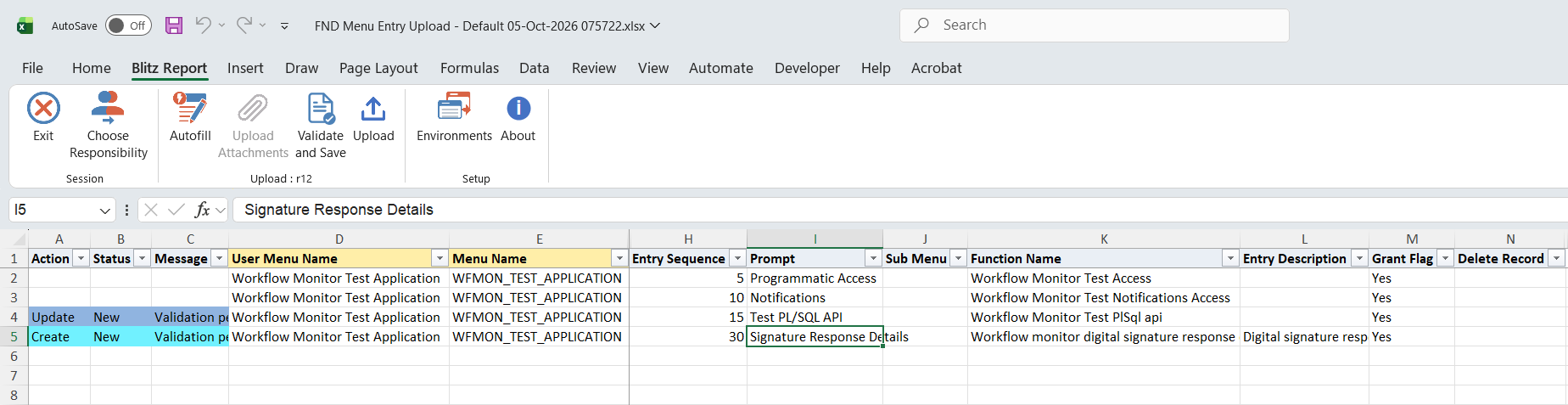
Click Validate and Save. This checks for missing required values and saves the file. Correct any rows it flags before uploading.
Step 5 – Upload the file
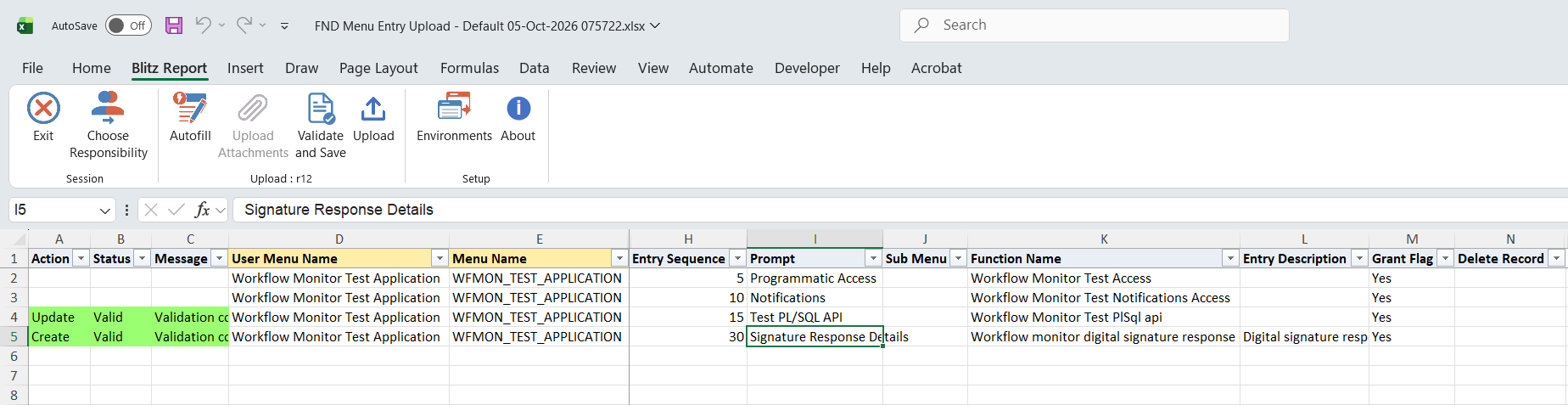
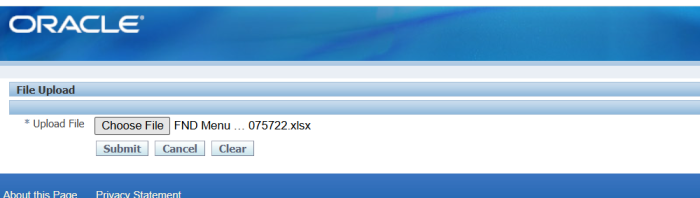
In Blitz Report click Upload and select the saved file. This submits the upload request, which creates, updates or deletes each menu entry.
Step 6 – Review the result report
When the request completes, a result report opens listing every uploaded row with its status and message.

What’s produced
- Menu entries created, updated or deleted on the chosen menus.
- A result report listing every row with a status (success or error) and a message.
Common questions
How does it know whether to create or update an entry?
By the menu and Entry Sequence. If the menu already has an entry with that sequence it is updated; otherwise a new entry is created.
Do I need both a Sub Menu and a Function Name?
No. An entry needs at least one of them; a row with neither is rejected.
Can I change the order of the entries?
Not by editing the Entry Sequence of a downloaded row, which adds a new entry. Delete the old entry with Delete Record = Yes and add it again with the new sequence.
Can it create a menu or a function?
No. The menu, sub-menus and functions must already exist; this upload only maintains the entries of existing menus.
Troubleshooting
| Message | Cause | What to do |
|---|---|---|
| Either sub menu or function must be specified. | The row has neither a Sub Menu nor a Function Name. | Enter a Sub Menu or a Function Name. |
| Menu entry not found for deletion. | Delete Record is Yes, but the menu has no entry with this Entry Sequence. | Download the menu in Create, Update mode and set Delete Record on the downloaded row. |
SQL 32 lines
select null action_, null status_, null message_, null request_id_, null modified_columns_, fmv.user_menu_name, fmv.menu_name, fmv.description menu_description, xxen_util.meaning(fmv.type,'MENU_TYPE',0) type, fme.entry_sequence, fmet.prompt, fmv2.user_menu_name sub_menu, fffv.user_function_name function_name, fmet.description entry_description, xxen_util.yes(fme.grant_flag) grant_flag, to_char(null) delete_record, row_number() over (order by fmv.menu_name, fme.entry_sequence) upload_row from fnd_menus_vl fmv, fnd_menu_entries fme, fnd_menu_entries_tl fmet, fnd_menus_vl fmv2, fnd_form_functions_vl fffv where 1=1 and fmv.menu_id=fme.menu_id and fme.menu_id=fmet.menu_id and fme.entry_sequence=fmet.entry_sequence and fmet.language=userenv('lang') and fme.sub_menu_id=fmv2.menu_id(+) and fme.function_id=fffv.function_id(+) |
Parameters 6
| Parameter | Type | List of values SQL | |
|---|---|---|---|
| Upload Mode | LOV |
| |
| User Menu Name | LOV |
| |
| Menu Name | LOV |
| |
| Function Name | LOV |
| |
| User Function Name | LOV |
| |
| Responsibility | LOV |
|