
PA Event Upload
1 Purpose
2 Process Parameters
3 Pre-defined Templates
4 Excel Upload Template
5 Upload Process
6 Upload Process Concurrent Requests
Overview of the PA Project Event Upload process
1. Purpose
The PA Project Event Upload allows users to create new Project Billing and Revenue Events in excel and upload these into Oracle EBS Projects module.
Billing and Revenue events can be uploaded against the Projects belonging to the Operating Units accessible to the responsibility in which the PA Project Event Upload process is run.
This upload does not support the update of existing project events.
2. Process Parameters
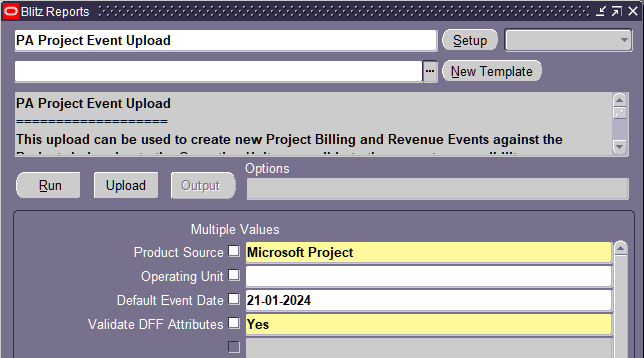
| Product Source | Mandatory. The Product Source to be used against the uploaded Project Events |
| Operating Unit | Optional. If the Operating Unit parameter is specified, then the upload will be restricted to Projects within the specified Operating Unit only. |
| Default Event Date | Optional. This date will default as the event date in the generated excel template but can be overridden. |
| Validate DFF Attributes | Mandatory. Default Value: Yes This determines if Oracle should validate the DFF Attributes Rules:
If you specify No to this parameter, the DFF Validations will be bypassed any DFF Attribute values specified in the Excel template will not be loaded. The Oracle API will assign null values to the event attribute columns. |
Note: The parameter values specified when you run the PA Project Event process to generate the excel are applicable to the upload of that excel as well.
3. Pre-defined Templates
The upload has one pre-defined template, Default, which contains all columns except the descriptive flexfield attributes. Users can create their own templates as per their requirements, for example to include the descriptive flexfield attribute columns.
4. Excel Upload Template
The Default template contains all columns except the descriptive flexfield attributes (Attribute Category, Attribute1 to Attribute10), which are available in a user-defined template.





The Action, Status and Message columns are used by the upload process to indicate the current status of the row. For this upload, the Action will always show as Create. The possible values for these columns are shown below:
| Before Upload | |
| Entering data into a new row |  |
| On Save – If there is a validation error (like missing required Data |  The message will indicate the reason the validation failed. Note: If you attempt to upload an excel file contain rows with an Invalid Status, these rows will be ignored by the upload process. |
| On Save – If validation is successful | 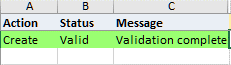 |
| After Upload | |
| Row was upload successfully | 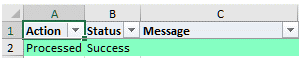 |
| Row was not processed successfully |  The message will indicate the reason the upload of this row failed. |
The columns in the Excel template whose heading are highlighted in Yellow are required columns which must have a value specified before you can upload the row:

The columns that show a dropdown symbol to the right of the column, have List of Values (LOV) associated with them. The LOV can be activated by double clicking in the cell, or by partially entering a value and tabbing out of the cell:

Some of the cells in the Excel will default automatically based on the data entered in other cells.
For example:
- The event date will default automatically from the Default Event Date parameter specified when the process was run.
- The Project Name, Project Functional Currency, and Project Currency will default automatically from the selected Project.
The Task Name will default automatically from the selected Task.
5. Upload Process
This section outlines the overall process for performing a Blitz Upload
| Step | Initiated From | Action |
| 1 | EBS Blitz Report Form | Generate the Upload Excel Template.
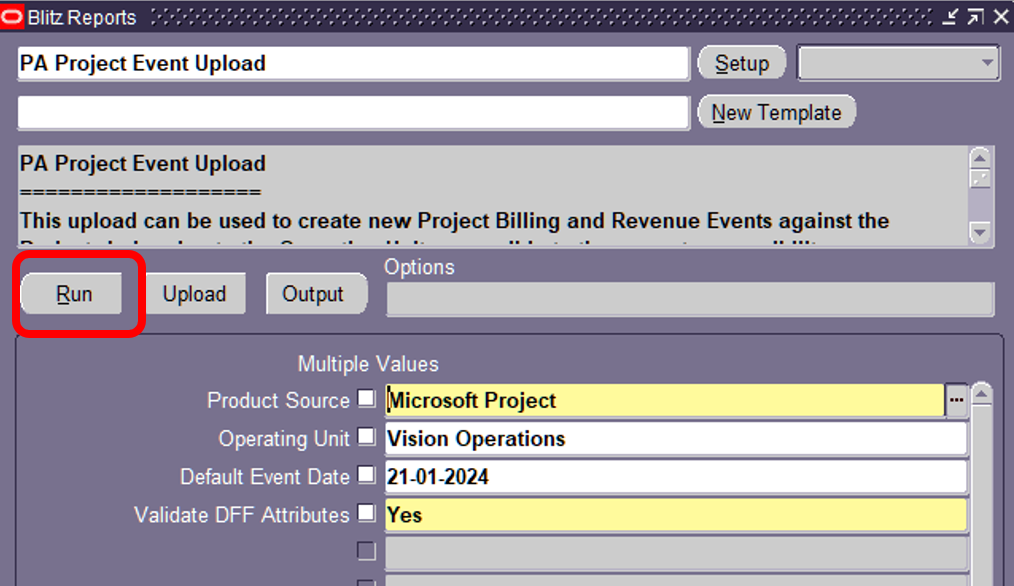 This will generate the excel template in which the user will enter the date to be uploaded. |
| 2 | Excel | Enter the data as required into the generated Excel. After data entry is complete, click Validate and Save. All rows must show the status Valid: 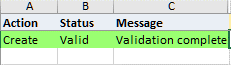 |
| 3 | EBS Blitz Report Form | Initiate the Upload Process.
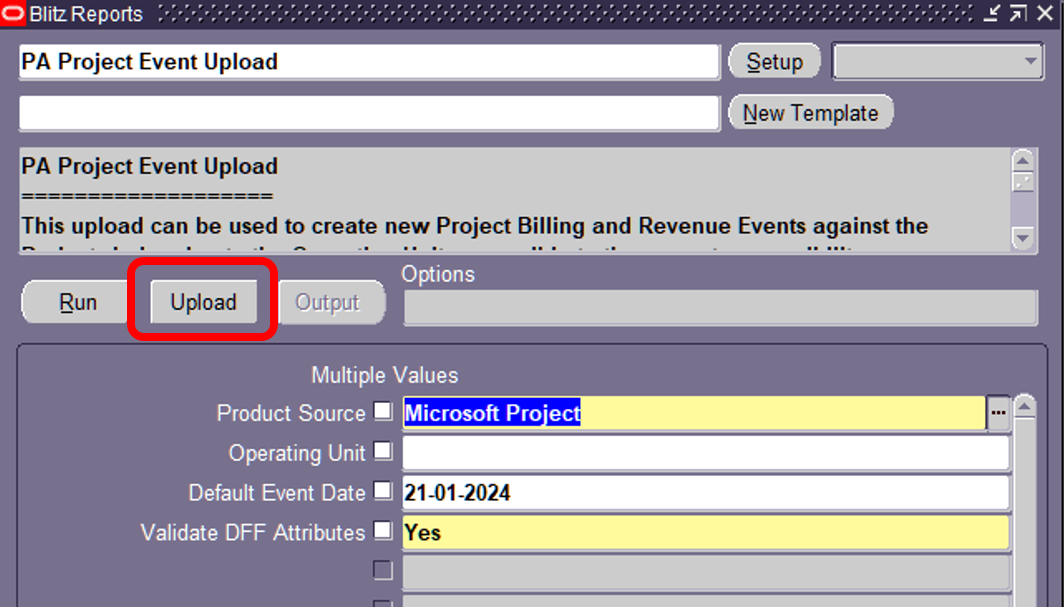 This will open a browser window where you can upload the Excel file to the server for processing. |
| 4 | Browser Window | Upload the Excel File to the server.
   |
| 5 | Excel | Review the Upload results.

 Note: Any errors can be corrected in this new excel, and the upload process repeated using this excel instead of the original. |
6. Upload Process Concurrent Requests
Blitz Reports and Blitz Upload are run as concurrent requests. For a Blitz Upload Process, 3 concurrent requests are submitted. One when the process is initially run to generate the template, and two when the upload process is initiated.

| Stage | Purpose | Request Output |
| Initial Run | Program: Blitz Report Download data (applicable to uploads that allow updates) and generate the excel template. | The excel template to be used to enter/update the date for upload |
| Upload | Program: Blitz Upload Performs the Upload processing of the data into Oracle EBS | None. The log file of this request will show detailed debugging information from the upload process if the profile option Blitz Report Debug is set to Yes. Note: When profile option Blitz Report Debug is set to Yes, the log file of each request is opened automatically instead of the output file. In this case use View Output of the request in order to open the generated excels manually. |
| Upload | Program: Blitz Report Generates the excel containing the results of the Upload | The excel template containing the rows uploaded and the status of the upload process for each row uploaded. |
select null action_, null status_, null message_, null request_id_, null modified_columns_, to_char(pe.event_id) row_id, haouv.name operating_unit, pp.segment1 project_number, pp.name project_name, pt.task_number, pt.task_name, paa.agreement_num agreement_number, paa.agreement_type, pcv.customer_name, pcv.customer_number, xxen_util.meaning(pe.pm_product_code,'PM_PRODUCT_CODE',275) product_source, pe.pm_event_reference event_reference, pe.event_type, pet.event_type_classification, pe.completion_date event_date, pe.event_num event_number, haouv2.name organization, pe.description, pe.bill_trans_currency_code currency, pe.bill_trans_bill_amount bill_amount, pe.bill_trans_rev_amount revenue_amount, xxen_util.meaning( pe.bill_hold_flag,'YES_NO',0) bill_hold_flag, xxen_util.meaning( pe.revenue_hold_flag,'YES_NO',0) revenue_hold_flag, xxen_util.meaning( pe.adjusting_revenue_flag,'YES_NO',0) adjusting_revenue_flag, pe.bill_group, -- pp.projfunc_currency_code proj_func_currency, pct1.user_conversion_type proj_func_rate_type, pe.projfunc_rate_date proj_func_rate_date, pe.projfunc_exchange_rate proj_func_exchange_rate, pp.project_currency_code project_currency, pct2.user_conversion_type project_rate_type, pe.project_rate_date, pe.project_exchange_rate, pct3.user_conversion_type funding_rate_type, pe.funding_rate_date, pe.funding_exchange_rate, -- pe.quantity_billed bill_quantity, (select mp.organization_code from mtl_parameters mp where mp.organization_id=pe.inventory_org_id ) inventory_organization, (select msiv.concatenated_segments from mtl_system_items_vl msiv where msiv.organization_id=pe.inventory_org_id and msiv.inventory_item_id=pe.inventory_item_id ) inventory_item, pe.uom_code uom, pe.unit_price, -- pe.reference1, pe.reference2, pe.reference3, pe.reference4, pe.reference5, pe.reference6, pe.reference7, pe.reference8, pe.reference9, pe.reference10, -- pe.attribute_category, pe.attribute1, pe.attribute2, pe.attribute3, pe.attribute4, pe.attribute5, pe.attribute6, pe.attribute7, pe.attribute8, pe.attribute9, pe.attribute10, -- pe.event_id, -- null delivery_event, (select ppe.name from pa_proj_elements ppe where ppe.proj_element_id=pe.deliverable_id and ppe.object_type='PA_DELIVERABLES' ) deliverable, (select ppe.name from pa_proj_elements ppe where ppe.proj_element_id=pe.action_id and ppe.object_type='PA_ACTIONS' ) action, -- 'PA_EVENTS_DESC_FLEX' desc_flexfield_name, to_number(null) upload_row from pa_events pe, pa_projects pp, pa_tasks pt, hr_all_organization_units_vl haouv, -- ou pa_all_organizations pao, hr_all_organization_units_vl haouv2, -- organization pa_event_types pet, pa_agreements paa, pa_customers_v pcv, pa_conversion_types_v pct1, pa_conversion_types_v pct2, pa_conversion_types_v pct3 where :p_pm_product_code=:p_pm_product_code and nvl(:p_operating_unit,'Y')=nvl(:p_operating_unit,'Y') and nvl(:p_validate_dff,'Y')=nvl(:p_validate_dff,'Y') and 1=1 and haouv.organization_id in (select mgoat.organization_id from mo_glob_org_access_tmp mgoat union select fnd_global.org_id from dual where fnd_release.major_version=11) and pe.project_id=pp.project_id and pp.org_id=haouv.organization_id and pe.task_id=pt.task_id(+) and pe.organization_id=pao.organization_id and pao.org_id=haouv.organization_id and pao.pa_org_use_type='EXPENDITURES' and pao.organization_id=haouv2.organization_id and pe.event_type=pet.event_type and pe.agreement_id=paa.agreement_id(+) and paa.customer_id=pcv.customer_id(+) and pe.projfunc_rate_type=pct1.conversion_type(+) and pe.project_rate_type=pct2.conversion_type(+) and pe.funding_rate_type=pct3.conversion_type(+) |
| Parameter Name | SQL text | Validation | |
|---|---|---|---|
| Product Source | LOV | ||
| Operating Unit | LOV | ||
| Default Event Date |
| Date | |
| Validate DFF Attributes | LOV Oracle |