
INV Physical Inventory Upload

Description
INV Physical Inventory Upload creates and updates Oracle Inventory physical inventory definitions from Excel: the header settings, approval tolerances and count options, and the list of subinventories to be counted. It can optionally freeze each uploaded physical inventory after the upload, which takes the on-hand snapshot.
When to use it
- Define several new physical inventories, in one or more organizations, at once.
- Set approval rules and tolerances consistently across physical inventories.
- Maintain the list of subinventories to be counted: add, remove or replace subinventories, or switch a physical inventory to all subinventories.
- Mass-update existing physical inventories that are not yet frozen.
- Define and freeze physical inventories in one step.
Before you start
- You are signed in to a responsibility with access to the inventory organizations.
- For updates, the physical inventory exists and has not been frozen. Frozen physical inventories are not downloaded and cannot be changed.
- The subinventories to be counted are active and quantity tracked in the organization.
Choose a template
| Template | Use it for |
|---|---|
| Default (default) | Releases where physical inventories have serial count options (R12.2). Includes the required Serial Count Option and Serial Detail Option columns. |
| R12.1 Default Template | R12.1, which has no serial count options. Same columns without Serial Count Option and Serial Detail Option. The screenshots below are taken with this template. |
Step 1 – Set the parameters
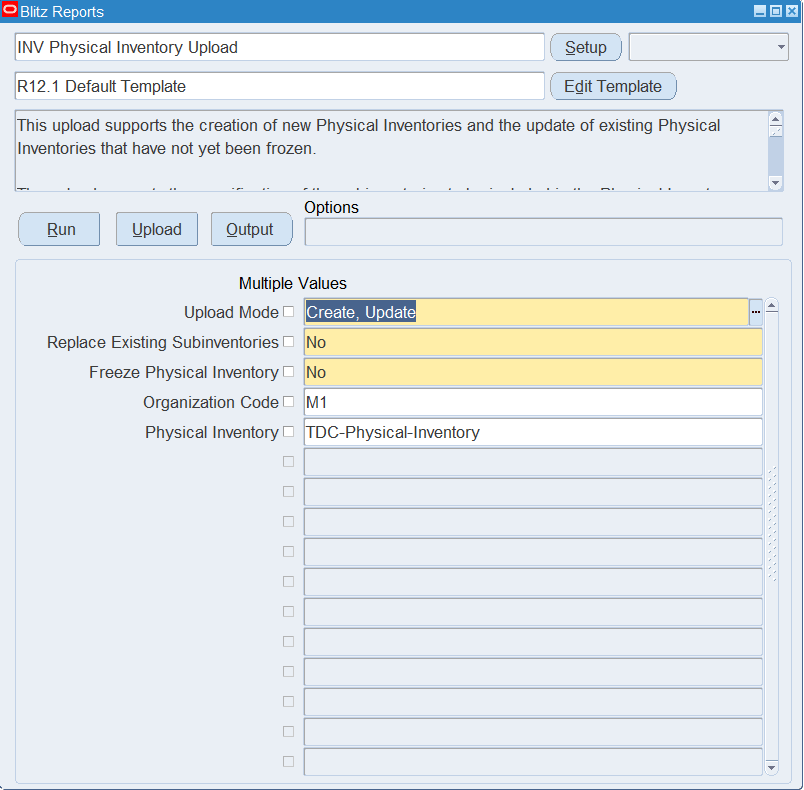
Open INV Physical Inventory Upload in Blitz Report, choose the template and set the parameters:
| Parameter | Meaning |
|---|---|
| Upload Mode | Create (default) opens an empty sheet for new physical inventories; Create, Update downloads existing physical inventories that are not yet frozen, one row per subinventory, and lets you add new ones. |
| Replace Existing Subinventories | Yes replaces the whole subinventory list of each updated physical inventory with the subinventories in the file. No (default) adds the subinventories in the file and removes only those marked Delete Subinventory. |
| Freeze Physical Inventory | Yes freezes each uploaded physical inventory after the upload. Default No. |
| Organization Code | The inventory organization to download. Defaults to your current inventory organization. |
| Physical Inventory | Downloads only this physical inventory. Leave empty to download all physical inventories of the organization that are not yet frozen. |
Step 2 – Run to download the Excel file
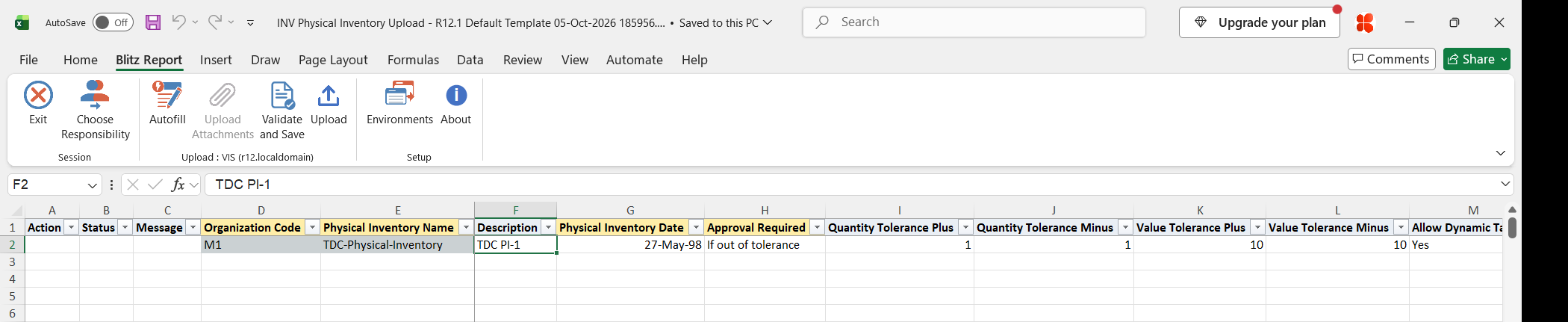
Click Run. The Excel file downloads and opens with the selected physical inventories, or an empty sheet in Create mode. A physical inventory with a subinventory list has one row per subinventory.
Step 3 – Enter or change the physical inventories
For a new physical inventory enter the Organization Code, Physical Inventory Name, Description, Physical Inventory Date and Approval Required (Always, Never or If out of tolerance). With If out of tolerance, enter at least one of Quantity Tolerance Plus, Quantity Tolerance Minus, Value Tolerance Plus and Value Tolerance Minus; with Always or Never leave them empty. Allow Dynamic Tags, Exclude Zero Balance, Exclude Negative Balance and All Subinventories are Yes or empty.
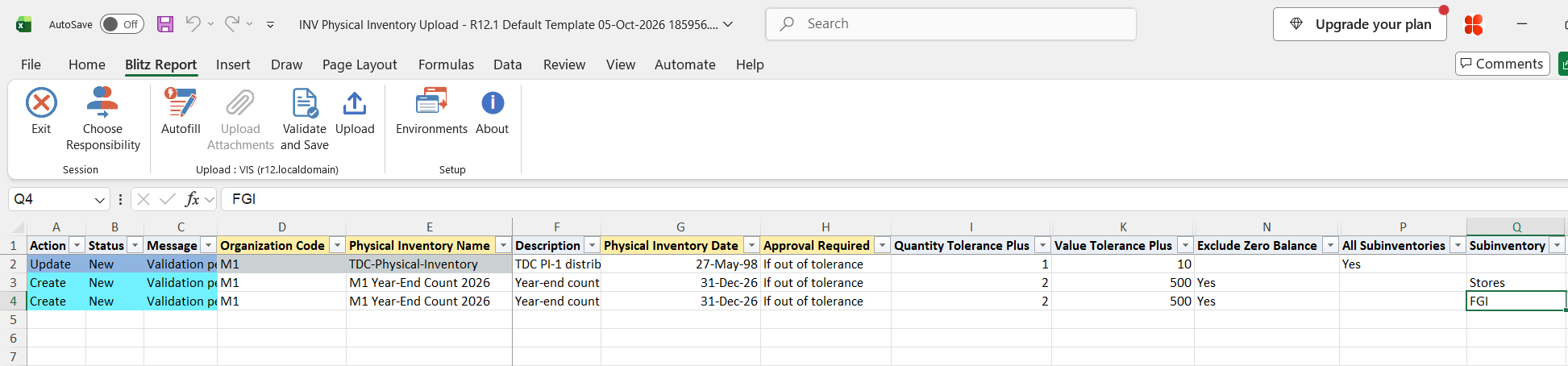
To count specific subinventories, leave All Subinventories empty and enter one row per Subinventory, repeating the physical inventory columns on each row; keep the rows of one physical inventory together. To count all subinventories, set All Subinventories to Yes and leave Subinventory empty.
On downloaded rows, Organization Code and Physical Inventory Name cannot be changed. Change the other columns, add a row with a new Subinventory, or set Delete Subinventory to Yes to remove a subinventory from the list. Setting All Subinventories to Yes on an existing physical inventory removes its subinventory list. When you add a row with the Organization Code and Physical Inventory Name of an existing physical inventory, its other columns fill in from that physical inventory.
Step 4 – Validate and Save
Click Validate and Save. This checks for missing required values and saves the file. Correct any rows it flags before uploading.
Step 5 – Upload the file
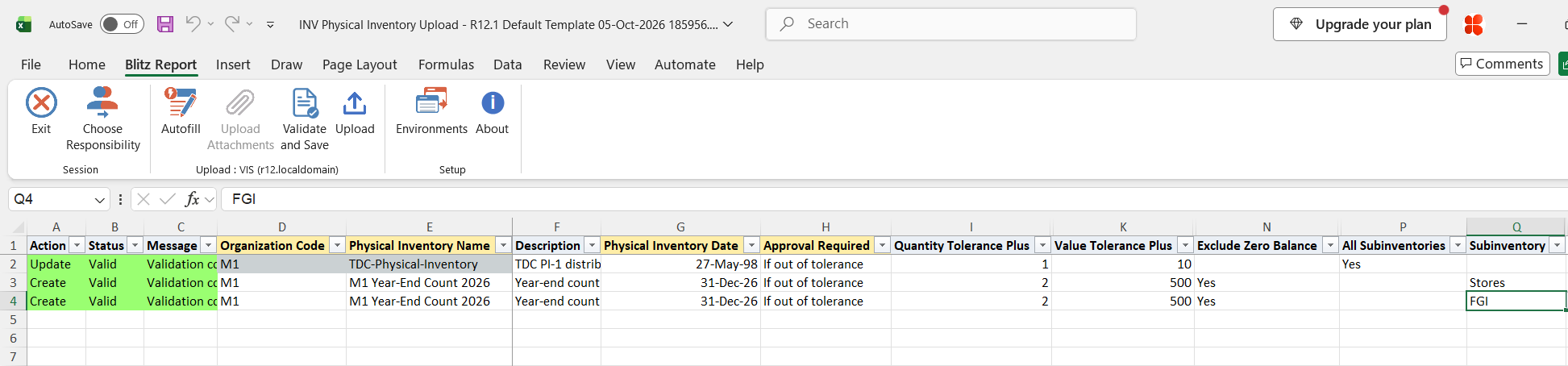
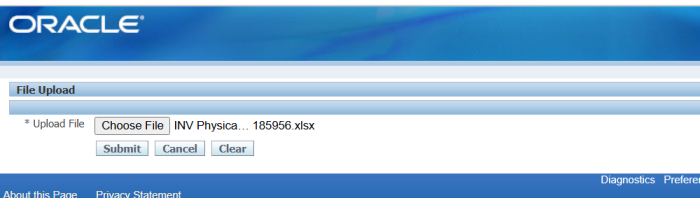
In Blitz Report click Upload and select the saved file. This submits the upload request, which creates or updates each physical inventory and its subinventories. With Freeze Physical Inventory = Yes, it then submits Freeze physical inventory for each uploaded physical inventory that had no errors on any of its rows, and waits for it to complete.
Step 6 – Review the result report
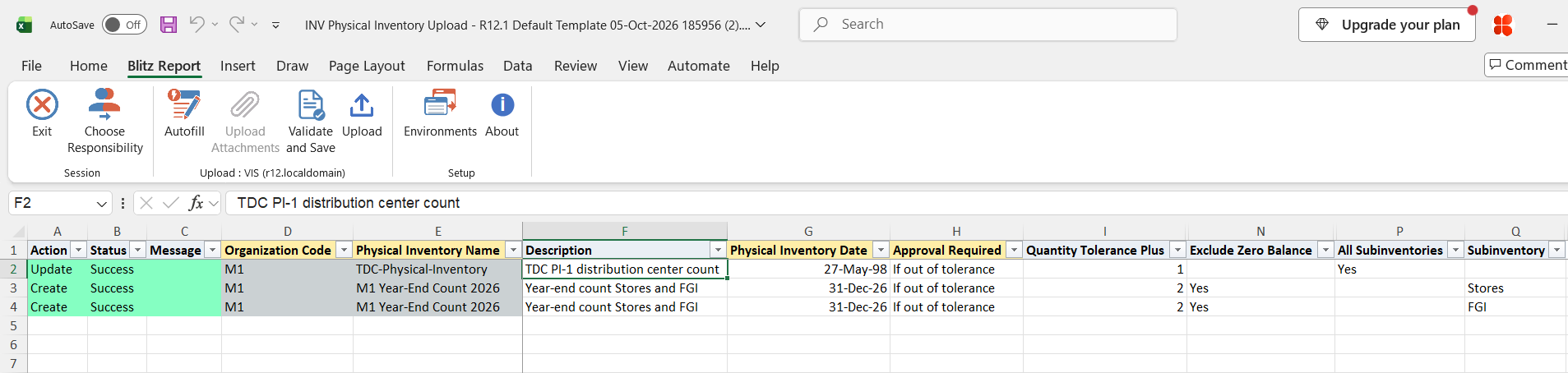
When the request completes, a result report opens listing every uploaded row with its status and message. After a freeze, the Snapshot Complete and Freeze Date columns show the result.
What’s produced
- Created and updated physical inventories with their subinventory lists, optionally frozen with the on-hand snapshot taken.
- A result report listing every row with a status (success or error) and a message.
Common questions
Does this upload enter tag counts?
No. It defines the physical inventory and can freeze it. Generate tags in Oracle Inventory and enter counts with the INV Physical Inventory Tag Count Upload.
What does Freeze Physical Inventory = Yes do?
After the upload it runs Freeze physical inventory for each uploaded physical inventory without errors, which takes the on-hand snapshot. A frozen physical inventory can no longer be changed by this upload.
What is the difference between Replace Existing Subinventories Yes and No?
Yes deletes the existing subinventory list of each updated physical inventory and replaces it with the subinventories in the file. No keeps the existing list, adds the subinventories in the file and removes only the rows marked Delete Subinventory.
Can I rename a physical inventory or move it to another organization?
No. Both are fixed on downloaded rows. A row with a different name creates a new physical inventory.
Why does Validate and Save report missing Serial Count Option and Serial Detail Option?
The Default template requires both. On R12.1, where physical inventories have no serial count options, use the R12.1 Default Template.
Why is my physical inventory not downloaded?
Only physical inventories that are not yet frozen, in organizations your responsibility can access, are downloaded.
Troubleshooting
| Message | Cause | What to do |
|---|---|---|
| Missing values for required field/s: Serial Count Option,Serial Detail Option | The Default template is used on R12.1, or the serial options were left empty. | Fill both columns, or use the R12.1 Default Template on R12.1. |
| Physical Inventory cannot be updated after snapshot is complete | The physical inventory is already frozen. | Create a new physical inventory if changes are needed. |
| Tolerances cannot be entered for the specified Approval Required option | Tolerances entered while Approval Required is Always or Never. | Clear the tolerance columns, or set Approval Required to If out of tolerance. |
| You must have at least one approval tolerance specified | Approval Required is If out of tolerance and all four tolerances are empty. | Enter at least one tolerance. |
| Negative Tolerances are not permitted | A tolerance is below zero. | Enter zero or a positive value. |
| Serial Count Option is required / Serial Detail Option is required | On R12.2 a serial option is empty. | Select both serial options. |
| Subinventory is not permitted when All Subinventories is selected | A Subinventory is entered while All Subinventories is Yes. | Clear the Subinventory, or clear All Subinventories. |
| Subinventory is required when All Subinventories is not selected | All Subinventories is empty and the row has no Subinventory. | Enter a Subinventory, or set All Subinventories to Yes. |
| Physical Inventory Upload failed in prior row | An earlier row of the same physical inventory failed. | Fix the error on the first row of that physical inventory and upload again. |
| Physical Inventory is locked for update | Another user or process is changing the physical inventory. | Upload again later. |
| Freeze Physical Inventory request not submitted due to “…” | The freeze request could not be submitted. | Correct the cause in the message and freeze the physical inventory in Oracle Inventory. |
SQL 61 lines
select null action_, null status_, null message_, null request_id_, null modified_columns_, :p_replace_subinventories replace_subinventories, :p_freeze_physical_inventory freeze_physical_inventory, to_number(null) upload_row, to_number(null) physical_inventory_row_id, -- Physical Inventory mp.organization_code, mpiv.physical_inventory_name, mpiv.description, mpiv.physical_inventory_date, decode(mpiv.approval_required,1,'Always',2,'Never',3,'If out of tolerance',mpiv.approval_required) approval_required, mpiv.approval_tolerance_pos quantity_tolerance_plus, mpiv.approval_tolerance_neg quantity_tolerance_minus, mpiv.cost_variance_pos value_tolerance_plus, mpiv.cost_variance_neg value_tolerance_minus, &lp_serial_control_cols xxen_util.meaning(decode(mpiv.dynamic_tag_entry_flag,1,'Y',null),'YES_NO',0) allow_dynamic_tags, xxen_util.meaning(decode(mpiv.exclude_zero_balance,'Y','Y',null),'YES_NO',0) exclude_zero_balance, xxen_util.meaning(decode(mpiv.exclude_negative_balance,'Y','Y',null),'YES_NO',0) exclude_negative_balance, xxen_util.meaning(decode(mpiv.all_subinventories_flag,1,'Y',null),'YES_NO',0) all_subinventories, -- DFF Attributes xxen_util.display_flexfield_context(401,'MTL_PHYSICAL_INVENTORIES',mpiv.attribute_category) attribute_category, xxen_util.display_flexfield_value(401,'MTL_PHYSICAL_INVENTORIES',mpiv.attribute_category,'ATTRIBUTE1',mpiv.row_id,mpiv.attribute1) phys_inv_attribute1, xxen_util.display_flexfield_value(401,'MTL_PHYSICAL_INVENTORIES',mpiv.attribute_category,'ATTRIBUTE2',mpiv.row_id,mpiv.attribute2) phys_inv_attribute2, xxen_util.display_flexfield_value(401,'MTL_PHYSICAL_INVENTORIES',mpiv.attribute_category,'ATTRIBUTE3',mpiv.row_id,mpiv.attribute3) phys_inv_attribute3, xxen_util.display_flexfield_value(401,'MTL_PHYSICAL_INVENTORIES',mpiv.attribute_category,'ATTRIBUTE4',mpiv.row_id,mpiv.attribute4) phys_inv_attribute4, xxen_util.display_flexfield_value(401,'MTL_PHYSICAL_INVENTORIES',mpiv.attribute_category,'ATTRIBUTE5',mpiv.row_id,mpiv.attribute5) phys_inv_attribute5, xxen_util.display_flexfield_value(401,'MTL_PHYSICAL_INVENTORIES',mpiv.attribute_category,'ATTRIBUTE6',mpiv.row_id,mpiv.attribute6) phys_inv_attribute6, xxen_util.display_flexfield_value(401,'MTL_PHYSICAL_INVENTORIES',mpiv.attribute_category,'ATTRIBUTE7',mpiv.row_id,mpiv.attribute7) phys_inv_attribute7, xxen_util.display_flexfield_value(401,'MTL_PHYSICAL_INVENTORIES',mpiv.attribute_category,'ATTRIBUTE8',mpiv.row_id,mpiv.attribute8) phys_inv_attribute8, xxen_util.display_flexfield_value(401,'MTL_PHYSICAL_INVENTORIES',mpiv.attribute_category,'ATTRIBUTE9',mpiv.row_id,mpiv.attribute9) phys_inv_attribute9, xxen_util.display_flexfield_value(401,'MTL_PHYSICAL_INVENTORIES',mpiv.attribute_category,'ATTRIBUTE10',mpiv.row_id,mpiv.attribute10) phys_inv_attribute10, xxen_util.display_flexfield_value(401,'MTL_PHYSICAL_INVENTORIES',mpiv.attribute_category,'ATTRIBUTE11',mpiv.row_id,mpiv.attribute11) phys_inv_attribute11, xxen_util.display_flexfield_value(401,'MTL_PHYSICAL_INVENTORIES',mpiv.attribute_category,'ATTRIBUTE12',mpiv.row_id,mpiv.attribute12) phys_inv_attribute12, xxen_util.display_flexfield_value(401,'MTL_PHYSICAL_INVENTORIES',mpiv.attribute_category,'ATTRIBUTE13',mpiv.row_id,mpiv.attribute13) phys_inv_attribute13, xxen_util.display_flexfield_value(401,'MTL_PHYSICAL_INVENTORIES',mpiv.attribute_category,'ATTRIBUTE14',mpiv.row_id,mpiv.attribute14) phys_inv_attribute14, xxen_util.display_flexfield_value(401,'MTL_PHYSICAL_INVENTORIES',mpiv.attribute_category,'ATTRIBUTE15',mpiv.row_id,mpiv.attribute15) phys_inv_attribute15, -- Subinventories mps.subinventory, null delete_subinventory, -- xxen_util.meaning(decode(mpiv.snapshot_complete,1,'Y',null),'YES_NO',0) snapshot_complete, mpiv.freeze_date, -- Ids mpiv.physical_inventory_id from mtl_physical_inventories_v mpiv, mtl_physical_subinventories mps, mtl_parameters mp where 1=1 and mpiv.physical_inventory_id = mps.physical_inventory_id (+) and mpiv.organization_id = mps.organization_id (+) and mpiv.organization_id = mp.organization_id and mpiv.snapshot_complete = 2 and -- No mpiv.organization_id in (select xroa.id from xxen_report_org_access xroa where xroa.access_type='INV') |
Parameters 5
| Parameter | Type | List of values SQL | |
|---|---|---|---|
| Upload Mode | LOV |
| |
| Replace Existing Subinventories | LOV Oracle | ||
| Freeze Physical Inventory | LOV Oracle | ||
| Organization Code | LOV |
| |
| Physical Inventory | LOV |
|