
PA Budget Upload
1 Process Parameters
2 Pre-defined Templates
3 Excel Upload Template
4 Specific points to note regarding the PA Project Budget Upload Excel Template
5 Upload Process
6 Upload Process Concurrent Requests
Overview of the PA Project Budget Upload process
The PA Project Budget Upload supports the creation/update of standard project budgets.
At this stage it does not support the creation/update of Financial Plan Budgets.
The PA Project Budget Upload allows users to:
Create new working budgets.
When creating a new working budget, any existing working budget for the specified Project and Budget Type will be overwritten.
The upload allows the user to create a working budget either by entering the data directly into an empty upload excel file, or by copying a prior version of the budget and modifying this in the upload excel file.
Update existing working budgets.
This option allows for the update of an existing working budget. In this mode the existing budget is retained, and the update mode allows for individual budget lines to be added, updated, and/or deleted from the existing working budget.
Additionally, the upload allows users to Baseline a Working Budget.
Working Budgets can be uploaded against the Projects belonging to the Operating Units accessible to the responsibility in which the PA Project Budget Upload process is run.
1. Process Parameters


| Upload Mode | Mandatory. Create When creating a new working budget, any existing working budget for the specified Project and Budget Type will be overwritten. The upload allows the user to create a working budget either by entering the data directly into an empty upload excel file, or by copying a prior version of the budget and modifying this in the upload excel file. Update This option allows for the update of an existing working budget. In this mode the existing budget is retained, and the update mode allows for individual budget lines to be added, updated, and/or deleted from the existing working budget. |
| Product Source | Mandatory. The Product Source to be used against the uploaded Project Budgets |
| Copy Existing Budget | Optional. Only Applies to Create Mode. Enables Create from Copy Mode. By entering Yes in this parameter, the user can create a new working budget from a copy of a prior budget version. Setting this parameter to yes allows the user to download existing budget data in Create Mode by specifying the project, budget type, and budget version parameters. Leaving this parameter blank in Create Mode will result in a blank upload excel template being generated. This parameter cannot be entered in Update Mode. |
| Operating Unit | Optional. When downloading Budget Data, this parameter will restrict the download to budgets within the specified Operating Units. If the Operating Unit parameter is specified here, then the upload excel template will be restricted to Projects within the specified Operating Unit only. |
| Project Number | Optional. |
| Project Name | Optional. |
| Budget Type | Optional. |
| Budget Version | Not applicable to Update Mode. Required in Create from CopyWhen creating a new working budget from a copy of a prior budget version, the user must select the prior version of the budget they want to copy.This can be any prior baselined version, or the existing working version: 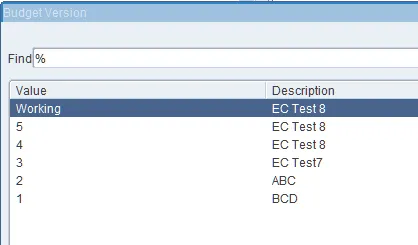 |
| Task Number | Optional. |
| Task Name | Optional. |
| Resource Alias | Optional. |
| Period From | Optional. |
| Period To | Optional. |
| Budget Line Start Date | Optional. |
| Budget Line End Date | Optional. |
| Budget Line Active On Date | Optional. Restricts the download to budget lines whose start and end dates include this date. |
Note: The following parameters determines the order in which the downloaded budget lines will appear in the upload excel template.
By default, the budget lines are sorted within the Budget by (Sort Precedence1) Task Number, (Sort Precedence 2) Budget Line Start Date, (Sort Precedence 3) Resource Alias.
This sort order can be amended by setting the following parameters as per the user’s preference.
Options are:
- Task Number
- Task Name
- Date
- Resource Alias
| Sort Precedence 1 | Required. Default: Task Number |
| Sort Precedence 2 | Required. Default: Date |
| Sort Precedence 3 | Required. Default: Resource Alias |
2. Pre-defined Templates
The upload has one pre-defined template, Default, which contains all columns except the Budget Header and Budget Line descriptive flexfield columns. Users can create their own templates as per their requirements, for example to include the descriptive flexfield columns.
3. Excel Upload Template
The Default template contains the budget header and budget line columns. Users can create their own templates as per their requirements.
Upload Status and Budget Header Columns:

Budget Line Columns:

Budget Header and Budget Line Descriptive Flexfield Columns (available in a user-defined template):


The Action, Status and Message columns are used by the upload process to indicate the current status of the row. In Create mode the Action is always Create. In Update mode the Action is Update for changed or deleted downloaded budget lines, and Create for new budget lines. The possible values for these columns are shown below:
| Before Upload | |
| Entering data into a new row |  |
| On Save – If there is a validation error (like missing required Data |  The message will indicate the reason the validation failed. Note: If you attempt to upload an excel file contain rows with an Invalid Status, these rows will be ignored by the upload process. |
| On Save – If validation is successful | 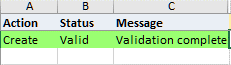 |
| After Upload | |
| Row was upload successfully | 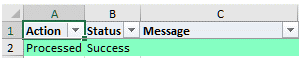 |
| Row was not processed successfully |  The message will indicate the reason the upload of this row failed. |
The columns in the Excel template whose heading are highlighted in Yellow are required columns which must have a value specified before you can upload the row:

In some cases, some columns not highlighted as required, will be required dependent on the other data selected. For such fields that are required/optional dependent on the other data entered will be validated during the upload.
The columns that show a dropdown symbol to the right of the column, have List of Values (LOV) associated with them. The LOV can be activated by double clicking in the cell, or by partially entering a value and tabbing out of the cell:

Some of the cells in the Excel will default automatically based on the data entered in other cells.
For example:
- The Project Name will default automatically from the selected Project Number.
- The Entry Method and Resource List will default automatically once the Project Number and Budget Type are entered.
- The Task Name will default automatically from the selected Task Number.
- The Unit of Measure will default automatically once the Resource Alias is specified.
4. Specific points to note regarding the PA Project Budget Upload Excel Template
1. To Baseline a working Budget on upload, set the Baseline Budget column to Yes against the Budget to be baselined:

2. In Update Mode, to delete a budget line from a Budget, set the Delete This Line column to Yes against the budget lines to be deleted:

3. If you use hierarchical resource lists, then the Resource Alias List of Values will show the complete path of the resource alias within the hierarchy separated by the pipe delimiter as per the below screen shot:

Additionally, this is how the data is stored in the Resource Alias column as well:

As the Resource Alias name can be repeated within the hierarchy (as shown below), this is necessary in order for the upload to determine the specific resource within the hierarchy the budget line should be associated with.

5. Upload Process
This section outlines the overall process for performing a Blitz Upload.
| Step | Initiated From | Action |
| 1 | EBS Blitz Report Form | Generate the Upload Excel Template.
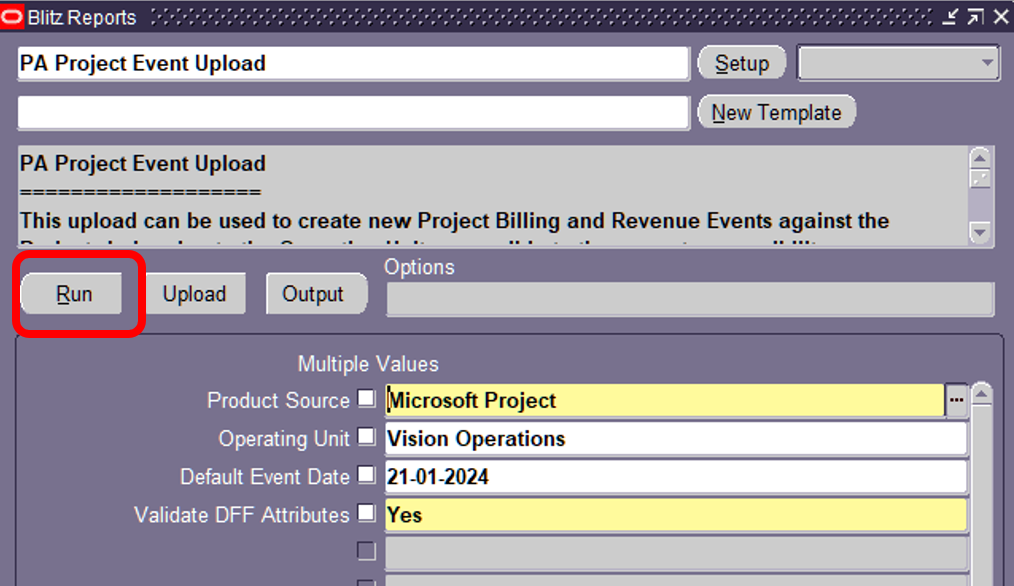 This will generate the excel template in which the user will enter the date to be uploaded. |
| 2 | Excel | Enter the data as required into the generated Excel. After data entry is complete, click Validate and Save. All rows must show the status Valid: 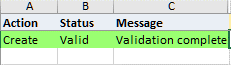 |
| 3 | EBS Blitz Report Form | Initiate the Upload Process.
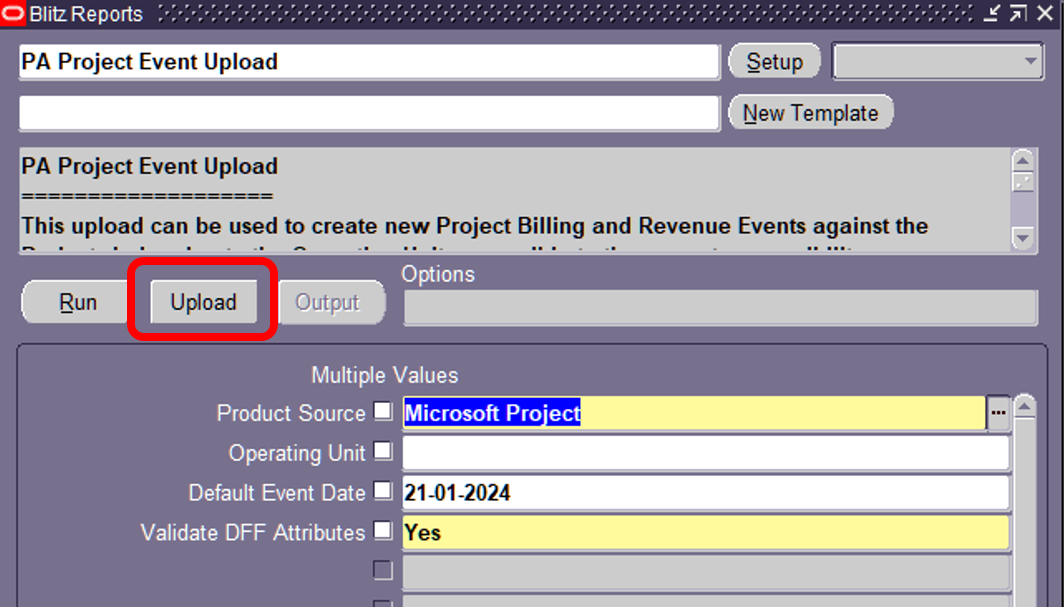 This will open a browser window where you can upload the Excel file to the server for processing. |
| 4 | Browser Window | Upload the Excel File to the server.
   |
| 5 | Excel | Review the Upload results.

 Note: Any errors can be corrected in this new excel, and the upload process repeated using this excel instead of the original. |
6. Upload Process Concurrent Requests
Blitz Reports and Blitz Upload are run as concurrent requests. For a Blitz Upload Process, 3 concurrent requests are submitted. One when the process is initially run to generate the template, and two when the upload process is initiated.

| Stage | Purpose | Request Output |
| Initial Run | Program: Blitz Report Download data (applicable to uploads that allow updates) and generate the excel template. | The excel template to be used to enter/update the date for upload |
| Upload | Program: Blitz Upload Performs the Upload processing of the data into Oracle EBS | None. The log file of this request will show detailed debugging information from the upload process if the profile option Blitz Report Debug is set to Yes. Note: When profile option Blitz Report Debug is set to Yes, the log file of each request is opened automatically instead of the output file. In this case use View Output of the request in order to open the generated excels manually. |
| Upload | Program: Blitz Report Generates the excel containing the results of the Upload | The excel template containing the rows uploaded and the status of the upload process for each row uploaded. |
select decode(:p_upload_mode,xxen_upload.action_create,xxen_upload.action_meaning(xxen_upload.action_create),null) action_, decode(:p_upload_mode,xxen_upload.action_create,xxen_upload.status_meaning(xxen_upload.status_new),null)status_, null message_, null baseline_message_, null request_id_, null modified_columns_, :p_upload_mode upload_mode_, decode(:p_upload_mode,xxen_upload.action_create,to_number(null),pbl.budget_line_id) budget_line_id, -- -- Budget -- :p_pm_product_code product_source, haouv.name operating_unit, ppa.segment1 project_number, ppa.name project_name, pbt.budget_type, pbv.version_name, --pbv.version_number, --pbv.budget_status_m status, pbv.description, pbem.budget_entry_method entry_method, prl.name resource_list, null baseline_budget, xxen_util.meaning(pbv.change_reason_code,'BUDGET CHANGE REASON',275) change_reason, -- -- Budget line -- pt.task_number, pt.task_name, pbl.period_name, pbl.start_date, pbl.end_date, prlm.alias_path resource_alias, pbl.raw_cost, pbl.burdened_cost, pbl.revenue, pbl.quantity, xxen_util.meaning(pra.unit_of_measure,'UNIT',275) unit_of_measure, pbl.description line_description, --xxen_util.meaning(pbl.change_reason_code,'BUDGET CHANGE REASON',275) line_change_reason, --xxen_util.meaning(pra.track_as_labor_flag,'YES_NO',0) track_as_labor, null delete_this_line, -- -- DFF Columns pbv.attribute_category budget_attribute_category, pbv.attribute1 budget_attribute1, pbv.attribute2 budget_attribute2, pbv.attribute3 budget_attribute3, pbv.attribute4 budget_attribute4, pbv.attribute5 budget_attribute5, pbv.attribute6 budget_attribute6, pbv.attribute7 budget_attribute7, pbv.attribute8 budget_attribute8, pbv.attribute9 budget_attribute9, pbv.attribute10 budget_attribute10, pbv.attribute11 budget_attribute11, pbv.attribute12 budget_attribute12, pbv.attribute13 budget_attribute13, pbv.attribute14 budget_attribute14, pbv.attribute15 budget_attribute15, pbl.attribute_category line_attribute_category, pbl.attribute1 line_attribute1, pbl.attribute2 line_attribute2, pbl.attribute3 line_attribute3, pbl.attribute4 line_attribute4, pbl.attribute5 line_attribute5, pbl.attribute6 line_attribute6, pbl.attribute7 line_attribute7, pbl.attribute8 line_attribute8, pbl.attribute9 line_attribute9, pbl.attribute10 line_attribute10, pbl.attribute11 line_attribute11, pbl.attribute12 line_attribute12, pbl.attribute13 line_attribute13, pbl.attribute14 line_attribute14, pbl.attribute15 line_attribute15, -- null mark_as_original, to_number(null) upload_row from hr_all_organization_units_vl haouv, pa_projects_all ppa, pa_budget_versions pbv, pa_budget_types pbt, pa_budget_entry_methods pbem, pa_resource_lists prl, pa_resource_assignments pra, pa_budget_lines pbl, pa_tasks pt, --pa_resource_list_members prlm (select prlm.resource_list_id, prlm.resource_list_member_id, prlm.alias, substr(sys_connect_by_path (prlm.alias,'|'),2) alias_path from pa_resource_list_members prlm where nvl(prlm.migration_code, '-99') <> 'N' connect by prior prlm.resource_list_member_id = prlm.parent_member_id and prior prlm.resource_list_id = prlm.resource_list_id start with prlm.parent_member_id is null ) prlm where 1=1 and ( (:p_upload_mode = xxen_upload.action_update and pbv.budget_status_code IN ('W','S')) or -- draft (:p_upload_mode = xxen_upload.action_create and :p_create_copy = xxen_util.meaning('Y','YES_NO',0)) ) and haouv.name = nvl(:p_operating_unit,haouv.name) and nvl(:p_pm_product_code,'?') = nvl(:p_pm_product_code,'?') and haouv.organization_id in (select mgoat.organization_id from mo_glob_org_access_tmp mgoat union select fnd_global.org_id from dual where fnd_release.major_version=11) and haouv.organization_id = ppa.org_id and ppa.project_id = pbv.project_id and pbv.budget_type_code = pbt.budget_type_code and pbv.budget_entry_method_code = pbem.budget_entry_method_code and pbv.resource_list_id = prl.resource_list_id and pbv.budget_version_id = pra.budget_version_id (+) and pbv.project_id = pra.project_id (+) and pra.resource_assignment_id = pbl.resource_assignment_id (+) and pra.task_id = pt.task_id (+) and pra.resource_list_member_id = prlm.resource_list_member_id (+) |
| Parameter Name | SQL text | Validation | |
|---|---|---|---|
| Upload Mode | LOV | ||
| Product Source | LOV | ||
| Copy Existing Budget | LOV | ||
| Operating Unit | LOV | ||
| Project Number |
| LOV | |
| Project Name |
| LOV | |
| Budget Type |
| LOV | |
| Budget Version |
| LOV | |
| Task Number |
| LOV | |
| Task Name |
| LOV | |
| Resource Alias |
| LOV | |
| Period From |
| LOV | |
| Period To |
| LOV | |
| Budget Line Start Date |
| Date | |
| Budget Line End Date |
| Date | |
| Budget Line Active On Date |
| Date | |
| Sort Precedence 1 |
| LOV | |
| Sort Precedence 2 |
| LOV | |
| Sort Precedence 3 |
| LOV |