
PO Acceptance Upload

Description
PO Acceptance Upload records buyer acceptances (acknowledgments) against existing Oracle Purchasing documents – Standard, Blanket, Contract and Planned purchase orders and Blanket Releases – from Excel, using the standard Oracle Purchasing acceptance API. Each row creates one acceptance with the Accepted flag, acceptance type, action, action date, accepting employee, role and an optional note, the same as entering it in the Acceptances window.
When to use it
- Record supplier acknowledgments of many purchase orders or releases in one go, for example from a supplier confirmation list.
- Clear the acceptance requirement of purchase orders that require acceptance, once the supplier has confirmed them.
- Backfill acceptance history with a specific action date and acceptance type per document.
- Record who accepted each document and in which role.
Before you start
- Access to the upload in Blitz Report, with a responsibility that has access to the operating unit.
- The purchase order or release exists and is not cancelled or finally closed, with status Approved, Requires Reapproval or Incomplete.
- Acceptances are recorded for the current revision of the document only.
Step 1 – Set the parameters
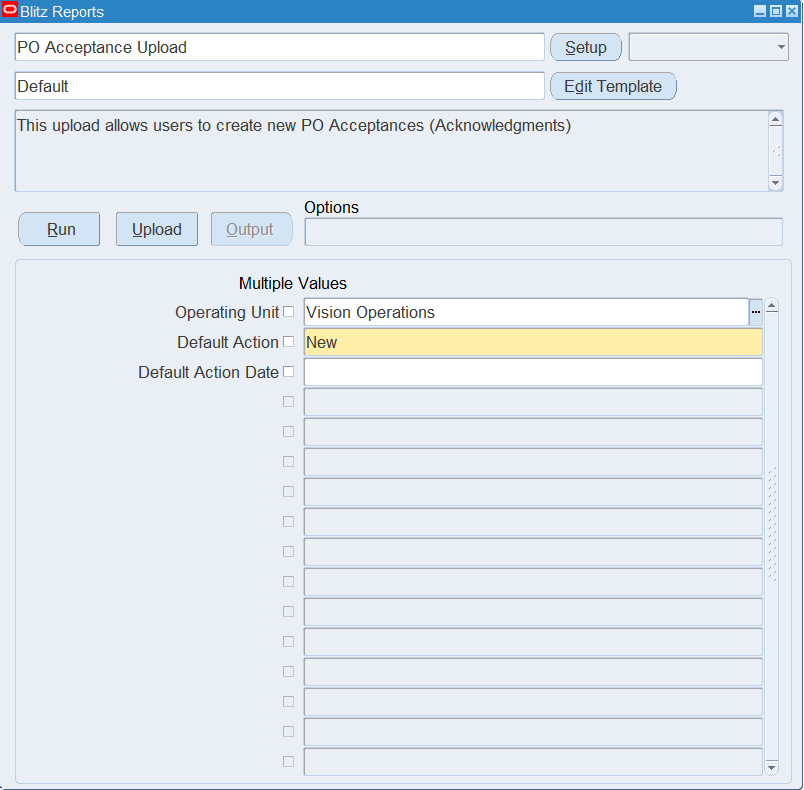
Open PO Acceptance Upload in Blitz Report and set the parameters:
| Parameter | Meaning |
|---|---|
| Operating Unit | Defaults the Operating Unit column of new rows and restricts the upload to acceptances for this operating unit. Leave it blank to upload acceptances for any operating unit you have access to. |
| Default Action | The Action used for rows where the Action column is empty (default New). |
| Default Action Date | The Action Date used for rows where the Action Date column is empty. If both are empty, the current date is used. |
Step 2 – Run to download the Excel file
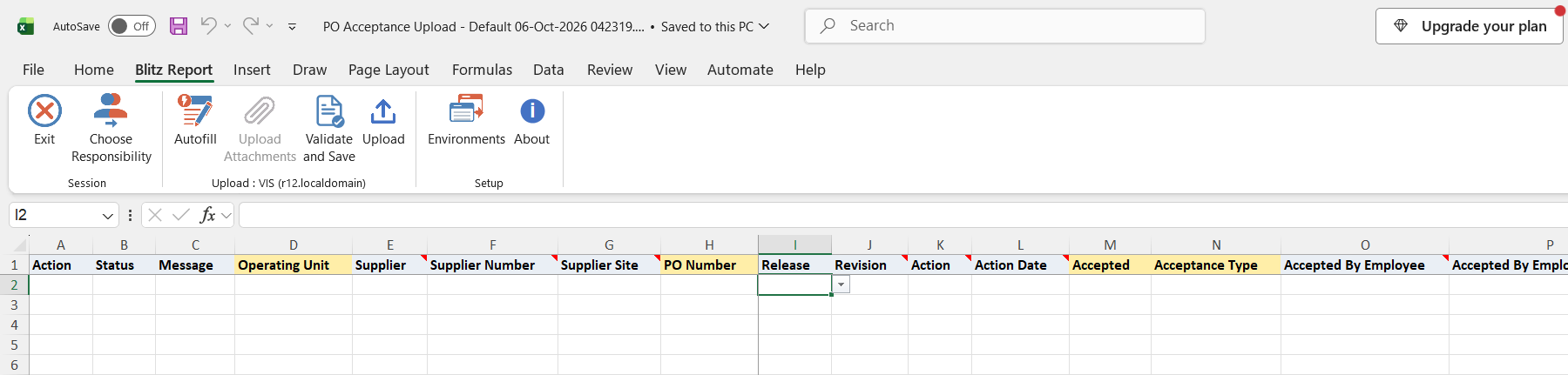
Click Run. The Excel file downloads and opens with an empty sheet: the upload only creates new acceptances and does not download existing ones.
Step 3 – Enter the acceptances
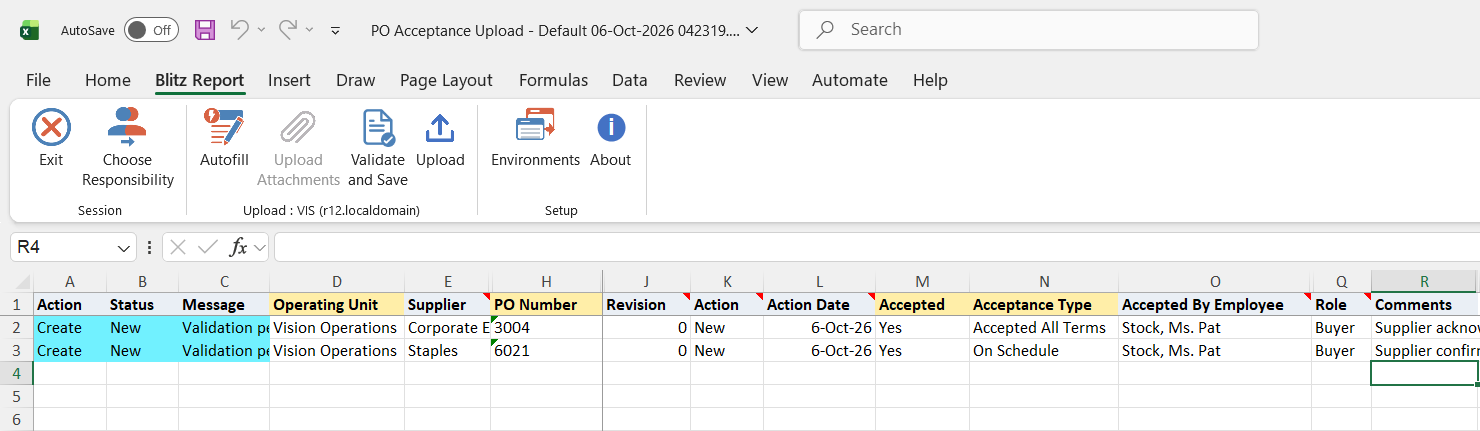
Enter one row per acceptance with the Operating Unit and PO Number, plus the Release for a Blanket Release. Set Accepted (Yes or No) and the Acceptance Type (for example Accepted All Terms or On Schedule), and optionally the Action, Action Date, Role and Comments.
- Supplier, Supplier Number and Supplier Site are optional and only narrow the PO Number list. Selecting a supplier fills its number and site.
- Revision defaults to the document’s current revision.
- Accepted By Employee and Accepted By Employee Num default to the buyer of the purchase order or release. You can pick another buyer from the list; if the name is not unique, also enter the employee number.
Step 4 – Validate and Save
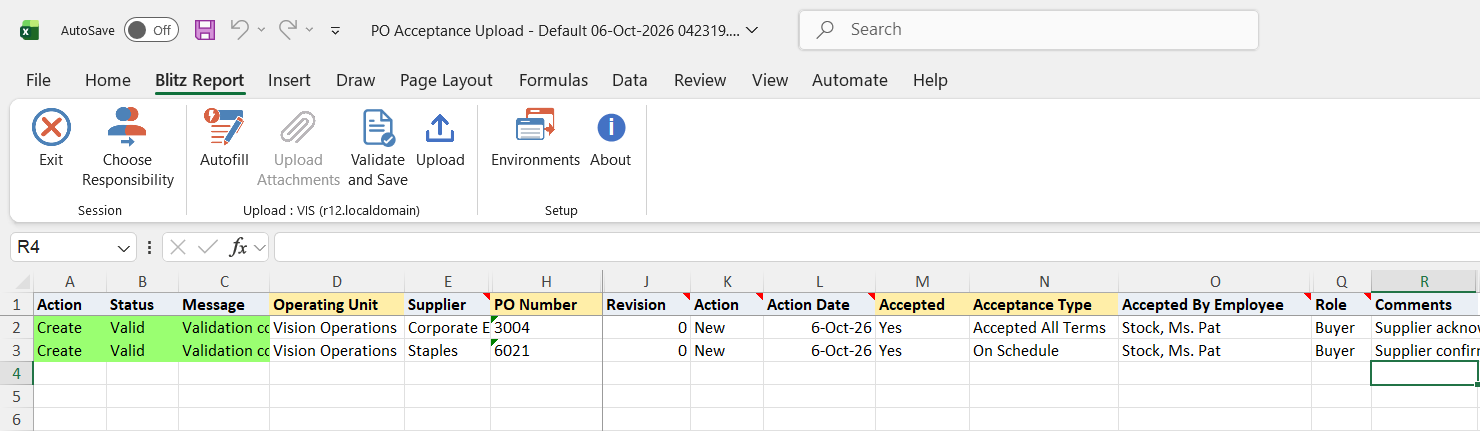
Click Validate and Save. This checks for missing required values and saves the file. Correct any rows it flags before uploading.
Step 5 – Upload the file
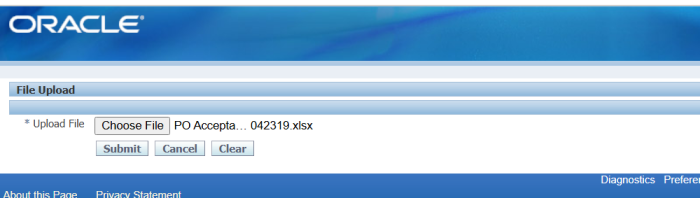
In Blitz Report click Upload and select the saved file. This submits the upload request, which records each acceptance.
Step 6 – Review the result report
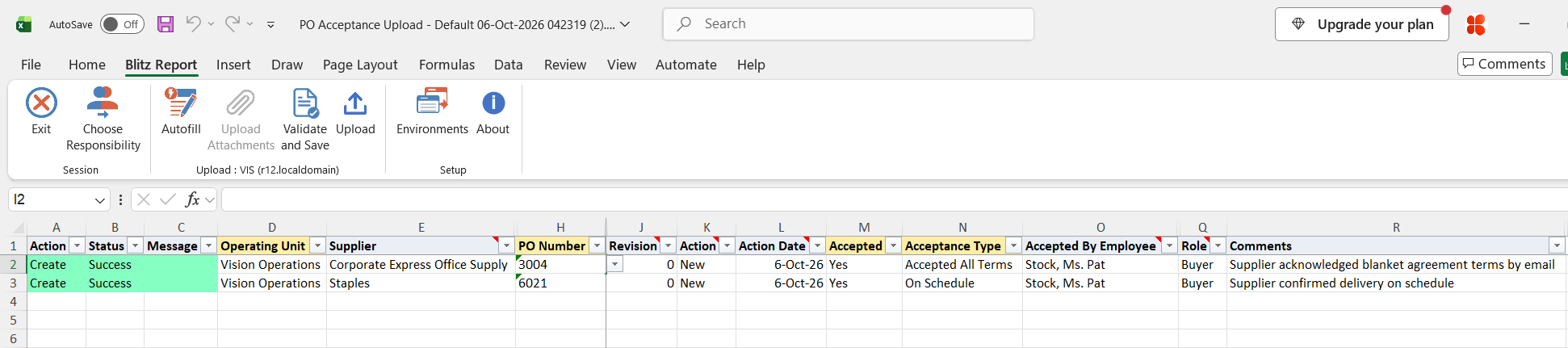
When the request completes, a result report opens listing every uploaded row with its status and message.
What’s produced
- One buyer acceptance per row against the purchase order or release, visible in the Acceptances window of the document.
- For rows with Accepted = Yes, the document no longer requires acceptance: its Acceptance Required flag and acceptance due date are cleared.
- A result report listing every row with a status (success or error) and a message.
Common questions
Can I update or delete existing acceptances?
No. The upload only records new acceptances; the Excel file always opens empty.
Can I record supplier acceptances?
No. All acceptances are recorded as buyer acceptances.
Do I have to fill in the supplier columns?
No. They only narrow the PO Number list; you can enter the PO Number directly.
What happens if I leave Action or Action Date blank?
Action takes the Default Action parameter (default New). Action Date takes the Default Action Date parameter, or the current date if that is blank too.
Who is recorded as the accepting employee?
The employee in Accepted By Employee, which defaults to the buyer of the purchase order or release. If it is cleared, the buyer is used.
Can I accept an older revision?
No. Only the current revision of the purchase order or release can be accepted.
Can I enter descriptive flexfield values?
The default template does not include the acceptance descriptive flexfield. Add the Attribute Category and attribute columns to a template of your own to upload them.
Troubleshooting
| Message | Cause | What to do |
|---|---|---|
| Operating Unit is invalid | The operating unit does not exist or is no longer active. | Pick the Operating Unit from the list. |
| PO Number is not valid | No purchase order with this number exists in the operating unit. | Pick the PO Number from the list and check the operating unit. |
| PO Number is not unique | More than one purchase order with this number exists in the operating unit. | Contact your Purchasing administrator; the document cannot be identified by number. |
| Release Number is not valid | The release does not exist for this blanket agreement. | Pick the Release from the list for the selected PO Number. |
| Revision Number does not match documents current revision number (n) | The Revision entered is not the document’s current revision, shown in brackets. | Enter the current revision or leave Revision at its default. |
| Accepted By is not a valid current employee | The employee name or number does not match a current employee. | Pick the employee from the list, or clear both columns to use the buyer. |
| Accepted By is not unqiue. Please specify the Employee Number as well | More than one current employee has this name. | Also enter Accepted By Employee Num. |
| You cannot update this document because its status is either Frozen, Canceled, Finally Closed, In Process or Pre-approved. | The purchase order or release is cancelled, finally closed or in an approval status that does not allow acceptances. | Record acceptances only for open documents in status Approved, Requires Reapproval or Incomplete. |
| DFF Error: … | A descriptive flexfield value failed validation. | Correct the Attribute Category and attribute values to the allowed values. |
SQL 70 lines
select null action_, null status_, null message_, null request_id_, null modified_columns_, pav.acceptance_id, -- hou.name operating_unit, asu.vendor_name supplier, asu.segment1 supplier_number, assa.vendor_site_code supplier_site, nvl(pha2.segment1,pha.segment1) po_number, pra.release_num release, pav.revision_num revision, pav.action, pav.action_date, xxen_util.meaning(pav.accepted_flag,'YES_NO',0) accepted, pav.acceptance_type, xxen_util.meaning(pav.accepting_party,'ACCEPTANCE_PARTY',201) acceptance_party, case when pav.employee_id is not null then pav.full_name else po_inq_sv.get_party_vendor_name(pav.created_by) end accepted_by_employee, pav.employee_num accepted_by_employee_num, pav.role, &lp_note_column xxen_util.meaning(pav.signature_flag,'YES_NO',0) signature, -- not relevant for buyer acceptances pav.erecord_id, -- not relevant for buyer acceptances -- xxen_util.display_flexfield_context(201,'PO_ACCEPTANCES',pav.attribute_category) attribute_category, xxen_util.display_flexfield_value(201,'PO_ACCEPTANCES',pav.attribute_category,'ATTRIBUTE1',pav.row_id,pav.attribute1) po_acceptance_attribute1, xxen_util.display_flexfield_value(201,'PO_ACCEPTANCES',pav.attribute_category,'ATTRIBUTE2',pav.row_id,pav.attribute2) po_acceptance_attribute2, xxen_util.display_flexfield_value(201,'PO_ACCEPTANCES',pav.attribute_category,'ATTRIBUTE3',pav.row_id,pav.attribute3) po_acceptance_attribute3, xxen_util.display_flexfield_value(201,'PO_ACCEPTANCES',pav.attribute_category,'ATTRIBUTE4',pav.row_id,pav.attribute4) po_acceptance_attribute4, xxen_util.display_flexfield_value(201,'PO_ACCEPTANCES',pav.attribute_category,'ATTRIBUTE5',pav.row_id,pav.attribute5) po_acceptance_attribute5, xxen_util.display_flexfield_value(201,'PO_ACCEPTANCES',pav.attribute_category,'ATTRIBUTE6',pav.row_id,pav.attribute6) po_acceptance_attribute6, xxen_util.display_flexfield_value(201,'PO_ACCEPTANCES',pav.attribute_category,'ATTRIBUTE7',pav.row_id,pav.attribute7) po_acceptance_attribute7, xxen_util.display_flexfield_value(201,'PO_ACCEPTANCES',pav.attribute_category,'ATTRIBUTE8',pav.row_id,pav.attribute8) po_acceptance_attribute8, xxen_util.display_flexfield_value(201,'PO_ACCEPTANCES',pav.attribute_category,'ATTRIBUTE9',pav.row_id,pav.attribute9) po_acceptance_attribute9, xxen_util.display_flexfield_value(201,'PO_ACCEPTANCES',pav.attribute_category,'ATTRIBUTE10',pav.row_id,pav.attribute10) po_acceptance_attribute10, xxen_util.display_flexfield_value(201,'PO_ACCEPTANCES',pav.attribute_category,'ATTRIBUTE11',pav.row_id,pav.attribute11) po_acceptance_attribute11, xxen_util.display_flexfield_value(201,'PO_ACCEPTANCES',pav.attribute_category,'ATTRIBUTE12',pav.row_id,pav.attribute12) po_acceptance_attribute12, xxen_util.display_flexfield_value(201,'PO_ACCEPTANCES',pav.attribute_category,'ATTRIBUTE13',pav.row_id,pav.attribute13) po_acceptance_attribute13, xxen_util.display_flexfield_value(201,'PO_ACCEPTANCES',pav.attribute_category,'ATTRIBUTE14',pav.row_id,pav.attribute14) po_acceptance_attribute14, xxen_util.display_flexfield_value(201,'PO_ACCEPTANCES',pav.attribute_category,'ATTRIBUTE15',pav.row_id,pav.attribute15) po_acceptance_attribute15, -- :p_default_action default_action, :p_default_date default_action_date, 1 upload_row from po_acceptances_v pav, po_headers_all pha, po_releases_all pra, po_headers_all pha2, ap_suppliers asu, ap_supplier_sites_all assa, hr_operating_units hou where -- this upload only supports upload of new buyer acceptances 'X'='Y' and :p_upload_mode = :p_upload_mode and hou.name = :p_operating_unit and nvl(pav.accepting_party,'B') = 'B' and pav.po_header_id = pha.po_header_id (+) and pav.po_release_id = pra.po_release_id (+) and pra.po_header_id = pha2.po_header_id (+) and nvl(pha2.vendor_id,pha.vendor_id) = asu.vendor_id and nvl(pha2.vendor_site_id,pha.vendor_site_id) = assa.vendor_site_id and nvl(pha2.org_id,pha.org_id) = hou.organization_id |
Parameters 3
| Parameter | Type | List of values SQL |
|---|---|---|
| Operating Unit | LOV | |
| Default Action | Char | |
| Default Action Date | Date |