
OPM Recipe Upload

Description
OPM Recipe Upload creates and updates Oracle Process Manufacturing recipes from Excel: the recipe header and its validity rules, routing step overrides, step/material associations, process loss per organization, recipe customers, and organization-specific operation and resource overrides. Each row carries a Row Type that tells the upload which part of the recipe the row defines, and the rows of one recipe are applied together.
When to use it
- Create new recipe versions in bulk on existing formulas and routings, instead of keying them in the Recipes window.
- Change recipe header details such as description, recipe type, process loss, yield or owner across many recipes.
- Add or change validity rules: use, product, standard, minimum and maximum quantity, effective dates and preference.
- Set routing step quantities and operation yields, or minimum transfer quantities and delays between steps and formula lines.
- Maintain process loss per organization, recipe customers, and organization-specific activity factors and resource usage.
Before you start
- Run Blitz Report from a responsibility with access to the process-enabled organization that owns the recipes.
- The formula, and the routing if the recipe uses one, already exist in that organization with the version you reference. The upload does not create formulas or routings.
- Steps, operation activities, resources and formula items you reference exist in the recipe’s routing, operations and formula.
Choose a template
Every template downloads the same rows; the template only decides which columns are shown. Use the template of the row type you want to work on. Recipe is the default.
| Template | Columns for Row Type |
|---|---|
| Recipe (default) | Recipe: formula and routing with versions, description, recipe type, process loss, yield, contiguous, enhanced process instructions, calculate step quantity, owner. |
| Validity Rule | Validity Rule: use, organization, product, revision, preference, quantities and UOM, start and end date, process loss and the validity rule descriptive flexfield. |
| Routing Step | Routing Step: step, operation, step quantity and operation yield. |
| Step Material | Step Material: step, material line type and item, minimum transfer quantity, minimum and maximum delay. |
| Process Loss | Process Loss: organization, process loss, fixed process loss and UOM, contiguous. |
| Customer | Customer: customer account number. |
| Org Operation | Org Operation: organization, step, operation line and activity factor. |
| Org Resource | Org Resource: organization, step, operation line, resource, usage and UOM, process quantity, minimum and maximum capacity, process parameters 1-5. |
Step 1 – Set the parameters
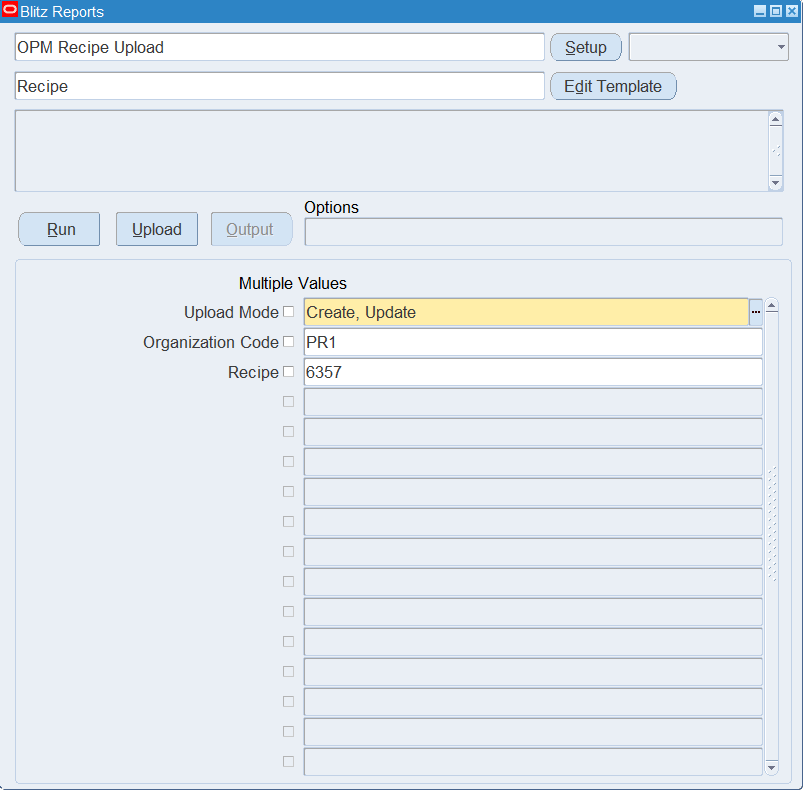
Open OPM Recipe Upload in Blitz Report, choose the template and set the parameters:
| Parameter | Meaning |
|---|---|
| Upload Mode | Create opens an empty sheet for new recipes; Create, Update downloads existing recipes for editing and lets you add new rows. |
| Organization Code | Restricts the download to recipes owned by this process-enabled organization. The list shows the process organizations your responsibility can access. |
| Recipe | Restricts the download to one recipe number (all its versions). Enter the exact recipe number. |
Step 2 – Run to download the Excel file
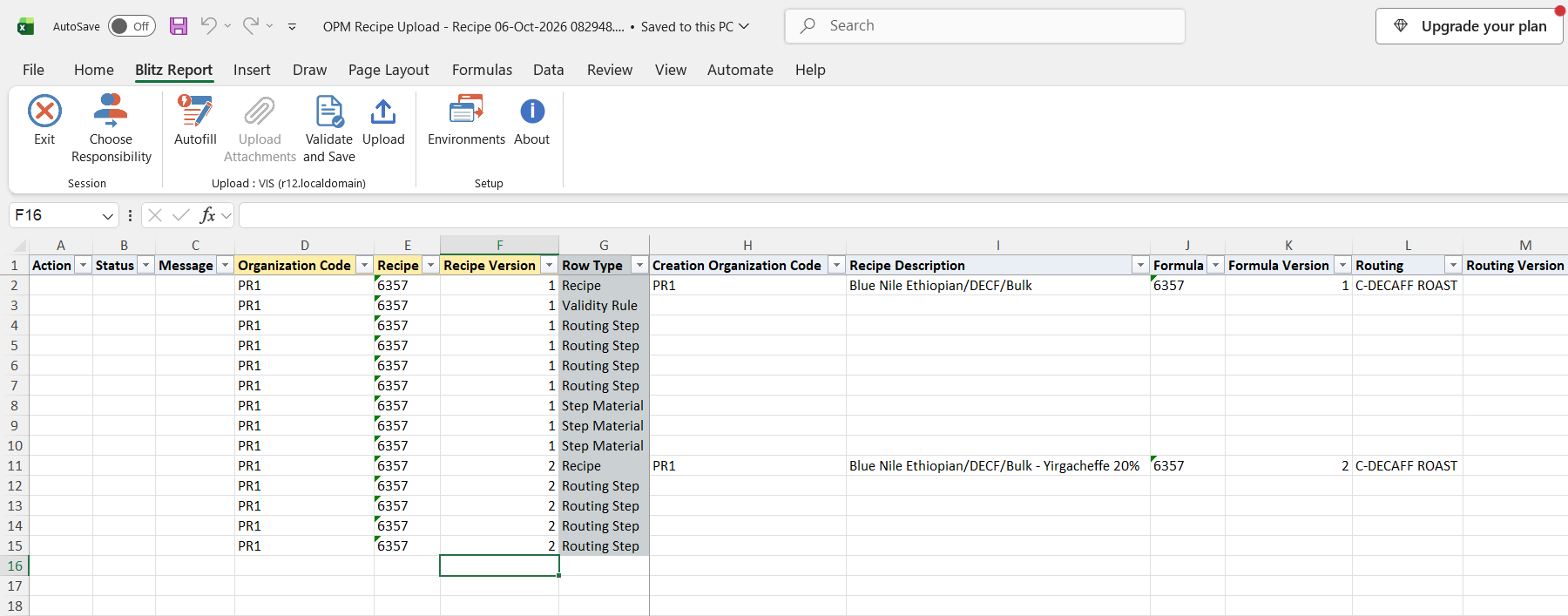
Click Run. The Excel file downloads and opens. With Create, Update each recipe version is listed as one Recipe row followed by its Validity Rule, Routing Step, Step Material, Process Loss, Customer, Org Operation and Org Resource rows.
Step 3 – Enter or change the data
Fill Organization Code, Recipe, Recipe Version and Row Type on every row; then fill only the columns of that row type.
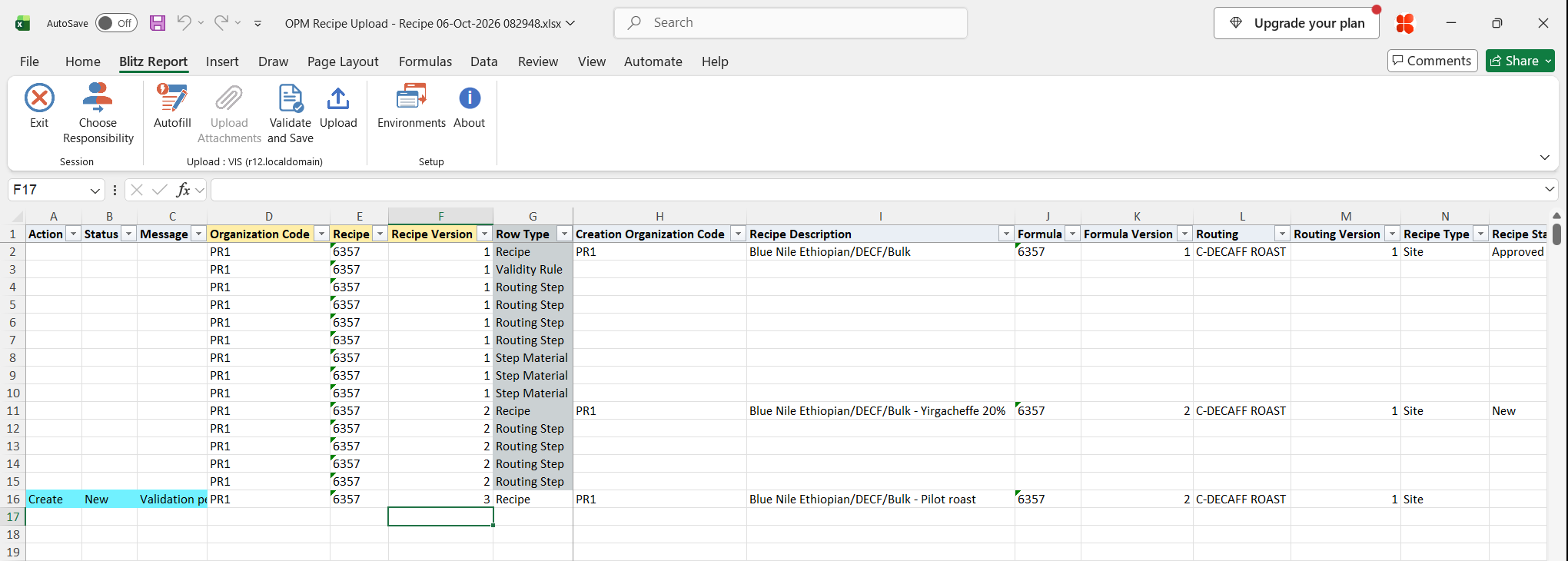
- New recipe: add a Recipe row with the new Recipe or Recipe Version, the Formula and Formula Version, optionally the Routing and Routing Version, a Recipe Description, Recipe Type (General, Site or Master) and the Owner user name. New recipes are created with status New; Recipe Status is shown for information and is not changed by the upload.
- Existing recipe: change the values in the downloaded rows. A recipe is updated when the organization, recipe and version already exist, otherwise it is created.
- Validity rules: downloaded rules are updated; rows you add create new rules. Enter Validity Rule Use (Production, Planning, Costing, Regulatory or Technical), Product, the quantities with Vr Detail UOM and the Start Date.
- Routing Step, Org Operation, Org Resource: identify the routing step by its Step number and, for org overrides, the Sub Organization Code and the Operation Line (activity).
- Step Material: enter the Step, Material Line Type (Ingredient, Product or By-Product) and Material Item of the formula line. An existing association gets its transfer quantity and delays updated, a new one is created.
- Customer: enter the customer account number.
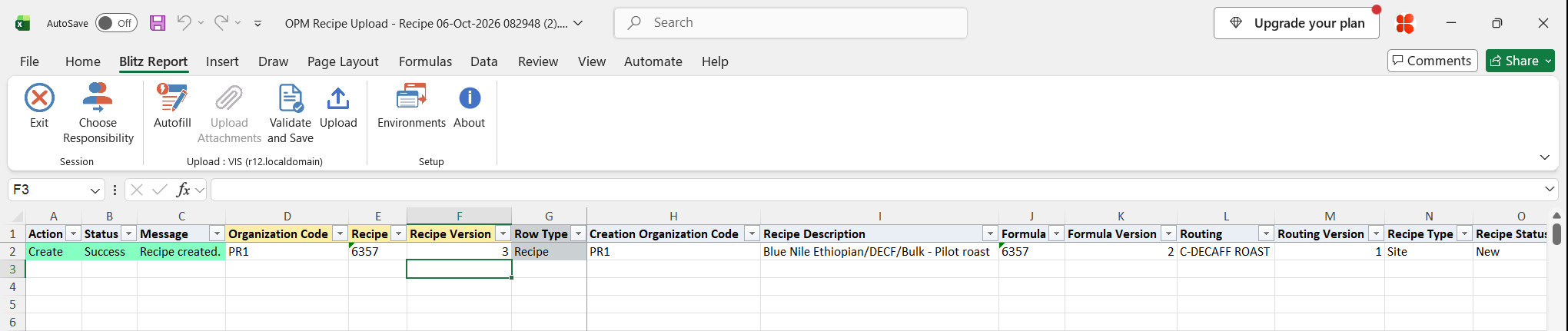
In the example a Recipe row for version 3 of recipe 6357 is added on formula 6357 version 2 and routing C-DECAFF ROAST version 1; the downloaded rows of versions 1 and 2 stay unchanged.
Step 4 – Validate and Save
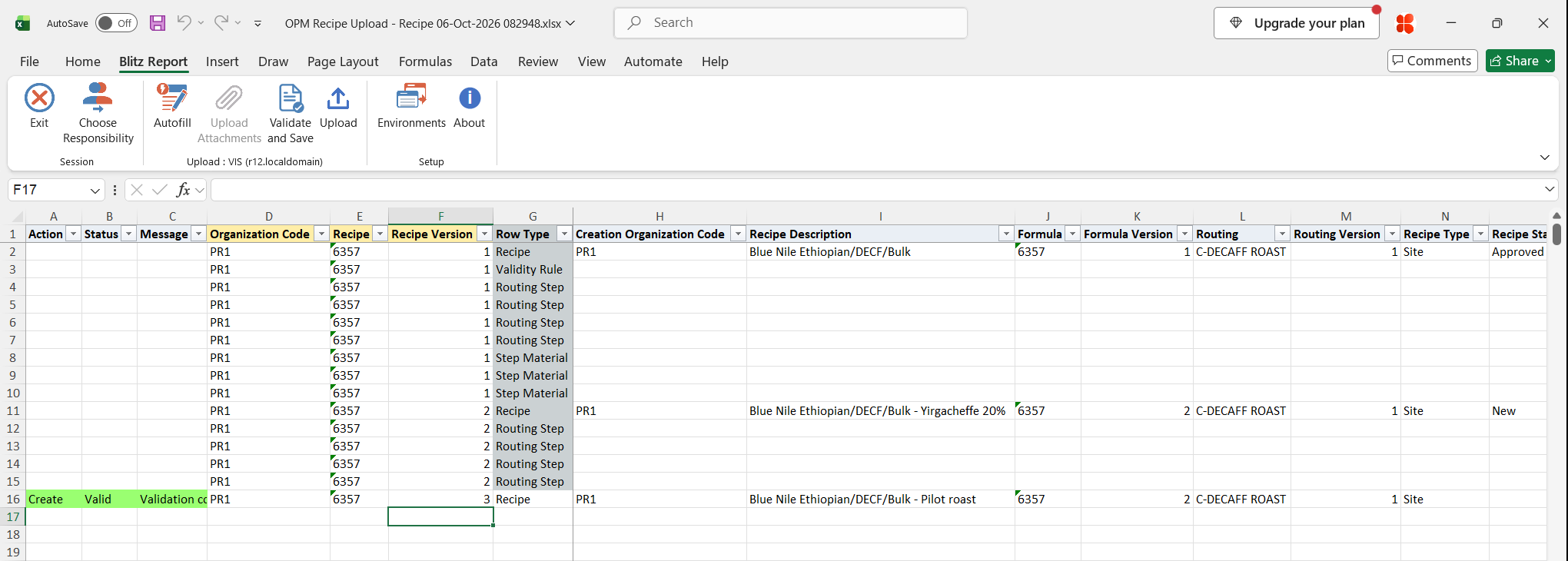
Click Validate and Save. This checks for missing required values and saves the file. Correct any rows it flags before uploading.
Step 5 – Upload the file
In Blitz Report click Upload and select the saved file. This submits the upload request, which processes the rows recipe by recipe: first the header, then validity rules, routing steps, step/material associations, process loss, customers, and organization operations and resources.

Step 6 – Review the result report
When the request completes, a result report opens listing every uploaded row with its status and message, such as Recipe created. or Recipe updated., and the recipe values as stored in Oracle.
What’s produced
- Recipes created or updated in Oracle Process Manufacturing, with their validity rules, step and material settings, process loss, customers and organization overrides.
- A result report listing every row with a status (success or error) and a message.
Common questions
Do I repeat the recipe key on every row?
Yes. Organization Code, Recipe and Recipe Version group the rows of one recipe, so they must be filled on every row.
What happens if one row of a recipe fails?
All rows of that recipe version are rolled back and show the same error message. Other recipes in the file are still processed.
Why does the download show rows whose columns are empty?
The download always contains all row types of a recipe; the template only shows the columns of one row type. Choose the template of the row type you want to edit.
Can I change the recipe status?
No. New recipes are created with status New and the status of existing recipes is kept. Change the status in the Oracle Recipes window.
Does the upload create formulas or routings?
No. The recipe references an existing formula and routing by number and version. Use OPM Formula Upload and OPM Routing Upload to maintain them.
Can I delete recipes or rows?
No. The upload only creates and updates.
Troubleshooting
| Message | Cause | What to do |
|---|---|---|
| Organization “<code>” is not a valid process-enabled organization. | The Organization Code is not a process-enabled inventory organization. | Use a process organization from the list. |
| Routing step “<step>” not found in the recipe routing. | The Step on a Routing Step row does not exist in the recipe’s routing. | Use a step number of the routing linked to the recipe. |
| Step/material association: step “<step>” or item “<item>” not found in the recipe. | The step is not in the routing, or the item with that Material Line Type is not a line of the recipe’s formula. | Check the Step, Material Line Type and Material Item against the routing and formula. |
| Org operation: step “<step>” or operation line “<activity>” not found in the recipe. | The step or the activity of its operation does not exist. | Use a routing step and an activity of that step’s operation. |
| Org resource: step “<step>” or operation line “<activity>” not found in the recipe. | The step or the activity of its operation does not exist. | Use a routing step and an activity of that step’s operation. |
| Customer “<number>” not found. | No customer account has this account number. | Enter an existing customer account number. |
| ORA-20001: Version 2 … is higher than version 1 of the calling API. | Updating the header of an existing recipe (for example its description) fails on Oracle EBS 12.1.3. | Add a new recipe version with the changed values, or change the header in the Oracle Recipes window. |
| Recipe attributes: … / Validity rule attributes: … | A descriptive flexfield value failed validation. | Correct the attribute values for the chosen context. |
SQL 1302 lines
select null action_, null status_, null message_, null modified_columns_, row_number() over (order by x.recipe, x.recipe_version, x.row_type_sort, x.step, x.product, x.validity_rule_id) upload_row, x.organization_code, x.recipe, x.recipe_version, x.row_type, x.creation_organization_code, x.recipe_description, x.formula, x.formula_version, x.routing, x.routing_version, x.recipe_type, x.recipe_status, x.planned_process_loss, x.fixed_process_loss, x.fixed_process_loss_uom, x.recipe_yield, x.contiguous, x.enhanced_process_instructions, x.calculate_step_quantity, x.owner, x.ha_attribute_category, x.ha_attribute1, x.ha_attribute2, x.ha_attribute3, x.ha_attribute4, x.ha_attribute5, x.ha_attribute6, x.ha_attribute7, x.ha_attribute8, x.ha_attribute9, x.ha_attribute10, x.ha_attribute11, x.ha_attribute12, x.ha_attribute13, x.ha_attribute14, x.ha_attribute15, x.ha_attribute16, x.ha_attribute17, x.ha_attribute18, x.ha_attribute19, x.ha_attribute20, x.ha_attribute21, x.ha_attribute22, x.ha_attribute23, x.ha_attribute24, x.ha_attribute25, x.ha_attribute26, x.ha_attribute27, x.ha_attribute28, x.ha_attribute29, x.ha_attribute30, x.validity_rule_use, x.validity_organization_code, x.product, x.vr_revision, x.preference, x.standard_quantity, x.minimum_quantity, x.maximum_quantity, x.vr_detail_uom, x.start_date, x.end_date, x.vr_planned_process_loss, x.vr_fixed_process_loss, x.vr_fixed_process_loss_uom, x.va_attribute_category, x.va_attribute1, x.va_attribute2, x.va_attribute3, x.va_attribute4, x.va_attribute5, x.va_attribute6, x.va_attribute7, x.va_attribute8, x.va_attribute9, x.va_attribute10, x.va_attribute11, x.va_attribute12, x.va_attribute13, x.va_attribute14, x.va_attribute15, x.va_attribute16, x.va_attribute17, x.va_attribute18, x.va_attribute19, x.va_attribute20, x.va_attribute21, x.va_attribute22, x.va_attribute23, x.va_attribute24, x.va_attribute25, x.va_attribute26, x.va_attribute27, x.va_attribute28, x.va_attribute29, x.va_attribute30, x.step, x.operation, x.operation_version, x.step_quantity, x.operation_yield, x.material_line_type, x.material_item, x.minimum_transfer_quantity, x.minimum_delay, x.maximum_delay, x.sub_organization_code, x.process_loss, x.pl_fixed_process_loss, x.pl_fixed_process_loss_uom, x.pl_contiguous, x.customer, x.operation_line, x.activity_factor, x.resource_code, x.resource_usage, x.usage_uom, x.process_quantity, x.process_uom, x.minimum_capacity, x.maximum_capacity, x.process_parameter_1, x.process_parameter_2, x.process_parameter_3, x.process_parameter_4, x.process_parameter_5, x.recipe_id, x.validity_rule_id, x.routing_step_id, x.formulaline_id, x.recipe_process_loss_id from ( select mp.organization_code, grcv.recipe_no recipe, grcv.recipe_version, 'Recipe' row_type, (select mp2.organization_code from mtl_parameters mp2 where mp2.organization_id=grcv.creation_organization_id) creation_organization_code, grcv.recipe_description, (select ffmb.formula_no from fm_form_mst_b ffmb where ffmb.formula_id=grcv.formula_id) formula, (select ffmb.formula_vers from fm_form_mst_b ffmb where ffmb.formula_id=grcv.formula_id) formula_version, (select grb.routing_no from gmd_routings_b grb where grb.routing_id=grcv.routing_id) routing, (select grb.routing_vers from gmd_routings_b grb where grb.routing_id=grcv.routing_id) routing_version, xxen_util.meaning(to_char(grcv.recipe_type),'GMD_RECIPE_TYPE',552) recipe_type, (select gsv.meaning from gmd_status_vl gsv where gsv.status_code=grcv.recipe_status) recipe_status, grcv.planned_process_loss, grcv.fixed_process_loss, grcv.fixed_process_loss_uom, grcv.recipe_yield, xxen_util.meaning(decode(grcv.contiguous_ind,1,'Y','N'),'YES_NO',0) contiguous, xxen_util.meaning(grcv.enhanced_pi_ind,'YES_NO',552) enhanced_process_instructions, xxen_util.meaning(decode(grcv.calculate_step_quantity,1,'Y','N'),'YES_NO',0) calculate_step_quantity, (select fu.user_name from fnd_user fu where fu.user_id=grcv.owner_id) owner, xxen_util.display_flexfield_context(552,'GMD_RECIPES_FLEX',grcv.attribute_category) ha_attribute_category, xxen_util.display_flexfield_value(552,'GMD_RECIPES_FLEX',grcv.attribute_category,'ATTRIBUTE1',grcv.rowid,grcv.attribute1) ha_attribute1, xxen_util.display_flexfield_value(552,'GMD_RECIPES_FLEX',grcv.attribute_category,'ATTRIBUTE2',grcv.rowid,grcv.attribute2) ha_attribute2, xxen_util.display_flexfield_value(552,'GMD_RECIPES_FLEX',grcv.attribute_category,'ATTRIBUTE3',grcv.rowid,grcv.attribute3) ha_attribute3, xxen_util.display_flexfield_value(552,'GMD_RECIPES_FLEX',grcv.attribute_category,'ATTRIBUTE4',grcv.rowid,grcv.attribute4) ha_attribute4, xxen_util.display_flexfield_value(552,'GMD_RECIPES_FLEX',grcv.attribute_category,'ATTRIBUTE5',grcv.rowid,grcv.attribute5) ha_attribute5, xxen_util.display_flexfield_value(552,'GMD_RECIPES_FLEX',grcv.attribute_category,'ATTRIBUTE6',grcv.rowid,grcv.attribute6) ha_attribute6, xxen_util.display_flexfield_value(552,'GMD_RECIPES_FLEX',grcv.attribute_category,'ATTRIBUTE7',grcv.rowid,grcv.attribute7) ha_attribute7, xxen_util.display_flexfield_value(552,'GMD_RECIPES_FLEX',grcv.attribute_category,'ATTRIBUTE8',grcv.rowid,grcv.attribute8) ha_attribute8, xxen_util.display_flexfield_value(552,'GMD_RECIPES_FLEX',grcv.attribute_category,'ATTRIBUTE9',grcv.rowid,grcv.attribute9) ha_attribute9, xxen_util.display_flexfield_value(552,'GMD_RECIPES_FLEX',grcv.attribute_category,'ATTRIBUTE10',grcv.rowid,grcv.attribute10) ha_attribute10, xxen_util.display_flexfield_value(552,'GMD_RECIPES_FLEX',grcv.attribute_category,'ATTRIBUTE11',grcv.rowid,grcv.attribute11) ha_attribute11, xxen_util.display_flexfield_value(552,'GMD_RECIPES_FLEX',grcv.attribute_category,'ATTRIBUTE12',grcv.rowid,grcv.attribute12) ha_attribute12, xxen_util.display_flexfield_value(552,'GMD_RECIPES_FLEX',grcv.attribute_category,'ATTRIBUTE13',grcv.rowid,grcv.attribute13) ha_attribute13, xxen_util.display_flexfield_value(552,'GMD_RECIPES_FLEX',grcv.attribute_category,'ATTRIBUTE14',grcv.rowid,grcv.attribute14) ha_attribute14, xxen_util.display_flexfield_value(552,'GMD_RECIPES_FLEX',grcv.attribute_category,'ATTRIBUTE15',grcv.rowid,grcv.attribute15) ha_attribute15, xxen_util.display_flexfield_value(552,'GMD_RECIPES_FLEX',grcv.attribute_category,'ATTRIBUTE16',grcv.rowid,grcv.attribute16) ha_attribute16, xxen_util.display_flexfield_value(552,'GMD_RECIPES_FLEX',grcv.attribute_category,'ATTRIBUTE17',grcv.rowid,grcv.attribute17) ha_attribute17, xxen_util.display_flexfield_value(552,'GMD_RECIPES_FLEX',grcv.attribute_category,'ATTRIBUTE18',grcv.rowid,grcv.attribute18) ha_attribute18, xxen_util.display_flexfield_value(552,'GMD_RECIPES_FLEX',grcv.attribute_category,'ATTRIBUTE19',grcv.rowid,grcv.attribute19) ha_attribute19, xxen_util.display_flexfield_value(552,'GMD_RECIPES_FLEX',grcv.attribute_category,'ATTRIBUTE20',grcv.rowid,grcv.attribute20) ha_attribute20, xxen_util.display_flexfield_value(552,'GMD_RECIPES_FLEX',grcv.attribute_category,'ATTRIBUTE21',grcv.rowid,grcv.attribute21) ha_attribute21, xxen_util.display_flexfield_value(552,'GMD_RECIPES_FLEX',grcv.attribute_category,'ATTRIBUTE22',grcv.rowid,grcv.attribute22) ha_attribute22, xxen_util.display_flexfield_value(552,'GMD_RECIPES_FLEX',grcv.attribute_category,'ATTRIBUTE23',grcv.rowid,grcv.attribute23) ha_attribute23, xxen_util.display_flexfield_value(552,'GMD_RECIPES_FLEX',grcv.attribute_category,'ATTRIBUTE24',grcv.rowid,grcv.attribute24) ha_attribute24, xxen_util.display_flexfield_value(552,'GMD_RECIPES_FLEX',grcv.attribute_category,'ATTRIBUTE25',grcv.rowid,grcv.attribute25) ha_attribute25, xxen_util.display_flexfield_value(552,'GMD_RECIPES_FLEX',grcv.attribute_category,'ATTRIBUTE26',grcv.rowid,grcv.attribute26) ha_attribute26, xxen_util.display_flexfield_value(552,'GMD_RECIPES_FLEX',grcv.attribute_category,'ATTRIBUTE27',grcv.rowid,grcv.attribute27) ha_attribute27, xxen_util.display_flexfield_value(552,'GMD_RECIPES_FLEX',grcv.attribute_category,'ATTRIBUTE28',grcv.rowid,grcv.attribute28) ha_attribute28, xxen_util.display_flexfield_value(552,'GMD_RECIPES_FLEX',grcv.attribute_category,'ATTRIBUTE29',grcv.rowid,grcv.attribute29) ha_attribute29, xxen_util.display_flexfield_value(552,'GMD_RECIPES_FLEX',grcv.attribute_category,'ATTRIBUTE30',grcv.rowid,grcv.attribute30) ha_attribute30, null validity_rule_use, null validity_organization_code, null product, null vr_revision, null preference, null standard_quantity, null minimum_quantity, null maximum_quantity, null vr_detail_uom, null start_date, null end_date, null vr_planned_process_loss, null vr_fixed_process_loss, null vr_fixed_process_loss_uom, null va_attribute_category, null va_attribute1, null va_attribute2, null va_attribute3, null va_attribute4, null va_attribute5, null va_attribute6, null va_attribute7, null va_attribute8, null va_attribute9, null va_attribute10, null va_attribute11, null va_attribute12, null va_attribute13, null va_attribute14, null va_attribute15, null va_attribute16, null va_attribute17, null va_attribute18, null va_attribute19, null va_attribute20, null va_attribute21, null va_attribute22, null va_attribute23, null va_attribute24, null va_attribute25, null va_attribute26, null va_attribute27, null va_attribute28, null va_attribute29, null va_attribute30, null step, null operation, null operation_version, null step_quantity, null operation_yield, null material_line_type, null material_item, null minimum_transfer_quantity, null minimum_delay, null maximum_delay, null sub_organization_code, null process_loss, null pl_fixed_process_loss, null pl_fixed_process_loss_uom, null pl_contiguous, null customer, null operation_line, null activity_factor, null resource_code, null resource_usage, null usage_uom, null process_quantity, null process_uom, null minimum_capacity, null maximum_capacity, null process_parameter_1, null process_parameter_2, null process_parameter_3, null process_parameter_4, null process_parameter_5, grcv.recipe_id, null validity_rule_id, null routing_step_id, null formulaline_id, null recipe_process_loss_id, 1 row_type_sort from gmd_recipes_vl grcv, mtl_parameters mp where grcv.owner_organization_id=mp.organization_id and grcv.delete_mark=0 and grcv.owner_organization_id in (select oav.organization_id from org_access_view oav where oav.resp_application_id=fnd_global.resp_appl_id and oav.responsibility_id=fnd_global.resp_id) and :p_upload_mode like '%'||xxen_upload.action_update union all select mp.organization_code, grcv.recipe_no recipe, grcv.recipe_version, 'Validity Rule' row_type, null creation_organization_code, null recipe_description, null formula, null formula_version, null routing, null routing_version, null recipe_type, null recipe_status, null planned_process_loss, null fixed_process_loss, null fixed_process_loss_uom, null recipe_yield, null contiguous, null enhanced_process_instructions, null calculate_step_quantity, null owner, null ha_attribute_category, null ha_attribute1, null ha_attribute2, null ha_attribute3, null ha_attribute4, null ha_attribute5, null ha_attribute6, null ha_attribute7, null ha_attribute8, null ha_attribute9, null ha_attribute10, null ha_attribute11, null ha_attribute12, null ha_attribute13, null ha_attribute14, null ha_attribute15, null ha_attribute16, null ha_attribute17, null ha_attribute18, null ha_attribute19, null ha_attribute20, null ha_attribute21, null ha_attribute22, null ha_attribute23, null ha_attribute24, null ha_attribute25, null ha_attribute26, null ha_attribute27, null ha_attribute28, null ha_attribute29, null ha_attribute30, xxen_util.meaning(grvr.recipe_use,'GMD_FORMULA_USE',552) validity_rule_use, (select mp2.organization_code from mtl_parameters mp2 where mp2.organization_id=grvr.organization_id) validity_organization_code, (select msiv.concatenated_segments from mtl_system_items_vl msiv where msiv.inventory_item_id=grvr.inventory_item_id and msiv.organization_id=grcv.owner_organization_id) product, grvr.revision vr_revision, grvr.preference, grvr.std_qty standard_quantity, grvr.min_qty minimum_quantity, grvr.max_qty maximum_quantity, grvr.detail_uom vr_detail_uom, grvr.start_date, grvr.end_date, grvr.planned_process_loss vr_planned_process_loss, grvr.fixed_process_loss vr_fixed_process_loss, grvr.fixed_process_loss_uom vr_fixed_process_loss_uom, xxen_util.display_flexfield_context(552,'GMD_RECIPE_VALIDITY_RULES_FLEX',grvr.attribute_category) va_attribute_category, xxen_util.display_flexfield_value(552,'GMD_RECIPE_VALIDITY_RULES_FLEX',grvr.attribute_category,'ATTRIBUTE1',grvr.rowid,grvr.attribute1) va_attribute1, xxen_util.display_flexfield_value(552,'GMD_RECIPE_VALIDITY_RULES_FLEX',grvr.attribute_category,'ATTRIBUTE2',grvr.rowid,grvr.attribute2) va_attribute2, xxen_util.display_flexfield_value(552,'GMD_RECIPE_VALIDITY_RULES_FLEX',grvr.attribute_category,'ATTRIBUTE3',grvr.rowid,grvr.attribute3) va_attribute3, xxen_util.display_flexfield_value(552,'GMD_RECIPE_VALIDITY_RULES_FLEX',grvr.attribute_category,'ATTRIBUTE4',grvr.rowid,grvr.attribute4) va_attribute4, xxen_util.display_flexfield_value(552,'GMD_RECIPE_VALIDITY_RULES_FLEX',grvr.attribute_category,'ATTRIBUTE5',grvr.rowid,grvr.attribute5) va_attribute5, xxen_util.display_flexfield_value(552,'GMD_RECIPE_VALIDITY_RULES_FLEX',grvr.attribute_category,'ATTRIBUTE6',grvr.rowid,grvr.attribute6) va_attribute6, xxen_util.display_flexfield_value(552,'GMD_RECIPE_VALIDITY_RULES_FLEX',grvr.attribute_category,'ATTRIBUTE7',grvr.rowid,grvr.attribute7) va_attribute7, xxen_util.display_flexfield_value(552,'GMD_RECIPE_VALIDITY_RULES_FLEX',grvr.attribute_category,'ATTRIBUTE8',grvr.rowid,grvr.attribute8) va_attribute8, xxen_util.display_flexfield_value(552,'GMD_RECIPE_VALIDITY_RULES_FLEX',grvr.attribute_category,'ATTRIBUTE9',grvr.rowid,grvr.attribute9) va_attribute9, xxen_util.display_flexfield_value(552,'GMD_RECIPE_VALIDITY_RULES_FLEX',grvr.attribute_category,'ATTRIBUTE10',grvr.rowid,grvr.attribute10) va_attribute10, xxen_util.display_flexfield_value(552,'GMD_RECIPE_VALIDITY_RULES_FLEX',grvr.attribute_category,'ATTRIBUTE11',grvr.rowid,grvr.attribute11) va_attribute11, xxen_util.display_flexfield_value(552,'GMD_RECIPE_VALIDITY_RULES_FLEX',grvr.attribute_category,'ATTRIBUTE12',grvr.rowid,grvr.attribute12) va_attribute12, xxen_util.display_flexfield_value(552,'GMD_RECIPE_VALIDITY_RULES_FLEX',grvr.attribute_category,'ATTRIBUTE13',grvr.rowid,grvr.attribute13) va_attribute13, xxen_util.display_flexfield_value(552,'GMD_RECIPE_VALIDITY_RULES_FLEX',grvr.attribute_category,'ATTRIBUTE14',grvr.rowid,grvr.attribute14) va_attribute14, xxen_util.display_flexfield_value(552,'GMD_RECIPE_VALIDITY_RULES_FLEX',grvr.attribute_category,'ATTRIBUTE15',grvr.rowid,grvr.attribute15) va_attribute15, xxen_util.display_flexfield_value(552,'GMD_RECIPE_VALIDITY_RULES_FLEX',grvr.attribute_category,'ATTRIBUTE16',grvr.rowid,grvr.attribute16) va_attribute16, xxen_util.display_flexfield_value(552,'GMD_RECIPE_VALIDITY_RULES_FLEX',grvr.attribute_category,'ATTRIBUTE17',grvr.rowid,grvr.attribute17) va_attribute17, xxen_util.display_flexfield_value(552,'GMD_RECIPE_VALIDITY_RULES_FLEX',grvr.attribute_category,'ATTRIBUTE18',grvr.rowid,grvr.attribute18) va_attribute18, xxen_util.display_flexfield_value(552,'GMD_RECIPE_VALIDITY_RULES_FLEX',grvr.attribute_category,'ATTRIBUTE19',grvr.rowid,grvr.attribute19) va_attribute19, xxen_util.display_flexfield_value(552,'GMD_RECIPE_VALIDITY_RULES_FLEX',grvr.attribute_category,'ATTRIBUTE20',grvr.rowid,grvr.attribute20) va_attribute20, xxen_util.display_flexfield_value(552,'GMD_RECIPE_VALIDITY_RULES_FLEX',grvr.attribute_category,'ATTRIBUTE21',grvr.rowid,grvr.attribute21) va_attribute21, xxen_util.display_flexfield_value(552,'GMD_RECIPE_VALIDITY_RULES_FLEX',grvr.attribute_category,'ATTRIBUTE22',grvr.rowid,grvr.attribute22) va_attribute22, xxen_util.display_flexfield_value(552,'GMD_RECIPE_VALIDITY_RULES_FLEX',grvr.attribute_category,'ATTRIBUTE23',grvr.rowid,grvr.attribute23) va_attribute23, xxen_util.display_flexfield_value(552,'GMD_RECIPE_VALIDITY_RULES_FLEX',grvr.attribute_category,'ATTRIBUTE24',grvr.rowid,grvr.attribute24) va_attribute24, xxen_util.display_flexfield_value(552,'GMD_RECIPE_VALIDITY_RULES_FLEX',grvr.attribute_category,'ATTRIBUTE25',grvr.rowid,grvr.attribute25) va_attribute25, xxen_util.display_flexfield_value(552,'GMD_RECIPE_VALIDITY_RULES_FLEX',grvr.attribute_category,'ATTRIBUTE26',grvr.rowid,grvr.attribute26) va_attribute26, xxen_util.display_flexfield_value(552,'GMD_RECIPE_VALIDITY_RULES_FLEX',grvr.attribute_category,'ATTRIBUTE27',grvr.rowid,grvr.attribute27) va_attribute27, xxen_util.display_flexfield_value(552,'GMD_RECIPE_VALIDITY_RULES_FLEX',grvr.attribute_category,'ATTRIBUTE28',grvr.rowid,grvr.attribute28) va_attribute28, xxen_util.display_flexfield_value(552,'GMD_RECIPE_VALIDITY_RULES_FLEX',grvr.attribute_category,'ATTRIBUTE29',grvr.rowid,grvr.attribute29) va_attribute29, xxen_util.display_flexfield_value(552,'GMD_RECIPE_VALIDITY_RULES_FLEX',grvr.attribute_category,'ATTRIBUTE30',grvr.rowid,grvr.attribute30) va_attribute30, null step, null operation, null operation_version, null step_quantity, null operation_yield, null material_line_type, null material_item, null minimum_transfer_quantity, null minimum_delay, null maximum_delay, null sub_organization_code, null process_loss, null pl_fixed_process_loss, null pl_fixed_process_loss_uom, null pl_contiguous, null customer, null operation_line, null activity_factor, null resource_code, null resource_usage, null usage_uom, null process_quantity, null process_uom, null minimum_capacity, null maximum_capacity, null process_parameter_1, null process_parameter_2, null process_parameter_3, null process_parameter_4, null process_parameter_5, grcv.recipe_id, grvr.recipe_validity_rule_id validity_rule_id, null routing_step_id, null formulaline_id, null recipe_process_loss_id, 2 row_type_sort from gmd_recipes_vl grcv, gmd_recipe_validity_rules grvr, mtl_parameters mp where grcv.recipe_id=grvr.recipe_id and grcv.owner_organization_id=mp.organization_id and nvl(grvr.delete_mark,0)=0 and grcv.delete_mark=0 and grcv.owner_organization_id in (select oav.organization_id from org_access_view oav where oav.resp_application_id=fnd_global.resp_appl_id and oav.responsibility_id=fnd_global.resp_id) and :p_upload_mode like '%'||xxen_upload.action_update union all select mp.organization_code, grcv.recipe_no recipe, grcv.recipe_version, 'Routing Step' row_type, null creation_organization_code, null recipe_description, null formula, null formula_version, null routing, null routing_version, null recipe_type, null recipe_status, null planned_process_loss, null fixed_process_loss, null fixed_process_loss_uom, null recipe_yield, null contiguous, null enhanced_process_instructions, null calculate_step_quantity, null owner, null ha_attribute_category, null ha_attribute1, null ha_attribute2, null ha_attribute3, null ha_attribute4, null ha_attribute5, null ha_attribute6, null ha_attribute7, null ha_attribute8, null ha_attribute9, null ha_attribute10, null ha_attribute11, null ha_attribute12, null ha_attribute13, null ha_attribute14, null ha_attribute15, null ha_attribute16, null ha_attribute17, null ha_attribute18, null ha_attribute19, null ha_attribute20, null ha_attribute21, null ha_attribute22, null ha_attribute23, null ha_attribute24, null ha_attribute25, null ha_attribute26, null ha_attribute27, null ha_attribute28, null ha_attribute29, null ha_attribute30, null validity_rule_use, null validity_organization_code, null product, null vr_revision, null preference, null standard_quantity, null minimum_quantity, null maximum_quantity, null vr_detail_uom, null start_date, null end_date, null vr_planned_process_loss, null vr_fixed_process_loss, null vr_fixed_process_loss_uom, null va_attribute_category, null va_attribute1, null va_attribute2, null va_attribute3, null va_attribute4, null va_attribute5, null va_attribute6, null va_attribute7, null va_attribute8, null va_attribute9, null va_attribute10, null va_attribute11, null va_attribute12, null va_attribute13, null va_attribute14, null va_attribute15, null va_attribute16, null va_attribute17, null va_attribute18, null va_attribute19, null va_attribute20, null va_attribute21, null va_attribute22, null va_attribute23, null va_attribute24, null va_attribute25, null va_attribute26, null va_attribute27, null va_attribute28, null va_attribute29, null va_attribute30, frd.routingstep_no step, (select gov.oprn_no from gmd_operations_vl gov where gov.oprn_id=frd.oprn_id) operation, (select gov.oprn_vers from gmd_operations_vl gov where gov.oprn_id=frd.oprn_id) operation_version, grrs.step_qty step_quantity, grrs.oprn_yield operation_yield, null material_line_type, null material_item, null minimum_transfer_quantity, null minimum_delay, null maximum_delay, null sub_organization_code, null process_loss, null pl_fixed_process_loss, null pl_fixed_process_loss_uom, null pl_contiguous, null customer, null operation_line, null activity_factor, null resource_code, null resource_usage, null usage_uom, null process_quantity, null process_uom, null minimum_capacity, null maximum_capacity, null process_parameter_1, null process_parameter_2, null process_parameter_3, null process_parameter_4, null process_parameter_5, grcv.recipe_id, null validity_rule_id, frd.routingstep_id routing_step_id, null formulaline_id, null recipe_process_loss_id, 3 row_type_sort from gmd_recipes_vl grcv, fm_rout_dtl frd, gmd_recipe_routing_steps grrs, mtl_parameters mp where frd.routing_id=grcv.routing_id and grrs.recipe_id(+)=grcv.recipe_id and grrs.routingstep_id(+)=frd.routingstep_id and grcv.owner_organization_id=mp.organization_id and grcv.delete_mark=0 and grcv.owner_organization_id in (select oav.organization_id from org_access_view oav where oav.resp_application_id=fnd_global.resp_appl_id and oav.responsibility_id=fnd_global.resp_id) and :p_upload_mode like '%'||xxen_upload.action_update union all select mp.organization_code, grcv.recipe_no recipe, grcv.recipe_version, 'Step Material' row_type, null creation_organization_code, null recipe_description, null formula, null formula_version, null routing, null routing_version, null recipe_type, null recipe_status, null planned_process_loss, null fixed_process_loss, null fixed_process_loss_uom, null recipe_yield, null contiguous, null enhanced_process_instructions, null calculate_step_quantity, null owner, null ha_attribute_category, null ha_attribute1, null ha_attribute2, null ha_attribute3, null ha_attribute4, null ha_attribute5, null ha_attribute6, null ha_attribute7, null ha_attribute8, null ha_attribute9, null ha_attribute10, null ha_attribute11, null ha_attribute12, null ha_attribute13, null ha_attribute14, null ha_attribute15, null ha_attribute16, null ha_attribute17, null ha_attribute18, null ha_attribute19, null ha_attribute20, null ha_attribute21, null ha_attribute22, null ha_attribute23, null ha_attribute24, null ha_attribute25, null ha_attribute26, null ha_attribute27, null ha_attribute28, null ha_attribute29, null ha_attribute30, null validity_rule_use, null validity_organization_code, null product, null vr_revision, null preference, null standard_quantity, null minimum_quantity, null maximum_quantity, null vr_detail_uom, null start_date, null end_date, null vr_planned_process_loss, null vr_fixed_process_loss, null vr_fixed_process_loss_uom, null va_attribute_category, null va_attribute1, null va_attribute2, null va_attribute3, null va_attribute4, null va_attribute5, null va_attribute6, null va_attribute7, null va_attribute8, null va_attribute9, null va_attribute10, null va_attribute11, null va_attribute12, null va_attribute13, null va_attribute14, null va_attribute15, null va_attribute16, null va_attribute17, null va_attribute18, null va_attribute19, null va_attribute20, null va_attribute21, null va_attribute22, null va_attribute23, null va_attribute24, null va_attribute25, null va_attribute26, null va_attribute27, null va_attribute28, null va_attribute29, null va_attribute30, (select frd.routingstep_no from fm_rout_dtl frd where frd.routingstep_id=grsm.routingstep_id) step, null operation, null operation_version, null step_quantity, null operation_yield, (select xxen_util.meaning(to_char(fmd.line_type),'GMD_FORMULA_ITEM_TYPE',552) from fm_matl_dtl fmd where fmd.formulaline_id=grsm.formulaline_id) material_line_type, (select msiv.concatenated_segments from fm_matl_dtl fmd, mtl_system_items_vl msiv where fmd.formulaline_id=grsm.formulaline_id and msiv.inventory_item_id=fmd.inventory_item_id and msiv.organization_id=fmd.organization_id) material_item, grsm.minimum_transfer_qty minimum_transfer_quantity, grsm.minimum_delay, grsm.maximum_delay, null sub_organization_code, null process_loss, null pl_fixed_process_loss, null pl_fixed_process_loss_uom, null pl_contiguous, null customer, null operation_line, null activity_factor, null resource_code, null resource_usage, null usage_uom, null process_quantity, null process_uom, null minimum_capacity, null maximum_capacity, null process_parameter_1, null process_parameter_2, null process_parameter_3, null process_parameter_4, null process_parameter_5, grcv.recipe_id, null validity_rule_id, grsm.routingstep_id routing_step_id, grsm.formulaline_id, null recipe_process_loss_id, 4 row_type_sort from gmd_recipes_vl grcv, gmd_recipe_step_materials grsm, mtl_parameters mp where grcv.recipe_id=grsm.recipe_id and grcv.owner_organization_id=mp.organization_id and grcv.delete_mark=0 and grcv.owner_organization_id in (select oav.organization_id from org_access_view oav where oav.resp_application_id=fnd_global.resp_appl_id and oav.responsibility_id=fnd_global.resp_id) and :p_upload_mode like '%'||xxen_upload.action_update union all select mp.organization_code, grcv.recipe_no recipe, grcv.recipe_version, 'Process Loss' row_type, null creation_organization_code, null recipe_description, null formula, null formula_version, null routing, null routing_version, null recipe_type, null recipe_status, null planned_process_loss, null fixed_process_loss, null fixed_process_loss_uom, null recipe_yield, null contiguous, null enhanced_process_instructions, null calculate_step_quantity, null owner, null ha_attribute_category, null ha_attribute1, null ha_attribute2, null ha_attribute3, null ha_attribute4, null ha_attribute5, null ha_attribute6, null ha_attribute7, null ha_attribute8, null ha_attribute9, null ha_attribute10, null ha_attribute11, null ha_attribute12, null ha_attribute13, null ha_attribute14, null ha_attribute15, null ha_attribute16, null ha_attribute17, null ha_attribute18, null ha_attribute19, null ha_attribute20, null ha_attribute21, null ha_attribute22, null ha_attribute23, null ha_attribute24, null ha_attribute25, null ha_attribute26, null ha_attribute27, null ha_attribute28, null ha_attribute29, null ha_attribute30, null validity_rule_use, null validity_organization_code, null product, null vr_revision, null preference, null standard_quantity, null minimum_quantity, null maximum_quantity, null vr_detail_uom, null start_date, null end_date, null vr_planned_process_loss, null vr_fixed_process_loss, null vr_fixed_process_loss_uom, null va_attribute_category, null va_attribute1, null va_attribute2, null va_attribute3, null va_attribute4, null va_attribute5, null va_attribute6, null va_attribute7, null va_attribute8, null va_attribute9, null va_attribute10, null va_attribute11, null va_attribute12, null va_attribute13, null va_attribute14, null va_attribute15, null va_attribute16, null va_attribute17, null va_attribute18, null va_attribute19, null va_attribute20, null va_attribute21, null va_attribute22, null va_attribute23, null va_attribute24, null va_attribute25, null va_attribute26, null va_attribute27, null va_attribute28, null va_attribute29, null va_attribute30, null step, null operation, null operation_version, null step_quantity, null operation_yield, null material_line_type, null material_item, null minimum_transfer_quantity, null minimum_delay, null maximum_delay, grpl.orgn_code sub_organization_code, grpl.process_loss, grpl.fixed_process_loss pl_fixed_process_loss, grpl.fixed_process_loss_uom pl_fixed_process_loss_uom, xxen_util.meaning(decode(grpl.contiguous_ind,1,'Y','N'),'YES_NO',0) pl_contiguous, null customer, null operation_line, null activity_factor, null resource_code, null resource_usage, null usage_uom, null process_quantity, null process_uom, null minimum_capacity, null maximum_capacity, null process_parameter_1, null process_parameter_2, null process_parameter_3, null process_parameter_4, null process_parameter_5, grcv.recipe_id, null validity_rule_id, null routing_step_id, null formulaline_id, grpl.recipe_process_loss_id, 5 row_type_sort from gmd_recipes_vl grcv, gmd_recipe_process_loss grpl, mtl_parameters mp where grcv.recipe_id=grpl.recipe_id and grcv.owner_organization_id=mp.organization_id and grcv.delete_mark=0 and grcv.owner_organization_id in (select oav.organization_id from org_access_view oav where oav.resp_application_id=fnd_global.resp_appl_id and oav.responsibility_id=fnd_global.resp_id) and :p_upload_mode like '%'||xxen_upload.action_update union all select mp.organization_code, grcv.recipe_no recipe, grcv.recipe_version, 'Customer' row_type, null creation_organization_code, null recipe_description, null formula, null formula_version, null routing, null routing_version, null recipe_type, null recipe_status, null planned_process_loss, null fixed_process_loss, null fixed_process_loss_uom, null recipe_yield, null contiguous, null enhanced_process_instructions, null calculate_step_quantity, null owner, null ha_attribute_category, null ha_attribute1, null ha_attribute2, null ha_attribute3, null ha_attribute4, null ha_attribute5, null ha_attribute6, null ha_attribute7, null ha_attribute8, null ha_attribute9, null ha_attribute10, null ha_attribute11, null ha_attribute12, null ha_attribute13, null ha_attribute14, null ha_attribute15, null ha_attribute16, null ha_attribute17, null ha_attribute18, null ha_attribute19, null ha_attribute20, null ha_attribute21, null ha_attribute22, null ha_attribute23, null ha_attribute24, null ha_attribute25, null ha_attribute26, null ha_attribute27, null ha_attribute28, null ha_attribute29, null ha_attribute30, null validity_rule_use, null validity_organization_code, null product, null vr_revision, null preference, null standard_quantity, null minimum_quantity, null maximum_quantity, null vr_detail_uom, null start_date, null end_date, null vr_planned_process_loss, null vr_fixed_process_loss, null vr_fixed_process_loss_uom, null va_attribute_category, null va_attribute1, null va_attribute2, null va_attribute3, null va_attribute4, null va_attribute5, null va_attribute6, null va_attribute7, null va_attribute8, null va_attribute9, null va_attribute10, null va_attribute11, null va_attribute12, null va_attribute13, null va_attribute14, null va_attribute15, null va_attribute16, null va_attribute17, null va_attribute18, null va_attribute19, null va_attribute20, null va_attribute21, null va_attribute22, null va_attribute23, null va_attribute24, null va_attribute25, null va_attribute26, null va_attribute27, null va_attribute28, null va_attribute29, null va_attribute30, null step, null operation, null operation_version, null step_quantity, null operation_yield, null material_line_type, null material_item, null minimum_transfer_quantity, null minimum_delay, null maximum_delay, null sub_organization_code, null process_loss, null pl_fixed_process_loss, null pl_fixed_process_loss_uom, null pl_contiguous, (select hca_c.account_number from hz_cust_accounts hca_c where hca_c.cust_account_id=grc.customer_id) customer, null operation_line, null activity_factor, null resource_code, null resource_usage, null usage_uom, null process_quantity, null process_uom, null minimum_capacity, null maximum_capacity, null process_parameter_1, null process_parameter_2, null process_parameter_3, null process_parameter_4, null process_parameter_5, grcv.recipe_id, null validity_rule_id, null routing_step_id, null formulaline_id, null recipe_process_loss_id, 6 row_type_sort from gmd_recipes_vl grcv, gmd_recipe_customers grc, mtl_parameters mp where grcv.recipe_id=grc.recipe_id and grcv.owner_organization_id=mp.organization_id and grcv.delete_mark=0 and grcv.owner_organization_id in (select oav.organization_id from org_access_view oav where oav.resp_application_id=fnd_global.resp_appl_id and oav.responsibility_id=fnd_global.resp_id) and :p_upload_mode like '%'||xxen_upload.action_update union all select mp.organization_code, grcv.recipe_no recipe, grcv.recipe_version, 'Org Operation' row_type, null creation_organization_code, null recipe_description, null formula, null formula_version, null routing, null routing_version, null recipe_type, null recipe_status, null planned_process_loss, null fixed_process_loss, null fixed_process_loss_uom, null recipe_yield, null contiguous, null enhanced_process_instructions, null calculate_step_quantity, null owner, null ha_attribute_category, null ha_attribute1, null ha_attribute2, null ha_attribute3, null ha_attribute4, null ha_attribute5, null ha_attribute6, null ha_attribute7, null ha_attribute8, null ha_attribute9, null ha_attribute10, null ha_attribute11, null ha_attribute12, null ha_attribute13, null ha_attribute14, null ha_attribute15, null ha_attribute16, null ha_attribute17, null ha_attribute18, null ha_attribute19, null ha_attribute20, null ha_attribute21, null ha_attribute22, null ha_attribute23, null ha_attribute24, null ha_attribute25, null ha_attribute26, null ha_attribute27, null ha_attribute28, null ha_attribute29, null ha_attribute30, null validity_rule_use, null validity_organization_code, null product, null vr_revision, null preference, null standard_quantity, null minimum_quantity, null maximum_quantity, null vr_detail_uom, null start_date, null end_date, null vr_planned_process_loss, null vr_fixed_process_loss, null vr_fixed_process_loss_uom, null va_attribute_category, null va_attribute1, null va_attribute2, null va_attribute3, null va_attribute4, null va_attribute5, null va_attribute6, null va_attribute7, null va_attribute8, null va_attribute9, null va_attribute10, null va_attribute11, null va_attribute12, null va_attribute13, null va_attribute14, null va_attribute15, null va_attribute16, null va_attribute17, null va_attribute18, null va_attribute19, null va_attribute20, null va_attribute21, null va_attribute22, null va_attribute23, null va_attribute24, null va_attribute25, null va_attribute26, null va_attribute27, null va_attribute28, null va_attribute29, null va_attribute30, frd.routingstep_no step, null operation, null operation_version, null step_quantity, null operation_yield, null material_line_type, null material_item, null minimum_transfer_quantity, null minimum_delay, null maximum_delay, groa.orgn_code sub_organization_code, null process_loss, null pl_fixed_process_loss, null pl_fixed_process_loss_uom, null pl_contiguous, null customer, goa.activity operation_line, groa.activity_factor, null resource_code, null resource_usage, null usage_uom, null process_quantity, null process_uom, null minimum_capacity, null maximum_capacity, null process_parameter_1, null process_parameter_2, null process_parameter_3, null process_parameter_4, null process_parameter_5, grcv.recipe_id, null validity_rule_id, null routing_step_id, null formulaline_id, null recipe_process_loss_id, 7 row_type_sort from gmd_recipes_vl grcv, gmd_recipe_orgn_activities groa, fm_rout_dtl frd, gmd_operation_activities goa, mtl_parameters mp where grcv.recipe_id=groa.recipe_id and groa.routingstep_id=frd.routingstep_id(+) and groa.oprn_line_id=goa.oprn_line_id(+) and grcv.owner_organization_id=mp.organization_id and grcv.delete_mark=0 and grcv.owner_organization_id in (select oav.organization_id from org_access_view oav where oav.resp_application_id=fnd_global.resp_appl_id and oav.responsibility_id=fnd_global.resp_id) and :p_upload_mode like '%'||xxen_upload.action_update union all select mp.organization_code, grcv.recipe_no recipe, grcv.recipe_version, 'Org Resource' row_type, null creation_organization_code, null recipe_description, null formula, null formula_version, null routing, null routing_version, null recipe_type, null recipe_status, null planned_process_loss, null fixed_process_loss, null fixed_process_loss_uom, null recipe_yield, null contiguous, null enhanced_process_instructions, null calculate_step_quantity, null owner, null ha_attribute_category, null ha_attribute1, null ha_attribute2, null ha_attribute3, null ha_attribute4, null ha_attribute5, null ha_attribute6, null ha_attribute7, null ha_attribute8, null ha_attribute9, null ha_attribute10, null ha_attribute11, null ha_attribute12, null ha_attribute13, null ha_attribute14, null ha_attribute15, null ha_attribute16, null ha_attribute17, null ha_attribute18, null ha_attribute19, null ha_attribute20, null ha_attribute21, null ha_attribute22, null ha_attribute23, null ha_attribute24, null ha_attribute25, null ha_attribute26, null ha_attribute27, null ha_attribute28, null ha_attribute29, null ha_attribute30, null validity_rule_use, null validity_organization_code, null product, null vr_revision, null preference, null standard_quantity, null minimum_quantity, null maximum_quantity, null vr_detail_uom, null start_date, null end_date, null vr_planned_process_loss, null vr_fixed_process_loss, null vr_fixed_process_loss_uom, null va_attribute_category, null va_attribute1, null va_attribute2, null va_attribute3, null va_attribute4, null va_attribute5, null va_attribute6, null va_attribute7, null va_attribute8, null va_attribute9, null va_attribute10, null va_attribute11, null va_attribute12, null va_attribute13, null va_attribute14, null va_attribute15, null va_attribute16, null va_attribute17, null va_attribute18, null va_attribute19, null va_attribute20, null va_attribute21, null va_attribute22, null va_attribute23, null va_attribute24, null va_attribute25, null va_attribute26, null va_attribute27, null va_attribute28, null va_attribute29, null va_attribute30, frd.routingstep_no step, null operation, null operation_version, null step_quantity, null operation_yield, null material_line_type, null material_item, null minimum_transfer_quantity, null minimum_delay, null maximum_delay, gror.orgn_code sub_organization_code, null process_loss, null pl_fixed_process_loss, null pl_fixed_process_loss_uom, null pl_contiguous, null customer, goa.activity operation_line, null activity_factor, gror.resources resource_code, gror.resource_usage, gror.usage_uom, gror.process_qty process_quantity, gror.process_um process_uom, gror.min_capacity minimum_capacity, gror.max_capacity maximum_capacity, gror.process_parameter_1, gror.process_parameter_2, gror.process_parameter_3, gror.process_parameter_4, gror.process_parameter_5, grcv.recipe_id, null validity_rule_id, null routing_step_id, null formulaline_id, null recipe_process_loss_id, 8 row_type_sort from gmd_recipes_vl grcv, gmd_recipe_orgn_resources gror, fm_rout_dtl frd, gmd_operation_activities goa, mtl_parameters mp where grcv.recipe_id=gror.recipe_id and gror.routingstep_id=frd.routingstep_id(+) and gror.oprn_line_id=goa.oprn_line_id(+) and grcv.owner_organization_id=mp.organization_id and grcv.delete_mark=0 and grcv.owner_organization_id in (select oav.organization_id from org_access_view oav where oav.resp_application_id=fnd_global.resp_appl_id and oav.responsibility_id=fnd_global.resp_id) and :p_upload_mode like '%'||xxen_upload.action_update ) x where 1=1 |
Parameters 3
| Parameter | Type | List of values SQL | |
|---|---|---|---|
| Upload Mode | LOV |
| |
| Organization Code | LOV |
| |
| Recipe | Char |
|