
Blitz Report Template Sharing Upload
Blitz Report Template Sharing Upload maintains, in bulk from Excel, who can see and use a report’s saved templates (Excel layouts of chosen columns, pivots and formatting). A template can be shared with the whole Site, a Responsibility or a User. The upload creates new shares and removes existing ones, applying the same sharing rules as the Blitz Report template setup window, and produces a result report with the outcome of every row.
When to use it
- Roll out standard template layouts to one or more responsibilities or users in a single pass.
- Publish a template to the whole site, or withdraw sharing you no longer want.
- Review who the templates of a report or report category are shared with, and tidy them up.
- Copy existing shares to another responsibility or user.
Before you start
- Access to the upload in Blitz Report.
- The template exists (it was saved from a report’s run screen).
- You can share a template you own, unless it is the global default template of its report. Users with Blitz Report Access Developer, System or User Admin, or Blitz Report Template Access Super User, can share any template, including global defaults.
Step 1 – Set the parameters
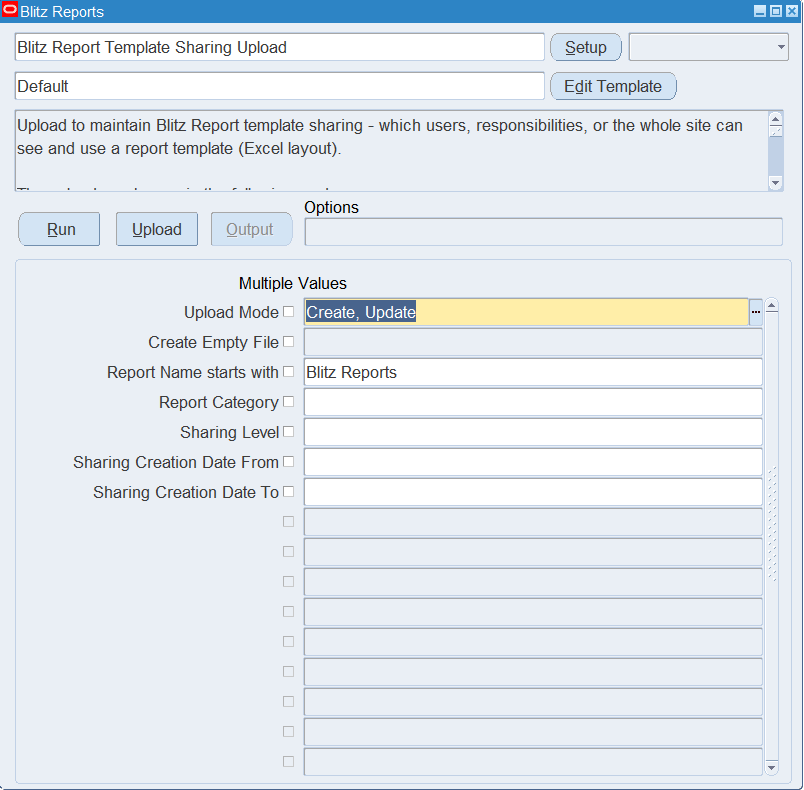
Open Blitz Report Template Sharing Upload in Blitz Report and set the parameters:
| Parameter | Meaning |
|---|---|
| Upload Mode | Create (default) for entering new shares; Create, Update downloads the templates with their existing shares, which you can delete or copy to another audience. |
| Create Empty File | Yes (default in Create mode when no report is entered) opens an empty sheet. Leave it blank to download the matching templates in Create mode. Only available in Create mode. |
| Report Name starts with | Limits the download to the templates of reports whose name starts with this text. |
| Report Category | Limits the download to reports in this category. |
| Sharing Level | Downloads only Site, Responsibility or User shares. |
| Sharing Creation Date From / To | Downloads only shares created in this date range. |
Step 2 – Run to download the Excel file
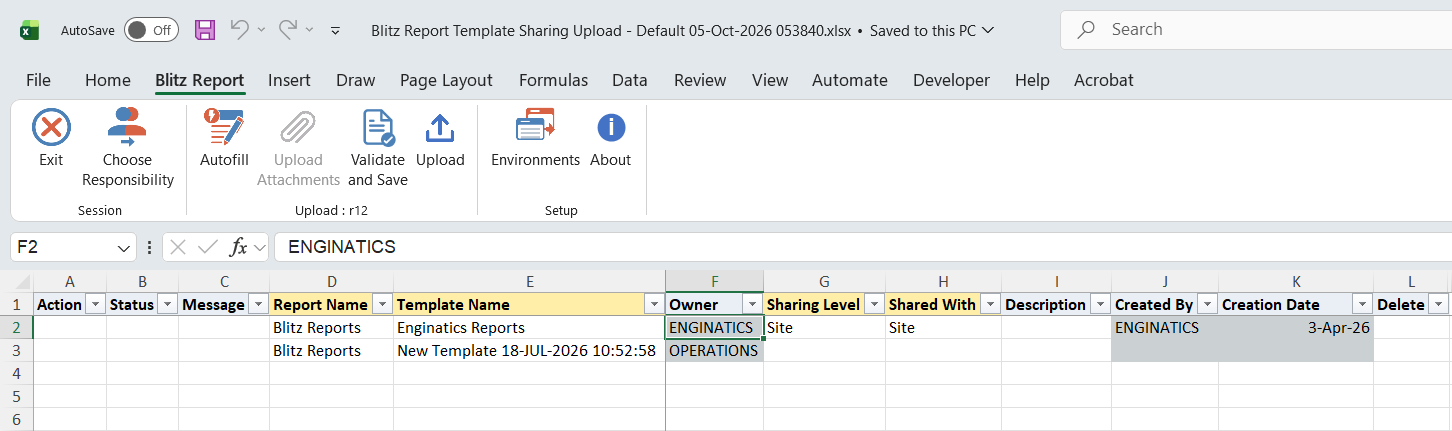
Click Run. The Excel file downloads and opens with one row per existing share, plus one row with blank sharing columns for each template that is not shared yet, or an empty sheet.
Step 3 – Enter or change the template shares
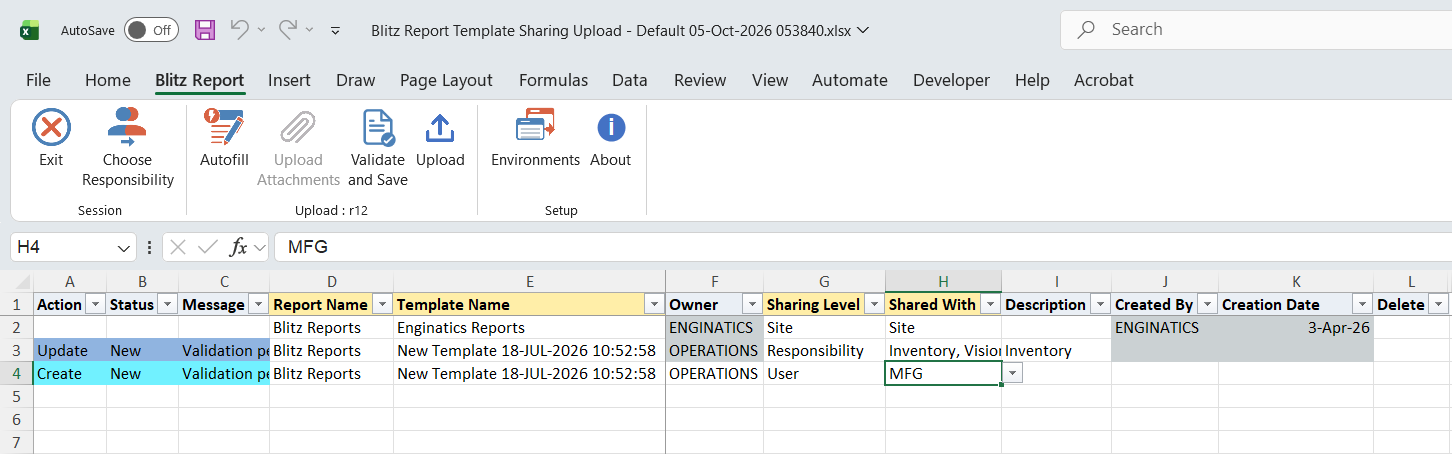
Each row shares one template with one audience. Enter the Report Name and Template Name (the list shows the templates of that report; Owner fills in automatically), then the Sharing Level and Shared With:
| Sharing Level | Shared With | Description |
|---|---|---|
| Site | Site | Blank |
| Responsibility | The responsibility name | The responsibility’s application. It fills in automatically when the name is unique; pick it from the list when the same responsibility name exists in several applications. |
| User | The user name | Blank |
To share a template that has no shares yet, fill the sharing columns on its downloaded row. Changing Sharing Level or Shared With on a row that already holds a share adds a new share and keeps the original one. To remove a share, set Delete to Yes on its downloaded row; only that share is removed, the template itself is not changed.
Site sharing and Responsibility or User sharing exclude each other for a template: a Site share replaces all Responsibility and User shares of the template, and a Responsibility or User share removes an existing Site share. Created By and Creation Date are for information only.
Step 4 – Validate and Save
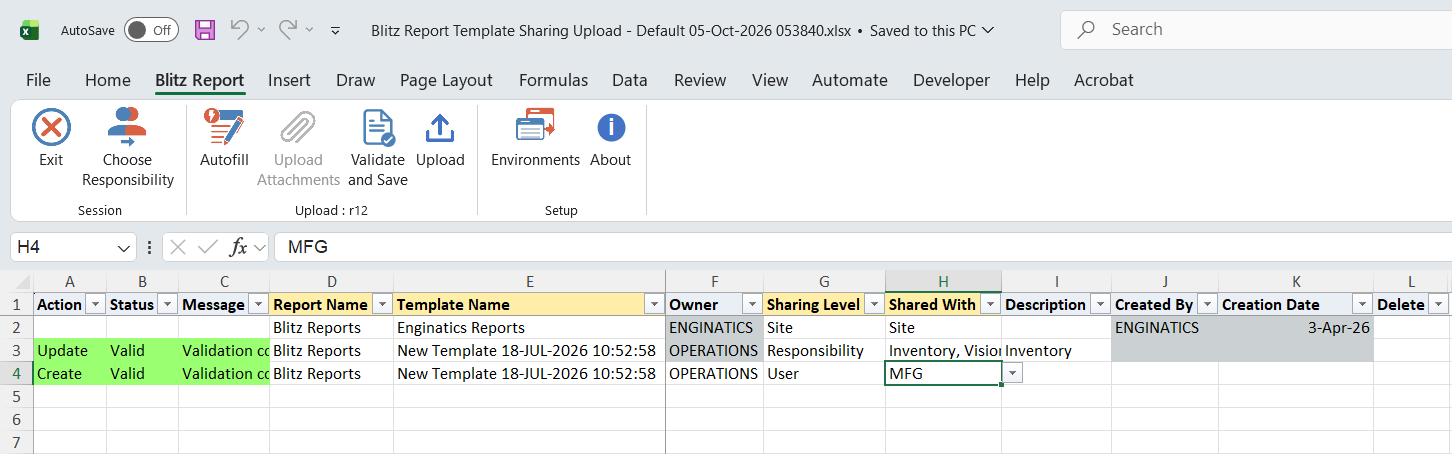
Click Validate and Save. This checks for missing required values and saves the file. Correct any rows it flags before uploading.
Step 5 – Upload the file
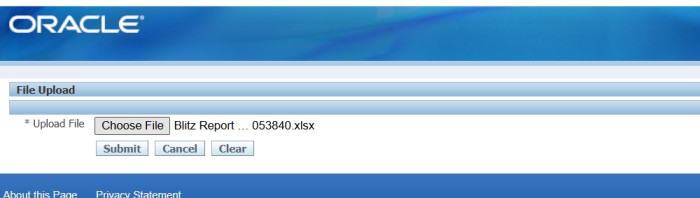
In Blitz Report click Upload and select the saved file. This submits the upload request, which creates or removes each template share.
Step 6 – Review the result report
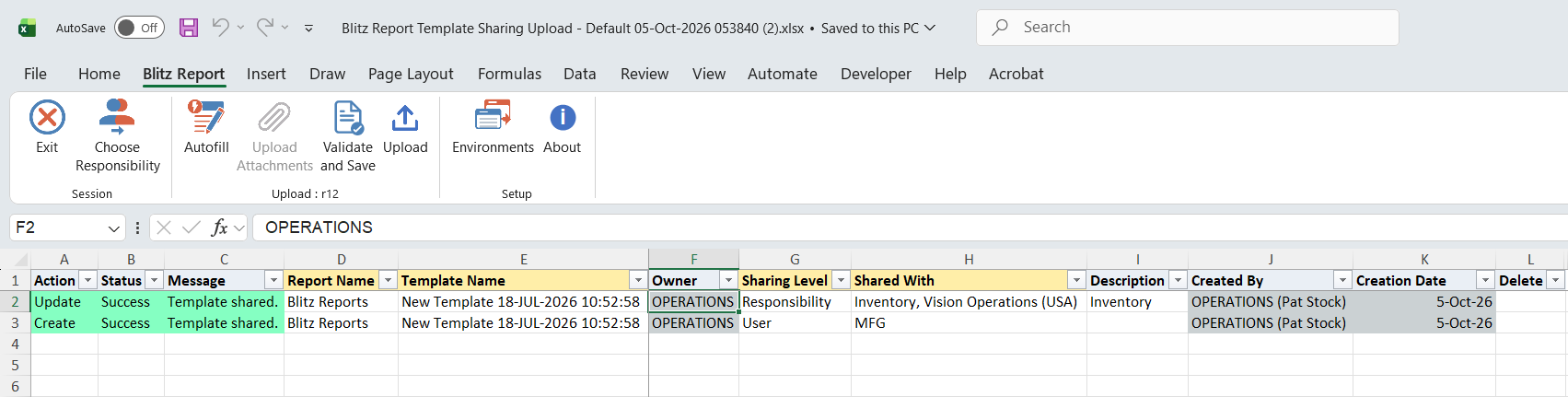
When the request completes, a result report opens listing every uploaded row with its status and message, and who created the share and when.
What’s produced
- Template shares created or removed: each shared template becomes selectable on the report’s run screen for the chosen site, responsibilities or users.
- A result report listing every row with a status (success or error) and a message.
Common questions
What happens if I share a template at Site level that already has Responsibility or User shares?
The Site share replaces them and the template becomes visible to everyone. The message states how many specific shares were removed. Adding a Responsibility or User share later removes the Site share again.
Can I move a share from one responsibility to another?
Not in one row. Changing Shared With on a downloaded row adds the new share and keeps the old one. Add the new share and set Delete to Yes on the old row.
Why is Description needed for a responsibility?
The same responsibility name can exist in several applications. Description holds the application and identifies the responsibility uniquely.
What if the share already exists?
The row completes with the message No change.
Can I share a template I didn’t create?
Only with Blitz Report Access Developer, System or User Admin, or Blitz Report Template Access Super User.
Troubleshooting
| Message | Cause | What to do |
|---|---|---|
| You are not allowed to share this template. | You do not own the template, or it is its report’s global default, and you have neither Developer, System or User Admin access nor template Super User access. | Ask an administrator with that access to share it. |
| Responsibility sharing requires a Description to identify the owning application. | A Responsibility share without Description. | Pick the responsibility’s application in Description. |
| Shared With is invalid | The value is not in the list for the selected Sharing Level, or the responsibility does not belong to the application in Description. | Pick Shared With and Description from their lists. |
| Record not found. | Delete is Yes for a share that does not exist. | Download in Create, Update mode and set Delete on the downloaded row. |
| Removed Site-level share; specific share already existed. | The Responsibility or User share existed alongside a Site share. | Informational: the Site share was removed. |
select null action_, null status_, null message_, null modified_columns_, xrtv.report_name, xrtv.template_name, xrtv.owner, xrtsv.sharing_level_desc sharing_level, xrtsv.level_value shared_with, fav.application_name description, xxen_util.user_name(xrtsv.created_by) created_by, xxen_util.client_time(xrtsv.creation_date) creation_date, null delete_, null upload_row from xxen_report_templates_v xrtv, (select xrtsv.* from xxen_report_template_sharing_v xrtsv where 2=2) xrtsv, fnd_application_vl fav where 1=1 and nvl(:p_create_empty_file,'x')<>'Y' and xrtv.template_id=xrtsv.template_id(+) and xrtsv.id2=fav.application_id(+) |
| Parameter Name | SQL text | Validation | |
|---|---|---|---|
| Upload Mode |
| LOV | |
| Create Empty File | LOV | ||
| Report Name starts with |
| LOV | |
| Report Category |
| LOV | |
| Sharing Level |
| LOV | |
| Sharing Creation Date From |
| Date | |
| Sharing Creation Date To |
| Date |