
BOM Common Bill of Materials Upload

Description
BOM Common Bill of Materials Upload creates common bills of material in one or more target organizations that reference the bills of a source (master) organization, so the target assemblies share the source bill rather than holding a copy. The download lists one row per bill and target organization, with columns showing whether each target is ready; you flag the rows to process and upload. Sub-assembly and substitute-item bills that the target organization does not have yet are made common in the same step.
When to use it
- Share bills maintained in the master organization with its child organizations instead of keeping independent copies.
- Set up the bills of a new organization in bulk during a rollout.
- Make a whole bill structure common at once, including its sub-assembly and substitute-item bills, which Oracle’s Create Common Bill otherwise requires one by one.
- Check, per target organization, which assemblies already have a bill or are missing item assignments before committing.
Before you start
- The source organization is an item master organization with bills of material; the target organizations use it as their master organization.
- Your responsibility has access to the target organizations. Organizations it cannot access are not listed, so the download is empty if it reaches none of them.
- The assembly item and all component and substitute items of the bill structure are assigned to the target organization.
Choose a template
| Template | Use it for |
|---|---|
| Common BOM Upload Template (default) | Reviewing the listed bill and target organization combinations and flagging the ones to make common yourself. |
| Automatic Common BOM Upload Template | Making everything listed common: every row is downloaded with Create Common Bom set to Yes and already marked for upload. Clear the flag or delete the rows you do not want. |
Step 1 – Set the parameters
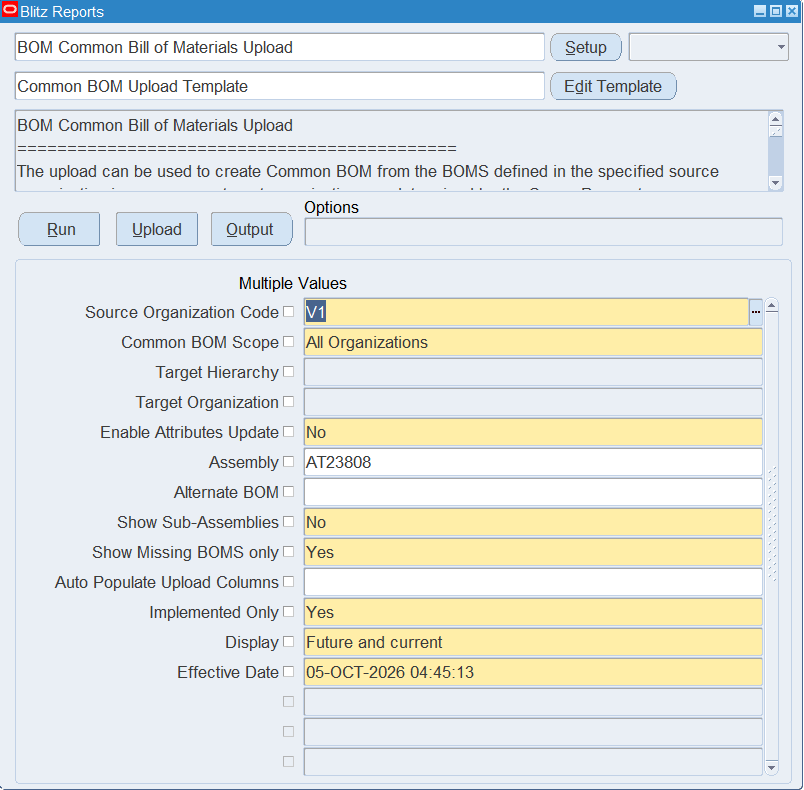
Open BOM Common Bill of Materials Upload in Blitz Report, choose the template and set the parameters:
| Parameter | Meaning |
|---|---|
| Source Organization Code | The master organization whose bills are made common. |
| Common BOM Scope | All Organizations: every organization under the same master organization; Organization Hierarchy: the organizations below the source organization in the Target Hierarchy; Single Organization: the Target Organization only. |
| Target Hierarchy | The organization hierarchy, when the scope is Organization Hierarchy. |
| Target Organization | The target organization, when the scope is Single Organization. |
| Enable Attributes Update | Passed to Oracle’s common bill creation, as the Enable Attributes Update option of the Create Common Bill window: Yes lets the target organization change component attributes such as supply type, subinventory and locator on its common bill. |
| Assembly / Alternate BOM | Restrict the download to one assembly, and to an alternate bill instead of the primary bill. |
| Show Sub-Assemblies | Yes also lists the bills of the sub-assemblies and substitute items in the bill structure as their own rows. |
| Show Missing BOMS only | Yes lists only combinations where the target organization does not have a bill for the assembly yet. |
| Auto Populate Upload Columns | Yes downloads every row with Create Common Bom set to Yes, ready to upload. The Automatic template sets it. |
| Implemented Only / Display / Effective Date | Which components count when the bill structure is exploded: implemented components only, and current, future or all components as of the effective date. |
Step 2 – Run to download the Excel file
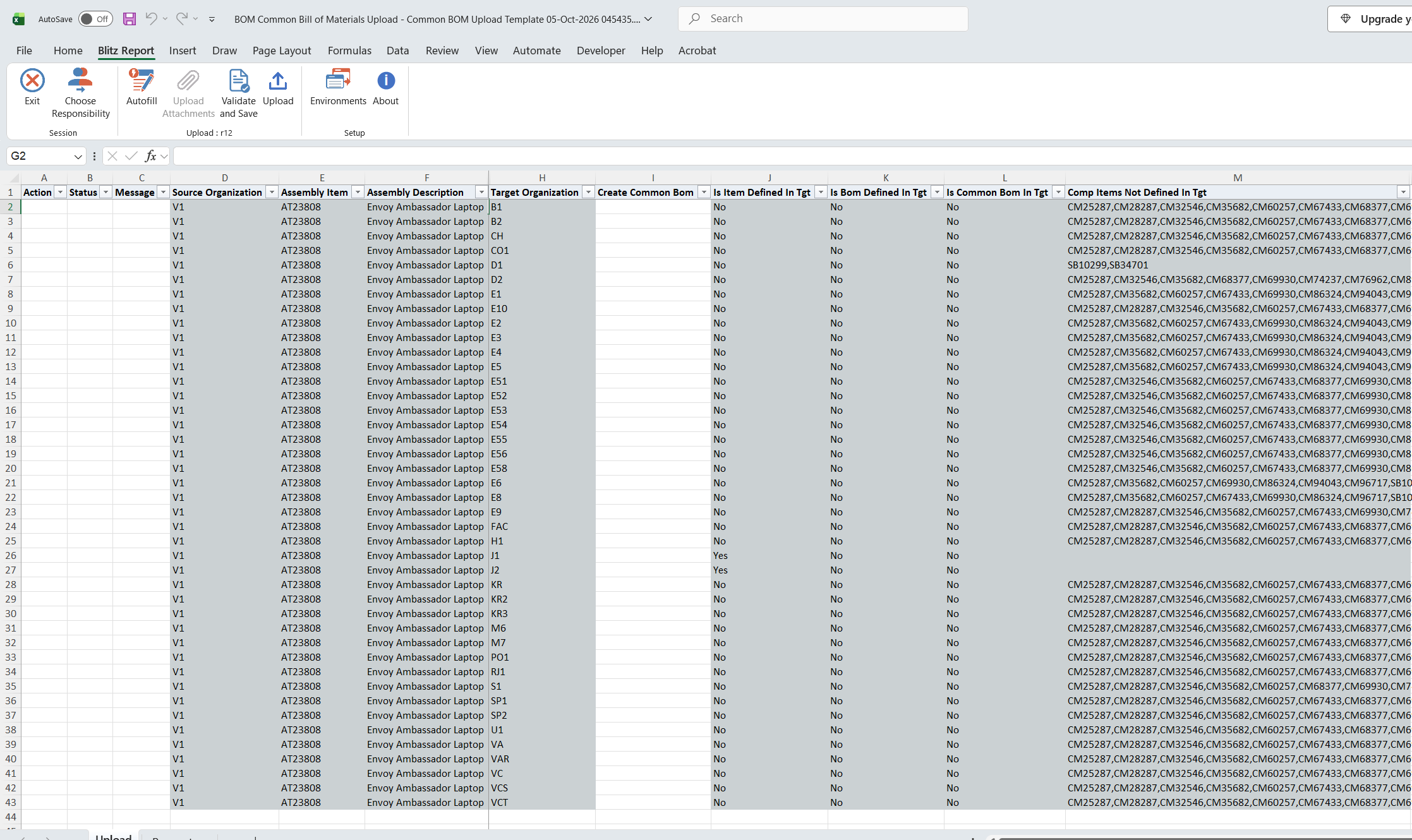
Click Run. Blitz Report downloads and opens the Excel file with one row per bill and target organization. With scope All Organizations, organizations where the assembly item is not assigned are listed too, with Is Item Defined In Tgt set to No.
Step 3 – Enter or change the data
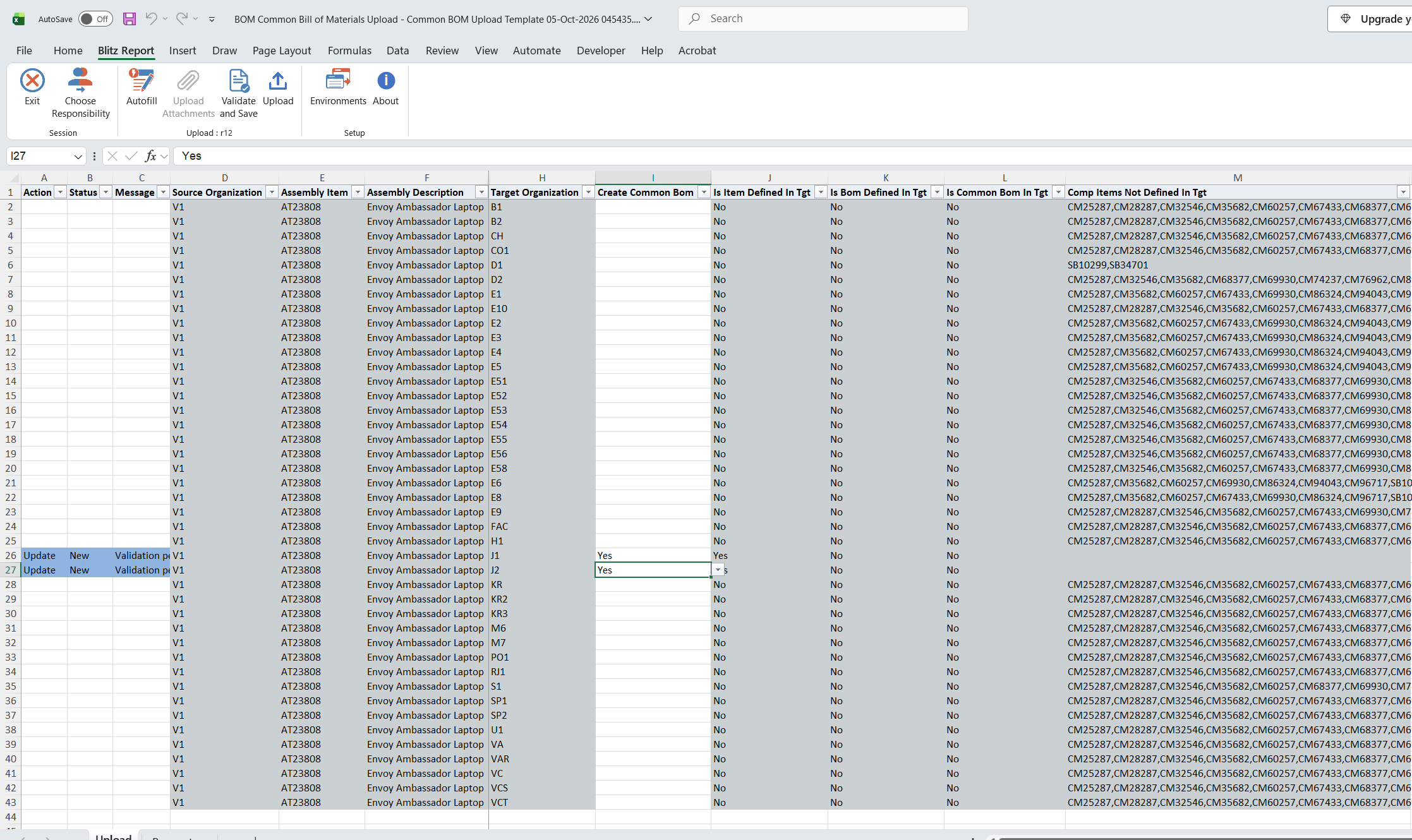
Set Create Common Bom to Yes on the rows to make common (in the Automatic template it is already set; clear it where you do not want the row). Rows you do not flag are not processed. Before flagging a row, check the readiness columns:
- Is Item Defined In Tgt – No means the assembly item is not assigned to the target organization, and the row will fail.
- Is Bom Defined In Tgt – Yes means the target organization already has a bill for this assembly and alternate, and nothing is changed.
- Is Common Bom In Tgt – Yes means the target organization already has a common bill referencing this source bill.
- Comp Items Not Defined In Tgt – component and substitute items of the bill that are not assigned to the target organization. Assign them first, or the row fails.
A row with Is Item Defined In Tgt Yes and Comp Items Not Defined In Tgt blank can still be rejected by Oracle: the assembly and its components must also have compatible item attributes in the target organization, for example not be engineering items there, be BOM enabled and have a compatible item type.
The other columns identify the bill and cannot be changed. Do not add rows: only downloaded rows can be processed.
Step 4 – Validate and Save
Click Validate and Save. This checks the rows for missing required values and saves the file.
Step 5 – Upload the file
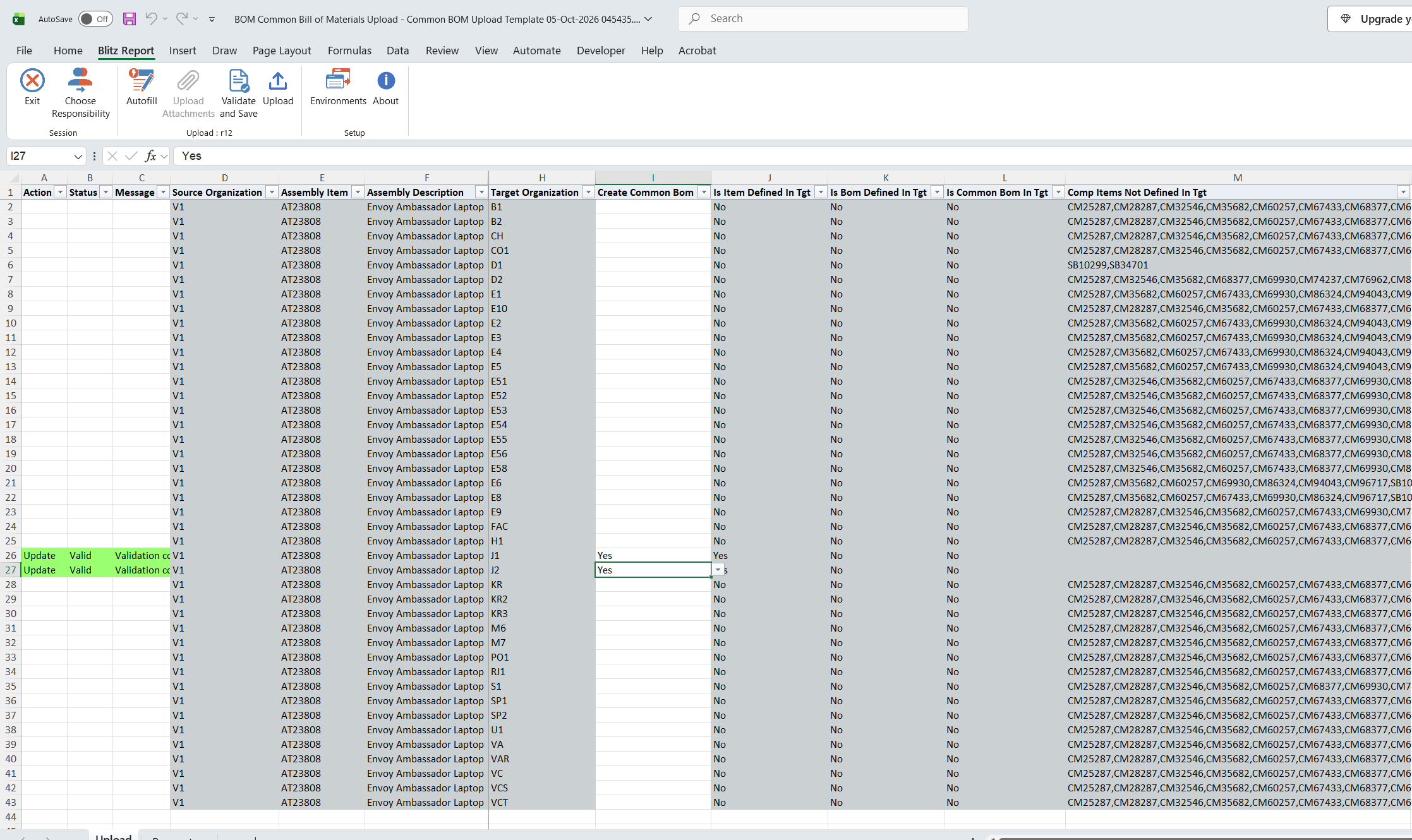
In Blitz Report click Upload and select the saved file. This submits the upload request, which creates the common bill in the target organization for each flagged row, together with any sub-assembly and substitute-item bills of the structure that the target organization does not have yet. A row that fails is rolled back completely, including the sub-assembly bills created for it.
Step 6 – Review the result report
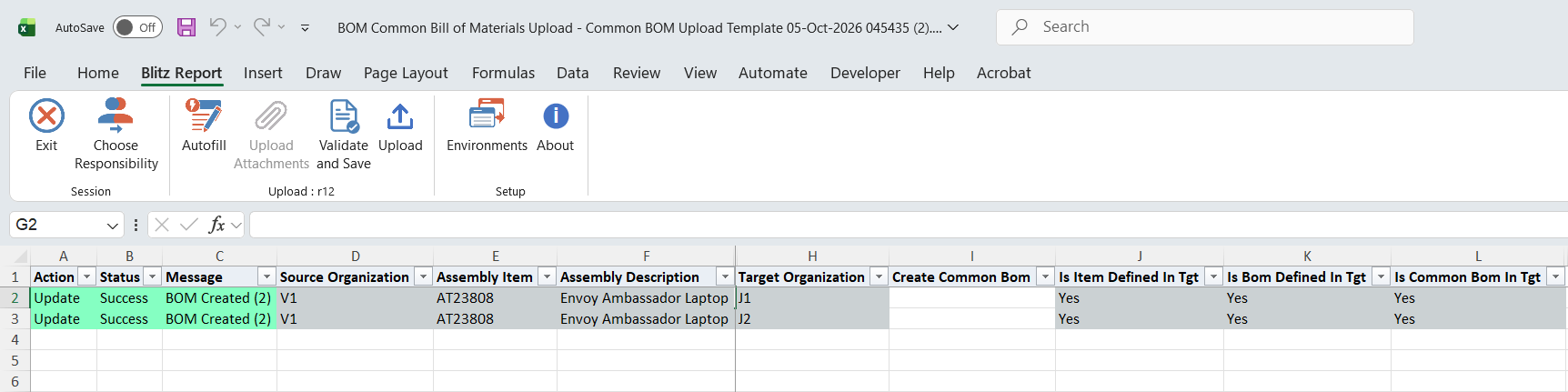
When the request completes, a result report opens listing every row with its status and message. A successful row shows BOM Created (n), where n is the number of bills created for it, sub-assembly bills included. The readiness columns are evaluated again, so Is Bom Defined In Tgt and Is Common Bom In Tgt show Yes.
What’s produced
- Common bills of material in the target organizations that reference the source organization’s bills, including any sub-assembly and substitute-item bills that were missing.
- A result report listing every row with its status and message.
Common questions
Does it copy the components into the target organization?
No. The target bill is a common bill that references the source bill, so component changes in the source organization apply to the target organization too.
Do I have to make the sub-assembly bills common first?
No. The upload walks the bill structure and makes every sub-assembly and substitute-item bill common in the target organization where it does not exist yet, starting from the lowest level.
Why is the downloaded file empty?
Only organizations under the source’s master organization that your responsibility can access are listed, and with Show Missing BOMS only set to Yes, combinations where the target already has a bill are left out. Check the responsibility’s organization access, or set Show Missing BOMS only to No.
Can I upload the same file again?
Yes. Bills that already exist in the target organization are reported as no action and left unchanged.
Troubleshooting
| Message | Cause | What to do |
|---|---|---|
| This API only supports Upload of existing BOMS | The row was not downloaded (for example a row added by hand). | Download the bill and target organization combination and flag that row. |
| No action taken | The row was marked for upload with Create Common Bom blank, for example after clearing the flag in the Automatic template. | None, or set Create Common Bom to Yes to process the row. |
| Item is not defined in the Target Organization | The assembly item is not assigned to the target organization. | Assign the item to the target organization and upload the row again. |
| No Action. Bom already Exists | The target organization already has a bill for this assembly and alternate. | None. |
| Following Component Items are not assigned in the Target Organization: … | Components of the bill structure are not assigned to the target organization. | Assign the listed items to the target organization and upload the row again. |
| Following Substitute Items are not assigned in the Target Organization: … | Substitute items of the bill structure are not assigned to the target organization. | Assign the listed items to the target organization and upload the row again. |
| (assembly) 1:One or more components of (assembly) in organization (source) have different properties in organization (target), or a component does not exist in the destination organization. | A component cannot be used on the bill in the target organization, for example it is an engineering item, not BOM enabled or of an incompatible item type there. | Correct the component’s item attributes in the target organization, or leave the row unflagged. |
| (assembly) 1:Manufacturing bill cannot be created for egineering item. | The assembly item is an engineering item in the target organization, while the source bill is a manufacturing bill. | Make the item a manufacturing item in the target organization, or leave the row unflagged. |
| (assembly) 1: … further messages | Oracle’s bill of material api rejected the common bill for that assembly. | Correct the cause named in the message, for example in the item or bill setup of the target organization. |
SQL 270 lines
with bom_tree as ( select /*+ materialize */ distinct bbom.bill_sequence_id from bom_bill_of_materials bbom ,bom_inventory_components bic where bbom.common_bill_sequence_id = bic.bill_sequence_id (+) and bbom.assembly_type = 1 and -- BOM nvl(bbom.effectivity_control,1) < 3 and nvl(bic.eco_for_production,2) = 2 and -- &lp_effective_display_clause1 &lp_effective_display_clause2 -- nvl(bbom.alternate_bom_designator,'?') = nvl(:p_alternate_bom,'?') and -- exclude common boms for the moment bbom.bill_sequence_id = bbom.common_bill_sequence_id and bbom.common_organization_id is null and bbom.common_assembly_item_id is null connect by nocycle prior decode(:p_explode_bom,'Y',bic.component_item_id,null) = bbom.assembly_item_id and prior decode(:p_explode_bom,'Y',bbom.organization_id,null) = bbom.organization_id and prior decode(:p_explode_bom,'Y',nvl(bbom.alternate_bom_designator,'?'),null) = nvl(bbom.alternate_bom_designator,'?') start with bbom.bill_sequence_id in (select /*+ materialize */ bbom.bill_sequence_id from mtl_parameters mp, mtl_system_items_kfv msik, bom_bill_of_materials bbom where mp.organization_id = msik.organization_id and msik.organization_id = bbom.organization_id and msik.inventory_item_id = bbom.assembly_item_id and msik.bom_enabled_flag = 'Y' and msik.bom_item_type != 5 and -- Exclude Product Family bbom.assembly_type = 1 and -- BOM nvl(bbom.effectivity_control,1) < 3 and nvl(bbom.alternate_bom_designator,'?') = nvl(:p_alternate_bom,'?') and -- exclude common boms bbom.bill_sequence_id = bbom.common_bill_sequence_id and bbom.common_organization_id is null and bbom.common_assembly_item_id is null and mp.organization_code = :p_source_organization_code and 1=1 ) ), bom as ( select mp.organization_code, msiv1.concatenated_segments assembly_item, msiv1.description assembly_description, bbom.specific_assembly_comment bill_comment, xxen_util.meaning(decode(bbom.implementation_date,null,2,1),'SYS_YES_NO',700) bill_implemented_flag, bbom.implementation_date bill_implementation_date, bbom.effectivity_control effectivity_control_code, xxen_util.meaning(bbom.effectivity_control,'MTL_EFFECTIVITY_CONTROL',700) effectivity_control, bbom.alternate_bom_designator alternate_bom, xxen_util.meaning(nvl2(bbom.common_assembly_item_id,1,2),'SYS_YES_NO',700) common_bill_flag, -- msiv2.concatenated_segments component_item, msiv2.description component_description, bic.item_num item_seq, bic.operation_seq_num operation_seq, bic.component_quantity, bic.effectivity_date date_effective_from, bic.disable_date date_effective_to, bic.from_end_item_unit_number end_item_unit_number_from, bic.to_end_item_unit_number end_item_unit_number_to, nvl(bic.basis_type,1) basis_type, xxen_util.meaning(nvl(bic.basis_type,1),'BOM_BASIS_TYPE',700) basis, xxen_util.meaning(decode(bic.implementation_date,null,2,1),'SYS_YES_NO',700) component_implemented_flag, bic.implementation_date component_implementation_date, -- bbom.bill_sequence_id, bbom.organization_id, bbom.assembly_item_id, bic.component_sequence_id, bic.component_item_id, mp.master_organization_id from bom_bill_of_materials bbom ,bom_inventory_components bic ,mtl_system_items_vl msiv1 ,mtl_system_items_vl msiv2 ,mtl_parameters mp where bbom.common_bill_sequence_id = bic.bill_sequence_id (+) and bbom.organization_id = mp.organization_id and bbom.assembly_item_id = msiv1.inventory_item_id and bbom.organization_id = msiv1.organization_id and bic.component_item_id = msiv2.inventory_item_id (+) and bbom.organization_id = nvl(msiv2.organization_id,bbom.organization_id) and -- bbom.bill_sequence_id in (select bom_tree.bill_sequence_id from bom_tree) and -- &lp_effective_display_clause1 &lp_effective_display_clause2 -- nvl(bic.eco_for_production,2) = 2 ), bom_subst as ( --from bom_substitute_components_v select bic2.component_sequence_id, bsc.substitute_component_id, msiv.concatenated_segments substitute_item, msiv.description substitute_description, bsc.substitute_item_quantity substitute_quantity, xxen_util.meaning(bsc.enforce_int_requirements,'BOM_ENFORCE_INT_REQUIREMENTS',700) subst_integer_requirements from bom_substitute_components bsc, bom_bill_of_materials bbom, bom_inventory_components bic1, bom_inventory_components bic2, /* current component record */ mtl_system_items_vl msiv /* component being referenced */ where bsc.component_sequence_id = bic1.component_sequence_id and bic1.bill_sequence_id = bbom.bill_sequence_id and bsc.substitute_component_id = msiv.inventory_item_id and bbom.organization_id = msiv.organization_id and nvl(bsc.acd_type, 1) <> 3 and bic2.bill_sequence_id = bic1.bill_sequence_id and decode(bic2.implementation_date, null, bic2.old_component_sequence_id, bic2.component_sequence_id) = decode(bic1.implementation_date, null, bic1.old_component_sequence_id, bic1.component_sequence_id) and bic1.effectivity_date = (select max(bic3.effectivity_date) from bom_substitute_components bsc3, bom_inventory_components bic3 where bic3.component_sequence_id = bsc3.component_sequence_id and decode(bic3.implementation_date, null, bic3.old_component_sequence_id, bic3.component_sequence_id) = decode(bic1.implementation_date, null, bic1.old_component_sequence_id, bic1.component_sequence_id) and bic3.bill_sequence_id = bic1.bill_sequence_id and bsc3.substitute_component_id = bsc.substitute_component_id and bic3.effectivity_date <= bic2.effectivity_date ) ) -- -- Main Query Starts Here select /*+ push_pred(bom_subst) */ --process-- case when nvl2(:p_autopopulate_upload_status,'Y','N') = 'Y' then xxen_upload.action_meaning(xxen_upload.action_update) else null end action_, case when nvl2(:p_autopopulate_upload_status,'Y','N') = 'Y' then xxen_upload.status_meaning(xxen_upload.status_new) else null end status_, case when nvl2(:p_autopopulate_upload_status,'Y','N') = 'Y' then xxen_util.description('U_EXCEL_MSG_VALIDATION_PENDING', 'XXEN_REPORT_TRANSLATIONS', 0) else null end message_, null request_id_, null modified_columns_, to_char(null) row_id, :p_enable_attrs_update enable_attrs_update, case when nvl2(:p_autopopulate_upload_status,'Y','N') = 'Y' then xxen_util.meaning('Y','YES_NO',0) else null end create_common_bom, boms.source_organization, boms.assembly_item, boms.assembly_description, boms.alternate_bom, boms.target_organization, boms.is_item_defined_in_tgt, boms.is_bom_defined_in_tgt, boms.is_common_bom_in_tgt, boms.comp_items_not_defined_in_tgt || nvl2(comp_items_not_defined_in_tgt,nvl2(subst_items_not_defined_in_tgt,',',null),null) || subst_items_not_defined_in_tgt comp_items_not_defined_in_tgt, boms.bill_sequence_id, boms.assembly_item_id, boms.source_organization_id, boms.target_organization_id from ( select bom.organization_code source_organization, bom.assembly_item, bom.assembly_description, bom.alternate_bom, -- mp.organization_code target_organization, -- nvl((select 'Yes' from mtl_system_items_vl msiv2 where msiv2.organization_id = mp.organization_id and msiv2.inventory_item_id = bom.assembly_item_id),'No') is_item_defined_in_tgt, nvl((select 'Yes' from bom_bill_of_materials bbom2 where bbom2.organization_id = mp.organization_id and bbom2.assembly_item_id = bom.assembly_item_id and nvl(bbom2.alternate_bom_designator,'?') = nvl(bom.alternate_bom,'?') and rownum <= 1),'No') is_bom_defined_in_tgt, nvl((select 'Yes' from bom_bill_of_materials bbom2 where bbom2.organization_id = mp.organization_id and bbom2.common_organization_id = bom.organization_id and bbom2.common_assembly_item_id = bom.assembly_item_id and rownum <= 1),'No') is_common_bom_in_tgt, (select distinct listagg(msiv.concatenated_segments,',') within group (order by msiv.concatenated_segments) from bom_inventory_components bic, mtl_system_items_vl msiv where bic.bill_sequence_id = bom.bill_sequence_id and msiv.organization_id = bom.organization_id and msiv.inventory_item_id = bic.component_item_id and not exists (select null from mtl_system_items_vl msiv2 where msiv2.organization_id = mp.organization_id and msiv2.inventory_item_id = bic.component_item_id) ) comp_items_not_defined_in_tgt, (select distinct listagg(msiv.concatenated_segments,',') within group (order by msiv.concatenated_segments) from bom_inventory_components bic, bom_substitute_components bsc, mtl_system_items_vl msiv where bic.bill_sequence_id = bom.bill_sequence_id and bsc.component_sequence_id = bic.component_sequence_id and msiv.organization_id = bom.organization_id and msiv.inventory_item_id = bsc.substitute_component_id and not exists (select null from mtl_system_items_vl msiv2 where msiv2.organization_id = mp.organization_id and msiv2.inventory_item_id = bsc.substitute_component_id) ) subst_items_not_defined_in_tgt, -- bom.bill_sequence_id, bom.assembly_item_id, bom.organization_id source_organization_id, mp.organization_id target_organization_id from bom, mtl_parameters mp where mp.master_organization_id = bom.master_organization_id and mp.organization_id != bom.organization_id and mp.organization_id in (select oav.organization_id from org_access_view oav where oav.resp_application_id=fnd_global.resp_appl_id and oav.responsibility_id=fnd_global.resp_id) and 2=2 union -- substitutes select bom.organization_code source_organization, bom_subst.substitute_item, bom_subst.substitute_description, bbom.alternate_bom_designator alternate_bom, -- mp.organization_code target_organization, -- nvl((select 'Yes' from mtl_system_items_vl msiv2 where msiv2.organization_id = mp.organization_id and msiv2.inventory_item_id = bom_subst.substitute_component_id),'No') is_item_defined_in_tgt, nvl((select 'Yes' from bom_bill_of_materials bbom2 where bbom2.organization_id = mp.organization_id and bbom2.assembly_item_id = bom_subst.substitute_component_id and rownum <= 1),'No') is_bom_defined_in_tgt, nvl((select 'Yes' from bom_bill_of_materials bbom2 where bbom2.organization_id = mp.organization_id and bbom2.common_organization_id = bbom.organization_id and bbom2.common_assembly_item_id = bbom.assembly_item_id and rownum <= 1),'No') is_common_bom_in_tgt, (select distinct listagg(msiv.concatenated_segments,',') within group (order by msiv.concatenated_segments) from bom_inventory_components bic, mtl_system_items_vl msiv where bic.bill_sequence_id = bbom.bill_sequence_id and msiv.organization_id = bbom.organization_id and msiv.inventory_item_id = bom_subst.substitute_component_id and not exists (select null from mtl_system_items_vl msiv2 where msiv2.organization_id = mp.organization_id and msiv2.inventory_item_id = bom_subst.substitute_component_id) ) comp_items_not_defined_in_tgt, (select distinct listagg(msiv.concatenated_segments,',') within group (order by msiv.concatenated_segments) from bom_inventory_components bic, bom_substitute_components bsc, mtl_system_items_vl msiv where bic.bill_sequence_id = bbom.bill_sequence_id and bsc.component_sequence_id = bic.component_sequence_id and msiv.organization_id = bbom.organization_id and msiv.inventory_item_id = bsc.substitute_component_id and not exists (select null from mtl_system_items_vl msiv2 where msiv2.organization_id = mp.organization_id and msiv2.inventory_item_id = bsc.substitute_component_id) ) subst_items_not_defined_in_tgt, -- bbom.bill_sequence_id, bom_subst.substitute_component_id, bom.organization_id source_organization_id, mp.organization_id target_organization_id from bom, bom_subst, bom_bill_of_materials bbom, mtl_parameters mp where :p_explode_bom = 'Y' and bom.component_sequence_id = bom_subst.component_sequence_id and bbom.organization_id = bom.organization_id and bbom.assembly_item_id = bom_subst.substitute_component_id and mp.master_organization_id = bom.master_organization_id and mp.organization_id != bom.organization_id and mp.organization_id in (select oav.organization_id from org_access_view oav where oav.resp_application_id=fnd_global.resp_appl_id and oav.responsibility_id=fnd_global.resp_id) and 2=2 ) boms where :p_display_option = :p_display_option and :p_scope = :p_scope and 3=3 |
Parameters 13
| Parameter | Type | List of values SQL | |
|---|---|---|---|
| Source Organization Code | LOV | ||
| Common BOM Scope | LOV | ||
| Target Hierarchy | LOV |
| |
| Target Organization | LOV |
| |
| Enable Attributes Update | LOV Oracle | ||
| Assembly | LOV |
| |
| Alternate BOM | LOV | ||
| Show Sub-Assemblies | LOV Oracle | ||
| Show Missing BOMS only | LOV Oracle |
| |
| Auto Populate Upload Columns | LOV | ||
| Implemented Only | LOV Oracle | ||
| Display | LOV | ||
| Effective Date | DateTime |