
AR Transaction Upload

Description
AR Transaction Upload creates Oracle Receivables invoices, debit memos and credit memos from Excel, with their lines, manual tax lines, freight lines, GL distributions and sales credits. It also creates credit memos against existing invoices and applies them in the same step. Each upload produces a result report showing every row with its status and message.
When to use it
- Mass-create customer invoices from an external billing system or spreadsheet.
- Load on-account credit memos or debit memos in bulk.
- Credit existing invoices in full, in part or by line, and apply the credit memo directly.
- Migrate historical transactions without tax calculation.
- Create multi-line invoices with manual tax lines, freight lines, several distributions or split sales credits per line.
Before you start
- The Receivables period of your GL date is open.
- A transaction batch source and transaction types are set up for the operating unit.
- The customer account is active and has an active bill-to site in the operating unit. Inactive accounts are not offered in the list of values.
- AutoAccounting can derive the revenue and receivable accounts from the values you enter (transaction type, salesperson, item or standard memo line), or you supply the accounts on the rows.
Choose a template
| Template | Use it for |
|---|---|
| Default (default) | Invoices, debit memos and on-account credit memos, with tax calculated by E-Business Tax. |
| Default (with attachment) | The same, plus attachment columns to attach a file, URL or text to each transaction. |
| Historical Transactions Upload | Historical or migration loads. Sets Historical Transaction Load? to Yes, so no tax is calculated for the uploaded transactions. |
| Applied Credit Memo | Crediting existing invoices at header or line level and applying the credit memo. Adds the Credit Against Transaction, Credit Against Line and credit amount columns and the credit method parameters. |
Step 1 – Set the parameters
Open AR Transaction Upload in Blitz Report, choose the template and set the parameters:
| Parameter | Meaning |
|---|---|
| Operating Unit | The operating unit the transactions are created in. |
| Source | The transaction batch source. It decides whether transaction numbers are assigned automatically or entered manually. |
| Default Transaction Type | Transaction type defaulted on new rows, initially the batch source’s default type. |
| Default Transaction Currency | Currency defaulted on new rows, initially the ledger currency. |
| Exchange Rate Type | Rate type defaulted for foreign currency transactions. |
| Default Transaction Date | Transaction date defaulted on new rows, initially today. |
| Default GL Date | GL date defaulted on new rows: today, or the end of the latest open Receivables period if that is earlier. |
| Use SalesPersons | Applies only when the Receivables system options do not require a salesperson. Yes defaults a salesperson for the transaction; No creates it without one. |
| Derive Applied CM Batch Source | Applied Credit Memo template. Yes takes the credit memo batch source from the credited invoice; No uses the Source parameter. |
| Credit Method for Rules | Applied Credit Memo template. How the credit is spread over the accounting rule periods of the credited invoice: LIFO, PRORATE (default) or UNIT. |
| Credit Method for Installments | Applied Credit Memo template. How the credit is spread over the installments of the credited invoice: LIFO (default), FIFO or PRORATE. |
| Historical Transaction Load? | Historical Transactions Upload template. Yes bypasses tax calculation. |
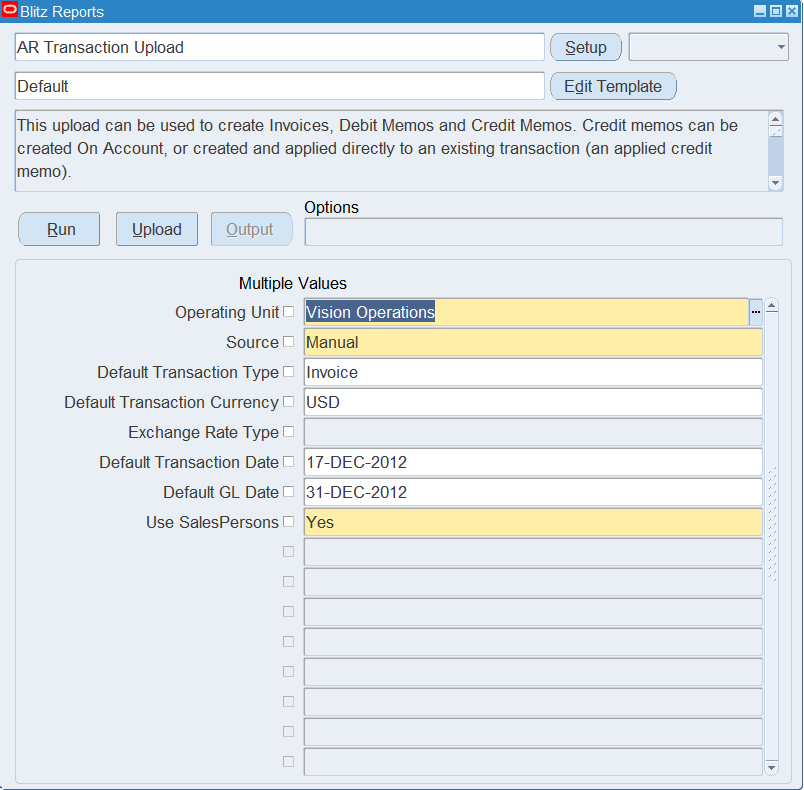
Step 2 – Run to download the Excel file
Click Run. The Excel file downloads and opens with an empty sheet for the new transactions.
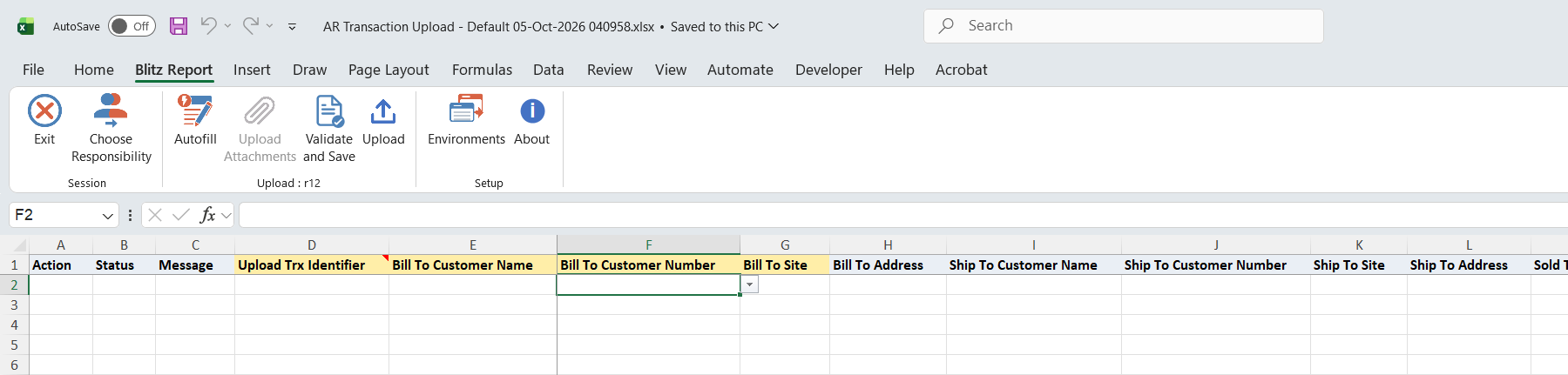
Step 3 – Enter the transactions
Each row is one transaction line. Rows with the same Upload Trx Identifier make up one transaction, so repeat the identifier and the header values on every row of the transaction.
- Header: Bill To Customer Name, Bill To Customer Number and Bill To Site are required. Trx Type, Trx Date, GL Date and Trx Currency default from the parameters; Terms and Salesperson default from the customer.
- Transaction number: with automatic numbering, leave Trx Number blank. With manual numbering it is copied from the Upload Trx Identifier, and you can overwrite it. If the transaction type uses a manual document sequence, the Upload Trx Identifier becomes the document sequence value and must be numeric.
- Standard lines: Line Type Line with a Line Item or Line Standard Memo, a Quantity and a Unit Price. The Line Amount is calculated.
- Freight lines: Line Type Freight with a Line Amount, or a Quantity and Unit Price. Leave Link To Line Number blank for header freight, or enter the line number of the standard line for line freight.
- Manual tax lines: Line Type Tax, linked to a standard line with Link To Line Number, with Tax Regime Code, Tax, Tax Jurisdiction, Tax Status, Tax Rate Name and Tax Rate. A blank Line Amount is calculated from the rate and the linked line. Tax and line freight rows must come after the line they link to.
- Accounts: Distribution Account and Receivables Account override the accounts AutoAccounting derives. To split a line over several accounts, enter one row per distribution with a Distribution Percent or Distribution Amount. A line with an invoicing rule takes one distribution row per accounting class (Revenue plus Unearned Revenue or Unbilled Receivable).
- Sales credits: Line Salesperson with a Line Salescredit Revenue Pct or Amt overrides the header salesperson for a line.

Credit an existing invoice
Use the Applied Credit Memo template and enter the invoice in Credit Against Transaction, together with a Credit Memo Reason. The credit memo type and date are derived from the credited invoice.
- Header level: one row with Credit Against Line blank. Leave Credit Line Amount, Credit Tax Amount and Credit Freight Amount blank to credit the full outstanding balance, or enter negative amounts for a partial credit.
- Line level: one row per credited invoice line, identified in Credit Against Line, with a negative Credit Line Amount (it defaults to the full line amount). Credit Tax Amount and Credit Freight Amount stay blank; the credit method spreads the tax.
Step 4 – Validate and Save
Click Validate and Save. This checks for missing required values and runs the upload’s row checks (line type rules, tax columns, salesperson requirement, AutoAccounting, credit memo amounts), then saves the file. Correct any rows it flags before uploading.

Step 5 – Upload the file
In Blitz Report click Upload and select the saved file. This submits the upload request, which creates the transactions through the Receivables invoice API and completes them.
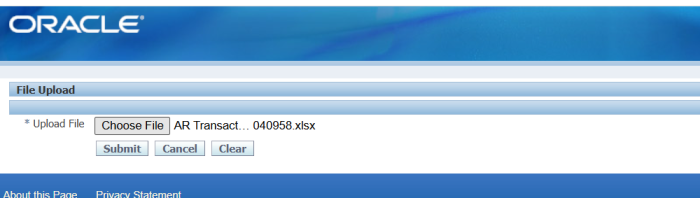
Step 6 – Review the result report
When the request completes, a result report opens listing every uploaded row with its status and message, and the created Trx Number, Terms, Trx Amount and accounts.

What’s produced
- Completed Receivables invoices, debit memos and credit memos with their lines, tax, freight, distributions and sales credits.
- Credit memos applied to the credited invoices.
- A result report listing every row with a status (success or error) and a message.
Common questions
How do I change an existing transaction?
Use the AR Transaction Update Upload.
How do I put several lines on one invoice?
Give every row of the invoice the same Upload Trx Identifier and a unique Line Number.
What happens if one line of a transaction fails?
The whole transaction is not created. The failing row shows the error, and the other rows of the transaction show “One or more lines in the Invoice have errors”. Correct the row and upload the whole transaction again.
Do I have to enter a salesperson?
Only when the Receivables system options require one. Otherwise the Use SalesPersons parameter decides whether a salesperson is defaulted. AutoAccounting may still need a salesperson if it takes revenue account segments from it.
Why is my customer not in the list?
The list shows only active customer accounts with an active bill-to site in the selected operating unit.
Troubleshooting
| Message | Cause | What to do |
|---|---|---|
| Quantity and Unit Price are required on an Invoice Line | A Line row without Quantity or Unit Price. | Enter both; the line amount is calculated. |
| Link to Line Number cannot be specified for on an Invoice Line | A Line row has a Link To Line Number. | Clear it; only Tax and line Freight rows link to a line. |
| Amount and/or Quantity and Unit Price are required for Freight Lines | A Freight row without an amount. | Enter a Line Amount, or a Quantity and Unit Price. |
| Link to Line Number is required for Tax Lines | A Tax row not linked to a standard line. | Enter the Line Number of the standard line it belongs to. |
| Tax Regime Code, Tax, Tax Status, Tax Rate Name, and Tax Rate are required for Tax Lines | A manual tax row with missing tax columns. | Fill all tax columns. |
| Invalid Link To Line Number | The linked line does not exist in the transaction, or comes after the Tax or Freight row. | Correct the number, or move the row below the line it links to. |
| Line Number is not unique | Two rows of a transaction have the same Line Number. | Number the lines uniquely. |
| Salesperson is required for this operating unit | The system options require a salesperson. | Enter a Salesperson. |
| Please correct the revenue account assignment | AutoAccounting cannot build the revenue account, for example the salesperson, transaction type, item or memo line has no revenue account. | Enter a salesperson, item or memo line that carries the account, or enter a Distribution Account. |
| A Payment Term cannot be derived from the Customers Bill To Site or Account. In this case the Payment Term must be specified on the invoice. | Neither the bill-to site nor the account has payment terms. | Enter Terms. |
| Unique Trx Identifier must be numeric when Manual Document Sequence Numbers are used. | The transaction type uses a manual document sequence. | Use numeric Upload Trx Identifiers. |
| Accounting Rule, Rule Duration, Rule Start Date and Rule End Date require an Invoicing Rule | Rule columns without an Invoicing Rule. | Enter the Invoicing Rule, or clear the rule columns. |
| The GL Date is not in an open Receivables period. | The credit memo GL date is in a closed period. | Use a GL date in an open period. |
| A Credit Memo Reason is required. | An applied credit memo without a reason. | Enter a Credit Memo Reason. |
| The transaction to be credited has no outstanding balance to credit. | The invoice is fully paid or credited. | Check the invoice balance. |
| A header-level applied credit memo must be a single row. Use Credit Against Line to credit specific invoice lines. | Several rows for one header-level credit. | Keep one row, or credit by line with Credit Against Line on every row. |
| Credit Line Amount must be negative for a line-level credit | A zero or positive Credit Line Amount with Credit Against Line. | Enter a negative amount. |
| One or more lines in the Invoice have errors | Another row of the same transaction failed. | Correct the failing row and upload the transaction again. |
SQL 464 lines
select null action_, null status_, null message_, null request_id_, null modified_columns_, to_number(null) upload_row, null use_salespersons, null derive_applied_cm_batch_source, null credit_method_for_rules, null credit_method_for_installments, to_number(null) p_trx_idx, to_number(null) p_line_idx, to_number(null) p_dist_idx, to_number(null) p_scred_idx, -- haouv.name operating_unit, rbsa.name source, trunc(sysdate) default_gl_date, -- null upload_trx_identifier, rcta.ct_reference reference, -- hp_b.party_name bill_to_customer_name, hca_b.account_number bill_to_customer_number, hcsua_b.location bill_to_site, hz_format_pub.format_address(hps_b.location_id,null,null,', ') bill_to_address, -- hp_s.party_name ship_to_customer_name, hca_s.account_number ship_to_customer_number, hcsua_s.location ship_to_site, hz_format_pub.format_address(hps_s.location_id,null,null,', ') ship_to_address, hp_sold.party_name sold_to_customer_name, -- null credit_against_transaction, null credit_against_line, to_number(null) credit_line_amount, to_number(null) credit_tax_amount, to_number(null) credit_freight_amount, xxen_util.meaning(rcta.reason_code,'CREDIT_MEMO_REASON',222) credit_memo_reason, null applied_credit_batch_source, -- rctta.name trx_type, rctta.type trx_class, rcta.trx_number, rcta.trx_date, apsa.gl_date, (select jrrev2.resource_name from jtf_rs_salesreps jrs2, jtf_rs_resource_extns_vl jrrev2 where rcta.primary_salesrep_id=jrs2.salesrep_id and jrs2.org_id=rcta.org_id and jrs2.resource_id=jrrev2.resource_id and rownum=1) salesperson, rcta.purchase_order, rcta.purchase_order_revision, rcta.purchase_order_date, (select rtv.name from ra_terms_vl rtv where rtv.term_id=rcta.term_id ) terms, (select arm.name from ar_receipt_methods arm where arm.receipt_method_id=rcta.receipt_method_id ) receipt_method, (select case itev.instrument_type when 'BANKACCOUNT' then itev.account_number || ' / ' || itev.currency_code || ' / ' || itev.bank_name || ' / ' || itev.bank_branch_name when 'CREDITCARD' then itev.card_issuer_name || ' / ' || itev.card_number || ' / ' || itev.card_holder_name || ' / ' || itev.card_expiration_status else null end from iby_trxn_extensions_v itev where itev.trxn_extension_id=rcta.payment_trxn_extension_id ) payment_instrument, -- apsa.amount_due_original trx_amount, rcta.invoice_currency_code trx_currency, (select gdct.user_conversion_type from gl_daily_conversion_types gdct where gdct.conversion_type=rcta.exchange_rate_type ) exchange_rate_type, rcta.exchange_date exchange_rate_date, rcta.exchange_rate, (select gcck_rec.concatenated_segments from ra_cust_trx_line_gl_dist_all rctlgda_rec, gl_code_combinations_kfv gcck_rec where rctlgda_rec.customer_trx_id=rcta.customer_trx_id and rctlgda_rec.account_class='REC' and rctlgda_rec.latest_rec_flag='Y' and rctlgda_rec.code_combination_id=gcck_rec.code_combination_id ) receivables_account, -- rctla.line_number, initcap(rctla.line_type) line_type, (select rctla2.line_number from ra_customer_trx_lines_all rctla2 where rctla2.customer_trx_line_id=rctla.link_to_cust_trx_line_id ) link_to_line_number, (select msiv.concatenated_segments from mtl_system_items_vl msiv where msiv.inventory_item_id=rctla.inventory_item_id and msiv.organization_id=to_number(oe_profile.value('SO_ORGANIZATION_ID', rctla.org_id)) ) line_item, (select aml.name from ar_memo_lines_all_vl aml where aml.memo_line_id=rctla.memo_line_id ) line_standard_memo, rctla.description line_description, xxen_util.meaning(rctla.reason_code,case rctta.type when 'CM' then 'CREDIT_MEMO_REASON' else 'INVOICING_REASON' end,222) line_reason, (select muomv.unit_of_measure_tl from mtl_units_of_measure_vl muomv where muomv.uom_code=rctla.uom_code ) uom, nvl(rctla.quantity_invoiced, rctla.quantity_credited ) quantity, rctla.unit_selling_price unit_price, rctla.extended_amount line_amount, -- (select jrrev2.resource_name from jtf_rs_salesreps jrs2, jtf_rs_resource_extns_vl jrrev2 where rctlsa.salesrep_id=jrs2.salesrep_id and jrs2.org_id=rcta.org_id and jrs2.resource_id=jrrev2.resource_id) line_salesperson, rctlsa.revenue_percent_split line_salescredit_revenue_pct, rctlsa.revenue_amount_split line_salescredit_revenue_amt, -- gcck.concatenated_segments distribution_account, rctlgda.percent distribution_percent, rctlgda.amount distribution_amount, xxen_util.meaning(rctlgda.account_class,'AUTOGL_TYPE',222) distribution_class, -- (select rr.name from ra_rules rr where rr.type='I' and rr.rule_id=rcta.invoicing_rule_id ) invoicing_rule, (select rr.name from ra_rules rr where rr.type!='I' and rr.rule_id=rctla.accounting_rule_id ) accounting_rule, rctla.accounting_rule_duration rule_duration, rctla.rule_start_date, rctla.rule_end_date, -- (select ofr.description from org_freight ofr where ofr.freight_code=rcta.ship_via and ofr.organization_id=to_number(oe_profile.value('SO_ORGANIZATION_ID',rcta.org_id)) and rownum<=1 ) carrier, rcta.ship_date_actual ship_date, rcta.waybill_number shipping_reference, xxen_util.meaning(rcta.fob_point,'FOB',222) fob, -- rctla.sales_order, rctla.sales_order_line, rctla.sales_order_date, -- xxen_util.meaning(rctla.historical_flag,'YES_NO',0) historical, xxen_util.meaning(rctla.taxable_flag,'YES_NO',0) taxable, xxen_util.meaning(rctla.amount_includes_tax_flag,'YES_NO',0) amount_includes_tax, xxen_util.meaning(rctla.tax_exempt_flag,'ZX_EXEMPTION_CONTROL',0) tax_handling, rctla.tax_exempt_number, xxen_util.meaning(rctla.tax_exempt_reason_code,'ZX_EXEMPTION_REASON_CODE',0) tax_exempt_reason, -- -- default taxation country (select ft.territory_short_name from fnd_territories_vl ft where ft.territory_code=zldt.default_taxation_country ) default_taxation_country, -- tax_classification (select zocv.meaning from zx_output_classifications_v zocv where zocv.lookup_type='ZX_OUTPUT_CLASSIFICATIONS' and zocv.lookup_code=rctla.tax_classification_code and (zocv.org_id=rctla.org_id or zocv.org_id=-99) and zocv.enabled_flag='Y' and trunc(rcta.trx_date) between nvl(zocv.start_date_active, trunc(rcta.trx_date)) and nvl(zocv.end_date_active, trunc(rcta.trx_date)) and rownum<=1 ) tax_classification, -- trx_business_category (select zfbcv.classification_name from zx_fc_business_categories_v zfbcv where zfbcv.classification_code=zldt.trx_business_category and (zfbcv.country_code=zldt.default_taxation_country or zfbcv.country_code is null) and zfbcv.application_id=zldt.application_id and zfbcv.entity_code=zldt.entity_code and zfbcv.event_class_code=zldt.event_class_code and rownum<=1 ) trx_business_category, -- product_fisc_classification (select zfpfv.classification_name from zx_fc_product_fiscal_v zfpfv where zfpfv.classification_code=zldt.product_fisc_classification and zfpfv.country_code=zldt.default_taxation_country and rownum<=1 ) product_fisc_classification, -- product_category (select zfpcv.classification_name from zx_fc_product_categories_v zfpcv where zfpcv.classification_code=zldt.product_category and (zfpcv.country_code=zldt.default_taxation_country or zfpcv.country_code IS null) and rownum<=1 ) product_category, -- product_type (select zptv.classification_name from zx_product_types_v zptv where zptv.classification_code=zldt.product_type and rownum<=1 ) product_type, -- line_intended_use (select zfcv.classification_name from zx_fc_codes_vl zfcv where zfcv.classification_code=zldt.line_intended_use and zfcv.classification_type_code='INTENDED_USE' and not exists (select null from zx_fc_types_b zftb where zftb.classification_type_code=zfcv.classification_type_code and zftb.owner_table_code='MTL_CATEGORY_SETS_B' ) union select mct.description from zx_fc_types_b zft, mtl_category_sets_b mcs, fnd_id_flex_structures_vl fifs, mtl_categories_b_kfv mc, mtl_categories_tl mct where zft.owner_table_code='MTL_CATEGORY_SETS_B' and zft.classification_type_code='INTENDED_USE' and mcs.category_set_id=zft.owner_id_num and fifs.id_flex_num=mcs.structure_id and mc.category_id=mct.category_id and mct.language=userenv ('LANG') and mc.structure_id=fifs.id_flex_num and fifs.application_id=401 and fifs.id_flex_code='MCAT' and mc.enabled_flag='Y' and replace(mc.concatenated_segments,fifs.concatenated_segment_delimiter, '')=zldt.line_intended_use and rownum<=1 ) intended_use, --(select -- zfudv.classification_name -- from -- zx_fc_user_defined_v zfudv -- where -- zfudv.classification_code=zldt.user_defined_fisc_class and -- (zfudv.country_code=zldt.default_taxation_country or zfudv.country_code is null) and -- rownum<=1 --) user_defined_fisc_class, -- zl.tax_regime_code, zl.tax, zl.tax_jurisdiction_code tax_jurisdiction, zl.tax_status_code tax_status, zl.tax_rate_code tax_rate_name, zl.tax_rate, -- rcta.internal_notes invoice_special_instructions, rcta.comments invoice_comments, -- interface header attributes xxen_util.display_flexfield_context(222,'RA_INTERFACE_HEADER',rcta.interface_header_context) interface_header_context, xxen_util.display_flexfield_value(222,'RA_INTERFACE_HEADER',rcta.interface_header_context,'INTERFACE_HEADER_ATTRIBUTE1', rcta.rowid,rcta.interface_header_attribute1) ar_int_header_attribute1, xxen_util.display_flexfield_value(222,'RA_INTERFACE_HEADER',rcta.interface_header_context,'INTERFACE_HEADER_ATTRIBUTE2', rcta.rowid,rcta.interface_header_attribute2) ar_int_header_attribute2, xxen_util.display_flexfield_value(222,'RA_INTERFACE_HEADER',rcta.interface_header_context,'INTERFACE_HEADER_ATTRIBUTE3', rcta.rowid,rcta.interface_header_attribute3) ar_int_header_attribute3, xxen_util.display_flexfield_value(222,'RA_INTERFACE_HEADER',rcta.interface_header_context,'INTERFACE_HEADER_ATTRIBUTE4', rcta.rowid,rcta.interface_header_attribute4) ar_int_header_attribute4, xxen_util.display_flexfield_value(222,'RA_INTERFACE_HEADER',rcta.interface_header_context,'INTERFACE_HEADER_ATTRIBUTE5', rcta.rowid,rcta.interface_header_attribute5) ar_int_header_attribute5, xxen_util.display_flexfield_value(222,'RA_INTERFACE_HEADER',rcta.interface_header_context,'INTERFACE_HEADER_ATTRIBUTE6', rcta.rowid,rcta.interface_header_attribute6) ar_int_header_attribute6, xxen_util.display_flexfield_value(222,'RA_INTERFACE_HEADER',rcta.interface_header_context,'INTERFACE_HEADER_ATTRIBUTE7', rcta.rowid,rcta.interface_header_attribute7) ar_int_header_attribute7, xxen_util.display_flexfield_value(222,'RA_INTERFACE_HEADER',rcta.interface_header_context,'INTERFACE_HEADER_ATTRIBUTE8', rcta.rowid,rcta.interface_header_attribute8) ar_int_header_attribute8, xxen_util.display_flexfield_value(222,'RA_INTERFACE_HEADER',rcta.interface_header_context,'INTERFACE_HEADER_ATTRIBUTE9', rcta.rowid,rcta.interface_header_attribute9) ar_int_header_attribute9, xxen_util.display_flexfield_value(222,'RA_INTERFACE_HEADER',rcta.interface_header_context,'INTERFACE_HEADER_ATTRIBUTE10',rcta.rowid,rcta.interface_header_attribute10) ar_int_header_attribute10, xxen_util.display_flexfield_value(222,'RA_INTERFACE_HEADER',rcta.interface_header_context,'INTERFACE_HEADER_ATTRIBUTE11',rcta.rowid,rcta.interface_header_attribute11) ar_int_header_attribute11, xxen_util.display_flexfield_value(222,'RA_INTERFACE_HEADER',rcta.interface_header_context,'INTERFACE_HEADER_ATTRIBUTE12',rcta.rowid,rcta.interface_header_attribute12) ar_int_header_attribute12, xxen_util.display_flexfield_value(222,'RA_INTERFACE_HEADER',rcta.interface_header_context,'INTERFACE_HEADER_ATTRIBUTE13',rcta.rowid,rcta.interface_header_attribute13) ar_int_header_attribute13, xxen_util.display_flexfield_value(222,'RA_INTERFACE_HEADER',rcta.interface_header_context,'INTERFACE_HEADER_ATTRIBUTE14',rcta.rowid,rcta.interface_header_attribute14) ar_int_header_attribute14, xxen_util.display_flexfield_value(222,'RA_INTERFACE_HEADER',rcta.interface_header_context,'INTERFACE_HEADER_ATTRIBUTE15',rcta.rowid,rcta.interface_header_attribute15) ar_int_header_attribute15, -- header dff xxen_util.display_flexfield_context(222,'RA_CUSTOMER_TRX',rcta.attribute_category) invoice_attribute_category, xxen_util.display_flexfield_value(222,'RA_CUSTOMER_TRX',rcta.attribute_category,'ATTRIBUTE1', rcta.rowid,rcta.attribute1) ar_inv_attribute1, xxen_util.display_flexfield_value(222,'RA_CUSTOMER_TRX',rcta.attribute_category,'ATTRIBUTE2', rcta.rowid,rcta.attribute2) ar_inv_attribute2, xxen_util.display_flexfield_value(222,'RA_CUSTOMER_TRX',rcta.attribute_category,'ATTRIBUTE3', rcta.rowid,rcta.attribute3) ar_inv_attribute3, xxen_util.display_flexfield_value(222,'RA_CUSTOMER_TRX',rcta.attribute_category,'ATTRIBUTE4', rcta.rowid,rcta.attribute4) ar_inv_attribute4, xxen_util.display_flexfield_value(222,'RA_CUSTOMER_TRX',rcta.attribute_category,'ATTRIBUTE5', rcta.rowid,rcta.attribute5) ar_inv_attribute5, xxen_util.display_flexfield_value(222,'RA_CUSTOMER_TRX',rcta.attribute_category,'ATTRIBUTE6', rcta.rowid,rcta.attribute6) ar_inv_attribute6, xxen_util.display_flexfield_value(222,'RA_CUSTOMER_TRX',rcta.attribute_category,'ATTRIBUTE7', rcta.rowid,rcta.attribute7) ar_inv_attribute7, xxen_util.display_flexfield_value(222,'RA_CUSTOMER_TRX',rcta.attribute_category,'ATTRIBUTE8', rcta.rowid,rcta.attribute8) ar_inv_attribute8, xxen_util.display_flexfield_value(222,'RA_CUSTOMER_TRX',rcta.attribute_category,'ATTRIBUTE9', rcta.rowid,rcta.attribute9) ar_inv_attribute9, xxen_util.display_flexfield_value(222,'RA_CUSTOMER_TRX',rcta.attribute_category,'ATTRIBUTE10',rcta.rowid,rcta.attribute10) ar_inv_attribute10, xxen_util.display_flexfield_value(222,'RA_CUSTOMER_TRX',rcta.attribute_category,'ATTRIBUTE11',rcta.rowid,rcta.attribute11) ar_inv_attribute11, xxen_util.display_flexfield_value(222,'RA_CUSTOMER_TRX',rcta.attribute_category,'ATTRIBUTE12',rcta.rowid,rcta.attribute12) ar_inv_attribute12, xxen_util.display_flexfield_value(222,'RA_CUSTOMER_TRX',rcta.attribute_category,'ATTRIBUTE13',rcta.rowid,rcta.attribute13) ar_inv_attribute13, xxen_util.display_flexfield_value(222,'RA_CUSTOMER_TRX',rcta.attribute_category,'ATTRIBUTE14',rcta.rowid,rcta.attribute14) ar_inv_attribute14, xxen_util.display_flexfield_value(222,'RA_CUSTOMER_TRX',rcta.attribute_category,'ATTRIBUTE15',rcta.rowid,rcta.attribute15) ar_inv_attribute15, -- line dff xxen_util.display_flexfield_context(222,'RA_CUSTOMER_TRX_LINES',rctla.attribute_category) line_attribute_category, xxen_util.display_flexfield_value(222,'RA_CUSTOMER_TRX_LINES',rctla.attribute_category,'ATTRIBUTE1', rctla.rowid,rctla.attribute1) ar_inv_line_attribute1, xxen_util.display_flexfield_value(222,'RA_CUSTOMER_TRX_LINES',rctla.attribute_category,'ATTRIBUTE2', rctla.rowid,rctla.attribute2) ar_inv_line_attribute2, xxen_util.display_flexfield_value(222,'RA_CUSTOMER_TRX_LINES',rctla.attribute_category,'ATTRIBUTE3', rctla.rowid,rctla.attribute3) ar_inv_line_attribute3, xxen_util.display_flexfield_value(222,'RA_CUSTOMER_TRX_LINES',rctla.attribute_category,'ATTRIBUTE4', rctla.rowid,rctla.attribute4) ar_inv_line_attribute4, xxen_util.display_flexfield_value(222,'RA_CUSTOMER_TRX_LINES',rctla.attribute_category,'ATTRIBUTE5', rctla.rowid,rctla.attribute5) ar_inv_line_attribute5, xxen_util.display_flexfield_value(222,'RA_CUSTOMER_TRX_LINES',rctla.attribute_category,'ATTRIBUTE6', rctla.rowid,rctla.attribute6) ar_inv_line_attribute6, xxen_util.display_flexfield_value(222,'RA_CUSTOMER_TRX_LINES',rctla.attribute_category,'ATTRIBUTE7', rctla.rowid,rctla.attribute7) ar_inv_line_attribute7, xxen_util.display_flexfield_value(222,'RA_CUSTOMER_TRX_LINES',rctla.attribute_category,'ATTRIBUTE8', rctla.rowid,rctla.attribute8) ar_inv_line_attribute8, xxen_util.display_flexfield_value(222,'RA_CUSTOMER_TRX_LINES',rctla.attribute_category,'ATTRIBUTE9', rctla.rowid,rctla.attribute9) ar_inv_line_attribute9, xxen_util.display_flexfield_value(222,'RA_CUSTOMER_TRX_LINES',rctla.attribute_category,'ATTRIBUTE10', rctla.rowid,rctla.attribute10) ar_inv_line_attribute10, xxen_util.display_flexfield_value(222,'RA_CUSTOMER_TRX_LINES',rctla.attribute_category,'ATTRIBUTE11', rctla.rowid,rctla.attribute11) ar_inv_line_attribute11, xxen_util.display_flexfield_value(222,'RA_CUSTOMER_TRX_LINES',rctla.attribute_category,'ATTRIBUTE12', rctla.rowid,rctla.attribute12) ar_inv_line_attribute12, xxen_util.display_flexfield_value(222,'RA_CUSTOMER_TRX_LINES',rctla.attribute_category,'ATTRIBUTE13', rctla.rowid,rctla.attribute13) ar_inv_line_attribute13, xxen_util.display_flexfield_value(222,'RA_CUSTOMER_TRX_LINES',rctla.attribute_category,'ATTRIBUTE14', rctla.rowid,rctla.attribute14) ar_inv_line_attribute14, xxen_util.display_flexfield_value(222,'RA_CUSTOMER_TRX_LINES',rctla.attribute_category,'ATTRIBUTE15', rctla.rowid,rctla.attribute15) ar_inv_line_attribute15, -- distribution dff xxen_util.display_flexfield_context(222,'RA_CUST_TRX_LINE_GL_DIST',rctlgda.attribute_category) dist_attribute_category, xxen_util.display_flexfield_value(222,'RA_CUST_TRX_LINE_GL_DIST',rctlgda.attribute_category,'ATTRIBUTE1', rctlgda.rowid,rctlgda.attribute1) ar_inv_dist_attribute1, xxen_util.display_flexfield_value(222,'RA_CUST_TRX_LINE_GL_DIST',rctlgda.attribute_category,'ATTRIBUTE2', rctlgda.rowid,rctlgda.attribute2) ar_inv_dist_attribute2, xxen_util.display_flexfield_value(222,'RA_CUST_TRX_LINE_GL_DIST',rctlgda.attribute_category,'ATTRIBUTE3', rctlgda.rowid,rctlgda.attribute3) ar_inv_dist_attribute3, xxen_util.display_flexfield_value(222,'RA_CUST_TRX_LINE_GL_DIST',rctlgda.attribute_category,'ATTRIBUTE4', rctlgda.rowid,rctlgda.attribute4) ar_inv_dist_attribute4, xxen_util.display_flexfield_value(222,'RA_CUST_TRX_LINE_GL_DIST',rctlgda.attribute_category,'ATTRIBUTE5', rctlgda.rowid,rctlgda.attribute5) ar_inv_dist_attribute5, xxen_util.display_flexfield_value(222,'RA_CUST_TRX_LINE_GL_DIST',rctlgda.attribute_category,'ATTRIBUTE6', rctlgda.rowid,rctlgda.attribute6) ar_inv_dist_attribute6, xxen_util.display_flexfield_value(222,'RA_CUST_TRX_LINE_GL_DIST',rctlgda.attribute_category,'ATTRIBUTE7', rctlgda.rowid,rctlgda.attribute7) ar_inv_dist_attribute7, xxen_util.display_flexfield_value(222,'RA_CUST_TRX_LINE_GL_DIST',rctlgda.attribute_category,'ATTRIBUTE8', rctlgda.rowid,rctlgda.attribute8) ar_inv_dist_attribute8, xxen_util.display_flexfield_value(222,'RA_CUST_TRX_LINE_GL_DIST',rctlgda.attribute_category,'ATTRIBUTE9', rctlgda.rowid,rctlgda.attribute9) ar_inv_dist_attribute9, xxen_util.display_flexfield_value(222,'RA_CUST_TRX_LINE_GL_DIST',rctlgda.attribute_category,'ATTRIBUTE10', rctlgda.rowid,rctlgda.attribute10) ar_inv_dist_attribute10, xxen_util.display_flexfield_value(222,'RA_CUST_TRX_LINE_GL_DIST',rctlgda.attribute_category,'ATTRIBUTE11', rctlgda.rowid,rctlgda.attribute11) ar_inv_dist_attribute11, xxen_util.display_flexfield_value(222,'RA_CUST_TRX_LINE_GL_DIST',rctlgda.attribute_category,'ATTRIBUTE12', rctlgda.rowid,rctlgda.attribute12) ar_inv_dist_attribute12, xxen_util.display_flexfield_value(222,'RA_CUST_TRX_LINE_GL_DIST',rctlgda.attribute_category,'ATTRIBUTE13', rctlgda.rowid,rctlgda.attribute13) ar_inv_dist_attribute13, xxen_util.display_flexfield_value(222,'RA_CUST_TRX_LINE_GL_DIST',rctlgda.attribute_category,'ATTRIBUTE14', rctlgda.rowid,rctlgda.attribute14) ar_inv_dist_attribute14, xxen_util.display_flexfield_value(222,'RA_CUST_TRX_LINE_GL_DIST',rctlgda.attribute_category,'ATTRIBUTE15', rctlgda.rowid,rctlgda.attribute15) ar_inv_dist_attribute15, null attachment_category_, null attachment_title_, null attachment_description_, null attachment_type_, null attachment_content_, null attachment_file_id_ from hr_all_organization_units_vl haouv, ra_customer_trx_all rcta, ar_payment_schedules_all apsa, ra_customer_trx_lines_all rctla, ra_cust_trx_line_gl_dist_all rctlgda, ra_cust_trx_line_salesreps_all rctlsa, gl_code_combinations_kfv gcck, ra_batch_sources_all rbsa, ra_batches_all rba, ra_cust_trx_types_all rctta, hz_cust_accounts hca_b, hz_parties hp_b, hz_cust_site_uses_all hcsua_b, hz_cust_acct_sites_all hcasa_b, hz_party_sites hps_b, hz_cust_accounts hca_s, hz_parties hp_s, hz_cust_site_uses_all hcsua_s, hz_cust_acct_sites_all hcasa_s, hz_party_sites hps_s, hz_cust_accounts hca_sold, hz_parties hp_sold, zx_lines_det_factors zldt, zx_lines zl -- where haouv.organization_id=rcta.org_id and rcta.customer_trx_id=apsa.customer_trx_id and rcta.customer_trx_id=rctla.customer_trx_id and rctla.line_type in ('LINE','FREIGHT','TAX') and rctla.customer_trx_line_id=rctlgda.customer_trx_line_id and rctlgda.account_class in ('REV','UNEARN','UNBILL','FREIGHT','TAX') and rctlgda.code_combination_id=gcck.code_combination_id and rctla.customer_trx_id = rctlsa.customer_trx_id and rctla.customer_trx_line_id = rctlsa.customer_trx_line_id and -- rcta.batch_source_id=rbsa.batch_source_id (+) and rcta.org_id=rbsa.org_id (+) and rcta.batch_id=rba.batch_id (+) and rcta.org_id=rba.org_id (+) and rcta.cust_trx_type_id=rctta.cust_trx_type_id and rcta.org_id=rctta.org_id and rcta.bill_to_customer_id=hca_b.cust_account_id and hca_b.party_id=hp_b.party_id and rcta.bill_to_site_use_id=hcsua_b.site_use_id and hcsua_b.cust_acct_site_id=hcasa_b.cust_acct_site_id and hcasa_b.party_site_id=hps_b.party_site_id and rcta.ship_to_customer_id=hca_s.cust_account_id(+) and hca_s.party_id=hp_s.party_id(+) and rcta.ship_to_site_use_id=hcsua_s.site_use_id (+) and hcsua_s.cust_acct_site_id=hcasa_s.cust_acct_site_id (+) and hcasa_s.party_site_id=hps_s.party_site_id (+) and rcta.sold_to_customer_id=hca_sold.cust_account_id(+) and hca_sold.party_id=hp_sold.party_id(+) and -- rctla.customer_trx_id=zldt.trx_id (+) and rctla.customer_trx_line_id=zldt.trx_line_id (+) and zldt.application_id (+)=222 and zldt.entity_code (+)='TRANSACTIONS' and zldt.line_level_action (+) NOT IN ('CANCEL','DISCARD','DELETE') and -- case when rctla.line_type='TAX' then rctla.tax_line_id end=zl.tax_line_id (+) and -- :p_operating_unit=:p_operating_unit and :p_source=:p_source and nvl(:p_default_trx_type,'?')=nvl(:p_default_trx_type,'?') and nvl(:p_default_gl_date,sysdate)=nvl(:p_default_gl_date,sysdate) and nvl(:p_default_trx_date,sysdate)=nvl(:p_default_trx_date,sysdate) and nvl(:p_default_trx_curr,'?')=nvl(:p_default_trx_curr,'?') and nvl(:p_default_exch_rate_type,'?')=nvl(:p_default_exch_rate_type,'?') and nvl(:p_use_salespersons,'?')=nvl(:p_use_salespersons,'?') and nvl(:p_historical_load,'?')=nvl(:p_historical_load,'?') and nvl(:p_derive_batch_source_applied,'?')=nvl(:p_derive_batch_source_applied,'?') and nvl(:p_credit_method_rules,'?')=nvl(:p_credit_method_rules,'?') and nvl(:p_credit_method_installments,'?')=nvl(:p_credit_method_installments,'?') and 1=0 |
Parameters 12
| Parameter | Type | List of values SQL |
|---|---|---|
| Operating Unit | LOV | |
| Source | LOV | |
| Default Transaction Type | LOV | |
| Default Transaction Currency | LOV | |
| Exchange Rate Type | LOV | |
| Default Transaction Date | Date | |
| Default GL Date | Date | |
| Use SalesPersons | LOV | |
| Derive Applied CM Batch Source | LOV | |
| Credit Method for Rules | LOV | |
| Credit Method for Installments | LOV | |
| Historical Transaction Load? | LOV |