
PER Payroll Element Entry Upload

Description
PER Payroll Element Entry Upload creates, updates and deletes recurring payroll element entries, with up to 15 input values each, for employees’ primary assignments in Oracle HRMS/Payroll from Excel, and creates additive adjustment entries against existing entries. All changes go through the standard Oracle element entry API with DateTrack, effective on the date you enter.
When to use it
- Mass-load new recurring element entries, such as allowances or deductions, for many employees at once.
- Change the input values of existing element entries, for example a new amount or rate from a given date.
- Enter additive adjustments against existing element entries.
- End date or purge element entries in bulk with a DateTrack delete mode.
Before you start
- Your responsibility has access to the business group.
- The employee has an active primary employee assignment that is not terminated.
- The element is a recurring element processed in the payroll run, with an element link that the assignment is eligible for on the effective date.
- For an assignment with a payroll, the effective date falls within a payroll period.
Step 1 – Set the parameters
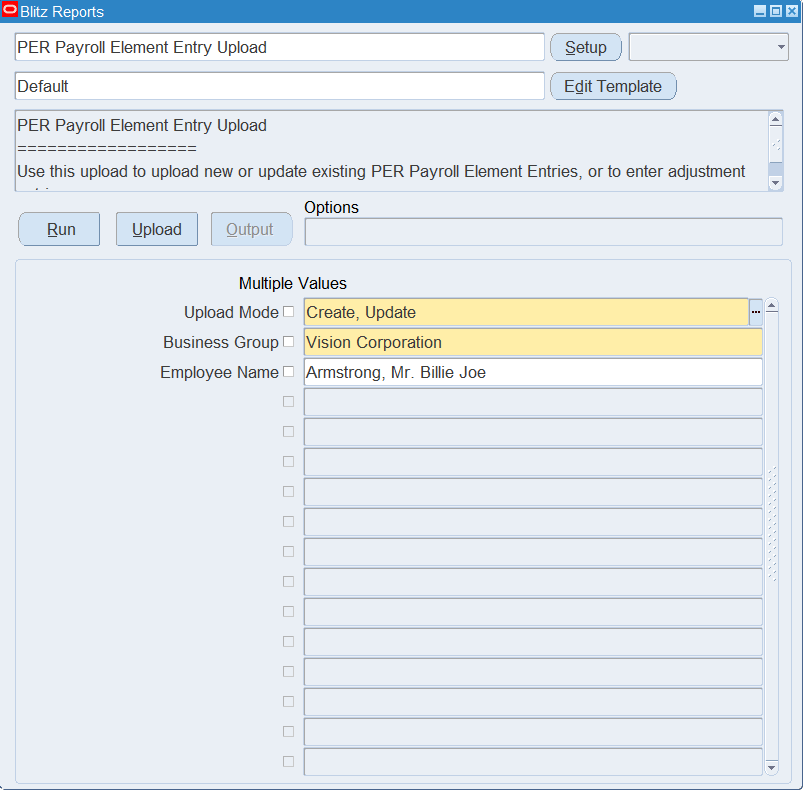
Open PER Payroll Element Entry Upload in Blitz Report and set the parameters:
| Parameter | Meaning |
|---|---|
| Upload Mode | Create opens an empty sheet for new entries; Create, Update downloads the current element entries for editing and lets you add new ones. |
| Business Group | The business group of the employees (required). |
| Employee Name | Downloads the entries of one employee only. The list is available in Create, Update mode and shows the business group’s current, not terminated employees. |
Step 2 – Run to download the Excel file
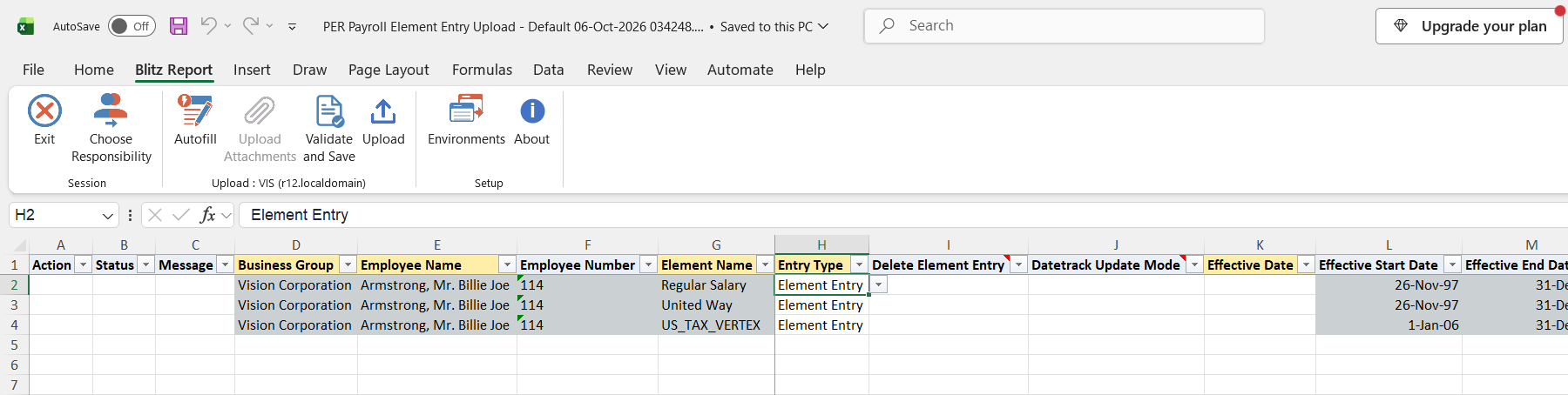
Click Run. The Excel file downloads and opens with one row per element entry that is current today, showing the element, the entry type, the entry’s effective start and end dates and the name and current value of each input value. In Create mode the sheet is empty.
Step 3 – Enter or change the element entries
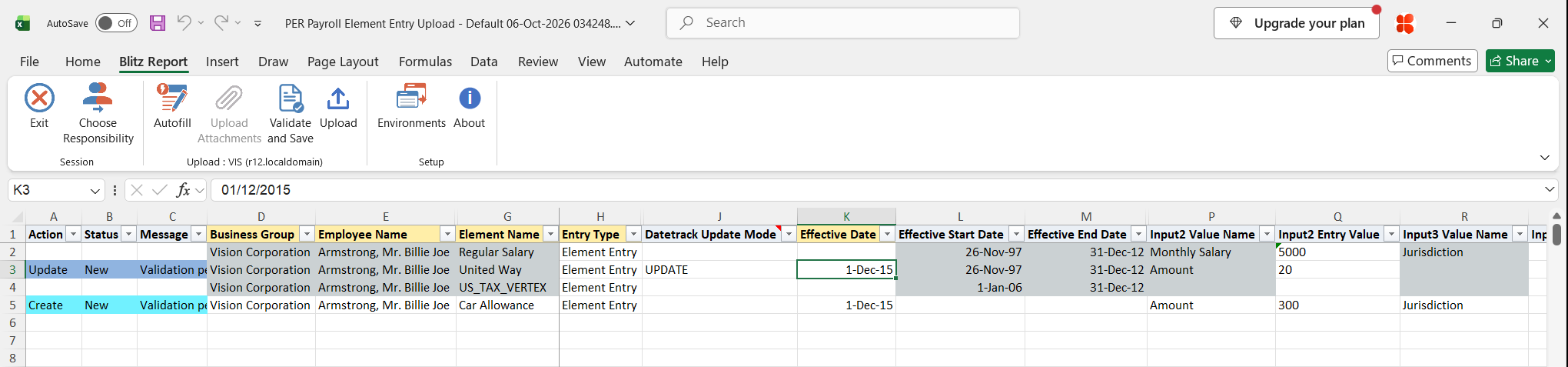
Business Group, Employee Name and Element Name identify an entry and cannot be changed on a downloaded row. Each row always needs an Effective Date, the date from which the change applies; it is blank on downloaded rows and defaults to today on new rows.
- Change an entry: enter the new values in the Input1..15 Entry Value columns next to the matching Input Value Name, the Effective Date, and a Datetrack Update Mode: UPDATE (new values from the effective date, history kept), CORRECTION (overwrite the values of the record current on the effective date), UPDATE_CHANGE_INSERT or UPDATE_OVERRIDE (when the entry already has future-dated changes).
- Create an entry: add a row with the Business Group, Employee Name, Element Name and Effective Date. The input value names fill in from the element, in display order; enter the values next to them. Entry Type defaults to Element Entry.
- Adjust an entry: add a row with Entry Type Additive Adjustment. It is created against the employee’s existing entry of that element on the effective date.
- Delete an entry: on a downloaded row set Delete Element Entry to Yes, enter the Effective Date and choose a delete mode in Datetrack Update Mode: DELETE (end date the entry on the effective date), ZAP (purge the entry and its history), FUTURE_CHANGE or DELETE_NEXT_CHANGE (remove future-dated changes).
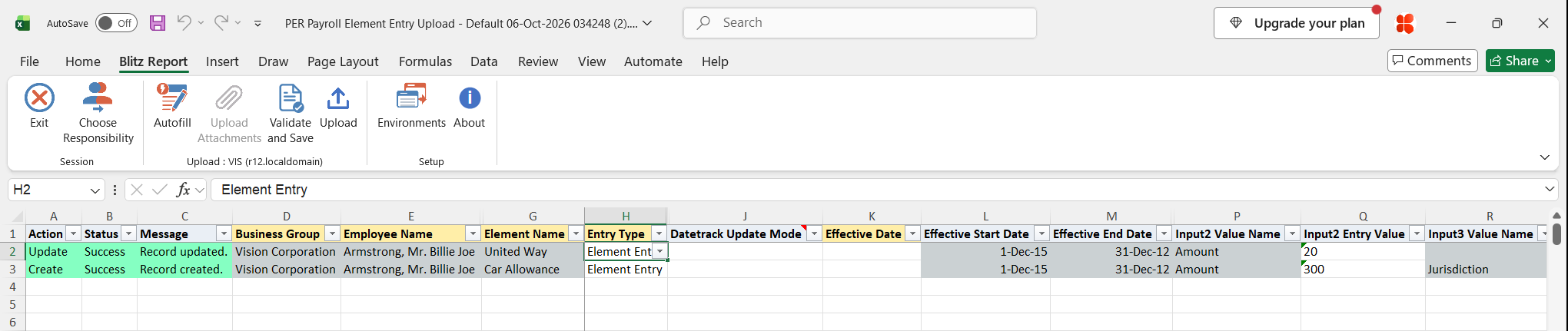
In the example, the United Way amount changes from 15 to 20 with mode UPDATE from 1-Dec-2015, and a new Car Allowance entry of 300 is added.
Step 4 – Validate and Save
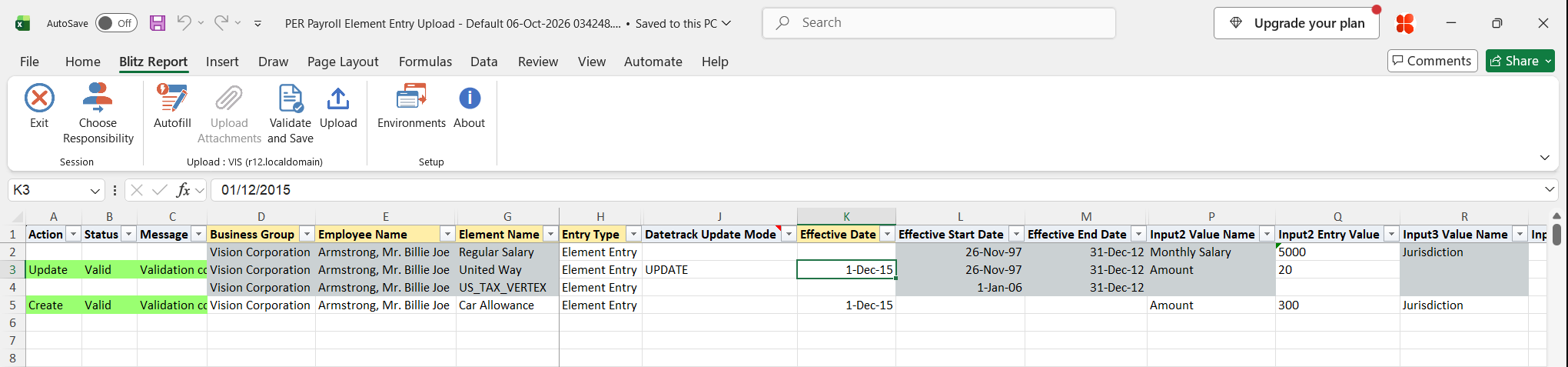
Click Validate and Save. This checks for missing required values and saves the file. Correct any rows it flags before uploading.
Step 5 – Upload the file
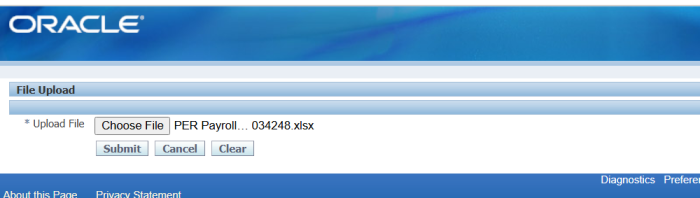
In Blitz Report click Upload and select the saved file. This submits the upload request, which creates, updates, adjusts or deletes each element entry.
Step 6 – Review the result report
When the request completes, a result report opens listing every uploaded row with its status and message, and the entry’s new effective start and end dates.
What’s produced
- Element entries and entry values created, updated, adjusted or deleted with DateTrack history, as if entered in the Element Entries window.
- A result report listing every row with a status (success or error) and a message.
Common questions
Why does a downloaded row need an Effective Date?
Element entries are date-tracked. The Effective Date decides from when an update or delete applies, so it is left blank on the download and must be entered on every row you change.
Which Datetrack Update Mode should I pick?
UPDATE keeps the old values up to the day before the effective date and starts a new record with the new values. CORRECTION overwrites the record current on the effective date without keeping history. Use UPDATE_CHANGE_INSERT or UPDATE_OVERRIDE only when the entry already has future-dated changes. The list shows delete modes instead when Delete Element Entry is Yes.
Which input value goes in which column?
The input values are numbered in the element’s display order. On a downloaded row the Input Value Name columns show the name for each value; on a new row they fill in once the Element Name is entered. Leave values that are calculated, such as Pay Value on many elements, blank.
Why is my element not in the Element Name list?
Only recurring elements that are processed in the payroll run and have a current element link in the business group are listed, either linked to all payrolls or to the employee’s payroll. Nonrecurring elements cannot be entered with this upload.
Why does an employee not appear in the list?
Only employees of the selected business group with a current employee assignment who are not terminated are listed, and the upload requires an active primary assignment.
Which entries are downloaded?
Entries current today on the active primary assignments of the business group’s employees who are not terminated. Downloaded values are those current today.
Troubleshooting
Errors from Oracle’s element entry validation are shown in the row message after Error:.
| Message | Cause | What to do |
|---|---|---|
| The datetrack update mode supplied is invalid | An update row without a Datetrack Update Mode, or with a delete mode. | Choose CORRECTION, UPDATE, UPDATE_CHANGE_INSERT or UPDATE_OVERRIDE. |
| The datetrack delete mode supplied is invalid | Delete Element Entry is Yes but the Datetrack Update Mode is blank or an update mode. | Choose DELETE, ZAP, FUTURE_CHANGE or DELETE_NEXT_CHANGE. |
| You cannot perform a DateTrack update where rows exist in the future | Mode UPDATE on an entry that already has future-dated changes. | Use UPDATE_CHANGE_INSERT or UPDATE_OVERRIDE, or CORRECTION. |
| DateTrack update not allowed for a record which started today | Mode UPDATE with an Effective Date equal to the entry’s effective start date. | Use CORRECTION, or a later Effective Date. |
| The HR object is invalid | The entry was changed in Oracle after you downloaded it. | Download the entry again, reapply your change and upload. |
SQL 109 lines
with input_values as (select * from ( select peevf.element_entry_id,pivfv.name,pivfv.input_value_id,peevf.screen_entry_value entry_value, row_number() over (partition by pivfv.element_type_id,peevf.element_entry_id order by pivfv.display_sequence) rnum from pay_input_values_f_vl pivfv, pay_element_entry_values_f peevf where trunc(sysdate) between pivfv.effective_start_date and pivfv.effective_end_date and trunc(sysdate) between peevf.effective_start_date and peevf.effective_end_date and pivfv.input_value_id=peevf.input_value_id ) pivot ( max(name) value_name, max(input_value_id) value_id,max(entry_value) entry_value for rnum in ( 1 input1, 2 input2, 3 input3, 4 input4, 5 input5,6 input6, 7 input7, 8 input8, 9 input9, 10 input10, 11 input11, 12 input12, 13 input13, 14 input14, 15 input15 ) ) ) select null action_, null status_, null message_, null modified_columns_, pbg.name business_group, papf.full_name employee_name, papf.employee_number, petfv.element_name, peef.element_entry_id, hl.meaning entry_type, null delete_element_entry, null datetrack_update_mode, peef.object_version_number, to_date(null) effective_date, peef.effective_start_date, peef.effective_end_date, input1_value_name, input1_entry_value, input2_value_name, input2_entry_value, input3_value_name, input3_entry_value, input4_value_name, input4_entry_value, input5_value_name, input5_entry_value, input6_value_name, input6_entry_value, input7_value_name, input7_entry_value, input8_value_name, input8_entry_value, input9_value_name, input9_entry_value, input10_value_name, input10_entry_value, input11_value_name, input11_entry_value, input12_value_name, input12_entry_value, input13_value_name, input13_entry_value, input14_value_name, input14_entry_value, input15_value_name, input15_entry_value, to_number(null) upload_row from per_all_people_f papf, per_all_assignments_f paaf, pay_element_entries_f peef, per_business_groups pbg, pay_element_links_f pelf, pay_element_types_f_vl petfv, per_assignment_status_types past, hr_lookups hl, input_values iv where 1=1 and pbg.business_group_id=papf.business_group_id and papf.person_id=paaf.person_id and trunc(sysdate) between papf.effective_start_date and papf.effective_end_date and trunc(sysdate) between paaf.effective_start_date and paaf.effective_end_date and trunc(sysdate) between peef.effective_start_date and peef.effective_end_date and trunc(sysdate) between pelf.effective_start_date and pelf.effective_end_date and trunc(sysdate) between petfv.effective_start_date and petfv.effective_end_date and pelf.element_type_id=peef.element_type_id and petfv.element_type_id=peef.element_type_id and pelf.business_group_id=pbg.business_group_id and paaf.assignment_id=peef.assignment_id and peef.creator_type<>'UT' and peef.element_link_id=pelf.element_link_id and iv.element_entry_id=peef.element_entry_id and hl.lookup_type='ENTRY_TYPE' and hl.lookup_code=peef.entry_type and paaf.assignment_type='E' and paaf.primary_flag='Y' and paaf.assignment_status_type_id=past.assignment_status_type_id and past.per_system_status='ACTIVE_ASSIGN' and not exists ( select 1 from per_periods_of_service ppos where ppos.person_id=papf.person_id and ppos.period_of_service_id=(select max(period_of_service_id) from per_periods_of_service where person_id = papf.person_id) and ppos.actual_termination_date < trunc(sysdate) ) |
Parameters 3
| Parameter | Type | List of values SQL | |
|---|---|---|---|
| Upload Mode | LOV |
| |
| Business Group | LOV |
| |
| Employee Name | LOV |
|