
PN Billing/Payment Term Upload

Description
PN Billing/Payment Term Upload creates, updates and copies the billing and payment terms of existing Oracle Property Manager leases from Excel – the recurring or one-time amounts a tenant is billed or a landlord is paid, with their dates, frequency, third party, payment terms and accounts. Each lease’s terms are submitted together through the standard Property Manager lease API, and the schedules and items are generated for the new and changed terms.
When to use it
- Add billing or payment terms (rent, operating expenses, insurance, cleaning, parking) to many leases in one pass.
- Mass-edit existing terms: amounts, dates, schedule day, third party sites, payment terms, accounts or comments.
- Roll a schedule forward by copying existing terms with their dates shifted by a number of days, months or years.
- Populate the descriptive flexfield attributes of payment terms in bulk (Expense Class Template).
Before you start
- Your responsibility has access to the lease’s operating unit.
- The lease already exists in Oracle Property Manager. The upload maintains a lease’s terms; it does not create leases.
- The customers (billing) or suppliers (payment) with their bill-to or supplier sites, the payment terms and the GL accounts you want to use exist in the operating unit.
Choose a template
| Template | Use it for |
|---|---|
| Revenue Class Template (default) | Billing terms on Revenue leases. Sets Lease Class to Revenue and shows the receivables columns: Third Party Ship Site, Third Party PO Number, Payment Method, Ar Invoice Type, Salesperson, Invoicing Rule and Accounting Rule. |
| Expense Class Template | Payment terms on Expense leases. Sets Lease Class to Expense and shows the payables columns: PO Number, Invoice Grouping Rule, Distribution Set, Project, Task, Expenditure Type, Expenditure Item Date, Expenditure Organization, the Rou Asset, Liability, Report From Inception and Intercompany flags, and the descriptive flexfield attributes. |
Step 1 – Set the parameters
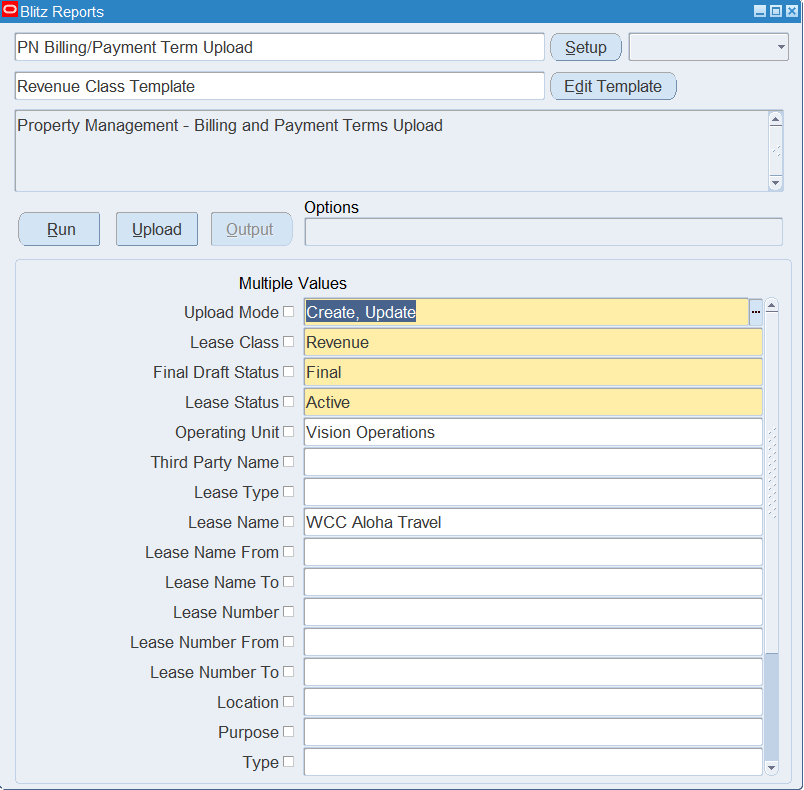
Open PN Billing/Payment Term Upload in Blitz Report, choose the template and set the parameters:
| Parameter | Meaning |
|---|---|
| Upload Mode | Create opens an empty sheet for new terms; Create, Update (default) downloads the existing terms for editing and lets you add new ones; Copy downloads existing terms as new rows, so uploading them creates copies. |
| Lease Class | Revenue, Expense or Sublease. Set by the template. |
| Final Draft Status | Downloads leases in this approval status: Final (default) or Draft. |
| Lease Status | Downloads leases with this lease status. Defaults to Active. |
| Operating Unit | The operating unit of the leases. |
| Third Party Name | The lease’s customer or supplier. |
| Lease Type | Restricts the download to one lease type. |
| Lease Name, Lease Name From / To | One lease, or a range of lease names. |
| Lease Number, Lease Number From / To | One lease, or a range of lease numbers. |
| Location | Leases with this location. |
| Purpose, Type, Frequency | Only terms with this payment purpose, term type or frequency. |
| Payment Start Date From / To | Only terms starting in this date range. |
| Copy: Date Increment Type / Units | In Copy mode, shifts the Start Date, End Date and Target Date of the copied terms by this number of Days, Months or Years. |
Unless the Upload Mode is Create, enter at least one selection parameter from Third Party Name onwards.
Step 2 – Run to download the Excel file
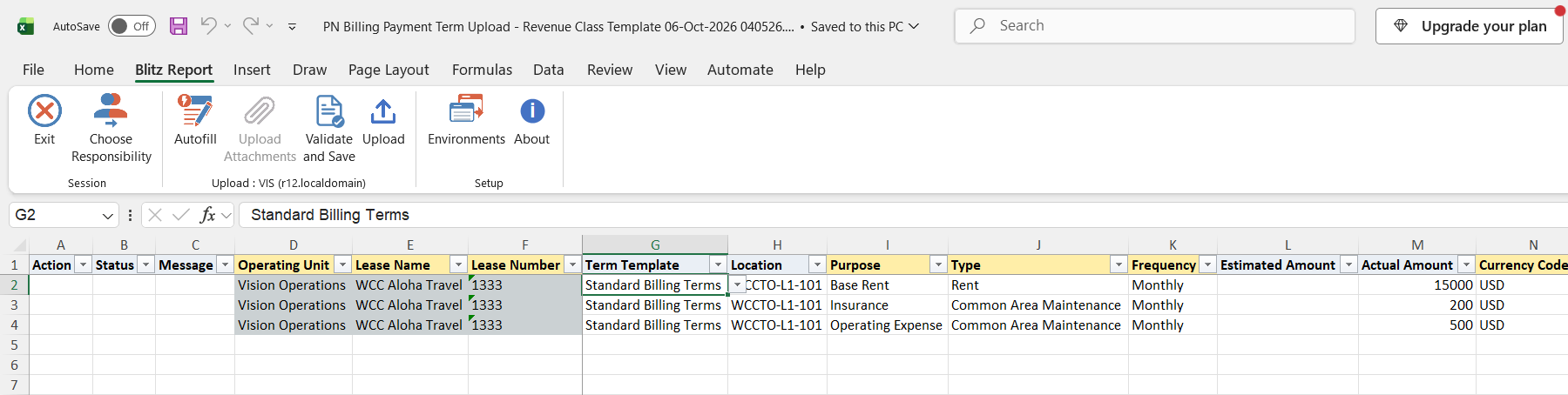
Click Run. The Excel file downloads and opens with one row per payment term of the selected leases, showing the lease, term template, location, purpose, type, frequency, amounts, dates, third party, payment terms and accounts.
Step 3 – Enter or change the payment terms
Operating Unit, Lease Name and Lease Number identify the lease and cannot be changed on a downloaded row. Change any other column of a downloaded term, for example the Actual Amount, End Date, Schedule Day, Third Party Bill Site or Term Comments.
To add a term, add a row with the Operating Unit, Lease Name and Lease Number, and fill Purpose, Type, Frequency, Actual Amount or Estimated Amount, Currency Code, Rate, Start Date, End Date (within the lease dates), Schedule Day, Third Party Name and Number, Third Party Bill Site and Payment Terms, plus the Term Template, Location and the Receivables Liability, Revenue Expense and Accrual accounts as needed. On a new row also unhide the Final Draft column and enter the lease’s status (Final or Draft); downloaded rows already carry it. The third party is a customer with its bill-to location on Revenue and Sublease leases, and a supplier with its supplier site on Expense leases; Payment Terms are receivables terms on Revenue and Sublease leases and payables terms on Expense leases. Enter accounts as concatenated segments, for example 01-000-4504-0000-000.
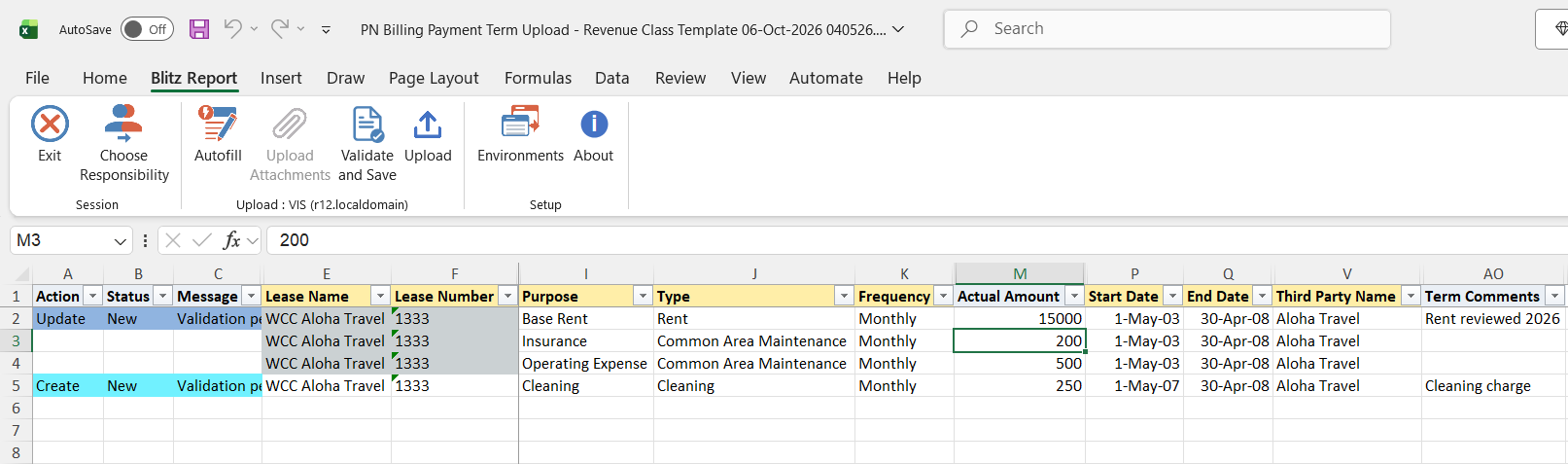
Step 4 – Validate and Save
Click Validate and Save. This checks for missing required values and saves the file. Correct any rows it flags before uploading.
Step 5 – Upload the file
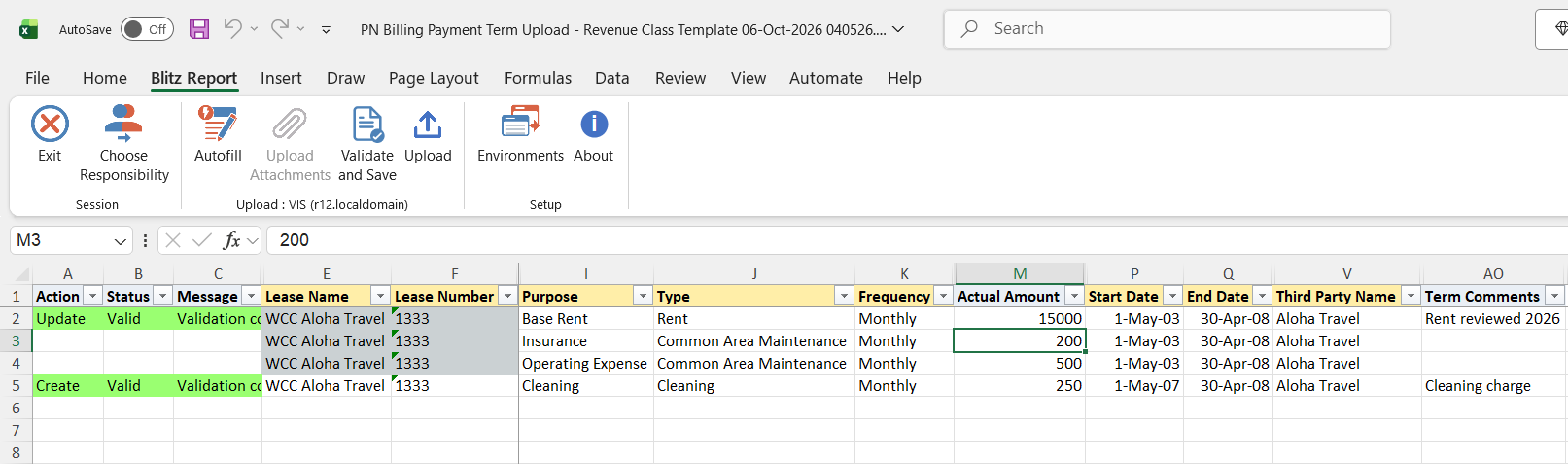
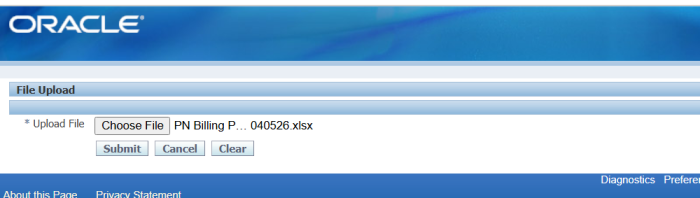
In Blitz Report click Upload and select the saved file. This submits the upload request, which validates every row and then submits all terms of a lease together, updates before creates. If any term of a lease fails, none of that lease’s terms are saved. Oracle Property Manager then generates the schedules and items for the new and changed terms.
Step 6 – Review the result report
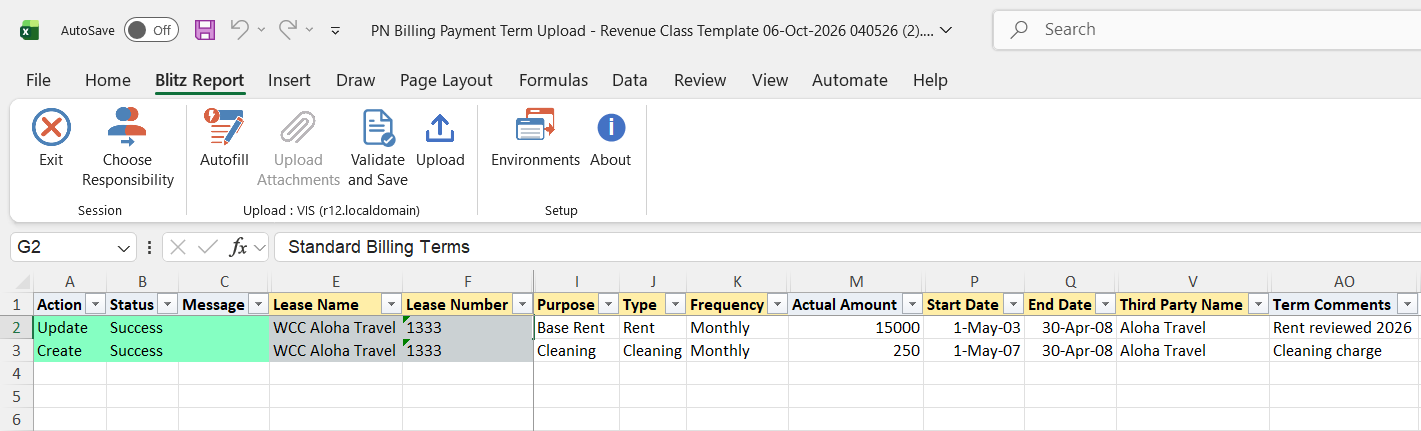
When the request completes, a result report opens listing every uploaded row with its status and message.
What’s produced
- New, updated or copied billing and payment terms on the selected leases, with their schedules and items.
- A result report listing every row with a status (success or error) and a message.
Common questions
Can I delete a payment term or create a lease with this upload?
No. The upload creates, updates and copies terms on existing leases. Delete terms and create leases in the Property Manager Leases window.
What is the difference between Create, Update and Copy?
Create, Update downloads the existing terms so you can change them and add new ones. Copy downloads existing terms as new rows, optionally with their dates shifted by the Copy: Date Increment parameters, so uploading them creates new terms and leaves the originals unchanged.
Why did my other terms of the same lease fail with “One or more Payment Terms for this lease have an error”?
All terms of a lease are saved together. When one row of a lease has an error, the lease’s other rows are not saved either. Fix the failing row and upload the lease’s rows again.
Why does a new row fail with “Lease Name/Number does not exist or is not accessible to this responsibility.”?
The lease is looked up by its operating unit, name or number and its Final Draft status. Enter Final or Draft in the hidden Final Draft column of the new row, or create the term by copying an existing one in Copy mode, which fills it from the lease.
Can I update a term I typed in myself?
No. Updates need the term’s identifier, which only a Create, Update download provides. Download the terms first and change the downloaded rows.
How do I maintain Sublease leases?
Set Lease Class to Sublease. Sublease terms use customers and receivables payment terms like Revenue leases, so use the Revenue Class Template.
Troubleshooting
| Message | Cause | What to do |
|---|---|---|
| Please specify one or more criteria to determine the payment terms to be updated or copied | Upload Mode Create, Update or Copy without a selection parameter. | Enter a lease, third party, location or another selection parameter. |
| Operating Unit is invalid or not accessible to this Responsibility. | The operating unit is not in your responsibility’s security profile. | Upload from a responsibility with access to the operating unit. |
| Lease Name/Number does not exist or is not accessible to this responsibility. | No lease with this name or number and Final Draft status in the operating unit; on a new row, usually an empty Final Draft column. | Check the lease name and number, and enter Final or Draft in the Final Draft column of new rows. |
| Lease Status is Invalid (…) | The Final Draft column holds a value other than Final or Draft. | Enter Final or Draft. |
| Payment Term ID is null. Cannot update a Payment Term which has not been downloaded. | An Update row that was not downloaded. | Download the terms in Create, Update mode and change the downloaded rows. |
| Payment Term is invalid (…) | The Payment Terms value is not an active receivables (Revenue, Sublease) or payables (Expense) payment term. | Pick the Payment Terms from the list. |
| Third Party Name and/or Number is required | Third Party Name and Number are both empty. | Enter the customer or supplier. |
| Third Party Name is invalid. / Third Party is invalid. | No customer (Revenue, Sublease) or supplier (Expense) with this name and number. | Pick the Third Party Name and Number from the list. |
| Multiple Third Party Accounts exist with the same name. | Several customer accounts or suppliers share the name. | Also enter the Third Party Number. |
| Third Party Bill To Location is required. | Third Party Bill Site is empty. | Enter the customer’s bill-to location or the supplier site. |
| Third Party Bill To Location invalid. / Third Party Bill To Location is invalid. | The site is not an active bill-to location of the customer, or an active site of the supplier, in the operating unit. | Pick the Third Party Bill Site from the list. |
| Third Party Ship To Location invalid. | The ship site is not an active ship-to location of the customer in the operating unit. | Pick the Third Party Ship Site from the list or leave it empty. |
| Location is invalid (…) | The location is not one of the lease’s tenancy locations. | Pick the Location from the list. |
| Payment Method is invalid / AR Transaction Type is invalid / Salesrep is invalid / Invoice Rule invalid / Accounting Rule invalid (…) | The receivables value is inactive or does not exist in the operating unit. | Pick the value from the list. |
| PO Number is invalid (…) / PO Number is not unique (…) | No purchase order, or several, with this number in the operating unit. | Check the PO Number. |
| Invalid Grouping Rule / Invalid Distribution Set / Invalid Project / Invalid Task / Invalid Expenditure Organization (…) | The payables or projects value does not exist or is inactive in the operating unit. | Pick the value from the list. |
| One or more Payment Terms for this lease have an error | Another row of the same lease failed, so none of the lease’s terms were saved. | Fix the failing row and upload the lease’s rows again. |
SQL 185 lines
select decode(:p_upload_mode,'Copy',xxen_upload.action_meaning(xxen_upload.action_create),null) action_, decode(:p_upload_mode,'Copy',xxen_upload.status_meaning(xxen_upload.status_new),null) status_, decode(:p_upload_mode,'Copy',xxen_util.description('U_EXCEL_MSG_VALIDATION_PENDING', 'XXEN_REPORT_TRANSLATIONS', 0),null) message_, null request_id_, null modified_columns_, null row_id, haouv.name operating_unit, plv.lease_name, plv.lease_number, xxen_util.meaning(plv.status,'PN_LEASE_STATUS_TYPE',0) final_draft, plv.lease_class, plv.lease_type, nvl(plv.customer_name,plv.supplier_name) lease_third_party_name, nvl( plv.customer_number, (select asu.segment1 from ap_suppliers asu where asu.vendor_id = plv.supplier_id) ) lease_third_party_number, plv.location_code_disp primary_location, plv.property_name_disp property, plv.user_responsible, -- pptv.term_template, pptv.payment_purpose purpose, pptv.payment_term_type type, pptv.frequency_type frequency, pptv.estimated_amount, pptv.actual_amount, pptv.currency_code, pptv.rate, -- case when not(:p_upload_mode = 'Copy' and :p_date_incr_type is not null and :p_date_incr_unit is not null) then pptv.start_date else case upper(:p_date_incr_type) when 'DAYS' then pptv.start_date + :p_date_incr_unit when 'MONTHS' then add_months(pptv.start_date,:p_date_incr_unit) when 'YEARS' then add_months(pptv.start_date,:p_date_incr_unit*12) end end start_date, case when not(:p_upload_mode = 'Copy' and :p_date_incr_type is not null and :p_date_incr_unit is not null) then pptv.end_date else case upper(:p_date_incr_type) when 'DAYS' then pptv.end_date + :p_date_incr_unit when 'MONTHS' then add_months(pptv.end_date,:p_date_incr_unit) when 'YEARS' then add_months(pptv.end_date,:p_date_incr_unit*12) end end end_date, case when not(:p_upload_mode = 'Copy' and :p_date_incr_type is not null and :p_date_incr_unit is not null) then pptv.target_date else case upper(:p_date_incr_type) when 'DAYS' then pptv.target_date + :p_date_incr_unit when 'MONTHS' then add_months(pptv.target_date,:p_date_incr_unit) when 'YEARS' then add_months(pptv.target_date,:p_date_incr_unit*12) end end target_date, -- pptv.schedule_day, -- pla.location_code location, xxen_util.meaning(pptv.area_type_code,'PN_AREA_TYPE_CODE',0) area_type, pptv.area, pptv.actual_amount * 12 annual_amount, case when nvl(pptv.area,0) = 0 then to_number(null) else round((pptv.actual_amount * 12)/pptv.area,2) end annual_area_amount, -- nvl(pptv.customer_name,pptv.vendor_name) third_party_name, nvl(pptv.customer_number,pptv.vendor_number) third_party_number, nvl(pptv.customer_site_use,pptv.vendor_site) third_party_bill_site, pptv.cust_ship_site_use third_party_ship_site, pptv.cust_po_number third_party_po_number, (select poha.segment1 po_number from po_headers_all poha where poha.po_header_id = pptv.po_header_id) po_number, -- case when plv.lease_class_code in ('THIRD_PARTY','SUB_LEASE','REC') then (select rtv.name from ra_terms_vl rtv where rtv.term_id = pptv.ap_ar_term_id) else (select atv.name from ap_terms_vl atv where atv.term_id = pptv.ap_ar_term_id) end payment_terms, -- billing (select arm.name from ar_receipt_methods arm where arm.receipt_method_id = pptv.receipt_method_id) payment_method, (select rctta.name from ra_cust_trx_types_all rctta where rctta.org_id = pptv.org_id and rctta.cust_trx_type_id = pptv.cust_trx_type_id) ar_invoice_type, (select rsa.name from ra_salesreps_all rsa where rsa.org_id = pptv.org_id and rsa.salesrep_id = pptv.salesrep_id) salesperson, (select rr.name from ra_rules rr where rr.rule_id = pptv.inv_rule_id) invoicing_rule, (select rr.name from ra_rules rr where rr.rule_id = pptv.account_rule_id) accounting_rule, -- payments pptv.inv_group_name invoice_grouping_rule, (select distribution_set_name from ap_distribution_sets_all adsa where adsa.distribution_set_id = pptv.distribution_set_id) distribution_set, (select ppa.name from pa_projects_all ppa where ppa.project_id = pptv.project_id and ppa.org_id = pptv.org_id) project, (select pt.task_name from pa_tasks pt where pptv.task_id=pt.task_id) task, --pptv.agreement_name, --pptv.agreement_number, pptv.expenditure_type, pptv.expenditure_item_date, (select haouv_exp.name from hr_all_organization_units_vl haouv_exp where pptv.organization_id=haouv_exp.organization_id) expenditure_organization, -- tax xxen_util.meaning(decode(pptv.tax_included,'A','Y',pptv.tax_included),'YES_NO',0) tax_included, pptv.tax_classification_code, -- (select gcck.concatenated_segments from pn_distributions_v pdv, gl_code_combinations_kfv gcck where pdv.payment_term_id = pptv.payment_term_id and gcck.code_combination_id = pdv.account_id and pdv.account_class in ('LIA','REC') and pdv.percentage = 100 ) receivables_liability_account, (select gcck.concatenated_segments from pn_distributions_v pdv, gl_code_combinations_kfv gcck where pdv.payment_term_id = pptv.payment_term_id and gcck.code_combination_id = pdv.account_id and pdv.account_class in ('EXP','REV') and pdv.percentage = 100 ) revenue_expense_account, (select gcck.concatenated_segments from pn_distributions_v pdv, gl_code_combinations_kfv gcck where pdv.payment_term_id = pptv.payment_term_id and gcck.code_combination_id = pdv.account_id and pdv.account_class in ('ACC','UNEARN') and pdv.percentage = 100 ) accrual_account, -- pptv.term_comments, -- xxen_util.meaning(pptv.recoverable_flag,'YES_NO',0) recoverable, xxen_util.meaning(pptv.normalize,'YES_NO',0) normalize, null rou_asset, null liability, null report_from_inception, null intercompany, xxen_util.meaning(pptv.changed_flag,'YES_NO',0) changed, xxen_util.meaning(pptv.include_in_var_rent,'PN_PAYMENT_BKPT_BASIS_TYPE',0) natural_breakpoint_basis, xxen_util.meaning(pptv.source_module,'PN_TERM_SOURCE_MODULE',0) source, -- pptv.attribute_category, pptv.attribute1, pptv.attribute2, pptv.attribute3, pptv.attribute4, pptv.attribute5, pptv.attribute6, pptv.attribute7, pptv.attribute8, pptv.attribute9, pptv.attribute10, pptv.attribute11, pptv.attribute12, pptv.attribute13, pptv.attribute14, pptv.attribute15, -- decode(:p_upload_mode,'Copy',to_number(null),pptv.payment_term_id) payment_term_id, pptv.term_template_id, pptv.lease_id, pptv.lease_change_id, nvl(pptv.customer_id,pptv.vendor_id) third_party_id, nvl(pptv.customer_site_use_id,pptv.vendor_site_id) third_party_bill_to_site_id, pptv.cust_ship_site_id third_party_ship_to_site_id, to_number(to_char(pptv.start_date,'j')) start_date_j, to_number(to_char(pptv.end_date,'j')) end_date_j, to_number(null) upload_row from pn_leases_v plv, pn_payment_terms_v pptv, pn_locations_all pla, hr_all_organization_units_vl haouv where 1=1 and :p_upload_mode in (xxen_upload.action_meaning(xxen_upload.action_create)||', '||xxen_upload.action_meaning(xxen_upload.action_update),'Copy') and plv.lease_id = pptv.lease_id and plv.org_id = haouv.organization_id and -- pptv.location_id = pla.location_id (+) and plv.status = nvl(xxen_util.lookup_code(:p_final_draft_status,'PN_LEASE_STATUS_TYPE',0),'F') and plv.lease_class = :p_lease_class |
Parameters 21
| Parameter | Type | List of values SQL | |
|---|---|---|---|
| Upload Mode | LOV | ||
| Lease Class | LOV | ||
| Final Draft Status | LOV | ||
| Lease Status | LOV |
| |
| Operating Unit | LOV |
| |
| Third Party Name | LOV |
| |
| Lease Type | LOV |
| |
| Lease Name | LOV |
| |
| Lease Name From | LOV |
| |
| Lease Name To | LOV |
| |
| Lease Number | LOV |
| |
| Lease Number From | LOV |
| |
| Lease Number To | LOV |
| |
| Location | LOV |
| |
| Purpose | LOV |
| |
| Type | LOV |
| |
| Frequency | LOV |
| |
| Payment Start Date From | Date |
| |
| Payment Start Date To | Date |
| |
| Copy: Date Increment Type | LOV | ||
| Copy: Date Increment Units | Number |