
PER Person Extra Information Upload

Description
PER Person Extra Information Upload creates and updates Extra Person Information records (person extra information types, or EITs) in Oracle HRMS from Excel, the data shown in the People window under Others > Extra Information. It covers every person information type: download existing records for a business group, employee or information type, change their segment values, and add new records for employees, using the standard Oracle HRMS API.
When to use it
- Load a person information type for many employees at once, for example career management or tenure details.
- Bulk-update segment values on existing Extra Person Information records.
- Migrate Extra Person Information data into Oracle HRMS during an implementation.
- Maintain information types where a person holds several records of the same type.
- Standardize or correct segment values across a population.
Before you start
- Access to the upload in Blitz Report.
- The employees exist in the business group and are current as of today.
- The information type is set up for persons and is valid for the employees. To see the records in the People window, the information type must also be registered for your responsibility (Information Types Security).
- You know which segment of the information type uses which flexfield column (Descriptive Flexfield Segments window, flexfield Extra Person Information).
Choose a template
| Template | Use it for |
|---|---|
| Default (default) | All columns. |
| Person Extra Information | Existing person extra information records of the selected information type, downloaded for review and mass update. Same columns as Default. |
Step 1 – Set the parameters
Open PER Person Extra Information Upload in Blitz Report and set the parameters:
| Parameter | Meaning |
|---|---|
| Upload Mode | Create opens an empty sheet for new records; Create, Update (default) downloads existing records for editing and lets you add new ones. |
| Business Group | The business group to work in (required). Defaults from the HR: Business Group profile. |
| Employee Number | Downloads the records of one employee. |
| Information Type | Downloads the records of one information type. |
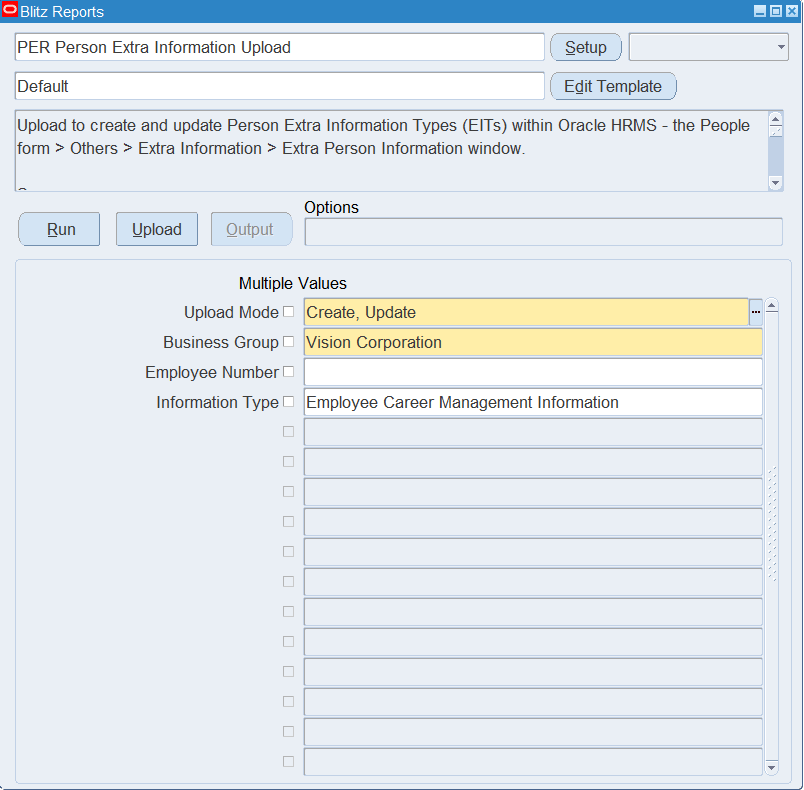
Step 2 – Run to download the Excel file
Click Run. The Excel file downloads and opens with one row per existing Extra Person Information record of current employees, or an empty sheet in Create mode.
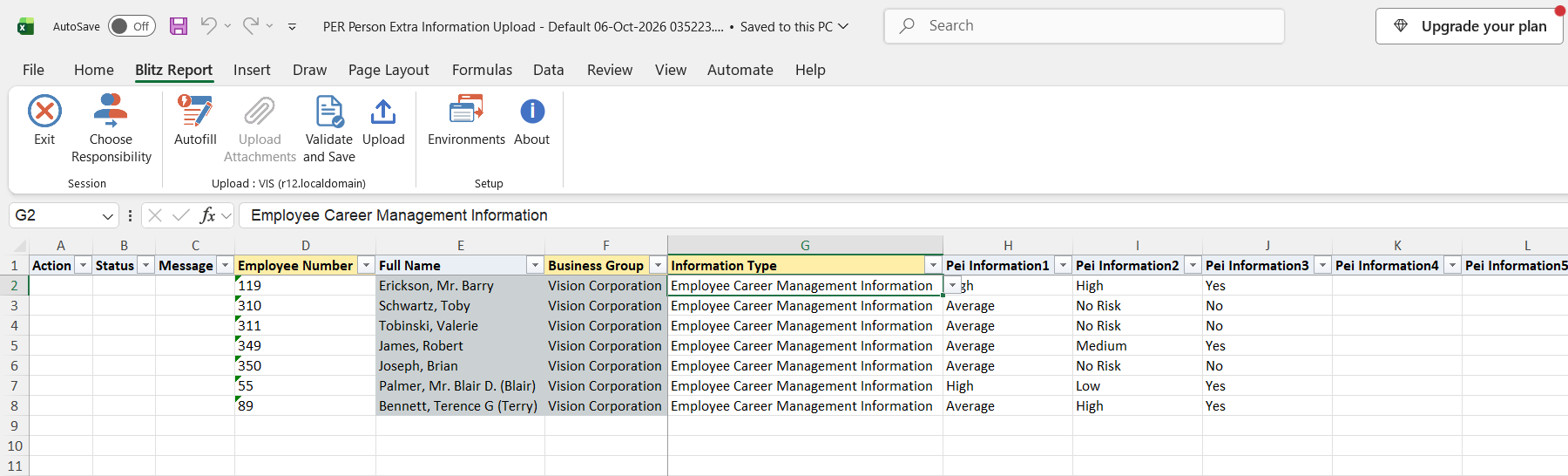
Step 3 – Enter or change the data
Each row is one record: Employee Number (Full Name fills in automatically), Information Type and the segment values in Pei Information1 to Pei Information30. The number in the column name is the flexfield column the segment is stored in, not the segment order: for Employee Career Management Information, for example, Pei Information1 is Succession Potential, Pei Information2 Risk of Loss and Pei Information3 Key Person. Segments validated by a value set offer a list of the values for the row’s information type; enter values as displayed, for example Low rather than the stored code.
To update a record, change its segment values on the downloaded row; the Information Type of an existing record cannot be changed. To create a record, add a row with the Employee Number, Information Type and segment values, filling the Information Type before the segments.
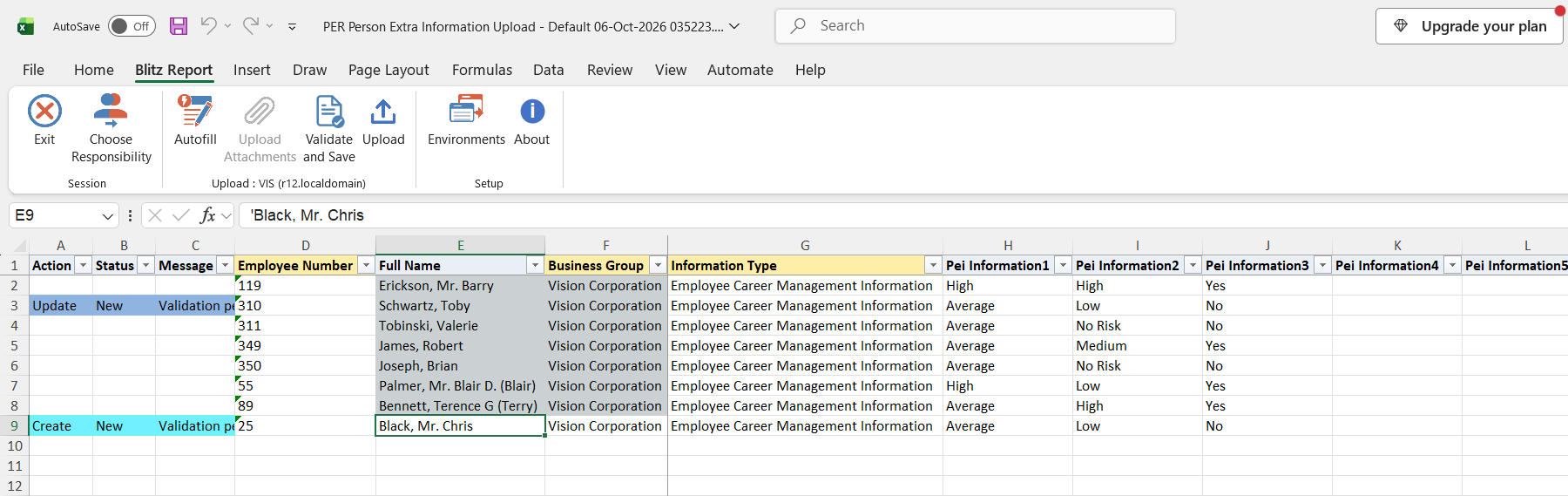
Step 4 – Validate and Save
Click Validate and Save. This checks for missing required values and saves the file. Correct any rows it flags before uploading.
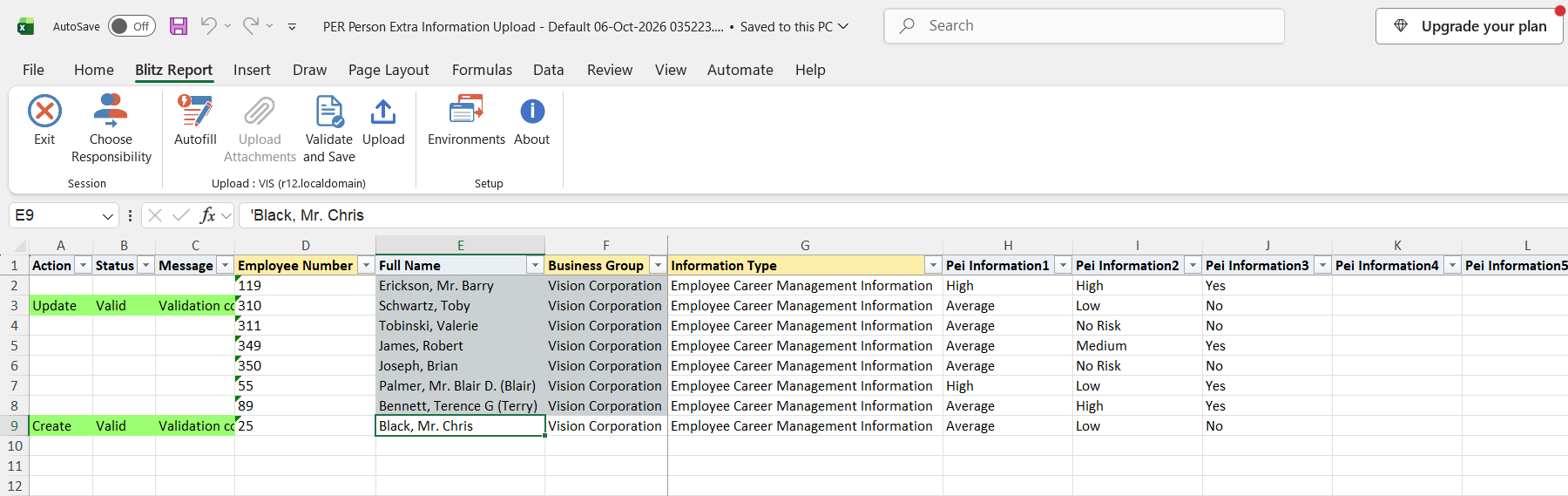
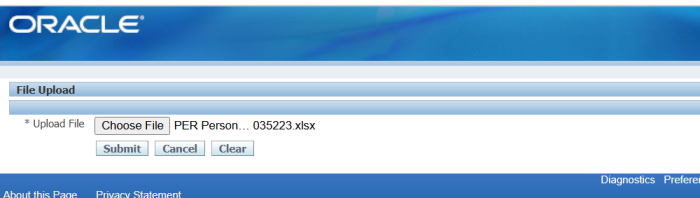
Step 5 – Upload the file
In Blitz Report click Upload and select the saved file. This submits the upload request, which validates the segment values against the information type’s flexfield setup and creates or updates each record.
Step 6 – Review the result report
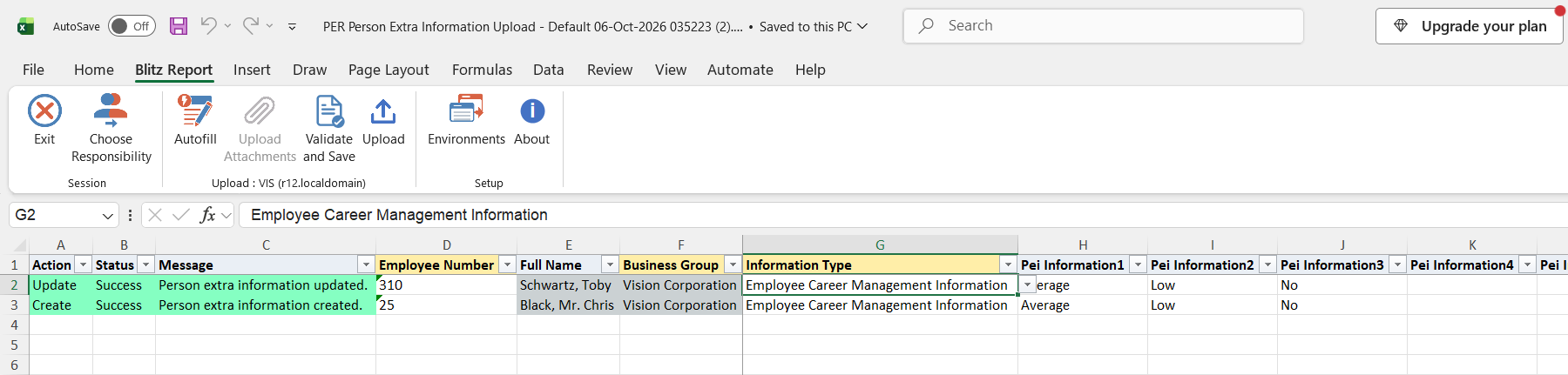
When the request completes, a result report opens listing every uploaded row with its status and message.
What’s produced
- Extra Person Information records created or updated with their segment values.
- A result report listing every row with a status (success or error) and a message.
Common questions
Can I delete an Extra Person Information record with this upload?
No. The upload only creates and updates records. Remove records in the People window.
How does it know whether to add or change a record?
Downloaded rows carry a hidden record identifier and are updated; rows you add have none and create a new record.
Can a person have more than one record of the same information type?
Yes, if the information type allows multiple occurrences. Downloaded records are matched by their identifier, so each one is updated independently.
Why does a segment column show no list?
A list is offered only when the row’s information type uses that column for a segment validated by a value set. Free-text, number and date segments accept typed values.
I created a record but cannot see it in the People window.
The record is saved; the Extra Person Information window only shows information types registered for your responsibility in Information Types Security.
Troubleshooting
| Message | Cause | What to do |
|---|---|---|
| Employee number … not found in the business group. | The employee number does not exist in the selected business group, or the person is not current as of today. | Check the business group and the employee number. |
| Person Extra Information ID … not found. | The downloaded record was deleted after the download. | Download the records again. |
| Extra information validation error: … | A segment value is not valid for the information type, or a required segment is empty. | Correct the segment value named in the message, using the column’s list where it has one. |
| No change. | An update row has the same values as the record. | Informational. Change a value if you intended an update. |
| Other Oracle HRMS messages | The HRMS API rejected the record, for example an information type that is not valid for the person or that allows only one record per person. | Correct the row as the message describes, or update the existing record instead of creating a new one. |
SQL 57 lines
select null action_, null status_, null message_, null modified_columns_, to_number(null) person_extra_info_id_out, ppei.person_extra_info_id, papf.employee_number, papf.full_name, pbg.name business_group, fdfcv.descriptive_flex_context_name information_type, xxen_util.display_flexfield_value(800,'Extra Person Info DDF',ppei.pei_information_category,'PEI_INFORMATION1',ppei.rowid,ppei.pei_information1) pei_information1, xxen_util.display_flexfield_value(800,'Extra Person Info DDF',ppei.pei_information_category,'PEI_INFORMATION2',ppei.rowid,ppei.pei_information2) pei_information2, xxen_util.display_flexfield_value(800,'Extra Person Info DDF',ppei.pei_information_category,'PEI_INFORMATION3',ppei.rowid,ppei.pei_information3) pei_information3, xxen_util.display_flexfield_value(800,'Extra Person Info DDF',ppei.pei_information_category,'PEI_INFORMATION4',ppei.rowid,ppei.pei_information4) pei_information4, xxen_util.display_flexfield_value(800,'Extra Person Info DDF',ppei.pei_information_category,'PEI_INFORMATION5',ppei.rowid,ppei.pei_information5) pei_information5, xxen_util.display_flexfield_value(800,'Extra Person Info DDF',ppei.pei_information_category,'PEI_INFORMATION6',ppei.rowid,ppei.pei_information6) pei_information6, xxen_util.display_flexfield_value(800,'Extra Person Info DDF',ppei.pei_information_category,'PEI_INFORMATION7',ppei.rowid,ppei.pei_information7) pei_information7, xxen_util.display_flexfield_value(800,'Extra Person Info DDF',ppei.pei_information_category,'PEI_INFORMATION8',ppei.rowid,ppei.pei_information8) pei_information8, xxen_util.display_flexfield_value(800,'Extra Person Info DDF',ppei.pei_information_category,'PEI_INFORMATION9',ppei.rowid,ppei.pei_information9) pei_information9, xxen_util.display_flexfield_value(800,'Extra Person Info DDF',ppei.pei_information_category,'PEI_INFORMATION10',ppei.rowid,ppei.pei_information10) pei_information10, xxen_util.display_flexfield_value(800,'Extra Person Info DDF',ppei.pei_information_category,'PEI_INFORMATION11',ppei.rowid,ppei.pei_information11) pei_information11, xxen_util.display_flexfield_value(800,'Extra Person Info DDF',ppei.pei_information_category,'PEI_INFORMATION12',ppei.rowid,ppei.pei_information12) pei_information12, xxen_util.display_flexfield_value(800,'Extra Person Info DDF',ppei.pei_information_category,'PEI_INFORMATION13',ppei.rowid,ppei.pei_information13) pei_information13, xxen_util.display_flexfield_value(800,'Extra Person Info DDF',ppei.pei_information_category,'PEI_INFORMATION14',ppei.rowid,ppei.pei_information14) pei_information14, xxen_util.display_flexfield_value(800,'Extra Person Info DDF',ppei.pei_information_category,'PEI_INFORMATION15',ppei.rowid,ppei.pei_information15) pei_information15, xxen_util.display_flexfield_value(800,'Extra Person Info DDF',ppei.pei_information_category,'PEI_INFORMATION16',ppei.rowid,ppei.pei_information16) pei_information16, xxen_util.display_flexfield_value(800,'Extra Person Info DDF',ppei.pei_information_category,'PEI_INFORMATION17',ppei.rowid,ppei.pei_information17) pei_information17, xxen_util.display_flexfield_value(800,'Extra Person Info DDF',ppei.pei_information_category,'PEI_INFORMATION18',ppei.rowid,ppei.pei_information18) pei_information18, xxen_util.display_flexfield_value(800,'Extra Person Info DDF',ppei.pei_information_category,'PEI_INFORMATION19',ppei.rowid,ppei.pei_information19) pei_information19, xxen_util.display_flexfield_value(800,'Extra Person Info DDF',ppei.pei_information_category,'PEI_INFORMATION20',ppei.rowid,ppei.pei_information20) pei_information20, xxen_util.display_flexfield_value(800,'Extra Person Info DDF',ppei.pei_information_category,'PEI_INFORMATION21',ppei.rowid,ppei.pei_information21) pei_information21, xxen_util.display_flexfield_value(800,'Extra Person Info DDF',ppei.pei_information_category,'PEI_INFORMATION22',ppei.rowid,ppei.pei_information22) pei_information22, xxen_util.display_flexfield_value(800,'Extra Person Info DDF',ppei.pei_information_category,'PEI_INFORMATION23',ppei.rowid,ppei.pei_information23) pei_information23, xxen_util.display_flexfield_value(800,'Extra Person Info DDF',ppei.pei_information_category,'PEI_INFORMATION24',ppei.rowid,ppei.pei_information24) pei_information24, xxen_util.display_flexfield_value(800,'Extra Person Info DDF',ppei.pei_information_category,'PEI_INFORMATION25',ppei.rowid,ppei.pei_information25) pei_information25, xxen_util.display_flexfield_value(800,'Extra Person Info DDF',ppei.pei_information_category,'PEI_INFORMATION26',ppei.rowid,ppei.pei_information26) pei_information26, xxen_util.display_flexfield_value(800,'Extra Person Info DDF',ppei.pei_information_category,'PEI_INFORMATION27',ppei.rowid,ppei.pei_information27) pei_information27, xxen_util.display_flexfield_value(800,'Extra Person Info DDF',ppei.pei_information_category,'PEI_INFORMATION28',ppei.rowid,ppei.pei_information28) pei_information28, xxen_util.display_flexfield_value(800,'Extra Person Info DDF',ppei.pei_information_category,'PEI_INFORMATION29',ppei.rowid,ppei.pei_information29) pei_information29, xxen_util.display_flexfield_value(800,'Extra Person Info DDF',ppei.pei_information_category,'PEI_INFORMATION30',ppei.rowid,ppei.pei_information30) pei_information30, 0 upload_row from per_business_groups pbg, per_all_people_f papf, per_people_extra_info ppei, fnd_descr_flex_contexts_vl fdfcv where 1=1 and pbg.business_group_id=:p_business_group and papf.business_group_id=pbg.business_group_id and trunc(sysdate) between papf.effective_start_date and papf.effective_end_date and ppei.person_id=papf.person_id and fdfcv.application_id=800 and fdfcv.descriptive_flexfield_name='Extra Person Info DDF' and fdfcv.descriptive_flex_context_code=ppei.pei_information_category and fdfcv.enabled_flag='Y' |
Parameters 4
| Parameter | Type | List of values SQL | |
|---|---|---|---|
| Upload Mode | LOV |
| |
| Business Group | LOV | ||
| Employee Number | LOV |
| |
| Information Type | LOV |
|