
QA Collection Plan Upload

Description
QA Collection Plan Upload creates, updates and deletes Oracle Quality collection plans together with their full child hierarchy – transactions, collection triggers, plan elements, element values, action triggers, actions and action outputs – from one Excel sheet. Download existing plans to review or change them, or enter new plans row by row.
When to use it
- Create new collection plans with their elements, values, triggers and actions without keying them into the Collection Plans window.
- Roll out a standard set of plans to several inventory organizations.
- Migrate plans to another instance, or copy them, with each element keeping the result column it has in the source plan.
- Update plan headers or element settings (prompt, sequence, mandatory, displayed, default value, decimal precision, UOM) across many plans.
- Add elements to, or remove them from, existing plans in bulk.
- Maintain action triggers, actions (such as assign a value or send an email alert) and their output variables.
- Delete obsolete plans or individual child records.
Before you start
- Your responsibility has access to the inventory organizations of the plans.
- The collection elements, quality transactions, actions and alert action sets you reference already exist. This upload assigns existing elements to plans; to create user-defined elements use the QA Collection Element Upload.
- Corrective Action Request (CAR) actions are not supported.
Step 1 – Set the parameters
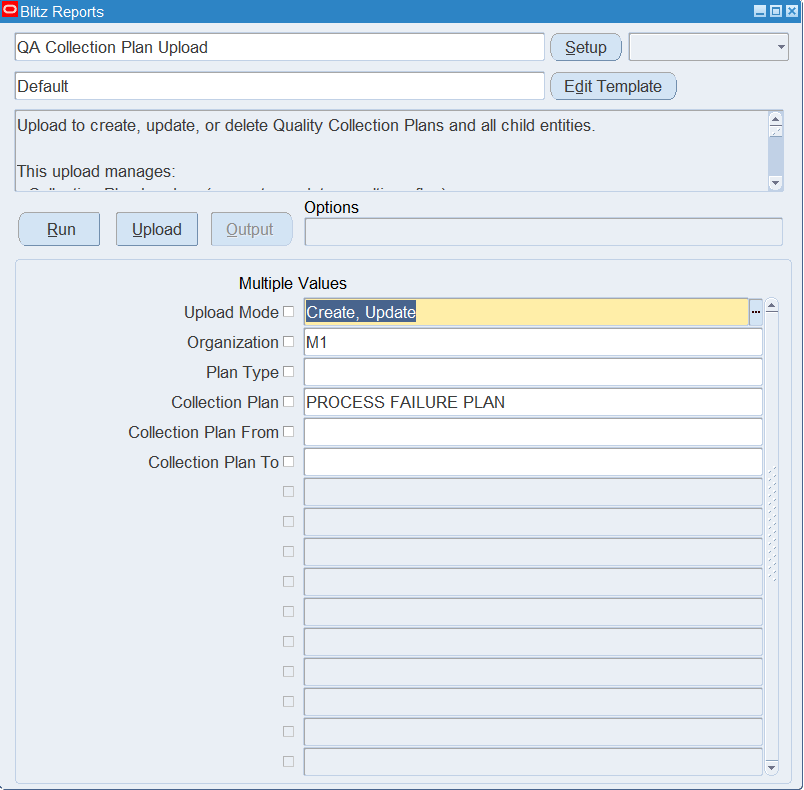
Open QA Collection Plan Upload in Blitz Report and set the parameters:
| Parameter | Meaning |
|---|---|
| Upload Mode | Create (default) opens an empty sheet for new plans; Create, Update downloads existing plans with all their child records for editing and lets you add new rows. |
| Organization | Downloads the plans of these inventory organizations. |
| Plan Type | Downloads plans of this type, for example WIP Inspection or Receiving Inspection. |
| Collection Plan | Downloads the selected plans. |
| Collection Plan From / Collection Plan To | Downloads a range of plans by name. Collection Plan To defaults to Collection Plan From. |
Step 2 – Run to download the Excel file
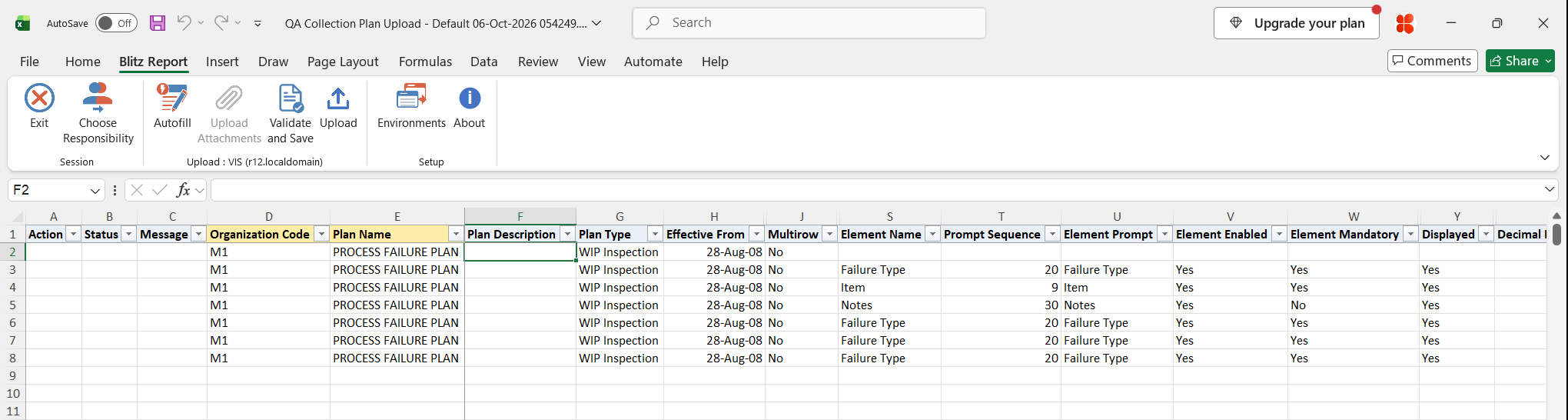
Click Run. The Excel file downloads and opens with one row per plan header, transaction, collection trigger, element, element value, action trigger, action and action output of the selected plans, or an empty sheet in Create mode. Every row repeats the plan header columns.
Step 3 – Enter or change the plans
Each row is one record of a plan. Organization Code and Plan Name are required on every row and attach the row to its plan. The upload recognises the record type from the columns you fill, checking from the deepest level first:
| Record | Columns to fill (besides Organization Code and Plan Name) |
|---|---|
| Plan header | Plan Description, Plan Type (required for a new plan), Effective From, Effective To, Multirow. Leave all element and child columns empty. |
| Transaction | Transaction Description, Mandatory Collection, Background Collection, Transaction Enabled. |
| Collection trigger | Transaction Description of a transaction on the plan, Collection Trigger, Trigger Operator, Trigger Low Value, Trigger High Value. |
| Element | Element Name, Prompt Sequence, Element Prompt, Element Enabled, Element Mandatory, Default Value, Displayed, Read Only, Ss Poplist, Information, Decimal Precision, UOM Code, Result Column. |
| Element value | Element Name, Value Code, Value Description. |
| Action trigger | Element Name, Action Trigger Seq, Action Operator, Action Low Value, Action High Value. |
| Action | Element Name, Action Trigger Seq, Action Name and the action details: Assign Type and Assigned Element, Alert Action Set and Alert Action, Status Code, Action Message. |
| Action output | The columns of its action, plus Output Variable and Output Element. |
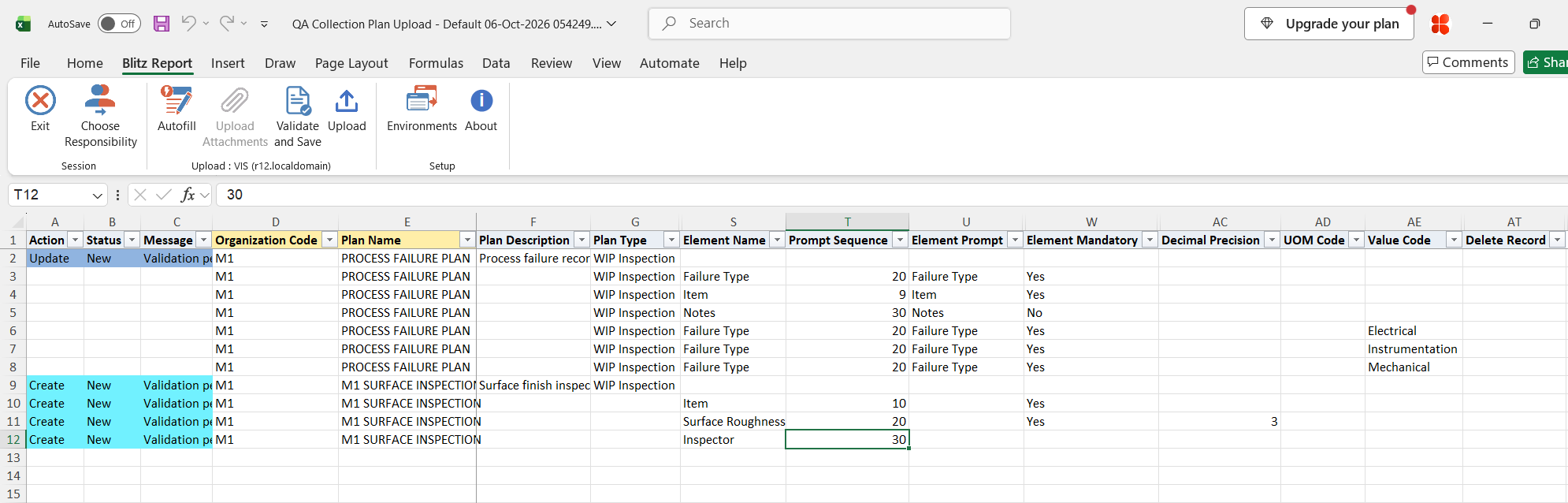
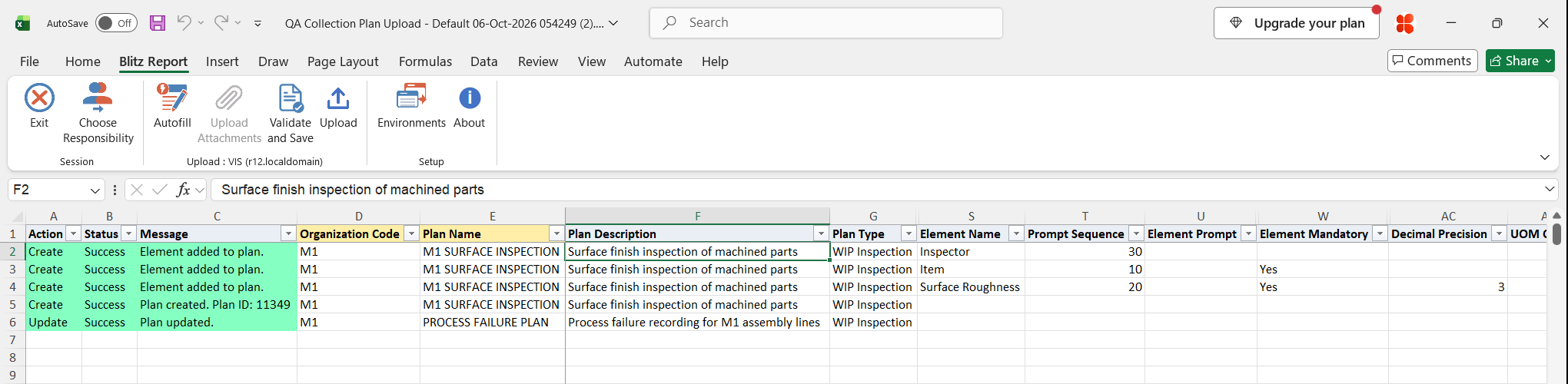
Put the plan header row of a new plan before its child rows, and parent records (transaction, action trigger, action) before the rows that refer to them. Enter new plan names in upper case: Oracle stores plan names in upper case and child rows are matched to the stored name. For a new element, an empty Element Prompt, Default Value or Element Mandatory is taken from the element definition. Result Column is the column of the quality results table that holds the element’s values. Fill it only when you migrate or copy a plan and each element must keep the result column it has in the source plan: pick the column from the list, which offers the free columns that suit the element. In all other cases leave it empty, and the element takes the next free column of its type, as in the Collection Plans window. The result column of an element already on a plan cannot be changed. When you update a downloaded element row, empty Default Value, Decimal Precision and UOM Code values are cleared on the plan, and empty flags are set to their defaults. Set Delete Record to Yes to remove a record: deleting a plan header deletes the whole plan, deleting a transaction also removes its collection triggers, and deleting an action trigger also removes its actions and outputs. The example changes the description of an existing plan and creates a new plan with the elements Item, Surface Roughness and Inspector.
Step 4 – Validate and Save
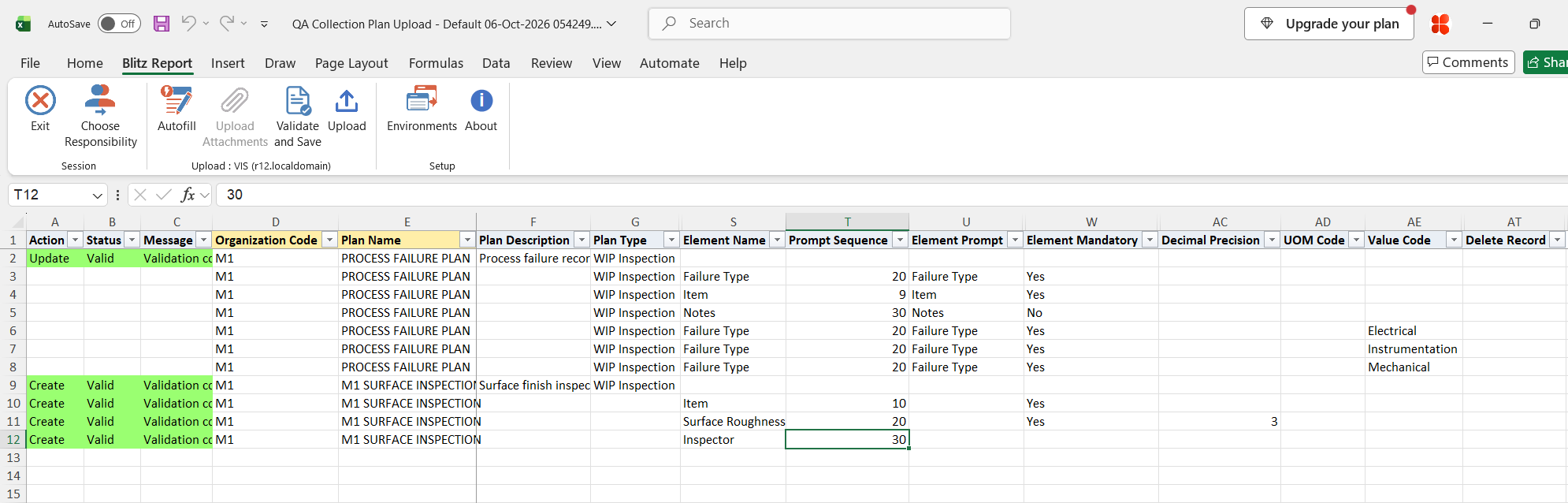
Click Validate and Save. This checks for missing required values and saves the file. Correct any rows it flags before uploading.
Step 5 – Upload the file
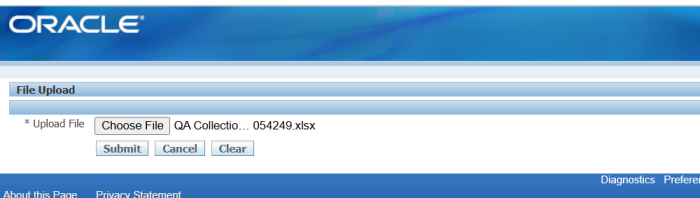
In Blitz Report click Upload and select the saved file. This submits the upload request, which processes each row against its plan. For every plan that was created or had elements added or removed, the upload then runs Quality’s plan completion, which submits the Quality Dynamic Plan View Creator request to regenerate the plan’s views.
Step 6 – Review the result report
When the request completes, a result report opens listing every uploaded row with its status and message, for example “Plan created. Plan ID: …”, “Element added to plan.” or “Plan updated.”.
What’s produced
- Collection plans created, updated or deleted, with their transactions, collection triggers, elements, element values, action triggers, actions and action outputs.
- Regenerated plan views for created plans and plans with added or removed elements.
- A result report listing every row with a status (success or error) and a message.
Common questions
Do I repeat the plan name on every row?
Yes. Each child row carries the Organization Code and Plan Name of its plan, so the upload attaches it to the right plan.
I changed one field of an action and the upload created a second action.
An action is identified by all its fields (action trigger, action name, assign type, assigned element, alert action set, alert action, status code and message). Changing any of them creates a new action. Delete the old action with Delete Record = Yes. Several actions of the same type, such as two assign-value actions with different formulas, can exist under one action trigger.
Can I create collection elements with this upload?
No. It assigns existing elements to plans and maintains their plan-level settings. Create user-defined elements with the QA Collection Element Upload.
Does a migrated or copied plan keep its result columns?
Yes, when its element rows carry the Result Column of the source plan: the download shows each element’s result column, and a new element takes the one entered. Custom reports and integrations that read the results table by column then work on the new plan as on the source plan.
Do I need to save or complete the plan in Oracle after the upload?
No. The upload runs Quality’s plan completion automatically for new plans and for plans whose elements were added or removed.
Troubleshooting
| Message | Cause | What to do |
|---|---|---|
| Plan Type is required for new plans. | A plan header row for a plan that does not exist has no Plan Type. | Enter the Plan Type, or correct the Plan Name of an existing plan. |
| Plan “…” not found. | A transaction or element row refers to a plan that does not exist in this organization, for example because the plan name is not in upper case or its header row failed. | Enter the plan name exactly as stored (upper case) and put the plan header row first. |
| Plan “…” not found for deletion. | Delete Record = Yes on a header row of a plan that does not exist. | Check the Organization Code and Plan Name. |
| Transaction not assigned to plan. | A collection trigger row refers to a transaction that is not on the plan. | Add a transaction row before the collection trigger row. |
| Plan and transaction are required for collection triggers. Plan and element are required for values. Plan and element are required for action triggers. | The plan does not exist, or the Transaction Description or Element Name is empty. | Fill the parent columns of the row. |
| Plan, element, and action trigger sequence are required for actions. Plan, element, action trigger sequence, and action are required for output variables. | An action or action output row is missing the Element Name, Action Trigger Seq or Action Name. | Fill the columns that identify the parent action trigger and action. |
| Action trigger sequence … not found. | No action trigger with this sequence exists for the element on the plan. | Add the action trigger row (with Action Operator) before its action rows. |
| Parent action not found for the specified trigger and message. Make sure the matching action row exists before this output row. | The action columns of an output row do not match an existing action exactly. | Copy the action columns from the action row, and put the action row first. |
| Action not found for deletion. | Delete Record = Yes on an action whose fields do not match an existing action. | Use the downloaded action row unchanged with Delete Record = Yes. |
| Result column … is not valid for element … | The column does not suit the element’s type, or the element is a seeded element with a fixed column. | Pick the result column from the list, or leave it empty. |
| Result column … is already used by element … | Another element of the plan has this column. | Pick a free column from the list, or leave it empty. |
| The result column of an element in a plan cannot be changed. | A row for an element already on the plan names a different result column. | Enter the element’s current result column, or leave it empty. |
| Create plan failed: … Add element failed: … Delete element failed: … Delete plan failed: … | Oracle Quality rejected the operation, for example a duplicate plan name or an element already on the plan. | Read the Oracle message that follows, correct the data and upload again. |
SQL 540 lines
select null action_, null status_, null message_, null modified_columns_, mp.organization_code, qp.name plan_name, qp.description plan_description, xxen_util.meaning(qp.plan_type_code,'COLLECTION_PLAN_TYPE',3) plan_type, qp.effective_from, qp.effective_to, xxen_util.meaning(decode(qp.multirow_flag,1,'Y','N'),'YES_NO',0) multirow, to_char(null) transaction_description, to_char(null) mandatory_collection, to_char(null) background_collection, to_char(null) transaction_enabled, to_char(null) collection_trigger, to_char(null) trigger_operator, to_char(null) trigger_low_value, to_char(null) trigger_high_value, to_char(null) element_name, to_number(null) prompt_sequence, to_char(null) element_prompt, to_char(null) element_enabled, to_char(null) element_mandatory, to_char(null) default_value, to_char(null) displayed, to_char(null) read_only, to_char(null) ss_poplist, to_char(null) information, to_number(null) decimal_precision, to_char(null) uom_code, to_char(null) result_column, to_char(null) value_code, to_char(null) value_description, to_number(null) action_trigger_seq, to_char(null) action_operator, to_char(null) action_low_value, to_char(null) action_high_value, to_char(null) action_name, to_char(null) assign_type, to_char(null) assigned_element, to_char(null) alert_action_set, to_char(null) alert_action, to_char(null) status_code, to_char(null) action_message, to_char(null) output_variable, to_char(null) output_element, null delete_record, 1 row_type, qp.plan_id, to_number(null) upload_row from qa_plans qp, mtl_parameters mp where qp.organization_id=mp.organization_id and 1=1 union all select null action_, null status_, null message_, null modified_columns_, mp.organization_code, qp.name plan_name, qp.description plan_description, xxen_util.meaning(qp.plan_type_code,'COLLECTION_PLAN_TYPE',3) plan_type, qp.effective_from, qp.effective_to, xxen_util.meaning(decode(qp.multirow_flag,1,'Y','N'),'YES_NO',0) multirow, qptv.transaction_description, xxen_util.meaning(decode(qpt.mandatory_collection_flag,1,'Y','N'),'YES_NO',0) mandatory_collection, xxen_util.meaning(decode(qpt.background_collection_flag,1,'Y','N'),'YES_NO',0) background_collection, xxen_util.meaning(decode(qpt.enabled_flag,1,'Y','N'),'YES_NO',0) transaction_enabled, to_char(null) collection_trigger, to_char(null) trigger_operator, to_char(null) trigger_low_value, to_char(null) trigger_high_value, to_char(null) element_name, to_number(null) prompt_sequence, to_char(null) element_prompt, to_char(null) element_enabled, to_char(null) element_mandatory, to_char(null) default_value, to_char(null) displayed, to_char(null) read_only, to_char(null) ss_poplist, to_char(null) information, to_number(null) decimal_precision, to_char(null) uom_code, to_char(null) result_column, to_char(null) value_code, to_char(null) value_description, to_number(null) action_trigger_seq, to_char(null) action_operator, to_char(null) action_low_value, to_char(null) action_high_value, to_char(null) action_name, to_char(null) assign_type, to_char(null) assigned_element, to_char(null) alert_action_set, to_char(null) alert_action, to_char(null) status_code, to_char(null) action_message, to_char(null) output_variable, to_char(null) output_element, null delete_record, 2 row_type, qp.plan_id, to_number(null) upload_row from qa_plans qp, mtl_parameters mp, qa_plan_transactions qpt, qa_plan_transactions_v qptv where qp.organization_id=mp.organization_id and qp.plan_id=qpt.plan_id and qpt.plan_transaction_id=qptv.plan_transaction_id and 1=1 union all select null action_, null status_, null message_, null modified_columns_, mp.organization_code, qp.name plan_name, qp.description plan_description, xxen_util.meaning(qp.plan_type_code,'COLLECTION_PLAN_TYPE',3) plan_type, qp.effective_from, qp.effective_to, xxen_util.meaning(decode(qp.multirow_flag,1,'Y','N'),'YES_NO',0) multirow, qptv.transaction_description, xxen_util.meaning(decode(qpt.mandatory_collection_flag,1,'Y','N'),'YES_NO',0) mandatory_collection, xxen_util.meaning(decode(qpt.background_collection_flag,1,'Y','N'),'YES_NO',0) background_collection, xxen_util.meaning(decode(qpt.enabled_flag,1,'Y','N'),'YES_NO',0) transaction_enabled, qctdv.collection_trigger_description collection_trigger, xxen_util.meaning(qpct.operator,'QA_OPERATOR',700) trigger_operator, qpct.low_value trigger_low_value, qpct.high_value trigger_high_value, to_char(null) element_name, to_number(null) prompt_sequence, to_char(null) element_prompt, to_char(null) element_enabled, to_char(null) element_mandatory, to_char(null) default_value, to_char(null) displayed, to_char(null) read_only, to_char(null) ss_poplist, to_char(null) information, to_number(null) decimal_precision, to_char(null) uom_code, to_char(null) result_column, to_char(null) value_code, to_char(null) value_description, to_number(null) action_trigger_seq, to_char(null) action_operator, to_char(null) action_low_value, to_char(null) action_high_value, to_char(null) action_name, to_char(null) assign_type, to_char(null) assigned_element, to_char(null) alert_action_set, to_char(null) alert_action, to_char(null) status_code, to_char(null) action_message, to_char(null) output_variable, to_char(null) output_element, null delete_record, 3 row_type, qp.plan_id, to_number(null) upload_row from qa_plans qp, mtl_parameters mp, qa_plan_transactions qpt, qa_plan_transactions_v qptv, qa_plan_collection_triggers qpct, qa_txn_collection_triggers_v qctdv where qp.organization_id=mp.organization_id and qp.plan_id=qpt.plan_id and qpt.plan_transaction_id=qptv.plan_transaction_id and qpt.plan_transaction_id=qpct.plan_transaction_id and qpct.collection_trigger_id=qctdv.collection_trigger_id and qpt.transaction_number=qctdv.transaction_number and 1=1 union all select null action_, null status_, null message_, null modified_columns_, mp.organization_code, qp.name plan_name, qp.description plan_description, xxen_util.meaning(qp.plan_type_code,'COLLECTION_PLAN_TYPE',3) plan_type, qp.effective_from, qp.effective_to, xxen_util.meaning(decode(qp.multirow_flag,1,'Y','N'),'YES_NO',0) multirow, to_char(null) transaction_description, to_char(null) mandatory_collection, to_char(null) background_collection, to_char(null) transaction_enabled, to_char(null) collection_trigger, to_char(null) trigger_operator, to_char(null) trigger_low_value, to_char(null) trigger_high_value, qc.name element_name, qpc.prompt_sequence, qpc.prompt element_prompt, xxen_util.meaning(decode(qpc.enabled_flag,1,'Y','N'),'YES_NO',0) element_enabled, xxen_util.meaning(decode(qpc.mandatory_flag,1,'Y','N'),'YES_NO',0) element_mandatory, qpc.default_value, xxen_util.meaning(decode(qpc.displayed_flag,1,'Y','N'),'YES_NO',0) displayed, xxen_util.meaning(decode(qpc.read_only_flag,1,'Y','N'),'YES_NO',0) read_only, xxen_util.meaning(decode(qpc.ss_poplist_flag,1,'Y','N'),'YES_NO',0) ss_poplist, xxen_util.meaning(decode(qpc.information_flag,1,'Y','N'),'YES_NO',0) information, qpc.decimal_precision, qpc.uom_code, upper(qpc.result_column_name) result_column, to_char(null) value_code, to_char(null) value_description, to_number(null) action_trigger_seq, to_char(null) action_operator, to_char(null) action_low_value, to_char(null) action_high_value, to_char(null) action_name, to_char(null) assign_type, to_char(null) assigned_element, to_char(null) alert_action_set, to_char(null) alert_action, to_char(null) status_code, to_char(null) action_message, to_char(null) output_variable, to_char(null) output_element, null delete_record, 4 row_type, qp.plan_id, to_number(null) upload_row from qa_plans qp, mtl_parameters mp, qa_plan_chars qpc, qa_chars qc where qp.organization_id=mp.organization_id and qpc.plan_id=qp.plan_id and qpc.char_id=qc.char_id and 1=1 union all select null action_, null status_, null message_, null modified_columns_, mp.organization_code, qp.name plan_name, qp.description plan_description, xxen_util.meaning(qp.plan_type_code,'COLLECTION_PLAN_TYPE',3) plan_type, qp.effective_from, qp.effective_to, xxen_util.meaning(decode(qp.multirow_flag,1,'Y','N'),'YES_NO',0) multirow, to_char(null) transaction_description, to_char(null) mandatory_collection, to_char(null) background_collection, to_char(null) transaction_enabled, to_char(null) collection_trigger, to_char(null) trigger_operator, to_char(null) trigger_low_value, to_char(null) trigger_high_value, qc.name element_name, qpc.prompt_sequence, qpc.prompt element_prompt, xxen_util.meaning(decode(qpc.enabled_flag,1,'Y','N'),'YES_NO',0) element_enabled, xxen_util.meaning(decode(qpc.mandatory_flag,1,'Y','N'),'YES_NO',0) element_mandatory, qpc.default_value, xxen_util.meaning(decode(qpc.displayed_flag,1,'Y','N'),'YES_NO',0) displayed, xxen_util.meaning(decode(qpc.read_only_flag,1,'Y','N'),'YES_NO',0) read_only, xxen_util.meaning(decode(qpc.ss_poplist_flag,1,'Y','N'),'YES_NO',0) ss_poplist, xxen_util.meaning(decode(qpc.information_flag,1,'Y','N'),'YES_NO',0) information, qpc.decimal_precision, qpc.uom_code, upper(qpc.result_column_name) result_column, qpcvl.short_code value_code, qpcvl.description value_description, to_number(null) action_trigger_seq, to_char(null) action_operator, to_char(null) action_low_value, to_char(null) action_high_value, to_char(null) action_name, to_char(null) assign_type, to_char(null) assigned_element, to_char(null) alert_action_set, to_char(null) alert_action, to_char(null) status_code, to_char(null) action_message, to_char(null) output_variable, to_char(null) output_element, null delete_record, 5 row_type, qp.plan_id, to_number(null) upload_row from qa_plans qp, mtl_parameters mp, qa_plan_chars qpc, qa_chars qc, qa_plan_char_value_lookups qpcvl where qp.organization_id=mp.organization_id and qpc.plan_id=qp.plan_id and qpc.char_id=qc.char_id and qpcvl.plan_id=qpc.plan_id and qpcvl.char_id=qpc.char_id and 1=1 union all select null action_, null status_, null message_, null modified_columns_, mp.organization_code, qp.name plan_name, qp.description plan_description, xxen_util.meaning(qp.plan_type_code,'COLLECTION_PLAN_TYPE',3) plan_type, qp.effective_from, qp.effective_to, xxen_util.meaning(decode(qp.multirow_flag,1,'Y','N'),'YES_NO',0) multirow, to_char(null) transaction_description, to_char(null) mandatory_collection, to_char(null) background_collection, to_char(null) transaction_enabled, to_char(null) collection_trigger, to_char(null) trigger_operator, to_char(null) trigger_low_value, to_char(null) trigger_high_value, qc.name element_name, qpc.prompt_sequence, qpc.prompt element_prompt, xxen_util.meaning(decode(qpc.enabled_flag,1,'Y','N'),'YES_NO',0) element_enabled, xxen_util.meaning(decode(qpc.mandatory_flag,1,'Y','N'),'YES_NO',0) element_mandatory, qpc.default_value, xxen_util.meaning(decode(qpc.displayed_flag,1,'Y','N'),'YES_NO',0) displayed, xxen_util.meaning(decode(qpc.read_only_flag,1,'Y','N'),'YES_NO',0) read_only, xxen_util.meaning(decode(qpc.ss_poplist_flag,1,'Y','N'),'YES_NO',0) ss_poplist, xxen_util.meaning(decode(qpc.information_flag,1,'Y','N'),'YES_NO',0) information, qpc.decimal_precision, qpc.uom_code, upper(qpc.result_column_name) result_column, to_char(null) value_code, to_char(null) value_description, qpcat.trigger_sequence action_trigger_seq, xxen_util.meaning(qpcat.operator,'QA_OPERATOR',700) action_operator, qpcat.low_value_other action_low_value, qpcat.high_value_other action_high_value, to_char(null) action_name, to_char(null) assign_type, to_char(null) assigned_element, to_char(null) alert_action_set, to_char(null) alert_action, to_char(null) status_code, to_char(null) action_message, to_char(null) output_variable, to_char(null) output_element, null delete_record, 6 row_type, qp.plan_id, to_number(null) upload_row from qa_plans qp, mtl_parameters mp, qa_plan_chars qpc, qa_chars qc, qa_plan_char_action_triggers qpcat where qp.organization_id=mp.organization_id and qpc.plan_id=qp.plan_id and qpc.char_id=qc.char_id and qpcat.plan_id=qpc.plan_id and qpcat.char_id=qpc.char_id and 1=1 union all select null action_, null status_, null message_, null modified_columns_, mp.organization_code, qp.name plan_name, qp.description plan_description, xxen_util.meaning(qp.plan_type_code,'COLLECTION_PLAN_TYPE',3) plan_type, qp.effective_from, qp.effective_to, xxen_util.meaning(decode(qp.multirow_flag,1,'Y','N'),'YES_NO',0) multirow, to_char(null) transaction_description, to_char(null) mandatory_collection, to_char(null) background_collection, to_char(null) transaction_enabled, to_char(null) collection_trigger, to_char(null) trigger_operator, to_char(null) trigger_low_value, to_char(null) trigger_high_value, qc.name element_name, qpc.prompt_sequence, qpc.prompt element_prompt, xxen_util.meaning(decode(qpc.enabled_flag,1,'Y','N'),'YES_NO',0) element_enabled, xxen_util.meaning(decode(qpc.mandatory_flag,1,'Y','N'),'YES_NO',0) element_mandatory, qpc.default_value, xxen_util.meaning(decode(qpc.displayed_flag,1,'Y','N'),'YES_NO',0) displayed, xxen_util.meaning(decode(qpc.read_only_flag,1,'Y','N'),'YES_NO',0) read_only, xxen_util.meaning(decode(qpc.ss_poplist_flag,1,'Y','N'),'YES_NO',0) ss_poplist, xxen_util.meaning(decode(qpc.information_flag,1,'Y','N'),'YES_NO',0) information, qpc.decimal_precision, qpc.uom_code, upper(qpc.result_column_name) result_column, to_char(null) value_code, to_char(null) value_description, qpcat.trigger_sequence action_trigger_seq, xxen_util.meaning(qpcat.operator,'QA_OPERATOR',700) action_operator, qpcat.low_value_other action_low_value, qpcat.high_value_other action_high_value, qa.description action_name, decode(qpca.assign_type,'F','Formula','S','SQL Statement') assign_type, qc_assigned.name assigned_element, alas.name alert_action_set, ala.name alert_action, qpca.status_code, qpca.message action_message, to_char(null) output_variable, to_char(null) output_element, null delete_record, 7 row_type, qp.plan_id, to_number(null) upload_row from qa_plans qp, mtl_parameters mp, qa_plan_chars qpc, qa_chars qc, qa_plan_char_action_triggers qpcat, qa_plan_char_actions qpca, qa_actions qa, qa_chars qc_assigned, alr_action_sets alas, alr_actions ala where qp.organization_id=mp.organization_id and qpc.plan_id=qp.plan_id and qpc.char_id=qc.char_id and qpcat.plan_id=qpc.plan_id and qpcat.char_id=qpc.char_id and qpca.plan_char_action_trigger_id=qpcat.plan_char_action_trigger_id and qpca.action_id=qa.action_id and qpca.assigned_char_id=qc_assigned.char_id(+) and qpca.alr_action_set_id=alas.action_set_id(+) and qpca.alr_action_id=ala.action_id(+) and 1=1 union all select null action_, null status_, null message_, null modified_columns_, mp.organization_code, qp.name plan_name, qp.description plan_description, xxen_util.meaning(qp.plan_type_code,'COLLECTION_PLAN_TYPE',3) plan_type, qp.effective_from, qp.effective_to, xxen_util.meaning(decode(qp.multirow_flag,1,'Y','N'),'YES_NO',0) multirow, to_char(null) transaction_description, to_char(null) mandatory_collection, to_char(null) background_collection, to_char(null) transaction_enabled, to_char(null) collection_trigger, to_char(null) trigger_operator, to_char(null) trigger_low_value, to_char(null) trigger_high_value, qc.name element_name, qpc.prompt_sequence, qpc.prompt element_prompt, xxen_util.meaning(decode(qpc.enabled_flag,1,'Y','N'),'YES_NO',0) element_enabled, xxen_util.meaning(decode(qpc.mandatory_flag,1,'Y','N'),'YES_NO',0) element_mandatory, qpc.default_value, xxen_util.meaning(decode(qpc.displayed_flag,1,'Y','N'),'YES_NO',0) displayed, xxen_util.meaning(decode(qpc.read_only_flag,1,'Y','N'),'YES_NO',0) read_only, xxen_util.meaning(decode(qpc.ss_poplist_flag,1,'Y','N'),'YES_NO',0) ss_poplist, xxen_util.meaning(decode(qpc.information_flag,1,'Y','N'),'YES_NO',0) information, qpc.decimal_precision, qpc.uom_code, upper(qpc.result_column_name) result_column, to_char(null) value_code, to_char(null) value_description, qpcat.trigger_sequence action_trigger_seq, xxen_util.meaning(qpcat.operator,'QA_OPERATOR',700) action_operator, qpcat.low_value_other action_low_value, qpcat.high_value_other action_high_value, qa.description action_name, decode(qpca.assign_type,'F','Formula','S','SQL Statement') assign_type, qc_assigned.name assigned_element, alas.name alert_action_set, ala.name alert_action, qpca.status_code, qpca.message action_message, qpcao.token_name output_variable, qc2.name output_element, null delete_record, 8 row_type, qp.plan_id, to_number(null) upload_row from qa_plans qp, mtl_parameters mp, qa_plan_chars qpc, qa_chars qc, qa_plan_char_action_triggers qpcat, qa_plan_char_actions qpca, qa_actions qa, qa_plan_char_action_outputs qpcao, qa_chars qc2, qa_chars qc_assigned, alr_action_sets alas, alr_actions ala where qp.organization_id=mp.organization_id and qpc.plan_id=qp.plan_id and qpc.char_id=qc.char_id and qpcat.plan_id=qpc.plan_id and qpcat.char_id=qpc.char_id and qpca.plan_char_action_trigger_id=qpcat.plan_char_action_trigger_id and qpca.action_id=qa.action_id and qpcao.plan_char_action_id=qpca.plan_char_action_id and qpcao.char_id=qc2.char_id and qpca.assigned_char_id=qc_assigned.char_id(+) and qpca.alr_action_set_id=alas.action_set_id(+) and qpca.alr_action_id=ala.action_id(+) and 1=1 |
Parameters 6
| Parameter | Type | List of values SQL | |
|---|---|---|---|
| Upload Mode | LOV |
| |
| Organization | LOV |
| |
| Plan Type | LOV |
| |
| Collection Plan | LOV |
| |
| Collection Plan From | LOV |
| |
| Collection Plan To | LOV |
|