
WIP Material Transaction Upload
WIP Material Transaction Upload issues components to, and returns components from, WIP work orders in bulk from Excel. The download gives you one row per component requirement of the work orders you select, with the operation, department, supply subinventory and locator already filled in and the required, issued and still open quantities shown. Enter a transaction type and a quantity on the rows you want to transact, leave the rest blank, and upload.
When to use it
- Issue components to many work orders at once instead of transacting them one at a time in the WIP Material Transactions form.
- Issue push components, or pull components that were not backflushed automatically.
- Return components from a work order to stores – for example after an over-issue, or when a job is cancelled.
- Clear open requirements across a range of work orders after a picking or kitting run.
- Issue a component that is not on the work order bill, as the form allows.
Before you start
- You are signed in to a responsibility with access to the inventory organization and to the upload in Blitz Report.
- The work orders are discrete jobs, lot based jobs or maintenance work orders. Repetitive schedules are not supported and must be transacted in the form.
- Each work order is at status Released or Complete. Material transactions are not allowed at any other status.
- The transaction date falls in an open inventory period.
- The components are on hand in the subinventory you issue from, unless your organization allows negative balances.
- Normal item controls apply – a revision, lot number, serial number range or locator is required wherever the component item or subinventory is under that control.
Step 1 – Set the parameters
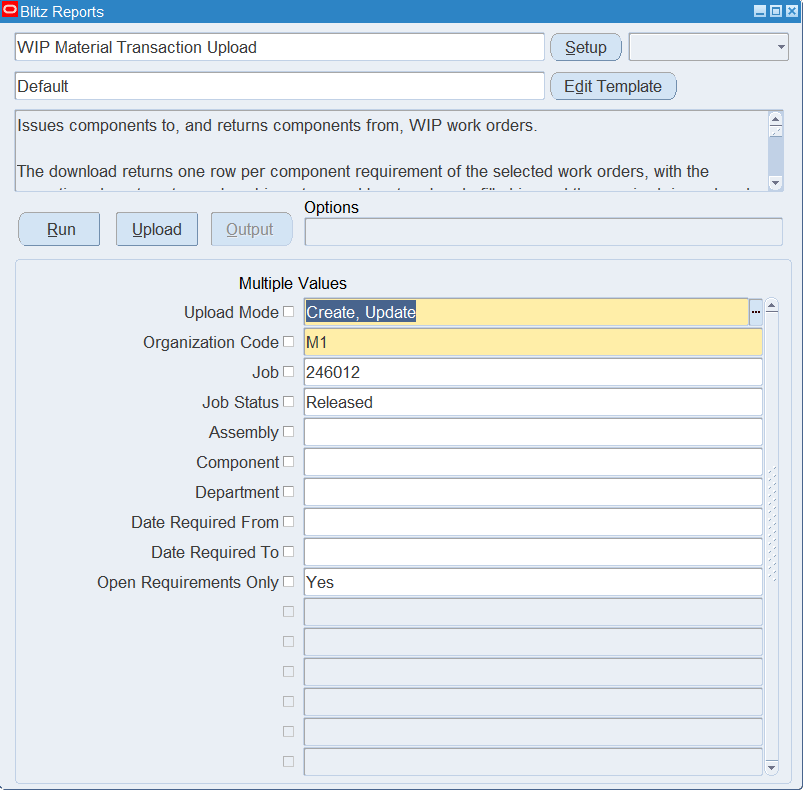
Open WIP Material Transaction Upload in Blitz Report and set the download filters. The parameters narrow which component requirements come back – they do not restrict what you may transact.
| Parameter | Meaning |
|---|---|
| Upload Mode | Create, Update (default) downloads the component requirements so you can transact against them. Create gives you an empty sheet to type rows into yourself. |
| Organization Code | The inventory organization. Defaults to your current organization. |
| Job | Restricts the download to one or more work orders. |
| Job Status | Restricts the download by work order status. Defaults to Released. |
| Assembly | Restricts the download to work orders building this assembly. |
| Component | Restricts the download to requirements for this component item. |
| Department | Restricts the download to requirements at operations in this department. |
| Date Required From / To | Restricts the download by requirement date. Date Required To defaults to Date Required From. |
| Open Requirements Only | Yes (default) returns only requirements that are not yet fully issued. Clear it to see fully issued requirements as well, which is what you need when returning components. |
Step 2 – Run to download the Excel file
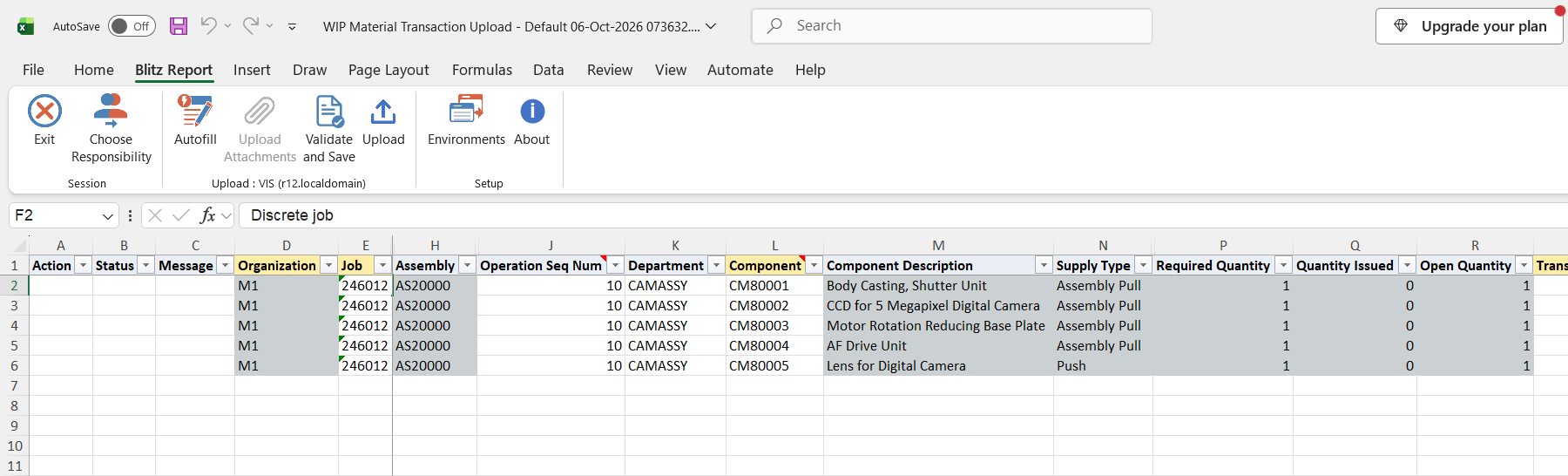
Click Run. The Excel file downloads and opens with one row per component requirement. The context columns are read-only and help you decide what to transact: Job, Job Type, Job Status, Assembly, Component Description, Supply Type, Date Required, Required Quantity, Quantity Issued and Open Quantity.
Step 3 – Enter the transactions
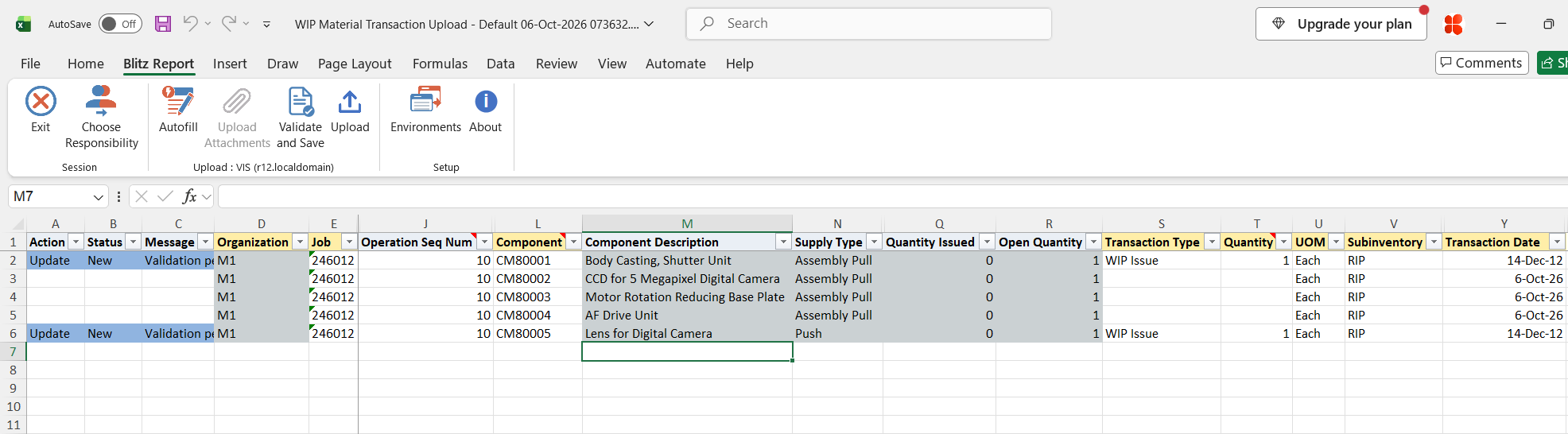
Only rows where you enter a Transaction Type and a Quantity are transacted. Leave every other row untouched – there is no need to delete them.
- Transaction Type – WIP Issue to issue components to the work order, WIP Return to return them to stores, or one of your own WIP issue or return transaction types.
- Quantity – always a positive number in the UOM shown. The transaction type decides the direction, so a return is not entered as a negative quantity.
- Subinventory and Locator – the stores side of the transaction. The supply subinventory and locator of the requirement are already filled in; change them if you issue from somewhere else.
- Operation Seq Num – the operation the component is issued to. Required for work orders that have a routing.
- Transaction Date – downloaded as today’s date; it must fall in an open inventory period.
- Revision, Lot Number, Lot Expiration Date, Lot Quantity, From Serial Number and To Serial Number – required wherever the component item is revision, lot or serial controlled. The lot quantity must equal the transaction quantity.
- Reason and Transaction Reference – optional, and carried onto the transaction.
- Source Project, Source Task, Expenditure Type and Expenditure Org – for project manufacturing.
To transact a component that was not downloaded, add a row with the Organization, Job, Operation Seq Num, Component, Transaction Type, Quantity, UOM, Subinventory and Transaction Date.
Step 4 – Validate and Save
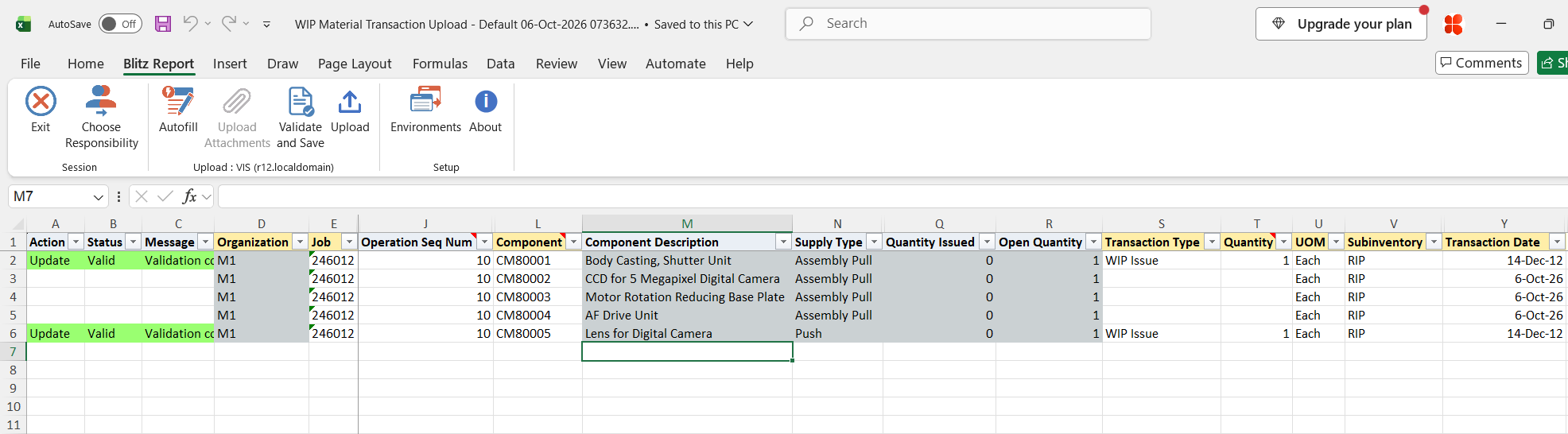
Click Validate and Save. This checks for missing required values and runs the upload’s own checks – the work order type and status, the transaction type, the quantity, item and locator control requirements, a return against the quantity already issued, the operation, the department and subinventory, and whether the transaction date is in an open period – and saves the file. Correct any rows it flags before uploading.
Step 5 – Upload the file
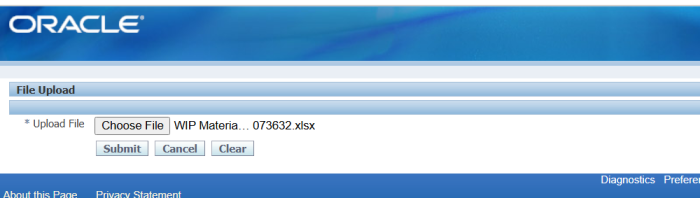
In Blitz Report click Upload and select the saved file. This submits the upload request, which passes the rows to the inventory transaction manager.
Step 6 – Review the result report
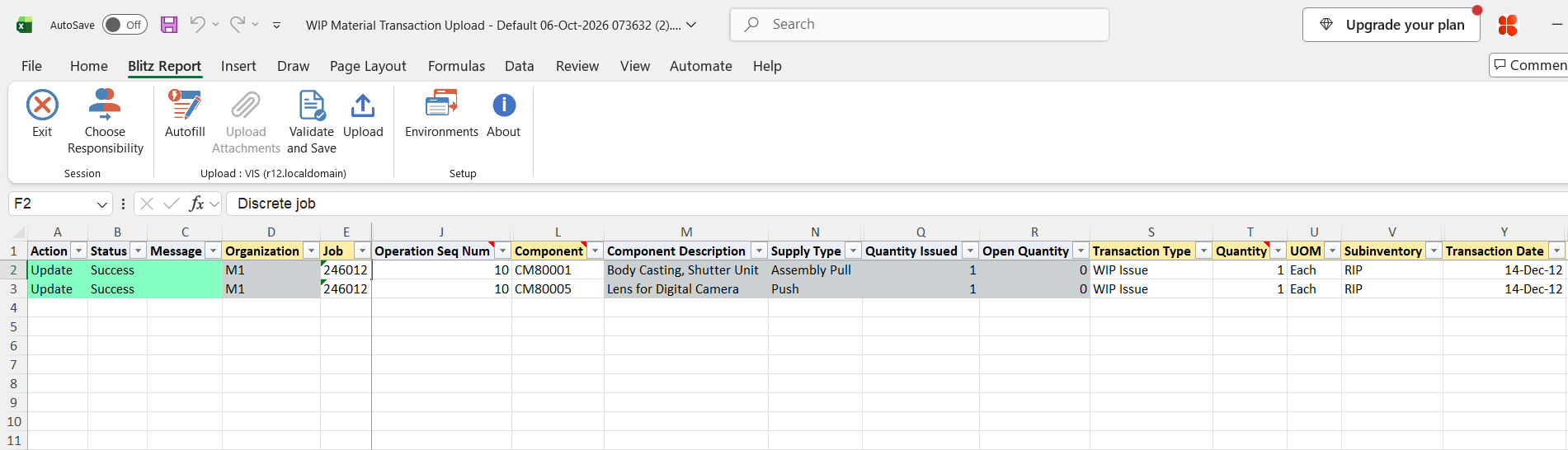
When the request completes, a result report opens listing every uploaded row with its status and message, and with the quantity issued and open quantity of the requirement after the transaction.
What’s produced
- Inventory material transactions against the work orders, processed by the inventory transaction manager. They are identical to those the WIP Material Transactions form creates and relieve the work order requirement in the same way.
- A result report listing every row with a status (success or error) and a message – the reason a row was rejected, or a note when a component is not on the work order bill.
Common questions
Do I enter a negative quantity to return a component?
No. Always enter a positive quantity and set the Transaction Type to WIP Return. A zero or negative quantity is rejected.
Can I issue a component that is not on the work order bill?
Yes. Any transactable component item may be entered, as the WIP Material Transactions form allows. The row is flagged in the result report with “Component is not on the work order bill.” so that unintended entries are easy to spot.
Why is my work order not in the download?
Check the filters first – Job Status defaults to Released, and Open Requirements Only defaults to Yes, which hides requirements that are already fully issued. Also confirm the work order is a discrete job, lot based job or maintenance work order; repetitive schedules are not supported.
I want to return components but the rows are not there.
Clear Open Requirements Only. A fully issued requirement has no open quantity left, so it is filtered out by default.
Can I return more than was issued?
No. The return quantity is checked against the quantity already issued to that component, both in Validate and Save and again during the upload, which prevents driving the issued quantity negative.
What about non-WIP inventory transactions?
Use the INV Transaction Upload for miscellaneous issues and receipts, subinventory transfers and similar transactions.
Troubleshooting
| Message | Cause | What to do |
|---|---|---|
| Work order … does not exist in organization … | The job name is not a discrete job, lot based job or maintenance work order in that organization. | Check the Job and Organization; transact repetitive schedules in the WIP Material Transactions form. |
| Material transactions are only allowed for work orders with status Released or Complete. This work order is … | The work order is at another status, such as Unreleased, On Hold, Complete – No Charges or Closed. | Release the work order, or pick one that is already Released or Complete. |
| Transaction Type … is not a WIP material issue or return. | The transaction type is not a WIP component issue or return type. | Pick the Transaction Type from the list. |
| Transaction quantity must be greater than zero. | The quantity is blank, zero or negative. | Enter a positive quantity and let the Transaction Type set the direction. |
| Return quantity exceeds the quantity issued to this component (…). | The return is larger than what has been issued to that component. | Reduce the quantity to at most the issued quantity shown in brackets. |
| Operation Sequence is required for work orders with a routing. | The work order has a routing but no operation was entered. | Enter the operation the component is issued to. |
| Operation … does not exist on work order … | The operation entered is not one of the work order’s operations. | Use an operation of the work order – the downloaded rows already carry the right one. |
| Revision is required for revision controlled items. / Lot Number is required for lot controlled items. / From and To Serial Number are required for serial controlled items. | The component item is under that control and the value is missing. | Enter the revision, lot number or serial number range. |
| Locator is required for locator controlled subinventories. | The subinventory or item is locator controlled and no locator was entered. | Enter the Locator. |
| The Lot Quantity does not match the Transaction Quantity. | The lot quantity entered differs from the transaction quantity. | Make the lot quantity equal the transaction quantity, or leave it blank. |
| The Transaction Date does not fall in an open inventory period. | The transaction date is in a closed or not yet opened period. | Use a date within an open inventory period. |
| Component … does not exist in organization … | The component item is not assigned to that inventory organization. | Correct the component, or assign it to the organization first. |
| Invalid Department. / Invalid Subinventory. | The department or subinventory does not exist in the organization, or the subinventory is disabled. | Pick the value from the list. |
| Record was not processed but no error was returned | The inventory transaction manager left the row unprocessed without an error. | Upload the row again; if it repeats, check the item and transaction setup with your inventory administrator. |
Errors raised by the inventory transaction manager itself, such as insufficient on-hand quantity, are shown in the result report as the error code followed by its explanation.
select null action_, null status_, null message_, null modified_columns_, to_number(null) source_line_id, to_number(null) source_header_id, ood.organization_code organization, we.wip_entity_name job, xxen_util.meaning(we.entity_type,'WIP_ENTITY',700) job_type, xxen_util.meaning(wdj.status_type,'WIP_JOB_STATUS',700) job_status, msiv_a.concatenated_segments assembly, msiv_a.description assembly_description, wro.operation_seq_num, bd.department_code department, msiv.concatenated_segments component, msiv.description component_description, xxen_util.meaning(wro.wip_supply_type,'WIP_SUPPLY',700) supply_type, wro.date_required, wro.required_quantity, wro.quantity_issued, wro.required_quantity-wro.quantity_issued open_quantity, to_char(null) transaction_type, to_number(null) quantity, (select muomv.unit_of_measure from mtl_units_of_measure_vl muomv where msiv.primary_uom_code=muomv.uom_code) uom, wro.supply_subinventory subinventory, milk.concatenated_segments locator, to_char(null) revision, sysdate transaction_date, to_char(null) reason, cast(null as varchar2(240)) transaction_reference, to_char(null) lot_number, to_date(null) lot_expiration_date, to_number(null) lot_quantity, to_char(null) from_serial_number, to_char(null) to_serial_number, to_char(null) source_project, to_char(null) source_task, to_char(null) expenditure_type, to_char(null) expenditure_org, row_number() over (order by we.wip_entity_name, wro.operation_seq_num, msiv.concatenated_segments) upload_row from org_organization_definitions ood, wip_entities we, wip_discrete_jobs wdj, wip_requirement_operations wro, mtl_system_items_vl msiv, mtl_system_items_vl msiv_a, bom_departments bd, mtl_item_locations_kfv milk where 1=1 and we.organization_id=ood.organization_id and we.entity_type in (1,5,6) and wdj.wip_entity_id=we.wip_entity_id and wdj.organization_id=we.organization_id and wro.wip_entity_id=we.wip_entity_id and wro.organization_id=we.organization_id and wro.repetitive_schedule_id is null and msiv.inventory_item_id=wro.inventory_item_id and msiv.organization_id=wro.organization_id and msiv_a.inventory_item_id(+)=wdj.primary_item_id and msiv_a.organization_id(+)=wdj.organization_id and bd.department_id(+)=wro.department_id and milk.inventory_location_id(+)=wro.supply_locator_id and milk.organization_id(+)=wro.organization_id |
| Parameter Name | SQL text | Validation | |
|---|---|---|---|
| Upload Mode |
| LOV | |
| Organization Code |
| LOV | |
| Job |
| LOV | |
| Job Status |
| LOV | |
| Assembly |
| LOV | |
| Component |
| LOV | |
| Department |
| LOV | |
| Date Required From |
| Date | |
| Date Required To |
| Date | |
| Open Requirements Only |
| LOV |