
AP Invoice Upload


Description
AP Invoice Upload creates new Oracle Payables invoices – headers and lines, with optional PO matching, project and asset details, tax lines, descriptive flexfields and attachments – from Excel. It stages the invoices in the Payables open interface, runs the standard Payables Open Interface Import for each operating unit and can validate each imported invoice immediately. It creates new invoices and adds lines to existing unpaid invoices; it does not change or delete existing lines.
When to use it
- Mass-load new supplier invoices instead of keying them in the Invoice Workbench.
- Load PO-matched invoices by referencing the PO line, shipment, distribution or receipt.
- Load non-PO invoices coded to a distribution account, an account alias or a distribution set.
- Split an invoice line across several distribution accounts by percent or amount.
- Create project-related or asset-tracked invoice lines.
- Enter invoices with manual tax lines, or attach a document to each invoice.
- Load and immediately validate invoices in one step.
- Add lines to an existing unpaid invoice.
Before you start
- Your responsibility has access to the operating unit.
- The supplier, an active pay site and the invoice source exist.
- The Payables period of the invoice GL date is open.
- For PO-matched lines, the purchase order or receipt exists and is open for matching.
Choose a template
| Template | Use it for |
|---|---|
| Default (default) | Standard invoices: header, lines, distribution account or set, distribution splits, PO matching, item, asset, project, tax driver and remittance columns. |
| Default (with attachment) | The Default columns plus the invoice, line and distribution descriptive flexfields and the attachment columns (Attachment Category, Title, Description, Type, Content). |
| Manual Tax Lines Template | Invoices with explicit tax lines: adds Taxation Country, Tax Regime, Tax, Tax Status, Tax Jurisdiction, Tax Rate Name, Tax Rate, Line Prorate Group and Prorate Flag, plus the descriptive flexfields. |
| Add Lines to Existing Invoice | Adding lines to existing invoices: the columns that identify the invoice, Add To Existing Invoice, Invoice Date, GL Date, Invoice Amount and the line, distribution, project, asset and tax driver columns. |
Step 1 – Set the parameters
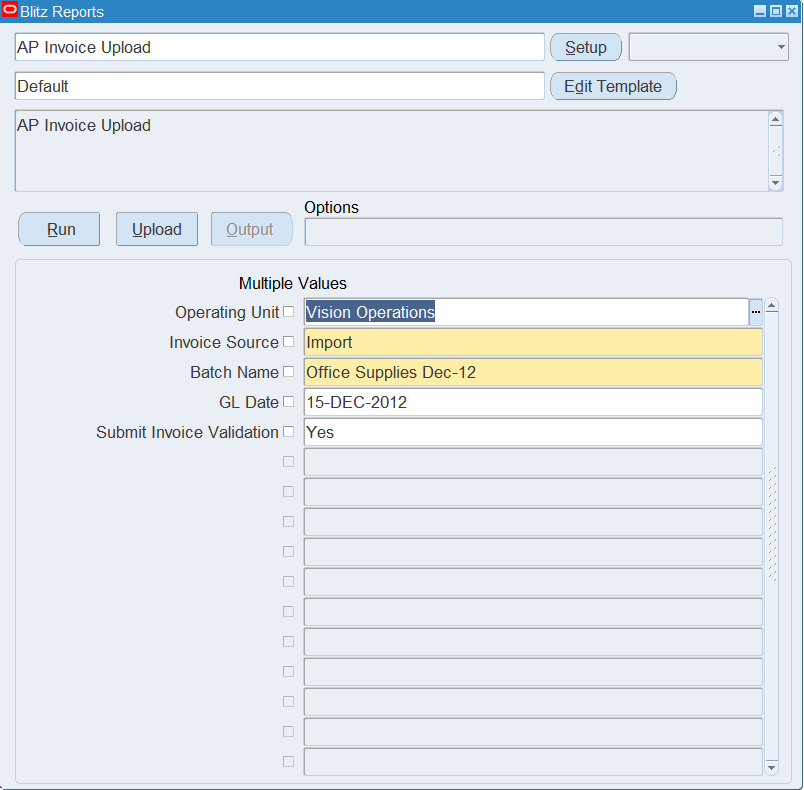
Open AP Invoice Upload in Blitz Report, choose the template and set the parameters:
| Parameter | Meaning |
|---|---|
| Operating Unit | Default operating unit for new rows. Each row can carry its own operating unit. |
| Invoice Source | The Payables invoice source the invoices are imported under (required). |
| Batch Name | Batch name passed to the Payables Open Interface Import; the upload request id is appended to it (required, defaults to N/A when invoice batch control is not used). |
| GL Date | Default GL Date for new rows and GL date of the import. |
| Submit Invoice Validation | Yes (default) validates each imported invoice immediately. |
| Default Line Amount? | Yes defaults a blank Line Amount to the Invoice Amount, for invoices with a single line. Blank by default. |
Step 2 – Run to download the Excel file
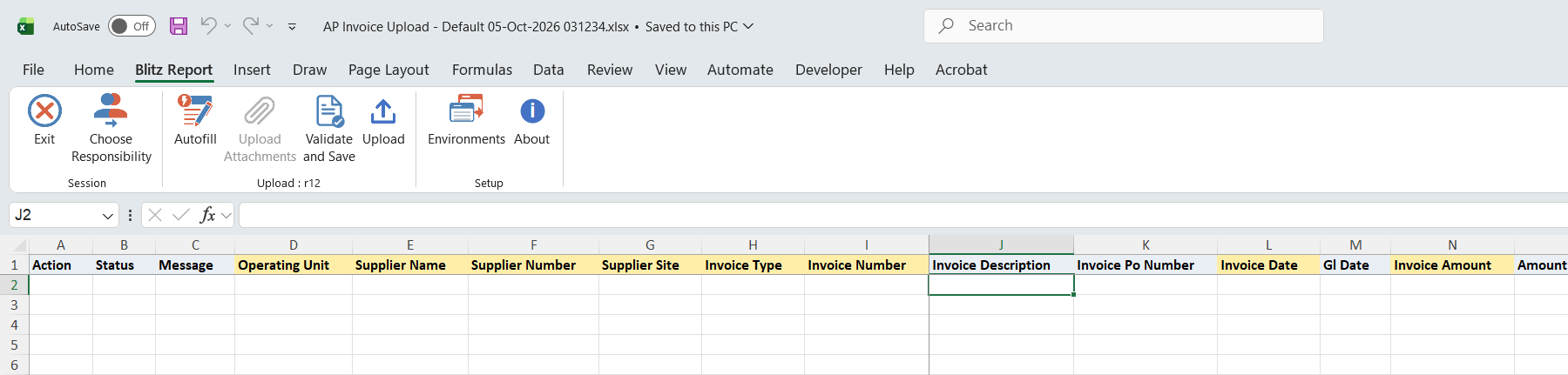
Click Run. An empty Excel sheet downloads and opens, ready for new invoices.
Step 3 – Enter the invoices
Enter one row per invoice line and repeat the header values on every line of the same invoice. Rows with the same Operating Unit, Supplier Name, Supplier Number, Supplier Site and Invoice Number form one invoice, and all their header columns (Invoice Type, Invoice Date, GL Date, Invoice Amount, Invoice Currency, Terms, exchange rate and payment columns) must be identical.
- Header: Invoice Type (defaults to Standard), Invoice Number, Invoice Date, Invoice Amount and Invoice Currency are required; Terms, Payment Method, exchange rate and the other header columns are optional and otherwise default from the supplier site as in Payables. Supplier Site defaults to the supplier’s primary pay site in the operating unit, or to its only active pay site there.
- Lines: Line Number, Line Type (defaults to Item) and Line Amount are required. With Default Line Amount? set to Yes, a blank Line Amount defaults to the Invoice Amount.
- Code a non-PO line with a Distribution Account, a Distribution Account Alias (fills the Distribution Account) or a Distribution Set.
- To split a line across several accounts, enter one row per distribution with the same Line Number and line values, and on every row a Distribution Line Number, a Distribution Account and either a Distribution Percent (adding up to 100) or a Distribution Amount (adding up to the Line Amount). Percent amounts are rounded to the currency, with the remainder on the largest distribution. Item, Freight and Miscellaneous lines can be split, except lines matched to a PO or receipt, lines using a distribution set and prorated lines; a project line only when the profile PA: Allow Override of PA Distributions in AP/PO is Yes.
- Match a line with PO Number and PO Line Num (optionally PO Release Num, Po Shipment Num, PO Distribution Num) or Po Receipt Num and Po Receipt Line Num; Line Description, UOM and Inventory Item default from the PO line.
- Optional line details: Quantity and Unit Price, the project columns (Project, Task, Expenditure Type, Expenditure Organization, Expenditure Item Date), the asset columns (Track As Asset, Asset Book, Asset Category) and the tax driver columns (Tax Classification, Ship To Location, Product Fiscal Classification and others).

Step 4 – Validate and Save
Click Validate and Save. This checks for missing required values and saves the file. Correct any rows it flags before uploading.

Step 5 – Upload the file
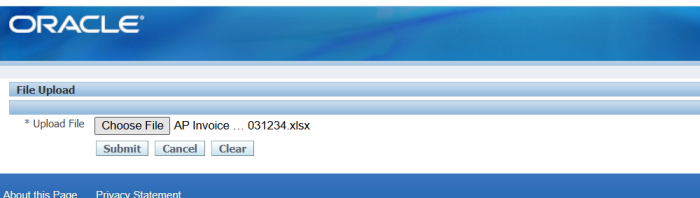
In Blitz Report click Upload and select the saved file. This submits the upload request, which checks each row, stages the invoices, runs the Payables Open Interface Import for each operating unit and, if requested, validates the imported invoices.
Step 6 – Review the result report
When the request completes, a result report opens listing every uploaded row with its status and message. An imported line shows one row per distribution, including the distributions Payables creates from a distribution set, a purchase order match or a prorated Freight or Miscellaneous line. Rows of imported invoices show Success; rows rejected by the upload or by the import show Error with the reason, including the Payables interface rejection reasons.

Adding lines to an existing invoice
Choose the Add Lines to Existing Invoice template and enter one row per new line, with the Operating Unit, Supplier, Supplier Site, Invoice Type, Invoice Number and Invoice Currency of the existing invoice. Add To Existing Invoice is Yes on every new row and is accepted only when the invoice exists, so a mistyped invoice number is rejected instead of creating a new invoice.
- Invoice Amount is the amount added to the invoice, including the tax of the added lines, the same on every row of the invoice. The invoice’s Invoice Amount is raised by it and its payment schedules are recalculated; the result report shows the new Invoice Amount.
- The other invoice details are not changed. GL Date is the accounting date of the new lines, the invoice’s GL Date when left blank; a date in a closed period moves to the next open one.
- Item, Freight and Miscellaneous lines can be added, coded with a Distribution Account, a Distribution Set or a split across several distributions, with project, asset and tax driver details. Lines matched to a purchase order or receipt, prorated lines and India Localization taxes cannot be added.
- The invoice must be unpaid, not cancelled, not selected for payment and not in the approval workflow, and its Invoice Amount must be changeable in the Invoice Workbench.
- All new lines of an invoice are added together or not at all. The invoice is then validated as set by Submit Invoice Validation.

India Localization (GST and TDS)
On instances with Oracle India Localization installed, the upload has two additional columns: Section Code (the TDS section for the line, for example 194C) and Tax Category (the GST tax category for the line). Enter them on the invoice line row; they apply to all distributions of that line. Left blank, the standard India Localization defaulting applies. After import and validation the values are applied and the India Localization taxes are regenerated, as for an invoice entered in the Invoice Workbench. Values are accepted only for operating units registered for India Localization. The outcome is written to the log of the upload request.
What’s produced
- New Payables invoices with their lines, distributions, tax, flexfields and attachments as entered, validated if Submit Invoice Validation is Yes.
- Lines added to existing invoices, with the Invoice Amount and payment schedules updated.
- On India Localization instances, the entered Section Code and Tax Category applied to the distributions and the GST/TDS taxes regenerated.
- A result report listing every row with a status and a message, with one row per distribution of each imported line.
Common questions
Can I update or delete existing invoices with this upload?
No. It creates new invoices and adds lines to existing unpaid invoices, but does not change or delete existing lines.
What happens if one line of an invoice fails?
The whole invoice is held back. Its other lines show “One or more lines in the invoice have errors”; correct the failing line and upload the complete invoice again.
What stops a duplicate invoice?
A row is rejected when an invoice with the same Operating Unit, Supplier, Supplier Site and Invoice Number already exists, unless Add To Existing Invoice is Yes.
Does it validate the invoice after import?
Yes if Submit Invoice Validation is Yes, and always when distribution flexfield values or India Localization values were entered. Otherwise the invoices are imported unvalidated.
Why does a successfully uploaded invoice have a Line Variance or Cannot Execute Allocation hold?
Payables calculated tax lines from your tax setup and the Invoice Amount does not include that tax. Enter the Invoice Amount including tax, or release the Line Variance hold in Payables. A Freight or Miscellaneous line with Prorate Flag Yes is not prorated in that case and gets no distributions, which places the Cannot Execute Allocation and Distribution Variance holds: correct the Invoice Amount in the Invoice Workbench and validate the invoice again. Holds placed by validation do not appear in the result report.
Do I have to enter tax lines?
No. Payables calculates tax from your tax setup. Use the Manual Tax Lines Template only when you need to enter tax lines explicitly.
How do I attach a document to an invoice?
Use the Default (with attachment) template, fill Attachment Category and Attachment Type, and enter the text, URL or file path in Attachment Content. For a file, double-click the cell to pick it, then click Upload Attachments before uploading.
Troubleshooting
| Message | Cause | What to do |
|---|---|---|
| This upload does not support an Update Action | A row’s Action is not Create. | Use the upload only to create new invoices. |
| Invoice Number already exists for this Operating Unit, Supplier, and Supplier Site. | The invoice already exists in Payables. | Correct the invoice number, or add the lines with the Add Lines to Existing Invoice template. |
| Add To Existing Invoice is invalid | No invoice with this Operating Unit, Supplier, Supplier Site and Invoice Number exists. | Correct the invoice columns, or create the invoice with the Default template. |
| Lines can be added only to an unpaid invoice. | The invoice is paid or partly paid. | Enter the lines on a new invoice. |
| Line Number … already exists on the invoice. | The invoice already has a line with this number, for example from an earlier upload of the same rows. | Use line numbers the invoice does not have yet. |
| Invoice Amount differs from the first row for this Invoice. | Rows adding lines to the same invoice carry different Invoice Amounts. | Enter the total amount added on every row of the invoice. |
| … cannot be added to an existing invoice. / Only Item, Freight and Miscellaneous lines can be added to an existing invoice. | The line is matched to a purchase order or receipt, prorated, of another line type, or carries India Localization taxes or line reference keys. | Enter the line in the Invoice Workbench. |
| Lines cannot be added while the invoice is in the approval workflow. | Invoice approval has started. | Upload the rows again once the approval has completed. |
| Could not reserve record. | Another user or program has the invoice locked. | Upload the rows again once the invoice is free. |
| Operating Unit is invalid or not accessible to this Responsibility. | The operating unit is not granted to your responsibility. | Upload from a responsibility with access to that operating unit. |
| Invoice Source is invalid. | No invoice source, or an expense report source. | Pick an Invoice Source from the list. |
| Distribution Account Error | The Distribution Account combination does not validate. | Correct the account, or pick it from the list. |
| The Distribution Percent of line … adds up to … It must add up to 100. / The Distribution Amount of line … adds up to … It must add up to the Line Amount … | The distributions of a split line do not add up. | Correct the percentages or amounts on the rows of that line. |
| Line … is split across several distributions: enter a Distribution Percent or a Distribution Amount on each of its rows. | Several rows carry the same line number without a percent or amount. | Enter a percent or an amount on each row, or give the rows their own line numbers. |
| Line Data differs from the first row for this Line | Rows of the same split line carry different line values. | Make the line columns identical on every row of the line. |
| Distribution …: … | Payables or Projects rejected a distribution after the import. The invoice is imported without distributions for that line and validation places a Distribution Variance hold. | Enter the line’s distributions in the Invoice Workbench and validate the invoice. |
| Invoice DFF / Line DFF / Distribution DFF: … | A descriptive flexfield value does not validate. | Correct the flexfield values named in the message. |
| Invoice Header Data differs from the first row for this Invoice | Lines of the same invoice carry different header values. | Make the header columns identical on every line of the invoice. |
| One or more lines in the invoice have errors | Another line of the same invoice failed. | Fix the failing line; the invoice is processed as a whole. |
| Payables Open Interface Import did not import this line. Please check the Payables Open Interface Import request | The import did not process the invoice. | Check the log and output of the Payables Open Interface Import request. |
SQL 343 lines
with q_dual as (select * from dual) -- dummy to allow the lexical to follow &error_with_query &success_with_query -- -- Main Query Starts Here -- select null action_, null status_, null message_, null request_id_, null modified_columns_, to_number(null) inv_int_id, to_number(null) line_int_id, null batch_name, null submit_validation, null invoice_calculate_tax, null invoice_inclusive_of_tax, -- alc.displayed_field source, haouv.name operating_unit, asu.vendor_name supplier_name, asu.segment1 supplier_number, assa.vendor_site_code supplier_site, xxen_util.meaning(aia.invoice_type_lookup_code,'INVOICE TYPE',200) invoice_type, (select fdsc.name from fnd_doc_sequence_categories fdsc where fdsc.application_id = 200 and fdsc.table_name in ('AP_INVOICES','AP_INVOICES_ALL') and fdsc.code = aia.doc_category_code) document_category, aia.invoice_num invoice_number, null add_to_existing_invoice, aia.description invoice_description, (select pha.segment1 from po_headers_all pha where pha.po_header_id = nvl(aia.po_header_id,aia.quick_po_header_id)) invoice_po_number, aia.invoice_date, aia.gl_date, aia.invoice_amount, aia.amount_applicable_to_discount, aia.invoice_currency_code invoice_currency, (select gdct.user_conversion_type from gl_daily_conversion_types gdct where gdct.conversion_type = aia.exchange_rate_type) exchange_rate_type, aia.exchange_date, aia.exchange_rate, (select ate.name from ap_terms ate where ate.term_id = aia.terms_id) terms, aia.terms_date, aia.goods_received_date, aia.invoice_received_date, (select gcck.concatenated_segments from gl_code_combinations_kfv gcck where gcck.code_combination_id = aia.accts_pay_code_combination_id) liability_account, xxen_util.meaning(aia.exclusive_payment_flag,'YES_NO',0) exclusive_payment_flag, aia.payment_currency_code payment_currency, (select gdct.user_conversion_type from gl_daily_conversion_types gdct where gdct.conversion_type = aia.payment_cross_rate_type) payment_cross_rate_type, aia.payment_cross_rate_date, aia.payment_cross_rate, (select ipmv.payment_method_name from iby_payment_methods_vl ipmv where ipmv.payment_method_code = aia.payment_method_code) payment_method, (select idcv.meaning from iby_delivery_channels_vl idcv where idcv.delivery_channel_code = aia.delivery_channel_code) payment_delivery_channel, (select iprv.meaning from iby_payment_reasons_vl iprv where iprv.payment_reason_code = aia.payment_reason_code) payment_reason, aia.payment_reason_comments, (select flvv.meaning from fnd_lookup_values_vl flvv where flvv.lookup_type='PAY GROUP' and flvv.view_application_id = 201 and flvv.lookup_code = aia.pay_group_lookup_code) payment_group, --apsa.payment_priority, -- only applicable for payment request invoice type (select aag.name from ap_awt_groups aag where aag.group_id = aia.awt_group_id) invoice_awt_group, (select aag.name from ap_awt_groups aag where aag.group_id = aia.awt_group_id) payment_awt_group, --aia.ussgl_transaction_code, -- not imported by the Payables Import process aia.tax_invoice_recording_date internal_recording_date, aia.supplier_tax_invoice_number, aia.supplier_tax_invoice_date, aia.supplier_tax_exchange_rate, -- aila.line_number, xxen_util.meaning(aila.line_type_lookup_code,'INVOICE LINE TYPE',200) line_type, aila.amount line_amount, aila.description line_description, aila.quantity_invoiced quantity, aila.unit_meas_lookup_code uom, aila.unit_price, -- aila.line_group_number line_prorate_group, xxen_util.meaning(aila.prorate_across_all_items,'YES_NO',0) prorate_flag, aida.distribution_line_number, -- (select fsfa.alias_name from fnd_shorthand_flex_aliases fsfa where fsfa.application_id = 101 and fsfa.id_flex_code = 'GL#' and fsfa.id_flex_num = gcck.chart_of_accounts_id and fsfa.concatenated_segments = gcck.concatenated_segments and fsfa.enabled_flag = 'Y' and trunc(sysdate) between nvl(fsfa.start_date_active,trunc(sysdate)) and nvl(fsfa.end_date_active,trunc(sysdate)) and rownum <= 1 ) distribution_account_alias, gcck.concatenated_segments distribution_account, to_number(null) distribution_percent, aida.amount distribution_amount, (select adsa.distribution_set_name from ap_distribution_sets_all adsa where adsa.distribution_set_id = aila.distribution_set_id and adsa.org_id = aila.org_id) distribution_set, -- (select hecv.full_name || ' (' || hecv.employee_num || ')' from hr_employees_current_v hecv where hecv.employee_id = aila.requester_id) requester, -- (select pha.segment1 from po_headers_all pha where pha.po_header_id = aila.po_header_id) po_number, (select pra.release_num from po_releases_all pra where pra.po_release_id = aila.po_release_id) po_release_num, (select pla.line_num from po_lines_all pla where pla.po_line_id = aila.po_line_id) po_line_num, (select plla.shipment_num from po_line_locations_all plla where plla.line_location_id = aila.po_line_location_id) po_shipment_num, (select pda.distribution_num from po_distributions_all pda where pda.po_distribution_id = aila.po_distribution_id) po_distribution_num, (select rsh.receipt_num from rcv_shipment_headers rsh, rcv_shipment_lines rsl where rsh.shipment_header_id = rsl.shipment_header_id and rsl.shipment_line_id = aila.rcv_shipment_line_id) po_receipt_num, (select rsl.line_num from rcv_shipment_lines rsl where rsl.shipment_line_id = aila.rcv_shipment_line_id) po_receipt_line_num, -- (select msiv.concatenated_segments from mtl_system_items_vl msiv where msiv.inventory_item_id = aila.inventory_item_id and msiv.organization_id = fsp.inventory_organization_id) inventory_item, aila.item_description, aila.manufacturer, aila.model_number, aila.serial_number, aila.warranty_number, xxen_util.meaning(aila.assets_tracking_flag,'YES_NO',0) track_as_asset, (select fbc.book_type_name from fa_book_controls fbc where fbc.book_type_code = aila.asset_book_type_code) asset_book, (select fck.concatenated_segments from fa_categories_b_kfv fck where fck.category_id = aila.asset_category_id) asset_category, -- (select ppa.segment1 from pa_projects_all ppa where aila.project_id=ppa.project_id) project, (select pt.task_number from pa_tasks pt where aila.task_id=pt.task_id) task, aila.expenditure_item_date, aila.expenditure_type, (select haouv_exp.name from hr_all_organization_units_vl haouv_exp where aila.expenditure_organization_id=haouv_exp.organization_id) expenditure_organization, aila.pa_quantity project_quantity, -- tax aila.type_1099 income_tax_type, aila.income_tax_region, --xm.taxation_country (select ft.territory_short_name from fnd_territories_vl ft where ft.territory_code = aia.taxation_country ) taxation_country, -- xm.tax_classification, (select zicv.meaning from zx_input_classifications_v zicv where zicv.lookup_type = 'ZX_INPUT_CLASSIFICATIONS' and zicv.lookup_code = aila.tax_classification_code and (zicv.org_id = aila.org_id or zicv.org_id = -99) and zicv.enabled_flag = 'Y' and trunc(sysdate) between nvl(zicv.start_date_active, trunc(sysdate)) and nvl(zicv.end_date_active, trunc(sysdate)) and rownum <= 1 ) tax_classification, -- xm.primary_intended_use, (select zfiuv.classification_name from zx_fc_intended_use_v zfiuv where (zfiuv.country_code = aia.taxation_country or zfiuv.country_code is null) and trunc(sysdate) between nvl(zfiuv.effective_from,trunc(sysdate)) and nvl(zfiuv.effective_to,trunc(sysdate)) and trunc(sysdate) <= nvl(zfiuv.disable_date,trunc(sysdate)) and zfiuv.classification_code = aila.primary_intended_use and rownum <= 1 ) primary_intended_use, -- xm.ship_to_location, (select hlat.location_code from hr_locations_all_tl hlat where hlat.location_id = aila.ship_to_location_id and hlat.language = userenv('LANG') and rownum <= 1 ) ship_to_location, -- xm.product_fiscal_classification, (select zfpcv.classification_name from zx_fc_product_fiscal_v zfpcv where (zfpcv.country_code = aia.taxation_country or zfpcv.country_code is null) and (zfpcv.effective_to >= trunc(sysdate) or zfpcv.effective_to is null) and zfpcv.classification_code = aila.product_fisc_classification and rownum <= 1 ) product_fiscal_classification, -- xm.fiscal_classification, (select zfudv.classification_name from zx_fc_user_defined_v zfudv where (zfudv.country_code = aia.taxation_country or zfudv.country_code is null) and trunc(sysdate) between nvl(zfudv.effective_from,trunc(sysdate)) and nvl(zfudv.effective_to,trunc(sysdate)) and zfudv.classification_code = aila.user_defined_fisc_class and rownum <= 1 ) fiscal_classification, -- xm.business_category, (select zfbcv.classification_name from zx_fc_business_categories_v zfbcv where (zfbcv.country_code = aia.taxation_country or zfbcv.country_code is null) and trunc(sysdate) between nvl(zfbcv.effective_from,trunc(sysdate)) and nvl(zfbcv.effective_to,trunc(sysdate)) and zfbcv.application_id = 200 and zfbcv.entity_code = 'AP_INVOICES' and zfbcv.event_class_code IN ('STANDARD INVOICES','PREPAYMENT INVOICES','EXPENSE REPORTS') and zfbcv.classification_code = aila.trx_business_category and rownum <= 1 ) business_category, -- xm.product_type, (select zptv.classification_name from zx_product_types_v zptv where zptv.classification_code = aila.product_type and rownum <= 1 ) product_type, -- xm.product_category (select zfpcv.classification_name from zx_fc_product_categories_v zfpcv where (zfpcv.country_code = aia.taxation_country or zfpcv.country_code is null) and trunc(sysdate) between nvl(zfpcv.effective_from,trunc(sysdate)) and nvl(zfpcv.effective_to,trunc(sysdate)) and zfpcv.classification_code = aila.product_category and rownum <= 1 ) product_category, -- tax line only columns aila.tax_regime_code tax_regime, aila.tax, aila.tax_status_code tax_status, aila.tax_jurisdiction_code tax_jurisdiction, aila.tax_rate_code tax_rate_name, aila.tax_rate, -- aila.assessable_value, (select aag.name from ap_awt_groups aag where aag.group_id = aila.awt_group_id) line_invoice_awt_group, (select aag.name from ap_awt_groups aag where aag.group_id = aila.awt_group_id) line_payment_awt_group, -- (select flvv.meaning from fnd_lookup_values_vl flvv where flvv.lookup_type='IBY_BANK_CHARGE_BEARER' and flvv.view_application_id = 0 and flvv.lookup_code = aia.bank_charge_bearer) bank_charge_bearer, aia.remittance_message1, aia.remittance_message2, aia.remittance_message3, aia.unique_remittance_identifier, aia.uri_check_digit, -- aia.reference_1 invoice_reference_1, aia.reference_2 invoice_reference_2, aia.reference_key1 invoice_reference_key1, aia.reference_key2 invoice_reference_key2, aia.reference_key3 invoice_reference_key3, aia.reference_key4 invoice_reference_key4, aia.reference_key5 invoice_reference_key5, aila.reference_1 line_reference_1, aila.reference_2 line_reference_2, aila.reference_key1 line_reference_key1, aila.reference_key2 line_reference_key2, aila.reference_key3 line_reference_key3, aila.reference_key4 line_reference_key4, aila.reference_key5 line_reference_key5, -- xxen_util.display_flexfield_context(200,'AP_INVOICES',aia.attribute_category) invoice_attribute_category, xxen_util.display_flexfield_value(200,'AP_INVOICES',aia.attribute_category,'ATTRIBUTE1',aia.rowid,aia.attribute1) ap_inv_attribute1, xxen_util.display_flexfield_value(200,'AP_INVOICES',aia.attribute_category,'ATTRIBUTE2',aia.rowid,aia.attribute2) ap_inv_attribute2, xxen_util.display_flexfield_value(200,'AP_INVOICES',aia.attribute_category,'ATTRIBUTE3',aia.rowid,aia.attribute3) ap_inv_attribute3, xxen_util.display_flexfield_value(200,'AP_INVOICES',aia.attribute_category,'ATTRIBUTE4',aia.rowid,aia.attribute4) ap_inv_attribute4, xxen_util.display_flexfield_value(200,'AP_INVOICES',aia.attribute_category,'ATTRIBUTE5',aia.rowid,aia.attribute5) ap_inv_attribute5, xxen_util.display_flexfield_value(200,'AP_INVOICES',aia.attribute_category,'ATTRIBUTE6',aia.rowid,aia.attribute6) ap_inv_attribute6, xxen_util.display_flexfield_value(200,'AP_INVOICES',aia.attribute_category,'ATTRIBUTE7',aia.rowid,aia.attribute7) ap_inv_attribute7, xxen_util.display_flexfield_value(200,'AP_INVOICES',aia.attribute_category,'ATTRIBUTE8',aia.rowid,aia.attribute8) ap_inv_attribute8, xxen_util.display_flexfield_value(200,'AP_INVOICES',aia.attribute_category,'ATTRIBUTE9',aia.rowid,aia.attribute9) ap_inv_attribute9, xxen_util.display_flexfield_value(200,'AP_INVOICES',aia.attribute_category,'ATTRIBUTE10',aia.rowid,aia.attribute10) ap_inv_attribute10, xxen_util.display_flexfield_value(200,'AP_INVOICES',aia.attribute_category,'ATTRIBUTE11',aia.rowid,aia.attribute11) ap_inv_attribute11, xxen_util.display_flexfield_value(200,'AP_INVOICES',aia.attribute_category,'ATTRIBUTE12',aia.rowid,aia.attribute12) ap_inv_attribute12, xxen_util.display_flexfield_value(200,'AP_INVOICES',aia.attribute_category,'ATTRIBUTE13',aia.rowid,aia.attribute13) ap_inv_attribute13, xxen_util.display_flexfield_value(200,'AP_INVOICES',aia.attribute_category,'ATTRIBUTE14',aia.rowid,aia.attribute14) ap_inv_attribute14, xxen_util.display_flexfield_value(200,'AP_INVOICES',aia.attribute_category,'ATTRIBUTE15',aia.rowid,aia.attribute15) ap_inv_attribute15, xxen_util.display_flexfield_context(200,'AP_INVOICE_LINES',aila.attribute_category) line_attribute_category, xxen_util.display_flexfield_value(200,'AP_INVOICE_LINES',aila.attribute_category,'ATTRIBUTE1',aila.rowid,aila.attribute1) ap_inv_line_attribute1, xxen_util.display_flexfield_value(200,'AP_INVOICE_LINES',aila.attribute_category,'ATTRIBUTE2',aila.rowid,aila.attribute2) ap_inv_line_attribute2, xxen_util.display_flexfield_value(200,'AP_INVOICE_LINES',aila.attribute_category,'ATTRIBUTE3',aila.rowid,aila.attribute3) ap_inv_line_attribute3, xxen_util.display_flexfield_value(200,'AP_INVOICE_LINES',aila.attribute_category,'ATTRIBUTE4',aila.rowid,aila.attribute4) ap_inv_line_attribute4, xxen_util.display_flexfield_value(200,'AP_INVOICE_LINES',aila.attribute_category,'ATTRIBUTE5',aila.rowid,aila.attribute5) ap_inv_line_attribute5, xxen_util.display_flexfield_value(200,'AP_INVOICE_LINES',aila.attribute_category,'ATTRIBUTE6',aila.rowid,aila.attribute6) ap_inv_line_attribute6, xxen_util.display_flexfield_value(200,'AP_INVOICE_LINES',aila.attribute_category,'ATTRIBUTE7',aila.rowid,aila.attribute7) ap_inv_line_attribute7, xxen_util.display_flexfield_value(200,'AP_INVOICE_LINES',aila.attribute_category,'ATTRIBUTE8',aila.rowid,aila.attribute8) ap_inv_line_attribute8, xxen_util.display_flexfield_value(200,'AP_INVOICE_LINES',aila.attribute_category,'ATTRIBUTE9',aila.rowid,aila.attribute9) ap_inv_line_attribute9, xxen_util.display_flexfield_value(200,'AP_INVOICE_LINES',aila.attribute_category,'ATTRIBUTE10',aila.rowid,aila.attribute10) ap_inv_line_attribute10, xxen_util.display_flexfield_value(200,'AP_INVOICE_LINES',aila.attribute_category,'ATTRIBUTE11',aila.rowid,aila.attribute11) ap_inv_line_attribute11, xxen_util.display_flexfield_value(200,'AP_INVOICE_LINES',aila.attribute_category,'ATTRIBUTE12',aila.rowid,aila.attribute12) ap_inv_line_attribute12, xxen_util.display_flexfield_value(200,'AP_INVOICE_LINES',aila.attribute_category,'ATTRIBUTE13',aila.rowid,aila.attribute13) ap_inv_line_attribute13, xxen_util.display_flexfield_value(200,'AP_INVOICE_LINES',aila.attribute_category,'ATTRIBUTE14',aila.rowid,aila.attribute14) ap_inv_line_attribute14, xxen_util.display_flexfield_value(200,'AP_INVOICE_LINES',aila.attribute_category,'ATTRIBUTE15',aila.rowid,aila.attribute15) ap_inv_line_attribute15, xxen_util.display_flexfield_context(200,'AP_INVOICE_DISTRIBUTIONS',aida.attribute_category) dist_attribute_category, xxen_util.display_flexfield_value(200,'AP_INVOICE_DISTRIBUTIONS',aida.attribute_category,'ATTRIBUTE1',aida.rowid,aida.attribute1) ap_inv_dist_attribute1, xxen_util.display_flexfield_value(200,'AP_INVOICE_DISTRIBUTIONS',aida.attribute_category,'ATTRIBUTE2',aida.rowid,aida.attribute2) ap_inv_dist_attribute2, xxen_util.display_flexfield_value(200,'AP_INVOICE_DISTRIBUTIONS',aida.attribute_category,'ATTRIBUTE3',aida.rowid,aida.attribute3) ap_inv_dist_attribute3, xxen_util.display_flexfield_value(200,'AP_INVOICE_DISTRIBUTIONS',aida.attribute_category,'ATTRIBUTE4',aida.rowid,aida.attribute4) ap_inv_dist_attribute4, xxen_util.display_flexfield_value(200,'AP_INVOICE_DISTRIBUTIONS',aida.attribute_category,'ATTRIBUTE5',aida.rowid,aida.attribute5) ap_inv_dist_attribute5, xxen_util.display_flexfield_value(200,'AP_INVOICE_DISTRIBUTIONS',aida.attribute_category,'ATTRIBUTE6',aida.rowid,aida.attribute6) ap_inv_dist_attribute6, xxen_util.display_flexfield_value(200,'AP_INVOICE_DISTRIBUTIONS',aida.attribute_category,'ATTRIBUTE7',aida.rowid,aida.attribute7) ap_inv_dist_attribute7, xxen_util.display_flexfield_value(200,'AP_INVOICE_DISTRIBUTIONS',aida.attribute_category,'ATTRIBUTE8',aida.rowid,aida.attribute8) ap_inv_dist_attribute8, xxen_util.display_flexfield_value(200,'AP_INVOICE_DISTRIBUTIONS',aida.attribute_category,'ATTRIBUTE9',aida.rowid,aida.attribute9) ap_inv_dist_attribute9, xxen_util.display_flexfield_value(200,'AP_INVOICE_DISTRIBUTIONS',aida.attribute_category,'ATTRIBUTE10',aida.rowid,aida.attribute10) ap_inv_dist_attribute10, xxen_util.display_flexfield_value(200,'AP_INVOICE_DISTRIBUTIONS',aida.attribute_category,'ATTRIBUTE11',aida.rowid,aida.attribute11) ap_inv_dist_attribute11, xxen_util.display_flexfield_value(200,'AP_INVOICE_DISTRIBUTIONS',aida.attribute_category,'ATTRIBUTE12',aida.rowid,aida.attribute12) ap_inv_dist_attribute12, xxen_util.display_flexfield_value(200,'AP_INVOICE_DISTRIBUTIONS',aida.attribute_category,'ATTRIBUTE13',aida.rowid,aida.attribute13) ap_inv_dist_attribute13, xxen_util.display_flexfield_value(200,'AP_INVOICE_DISTRIBUTIONS',aida.attribute_category,'ATTRIBUTE14',aida.rowid,aida.attribute14) ap_inv_dist_attribute14, xxen_util.display_flexfield_value(200,'AP_INVOICE_DISTRIBUTIONS',aida.attribute_category,'ATTRIBUTE15',aida.rowid,aida.attribute15) ap_inv_dist_attribute15, null attachment_category_, null attachment_title_, null attachment_description_, null attachment_type_, null attachment_content_, null attachment_file_id_, to_number(null) upload_row &il_columns from ap_invoices_all aia, ap_payment_schedules_all apsa, ap_invoice_lines_all aila, ap_invoice_distributions_all aida, financials_system_parameters fsp, hr_all_organization_units_vl haouv, ap_suppliers asu, ap_supplier_sites_all assa, gl_code_combinations_kfv gcck, ap_lookup_codes alc where aia.invoice_id = apsa.invoice_id (+) and aia.invoice_id = aila.invoice_id and aila.invoice_id = aida.invoice_id (+) and aila.line_number = aida.invoice_line_number (+) and aia.vendor_id = asu.vendor_id and aia.vendor_site_id = assa.vendor_site_id and aia.org_id = haouv.organization_id and aia.org_id = fsp.org_id and aila.default_dist_ccid = gcck.code_combination_id (+) and alc.lookup_type = 'SOURCE' and alc.lookup_code = aia.source and haouv.name = :p_operating_unit and alc.displayed_field = :p_source and :p_batch_name = :p_batch_name and nvl(:p_tax_inclusive_flag,'?') = nvl(:p_tax_inclusive_flag,'?') and nvl(:p_calulate_tax_flag,'?') = nvl(:p_calulate_tax_flag,'?') and nvl(:p_gl_date,sysdate) = nvl(:p_gl_date,sysdate) and nvl(:p_submit_validation,'N') = nvl(:p_submit_validation,'N') and nvl(:p_dflt_line_amount,'N') = nvl(:p_dflt_line_amount,'N') and 1=0 |
Parameters 6
| Parameter | Type | List of values SQL |
|---|---|---|
| Operating Unit | LOV | |
| Invoice Source | LOV | |
| Batch Name | Char | |
| GL Date | Date | |
| Submit Invoice Validation | LOV Oracle | |
| Default Line Amount? | LOV |