PN Schedule Approval Status Upload changes the approval status of existing Oracle Property Manager payment and billing schedules from Excel – approve them, return them to Draft, or put them On Hold – as in the Authorize Payments and Authorize Billings windows. For approved schedules it records the approver and the GL period. It does not create, delete or otherwise change schedules or their items.
When to use it
Approve many payment or billing schedules at once before exporting them to Payables or Receivables, instead of approving them one by one.
Return approved schedules to Draft, for example to correct an item before it is exported.
Put schedules On Hold so they are not picked up for export until you release them.
Record a different approver or GL period on schedules you approve.
Apply a list of schedule approvals prepared outside Oracle, identified by lease and schedule date.
Before you start
Your responsibility has access to the operating unit of the leases.
The leases have generated payment or billing schedules. Schedules are downloaded for Final leases, and for Draft leases with lease status Lease Ordered or Signed.
To approve a schedule, its GL period must be open or future enterable in Payables (Expense leases) or Receivables (Revenue and Sublease leases), and its items must be ready for export: an actual amount on every item, the supplier and supplier site (payments) or customer, bill-to site, payment terms and transaction type (billings) on the terms, enabled accounts, and a conversion rate for items in a foreign currency.
Step 1 – Set the parameters
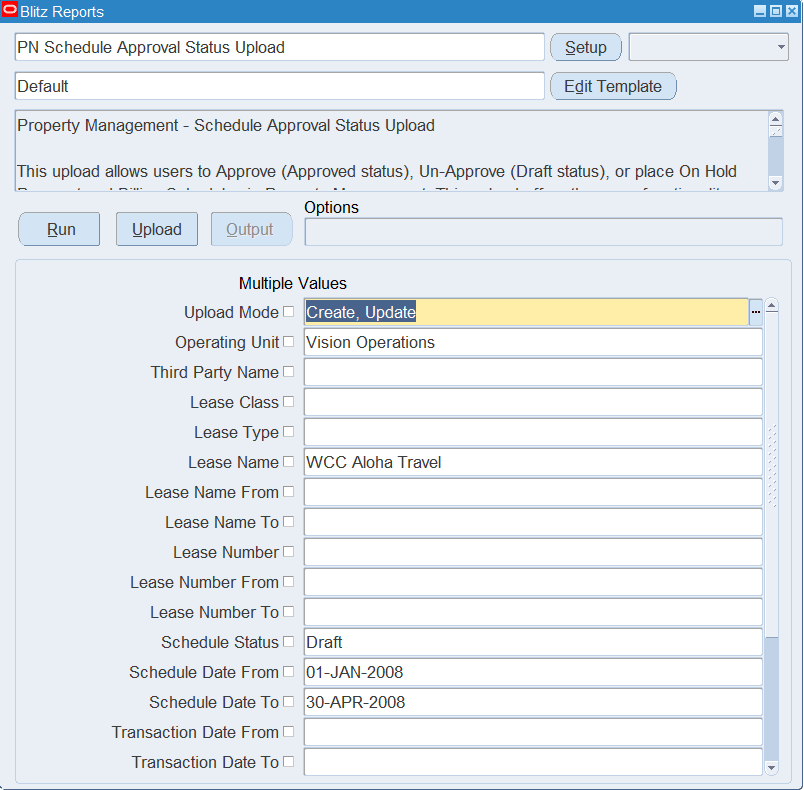
Open PN Schedule Approval Status Upload in Blitz Report and set the parameters:
Parameter
Meaning
Upload Mode
Create, Update (default) downloads the matching schedules for review and change; Create opens an empty sheet to paste schedules into. No schedules are created in either mode.
Operating Unit
The operating unit of the leases.
Third Party Name
The lease’s customer or supplier.
Lease Class, Lease Type
Restrict the download to one lease class (Expense, Revenue, Sublease) or lease type.
Lease Name, Lease Name From / To
One lease, or a range of lease names.
Lease Number, Lease Number From / To
One lease, or a range of lease numbers.
Schedule Status
The current status of the schedules: Draft (default), Approved or On Hold.
Schedule Date From / To
Schedules with a schedule date in this range.
Transaction Date From / To
Schedules with an item due in this date range.
Location, Location From / To
Schedules of leases at this location or range of locations.
Lease Responsible User
Leases with this responsible user.
Schedule Approved By User
Schedules approved by this user.
Schedule Approved Period
Schedules approved in this GL period.
Step 2 – Run to download the Excel file
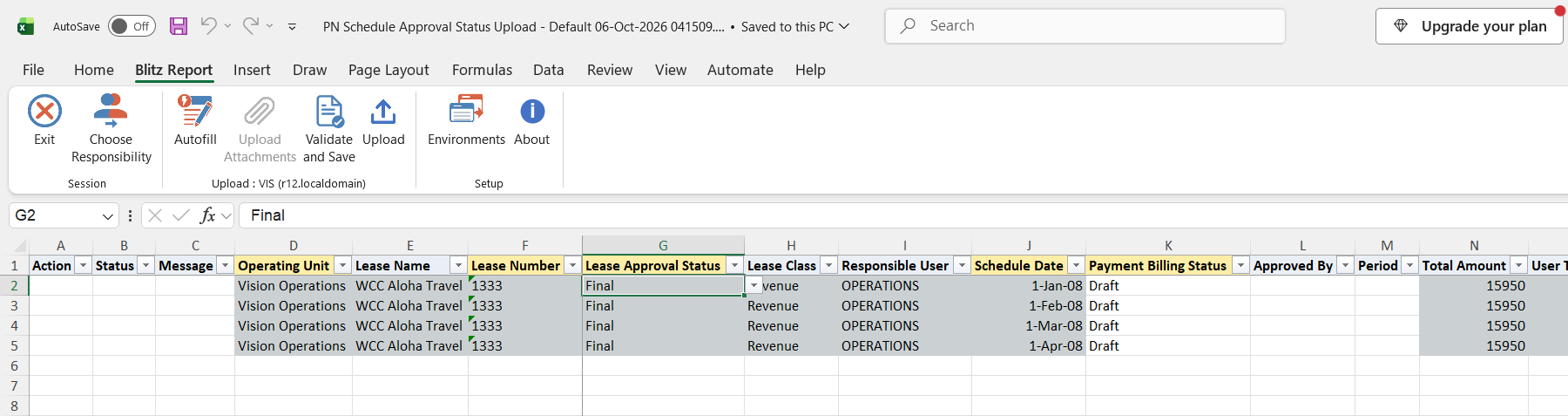
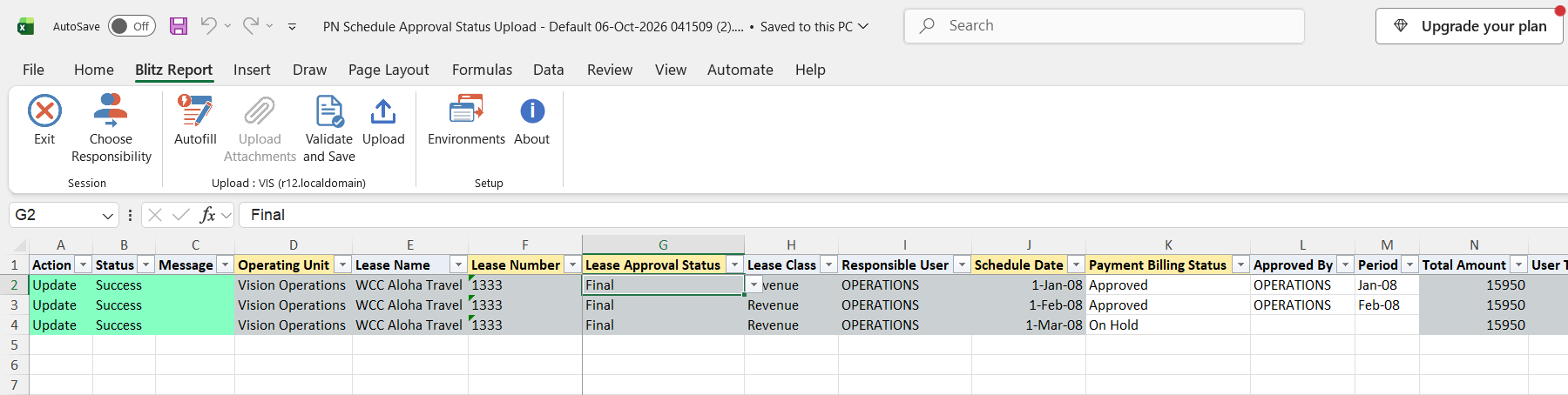
Click Run. The Excel file downloads and opens with one row per schedule, showing the operating unit, lease, lease approval status, lease class, responsible user, schedule date, current status, approver, period, the schedule’s total amount and, for exported schedules, who transferred them and when.
Step 3 – Change the schedule status
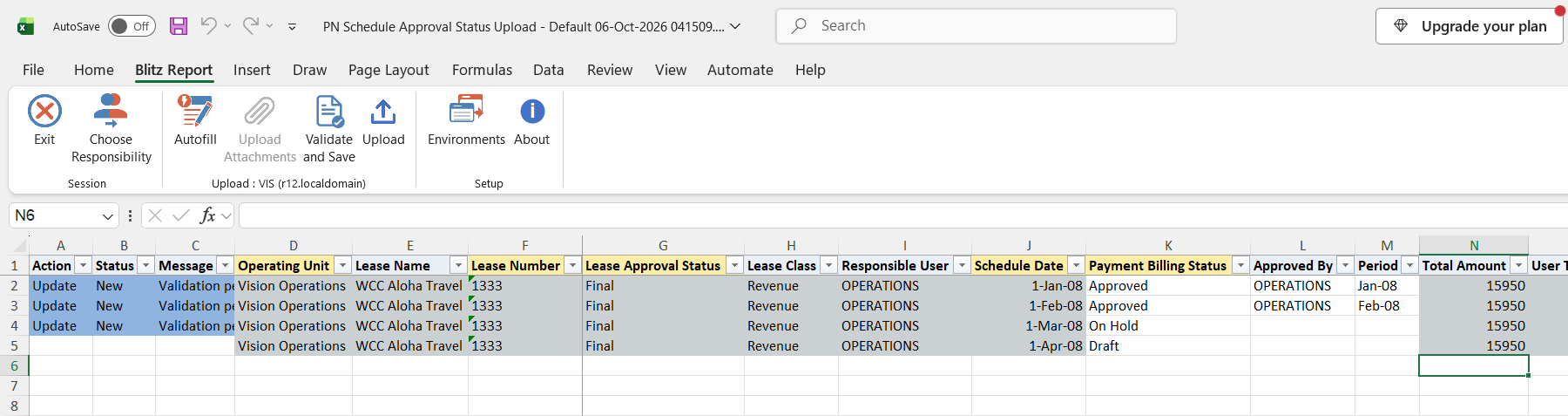
Set the Payment Billing Status of each schedule you want to change to Approved, Draft or On Hold. When you set a row to Approved, Approved By defaults to your user name and Period to the GL period of the schedule date; change them if needed. The Period list shows the open and future enterable periods of the ledger. Approved By and Period are cleared when a schedule is set to Draft or On Hold. The lease, schedule date and amount columns identify the schedule and are read-only.
In Create mode, enter the Operating Unit, Lease Number, Schedule Date and the new Payment Billing Status on each row; the Lease Approval Status is filled in from the lease. The upload finds the schedule from these values.
Step 4 – Validate and Save
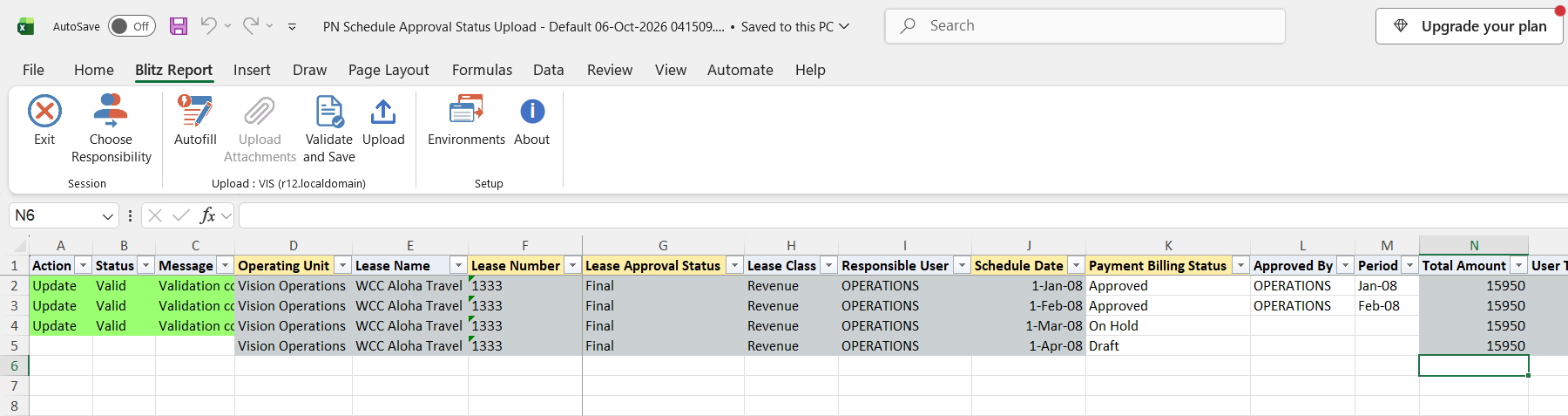
Click Validate and Save. This checks for missing required values and saves the file. Correct any rows it flags before uploading.
Step 5 – Upload the file
In Blitz Report click Upload and select the saved file. This submits the upload request, which runs the same approval checks as the Authorize Payments and Authorize Billings windows and updates the status, approver, approval date and period of each schedule.
Step 6 – Review the result report
When the request completes, a result report opens listing every uploaded row with its status and message.
What’s produced
Payment and billing schedules approved (with approver, approval date and GL period), returned to Draft or put On Hold.
A result report listing every row with a status (success or error) and a message.
Common questions
Can I create payment or billing schedules with this upload? No. It only changes the status of existing schedules. Schedules are generated from the lease’s payment and billing terms in Oracle Property Manager.
What is the difference between Approved, Draft and On Hold? Approved schedules can be exported to Payables or Receivables and carry an approver and a GL period. Draft schedules are not yet approved. On Hold keeps a schedule from being exported until you change its status again.
I left Approved By or Period empty on an approved row. Is that OK? Yes. Approved By defaults to the user running the upload and Period to the GL period of the schedule date in Payables (Expense leases) or Receivables (Revenue and Sublease leases).
Can I change only the approver or period of an approved schedule? Yes. Keep the status Approved and change Approved By or Period. A row whose status, approver and period are all unchanged returns “Update not required”.
Which approval period can I use? Any non-adjustment period of the ledger with status Open or Future Enterable in Payables (Expense leases) or Receivables (Revenue and Sublease leases).
Troubleshooting
Message
Cause
What to do
No matching Payment Schedule found for this Lease and Schedule Date.
No schedule matches the row’s operating unit, lease, lease approval status and schedule date (typically a pasted Create mode row).
Correct the lease and schedule date, or download the schedules in Create, Update mode.
Multiple Payment Schedules found for this Lease and Schedule Date.
More than one schedule matches the row.
Enter the Lease Name as well, or download the schedules in Create, Update mode so each row identifies one schedule.
Update not required. Payment Schedule is already in … status with Approved By … and Period …
The schedule already has this status, approver and period.
No action needed.
Period is not a valid open or furure enterable period.
The Period is not open or future enterable for the ledger in Payables or Receivables.
Pick an open or future enterable period, or open the period.
Approved By and Period are required for Approval.
No period could be derived from the schedule date.
Enter the Period.
Approved By is not a valid user
The approver is not an Oracle EBS user.
Pick Approved By from the list.
Some of the data required to export these schedule items have not been entered. Please navigate to the Term Details window and enter the required information.
A term of the schedule has no supplier or supplier site, or no expense account, distribution set or project (payments), or no customer, bill-to site, payment terms or transaction type (billings).
Complete the term in the lease, then approve again.
One of the code combinations is disabled. Please check.
A term of the schedule uses a disabled GL account.
Enable the account or change the term’s accounts.
One of the items in this schedule does not have a conversion rate defined for its currency. Please specify a conversion rate for that currency before approving the schedule.
An item in a foreign currency has no conversion rate.
Define a conversion rate for the currency, then approve again.
You cannot approve a schedule unless each item includes an amount in the ACTUAL AMOUNT column.
An item of the schedule has no actual amount, for example a term with only an estimated amount.
Enter the actual amount on the item, then approve again.
The Set of Books has not been derived.
No ledger was found for the operating unit’s Property Manager setup.
Check the Property Manager system options of the operating unit.