
PA Expenditure Item Transfer Upload


Description
PA Expenditure Item Transfer Upload transfers expenditure items to another project or task from Excel, the way the Transfer action of the Expenditure Items window does. You download the items, enter To Project and To Task on the rows to transfer and upload. Oracle reverses each item on its current task and creates a new item on the destination task, and the outcome of every row is shown in the Excel file.
When to use it
- Correct items that were charged to the wrong project or task.
- Move all the items of a period, an employee or a batch to another task in one step.
- Transfer a list of items that you already have by their item ids.
Before you start
- You are signed in to a responsibility with access to the upload in Blitz Report that also has access to the Transfer action of the Expenditure Items window.
- The destination task is chargeable, and the item dates lie within the active dates of the destination project and task.
- The items are approved and their transaction source allows adjustments.
Choose a template
The default template is Default.
| Template | Use it for |
|---|---|
| Default (default) | The expenditure items of your selection, with To Project and To Task to enter for the items to transfer. |
| Transfer by Item Id | An empty sheet to transfer items by their item id. Upload Mode is locked to Create and the download filters are hidden. |
Step 1 – Set the parameters
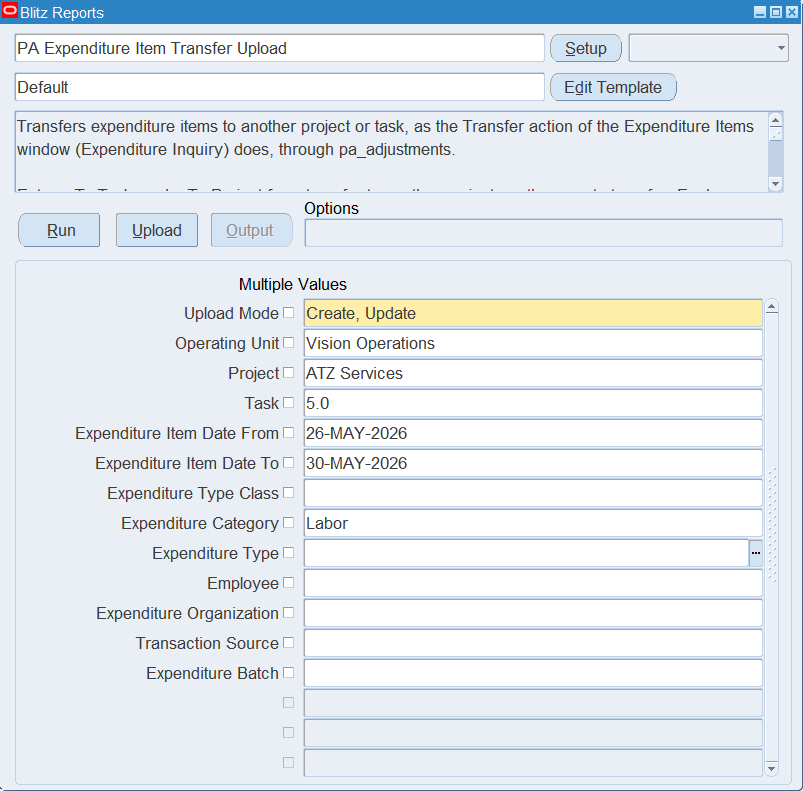
Open PA Expenditure Item Transfer Upload in Blitz Report, choose the template and set the parameters. They decide which expenditure items are downloaded.
| Parameter | Meaning |
|---|---|
| Upload Mode | Create, Update (default) downloads the items of the selection. Create gives you an empty sheet. |
| Operating Unit | Downloads only items of this operating unit. |
| Project, Task | Downloads only items of this project and task. |
| Expenditure Item Date From, Expenditure Item Date To | Downloads only items dated in this period. |
| Expenditure Type Class, Expenditure Category, Expenditure Type | Downloads only items of this class, category or type. |
| Employee, Expenditure Organization | Downloads only items of this employee or organization. |
| Transaction Source, Expenditure Batch | Downloads only items of this source or batch. |
Step 2 – Run to download the Excel file
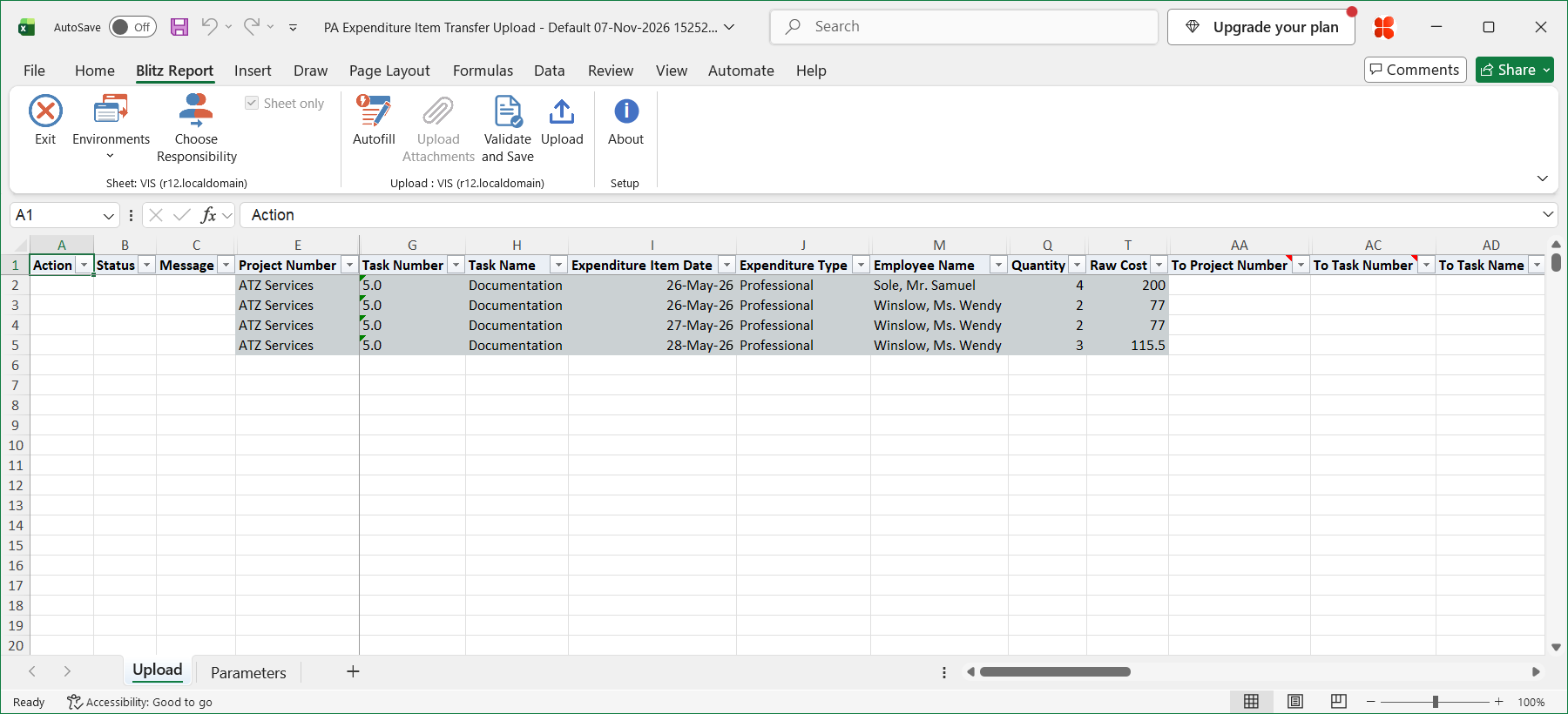
Click Run. The file has one row per expenditure item. It does not list items that are already reversed, reversing items or related items. All columns are read-only except To Project Number and To Task Number.
Step 3 – Enter the destination
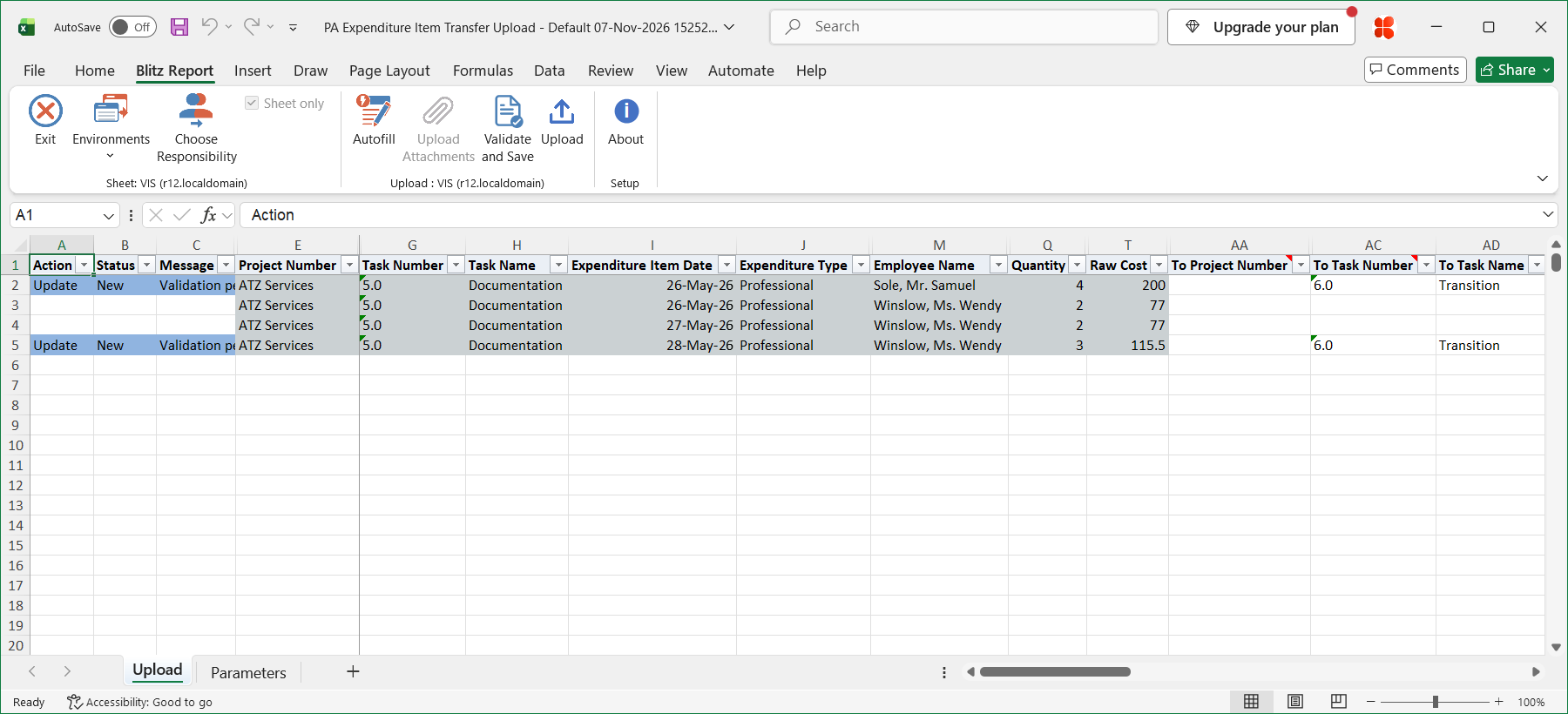
Enter the destination on the rows to transfer. Rows without a To Task are not transferred.
- To Project Number – the project to transfer the item to. Leave it blank for a transfer to another task of the same project.
- To Task Number – the task to transfer the item to, of the To Project, or of the item’s current project when the To Project is blank. To Task Name fills in from it.
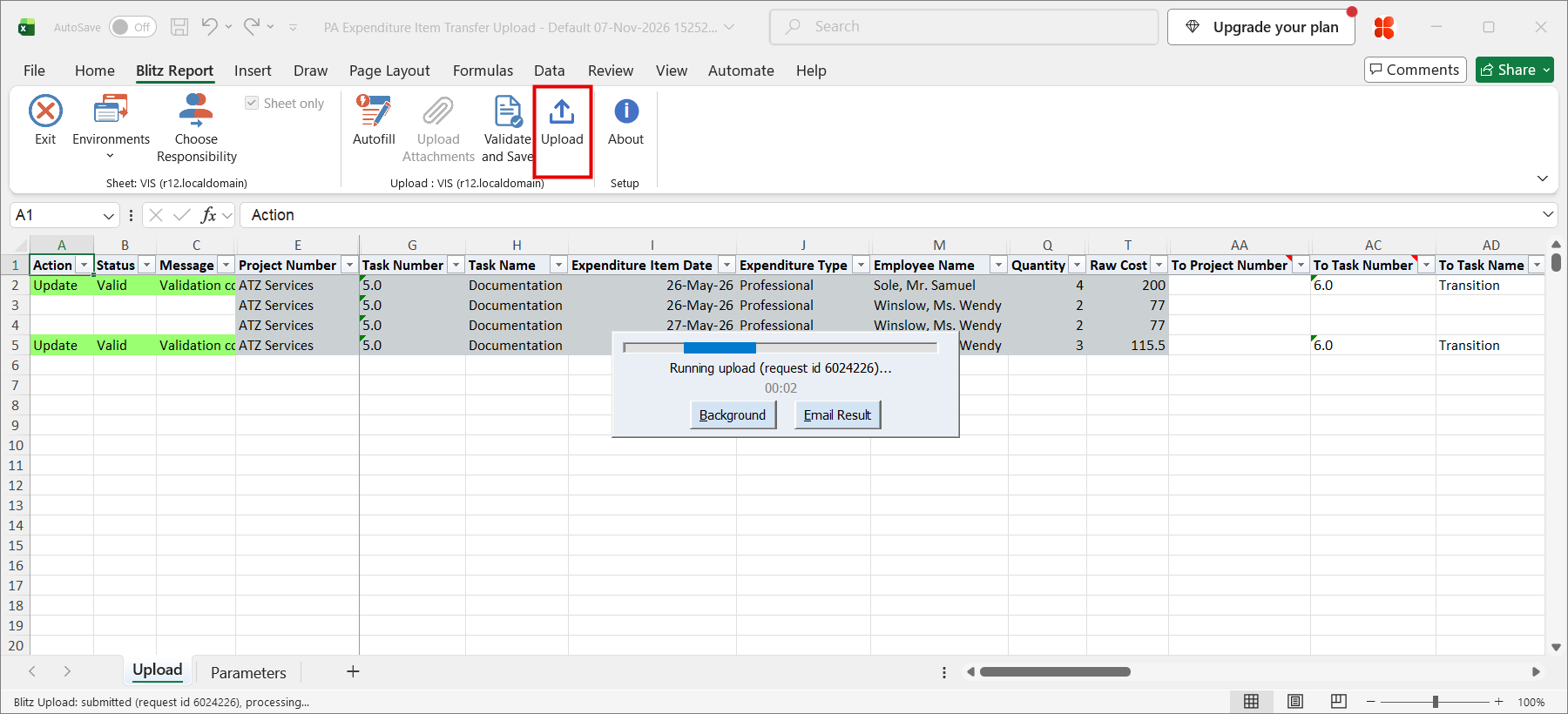
In the example, two labor items of the task 5.0 Documentation of the project ATZ Services move to the task 6.0 Transition.
Step 4 – Validate and Save
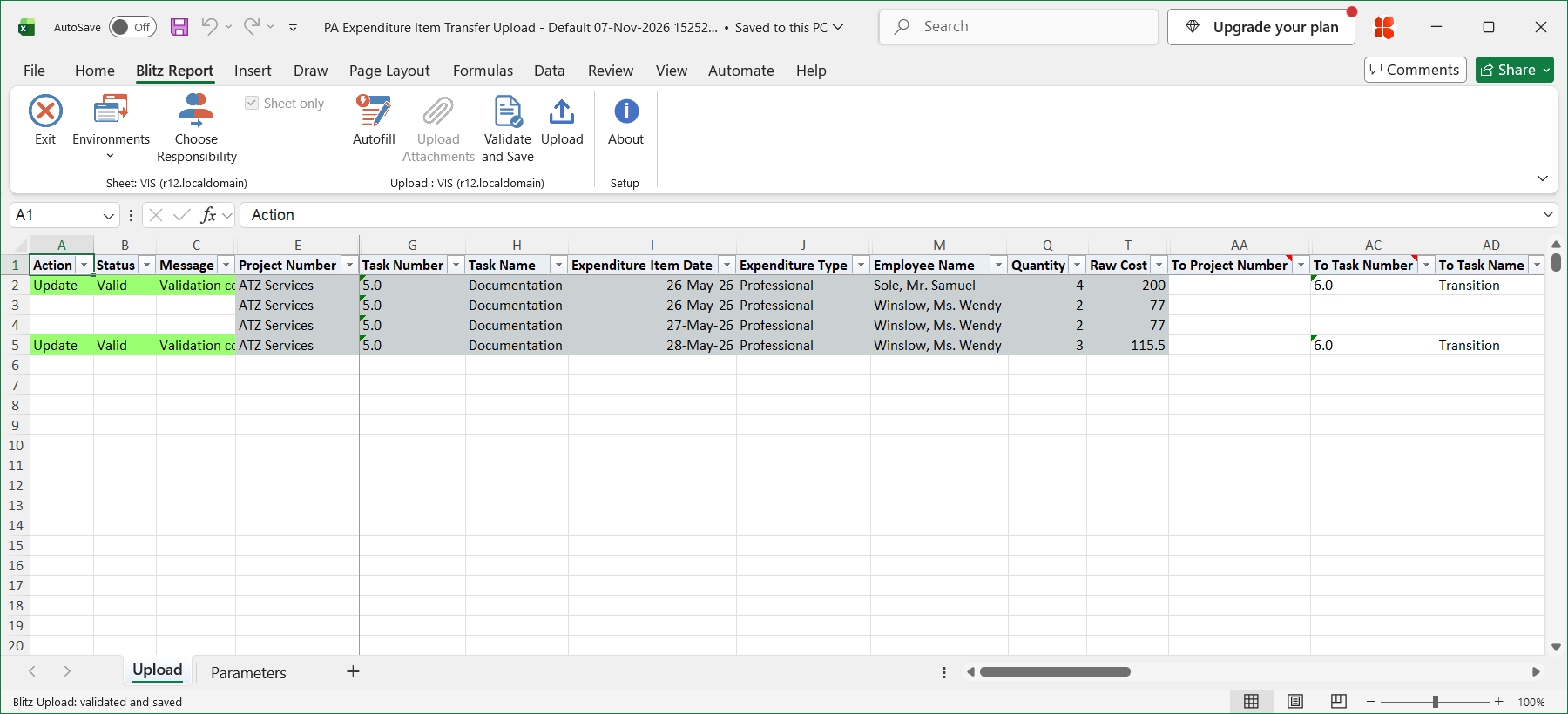
Click Validate and Save on the Blitz Report tab. This checks for values that are not in their lists, marks the rows Valid and saves the file. Correct any rows it flags before uploading.
Step 5 – Upload the file
Click Upload on the Blitz Report tab. The add-in sends the valid rows to Oracle and submits the upload request. Each row is transferred or rejected on its own. To move an item back later, transfer the new item.
Step 6 – Review the result
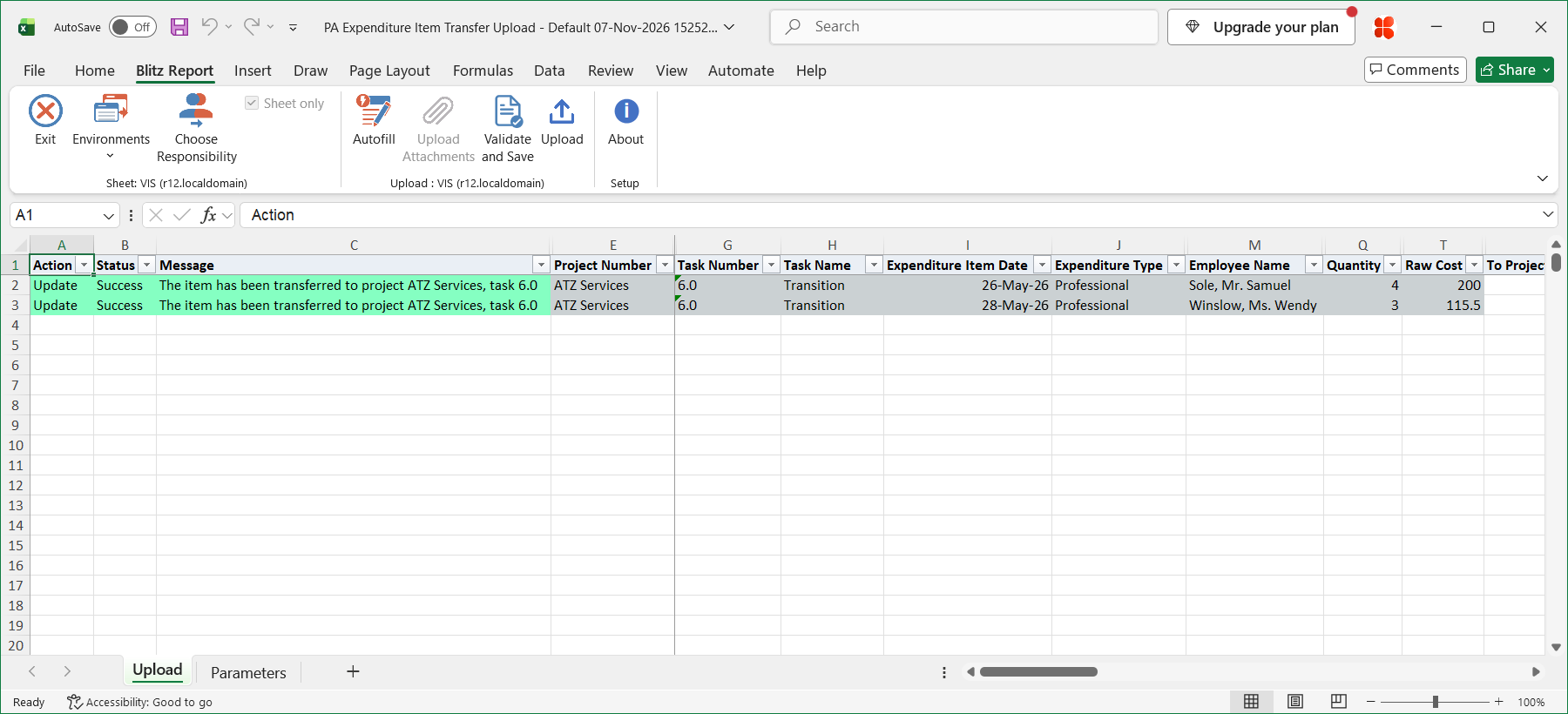
When the request completes, the add-in writes the result to the sheet, listing every uploaded row with its status and a message such as The item has been transferred to project ATZ Services, task 6.0 or No change., or Oracle’s reason for rejecting the row. A transferred row shows the new item on the destination task, in Expenditure Item Id, with the original item in Transferred From Item Id.
What’s produced
- For each transferred item, a reversing item on the current task and a new item on the destination task, with Oracle’s adjustment audit, as the Transfer action creates them. The new item takes its billable or capitalizable flag and transaction controls from the destination task.
- The new item has no cost in Oracle until the costing programs have run. Until then, the result shows the cost of the original item.
- The result in the Excel file, listing every row with a status and a message.
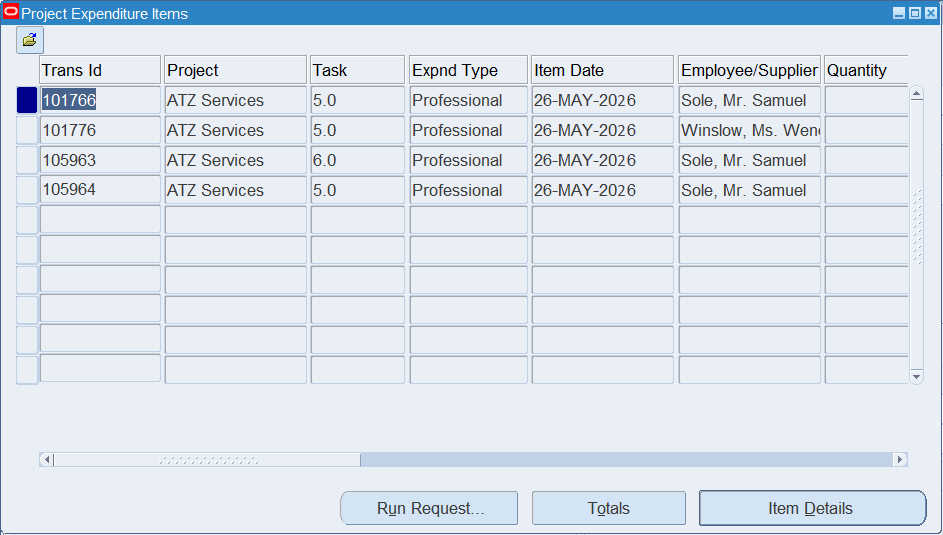
The Expenditure Items window after the transfer of item 101766 shows the original item and the reversing item 105964 on task 5.0, and the new item 105963 on task 6.0:
Common questions
Which change can I make with this upload?
Only the project and task of the Transfer action. Other adjustments of the Expenditure Items window, such as billing or capitalization changes, are not part of this upload.
Can I transfer an item with a grant award?
No. Grant awards are not supported.
Can I transfer an item twice?
Transfer the new item, not the original one. The original is fully reversed by the first transfer, so a second transfer of it is rejected.
What happens with a row whose To Task is its current task?
Nothing is transferred, and the message is No change.
Troubleshooting
| Message | Cause | What to do |
|---|---|---|
| Missing values for required field/s: … | A To Project is entered without a To Task, or a row of the Transfer by Item Id template has no item id. | Fill in the column named. |
| You cannot perform this action on an item which has been fully reversed. | The item was already transferred or reversed, for example by uploading the same file again. | Download again, and transfer the new item if needed. |
| This item has been transferred to project …, task … | The item was already transferred. | Transfer the new item. |
| You cannot perform this action on an adjustment item. / You cannot perform this action on a related item. / You cannot perform this action on an item which has been split. | The item is a reversing item, a related item or a split item, which the Transfer action refuses too. | Transfer the source item instead, if it allows a transfer. |
| You cannot perform this action on an item which has not been approved. | The expenditure is not approved. | Approve the expenditure first. |
| The transaction source of this expenditure item does not allow any adjustments. | The item’s transaction source does not allow adjustments. | Correct the item in the source system. |
| You cannot transfer this expenditure item. It has been adjusted in Oracle Time and Labor. | The timecard behind the item was changed in Oracle Time and Labor. | Adjust the time in Oracle Time and Labor. |
| The expenditure item date is not within the active dates of the project / The expenditure item date is not within the active dates of the task | The item date lies outside the dates of the destination project or task. | Choose another destination, or correct its dates. |
| You selected a task which is not chargeable. | The destination task is not chargeable. | Choose a chargeable task. |
| The status of the project does not allow any adjustments to this transaction. | The project status does not allow the Adjust Transactions action. | Change the project status, or choose another project. |
| Your current responsibility does not have access to this function. | The responsibility has no access to the Transfer action. | Use a responsibility that has it. |
SQL 54 lines
select null action_, null status_, null message_, null modified_columns_, haouv.name operating_unit, ppa.segment1 project_number, ppa.name project_name, pt.task_number, pt.task_name, peia.expenditure_item_date, peia.expenditure_type, pet.expenditure_category, (select psl.meaning from pa_system_linkages psl where peia.system_linkage_function=psl.function) expenditure_type_class, (select max(papf.full_name) keep (dense_rank last order by papf.effective_start_date) from per_all_people_f papf where pea.incurred_by_person_id=papf.person_id) employee_name, (select max(nvl(papf.employee_number,papf.npw_number)) keep (dense_rank last order by papf.effective_start_date) from per_all_people_f papf where pea.incurred_by_person_id=papf.person_id) employee_number, (select haouv2.name from hr_all_organization_units_vl haouv2 where nvl(peia.override_to_organization_id,pea.incurred_by_organization_id)=haouv2.organization_id) expenditure_organization, peia.non_labor_resource, peia.quantity, xxen_util.meaning(peia.unit_of_measure,'UNIT',275) unit_of_measure, peia.projfunc_currency_code project_functional_currency, peia.raw_cost, peia.burden_cost burdened_cost, xxen_util.yes(peia.billable_flag) billable, (select pts.user_transaction_source from pa_transaction_sources pts where peia.transaction_source=pts.transaction_source) transaction_source, peia.orig_transaction_reference original_transaction_reference, pea.expenditure_group expenditure_batch, (select pec.expenditure_comment from pa_expenditure_comments pec where peia.expenditure_item_id=pec.expenditure_item_id) expenditure_comment, null to_project_number, null to_project_name, null to_task_number, null to_task_name, peia.expenditure_item_id, peia.transferred_from_exp_item_id transferred_from_item_id, to_number(null) upload_row from hr_all_organization_units_vl haouv, pa_expenditure_items_all peia, pa_expenditures_all pea, pa_projects_all ppa, pa_tasks pt, pa_expenditure_types pet where 1=1 and :p_upload_mode like '%'||xxen_upload.action_update and haouv.organization_id in (select xroa.id from xxen_report_org_access xroa where xroa.access_type='OU') and haouv.organization_id=peia.org_id and nvl(peia.net_zero_adjustment_flag,'N')='N' and peia.adjusted_expenditure_item_id is null and peia.source_expenditure_item_id is null and peia.expenditure_id=pea.expenditure_id and peia.project_id=ppa.project_id and peia.task_id=pt.task_id and peia.expenditure_type=pet.expenditure_type |
Parameters 13
| Parameter | Type | List of values SQL | |
|---|---|---|---|
| Upload Mode | LOV | ||
| Operating Unit | LOV |
| |
| Project | LOV |
| |
| Task | LOV |
| |
| Expenditure Item Date From | Date |
| |
| Expenditure Item Date To | Date |
| |
| Expenditure Type Class | LOV |
| |
| Expenditure Category | LOV |
| |
| Expenditure Type | LOV |
| |
| Employee | LOV |
| |
| Expenditure Organization | LOV |
| |
| Transaction Source | LOV |
| |
| Expenditure Batch | LOV |
|