
1 Install python
1.1 Create a test python script
2 Identify the target Sharepoint document library
3 Create an app registration
4 Create API permissions
5 A python script for uploading files to sharepoint
Introduction
Blitz Report is primarilly installed in Linux systems. It supports the email delivery. However there is a size limit for email attachments which depends on an email server settings. Our customers requested if it was possible to send Blitz Report Excel outputs to Sharepoint Online. We actively listen to our customers and incorporate their feedback into our development process. So in this article we provide the instructions how to send Blitz Report outputs to Sharepoint Online. But these instructions are applicable to any custom file.
1 Install python
My test virtual machine runs on Oracle Linux 7, which has Python 2.7.5 installed in /usr/bin/python. But this python version is too old for the task and needs to be upgraded. Please run the following commands to install python3 and required packages:
yum install -y python3 python3 --version su - applmgr python3 -m ensurepip --upgrade --user python3 -m pip install --upgrade pip --user python3 -m pip install --user requests msal |
1.1 Create a test python script
To make sure that the upgraded python3 works fine you may create test.sh script with the following contents:
#!/usr/bin/env python3
print("Hello, World!") |
Add the execution permissions and run the script:
chmod u+x test.sh ./test.sh |
You should see “Hello, World!” in your terminal window.
2 Identify the target Sharepoint document library
Login to Sharepoint Online and choose a document library for storing Blitz Report outputs. In the below example the library name is BlitzReports:

3 Create an app registration
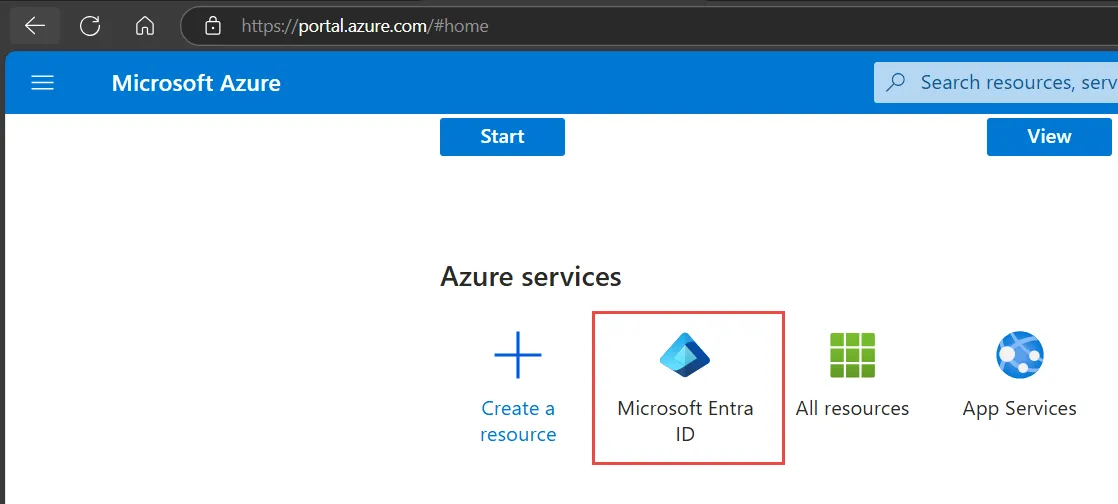
Login to Azure Active Directory Portal as the administrator. Navigate to “Microsoft Entra ID”, then choose “App registrations”.
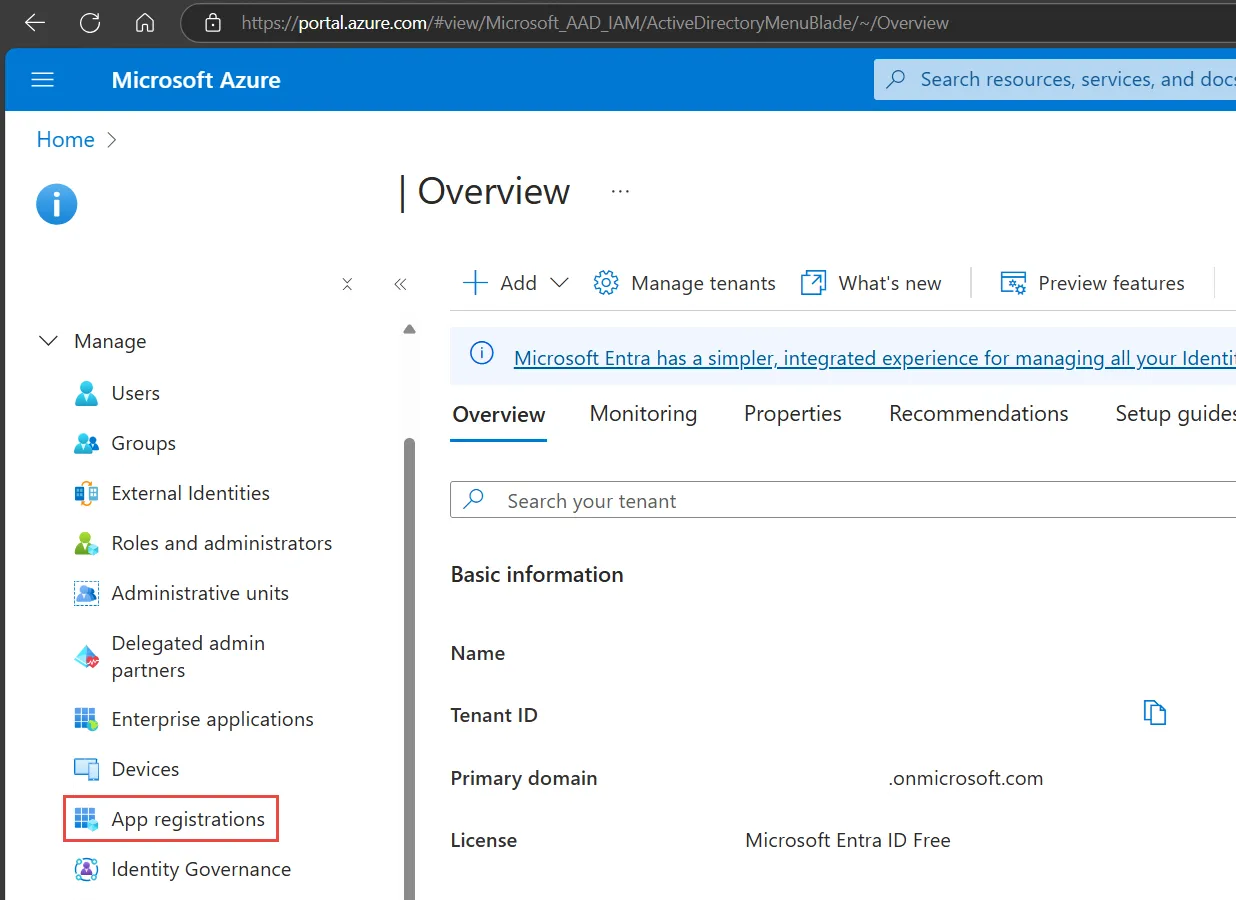
Click on the ‘New registration’ control.

Provide the name for the new application.
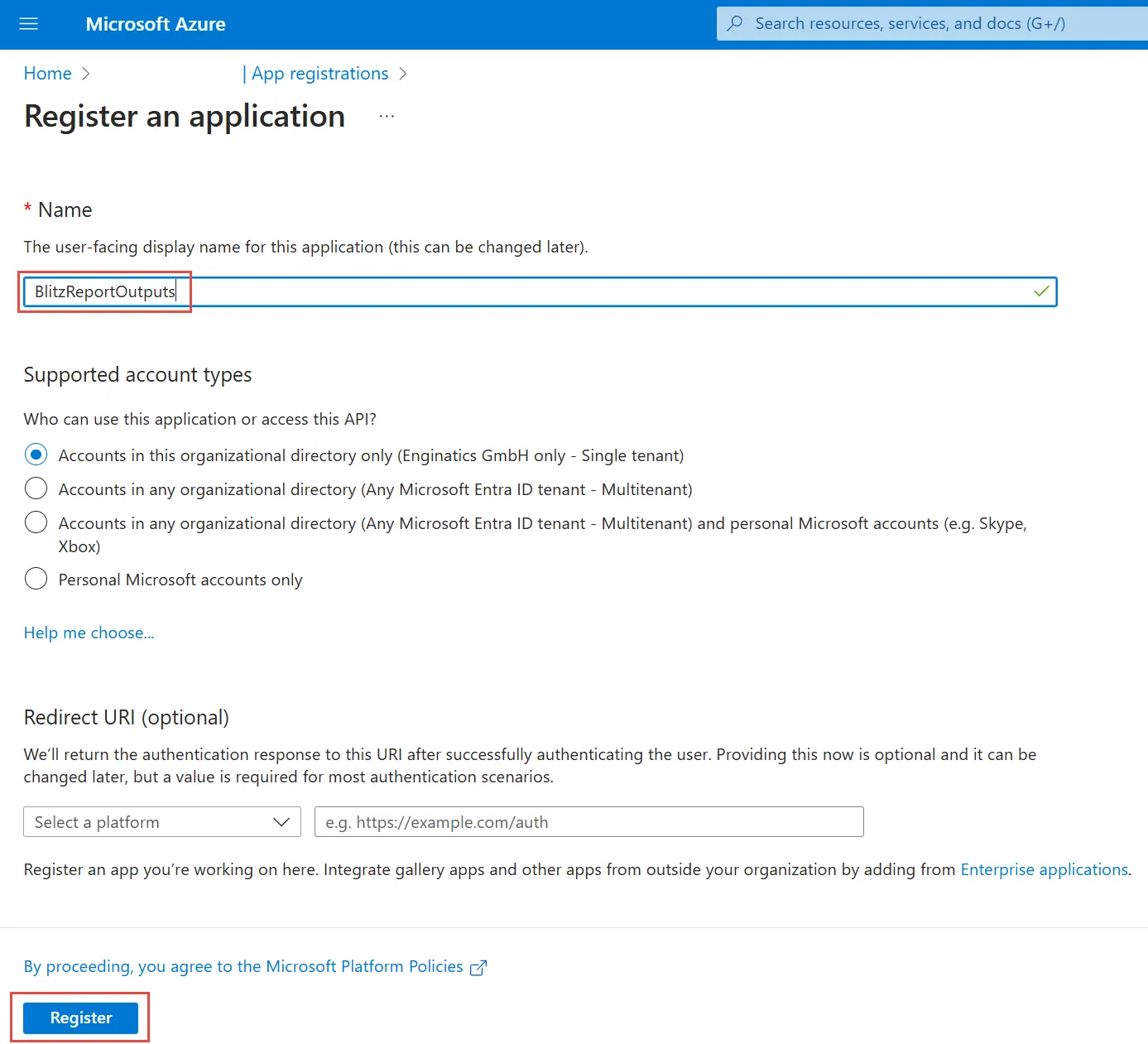
Once the new application is created, click on ‘Add a certificate or secret’ hyperlink.
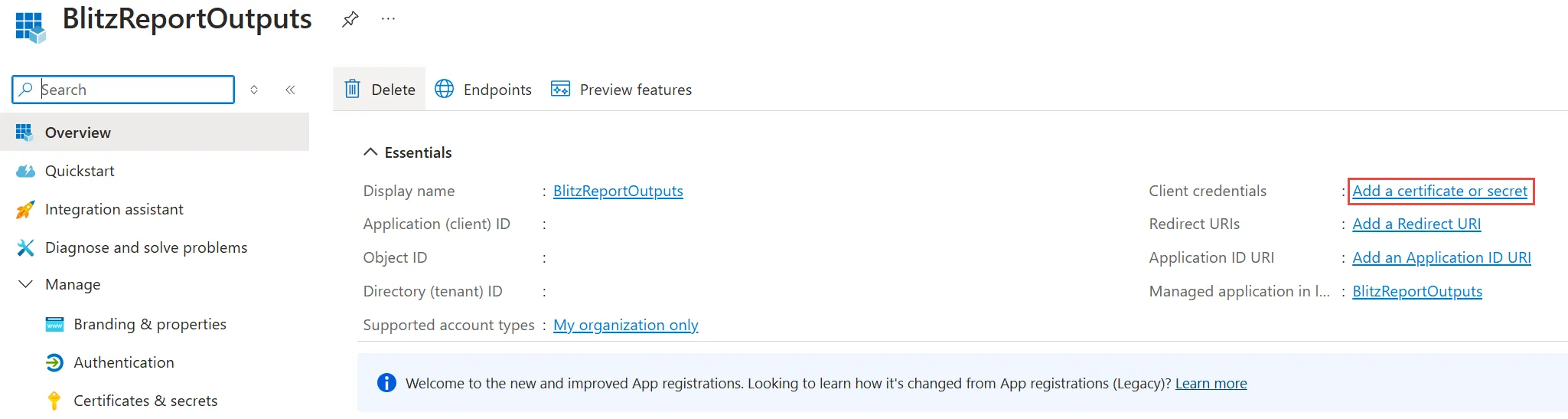
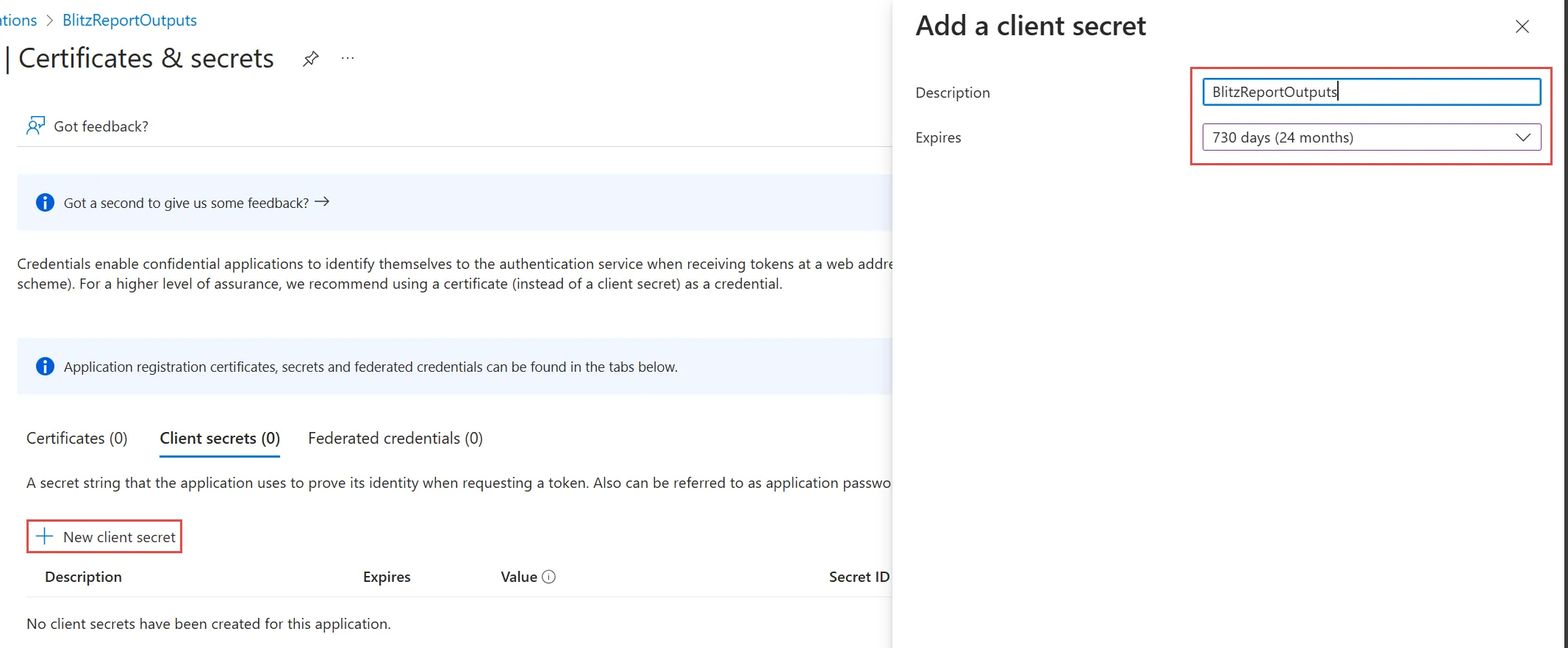
Provide a name and desired expiration time for the secret.
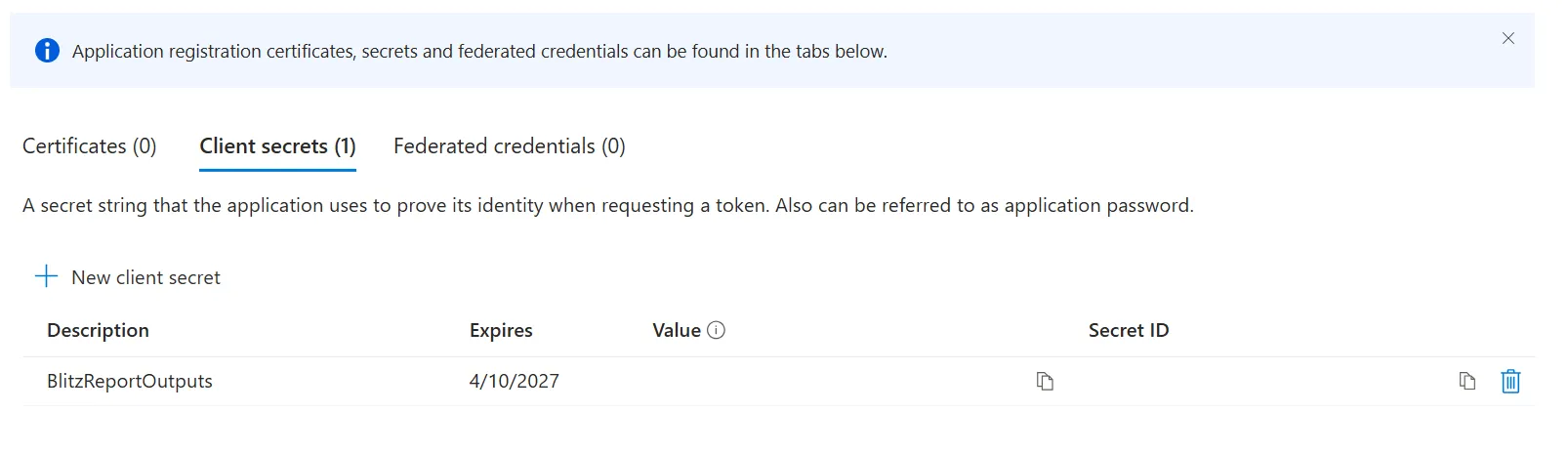
Once the secret is created copy the Value and Secret ID.
4 Create API permissions
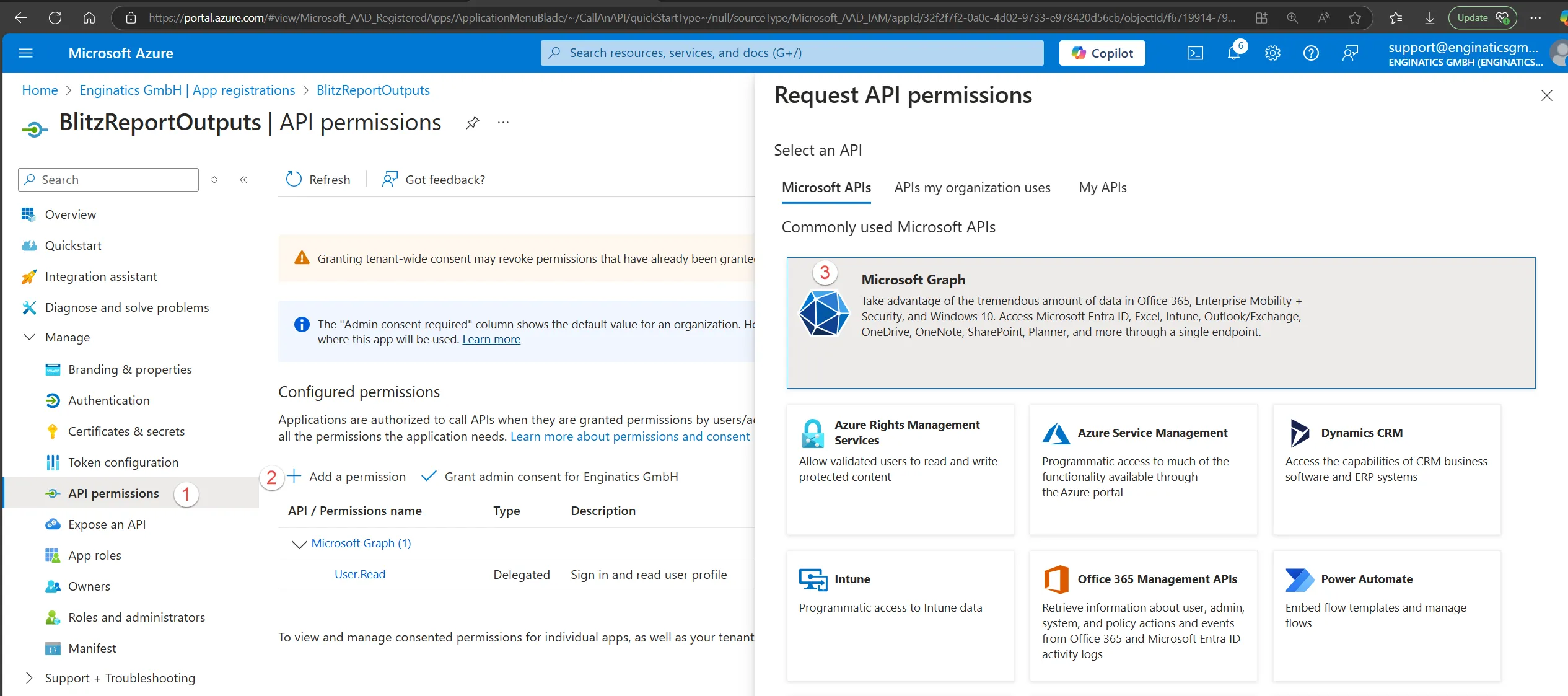
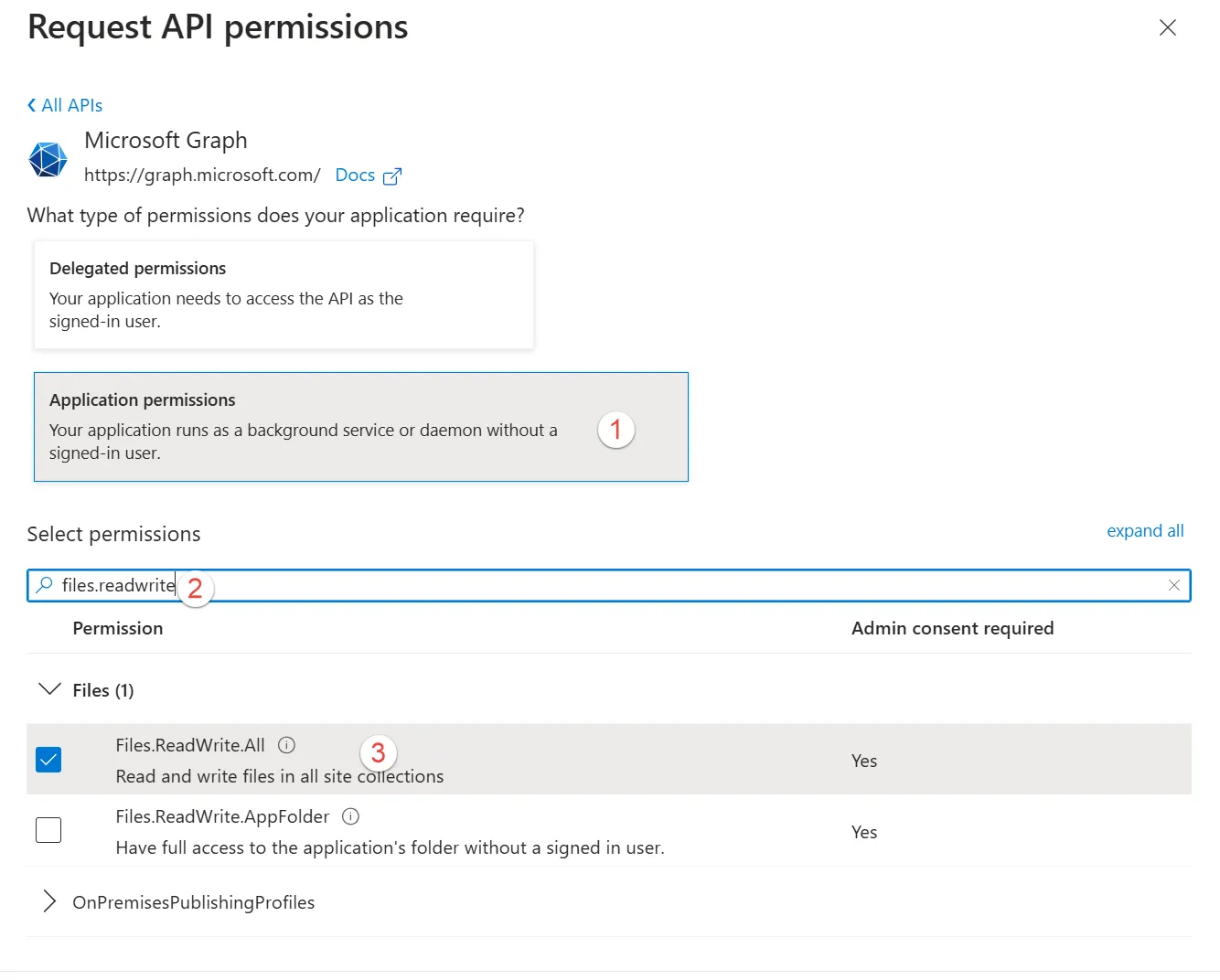
Navitage to API permissions, click “Add a permission” and select “Microsoft Graph” control.
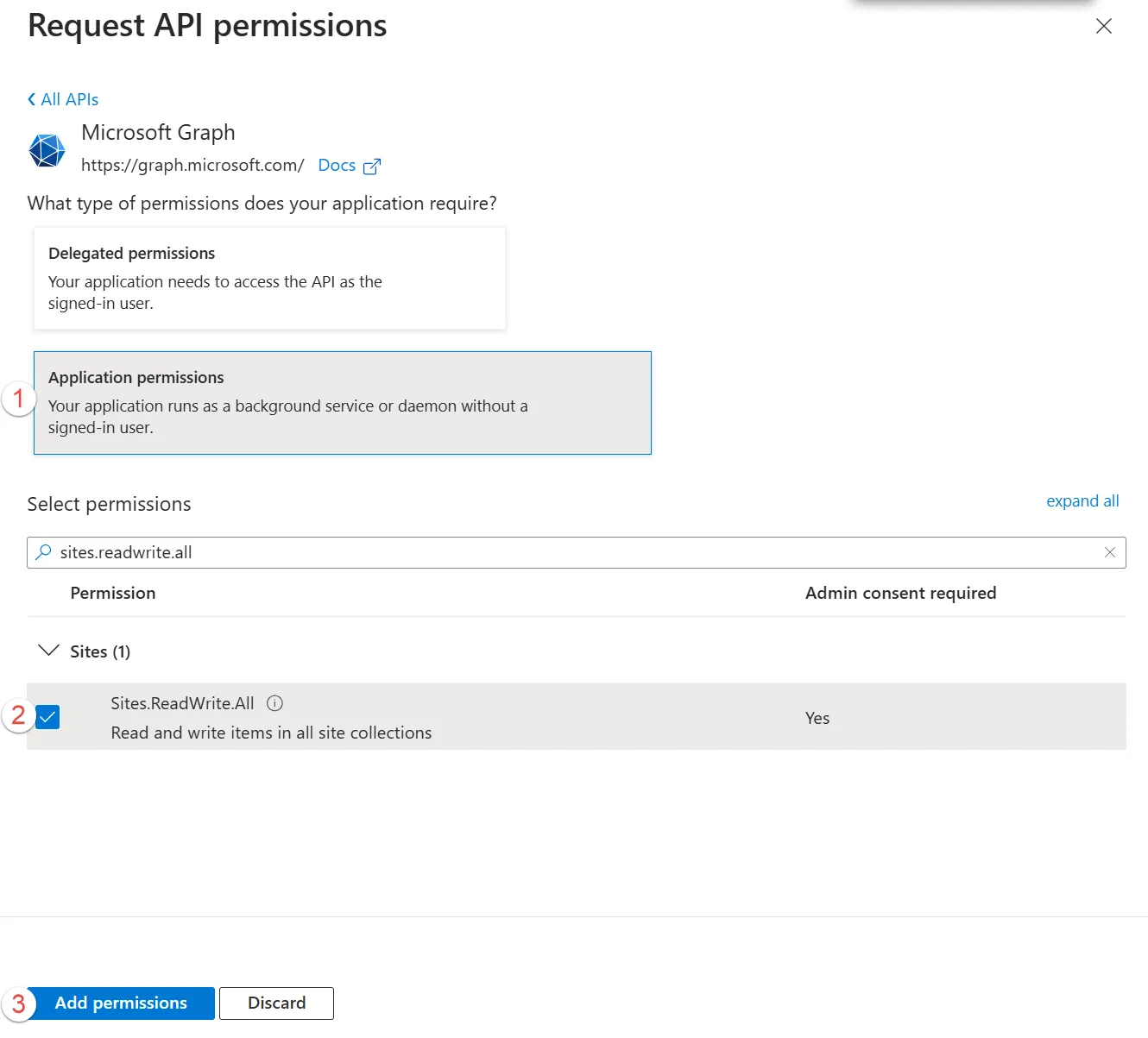
Assign Files.ReadWrite.All and Sites.ReadWrite.All permissions.
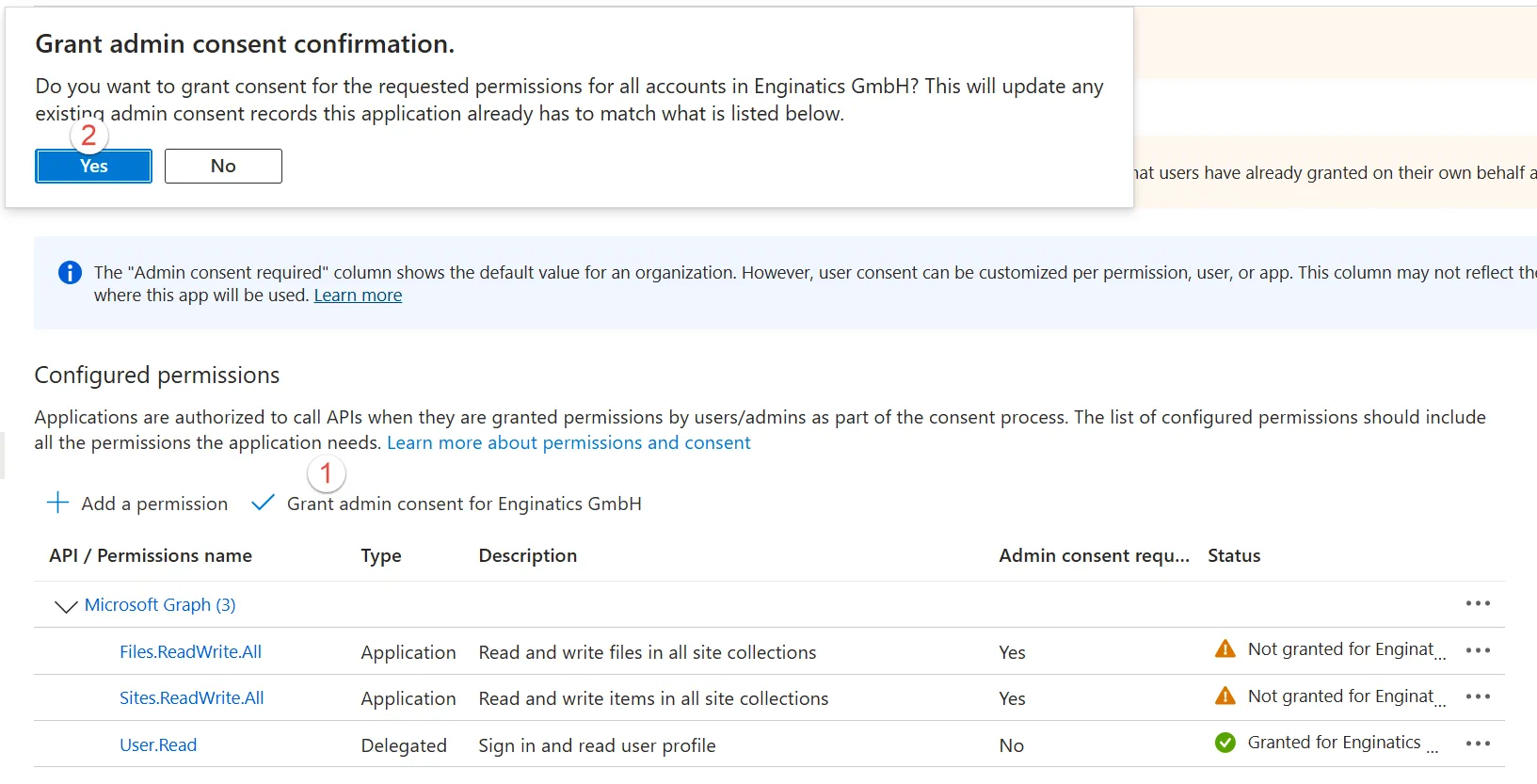
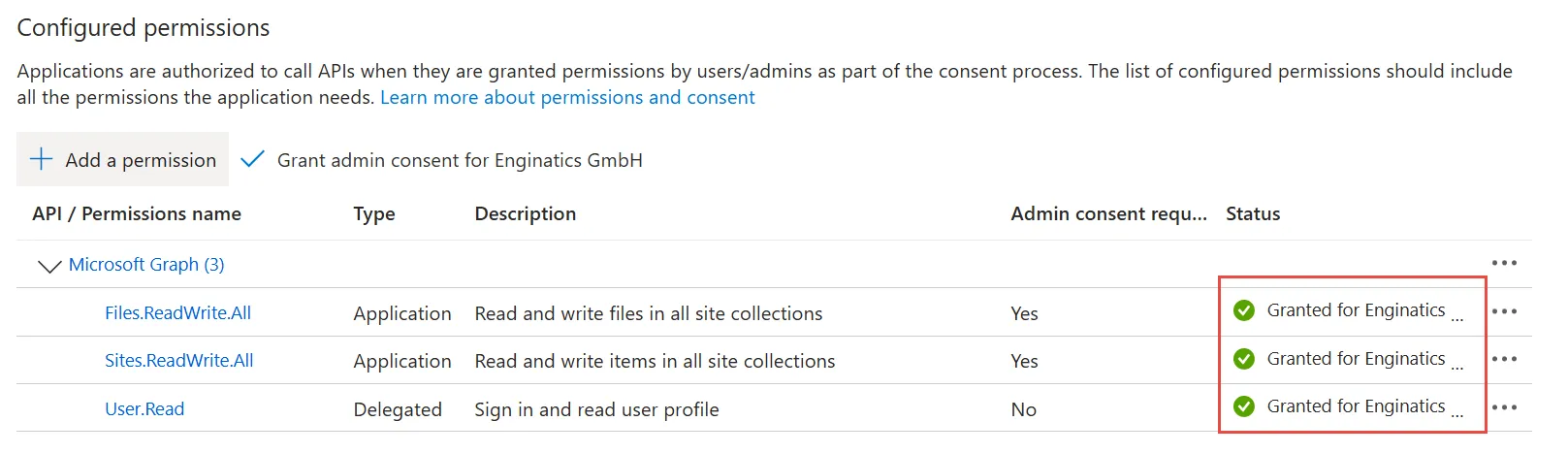
Grant admin consent for the permissions.
5 A python script for uploading files to sharepoint
I suggest using the following python script written by Ian Hayse. The script works perfectly. I have just added one line at the beginning of the script to make sure the new python3 is used:
#!/usr/bin/python3 |
All you need to do is just to put the variable values at the beginning of the script. E.g:
TENANT_ID = 'xxxxxxxx-xxxx-xxxx-xxxx-xxxxxxxxxxxx' CLIENT_ID = 'xxxxxxxx-xxxx-xxxx-xxxx-xxxxxxxxxxxx' CLIENT_SECRET = 'xxxxx~~xxxxxxxxxxxxxxxxxxxxxxxxxxxxx' SHAREPOINT_HOST_NAME = 'xxxxxxxxxxxxx.sharepoint.com' SITE_NAME = 'BlitzReport' TARGET_LIBRARY = 'Blitz Outputs' UPLOAD_FILE = '/tmp/TestExcel.xlsx' UPLOAD_FILE_NAME = 'TestExcel.xlsx' UPLOAD_FILE_DESCRIPTION = 'A test excel file' |
Save the script on the Linux filesystem, e.g: upload_to_sharepoint.py.
Then assign the execution permissions:
chmod u+x upload_to_sharepoint.py |
The script can be executed as follows:
./upload_to_sharepoint.py |
To create a new Blitz Custom Postprocess script, use the following values for UPLOAD_FILE and UPLOAD_FILE_NAME.
TENANT_ID = 'xxxxxxxx-xxxx-xxxx-xxxx-xxxxxxxxxxxx' CLIENT_ID = 'xxxxxxxx-xxxx-xxxx-xxxx-xxxxxxxxxxxx' CLIENT_SECRET = 'xxxxx~~xxxxxxxxxxxxxxxxxxxxxxxxxxxxx' SHAREPOINT_HOST_NAME = 'xxxxxxxxxxxxx.sharepoint.com' SITE_NAME = 'BlitzReport' TARGET_LIBRARY = 'Blitz Outputs' UPLOAD_FILE = os.environ["outfile_name"] UPLOAD_FILE_NAME = os.environ["output_filename"] UPLOAD_FILE_DESCRIPTION = 'A Blitz Report Output' |
Save the custom postprocess script under the $CUSTOM_TOP/bin/custom/ directory, for example $XXEN_TOP/bin/custom/upload_to_sharepoint.py
A sample script is available on the following hyperlink:
Sample upload script from Linux to Sharepoint
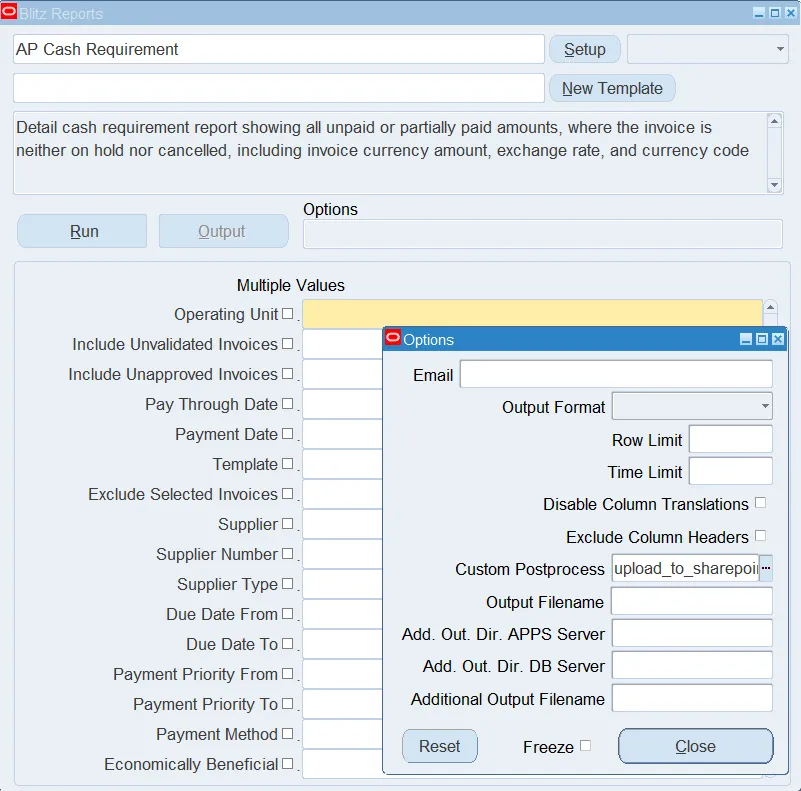
To call the script automatically, provide the script name in the Custom Postprocess runtime option value:
After Blitz Report completes, the output will be sent to Sharepoint.

If you want to call the upload to sharepoint script in another custom postprocess script, please provide the full path. E.g:
