
Mod_plsql is a module included in EBS 12.1.3 Apache web server. It can be used to develop web application pages using server PL/SQL. The following steps need to be taken to enable this module.
2 Manual Configuration
2.1 Create a Test Procedure
2.2 Create the Required Directories
2.3 Generate the Obfuscated APPS Password
2.4 Update custom.conf Configuration File
2.5 Restart Apache
2.6 Test the Custom Procedure
2.7 Drop the Test Procedure
1 Automated mod_plsql Configuration
To configure mod_plsql in EBS 12.1.3 automatically execute the following script from the unzipped Blitz installer directory:
blitz_report_r12_v********/etc/configure_mod_plsql_121.sh |
The sample script output is presented below:
[applmgr@r12 etc]$ ./configure_mod_plsql_121.sh APPS password for environment VIS [apps] : Executing tnsping to get the database connection details. TNS Ping Utility for Linux: Version 10.1.0.5.0 - Production on 27-MAY-2025 18:11:05 Copyright (c) 1997, 2003, Oracle. All rights reserved. Used parameter files: /u01/oracle/VIS/inst/apps/VIS_r12/ora/10.1.2/network/admin/sqlnet_ifile.ora Used TNSNAMES adapter to resolve the alias Attempting to contact (DESCRIPTION= (ADDRESS=(PROTOCOL=tcp)(HOST=r12.localdomain)(PORT=1521)) (CONNECT_DATA= (SERVICE_NAME=ebs_VIS) (INSTANCE_NAME=CDBVIS))) OK (0 msec) Please enter the database server name: DB_SERVER: r12.localdomain Please enter the database port: DB_PORT: 1521 Please enter the database service name: DB_SERVICE_NAME: ebs_VIS Creating the mod_plsql related directories. drwxrwxr-x 3 applmgr oinstall 22 Sep 10 2024 /u01/oracle/VIS/inst/apps/VIS_r12/ora/10.1.3/Apache/modplsql/cache drwxrwxr-x 2 applmgr oinstall 24 Sep 10 2024 /u01/oracle/VIS/inst/apps/VIS_r12/ora/10.1.3/Apache/modplsql/conf drwxrwxr-x 3 applmgr oinstall 22 Sep 10 2024 /u01/oracle/VIS/inst/apps/VIS_r12/ora/10.1.3/Apache/modplsql/logs The script finished. Please review the configuration file: /u01/oracle/VIS/inst/apps/VIS_r12/ora/10.1.3/Apache/Apache/conf/custom.conf Please restart Apache to apply the changes. |
2 Manual Configuration
To configure mod_plsql manually, please use the following steps
2.1 Create a Test Procedure
Create the following procedure as APPS user:
create or replace procedure helloworld as
begin
  htp.htitle('My first dynamic Web page');
  htp.print('Hello world!');
  htp.print('You are connected to '||sys_context('USERENV','DB_NAME')||' as '||sys_context('USERENV','CURRENT_SCHEMA'));
  htp.line;
end helloworld;
/ |
2.2 Create the Required Directories
Log in to the application server and execute the following command as the applications linux user:
mkdir -p $INST_TOP/ora/10.1.3/Apache/modplsql/cache mkdir -p $INST_TOP/ora/10.1.3/Apache/modplsql/conf mkdir -p $INST_TOP/ora/10.1.3/Apache/modplsql/logs |
2.3 Generate the Obfuscated APPS Password
Use the following utility to generate the obfuscated password.
Replace ***** to the actual APPS password.
{
$IAS_ORACLE_HOME/Apache/modplsql/conf/dadobf *****
echo
} |
Use the generated obfuscated password later in the configuration file plsql.conf.

2.4 Update custom.conf Configuration File
Open the following file:
vi $INST_TOP/ora/10.1.3/Apache/Apache/conf/custom.conf |
Add the following parameters with the instance specific values:
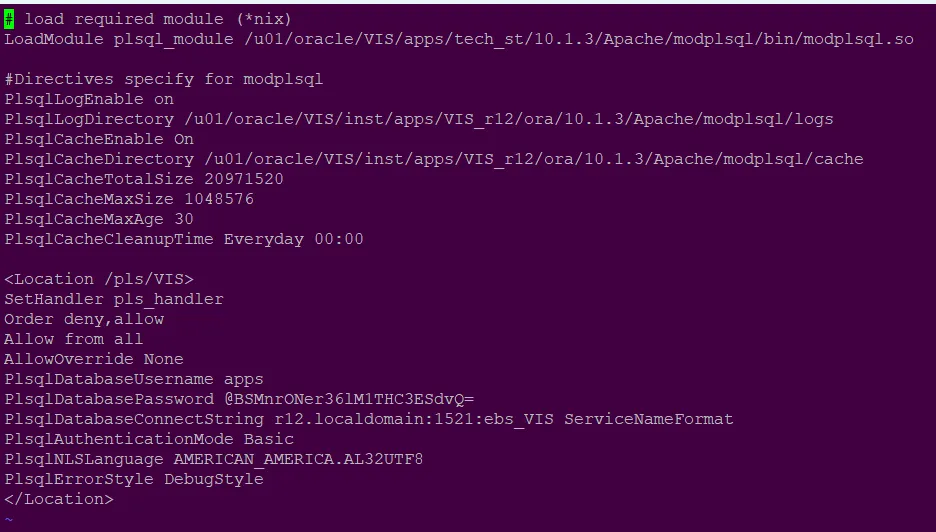
- plsql_module
- PlsqlLogDirectory
- PlsqlCacheDirectory
- PlsqlDatabasePassword
- PlsqlDatabaseConnectString
- Location should use the last part of the profile Applications Web Agent (APPS_WEB_AGENT) e.g:
If APPS_WEB_AGENT is https://r12.localdomain:443/pls/VIS then:
Location /pls/VIS
Here is the sample configuration file
2.5 Restart Apache
cd $ADMIN_SCRIPTS_HOME ./adapcctl.sh stop ps -ef|grep httpd ./adapcctl.sh start |
2.6 Test the Custom Procedure
Access the following url constructed using the configuration file entry:
Location /pls/VIS |
Execute this command as applmgr to get the instance url:
grep login $CONTEXT_FILE |
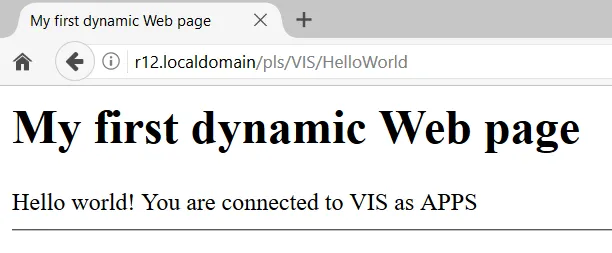
And append /pls/VIS/HelloWorld to it. E.g:
https://r12.localdomain/pls/VIS/HelloWorld |
2.7 Drop the Test Procedure
Drop the procedure as APPS user:
drop procedure helloworld; |