
1 References
2 Test environment details
3 Take a backup
4 Apply the required EBS patches
4.1 Apply FMW Patch (Oracle Linux 8, RHEL 8 and SLES 15 only)
4.2 Apply Oracle Web Tier Pre-install check patch (Oracle Linux 8, RHEL 8, SLES 12 and 15 only)
5 Stop EBS and Database
6 Enable leapp repository
7 Verify that the system locale is set to en_US.UTF-8
8 Update to latest packages
9 Enable root login
10 Reboot the server
11 Install the Leapp Utility
12 Run the preupgrade check
13 Review the preupgrade report
14 Fix any issues in the preupgrade report
14.1 Title: Use of CIFS detected. Upgrade can’t proceed
14.2 Title: Missing required answers in the answer file
14.3 Title: Packages not signed by Oracle found on the system
15 Remove the EBS preinstall package
16 Run the upgrade
16.1 Restart the system
17 Review the upgrade report and fix any issues
17.1 Difference in Python versions and support in OL 8
17.2 Some OL 7 packages have not been upgraded
17.3 SElinux will be set to permissive mode
18 Remove OL7 repositories
19 Uninstall leapp
20 Install Oracle E-Business Suite Preinstallation RPM
21 Install other necessary tools
22 Start the database
23 Re-link E-Business Suite Executables
24 Verify the libXm link existense
25 Fix the issue starting Weblogic admin server
26 Start the EBS applications
27 Apply patches to deactivate unsupported products
27.1 Set the profile options
28 Firewall setup for upgraded multi-node environments
29 Mount NFS/CIFS shares back
30 Disable SSH root login
31 Perform healthcheck
32 Run adop fs_clone
33 Conclusion
Introduction
Oracle EBS 12.2 has been certified with Oracle Linux 8 for quite some time now. One thing that could hold you back from the operating system upgrade is the requirement to clone the EBS instance to a new server. Leapp application simplifies the process by supporting in-place upgrades for EBS 12.2. In this article I will describe the required steps for upgrading from Oracle Linux 7 to Oracle Linux 8 with Oracle E-Business Suite 12.2 installed on the server.
1 References
Oracle E-Business Suite Installation and Upgrade Notes Release 12 (12.2) for Linux x86-64 (Doc ID 1330701.1)
In-Place Upgrade from Oracle Linux 7 to 8 Now Certified for EBS 12.2
Upgrade Oracle Linux with Leapp
Upgrading Systems With Leapp
Leapp : Upgrade Oracle Linux 7 (OL7) to Oracle Linux 8 (OL8)
Secure Your Patch Future: The Technical Path to Oracle Linux 8 for E-Business Suite (on OCI)
2 Test environment details
The action plan has been tested in the following environment:
Operating system: Oracle Linux Server release 7.9
Application version: Oracle E-Business Suite 12.2.13
Virtualization technology: VirtualBox 7.1.8 or Xen Server 8.
System architecture: EBS and Database are located on the same server.
3 Take a backup
Before proceeding with the changes, take a backup of the server. If it is a virtual machine, the easiest would be to take a snapshot.
4 Apply the required EBS patches
Review the following Oracle Doc:
Oracle E-Business Suite Installation and Upgrade Notes Release 12 (12.2) for Linux x86-64 (Doc ID 1330701.1)
Apply any required patches for running EBS 12.2 on Oracle Linux 8
4.1 Apply FMW Patch (Oracle Linux 8, RHEL 8 and SLES 15 only)
Customers on existing 12.2 systems who are cloning or performing an in-place OS upgrade to the above operating systems must first apply the following patches on the source 12.2 environment:
Patch 32931976 following the associated README file.
Without this patch, you will see the known issue of a blank page when viewing a concurrent requests output or log.
If you choose to apply the patch directly to the run file system, stop the application tier services. Otherwise source the patch filesystem environment and then perform a cutover.
source EBSapps.env run unzip p32931976_R12_GENERIC.zip unzip p31090393_1036_Linux-x86-64.zip cp -v patch-catalog_27387.xml EG54.jar $FMW_HOME/utils/bsu/cache_dir/ cd $FMW_HOME/utils/bsu $FMW_HOME/utils/bsu/bsu.sh -install -patchlist=EG54 -prod_dir=$FMW_HOME/wlserver_10.3 |
4.2 Apply Oracle Web Tier Pre-install check patch (Oracle Linux 8, RHEL 8, SLES 12 and 15 only)
Customers on existing 12.2 systems who are cloning or performing an in-place OS upgrade to the above operating systems must first apply Patch 33471111 on the source 12.2 environment with the following steps:
Back up the contents of the “prereq” directory under /webtier/inventory/Scripts on both the Run and Patch filesystems of the 12.2 environment.
Unzip the patch and copy the “prereq” directory in the patch to replace the above on both the Run and Patch filesystems of the 12.2 environment.
Run adpreclone.pl on the application tier to update files in , following Section 3.2.1 in My Oracle Support Knowledge Document 1383621.1, Cloning Oracle E-Business Suite Release 12.2 with Rapid Clone.
Without this, cloning to this OS will fail due to incorrect rpm checks for the OS.
source EBSapps.env run mv $FMW_HOME/webtier/inventory/Scripts/prereq $FMW_HOME/webtier/inventory/Scripts/backup_prereq unzip p33471111_111190_Generic.zip cp -R prereq/ $FMW_HOME/webtier/inventory/Scripts/ cd $ADMIN_SCRIPTS_HOME && perl adpreclone.pl appsTier |
5 Stop EBS and Database
It is required before updating the Linux packages.
6 Enable leapp repository
Add ol7_leapp repository in the current repo file, e.g. /etc/yum.repos.d/oracle-linux-ol7.repo or /etc/yum.repos.d/public-yum-ol7.repo
[ol7_leapp] name=Leapp Upgrade Utilities for Oracle Linux $releasever ($basearch) baseurl=https://yum$ociregion.oracle.com/repo/OracleLinux/OL7/leapp/$basearch/ gpgkey=file:///etc/pki/rpm-gpg/RPM-GPG-KEY-oracle gpgcheck=1 enabled=1 |
7 Verify that the system locale is set to en_US.UTF-8
cat /etc/locale.conf |
8 Update to latest packages
Update all system packages to the latest versions.
sudo yum update -y |
9 Enable root login
sudo sed -i 's/#PermitRootLogin yes/PermitRootLogin yes/' /etc/ssh/sshd_config sudo passwd |
10 Reboot the server
reboot |
11 Install the Leapp Utility
Install the Leapp utility and its supporting repositories.
sudo yum install -y leapp-upgrade --enablerepo=ol7_leapp,ol7_latest |
12 Run the preupgrade check
sudo leapp preupgrade --oraclelinux |
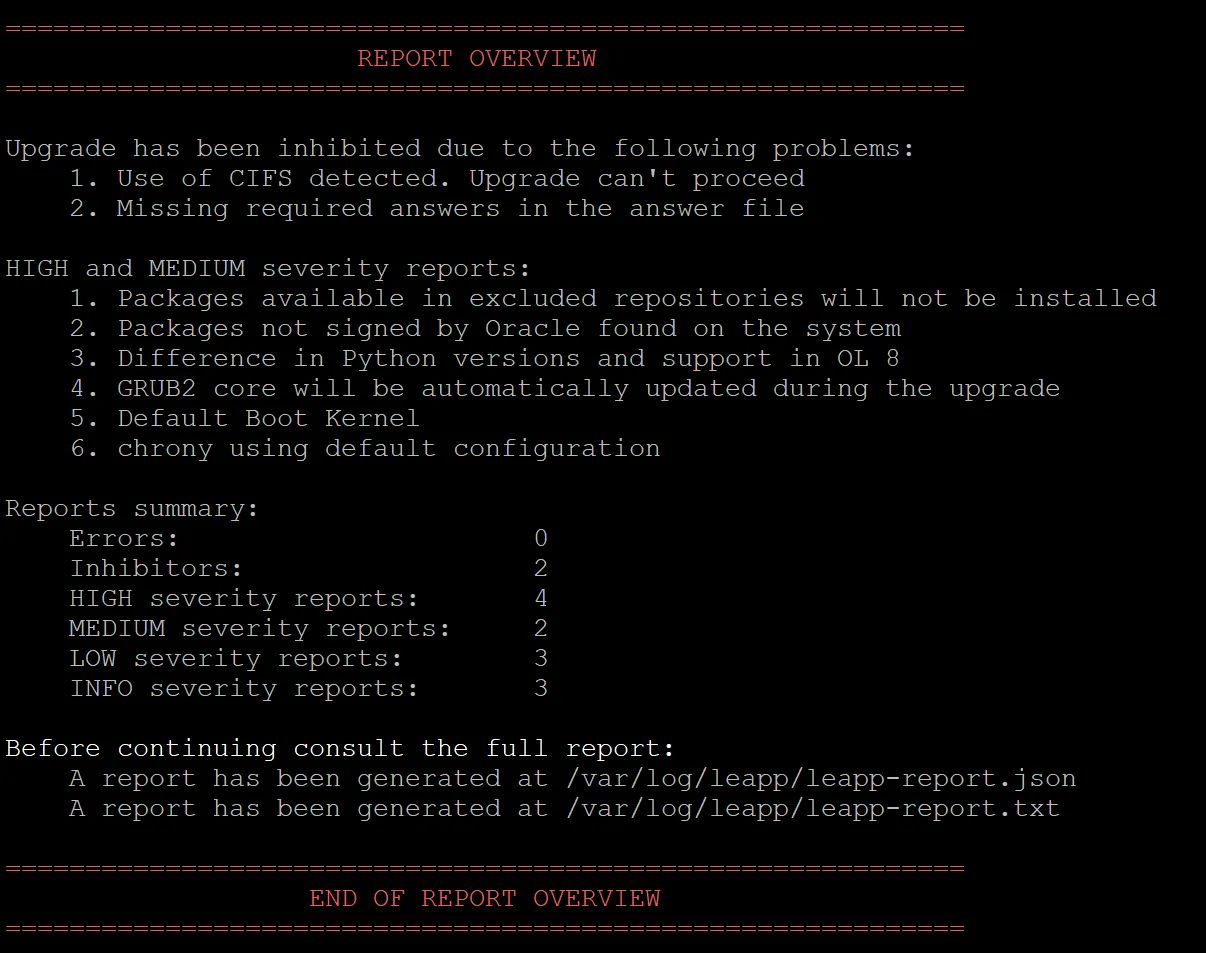
Review the command output:
13 Review the preupgrade report
cat /var/log/leapp/leapp-report.txt |
14 Fix any issues in the preupgrade report
You must fix at least all inhibitors before leapp can proceed. Below I provide sample issues and solutions.
14.1 Title: Use of CIFS detected. Upgrade can’t proceed
Solution: Comment any CIFS shares in the /etc/fstab
#//storageprovider.com/backup /backup cifs iocharset=utf8,rw,noperm,uid=applmgr,gid=oinstall,file_mode=0777,dir_mode=0777 0 0 |
Umount any mounted CIFS (NFS) shares. E.g:
umount /backup |
14.2 Title: Missing required answers in the answer file
Solution: run the following command as suggested by the report:
leapp answer --section remove_pam_pkcs11_module_check.confirm=True |
14.3 Title: Packages not signed by Oracle found on the system
Solution: Remove the reported packages that are not required after upgrade. E.g:
yum remove stalonetray xe-guest-utilities xe-guest-utilities-xenstore zabbix-agent zabbix-release libreoffice7.6 libreoffice7.6-freedesktop-menus libreoffice7.6-ure libobasis7.2-ooofonts libobasis7.6-ooofonts |
15 Remove the EBS preinstall package
This step is optional if you face the same issue I faced during the upgrade:
Error in PREUN scriptlet in rpm package oracle-ebs-server-R12-preinstall Following errors occurred and the upgrade cannot continue: 1. Actor: dnf_upgrade_transaction Message: DNF execution failed with non zero exit code |
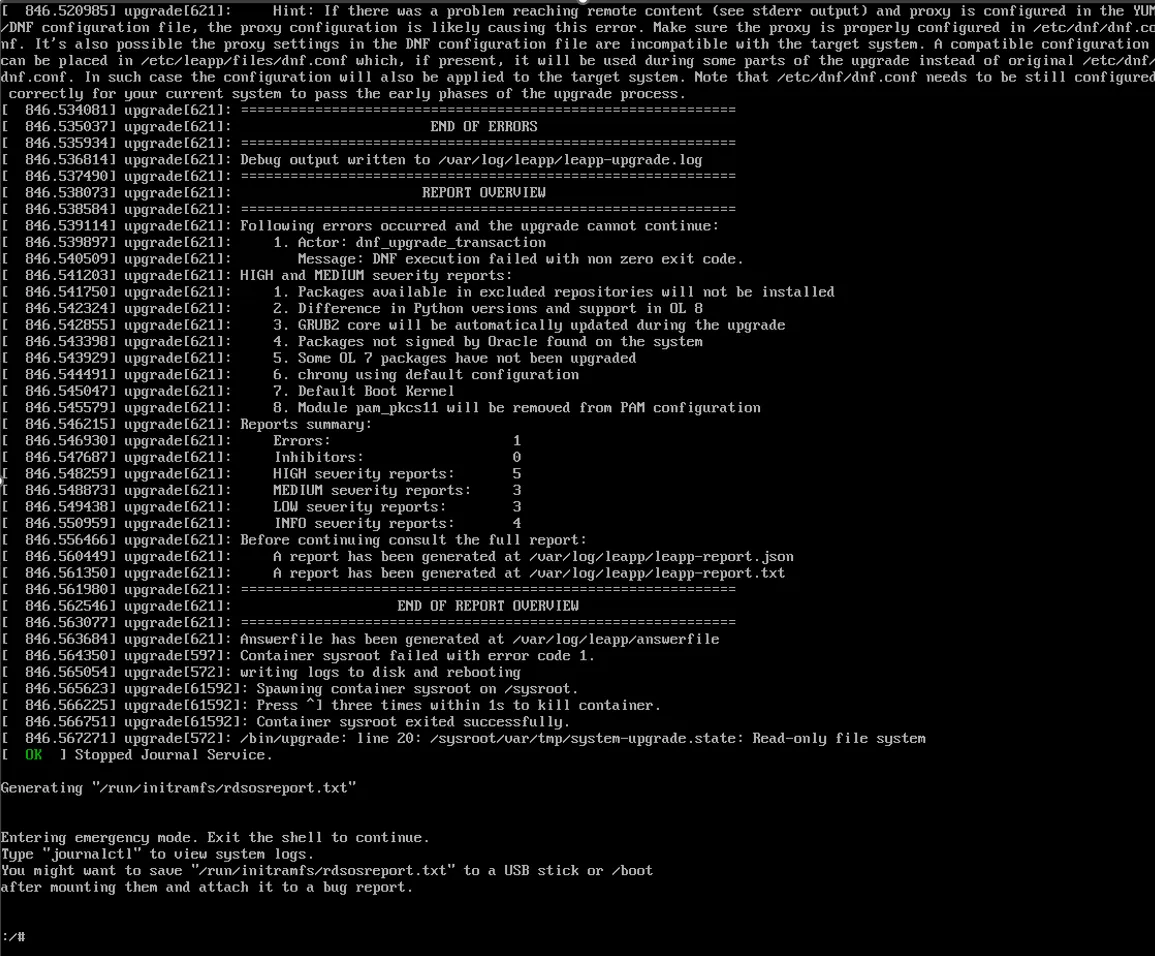
The following workaround helped:
sudo rpm -e --noscripts oracle-ebs-server-R12-preinstall |
Note: noscripts option is required as without it the following error is reported:
sudo rpm -e oracle-ebs-server-R12-preinstall error: %preun(oracle-ebs-server-R12-preinstall-1.0-5.el7.x86_64) scriptlet failed, exit status 1 error: oracle-ebs-server-R12-preinstall-1.0-5.el7.x86_64: erase failed |
16 Run the upgrade
sudo leapp upgrade --oraclelinux |
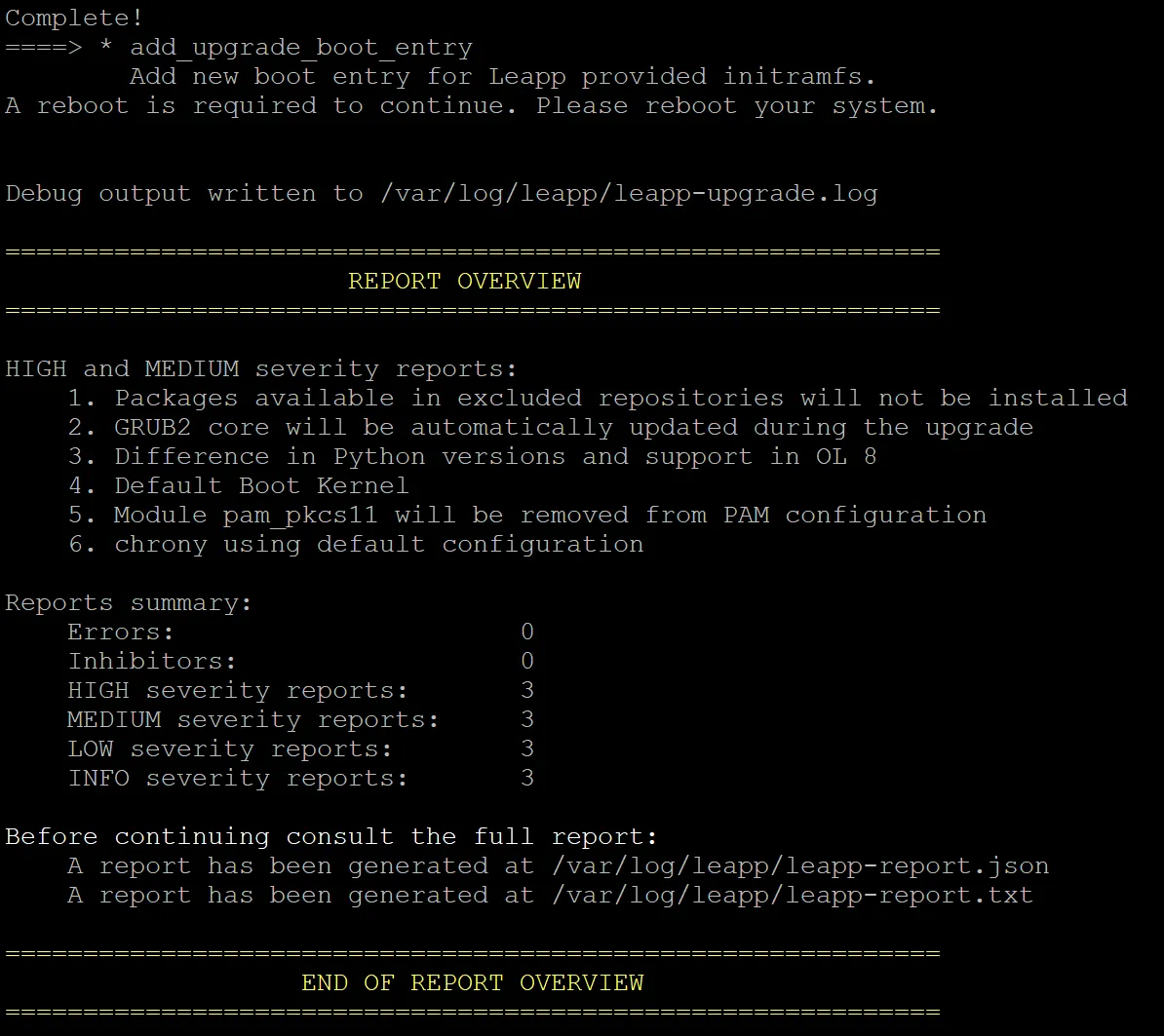
After the above command completes, it prints the following message:
Complete!
        add_upgrade_boot_entry
        Add new boot entry for Leapp provided initramfs.
A reboot is required to continue. Please reboot your system.

Debug output written to /var/log/leapp/leapp-upgrade.log |
16.1 Restart the system
sudo reboot |
The actual upgrade will start after the reboot. It will take some time. After it completes, the system will boot the upgraded OEL/RHEL 8.

17 Review the upgrade report and fix any issues
At the end of execution leapp writes a status report: /var/log/leapp/leapp-report.txt
Review it and remediate the issues. Here is the example from my VM.
17.1 Difference in Python versions and support in OL 8
Risk Factor: high
Title: Difference in Python versions and support in OL 8
Summary: In OL 8, there is no 'python' command. Python 3 (backward incompatible) is the primary Python version and Python 2 is available with limited support and limited set of packages. If you no longer require Python 2 packages following the upgrade, please remove them. Read more here: https://docs.oracle.com/en/operating-systems/oracle-linux/8/python/
Related links:
    - Difference in Python versions and support in OL 8: https://docs.oracle.com/en/operating-systems/oracle-linux/8/python/
Remediation: [hint] Please run "alternatives --set python /usr/bin/python3" after upgrade
Key: 2f3a43f4f448995eec953217d54f388ed94838b2 |
Solution
Run the suggested remediation command:
alternatives --set python /usr/bin/python3 |
17.2 Some OL 7 packages have not been upgraded
Risk Factor: high Title: Some OL 7 packages have not been upgraded Summary: Following OL 7 packages have not been upgraded: openmotif21-2.1.30-11.el7 kernel-3.10.0-1160.11.1.el7 kernel-3.10.0-1160.119.1.0.5.el7 xorg-x11-apps-7.7-7.el7 compat-libstdc++-296-2.96-144.0.2.el7 kernel-uek-5.4.17-2036.101.2.el7uek leapp-upgrade-el7toel8-0.20.0-2.0.10.el7_9 kernel-uek-5.4.17-2136.338.4.2.el7uek Please remove these packages to keep your system in supported state. Key: 1e4e21ca7b2b7d9c59556f4b9813ef0d801af32c |
Solution:
Remove the repoted packages
yum remove --disableexcludes=all openmotif21-2.1.30-11.el7 kernel-3.10.0-1160.11.1.el7 kernel-3.10.0-1160.119.1.0.5.el7 xorg-x11-apps-7.7-7.el7 compat-libstdc++-296-2.96-144.0.2.el7 kernel-uek-5.4.17-2036.101.2.el7uek leapp-upgrade-el7toel8-0.20.0-2.0.10.el7_9 kernel-uek-5.4.17-2136.338.4.2.el7uek |
17.3 SElinux will be set to permissive mode
Risk Factor: low
Title: SElinux will be set to permissive mode
Summary: SElinux will be set to permissive mode. Current mode: enforcing. This action is required by the upgrade process to make sure the upgraded system can boot without beinig blocked by SElinux rules.
Remediation: [hint] Make sure there are no SElinux related warnings after the upgrade and enable SElinux manually afterwards. Notice: You can ignore the “/root/tmp_leapp_py3” SElinux warnings.
Solution:
Enable SElinux by setting SELINUX=enforcing in /etc/selinux/config
18 Remove OL7 repositories
Review the available repositories in the “/etc/yum.repos.d” directory, and remove any OL7 repositories.
cd /etc/yum.repos.d ls rm -f oracle-linux-ol7.repo.disabled public-yum-ol7.repo uek-ol7.repo.disabled virt-ol7.repo.disabled leapp-upgrade-repos-ol8.repo.save ls oracle-linux-ol8.repo uek-ol8.repo virt-ol8.repo |
19 Uninstall leapp
rpm -qa | grep leap sudo yum remove leapp-repository-deps-el8 leapp-upgrade-el7toel8 leapp leapp-deps-el8 python2-leapp --disableexcludes=all python2-leapp-0.17.0-1.0.2.el7_9.noarch rpm -qa | grep leap sudo rm -rf /root/tmp_leapp_py3 |
20 Install Oracle E-Business Suite Preinstallation RPM
dnf config-manager --set-enabled ol8_addons dnf install oracle-ebs-server-R12-preinstall.x86_64 |
21 Install other necessary tools
dnf install tmux net-tools |
22 Start the database
As my test server hosts both EBS and Database this step is required now to run adadmin. It may not be required if you are upgrading a server hosting only EBS apps.
23 Re-link E-Business Suite Executables
Now you need to relink the executables after the OS upgrade.
adadmin

2. Maintain Applications Files menu
1. Relink Applications programs
Do you wish to proceed with the relink [Yes] ? Yes
File name [EBSDB_demo.env] : EBSDB_demo.env
Enter list of products to link ('all' for all products) [all] : all
Generate specific executables for each selected product [No] ? No
Relink with debug information [No] ? No |
24 Verify the libXm link existense
ls -ltr /usr/lib/libXm.so.2 lrwxrwxrwx. 1 root root 14 Dec 29 2020 /usr/lib/libXm.so.2 -> libXm.so.4.0.4 |
If the link does not exist, create it
cd /usr/lib ln -s libXm.so.4.0.4 libXm.so.2 |
25 Fix the issue starting Weblogic admin server
sh: which: line 1: syntax error: unexpected end of file sh: error importing function definition for `which' |
Solution: add the following line to /home/applmgr/.bashrc
unset which |
26 Start the EBS applications
cd $ADMIN_SCRIPTS_HOME/ ./adstrtal.sh |
27 Apply patches to deactivate unsupported products
Follow these steps to deactivate unsupported EBS 12.2 products on OEL/RHEL8:
Download Patch 35090694 and follow the patch README to run the script to deactivate EBS products not supported on OL/RHEL 8 (see Unsupported Products section below).
This patch will need to be downloaded and re-run after the application of an EBS Release Update Pack (RUP). This patch should also be applied before the application of the AD/TXK Delta RUP as part of a new installation for example.
unzip p35090694_R12_GENERIC.zip ./cleanup122.sh Enter the APPS Schema password : Enter the CONTEXT_FILE location :/u01/install/APPS/fs1/inst/apps/EBSDB_apps/appl/admin/EBSDB_apps.xml |
After installing the patch above to deactivate unsupported products, you should apply the following patches in hotpatch mode:
Patch 37913870:R12.SHT.C Patch 37579590:R12.PON.D |
adop phase=apply patches=37913870,37579590 apply_mode=hotpatch patchtop=/tmp |
27.1 Set the profile options
In order to use the 64-bit Planning executables of the Value Chain Planning products, set the following profile options:
MSC: Enable 64 bit snapshot to “Enable”
MSC: 64-bit Planner Platform to “Linux 64-bit”
28 Firewall setup for upgraded multi-node environments
After performing an in-place OS upgrade to Oracle Linux 8, you may may see connection errors due to the use of nftables as the default firewall backend for the firewalld daemon.
In that case, change the FirewallBackend to iptables in the file /etc/firewalld/firewalld.conf as shown below and restart the firewall service.
From:
FirewallBackend=nftables |
To:
FirewallBackend=iptables |
Restart the firewall:
sudo systemctl restart firewalld |
29 Mount NFS/CIFS shares back
Edit /etc/fstab and run the following command:
mount -a |
30 Disable SSH root login
If it has been enabled before the upgrade.
sudo sed -i 's/PermitRootLogin yes/#PermitRootLogin yes/' /etc/ssh/sshd_config sudo passwd -d root |
31 Perform healthcheck
Login to Oracle EBS front end. Check that the Forms, Concurrent managers status.
Check the EBS and Database log files in the backend.
32 Run adop fs_clone
Run fs_clone to make sure that the run file system changes are synchronized to the patch file system.
adop phase=fs_clone |
33 Conclusion
If you wanted to perform an upgrade but postponed it because was scared by Oracle E-Business Suite 12.2 related steps, now Leapp makes the process much easier. I hope that this article helps you with your upgrade projects. Please share your feedback in the comments!