
1 Discoverer analysis
1.1 Worksheet execution history
1.2 Workbook consolidation
1.3 Blitz Report license estimate
2 Migration process
2.1 Generate export commands
2.2 Execute export commands
2.3 Create ZIP file
2.4 Configure EUL (if applicable)
2.5 Upload ZIP to Blitz Report
2.6 Select the workbooks to convert
2.7 Run the Discoverer Import program
2.8 Validate the migration
3 Migration support from Enginatics
3.1 End User Layer export
3.2 Workbook owner export
3.3 Sending the files
4 Results
4.1 Multiple templates per report
4.2 Cross-tab to pivot conversion
4.3 Parameters, conditions and access
5 Useful scripts
5.1 Grant full workbook access to a specific EBS user
5.2 Fix missing EUL grants for Discoverer Administrator
5.3 Re-running the import
6 Prerequisites
6.1 Enable statistics collection
6.2 Discoverer server configuration file
6.3 Discoverer Desktop Windows registry setting
6.4 Enable Collect Query Statistics for users
6.5 Upgrade a Discoverer 4.1 End User Layer (if applicable)
7 Summary
Introduction
Oracle de-supported Discoverer in 2017, yet many organizations still have hundreds of critical workbooks that need migrating. Blitz Report’s automated import converts your entire Discoverer library in minutes — not months. Enginatics has migrated more than 150,000 Discoverer worksheets this way for more than 50 customers, 9,000+ of them for a single customer.
The following four-minute video explains how the migration works.
The migration process consists of exporting your workbooks as .eex files using the Discoverer Administrator command line tool, uploading them as a ZIP file into the database through the Blitz Report UI, selecting the workbooks to convert, running the import concurrent program to convert them into Blitz Reports, and then performing validations and manual corrections where needed. The conversion reads the workbook definitions themselves.
A second video walks through a complete end-to-end migration of 311 Discoverer workbooks.
1 Discoverer analysis
Before starting the migration, Blitz Report provides a comprehensive set of Discoverer analysis reports that help you understand your existing Discoverer environment. These reports cover workbook and folder structures, user permissions, execution history, and usage patterns — giving you a clear picture of which workbooks are actively used, who uses them, and how they relate to each other.

1.1 Worksheet execution history
The DIS Worksheet execution history report shows the historic usage of your Discoverer reports — one row per execution, including the user, duration, row count, and which folders (data sources) were accessed.

The report also includes summary sheets showing active users, popular workbooks, and folder consolidation.
If this report returns no data — meaning the worksheet execution history is not being captured — see chapter 6 for the Discoverer setup required to enable it.
1.2 Workbook consolidation
The Blitz Report migration automatically combines workbooks and worksheets into single reports when they use the same underlying folders. For example, if five different workbook/worksheet combinations all access the same folder, they become one Blitz Report with five layout templates — reducing maintenance and eliminating redundancy.
Reviewing the ‘Folders with workbooks’ sheet before migrating helps you understand how your workbooks will consolidate into a smaller number of Blitz Reports, and which workbooks share the same data sources.

1.3 Blitz Report license estimate
Blitz Report licensing is based on the number of distinct users that run at least one report during a rolling 60-day window. The DIS Worksheet Execution Summary report reads the same Discoverer execution history and reports the number of active users per month, so you can use it to estimate how many Blitz Report licenses are required to cover your Discoverer user base.
If you don’t have Blitz Report installed yet, you can instead execute the underlying script directly against your Discoverer EUL schema: DIS_Worksheet_Execution_Summary.sql. The user_count_60_days column shows the distinct user count for the 60 days preceding each month – take this value as your active user estimate and look up the corresponding subscription cost on our pricing page.

2 Migration process
If your End User Layer is still on Discoverer 4.1, upgrade it to 5.1 first, as described in section 6.5.
2.1 Generate export commands
Run the DIS Workbook Export Script report to generate a list of commands to export XMLs for all recently used Discoverer workbooks.
The report has an Accessed After date parameter that controls which workbooks to include. You don’t need to migrate everything — focus on workbooks that were actually used recently.
Workbooks without usage statistics, for example workbooks that were never run, are not listed by default. Set Ignore Access History to Yes to list them as well, optionally restricted by Workbook or Workbook Id. Workbook Owner adds the workbooks of a specific Discoverer user regardless of the Accessed After date, for example those of a dedicated user who maintains the official workbooks. Not yet imported only skips workbooks already uploaded to Blitz Report, so the export can be repeated for further workbooks later.
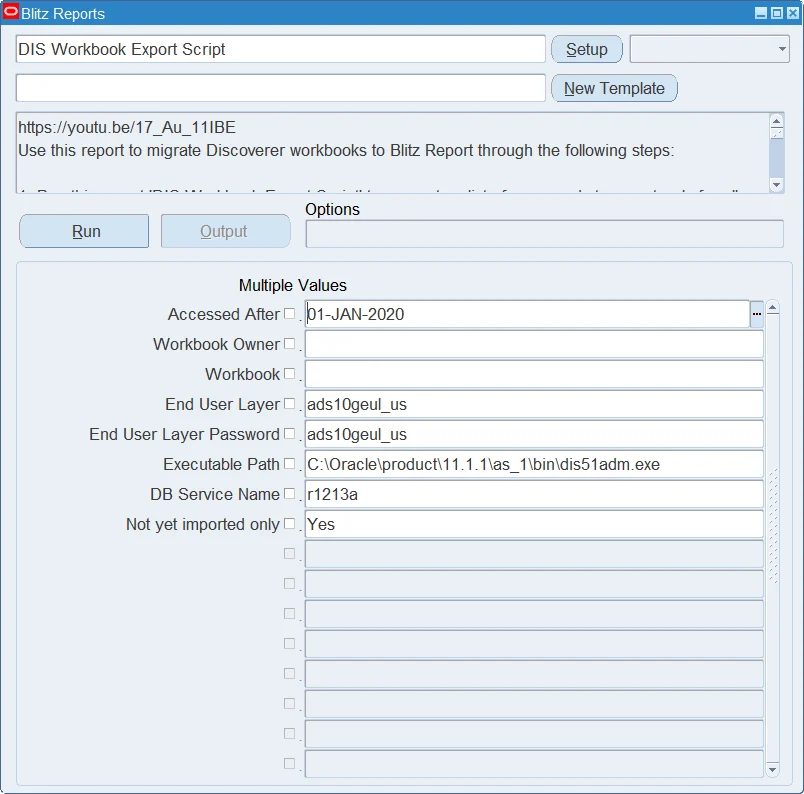
Each row in the output contains a Discoverer Administrator export command.

2.2 Execute export commands
Create a new folder on a Windows machine that has the Discoverer Admin executable dis51adm.exe installed. If you still need to install it, see Installing Oracle Discoverer Administrator and Desktop on 64-bit Windows, or contact us for help.
Open a Command Prompt window, cd to the new folder, and execute (copy and paste) the commands generated in step 2.1. This will start individual processes to export the workbooks as .eex files.

Depending on your client’s CPU and memory capacity, you can run between 100 and 400 export processes at the same time. While the processes are running, the .eex files appear with zero size in the folder. Once an export completes, the file shows its actual size. You can verify all exports have completed by trying to delete the .log files — if they delete without error, all processes have finished.

In case of errors, delete all zero size .eex files and rerun the export. You can simply copy and paste all export commands and it will only re-process the missing ones, as each export command starts with a ‘if not exist workbook_*.eex’ condition.
2.3 Create ZIP file
Zip together all generated (non-zero size) workbook_*.eex files. Do not include the generated .log files.
Important: The upload can only read ZIP files that store the file sizes in each entry header. The Compress to ZIP file option of the current Windows 11 Explorer writes data descriptors instead, which the upload cannot read. Create the ZIP with PowerShell from the export folder:
Compress-Archive -Path workbook_*.eex -DestinationPath discoverer_workbooks.zip
2.4 Configure EUL (if applicable)
In case you have more than one Discoverer End User Layer, set the profile option Blitz Report Discoverer Default EUL to the end user layer for which you run the migration.
2.5 Upload ZIP to Blitz Report
Navigate to Setup > Tools > Import > XML Upload and upload the .zip file generated in step 2.3. You will see a message with the count of uploaded workbooks. Workbooks uploaded before are skipped, and workbooks whose owner does not exist in this EBS instance are rejected; the message shows both counts.

2.6 Select the workbooks to convert
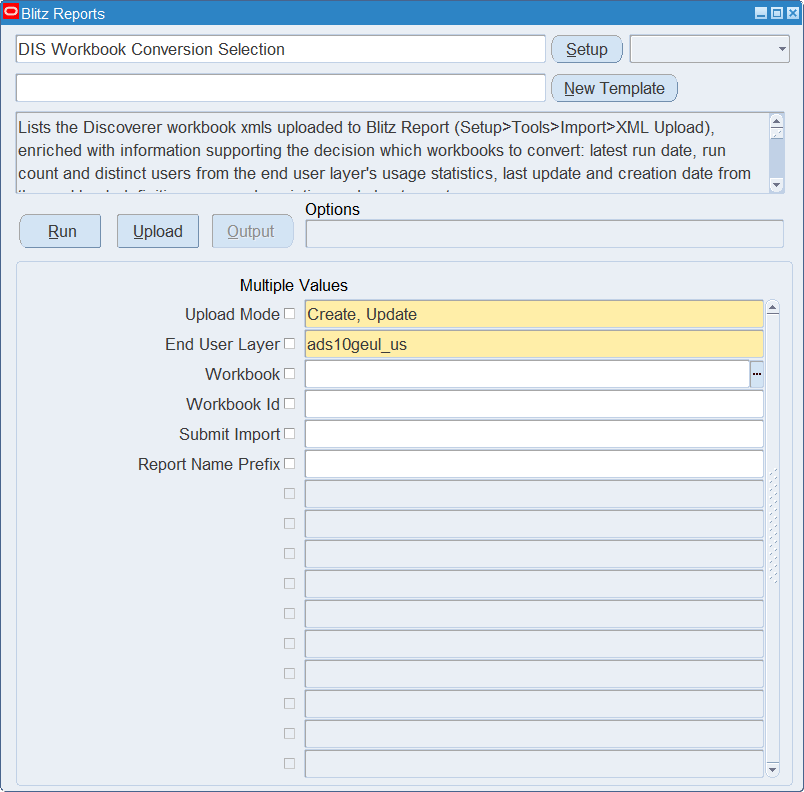
Run the DIS Workbook Conversion Selection upload with the following parameters:
- Upload Mode — keep the default Create, Update, which downloads the uploaded workbooks for selection
- End User Layer — the Discoverer EUL schema name, defaulted from the profile option Blitz Report Discoverer Default EUL
- Workbook and Workbook Id — optionally restrict the file to specific workbooks
- Submit Import — Yes submits the Blitz Report Discoverer Import when the file is uploaded, waits for it to complete and reports per workbook how many Blitz Reports and templates were created for its worksheets. Leave it blank to only store the selection and run the import program yourself, as described in step 2.7
- Report Name Prefix — the prefix of the created report names when the upload submits the import, defaulted from the profile option Blitz Report Discoverer Import Report Name Prefix
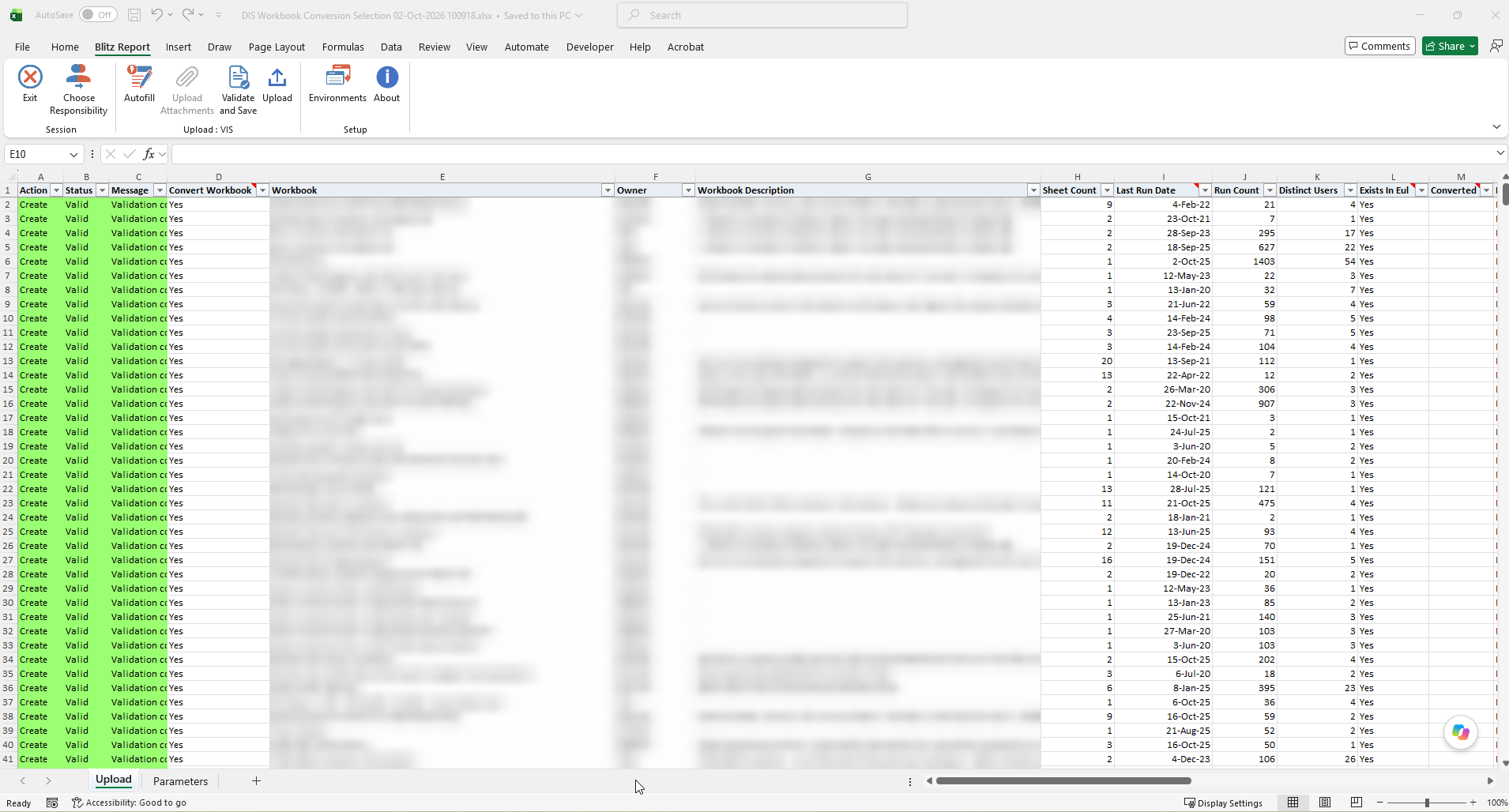
The downloaded file lists every uploaded workbook with the information to decide what to convert: owner, description and sheet count, the last run date, run count and number of distinct users from the usage statistics, and when the workbook was created and last updated. Workbooks without any usage history are listed as well.
Set Convert Workbook to Yes for each workbook to convert and upload the file. With Submit Import set, a workbook whose worksheets could not all be converted comes back as an error row pointing to the import request log.
2.7 Run the Discoverer Import program
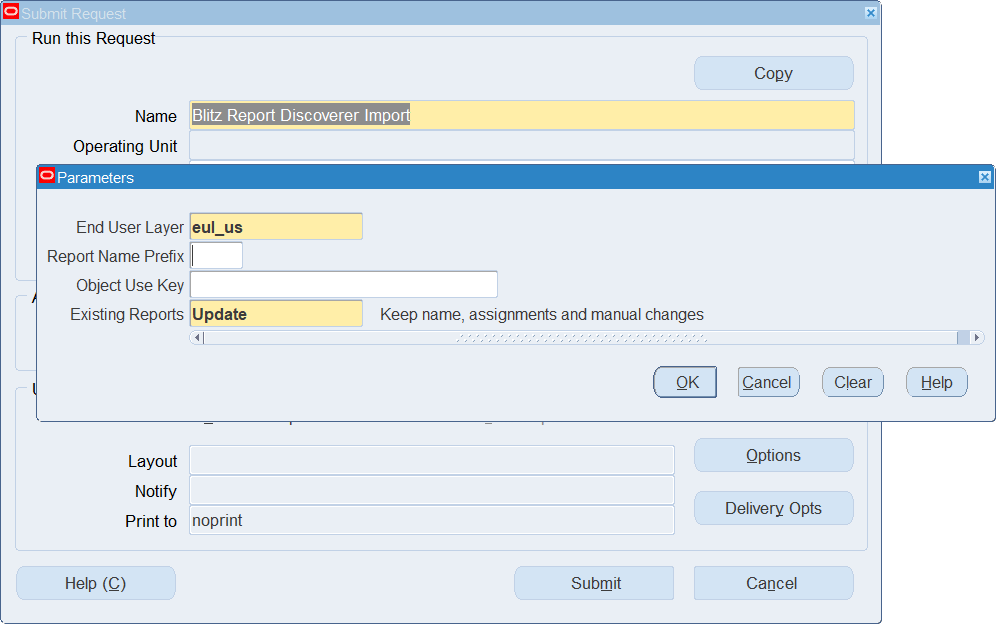
If you did not submit the import from the upload, navigate to the System Administrator responsibility and run the Blitz Report Discoverer Import concurrent program. It converts the workbooks selected in step 2.6, with the following parameters:
- End User Layer — the Discoverer EUL schema name (e.g.
eul_us). If you have only one EUL, this is auto-populated from the profile option - Report Name Prefix — a short prefix added to all imported report names to easily distinguish migrated reports from the seeded Blitz Report library
- Object Use Key — rebuilds the reports of specific folder combinations (object use keys, separated by semicolons), for example if workbooks were missing in the initial import
- Existing Reports — how folder combinations that already have a Blitz Report from an earlier import are handled. Folder combinations without a report are always imported.
- Update (default) — the SQL and the templates of the converted worksheets are rebuilt from the workbooks, while the report keeps its name and assignments, and templates and parameters added by hand are kept
- Skip — existing reports are left unchanged. Offered when no Object Use Key is entered
- Delete and Recreate — the existing reports, including any manual changes, are deleted and imported again. Offered when an Object Use Key is entered
2.8 Validate the migration
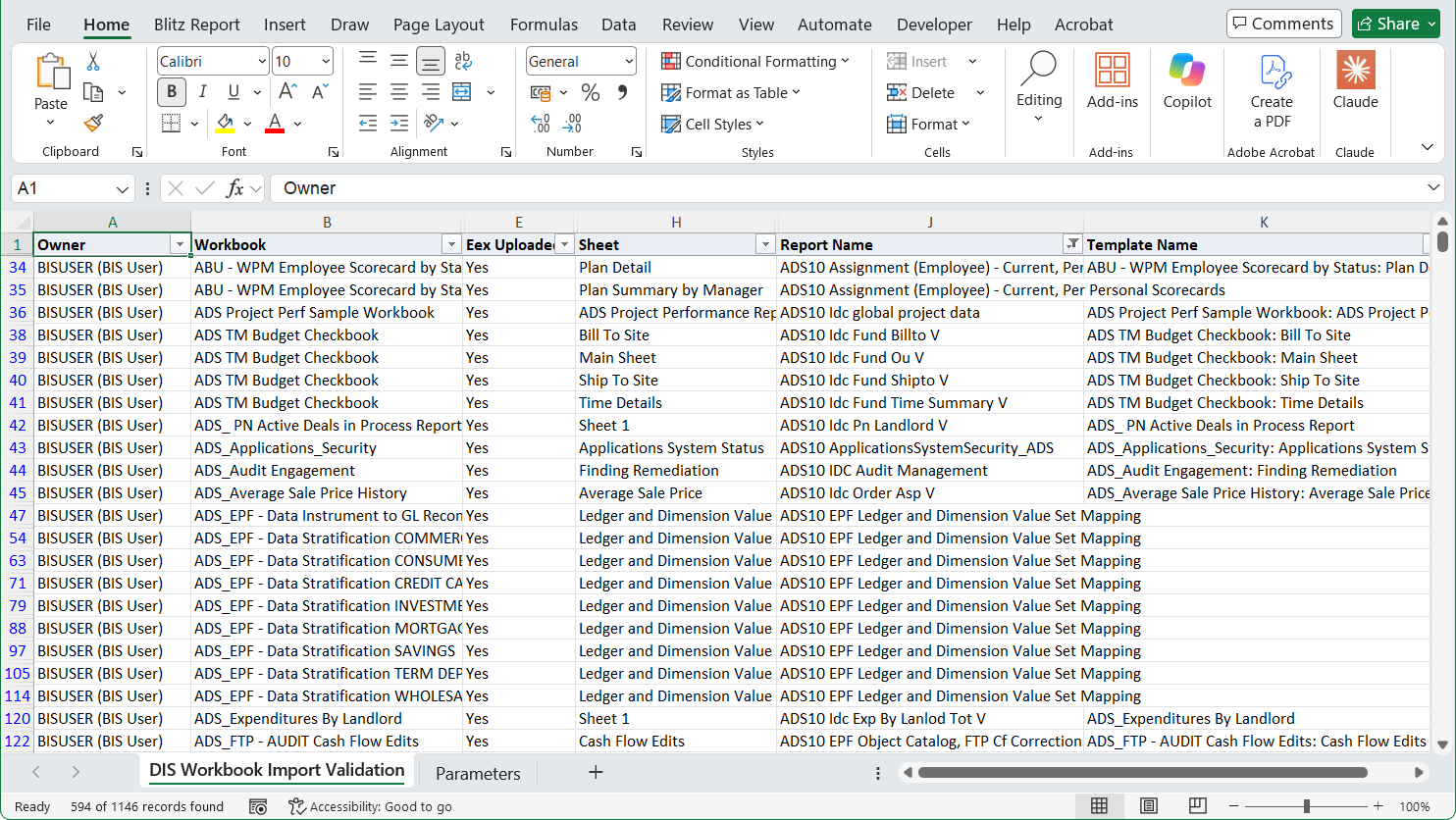
Verify the migration result by running the DIS Workbook Import Validation report, which shows one row per workbook and worksheet with its conversion state — uploaded, selected for conversion, converted — and the created Blitz Report and template, next to the usage statistics.
Then run the following validation reports and correct any issues found:
- Blitz Report Parameter Uniqueness Validation — correct the nonunique parameter names
- Blitz Report LOV SQL Validation — correct errors and change slow ‘distinct’ style LOV queries to faster SQLs
- Blitz Report SQL Validation — correct any SQL syntax problems
- Blitz Report Parameter Bind Variable Validation — verify parameter bind variables are correctly mapped
- DIS Migration identify missing EulConditions — identify any conditions that could not be migrated
- Blitz Report Parameter Table Alias Validation — verify table alias references in parameter SQL
- Blitz Reports (for Discoverer category) — validate syntax of all advanced required parameter conditions in column ‘required_parameters’
- Blitz Report Parameter Default Values — for Discoverer reports, check for default values having partition references
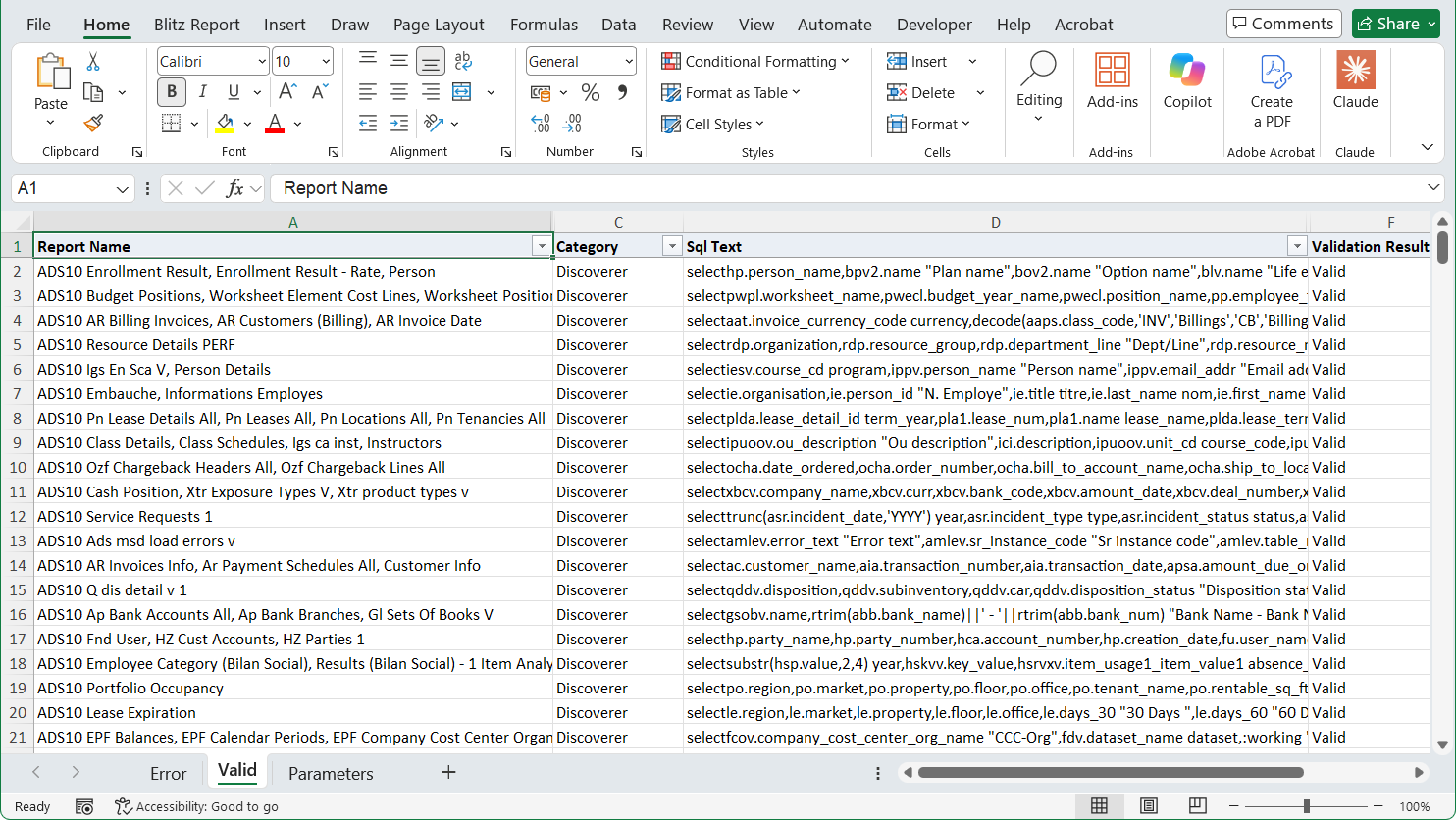
In a production migration, you should see very few or no SQL validation errors. The 26 errors in our demo are expected on a test system with inconsistent data.
3 Migration support from Enginatics
We regularly support customers with their Discoverer migration — for example to review the metadata of a production End User Layer, to assess how much of the remaining conversion can be automated, or to run the migration for you. For this we import a copy of your Discoverer metadata into our own migration environment, which requires two files.
We also carry over changes that users keep making in Discoverer after the conversion, for example during a parallel run: the re-exported workbooks are compared with the converted versions, and only the differences are applied to the existing Blitz Reports, so corrections made in Blitz Report in the meantime are kept.
3.1 End User Layer export
Run the following Data Pump command on the database server, replacing the schema name with your own End User Layer:
expdp system/<password> version=11.2.0.4 SCHEMAS=<your_eul_schema> DUMPFILE=discoverer_eul.dmp
Example:
expdp system/<password> version=11.2.0.4 SCHEMAS=eul4_us DUMPFILE=discoverer_eul.dmp
The version=11.2.0.4 parameter is required so that the dump can be imported into our migration environment. If your instance has more than one End User Layer, export the one you are migrating — the DIS End User Layers report lists the End User Layer schemas in your instance.
The export contains the Discoverer metadata only: business areas, folders, items, workbooks, worksheets, access privileges and usage statistics.
3.2 Workbook owner export
Discoverer stores workbook owners as internal EBS user ids, for example #3331. These ids do not resolve to the same user names outside your instance, so we also need the mapping between the ids and your EBS user names. Run the DIS Workbook Owner Export Script report for the same End User Layer and send us its output. Without it, most workbooks cannot be matched to their owners and would be skipped during the export and import.
3.3 Sending the files
Compress the dump file, then upload the compressed dump together with the workbook owner export through our file upload page, which accepts files up to 1 GB.
4 Results
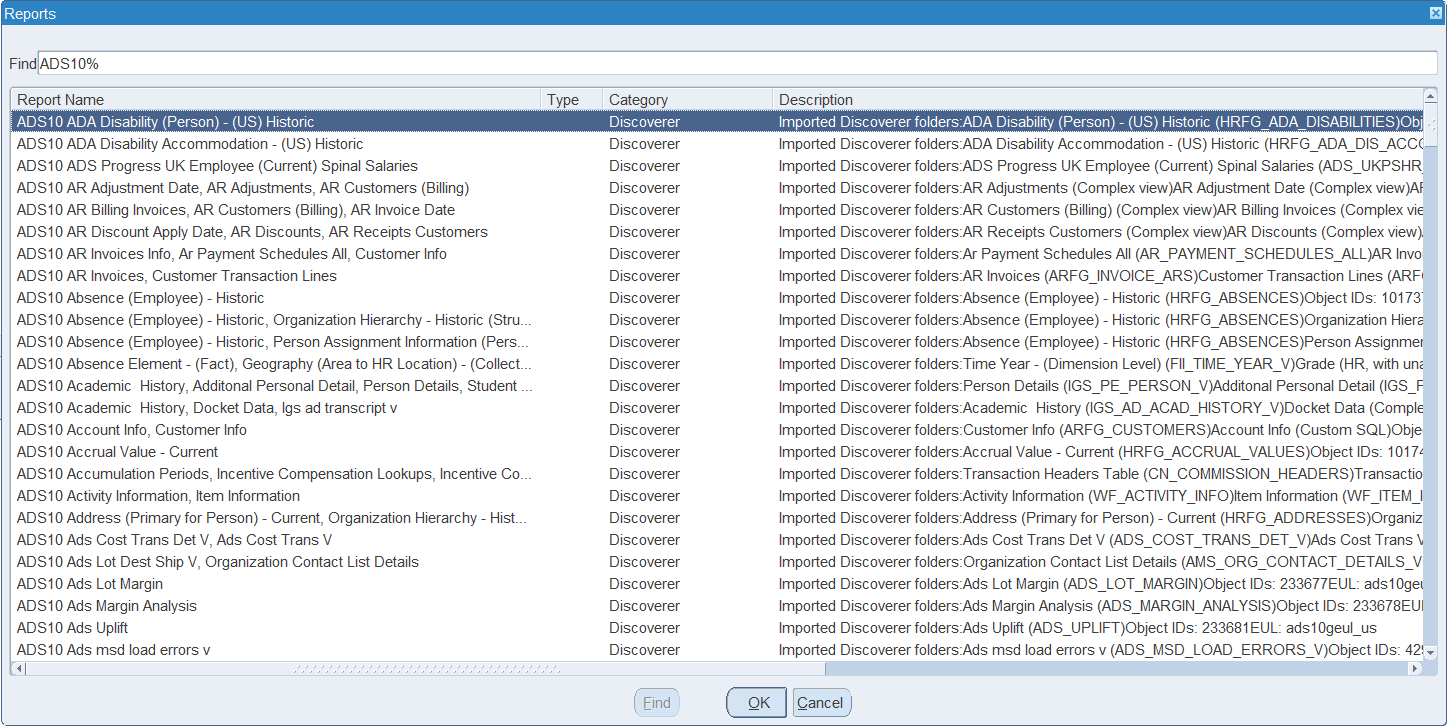
The imported reports appear immediately in Blitz Report under the Discoverer category. In our demo, 323 report templates were created from 311 workbooks — some workbooks contained multiple worksheets.
4.1 Multiple templates per report
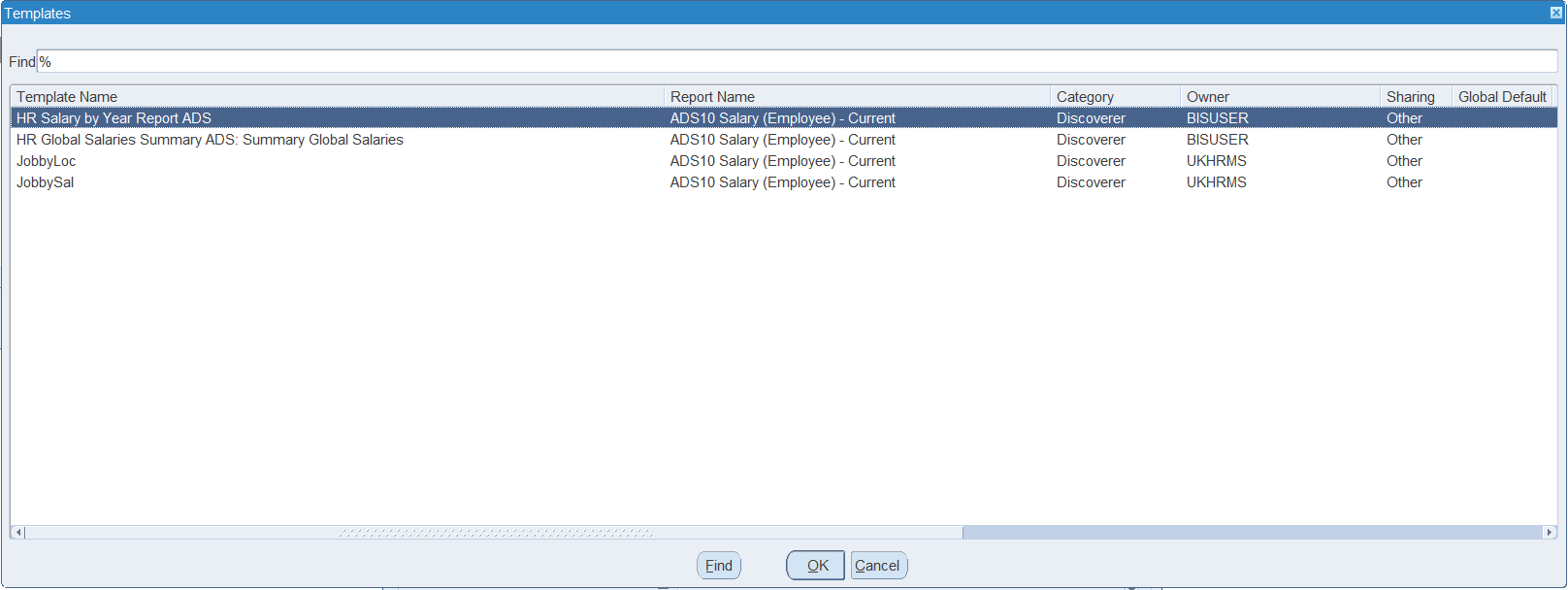
Because the migration consolidates workbooks that share the same underlying folders, a single Blitz Report can have multiple templates. In this example, the “Salary (Employees – Current)” folder was used by four different workbook/worksheet combinations, resulting in one Blitz Report with four templates.
4.2 Cross-tab to pivot conversion
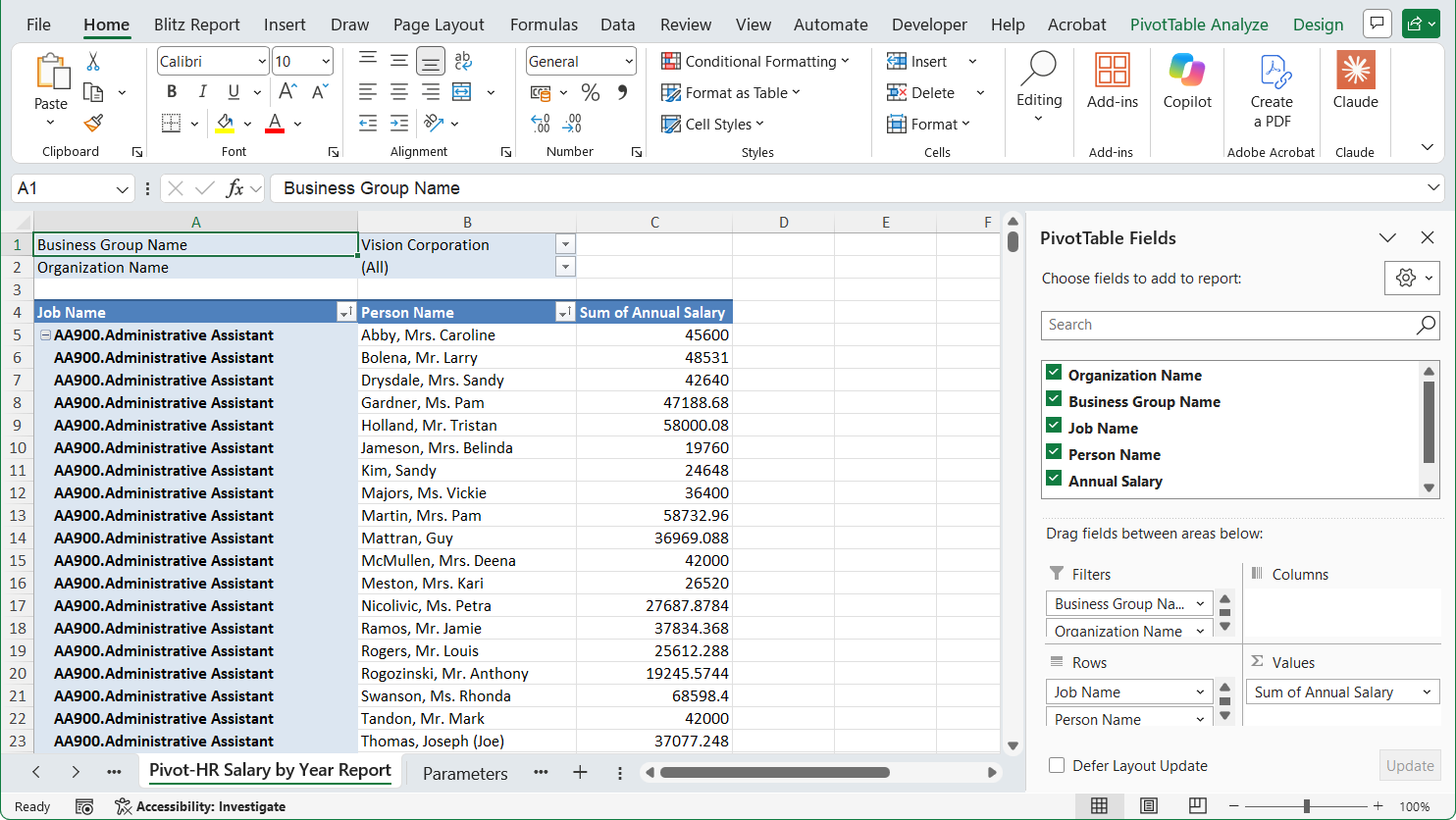
Discoverer cross-tab layouts are automatically converted to Excel pivot tables in Blitz Report, in tabular layout with repeated item labels, and page items become pivot filters. The first sheet contains the detail data, and the second sheet provides the pivoted view — preserving the analytical layout your users are accustomed to.
4.3 Parameters, conditions and access
Workbook parameters become Blitz Report parameters in the order the workbook prompts for them, with the default values the workbook author defined. From/to parameter pairs are kept together, lower bound first.
A condition with a fixed value, such as Status = 'Open', stays with its worksheet: the worksheet’s template applies the value without showing the parameter on the run screen, so it returns the same rows as in Discoverer. Conditions on calculations and other complex conditions are applied through hidden parameters that the template switches on.
After the migration, users add their own restrictions on a template’s Conditions tab, as with conditions in Discoverer Plus: a column compared with a fixed value, or a value prompted on the run screen, see Template conditions.
Workbook owners become the owners of their templates, and the users and responsibilities a workbook was shared with are assigned to the report and its template.
5 Useful scripts
The following scripts address common challenges encountered during Discoverer migration projects.
5.1 Grant full workbook access to a specific EBS user
A common problem during Discoverer migration is that workbooks are owned by individual users and may only be shared with specific people. If the owner has left the organization, even the System Administrator cannot access those workbooks because Discoverer’s access control is separate from EBS security.
To allow a specific user — such as an administrator or the technical team member performing the migration — to access all workbooks across all EULs in the system, use the script create_discoverer_access_privileges.sql. Change the user name in the xxen_util.user_id() call to match the EBS user who needs access. A prerequisite is that the EBS user already exists in the Discoverer users table (eul5_eul_users), which is created automatically when the user logs into Discoverer Plus for the first time.
5.2 Fix missing EUL grants for Discoverer Administrator
When connecting to an EUL through the Discoverer Administrator, you may encounter the following warning:

“You have connected to an Applications EUL, but the required Applications tables cannot be found on the same database.”
This error occurs because the EUL schema is missing the required SELECT grants on key EBS foundation tables and EXECUTE grant on FND_CLIENT_INFO. Run grant_eul_privileges.sql to grant the necessary privileges to all EUL schemas, then restart Discoverer Administrator.
5.3 Re-running the import
To convert further workbooks, or to rebuild converted ones with the converter of a newer Blitz Report version, set Convert Workbook to Yes for them in the DIS Workbook Conversion Selection upload and run the import again with Existing Reports set to Update.
To start over completely, purge the previously imported data with the script purge_discoverer_import.sql. Change the l_eul variable to match your End User Layer schema name. The script deletes the uploaded workbooks and the Discoverer staging data, removes all reports from the ‘Discoverer’ category, and cleans up any orphaned LOVs that were automatically created during the import, so upload the ZIP file again afterwards.
6 Prerequisites
The conversion itself only needs an End User Layer on Discoverer 5.1, covered in section 6.5. It reads the workbook definitions, not their usage, so workbooks that were never run convert the same way.
The worksheet execution history in the Discoverer EUL5_QPP_STATS table is what the analysis reports in chapter 1 read, and what the export script uses to list the recently used workbooks. In the vast majority of Discoverer environments this table is already populated by default. If the DIS Worksheet execution history report returns no rows or only old/incomplete data, follow the steps below to enable statistics collection, or export the workbooks without it by setting Ignore Access History to Yes in step 2.1.
6.1 Enable statistics collection
The EUL5_QPP_STATS table is populated by Discoverer Desktop or Discoverer Plus with a history of worksheet query execution statistics. The information is written to the table upon exit from these applications, so always use File > Exit — do not just close the browser or application.
When exiting Discoverer Plus, choose No when prompted to save the changes to a workbook.
6.2 Discoverer server configuration file
For Discoverer Plus and Viewer users, the following actions are also outlined in this Oracle document, section “9.4 How to set default user preferences for all users”, and in Doc ID 387367. The instructions below use our own demo Discoverer server installation as an example.
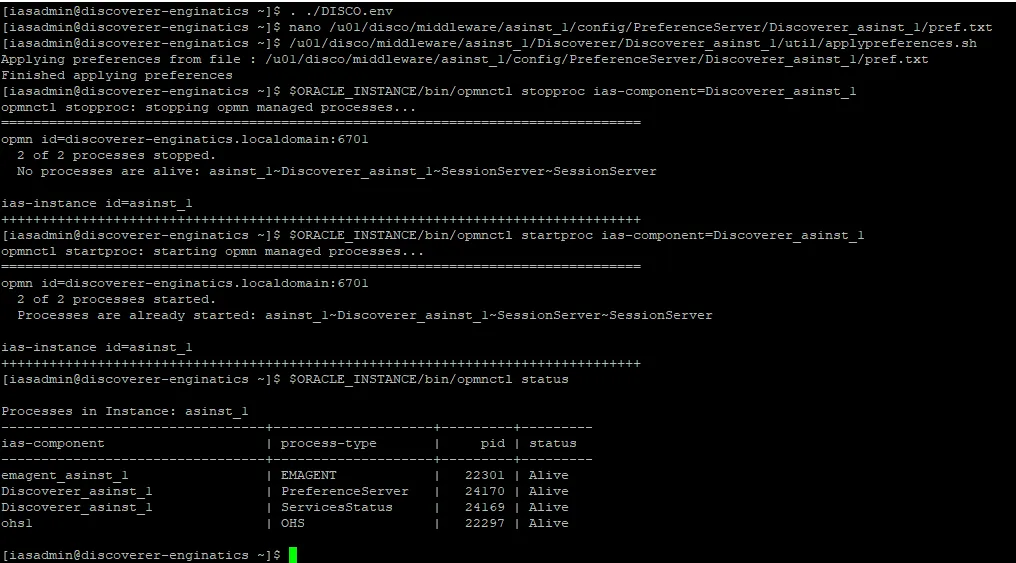
Open pref.txt under $ORACLE_INSTANCE/config/PreferenceServer/$DISCO_COMP_NAME:
nano /u01/disco/middleware/asinst_1/config/PreferenceServer/Discoverer_asinst_1/pref.txt
Update or add the required parameters in the respective sections and save the file:
[Application]
SaveLastUsedParamValue = 1
[Database]
QPPEnable = 1
QPPCreateNewStats = 1
Run applypreferences.sh (UNIX) or applypreferences.bat (Windows) under $ORACLE_INSTANCE/Discoverer/$DISCO_COMP_NAME/util:
/u01/disco/middleware/asinst_1/Discoverer/Discoverer_asinst_1/util/applypreferences.sh
Restart the Discoverer_[instance_name] ias-component:
$ORACLE_INSTANCE/bin/opmnctl stopproc ias-component=Discoverer_asinst_1
$ORACLE_INSTANCE/bin/opmnctl startproc ias-component=Discoverer_asinst_1
$ORACLE_INSTANCE/bin/opmnctl status
6.3 Discoverer Desktop Windows registry setting
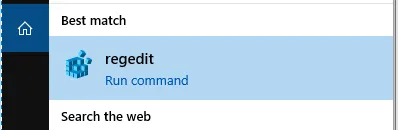
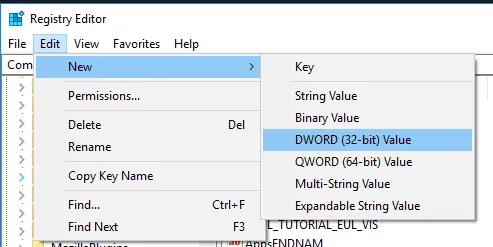
To ensure that statistics are written for Discoverer Desktop, Windows registry settings for parameters QPPEnable and QPPCreateNewStats need to be added or adjusted, as described in Oracle’s Discoverer Administrator Guide and Doc ID 1340849. Open the Windows registry editor.
Navigate to the following path (replace Discoverer 11 with your version):
Computer\HKEY_CURRENT_USER\Software\Oracle\Discoverer 11\Database
If the QPPCreateNewStats key already exists, ensure that its value is set to 1.
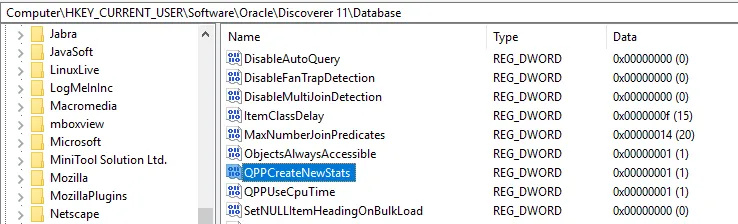
If the key does not exist, create it via Edit > New > DWORD (32-bit) Value:
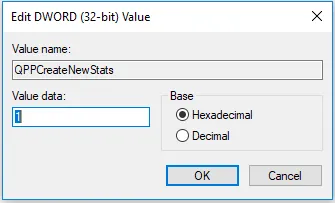
Create the QPPEnable key in the same way.
6.4 Enable Collect Query Statistics for users
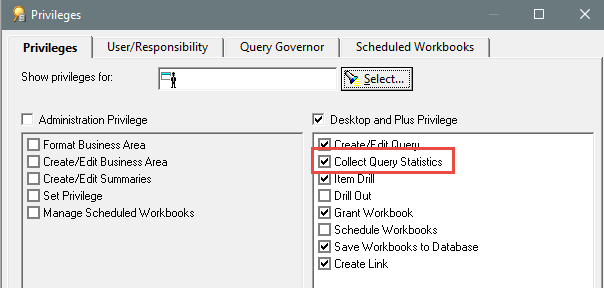
Login to Discoverer Administrator and enable Collect Query Statistics for all Discoverer users for whom you want to collect statistics.
6.5 Upgrade a Discoverer 4.1 End User Layer (if applicable)
This applies to the few environments whose End User Layer is still on Discoverer 4.1, which is typically the case on EBS 11i. Blitz Report’s migration reads the Discoverer 5.1 metadata tables, as do the analysis reports in chapter 1, so such an EUL has to be upgraded to 5.1 first. Check the release with:
select ev.ver_release from <eul_owner>.eul4_versions ev;
The upgrade is not destructive. It creates the EUL5 tables in the same schema and copies the metadata and the workbooks stored in the database into them, leaving the 4.1 tables in place, so your Discoverer 4i users can carry on working. What they change after the upgrade is not carried over, so run it shortly before you export the workbooks.
The EUL owner needs CREATE SESSION, CREATE TABLE, CREATE VIEW, CREATE SEQUENCE and CREATE PROCEDURE, and on Enterprise Edition also CREATE, ALTER and DROP ANY MATERIALIZED VIEW together with GLOBAL QUERY REWRITE. CONNECT and RESOURCE alone are not enough, as they contain neither CREATE VIEW nor the materialized view privileges. Where the EUL tables carry a higher MAXEXTENTS than their tablespace, which happens on Applications EULs, the upgrade fails with ORA-01631, so raise the tablespace value first.
Back up the EUL schema, close any Discoverer Administrator session connected to the 4.1 EUL, then run the upgrade with eulapi from your Discoverer Administrator installation:
set ORACLE_HOME=C:\Oracle\product\11.1.1\as_1
set TNS_ADMIN=<folder containing your tnsnames.ora>
"%ORACLE_HOME%\jdk\bin\java" -jar "%ORACLE_HOME%\discoverer\lib\eulbuilder.jar" -connect <eul_owner>/<password>@<tns_alias> -auto_upgrade -log eul_upgrade.log
%ORACLE_HOME%\bin\eulapi.bat is the supported wrapper for the same call, but it stops with “\Common was unexpected at this time.” when your PATH contains a directory with brackets, such as C:\Program Files (x86).
The log ends with “The EUL <eul_owner> has been successfully upgraded.” An Applications EUL of 173 MB holding 424 workbooks, 2,927 folders and 5,647 join conditions takes about a minute. Check the new release and compare the counts against the 4.1 tables:
select ev.ver_release from <eul_owner>.eul5_versions ev;
select (select count(*) from <eul_owner>.eul4_documents d) eul4_docs,
(select count(*) from <eul_owner>.eul5_documents d) eul5_docs,
(select count(*) from <eul_owner>.eul4_objs o) eul4_folders,
(select count(*) from <eul_owner>.eul5_objs o) eul5_folders from dual;
The release must read 5.1.1.0.0.0 and each pair of counts must match. Finally run grant_eul_privileges.sql from section 5.2, which identifies the EUL schemas through EUL5_VERSIONS and can therefore only be run once the upgrade has created them.
7 Summary
The entire migration process — from export to validated reports — can be completed in under 15 minutes for hundreds of workbooks:
- Download and install Blitz Report into your EBS environment (typically 20 minutes)
- Run the DIS Workbook Export Script to generate export commands
- Execute the export commands, ZIP the .eex files, and upload to Blitz Report
- Select the workbooks in the DIS Workbook Conversion Selection upload, which submits the Blitz Report Discoverer Import concurrent program
- Validate using the Import Validation, SQL Validation, and LOV Validation reports
Key benefits of the migration:
- Automated consolidation — Similar workbooks sharing the same folders are combined into single reports with multiple templates, reducing maintenance
- Cross-tab preservation — Discoverer cross-tab layouts are automatically converted to Excel pivot tables
- Independent of usage statistics — The conversion reads the workbook definitions, so workbooks without execution history convert as well
- Security migration — Workbook owners become template owners, and workbook sharing with users and responsibilities becomes report assignments and template sharing
- No new concurrent programs — All imported reports run through Blitz Report’s single concurrent program
- Same EBS interface — Users work within the familiar EBS forms, reducing training needs
- Performance improvement — Reports often run faster with Blitz Report’s optimized Excel generation engine
The Blitz Report software is free to use for up to 30 reports, so you can import your most critical workbooks and start using them immediately.
To try the migration yourself, use our demonstration instance, or request a live demonstration in your own EBS environment.
If you would like us to review your Discoverer environment or run the migration for you, see chapter 3 for the two files we need.
For more Blitz Report ideas and examples, visit our YouTube channel.