
PER Position Upload creates and updates positions from Excel, with the fields of the Position window: name, type, organization, job, hiring status, location, FTE and headcount, hiring information, payroll and work terms, supervisor and the supervisor, relief and successor positions. It downloads the positions of a business group as of an effective date for editing, saves each row as a date-tracked change with Oracle’s position validations, and returns a result report with the outcome of every row.
When to use it
- Set up the positions of a new organization or a reorganization in one step.
- Change the hiring status, FTE and headcount of many positions as of one date.
- Move positions to another location, or change their payroll, salary basis, entry grade or work terms.
- Assign supervisors and supervisor, relief and successor positions.
- Rename positions.
- Fill in the Additional Position Details flexfield.
Before you start
- You are signed in to an HR responsibility of the business group, with access to the upload in Blitz Report.
- The organizations, jobs, locations, grades, payrolls and salary bases the positions refer to exist in the business group. Jobs can be loaded with the PER Job Upload, organizations with the PER Organization Upload.
- You know the Position key flexfield structure of the business group. A position name is its segment values joined by the structure’s delimiter, for example HR003.HR Generalist.
Choose a template
The default template is Default.
| Template | Use it for |
|---|---|
| Default (default) | The fields of the Position window, without the descriptive flexfield. |
| Create Positions | An empty sheet for new positions with their main fields. Upload Mode is locked to Create and the Position, Organization, Job and Hiring Status filters are hidden. |
| Flexfields | The Additional Position Details flexfield attributes of positions, with the name, Effective Date and Datetrack Mode. |
| Hiring Status and Headcount | A mass change of Hiring Status, Fte and Headcount as of the Effective Date, with the organization and job of each position. |
Step 1 – Set the parameters
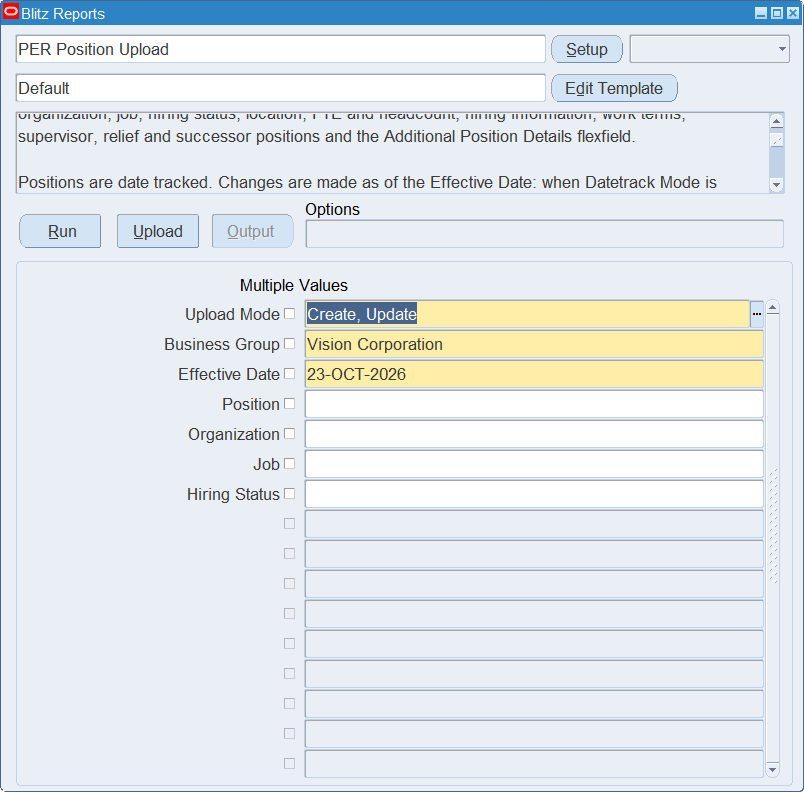
Open PER Position Upload in Blitz Report, choose the template and set the parameters. They decide which positions are downloaded and the date they are shown as of.
| Parameter | Meaning |
|---|---|
| Upload Mode | Create gives you an empty sheet. Create, Update (default) also downloads the existing positions. |
| Business Group | The business group of the positions. Defaults to the business group of your responsibility. |
| Effective Date | The date the downloaded positions are shown as of, and the default Effective Date of the uploaded rows. Defaults to today. |
| Position | Restricts the download to the position. |
| Organization | Restricts the download to the positions of the organization. |
| Job | Restricts the download to the positions of the job. |
| Hiring Status | Restricts the download to the positions with the hiring status. |
Step 2 – Run to download the Excel file
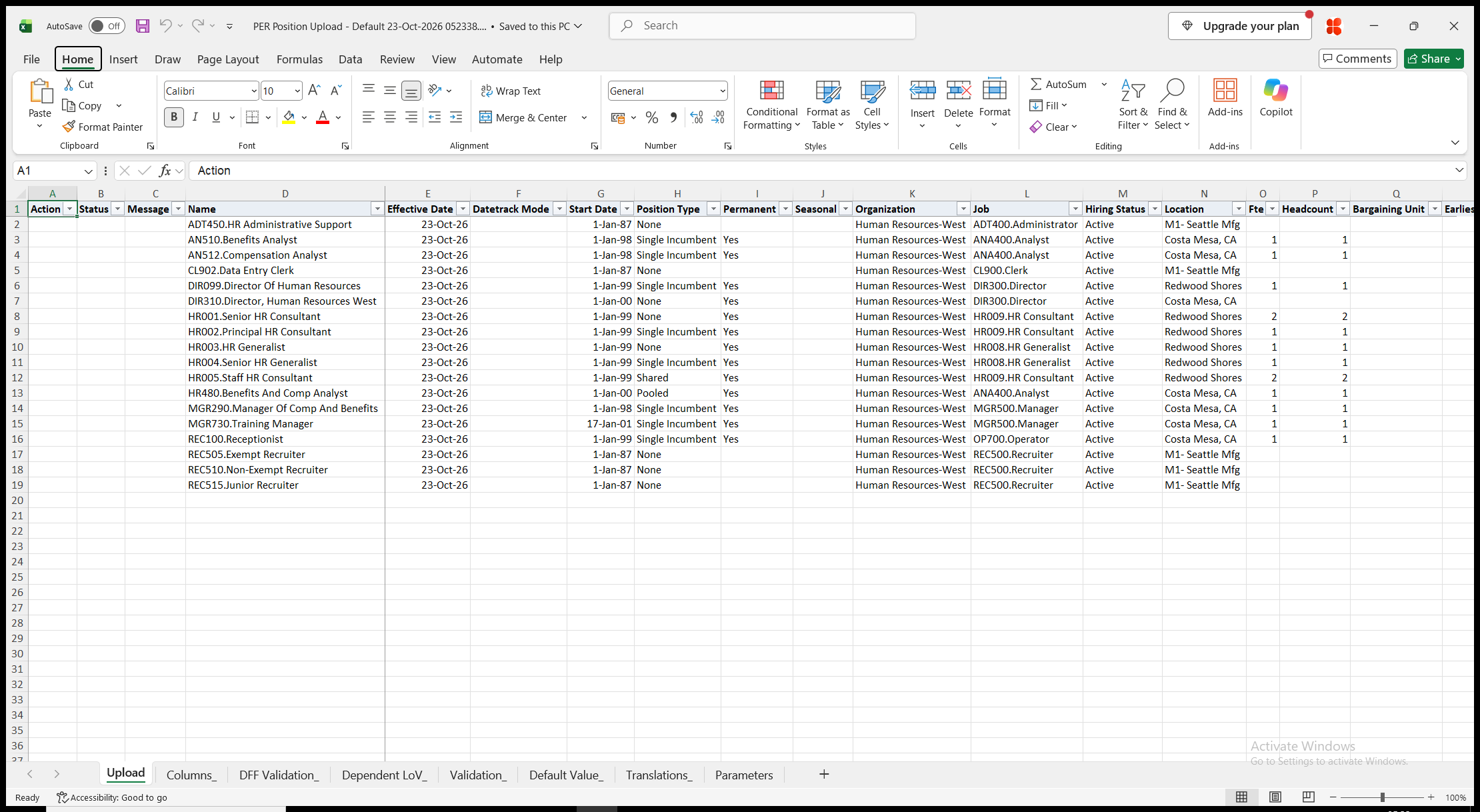
Click Run. With Create, Update, the file has one row per position that exists on the Effective Date, with its values as of that date and the Effective Date filled in. Supervisor Name and Business Group are read-only. With Create, the sheet is empty.
Step 3 – Enter the positions
Change the downloaded rows, or add rows for new positions. Each row is saved as of its own Effective Date. To clear a value, empty its cell.
- Name – the position name as the concatenated segments of the Position flexfield. A new name creates the position; a changed name on a downloaded row renames it.
- Effective Date and Datetrack Mode – the date the change takes effect, defaulting from the parameter. Leave Datetrack Mode blank to correct the position when the Effective Date is the start date of its current record, and to insert a change from the Effective Date otherwise. Choose Correction, Update, Update – Insert or Update with Replace to decide yourself.
- Start Date – the date the position becomes effective. Defaults to the Effective Date for a new position.
- Position Type, Permanent, Seasonal, Organization, Job, Hiring Status, Location, Fte, Headcount and Bargaining Unit. Organization and Job are required for a new position and cannot be changed on an existing one.
- Earliest Hire Date, Fill By Date and Permit Recruiting – the hiring information.
- Payroll, Salary Basis and Entry Grade.
- Probation Duration and Probation Units, Overlap Duration and Overlap Units, Working Hours and Frequency, Start Time and End Time – the work terms. Times are entered as HH24:MI, for example 08:00.
- Supervisor Number and Replacement Required. Supervisor Number is the employee number of the supervisor; Supervisor Name is filled in from it.
- Supervisor Position, Relief Position and Successor Position – other positions of the business group.
Permanent, Seasonal, Permit Recruiting and Replacement Required take Yes; a blank cell means No.
Step 4 – Validate and Save
Click Validate and Save. This checks for missing required values and for values that are not in their lists, marks the rows Valid and saves the file. Correct any rows it flags before uploading.
Step 5 – Upload the file
In Blitz Report click Upload and select the saved file. The upload request processes the rows in order. Each row is saved or rejected on its own, so a rejected row leaves nothing behind and does not affect the other rows.
Step 6 – Review the result report
When the request completes, a result report opens listing every uploaded row with its status and a message, Position created., Position updated. or No change., or the reason the row was rejected. The result report shows the values as they were saved in Oracle, as of the row’s Effective Date.
What’s produced
- Positions created, or updated as date-tracked changes from each row’s Effective Date.
- A row that fails leaves nothing behind and does not affect the other rows.
- A result report listing every row with a status (success or error) and a message.
Common questions
How do I rename a position?
Change the Name on the downloaded row. The downloaded row identifies the position, so the new name replaces the old one. The new name must fit the segments of the Position flexfield.
What happens when I add a row with the name of an existing position?
The row updates that position as of its Effective Date. A new position is created only for a name that does not exist in the business group.
Can I change the organization or job of a position?
No. Organization and job cannot be changed once the position exists. Create a new position instead.
How do I make a change from a past or future date?
Set the Effective Date parameter to that date before downloading, so the rows show the position as of the date, or enter the date in the Effective Date column. With a blank Datetrack Mode, a change on the start date of the current record corrects it, and a change on a later date is inserted from that date and keeps any later changes.
Can I delete a position?
No. The upload creates and updates positions. To stop using a position, change its Hiring Status as of the date it ends.
How do I change the hiring status or headcount of many positions?
Use the Hiring Status and Headcount template. Columns that a template does not show keep their stored values.
How do I enter descriptive flexfield values?
Use the Flexfields template. Its attribute columns show the segment prompts of your Additional Position Details setup.
Troubleshooting
| Message | Cause | What to do |
|---|---|---|
| Missing values for required field/s: Name, Organization, Job | A new position is missing one of the columns named. | Fill in the columns named. |
| The organization and job of an existing position cannot be changed. | Organization or Job was changed on a downloaded row. | Restore the original values, or create a new position. |
| Position … does not exist on … | The position has no record on the row’s Effective Date, for example because the date is before its Start Date. | Use an Effective Date on which the position exists. |
| You cannot perform a DateTrack update where rows exist in the future | Datetrack Mode is Update, and the position has changes after the Effective Date. | Leave Datetrack Mode blank, or choose Update – Insert or Update with Replace. |
| You must enter a Head Count of 1 with a Single Incumbent Position Type. | Position Type is Single Incumbent and Headcount is not 1. | Set Headcount to 1, or choose another Position Type. |
| You have selected Single Incumbent as the Position Type. Please enter an amount for FTE within a range of 0 to 1. | Fte is above 1 for a Single Incumbent position. | Enter an Fte between 0 and 1. |
| You must enter an FTE amount if you select a Single Incumbent or Shared Position Type. / You must enter a value for Head Count with a Single Incumbent or Shared Position Type. | Fte or Headcount is blank for a Single Incumbent or Shared position. | Fill in both Fte and Headcount. |
| Earliest Hire Date must be on or after the position’s Start Date. | Earliest Hire Date is before Start Date. | Move the Earliest Hire Date to the Start Date or later. |
| Fill by Date must be on or after … | Fill By Date is before the Earliest Hire Date. | Move the Fill By Date to the date shown or later. |
| Combination of probation period and probation units is invalid. | Only one of Probation Duration and Probation Units is filled in. | Fill in both, or clear both. |
| Invalid Time format. | Start Time or End Time is not a valid time. | Enter the time as HH24:MI, for example 17:00. |
| Additional Position Details validation error: … | A flexfield value is not valid for its segment, or a required segment is blank. | Correct the segment named in the message. |