
AR Cash Receipt Upload creates Oracle Receivables receipts from Excel and applies them to open invoices. It handles Standard receipts (a customer payment, applied to one or more invoices, placed On Account or left Unapplied), Miscellaneous receipts (non-customer income booked against a Receivables Activity), additional applications on receipts that already exist, and the reversal of existing receipts. Remittance and customer bank accounts, Notes Receivable / Bills of Exchange details and the Receipt Information descriptive flexfield are supported.
When to use it
- Enter a batch of customer payments and apply each to one or more open invoices.
- Apply a single receipt across several invoices, place it On Account, or leave it Unapplied.
- Apply the unapplied balance of existing receipts to invoices, without re-creating the receipts.
- Record non-customer income such as bank interest or sundry refunds as Miscellaneous receipts.
- Reverse existing receipts in bulk, for example returned checks.
- Capture Notes Receivable / Bills of Exchange, or the customer bank account used by automatic receipt methods such as Direct Debit and EFT.
Before you start
- Access to the upload in Blitz Report for the operating unit of the receipts.
- The receipt methods you use have remittance bank accounts assigned for that operating unit.
- For Miscellaneous receipts, the Receivables Activity is set up; it supplies the GL accounting.
- Receipt, application and reversal GL dates fall in an open Receivables period.
Choose a template
| Template | Use it for |
|---|---|
| Standard Receipt (default) | Customer receipts with their invoice or On Account applications, including foreign currency, remittance and customer bank account, and Notes Receivable / Bills of Exchange columns. |
| Apply Existing Receipt | Adding applications to receipts that already exist: receipt number, customer and application columns only. |
| Miscellaneous Receipt | Miscellaneous receipts, with Receipt Type, Receivables Activity, Misc Payment Source and the Receipt Information flexfield columns. |
| Reverse Receipt | Reversing existing receipts, with Reverse Flag and the reversal columns. |
Step 1 – Set the parameters
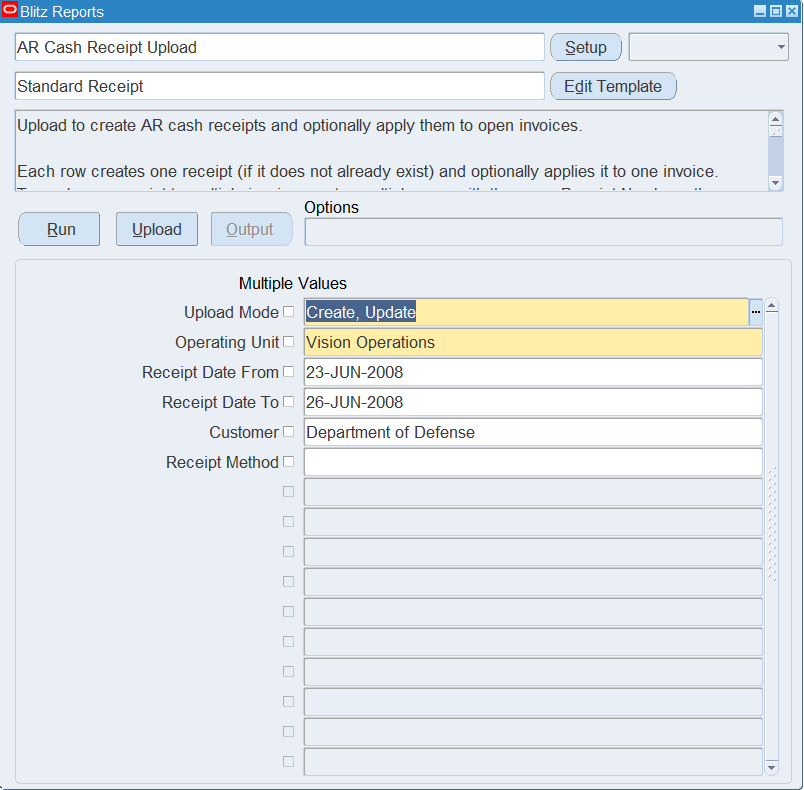
Open AR Cash Receipt Upload in Blitz Report, choose the template and set the parameters:
| Parameter | Meaning |
|---|---|
| Upload Mode | Create (default) opens an empty sheet for new receipts; Create, Update downloads existing receipts, one row per application, so you can add applications or reverse them, and lets you add new receipts. |
| Operating Unit | The operating unit of the receipts. |
| Receipt Date From / Receipt Date To | Downloads receipts with a receipt date in this range. |
| Customer | Downloads only the receipts of this customer. |
| Receipt Method | Downloads only receipts with this receipt method. |
For Create, Update, restrict the download with the dates, customer or receipt method.
Step 2 – Run to download the Excel file
Click Run. The Excel file downloads and opens with the existing receipts and their applications, or an empty sheet in Create mode.

Step 3 – Enter or change the receipts
New receipt: enter the Receipt Method, Receipt Number, Receipt Amount, Receipt Date and the customer (Customer Name or Customer Number, optionally Customer Site). Receipt Date defaults to today, Receipt Currency to the ledger currency, GL Date to the Receipt Date, and Remittance Bank Account to the primary account of the receipt method. Choosing a non-primary Remittance Bank Account sets Override Remit Account Flag to Yes. For a foreign currency receipt enter the Exchange Rate Type, and the Exchange Rate when the type is User.
Application: enter an Invoice Number to apply the receipt to that invoice; Amount Applied defaults to the amount due and Installment to 1. Set Apply On Account to Yes instead to apply it On Account, or leave both blank to leave the receipt Unapplied. To apply one receipt to several invoices, enter one row per invoice with the same Receipt Number: the receipt is created on the first row and every further row adds an application. Apply Date defaults to the Receipt Date and Apply GL Date to the GL Date.
Existing receipt: enter the Invoice Number and Amount Applied on a downloaded row, or a row with the existing Receipt Number; Receipt Method, Amount and Date are not needed. When the receipt is in a closed period, enter an Apply Date and Apply GL Date in an open period. Header values of an existing receipt (amount, dates, bank account, flexfield) are not changed by the upload.
Miscellaneous receipt (Miscellaneous Receipt template): set Receipt Type to Miscellaneous and enter a Receivables Activity; leave the customer and application columns blank. The amount can be negative but not zero.
Reversal (Reverse Receipt template, Create, Update mode): set Reverse Flag to Yes on the downloaded receipt and enter the Reversal Date and Reversal Category, optionally Reversal GL Date (defaults to the Reversal Date), Reversal Reason and Reversal Comments.

Step 4 – Validate and Save
Click Validate and Save. This checks for missing required values and the receipt rules (amounts, exchange rate, remittance bank account, Miscellaneous receipt columns) and saves the file. Correct any rows it flags before uploading.

Step 5 – Upload the file
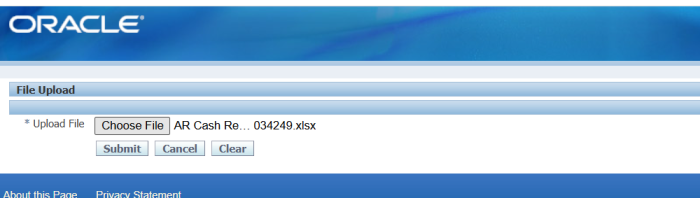
In Blitz Report click Upload and select the saved file. This submits the upload request, which creates, applies or reverses the receipts row by row.
Step 6 – Review the result report
When the request completes, a result report opens listing every uploaded row with its status and message, for example Receipt created and applied. or Application added to existing receipt.

What’s produced
- Standard receipts (applied, On Account or Unapplied) and Miscellaneous receipts in Receivables.
- One receipt application per row with an Invoice Number or Apply On Account.
- Reversed receipts for rows with Reverse Flag Yes.
- A result report listing every row with a status (success or error) and a message.
Common questions
How do I apply one receipt to several invoices?
Enter one row per invoice, all with the same Receipt Number. The receipt is created once; each row adds an application. The header columns are only needed on the first row.
Can I change or unapply an existing application?
No. The upload adds applications; it does not change or unapply the applications shown on downloaded rows. Unapply in the Receipts window.
Can I change the amount, dates or flexfield of an existing receipt?
No. Header values, including the Receipt Information flexfield and the remittance bank account, are set when the receipt is created. Reverse the receipt and create it again if needed.
Why was my row accepted but nothing happened?
The message Receipt already exists; no application requested. means the Receipt Number exists and the row has no Invoice Number, Apply On Account or Reverse Flag.
Which bank account receives the receipt?
The primary remittance account of the receipt method, unless you pick another account assigned to that method. Customer Bank Account is the customer’s own account, used by automatic receipt methods; leave it blank for manual receipts.
When do I fill Issuer Name, Issue Date, Issuer Bank Branch and Maturity Date?
Only for Notes Receivable and Bills of Exchange. They are not allowed on Miscellaneous receipts.
Troubleshooting
| Message | Cause | What to do |
|---|---|---|
| Receipt Method is required when creating a new receipt. (likewise Receipt Amount, Receipt Date) | The Receipt Number does not exist, so a new receipt is created, and a header value is missing. | Enter the missing value, or correct the Receipt Number of the existing receipt. |
| Remittance Bank Account is not assigned to the chosen Receipt Method for this Operating Unit. | The bank account is not an active remittance account of the receipt method. | Leave it blank to use the primary account, or pick an account from the list. |
| Exchange Rate Type is required for foreign currency receipts. | The currency differs from the ledger currency. | Enter the Exchange Rate Type, and the Exchange Rate for type User. |
| Cannot specify both Invoice Number and Apply on Account on the same row. | Both application options are filled. | Keep one; use a second row with the same Receipt Number for the other. |
| Receivables Activity is required for a Miscellaneous receipt. | Receipt Type Miscellaneous without an activity. | Choose the Receivables Activity. |
| Customer, application and Notes Receivable columns are not allowed on a Miscellaneous receipt. | A Miscellaneous row carries customer, invoice or note values. | Clear those columns. |
| Reversal Category is required to reverse a receipt. / Reversal Date is required to reverse a receipt. | Reverse Flag Yes without the reversal details. | Enter the Reversal Category and Reversal Date. |
| Receipt … not found; cannot reverse a receipt that does not exist. | Reverse Flag Yes on a receipt number that does not exist in the operating unit. | Download the receipt in Create, Update mode and reverse it from there. |
| Receipt created but application failed: … | Receivables rejected the application, for example a closed GL period or an amount above the invoice balance. Nothing is saved for the row. | Correct the Apply GL Date or Amount Applied and upload the row again. |