
The Blitz Report Custom Reports Converter is a self-service Blitz Upload that lists every concurrent program on your Oracle EBS instance — RDF reports, BI Publisher reports, and other data-extract programs — together with usage statistics. You tick the ones you want migrated to Blitz Report and upload the file. The converter then collects each selected program’s source artifacts (the RDF binary, BI Publisher data definition and RTF templates, package DDL, and custom dependencies) into a single zip file you send to Enginatics for conversion. It can optionally also list your custom database views — useful for extracting the view definitions that Discoverer-migrated or other custom reports are built on.
The following video shows the migration from start to finish.
When to use it
- You want to migrate your custom Oracle EBS reports to Blitz Report.
- You want to inventory your conversion candidates quickly, without exporting each one by hand.
- You want Enginatics to perform the conversion for you.
- You want to gather the custom database views — for example the views behind Discoverer-migrated reports — that a conversion depends on.
Before you start
- Blitz Report 3.3.5 or later installed on your instance.
- The “Blitz Report Custom Reports Converter” upload visible under your responsibility.
- A 1–5 character Customer Abbreviation agreed with Enginatics (e.g.
ACME). It is used to namespace your programs on the Enginatics analysis instance so they don’t collide with other customers’ programs. - Your Custom Object Prefix, if your custom objects don’t follow the Oracle-recommended
XXprefix. The default isXX. If you use more than one prefix, list them separated by commas, for exampleXX,APL.
Step 1 — Open the converter
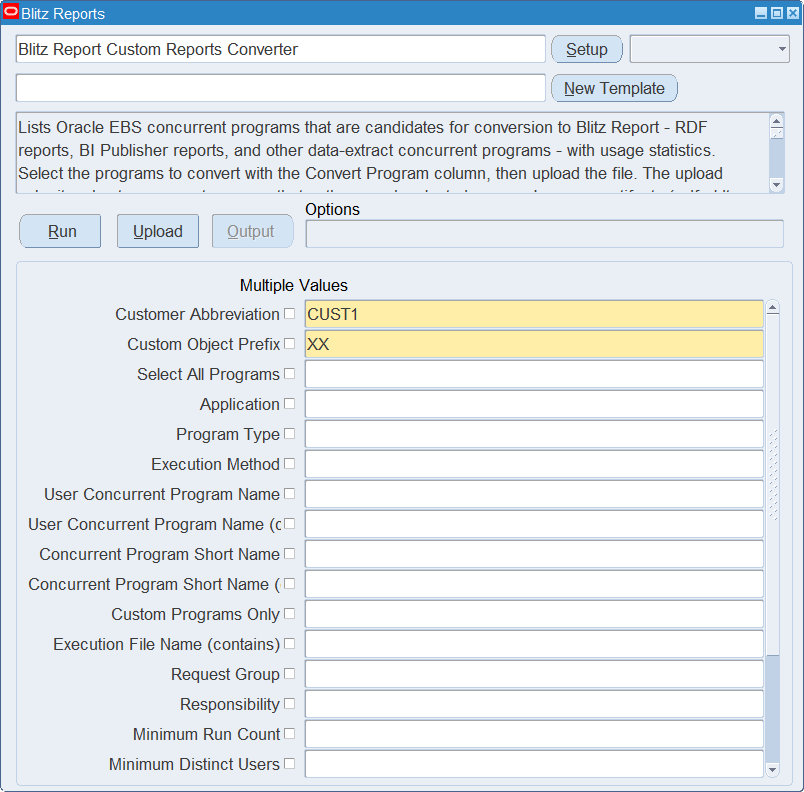
From the Blitz Report launcher, open Blitz Report Custom Reports Converter.
Step 2 — Set the parameters
Enter your Customer Abbreviation and, if needed, narrow the list with the optional filters. The Custom Object Prefix defaults to XX. Every parameter except the first two is optional — leave one blank to ignore it. Parameters with a Multiple Values checkbox accept several entries at once.
| Parameter | Required | Default | Notes |
|---|---|---|---|
| Customer Abbreviation | Yes | — | 1–5 alphanumeric characters (e.g. ACME), agreed with Enginatics. |
| Custom Object Prefix | Yes | XX | Override only if your custom objects don’t follow Oracle’s XX convention. Several prefixes can be entered as a comma separated list, for example XX,APL; every one of them is used when collecting your custom dependencies. |
| Select All Programs | No | — | Yes downloads every listed program with Convert Program set to Yes; set it to No on the ones to leave out. |
| Application | No | — | Restrict to one or more EBS applications (General Ledger, Payables, and so on). |
| Program Type | No | — | Filter to RDF / BI Publisher / Excel4apps / Data Extract / Custom View / Noetix View. Leave blank for all. |
| Execution Method | No | — | The executable’s method — Oracle Reports, PL/SQL Stored Procedure, Host, SQL*Loader and so on. Finer grained than Program Type. |
| User Concurrent Program Name | No | — | Pick one or more programs by their user-visible name. |
| User Concurrent Program Name (contains) | No | — | Search on part of the user-visible name. The list of values only suggests values — you can type any text. |
| Concurrent Program Short Name | No | — | Pick one or more programs by their internal short name, which is also the name used for the gathered source files. |
| Concurrent Program Short Name (contains) | No | — | Search on part of the short name — handy when your developments share a module abbreviation. |
| Custom Programs Only | No | — | Set to Yes to list only programs whose short name starts with any of the prefixes entered in Custom Object Prefix. Usually the quickest way to isolate your own developments. |
| Execution File Name (contains) | No | — | Search on part of the executable file name. Useful to find every program sharing the same report file, which only needs converting once. |
| Request Group | No | — | Lists the programs a request group can run, whether assigned individually or through one of its applications. |
| Responsibility | No | — | Lists the programs a responsibility can run through its request group — a natural way to scope a migration to one department. |
| Minimum Run Count | No | 1 | Hides programs that were never run on your instance. Set to 0 to include them. Does not apply to custom views. |
| Minimum Distinct Users | No | — | Only lists programs run by at least this many different users, which separates widely used reports from one-off developments. Does not apply to custom views. |
| Last Run Date From | No | — | Restrict to programs last run on or after this date. Does not apply to custom views. |
| Last Run Date To | No | — | Restrict to programs last run on or before this date. Does not apply to custom views. |
| Include Custom Views | No | — | Set to Yes to additionally list custom database views whose name starts with the Custom Object Prefix, so their definitions can be gathered — for example the views that Discoverer-migrated reports are based on. Leave blank to list concurrent programs only. |
| Custom View prefix | No | — | Narrows the custom views listed to those whose name starts with this text. A comma separated list is accepted here too. Only applies when Include Custom Views is set to Yes. |
| Include Noetix Views | No | — | Yes also lists the NoetixViews query views, as program type Noetix View. |
The program filters — the name and short name searches, Custom Programs Only, Execution Method, Execution File Name, Request Group and Responsibility — apply to concurrent programs only. They never hide custom views, which you control separately with Include Custom Views and Custom View prefix.
Step 3 — Download the template
Click Run / Download. Blitz Report generates an Excel template with one row per candidate concurrent program, including Application, Program, Short Name, Program Type, Executable, Method, Output Format, Run Count, Distinct Users, and the first/last run dates — everything you need to decide which programs are worth migrating.

Step 4 — Mark “Convert Program = Yes”
Set Convert Program = Yes on each program you want migrated. The Customer Abbreviation and Custom Object Prefix are pre-filled on every row.

Step 5 — Save and upload
Upload the file with the standard Blitz Upload (Validate and Save). The upload request runs and waits for the gather to complete so the result file can report per-program status. As a rough guide: ~3–5 seconds per BI Publisher program, ~5–15 seconds per RDF program, ~1–2 seconds per data-extract program. A batch of 10 programs typically completes in under a minute.
Step 6 — Two outputs to look for
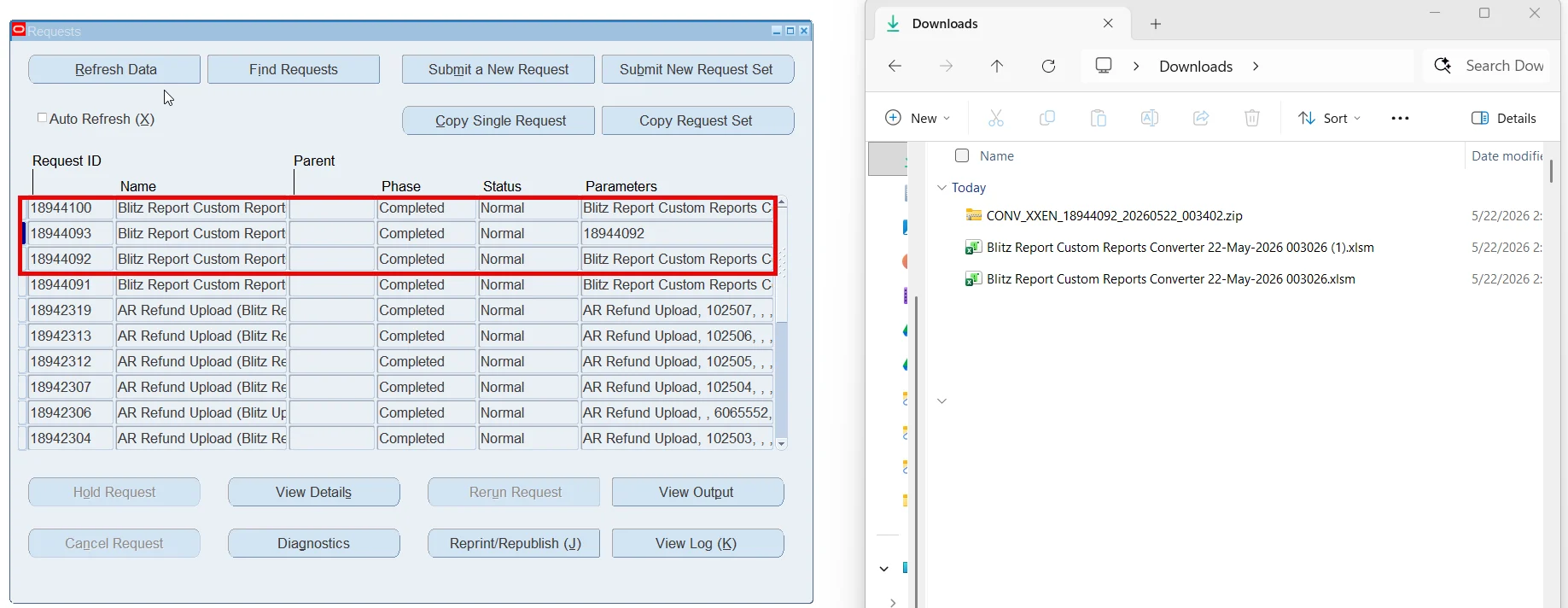
In your concurrent request list, two requests complete:
- The upload itself — produces the result Excel file, with a per-row Status, your Convert Program selection, and a Gather Status (e.g. “7 file(s) written”).
- The gather — its output is the zip named
CONV_<ABBREV>_<batch>_<timestamp>.zip.
Step 7 — Send the zip to Enginatics
Download the zip from the gather request output and send it to Enginatics (or attach it to your support ticket). That’s the end of the customer-side work — we take it from there.
What’s inside the zip
CONV_ACME_5923949_20260519_132951.zip
├── manifest.txt              ← customer abbreviation, prefix, batch id, gather date, program list
├── gather_summary.txt        ← per-program gather status
├── import_reports.sh         ← auto-generated installer Enginatics runs
└── <PROGRAM_SHORT_NAME>/      ← one folder per converted program
     ├── <SHORT>.ldt           ← concurrent program definition
     ├── <SHORT>_ds.ldt        ← BI Publisher data source (BIP only)
     ├── <SHORT>_tpl.ldt       ← BI Publisher template registrations (BIP only)
     ├── *.rtf                  ← BIP template content (BIP only)
     ├── <EXEC_FILE>.rdf       ← Oracle Reports binary (RDF only)
     ├── <EXEC_FILE>_rdf.xml   ← rwconverter XML (RDF only)
     └── <owner>.<object>.<type>.sql   ← DDL of every custom dependency
When you select a custom view, its folder holds the view definition (<owner>.<view>.view.sql) and the DDL of everything it depends on. A Noetix view, or a program that uses one, additionally gets a noetix/ sub-folder with the Noetix views and packages it is built on.

Common questions
What is “Customer Abbreviation” for?
When Enginatics receives your zip, your programs are installed on our analysis instance namespaced with your abbreviation, so multiple customers’ programs never collide. We agree the abbreviation with you upfront.
Why “Custom Object Prefix”? My custom packages don’t start with XX.
Oracle recommends prefixing custom objects with XX, but not everyone follows it. This tells the converter what prefix to look for when collecting your custom dependencies. If your custom code uses CUST_, enter CUST. If you identify your custom objects with more than one prefix, enter them all as a comma separated list, for example XX,APL — a single run then collects the dependencies under every prefix, so there is no need for separate passes.
What is Include Custom Views for?
Set it to Yes when a report you’re converting is built on a custom database view — a common pattern for Oracle Discoverer migrations. The converter then also lists your custom views (those whose name starts with the Custom Object Prefix); tick the ones you need and their definitions, together with everything they depend on, are gathered into the same zip.
There are thousands of programs on my instance. How do I find the ones worth converting?
Start with Custom Programs Only = Yes, which keeps only the programs whose short name starts with your Custom Object Prefix. From there, Minimum Run Count and Minimum Distinct Users separate the reports people actually use from one-off developments, and Last Run Date From / To narrow to a period. If a particular department is being migrated first, Responsibility or Request Group lists just the programs they can run.
Why does the upload run for a little while?
It waits for the gather to finish so the result file can show per-program status. Batches with many RDF reports take a few minutes; smaller batches complete in under a minute.
What if I select a report by mistake?
Run the upload again with a corrected selection. Each run produces its own zip — just send us the right one.
How does Enginatics use the zip?
We install your custom programs and their dependencies on our analysis instance, then run our automated converter to produce Blitz Reports, validate and test them, and tune their performance. You receive the resulting Blitz Reports back.
Troubleshooting
| Symptom | Cause | What to do |
|---|---|---|
| “Invalid Customer Abbreviation” on submit | Non-alphanumeric, or more than 5 characters | Re-run with 1–5 alphanumeric characters (e.g. ACME). |
| “Invalid Custom Object Prefix” on submit | Doesn’t start with a letter, or uses unsupported characters | Use 1–10 characters starting with a letter (A–Z, 0–9, underscore). When entering several prefixes, separate them with commas and apply the same rule to each one. |
| Rows show “0 file(s) written” in Gather Status | Your custom objects don’t use the prefix you entered, or they use a further prefix you haven’t listed | Re-run with the correct Custom Object Prefix, adding any additional prefixes as a comma separated list. |
| A row shows Status = Error | The program could not be processed (e.g. it no longer exists) | Check the Message column on that row. |