
AR Refund Upload refunds customer credit balances in Oracle Receivables from Excel. Each row refunds either an open credit memo or the unapplied / on-account balance of a customer cash receipt, by applying it to the operating unit’s Credit Memo Refund receivables activity. Receivables then raises a Payment Request invoice in Payables, so the money is paid out through the normal Payables validation and payment cycle.
When to use it
- A customer has an open credit memo (for example an overpayment recorded as a credit memo) and wants the money back.
- A customer paid more than they owed, or paid without reference to an invoice, and the unapplied or on-account cash should be returned.
- You want to review and clear many customer credit balances in one pass rather than one at a time in the Transactions or Receipts window.
Before you start
- Each operating unit that processes refunds has an active receivables activity of type Credit Memo Refund (Receivables > Setup > Receipts > Receivables Activities). The same activity is used for credit memo and receipt refunds.
- Your Receivables approval limit for credit memo refunds covers the amounts you refund. The limit is always checked.
- The Apply GL Date you use falls in an open Receivables period.
Step 1 – Set the parameters
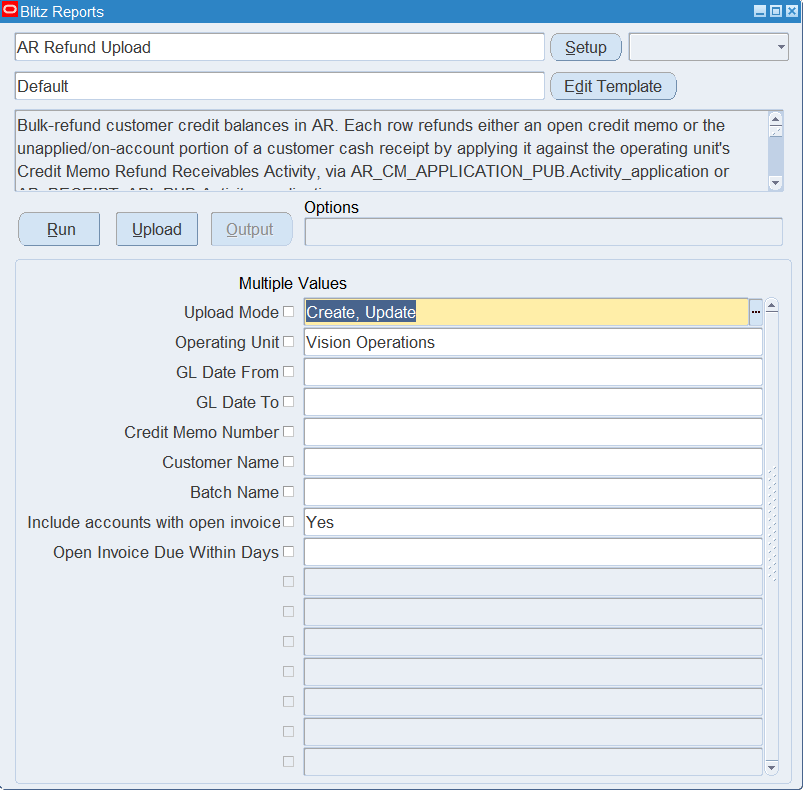
Open AR Refund Upload in Blitz Report and set the parameters. In Create, Update mode the download lists every refundable credit memo and unapplied receipt that matches them, so the sheet becomes a review-and-select list.
| Parameter | Meaning |
|---|---|
| Upload Mode | Create, Update (default) downloads the refund candidates; Create opens an empty sheet for entering refunds manually. |
| Operating Unit | Limits credit memos and receipts to one operating unit. |
| GL Date From / GL Date To | Credit memo GL date range. |
| Credit Memo Number | One or more specific credit memos. |
| Customer Name | Customers that have a refundable credit memo or unapplied receipt. Limits both credit memos and receipts. |
| Batch Name | One or more Receivables transaction batches of the credit memos. |
| Include accounts with open invoices | By default a credit memo is listed only when the customer account has no open invoices in the operating unit. Set to Yes to list those customers’ credit memos as well, for example when the open invoices are disputed. Receipts are listed either way. |
| Open Invoice Due Within Days | Used only when the parameter above is Yes. A credit memo is then hidden only if the customer has an open invoice due within this number of days; invoices due later are ignored. Leave blank to list all. |
Step 2 – Run to download the Excel file
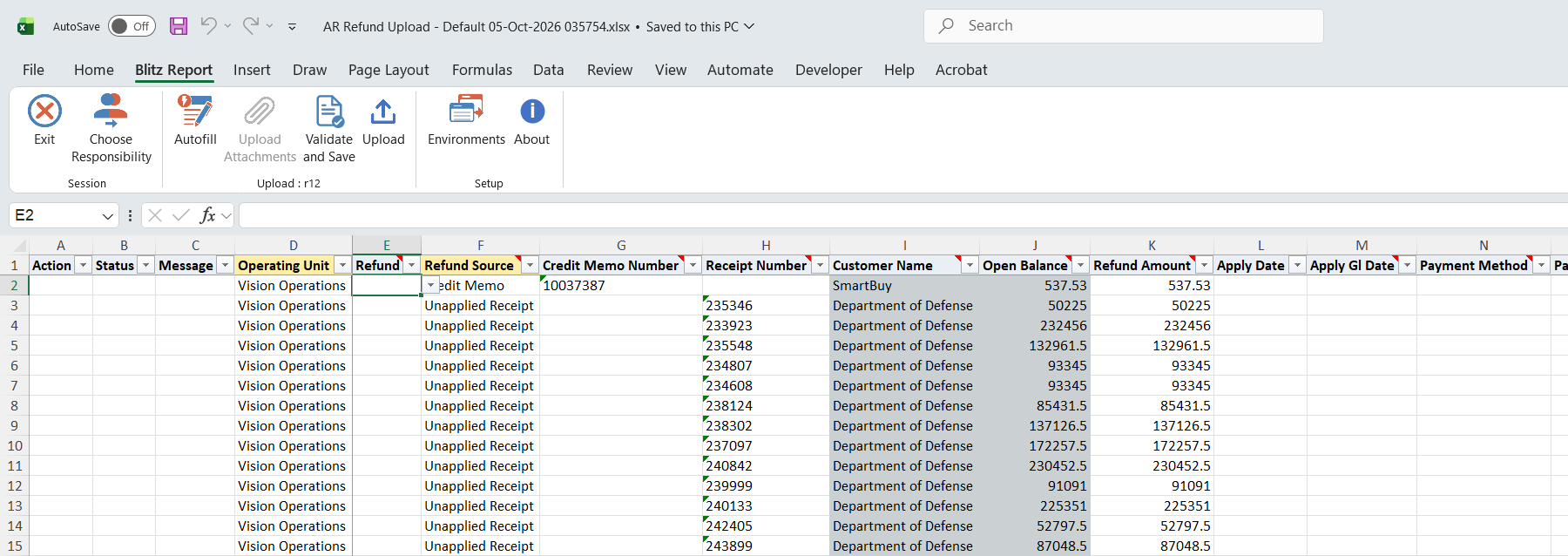
Click Run. The Excel file downloads and opens with one row per refundable credit memo (Refund Source Credit Memo) and per unapplied receipt (Refund Source Unapplied Receipt), showing the Customer Name and Open Balance. Refund Amount is pre-filled with the open balance.
Step 3 – Mark the rows to refund
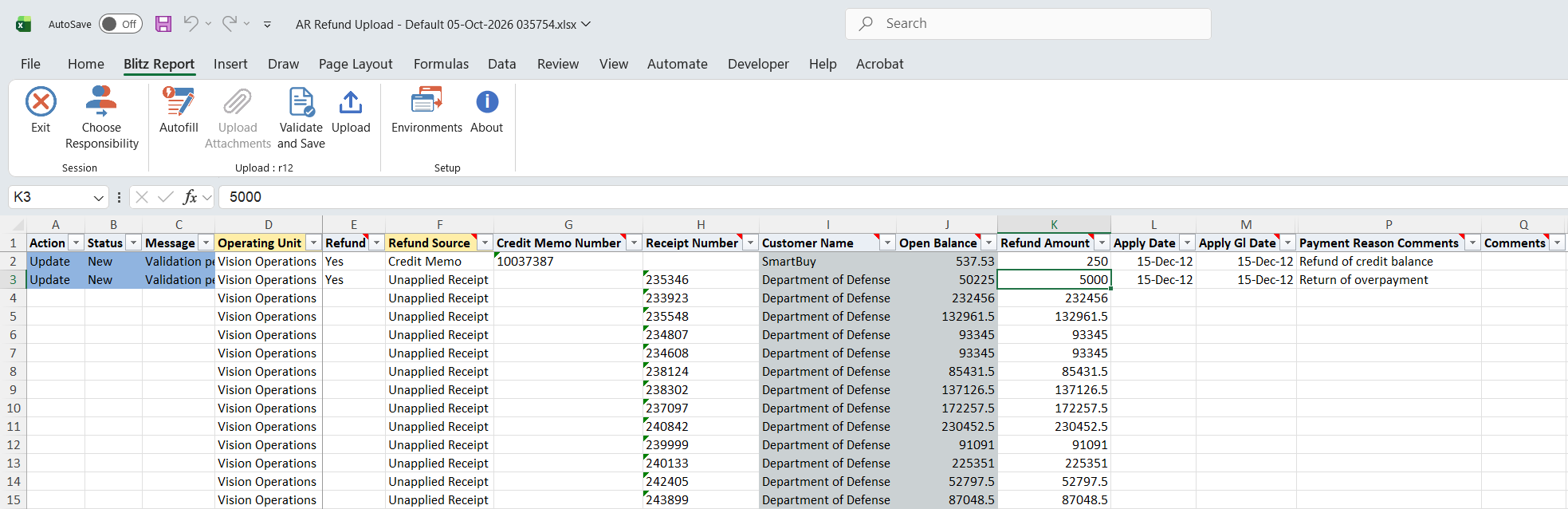
Set Refund to Yes on each row to refund; rows left blank are not processed. Enter a smaller Refund Amount for a partial refund: it must be greater than zero and no more than the Open Balance. Apply Date and Apply GL Date default to today when left blank; the GL date must be in an open Receivables period. Payment Method, Pay Group and Payment Reason Comments are optional and are passed to the Payables Payment Request; Comments is recorded on the Receivables application.
To add a refund manually, enter the Operating Unit and Refund Source, then pick the Credit Memo Number or Receipt Number from the list, which follows the Refund Source. Open Balance and Refund Amount fill in from the selected document.
Step 4 – Validate and Save
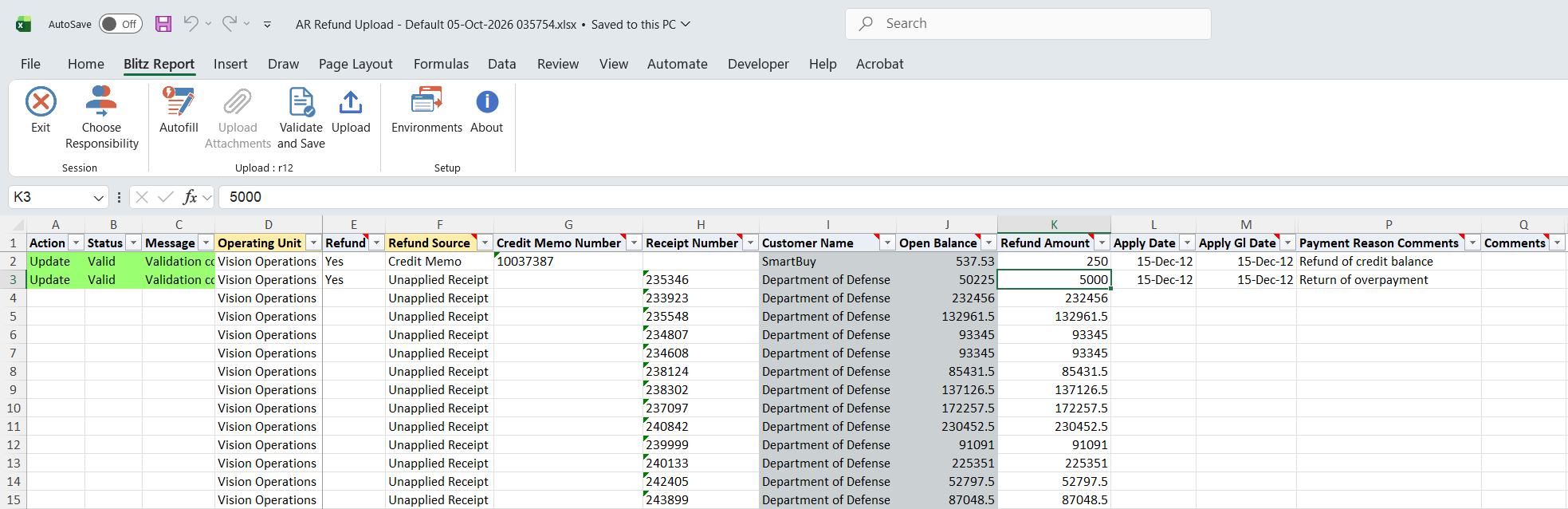
Click Validate and Save. This checks for missing required values, that a Credit Memo Number or Receipt Number matches the Refund Source, and that the Refund Amount is positive and within the open balance, then saves the file. Correct any rows it flags before uploading.
Step 5 – Upload the file
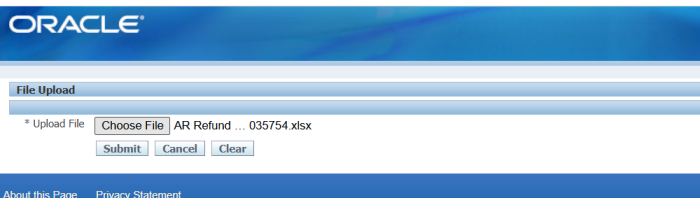
In Blitz Report click Upload and select the saved file. This submits the upload request, which applies each selected credit memo or receipt to the Credit Memo Refund activity.
Step 6 – Review the result report
When the request completes, a result report opens listing every uploaded row with its status and message, for example Credit memo refunded for 250. or Receipt refunded for 5000.

What’s produced
- A refund application of each credit memo or receipt against the operating unit’s Credit Memo Refund activity, reducing its open balance by the Refund Amount.
- A Payment Request invoice in Payables (source Receivables) for each refund, payable to the customer, which then goes through invoice validation and a payment process request.
- A result report listing every row with a status (success or error) and a message.
Common questions
Credit memo or unapplied receipt – which refund source do I use?
Credit Memo when the credit sits on an open credit memo; Unapplied Receipt when a customer receipt has an unapplied or on-account balance to return.
Can I refund part of a balance?
Yes. Enter a Refund Amount smaller than the Open Balance; the remainder stays open on the credit memo or receipt.
Does the money leave immediately?
No. The upload records the Receivables refund and the Payment Request. The payment is issued later through the standard Payables payment cycle.
Why is a credit memo missing from the download?
By default credit memos of customers with open invoices in the operating unit are not listed. Set Include accounts with open invoices to Yes, optionally with Open Invoice Due Within Days, to list them.
What happens to downloaded rows I do not mark?
Nothing. Only rows with Refund = Yes are refunded; a changed row without Refund = Yes is reported as not selected for refund.
Troubleshooting
| Message | Cause | What to do |
|---|---|---|
| No Credit Memo Refund activity is defined for this operating unit. | The operating unit has no active Credit Memo Refund receivables activity. | Define one in Receivables > Setup > Receipts > Receivables Activities. |
| Credit Memo Number is required when Refund Source is Credit Memo. / Receipt Number is required when Refund Source is Unapplied Receipt. | The document number for the chosen Refund Source is blank. | Pick the Credit Memo Number or Receipt Number. |
| Refund Amount must be greater than zero. | Zero or negative Refund Amount. | Enter a positive amount. |
| Refund Amount … exceeds the open credit memo balance … / exceeds the unapplied receipt amount … | The amount is more than is still open, for example after another refund or application. | Download again and enter an amount no greater than the Open Balance. |
| Credit memo not found, already closed, or has no remaining credit balance in this operating unit. | The credit memo was applied or refunded since the download, or belongs to another operating unit. | Download again to see the current candidates. |
| Receipt is fully applied or has no unapplied/on-account amount. | The receipt balance was applied since the download. | Download again to see the current candidates. |
| Approval limit or GL period message from Receivables | The refund exceeds your credit memo refund approval limit, or the Apply GL Date is not in an open period. | Have a user with a sufficient limit upload the row, or use a date in an open Receivables period. |