
1 Purpose
2 Process Parameters
3 Pre-defined Templates
4 Excel Upload Template
5 Upload Process
6 Upload Process Concurrent Requests
Overview of the PA Project Event Upload process
1. Purpose
The PA Project Event Upload allows users to create new Project Billing and Revenue Events in excel and upload these into Oracle EBS Projects module.
Project and Billing events can be uploaded against the Projects belonging to the Operating Units accessible to the responsibility in which the PA Project Event Upload process is run.
This upload does not support the update of existing project events.
2. Process Parameters
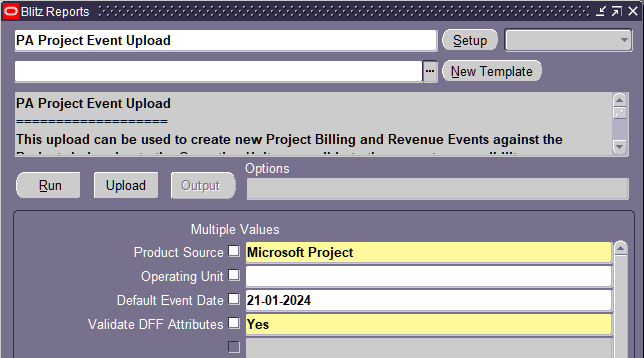
| Product Source | Mandatory. The Product Source to be used against the uploaded Project Events |
| Operating Unit | Optional. If the Operating Unit parameter is specified, then the upload will be restricted to Projects within the specified Operating Unit only. |
| Default Event Date | Optional. This date will default as the event date in the generated excel template but can be overridden. |
| Validate DFF Attributes | Mandatory. Default Value: Yes This determines if Oracle should validate the DFF Attributes Rules:
If you specify No to this parameter, the DFF Validations will be bypassed any DFF Attribute values specified in the Excel template will not be loaded. The Oracle API will assign null values to the event attribute columns. |
Note: The parameter values specified when you run the PA Project Event process to generate the excel are applicable to the upload of that excel as well.
3. Pre-defined Templates
There are no pre-defined templates with this upload. Users can create their own templates as per their requirements.
By default, when no template is specified when running the upload process, all available fields are included in the generated template.
4. Excel Upload Template
By default, when no template is specified when running the upload process, all available fields are included in the generated template. Users can create their own templates as per their requirements.





The Action, Status and Message columns are used by the upload process to indicate the current status of the row. For this upload, the Action will always show as Create. The possible values for these columns are shown below:
| Before Upload | |
| Entering data into a new row |  |
| On Save – If there is a validation error (like missing required Data |  The message will indicate the reason the validation failed. Note: If you attempt to upload an excel file contain rows with an Invalid Status, these rows will be ignored by the upload process. |
| On Save – If validation is successful | 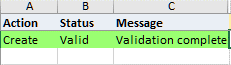 |
| After Upload | |
| Row was upload successfully | 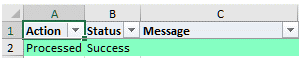 |
| Row was not processed successfully |  The message will indicate the reason the upload of this row failed. |
The columns in the Excel template whose heading are highlighted in Yellow are required columns which must have a value specified before you can upload the row:

The columns that show a dropdown symbol to the right of the column, have List of Values (LOV) associated with them. The LOV can be activated by double clicking in the cell, or by partially entering a value and tabbing out of the cell:

Some of the cells in the Excel will default automatically based on the data entered in other cells.
For example:
- The event date will default automatically from the Default Event Date parameter specified when the process was run.
- The Project Name, Project Functional Currency, and Project Current will default automatically from the selected Project.
The Task Name will default automatically from the selected Task.
5. Upload Process
This section outlines the overall process for performing a Blitz Upload
| Step | Initiated From | Action |
| 1 | EBS Blitz Report Form | Generate the Upload Excel Template.
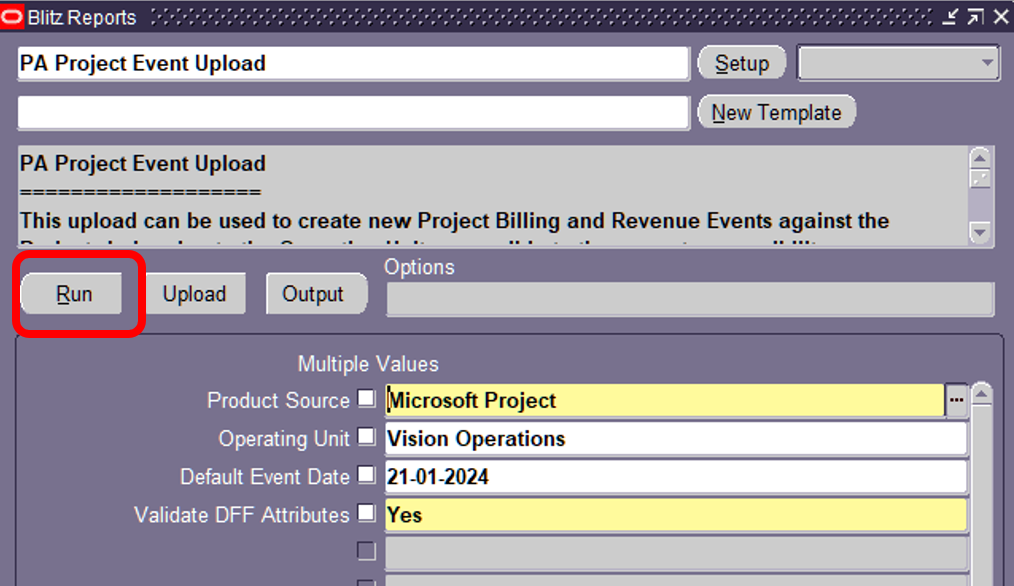 This will generate the excel template in which the user will enter the date to be uploaded. |
| 2 | Excel | Enter the data as required into the generated Excel. Remember to save the excel after data entry is complete and all rows show the status valid: 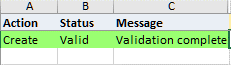 |
| 3 | EBS Blitz Report Form | Initiate the Upload Process.
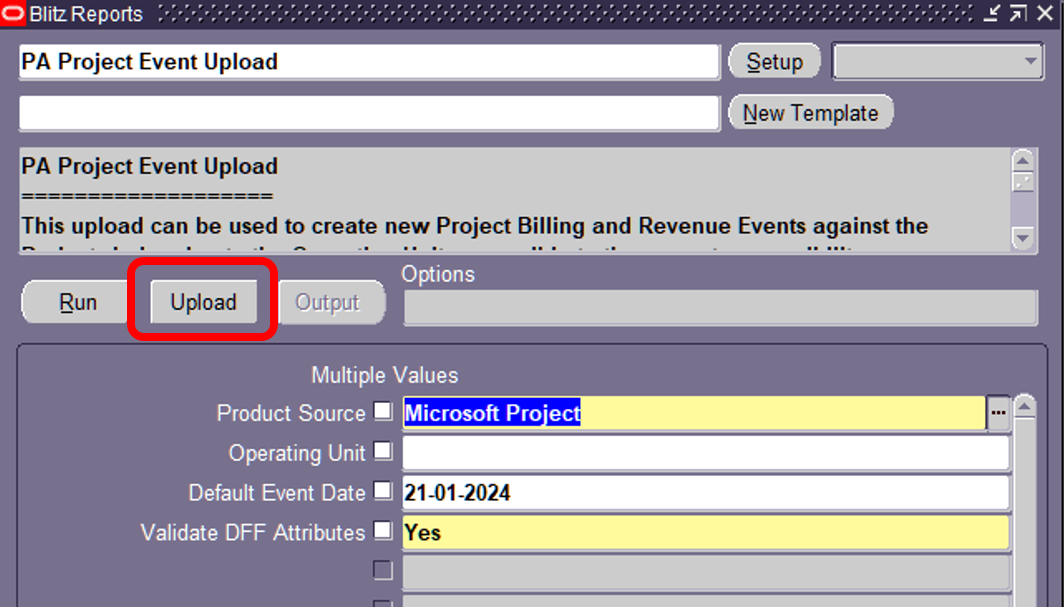 This will open a browser window where you can upload the Excel file to the server for processing. |
| 4 | Browser Window | Upload the Excel File to the server.
   |
| 5 | Excel | Review the Upload results.

 Note: Any errors can be corrected in this new excel, and the upload process repeated using this excel instead of the original. |
6. Upload Process Concurrent Requests
Blitz Reports and Blitz Upload are run as concurrent requests. For a Blitz Upload Process, 3 concurrent requests are submitted. One when the process is initially run to generate the template, and two when the upload process is initiated.

| Stage | Purpose | Request Output |
| Initial Run | Program: XXEN_REPORT Download data (applicable to uploads that allow updates) and generate the excel template. | The excel template to be used to enter/update the date for upload |
| Upload | Program: XXEN_UPLOAD Performs the Upload processing of the data into Oracle EBS | None. The log file of this request will show detailed debugging information from the upload process if the profile option Blitz Report Debug is set to Yes. Note: When profile option Blitz Report Debug is set to Yes, the log file of each request is opened automatically instead of the output file. In this case use View Output of the request in order to open the generated excels manually. |
| Upload | Program: XXEN_REPORT Generates the excel containing the results of the Upload | The excel template containing the rows uploaded and the status of the upload process for each row uploaded. |