
PA Budget Upload creates and updates project budgets from Excel: working budgets of a budget type, and the current working versions of the financial plans and forecasts maintained in the Projects HTML pages. It downloads working budgets for editing, adds, changes and deletes their budget lines with the Oracle Projects budget APIs, can baseline each budget after the upload, and returns a result report with the outcome of every row.
When to use it
- Load a new budget or forecast from a spreadsheet in one step, line by line for each task, resource and period.
- Create the next working budget from a copy of a baselined version or of the current working budget, and change it in Excel.
- Change the amounts and quantities of many budget lines at once, add lines or delete them.
- Baseline the working budget as soon as its lines are uploaded.
Before you start
- You are signed in to a responsibility with access to the operating units of the projects and to the upload in Blitz Report.
- The project type of the project allows cost or revenue budget entry.
- The budget types, budget entry methods and resource lists are set up. For a plan type, the plan type is added to the financial planning options of the project.
- To update a budget, the project has a working budget of that budget type or a current working version of that plan type. Create mode creates one.
Step 1 – Set the parameters
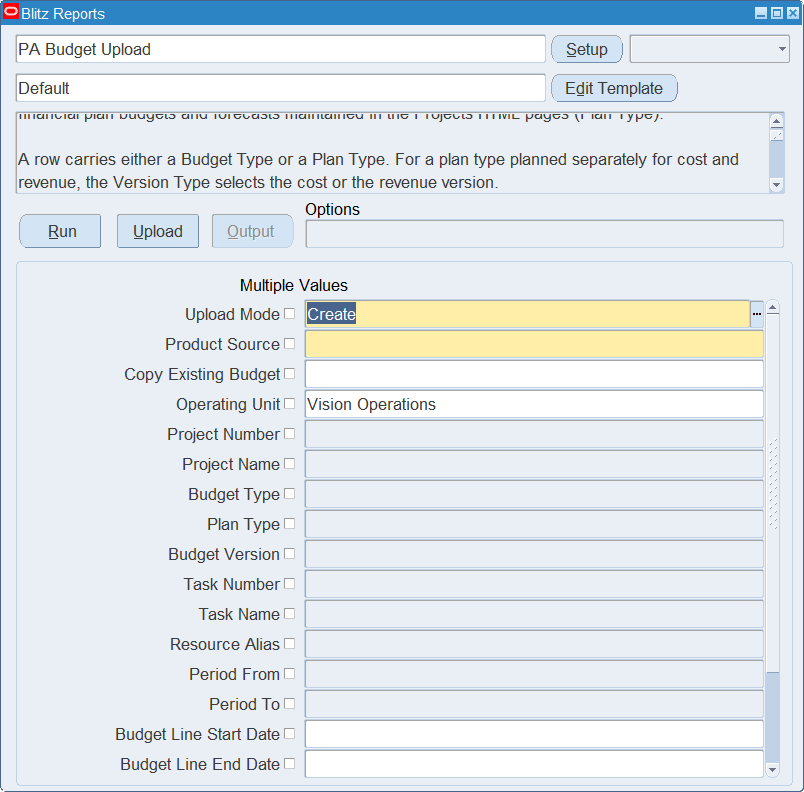
Open PA Budget Upload in Blitz Report and set the parameters. Apart from Upload Mode and Product Source, they decide which budget lines are downloaded.
| Parameter | Meaning |
|---|---|
| Upload Mode | Create (default) creates new working budgets and gives you an empty sheet, or the lines of an existing version with Copy Existing Budget. Create, Update downloads the working budgets for editing. |
| Product Source | Required. The product source recorded on the budgets the upload creates or changes. |
| Copy Existing Budget | Create mode only. Yes downloads the lines of the selected Budget Version as new rows, to create a new working budget from a copy. |
| Operating Unit | Restricts the download to the projects of the operating unit, and is the operating unit of new rows. Defaults to your default operating unit. |
| Project Number, Project Name | Restricts the download to the project. |
| Budget Type | Restricts the download to the budgets of the budget type. |
| Plan Type | Restricts the download to the budget or forecast versions of the financial plan type, as an alternative to Budget Type. |
| Budget Version | With Copy Existing Budget, the version to copy: the number of a baselined version, or Working or Submitted for the current working budget. |
| Task Number, Task Name | Restricts the download to the lines of the task. |
| Resource Alias | Restricts the download to the lines of the resource. |
| Period From, Period To | Restricts the download to the lines of the periods in the range. Period To defaults to Period From. |
| Budget Line Start Date, Budget Line End Date | Restricts the download to the lines with this start date, or with this end date. |
| Budget Line Active On Date | Restricts the download to the lines whose start and end dates include the date. |
| Sort Precedence 1, 2, 3 | The order of the downloaded lines within each budget: Task Number, Task Name, Date or Resource Alias. The defaults are Task Number, Date and Resource Alias. |
Step 2 – Run to download the Excel file
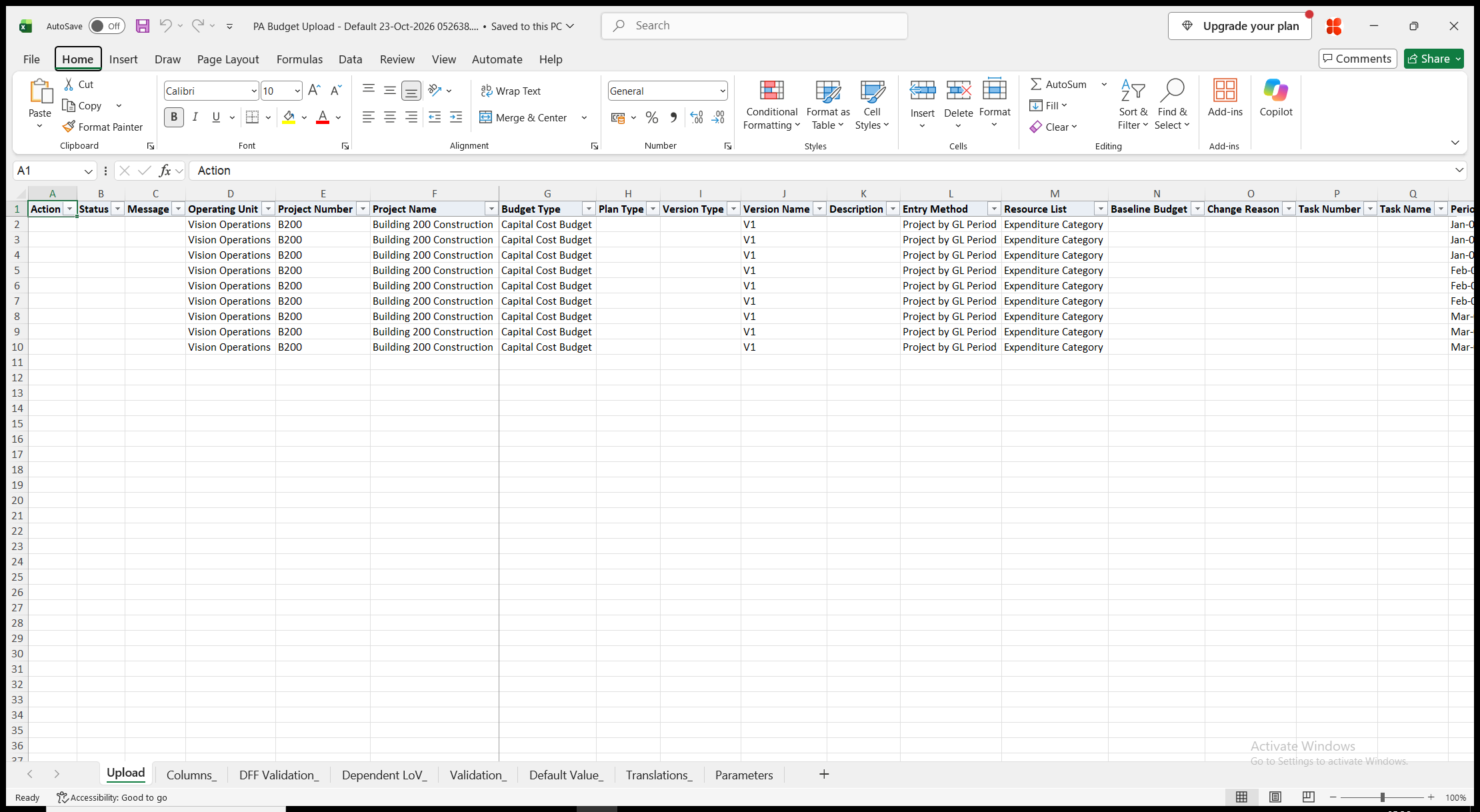
Click Run. With Create, Update, the file has one row per budget line of the working budgets of a budget type (status Working or Submitted) and of the current working versions of a plan type. The budget columns repeat on every line of the budget. Operating Unit, Project Number, Project Name, Task Number, Task Name, Period Name, Start Date, Resource Alias and Unit Of Measure are read-only on downloaded rows. With Create, the sheet is empty, or with Copy Existing Budget it holds the lines of the selected version as new rows.
Step 3 – Enter the budgets and budget lines
Change the downloaded rows, or add rows for new budget lines. Each row is one budget line. The rows of a budget share its Project Number and Budget Type, or its Plan Type and Version Type, and the budget values are taken from the first row of the budget.
- Operating Unit and Project Number – the project. Project Name is filled in from the project number.
- Budget Type, or Plan Type for a budget or forecast maintained in the Projects HTML pages. Version Type selects the Cost Plan or Revenue Plan of a plan type planned separately for cost and revenue; otherwise it is filled in from the plan type setup of the project.
- Version Name, Description and Change Reason of the budget version.
- Entry Method and Resource List – for a budget type they default from the latest baselined budget of the project and budget type, or else from the project type. A plan type takes its resource list from the plan type setup of the project.
- Baseline Budget – Yes baselines the budget after its lines are uploaded.
- Task Number – the task of the line. It is required or not allowed depending on the entry level of the entry method or plan type, and the list shows the tasks at that level. Task Name is filled in.
- Period Name, or Start Date and End Date – the GL or PA period of a time phased budget, or the dates of a budget phased by date range. Leave Period Name blank when the entry method or plan type is not time phased.
- Resource Alias – the resource of the resource list. In a hierarchical resource list the alias carries its path in the hierarchy, separated by the pipe character (|). Unit Of Measure is filled in from the resource.
- Raw Cost, Burdened Cost, Revenue and Quantity – the amounts the budget type and entry method, or the version type of a plan type, allow. Enter at least one.
- Line Description of the budget line.
- Delete This Line – Yes removes the downloaded line from the working budget. Available in Create, Update mode.
Step 4 – Validate and Save
Click Validate and Save. This checks for missing required values and for values that are not in their lists, and checks each line against its entry method or plan type: whether a task is required, the period or dates, the amounts allowed and that at least one amount is entered. It marks the rows Valid and saves the file. Correct any rows it flags before uploading.
Step 5 – Upload the file
In Blitz Report click Upload and select the saved file. The upload request processes the rows in order. The first row of each budget creates or updates the budget, then each budget line is saved on its own, so a rejected line does not affect the other lines. When the budget itself is rejected, all its rows are rejected with the same message. A budget with Baseline Budget set to Yes is baselined after all its rows are processed, provided none of its lines was rejected.
Step 6 – Review the result report
When the request completes, a result report opens listing every uploaded row with its status and a message, for example Baselined Version 2 created. on the rows of a baselined budget, Budget Line Deleted for a deleted line, or the reason the row was rejected. The result report shows the values as they were saved in Oracle.
What’s produced
- Working budgets of a budget type with their budget lines. In Create mode the uploaded budget replaces the existing working budget of the project and budget type.
- Current working versions of a plan type with their budget lines. In Create mode the uploaded version replaces the current working version and takes the planning level, time phasing and resource list of the plan type setup of the project; in Update mode the version keeps its own setup.
- A baselined budget version for each budget with Baseline Budget set to Yes.
- A result report listing every row with a status (success or error) and a message.
Common questions
What happens to the existing working budget in Create mode?
It is replaced by the uploaded budget. To change it instead, use Create, Update. To start from its lines, use Copy Existing Budget with Budget Version Working.
How do I create a new working budget from a baselined version?
Set Upload Mode to Create, Copy Existing Budget to Yes, select the project, the Budget Type or Plan Type and the version number in Budget Version, and run. The lines of that version are downloaded as new rows. Change them and upload the file to create the new working budget.
How do I change the task, period or resource of a budget line?
These columns are read-only on downloaded rows. Set Delete This Line to Yes on the downloaded row and add a new row with the new values.
Can I change the entry method or resource list of a working budget?
Not in Create, Update mode, which keeps the budget’s own entry method and resource list. Upload the budget in Create mode with the new values; it replaces the working budget.
How do I upload a financial plan or forecast?
Enter the Plan Type instead of the Budget Type. For a plan type planned separately for cost and revenue, Version Type selects the cost or the revenue version.
Why was my budget not baselined?
A budget is baselined only when all its lines were saved. The result report shows Budget has not been baselined with the reason. Correct the rejected rows and upload them again with Baseline Budget set to Yes.
How do I enter descriptive flexfield values?
The budget and budget line attribute columns are not in the Default template. Add them to a template of your own.
Troubleshooting
| Message | Cause | What to do |
|---|---|---|
| Missing values for required field/s: … | A required column is blank, for example Resource List or Resource Alias. | Fill in the columns named. |
| Enter a Budget Type or a Plan Type. / Enter either a Budget Type or a Plan Type, not both. | The row has neither a budget type nor a plan type, or both. | Enter exactly one of them. |
| Version Type is required for this Plan Type. | The plan type is planned separately for cost and revenue. | Select Cost Plan or Revenue Plan in Version Type. |
| Plan Type … is not set up for project … | The plan type is not added to the financial planning options of the project. | Add the plan type to the project in the Projects HTML pages, or use another plan type. |
| Working Budget does not exist. You cannot create a new working budget in Update Mode. | A new row in Create, Update mode names a budget type or plan type without a working budget for the project. | Upload the budget in Create mode. |
| Budget Entry Method and/or Budget Resource List cannot be changed in Update Mode. | Entry Method or Resource List differs from the working budget. | Keep the downloaded values, or replace the budget in Create mode. |
| The Budget Entry Method and/or Budget Resource List differs to the first row of this budget. | Rows of the same budget carry different entry methods or resource lists. | Use the same values on all rows of the budget. |
| Task Number is required for this Budget Entry Method. / Task Number should not be entered for this Budget Entry Method. | The entry method or plan type budgets by task, or at project level. | Enter or clear the Task Number. |
| Period Name or Start/End Date are required for this Budget Entry Method. / Period Name and Start/End Date should not be entered for this Budget Entry Method. | The period does not fit the time phasing of the entry method or plan type. | Enter a Period Name or Start Date and End Date for a time phased budget, and none for a budget that is not time phased. |
| Budget Entry Method does not allow Raw Cost to be passed. | The budget type and entry method, or the version type of a plan type, do not allow this amount. The same message names Burden Cost, Quantity or revenue instead. | Clear the amount. |
| Enter at least one amount (…) for this budget line. | All amount columns of the line are blank. | Enter one of the amounts named. |
| The start date or complete date of task and project is not specified. … | The budget is not time phased and the task or project has no start or completion date. | Enter the dates on the project or task first. |
| Budget has not been baselined: One or more Budget Lines are in error | Baseline Budget is Yes, but at least one line of the budget was rejected. | Correct the rejected rows and upload them again with Baseline Budget set to Yes. |