
INV Item Upload creates and updates inventory items from Excel, in the master organization and its child organizations, together with their category assignments, revisions and manufacturer part numbers. It downloads existing items for editing, imports the rows through Oracle’s Import Items program with its standard validations, and returns a result report with the outcome of every row.
When to use it
- Create new items in the master organization and assign them to child organizations in one file, entering the attributes yourself, from an item template or by copying an existing item.
- Change item attributes of many items at once, for example the item status, planner, buyer, lead times or accounts.
- Assign items to categories in several category sets, or change or remove category assignments.
- Create item revisions or change their labels, descriptions and reasons.
- Maintain manufacturer part numbers, ABC classes, catalog descriptive element values and description translations.
- Create items with automatically generated item numbers.
Before you start
- You are signed in to a responsibility with access to the inventory organizations and to the upload in Blitz Report. Opened from the Master Items form, the upload takes over the form’s organization and item as parameters.
- The values you reference exist: item templates, category sets and categories (see INV Category Upload), item catalogs, manufacturers (see INV Manufacturer Upload) and ABC assignment groups with their classes.
- Your Item Attribute Controls decide which attributes are maintained at master level. The comment on each attribute column heading shows its attribute group and control level, for example Main: Master Level.
- For automatic item numbering, an item catalog numbered by sequence, or your own numbering logic, is set up.
Choose a template
The default template is Default. You can also define your own template with only the item attributes you need.
| Template | Use it for |
|---|---|
| Default (default) | All item attributes of the Master Items form, with organization assignment, copy options, the item revision and one category assignment per row, without the descriptive flexfields. |
| Main Item Attributes | The Main, Inventory, Bills of Material, Costing and Work in Process attributes, with the category assignment and item catalog. |
| Item Status Update | Item Status and User Item Type, with Description and Long Description. |
| Item Status Attributes | Item Status with the status attributes, such as Stockable, Transactable, Purchasable, Build In Wip, Customer Orders Enabled and Invoice Enabled. |
| Purchasing and Receiving | The Purchasing and Receiving attributes. |
| Physical Attributes | Weight, volume, dimensions and the container and vehicle attributes. |
| General Planning | The General Planning attributes, such as Inventory Planning Method, Planner, Make Or Buy, min-max and order quantities, safety stock, sourcing and the vendor managed inventory attributes. |
| MPS/MRP Planning | The MPS/MRP Planning attributes with the time fences and lead times. |
| Order Management and Invoicing | The Order Management and Invoicing attributes. |
| Item Category Set Assignment | Category assignments, one row per category set, with Delete Category to remove an assignment. Upload Mode defaults to Update, and Category Set and Organization Code start blank, so the assignments of all category sets are downloaded. |
| Item Revisions | Item revisions with Revision Reason and the revision descriptive flexfield. |
| Item Revision History | All revisions of the selected items with their effective date, implementation date and engineering change order, to update the label, description or reason of existing revisions. Upload Mode defaults to Update. |
| Manufacturer Part Numbers | Creating, updating and deleting manufacturer part numbers with their descriptive flexfield. The Manufacturer parameter defaults to <exists>, so the items with manufacturer part numbers are downloaded. |
| ABC Classes | Assigning items to the ABC classes of ABC assignment groups, as an alternative to the INV Item ABC Assignment Upload for items created in the same upload. Upload Mode defaults to Update. |
| Catalog Descriptive Elements | The descriptive element values of the item catalog, as the Item Catalog window of the Master Items form. One row per element. Upload Mode defaults to Update. |
| Translations | The item description and long description in the other installed languages, as the Translations window of the Master Items form. One row per language. Upload Mode defaults to Update. |
| Item Descriptive Attributes | The item descriptive flexfield attributes. Upload Mode defaults to Update. |
| Automatic Item Numbering | Creating items with the item number assigned automatically: the Default columns with Upload Item Identifier and the item descriptive flexfield attributes. Upload Mode defaults to Create. |
Step 1 – Set the parameters
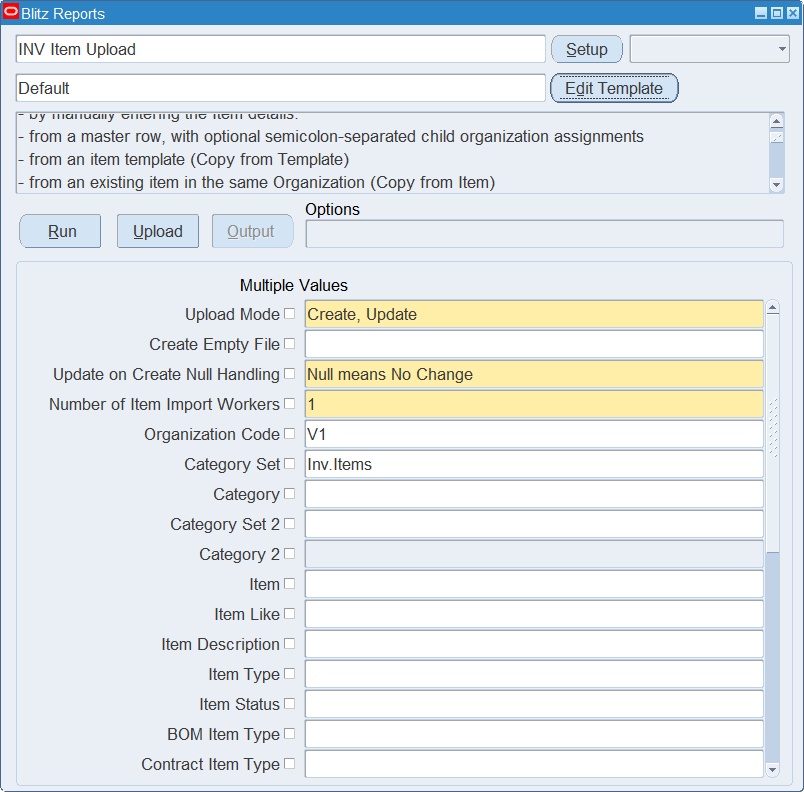
Open INV Item Upload in Blitz Report, choose the template and set the parameters. They decide which items are downloaded. In Create, Update and Update mode, enter at least one item restriction, such as Item Like, Item Status or Category: Organization Code and Category Set alone are not enough.
| Parameter | Meaning |
|---|---|
| Upload Mode | Create gives you an empty sheet for new items. Create, Update (default) also downloads existing items. Update downloads existing items and allows updates only. |
| Create Empty File | Yes gives you an empty sheet in Create, Update or Update mode, for pasting item details from another source. In Create mode the sheet is always empty. |
| Update on Create Null Handling | How blank cells are treated when a row with Action Create finds that the item exists and updates it: Null means No Change (default) keeps the stored value, Null means Clear clears it. |
| Number of Item Import Workers | The number of Import Items requests that run in parallel. Defaults to 1; increase it for large volumes. |
| Organization Code | Restricts the download to the organization. Defaults to your current organization. |
| Category Set | Downloads the items assigned to the category set, with their category in it. Defaults to the default category set of Inventory. Leave it blank to download every category assignment of the item as a row of its own. |
| Category | Restricts the download to the items in this category of the Category Set. |
| Category Set 2, Category 2 | A second category set and category the items must also be assigned to. |
| Item, Item Like, Item Description | Restrict the download to an item, to item numbers matching a pattern with % wildcards, or to a description (not case sensitive, wildcards allowed). |
| Item Type, Item Status, BOM Item Type, Contract Item Type, Make or Buy, Inventory Planning Method | Restrict the download to the items with these attribute values. |
| Buyer, Planner | Restrict the download to the items of the buyer or planner. <null> selects the items without one. |
| Manufacturer | Restricts the download to the items with manufacturer part numbers of the manufacturer. <exists> selects the items with any manufacturer part number, <null> the items without one. |
| Cross Reference Type, Cross Reference | Restrict the download to the items with an active cross reference of the type, or with this cross reference. |
| Revision Effective Date | The revision effective on this date is downloaded in the revision columns. Defaults to the current date. |
| Last Update Date From, Last Update Date To, Last Updated By | Restrict the download to the items last updated in the period or by the user. |
| Creation Date From, Creation Date To, Created By | Restrict the download to the items created in the period or by the user. |
Step 2 – Run to download the Excel file
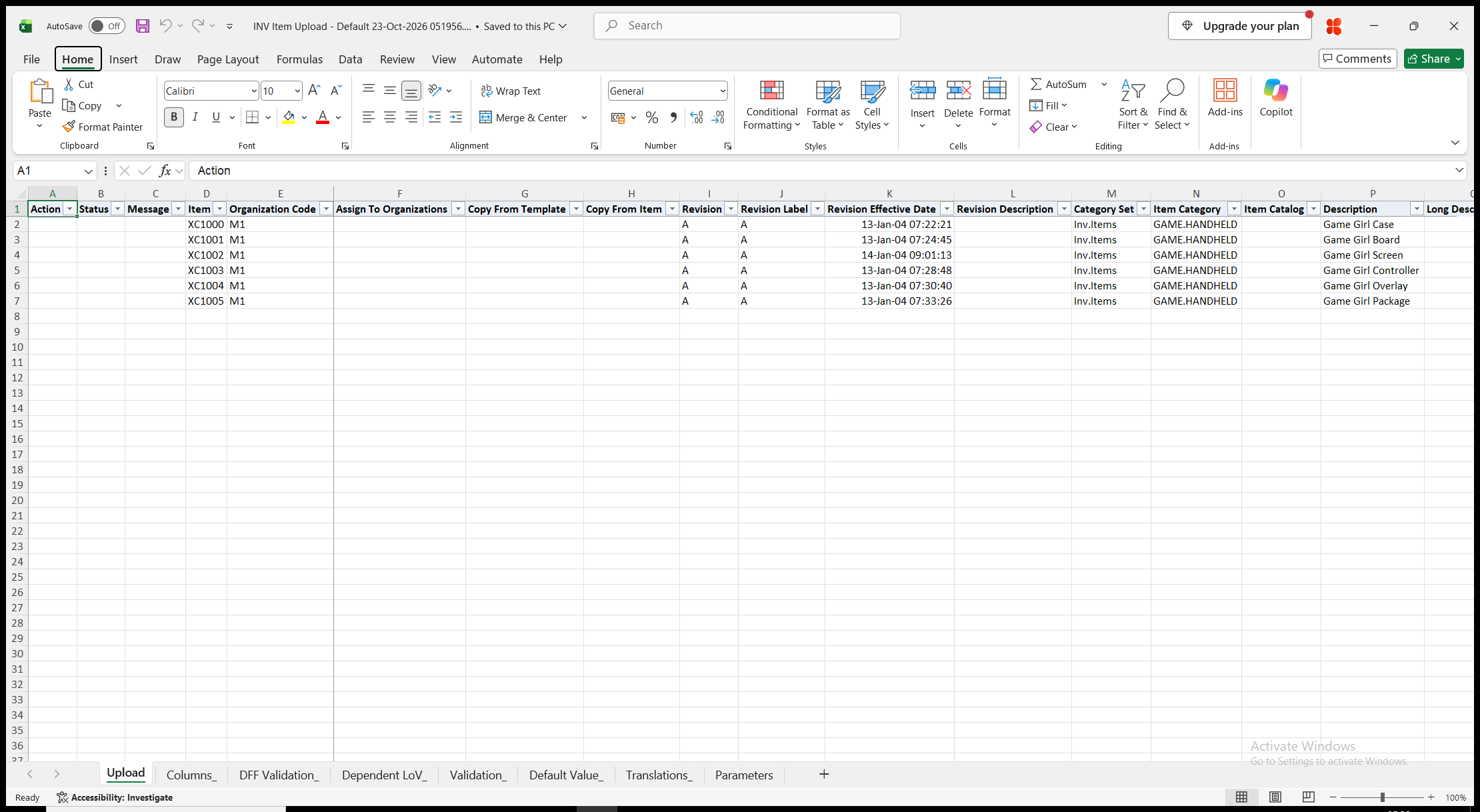
Click Run. With Create, Update or Update, the file has one row per item and organization, showing the revision effective on the Revision Effective Date and the item’s category in the Category Set. With Category Set blank, each category assignment is a row of its own. Item, Organization Code, Category Set, Revision and Revision Effective Date are read-only on downloaded rows; enter new items, category assignments and revisions on new rows. With Create, the sheet is empty.
Step 3 – Enter the items
Change the downloaded rows, or add rows for new items, organization assignments, category assignments and revisions. Create a new item in the master organization first; rows for its child organizations follow on later rows of the same file.
- Item and Organization Code – the item number and the organization of the row.
- Assign To Organizations – on the master organization row of a new item, the child organizations to assign it to, separated by semicolons, for example M1;M2. The row’s category of a category set controlled at organization level is assigned in these organizations too.
- Copy From Template or Copy From Item – creates the item from an item template, or as a copy of an existing item in the same organization; use one or the other. On a child organization row, leave both blank to assign the item from the master organization, or enter a template.
- Revision, Revision Label, Revision Effective Date and Revision Description – a new revision needs a Revision Effective Date, which defaults to the current date and time when you enter the Revision.
- Category Set and Item Category – one category assignment per row. Repeat Item and Organization Code on a further row for each additional category set. In a child organization, only category sets controlled at organization level can be assigned.
- Item Catalog – the item catalog group, maintained at master level.
- Description, Long Description, User Item Type, Item Status, Primary Unit Of Measure and the other Main attributes, followed by the attributes of the Inventory, Bills of Material, Costing, Asset Management, Purchasing, Receiving, Physical Attributes, General Planning, MPS/MRP Planning, Lead Times, Work In Process, Order Management, Invoicing, Service, Web Option and Process Manufacturing tabs of the Master Items form. Description fills in from the master item when you enter an existing Item.
Attributes controlled at master level are maintained on the master organization row: on a child organization row they are taken from the master item, whatever the cell contains. The other templates add Delete Category, Manufacturer, Mfg Part Num and Delete Mfg Part, Revision Reason, Abc Group and Abc Class, Catalog Element and Catalog Element Value, Translation Language with Translated Description and Translated Long Description, Upload Item Identifier, and the descriptive flexfield attributes, whose columns show the segment prompts of your flexfield setup.
Step 4 – Validate and Save
Click Validate and Save. This checks for missing required values and for values that are not in their lists, marks the rows Valid and saves the file. Correct any rows it flags before uploading.
Step 5 – Upload the file
In Blitz Report click Upload and select the saved file. The upload request checks the rows in order and then runs Import Items, first for the master organization rows and then for the child organization rows, and waits for it to complete. Manufacturer part numbers, ABC classes, catalog element values and translations are saved after the import, so they can refer to items created in the same file. A row that fails is rejected on its own; when the first row of an item in an organization fails, the item’s further rows in that organization are rejected with it.
Step 6 – Review the result report
When the request completes, a result report opens listing every uploaded row with its status and a message naming what was created, updated or deleted, for example Item Created, Category Assignment Created, Revision Created, or the reason the row was rejected. Errors returned by Import Items are followed by the names of the columns concerned in brackets. The result report shows the values as they were saved in Oracle.
What’s produced
- Items created or updated in the master and child organizations by Import Items, with their category assignments and revisions.
- Manufacturer part numbers, ABC class assignments, catalog descriptive element values and description translations for the items.
- A result report listing every row with a status (success or error) and a message.
Common questions
How do I create an item in several organizations?
Enter the master organization row first, with the child organizations in Assign To Organizations, separated by semicolons. Alternatively, add one row per child organization after the master row. On a child organization row you can enter organization level attributes, for example a category of a category set controlled at organization level; master level attributes always come from the master item.
Why was my change in a child organization ignored?
The attribute is controlled at master level, as the comment on its column heading shows. Change it on the master organization row; the child organizations take it from the master item.
How do I assign an item to another category set?
Add a row with the same Item and Organization Code and enter the Category Set and Item Category of the additional assignment.
How do I remove a category assignment?
Download the item, for example with the Item Category Set Assignment template, and enter Yes in Delete Category on the row of the assignment. In a child organization, only assignments of category sets controlled at organization level can be removed. Oracle does not remove an assignment of a mandatory category set the item must stay assigned to.
What does Update on Create Null Handling do?
In Create, Update mode, a row with Action Create for an item that already exists updates the item. The parameter decides whether the blank cells of such a row clear the stored values or leave them unchanged.
How do I add a revision?
Add a row with the item, a new Revision and its Revision Effective Date. To change the label, description or reason of existing revisions, use the Item Revision History template, which downloads all revisions.
How are item numbers generated automatically?
Use the Automatic Item Numbering template, leave Item blank and give the rows of one item the same Upload Item Identifier. The number comes from the sequence of the item catalog or from your own numbering logic, and is returned in the Item column.
Can I delete an item?
No. Change its Item Status instead, for example with the Item Status Update template.
How can I speed up a large upload?
Increase Number of Item Import Workers. The rows are then split over that many Import Items requests running in parallel, for the master and for the child organizations.
How do I maintain cross references, item subinventories or user-defined attributes?
Use the INV Item Cross Reference Upload, the INV Item Subinventory Upload and the INV Item User Defined Attribute Upload.
Troubleshooting
| Message | Cause | What to do |
|---|---|---|
| Please enter one or more item restriction criteria for download | The run in Create, Update or Update mode has no item restriction. | Enter for example Item Like, Item Status or Category, or set Create Empty File to Yes. |
| Missing values for required field/s: … | A required column is blank, for example Abc Class on a row with an Abc Group. | Fill in the columns named. |
| Cannot create Item. Item/Organization combination already exists | A row with Action Create in Create mode names an item that exists in the organization. | Upload in Create, Update mode, or download the item and change it. |
| Creation is not permitted in Update Mode / Updates are not permitted in Create Mode | The row’s action does not match the Upload Mode of the run. | Run the upload in Create, Update mode. |
| Please choose only one option from: Copy From Item, Copy from Template | Both Copy From Template and Copy From Item are filled in. | Clear one of them. |
| Assign to Organizations can only be used on a master organization row / Assign to Organizations is only applicable to Create actions | Assign To Organizations is filled in on a child organization row or on a downloaded row. | Enter it on the master organization row of a new item, or add a row for each child organization. |
| Invalid or inaccessible organization in Assign to Organizations: … | The code is not a child organization of the item’s master organization, is disabled or is not accessible to your responsibility, or the codes are not separated by semicolons. | Correct the organization codes. |
| Item Category Assignment cannot be updated in Child Organization | The category set is controlled at master level. | Change the category on the master organization row. |
| Item Category Assignment cannot be updated. Item is assigned to multiple Categories in the Category Set | The item has several categories in the category set. | Remove the extra assignments with Delete Category, or change them in the Master Items form. |
| Cannot delete a Category Assignment for an Item that has not been downloaded first | Delete Category is Yes on a row for an item that does not exist in the organization. | Download the item and enter Delete Category on its row. |
| Revision: Effective Date is required to create a new revision | A new Revision has no Revision Effective Date. | Enter the Revision Effective Date. |
| Mfg Part Num: Both Manufacturer and Mfg Part Number are required to create/update Mfg Part Numbers | Only one of Manufacturer and Mfg Part Num is filled in. | Fill in both. |
| The item was not created: … | The first row of the item failed, so its further rows were rejected too. | Correct the error named and upload the rows again. |
| No item number was generated for Upload Item Identifier … | Item is blank, and neither the item catalog nor your own numbering logic supplies a number. | Enter the Item, or set up automatic numbering for the item catalog. |
| The Item Catalog requires a New Item Request, so the item must be created through Product Hub | The item catalog of a new master item requires a new item request. | Create the item in Product Hub, or use another item catalog. |
| The record was not processed. Please review the Import Items requests for errors. | Import Items did not process the row and returned no error for it. | Check the log of the Import Items requests submitted by the upload. |
| The item has no … translation to update. | The item has no description in the Translation Language in the organization. | Check the Translation Language and the organization of the row. |