
PA Event Upload creates billing and revenue events for contract projects from Excel. You enter the events of one or many projects and tasks in a sheet, the upload saves each row with the validations of Oracle Projects, and a result report shows the outcome of every row.
When to use it
- Enter milestone, fee, bonus or other manual billing and revenue events for many projects in one step.
- Record write-ons, write-offs, invoice reductions, deferred revenue or scheduled payments in bulk.
- Migrate open events from another system, keeping its reference in Event Reference and Reference1 to Reference10.
- Create events in a currency other than the project functional currency for projects with multi-currency billing.
Before you start
- You are signed in to a Projects responsibility with access to the operating unit and to the upload in Blitz Report, and the responsibility may maintain the invoice and revenue events you create.
- The projects are contract projects of the operating unit, and the event types are defined and active.
- The event organizations are active expenditure organizations of the operating unit.
Step 1 – Set the parameters
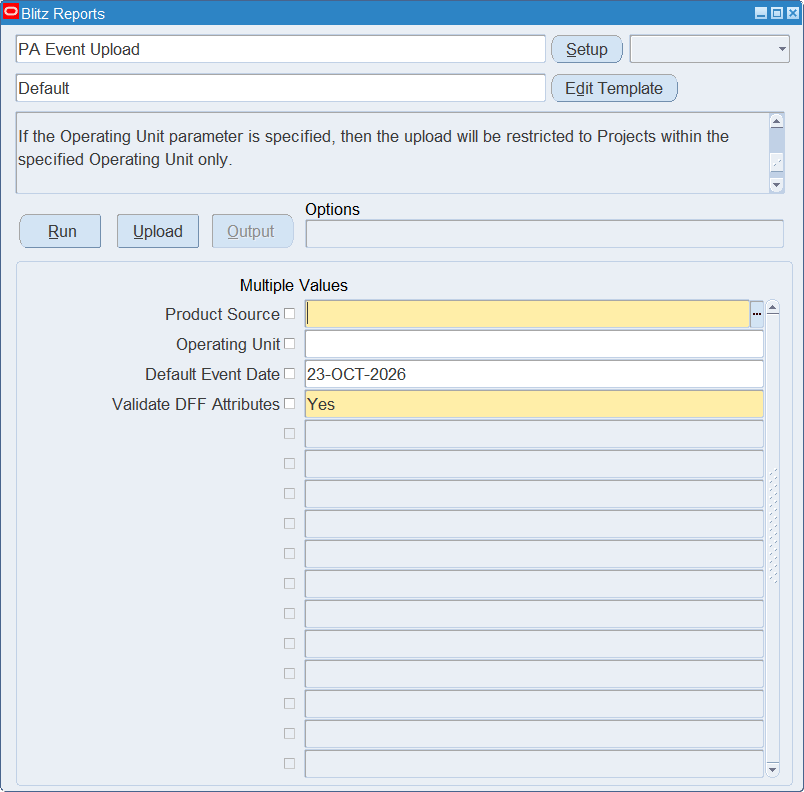
Open PA Event Upload in Blitz Report and set the parameters. The upload creates new events only, so the parameters set the values that every new row of the file starts with.
| Parameter | Meaning |
|---|---|
| Product Source | Required. The product source of the events, for example the system the events come from. It applies to every row of the file. |
| Operating Unit | The operating unit of the projects. It fills the Operating Unit column of new rows, and the project list shows the projects of this operating unit. |
| Default Event Date | The Event Date of new rows. Defaults to today and can be changed on each row. |
| Validate DFF Attributes | Required, default Yes. Yes validates the descriptive flexfield values of the events and saves them. No skips the validation, and the flexfield values in the file are not saved. |
Step 2 – Run to download the Excel file
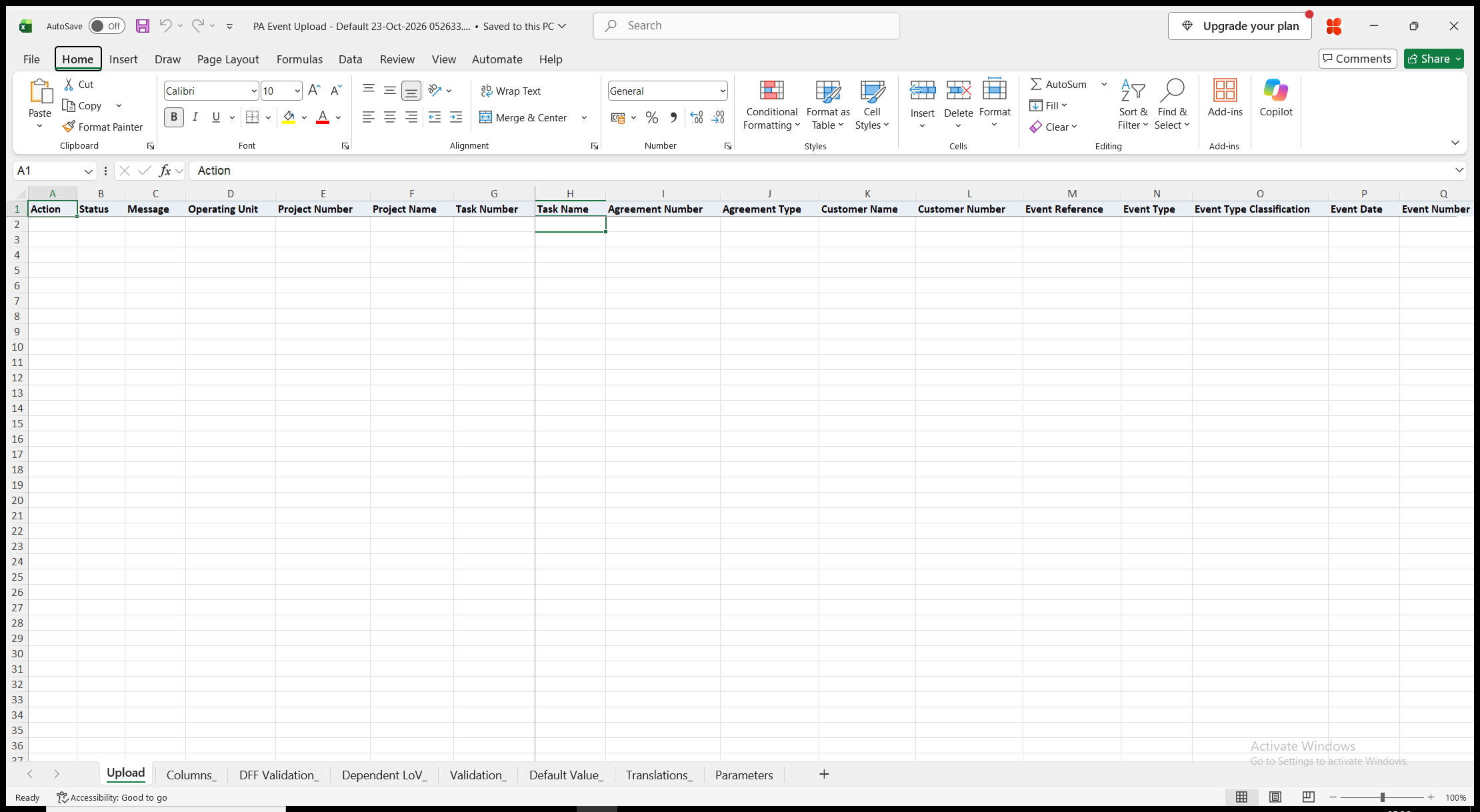
Click Run. The file opens with an empty sheet for the new events, one row per event. Required columns have a yellow heading, and columns with a list of values show a list when you double-click the cell. Project Name, Task Name, Agreement Type, Customer Name, Customer Number, Proj Func Currency and Project Currency are read-only and fill in from the values you enter.
Step 3 – Enter the events
Enter one row per event. Many columns default from the project and the event type as soon as you enter them.
- Operating Unit (from the parameter), Project Number – a contract project of the operating unit – and Task Number – a top task of the project. Leave Task Number blank for a project-level event. Project Name and Task Name fill in automatically.
- Agreement Number – only for projects that consume funding by date: the funding agreement of the event. Agreement Type, Customer Name and Customer Number fill in from it.
- Event Reference – your unique reference of the event. Event Type – Event Type Classification and Description default from it. Event Date (from the Default Event Date parameter), Event Number (leave it blank for the next number of the project or task) and Organization, the event organization.
- Currency (the project functional currency by default), Bill Amount and Revenue Amount. Bill Amount defaults to 0 for Write-On and Write-Off events, Revenue Amount for Invoice Reduction, Deferred Revenue and Scheduled Payment events.
- Bill Hold Flag (No, Yes or Once; default No), Revenue Hold Flag (default No), Adjusting Revenue Flag – Yes for an adjusting revenue event, which limits Event Type to manual event types – and Bill Group.
- Proj Func Rate Type, Proj Func Rate Date, Proj Func Exchange Rate, the project and funding rate columns – for projects with multi-currency billing. Most of them default from the currency settings of the project.
- Bill Quantity, Inventory Organization, Inventory Item, UOM and Unit Price – an item billed with the event. UOM defaults to the primary unit of measure of the item and Unit Price to its list price.
- Reference1 to Reference10 – free text references of the event.
Step 4 – Validate and Save
Click Validate and Save. This checks for missing required values and for values that are not in their lists, marks the rows Valid and saves the file. Correct any rows it flags before uploading.
Step 5 – Upload the file
In Blitz Report click Upload and select the saved file. The upload request creates the events in the order of the rows. Each row is created or rejected on its own, so a rejected row does not affect the other rows.
Step 6 – Review the result report
When the request completes, a result report opens listing every uploaded row with its status and, for a rejected row, the reason. For created events it shows the values as they were saved in Oracle, including the Event Number and the Event Id.
What’s produced
- Billing and revenue events of the projects and tasks, saved with the validations of Oracle Projects.
- A result report listing every row with a status (success or error) and a message.
Common questions
Can I change or delete existing events?
No. The upload creates new events only. Change or delete events in the Events window of Oracle Projects.
Which projects can I create events for?
Contract projects of the operating unit. Project templates and projects in a purge status are not listed.
Does the Event Reference have to be unique?
Yes. An event reference can be used only once for a product source.
How is the Event Number assigned?
When Event Number is blank, the event gets the next number of the project for a project-level event, or of the task for a task-level event. An event number you enter must not be used by another event of the project or task.
When do I need a Task Number?
When the project is funded at task level: such a project takes events at top task level only. The Task Number list shows the top tasks of the project.
How do I enter descriptive flexfield values?
The Default template does not contain the flexfield columns. Create your own template that includes Attribute Category and Attribute1 to Attribute10, and run it with Validate DFF Attributes set to Yes.
Can I bill an event in a foreign currency?
Yes, when the project allows multi-currency billing. Enter the Currency; the rate columns default from the currency settings of the project and can be changed on the row.
Troubleshooting
| Message | Cause | What to do |
|---|---|---|
| Missing values for required field/s: … | A required column is blank, for example Organization or Event Reference. | Fill in the columns named. |
| Project Number is invalid / Event Type is invalid / Organization is invalid | The value is not in the column’s list, for example a project that is not a contract project of the operating unit, an inactive event type or an organization that is not an expenditure organization of the operating unit. | Pick the value from the list. |
| The entered event reference is not unique. | Another event of the product source has the same Event Reference. | Use another Event Reference. |
| The event number should be unique for a project for project level events or unique for a project / task combination for task level events | The Event Number is already used on the project or task. | Leave Event Number blank to get the next number, or enter an unused one. |
| Task funding with project level events is not allowed. | The project is funded at task level and the row has no Task Number. | Enter the top task of the event. |
| The Top task number entered is invalid | The Task Number is not a top task of the project. | Enter the top task. |
| Bill Amount should be 0 for this Event Type / Revenue Amount should be 0 for this Event Type | A Write-On or Write-Off event has a Bill Amount, or an Invoice Reduction, Deferred Revenue or Scheduled Payment event has a Revenue Amount. | Set the amount to 0. |
| The project is not multi-currency enabled. The event transaction currency cannot be different from the functional currency. | The Currency differs from the project functional currency on a project without multi-currency billing. | Use the project functional currency. |
| The adjusting revenue flag can be set only for manual events. | Adjusting Revenue Flag is Yes for an event type that is not manual. | Choose a manual event type, or clear the flag. |
| The event date must fall between the agreement start date and agreement end date. | The Event Date is outside the dates of the Agreement Number. | Change the Event Date or the agreement. |
| The flex field values you have entered are invalid. | The descriptive flexfield values do not pass the flexfield validation. | Correct the Attribute Category and attribute values. |
| You do not have the necessary permission to maintain invoice events. / … revenue events. / … invoice and revenue events. | The responsibility may not maintain the events: invoice events for Deferred Revenue, Invoice Reduction and Scheduled Payment, revenue events for Write-On, Write-Off and manual events with a Revenue Amount. | Upload with a responsibility that may maintain these events. |