
PA Workplan Upload creates, updates and deletes the resource assignments of workplan tasks from Excel, as the Task Assignments page of the Projects workplan does. It downloads the task assignments of a project for editing, can publish the workplan after the upload, and returns a result report with the outcome of every row.
When to use it
- Plan the resources of many workplan tasks in one step.
- Change the planned quantities, costs and dates of existing task assignments.
- Remove task assignments that are no longer needed.
- Publish the workplan once the assignments are updated.
Before you start
- You are signed in to a responsibility with access to the operating unit of the project and to the upload in Blitz Report.
- The project has a workplan with its tasks, and the workplan plan type has a resource list with the planning resources you assign.
- When workplan versioning is enabled for the project, the workplan has a current working version.
Choose a template
The default template is Default.
| Template | Use it for |
|---|---|
| Default (default) | The task assignments of a project’s workplan, for editing, deleting and adding assignments. |
| New Assignments | An empty sheet for new task assignments. Upload Mode is locked to Create and the Task Number filter is hidden. |
Step 1 – Set the parameters
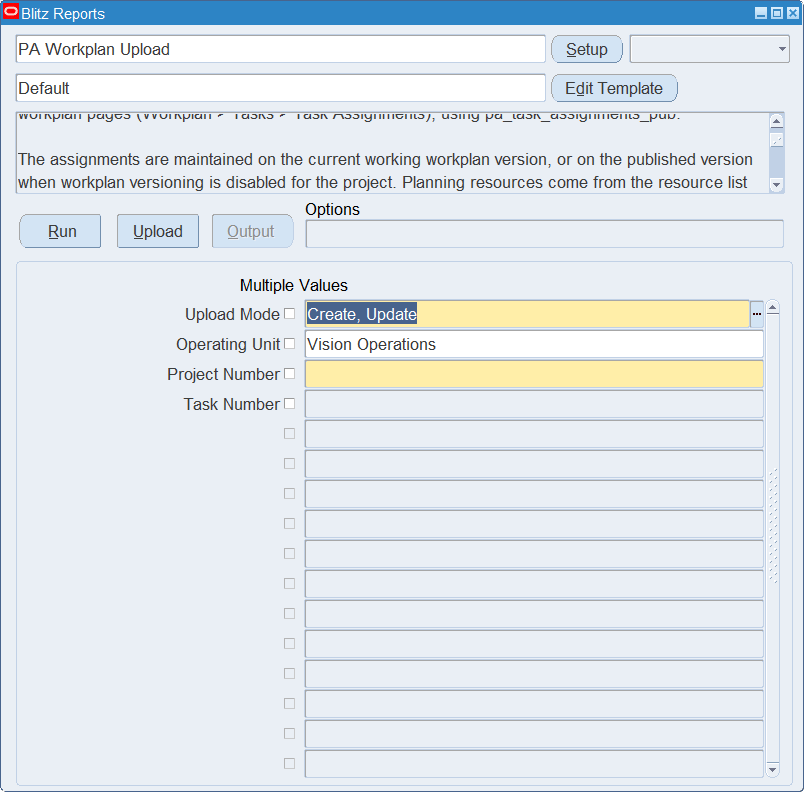
Open PA Workplan Upload in Blitz Report, choose the template and set the parameters. They decide which task assignments are downloaded.
| Parameter | Meaning |
|---|---|
| Upload Mode | Create gives you an empty sheet. Create, Update (default) also downloads the existing task assignments. |
| Operating Unit | The operating unit of the project. Defaults to the operating unit of your responsibility and is also the operating unit of new rows. |
| Project Number | Required. The project whose workplan is downloaded, also the project of new rows. |
| Task Number | Restricts the download to the assignments of the task. |
Step 2 – Run to download the Excel file
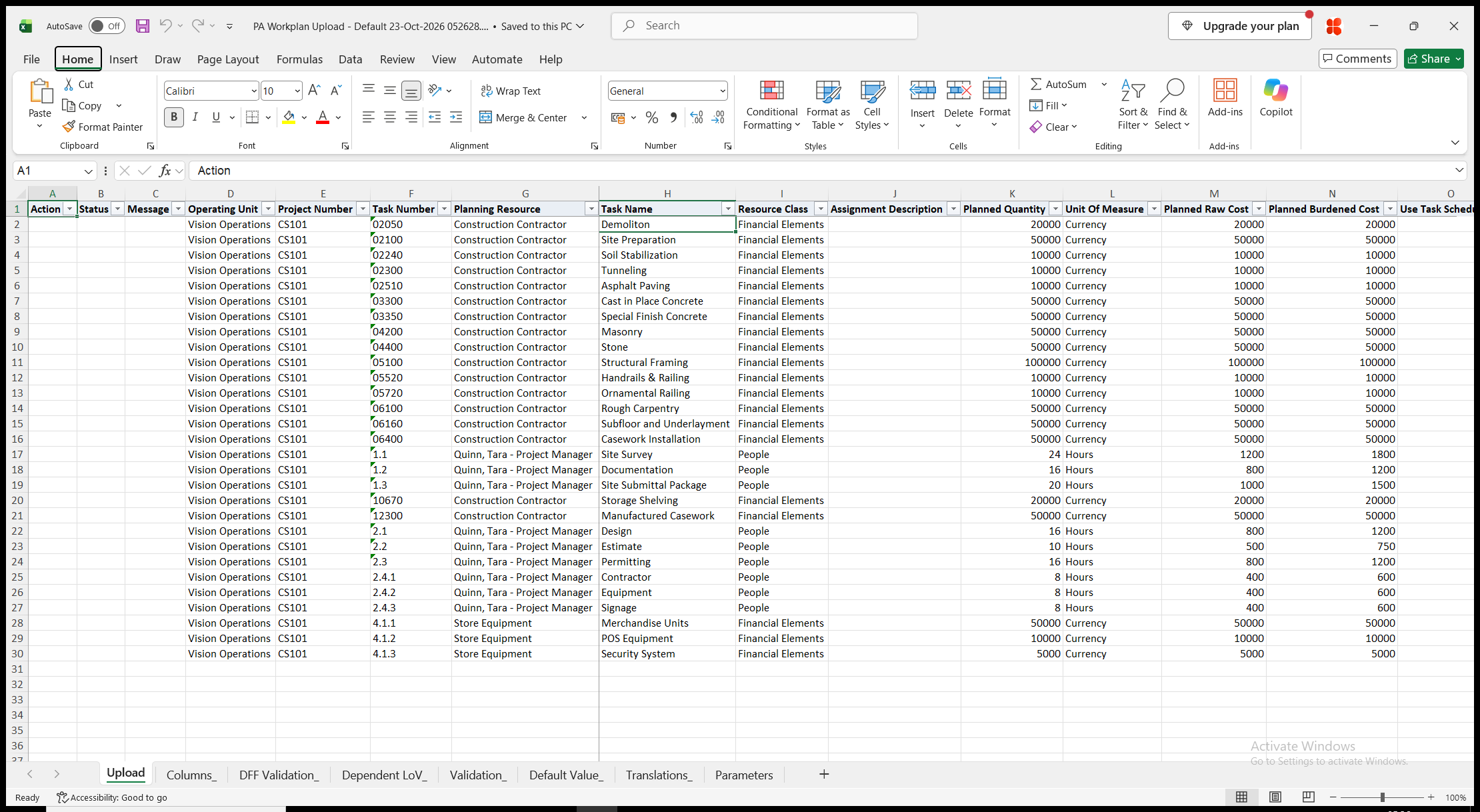
Click Run. With Create, Update, the file has one row per task assignment of the workplan version the upload maintains: the current working version, or the published version when workplan versioning is disabled for the project. Task Name, Resource Class, Unit Of Measure, Project Name, Plan Type and Workplan Version are read-only. With Create, the sheet is empty.
Step 3 – Enter the task assignments
Change the downloaded rows, or add rows for new task assignments. Each row is one planning resource assigned to one task.
- Operating Unit, Project Number and Task Number – the task of the workplan version.
- Planning Resource – a planning resource of the resource list of the workplan plan type. The resource of an existing assignment cannot be changed.
- Assignment Description.
- Planned Quantity, Planned Raw Cost and Planned Burdened Cost. The planned cost of a rate based resource is calculated from the planned quantity.
- Use Task Schedule, Start Date and End Date – the planning dates of the assignment. Yes in Use Task Schedule plans the assignment over the scheduled dates of the task.
- Delete Assignment – Yes removes the downloaded task assignment.
- Publish Workplan – Yes publishes the workplan version after the task assignments of the project are uploaded.
Step 4 – Validate and Save
Click Validate and Save. This checks for missing required values and for values that are not in their lists, marks the rows Valid and saves the file. Correct any rows it flags before uploading.
Step 5 – Upload the file
In Blitz Report click Upload and select the saved file. The upload request processes the rows in order. Each row is saved or rejected on its own, so a rejected row leaves nothing behind and does not affect the other rows. When Publish Workplan is Yes, the workplan of the project is published after all its rows are processed, provided none of them was rejected.
Step 6 – Review the result report
When the request completes, a result report opens listing every uploaded row with its status and a message, for example Task assignment created., Task assignment updated. or Task assignment deleted., followed by Workplan published. when the workplan was published, or the reason the row was rejected. The result report shows the values as they were saved in Oracle.
What’s produced
- Task assignments on the workplan version, saved as the Task Assignments page saves them.
- A published workplan version for each project uploaded with Publish Workplan set to Yes.
- Each row is committed on its own. A row that fails leaves nothing behind and does not affect the other rows.
- A result report listing every row with a status (success or error) and a message.
Common questions
Which workplan version is updated?
The current working version of the workplan. When workplan versioning is disabled for the project, the published version is updated. The Workplan Version column shows the version.
How do I change the planning resource of an assignment?
Enter Yes in Delete Assignment on the downloaded row and add a row for the task with the new planning resource.
Which planning resources can I assign?
The enabled planning resources of the resource list of the workplan plan type that are eligible for workplan planning. The list of values of Planning Resource shows them, with their resource class.
How do I publish the workplan?
Enter Yes in Publish Workplan on the rows of the project. The workplan is published once after all rows of the project are uploaded, and only when none of them was rejected. To publish without changing an assignment, enter Yes in Publish Workplan on one downloaded row. Publishing summarizes the project amounts and can take a few minutes for a large project.
Can I maintain budgets and forecasts?
Use the PA Budget Upload for project budgets and financial plans.
Troubleshooting
| Message | Cause | What to do |
|---|---|---|
| Missing values for required field/s: … | A required column is blank, for example Task Number or Planning Resource. | Fill in the columns named. |
| The project has no workplan version that can be updated. | Workplan versioning is enabled for the project and its workplan has no current working version. | Create a working version of the workplan in Projects, then upload again. |
| The resource of an existing task assignment cannot be changed. Delete the assignment and create a new one. | The Planning Resource of a downloaded row was changed. | Enter Yes in Delete Assignment on the downloaded row and add a row with the new planning resource. |
| The task assignment does not exist. | Delete Assignment is Yes for an assignment that is no longer on the workplan version. | Download the assignments again. |
| The workplan has not been published, as one or more task assignments are in error. | Publish Workplan is Yes and another row of the project was rejected. | Correct the rejected rows and upload them again with Publish Workplan set to Yes. |
| The workplan has not been published: … | Projects rejected the publishing of the workplan version for the reason given. | Correct the cause in Projects and publish the workplan again. |