
INV Cycle Count Upload enters cycle counts from Excel, the way the Cycle Count Entries window does. It downloads the open count requests of a cycle count, processes the counts you enter through the cycle count open interface, which applies the approval tolerances of the cycle count, and returns a result report with the outcome of every row.
When to use it
- Enter the counts of a cycle count from a count sheet or a handheld export instead of keying them into the window.
- Enter recounts for count requests that are waiting for a recount.
- Enter unscheduled counts for items of a cycle count.
Before you start
- You are signed in to a responsibility with access to the inventory organization and to the upload in Blitz Report.
- The cycle count is defined with its items, and its count requests have been generated.
- For unscheduled counts, the cycle count allows unscheduled entries.
- The count date falls in an open inventory period, and the counters are employees of the organization.
Choose a template
The default template is Default.
| Template | Use it for |
|---|---|
| Default (default) | Counts for the open count requests of a cycle count, without the descriptive flexfield. |
| Unscheduled Counts | An empty sheet to enter unscheduled counts for a cycle count. Upload Mode is locked to Create, and the Subinventory, Item and Include Recounts filters are hidden. |
Step 1 – Set the parameters
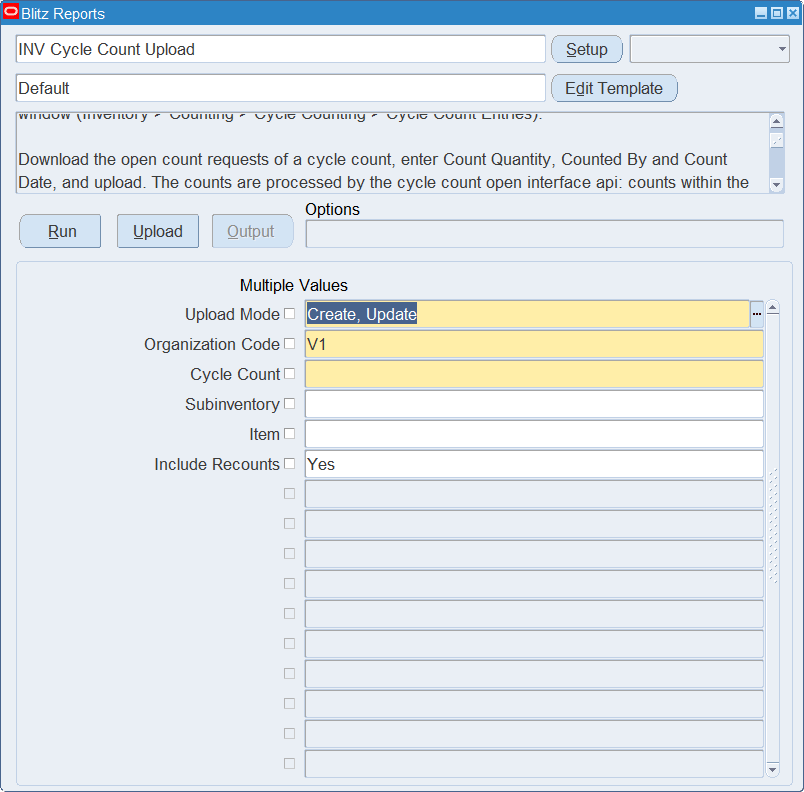
Open INV Cycle Count Upload in Blitz Report, choose the template and set the parameters. They decide which count requests are downloaded.
| Parameter | Meaning |
|---|---|
| Upload Mode | Create gives you an empty sheet. Create, Update (default) also downloads the open count requests. |
| Organization Code | The inventory organization. Defaults to your current organization and is also the organization of new rows. |
| Cycle Count | The cycle count. Required, and also the cycle count of new rows. |
| Subinventory | Restricts the download to the count requests of the subinventory. |
| Item | Restricts the download to the count requests of the item. |
| Include Recounts | Yes (default) also downloads the count requests waiting for a recount. Blank downloads the uncounted requests only. |
Step 2 – Run to download the Excel file
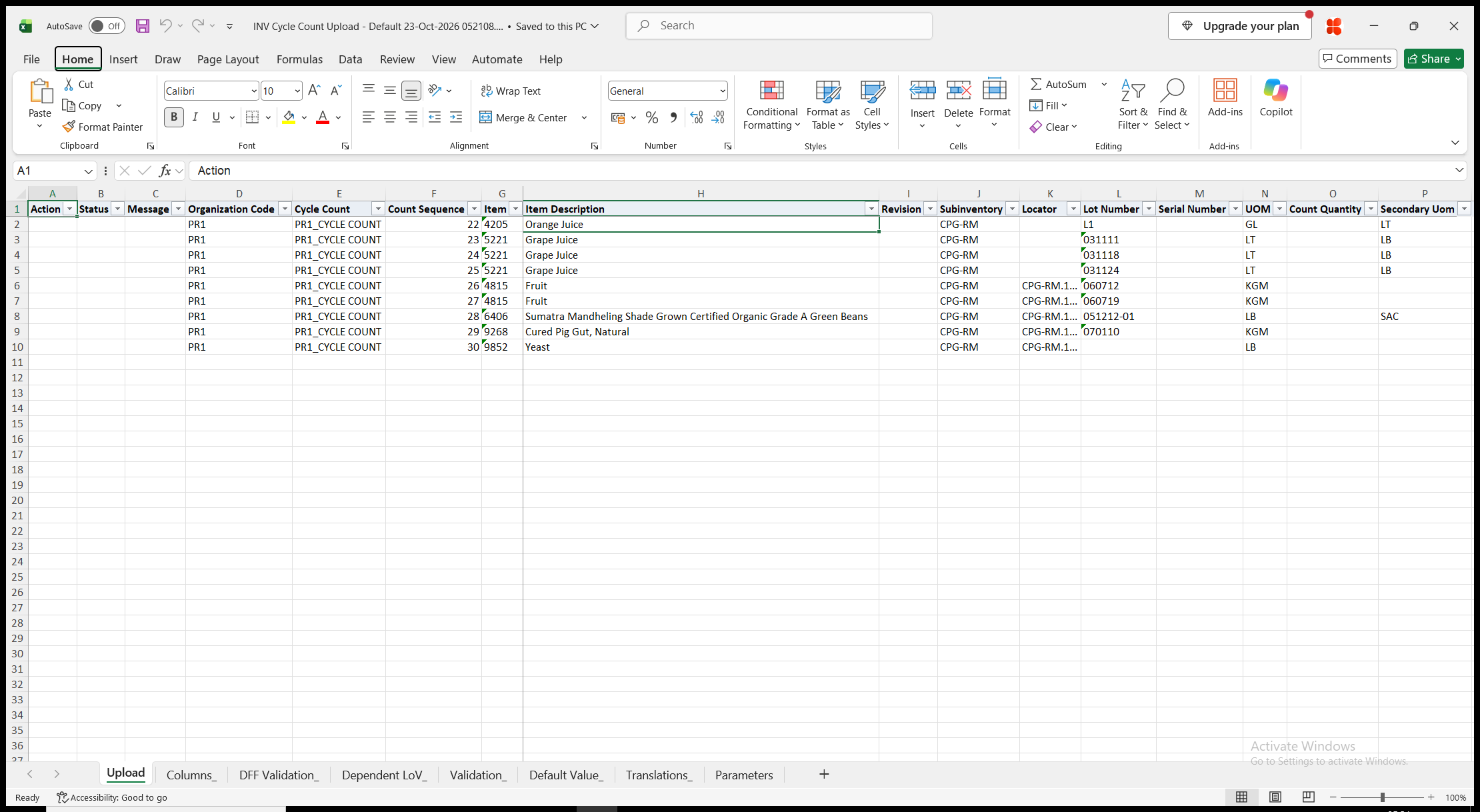
Click Run. With Create, Update, the file has one row per open count request, with its item, revision, subinventory, locator, lot and serial number. These identify the count request and are read-only on downloaded rows, as are Count Sequence, Item Description, Secondary Uom and Entry Status. Count requests exported to the cycle count open interface are not included. With Create, the sheet is empty.
Step 3 – Enter the counts
Enter the count on each downloaded row, or add rows for unscheduled counts.
- Count Quantity and UOM are required. UOM defaults to the primary unit of measure of the item.
- Secondary Count Quantity – the count in the Secondary Uom of a dual unit of measure item.
- Counted By – the employee who counted. A count without a counter is rejected.
- Count Date – defaults to today. It must not be in the future.
- Reason, Reference and Adjustment Account. The adjustment account defaults to the account of the cycle count.
- For an unscheduled count, enter Item and Subinventory, and the Revision, Locator, Lot Number or Serial Number where the item and subinventory are controlled by them.
Step 4 – Validate and Save
Click Validate and Save. This checks for missing required values and for values that are not in their lists, marks the rows Valid and saves the file. Correct any rows it flags before uploading.
Step 5 – Upload the file
In Blitz Report click Upload and select the saved file. The upload request processes the rows in order. Each row is saved or rejected on its own, so a rejected row leaves nothing behind and does not affect the other rows.
Step 6 – Review the result report
When the request completes, a result report opens listing every uploaded row with its status and a message with the resulting entry status, for example Count entered. Completed. or Count entered. Pending Approval., or the reason the row was rejected. The result report shows the values as they were saved in Oracle.
What’s produced
- Cycle count entries with the counted quantities, processed as the Cycle Count Entries window processes them. A count within the approval tolerances is adjusted right away. A count outside them goes to Pending Approval or Recount, according to the cycle count setup.
- Unscheduled count entries for new rows.
- A row that fails leaves nothing behind and does not affect the other rows.
- A result report listing every row with a status (success or error) and a message.
Common questions
How do I approve the counts that need approval?
In the Approve Adjustments window. The INV Cycle counts pending approval report lists them.
How do I enter a recount?
Run the upload with Include Recounts Yes. The count requests waiting for a recount are downloaded with the uncounted ones; enter the new count on their rows.
Can I correct a count that is already completed?
No. Only uncounted count requests and requests waiting for a recount can be counted.
How do I enter an unscheduled count?
Use the Unscheduled Counts template, or add a row to the Default sheet, with the item, subinventory and count. The cycle count must allow unscheduled entries.
Where do I see the adjustments?
The INV Cycle count entries and adjustments report lists the counts with their adjustment quantities and values.
Troubleshooting
| Message | Cause | What to do |
|---|---|---|
| Missing values for required field/s: … | UOM or Count Quantity is blank, or Item or Subinventory is blank on a new row. | Fill in the columns named. |
| The count request is … and cannot be counted. | The count request was completed, rejected or sent for approval after the download. | Download the open count requests again. |
| Counter information is missing for this count. | Counted By is blank. | Enter the employee who counted. |
| A future count date was specified for this count. Future dates are not allowed. | Count Date is later than today. | Enter today or an earlier date. |
| Unscheduled count requests are not allowed for the specified cycle count. | A new row was entered for a cycle count that does not allow unscheduled entries. | Allow unscheduled entries in the cycle count definition, or count the item through a count request. |
| An open count request already exists for the specified item and SKU information. | A new row was entered for an item and location that already have an open count request. | Enter the count on the downloaded row of the count request. |
| The specified item is under lot control and lot number is missing for this count. | Lot Number is blank on a new row for a lot controlled item. | Enter the lot number. |
| A negative count quantity or primary UOM quantity was specified for this count. | Count Quantity is negative. | Enter zero or a positive quantity. |