
CN Manual Payment Upload creates, updates and deletes Incentive Compensation manual payments from Excel, the way the Manual Payments tab of the Paysheet Detail page does. It downloads the manual payments of unpaid payment batches for editing, saves each row with the same validations as the page, and shows the outcome of every row in the Excel file.
When to use it
- Enter one-off payments or corrections for many resources of a payment batch in one step, for example from a list prepared outside Oracle.
- Correct the amounts of manual payments before the payment batch is paid.
- Make manual payments recoverable from future earnings, or remove the recoverable flag.
- Delete manual payments entered in error.
Before you start
- You are signed in to a responsibility with access to the operating unit and to the upload in Blitz Report.
- Your user has the permission to adjust paysheets, as for manual payments on the Paysheet Detail page.
- The payment batch exists and is not paid yet, and the resource has a paysheet in it that is not locked or submitted for approval.
Choose a template
The default template is Default.
| Template | Use it for |
|---|---|
| Default (default) | Creating, updating and deleting manual payments. Downloads the existing manual payments. |
| Create Manual Payments | An empty sheet for new manual payments. Upload Mode is locked to Create, and Pay Period, Resource Name and Unpaid Batches Only are hidden. The Payment Batch you choose is entered on every new row. |
Step 1 – Set the parameters
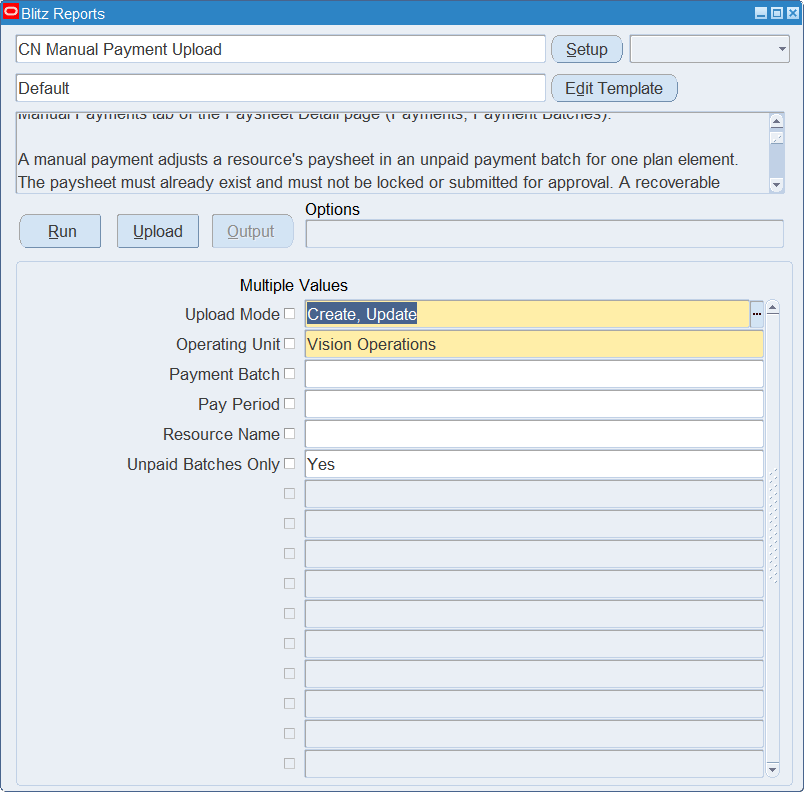
Open CN Manual Payment Upload in Blitz Report, choose the template and set the parameters. They decide which manual payments are downloaded.
| Parameter | Meaning |
|---|---|
| Upload Mode | Create gives you an empty sheet. Create, Update (default) also downloads the existing manual payments. |
| Operating Unit | Required. Defaults to your default operating unit and is also the operating unit of new rows. |
| Payment Batch | Restricts the download to the payment batch and is entered on new rows. |
| Pay Period | Restricts the download to the payment batches of the pay period. |
| Resource Name | Restricts the download to the manual payments of the resource. |
| Unpaid Batches Only | Yes (default) downloads only the manual payments of payment batches that are not paid yet, which are the only ones that can be changed. |
Step 2 – Run to download the Excel file
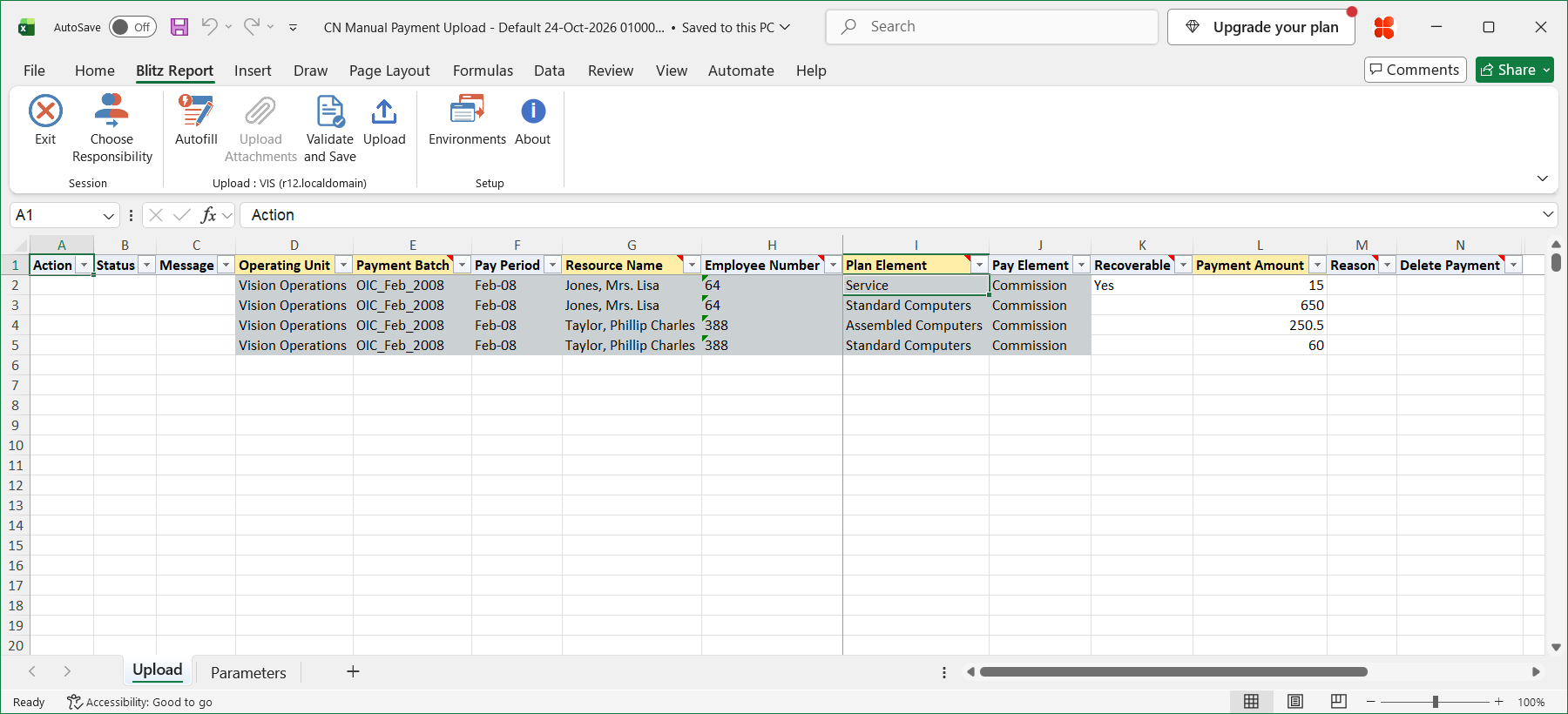
Click Run. With Create, Update, the file has one row per manual payment. On a downloaded row only Payment Amount, Recoverable, Reason and Delete Payment can be changed; Operating Unit, Payment Batch, Resource Name and Plan Element are read-only. Pay Period, Employee Number and Pay Element are filled in from the payment batch, resource and plan element. With Create, the sheet is empty.
Step 3 – Enter the manual payments
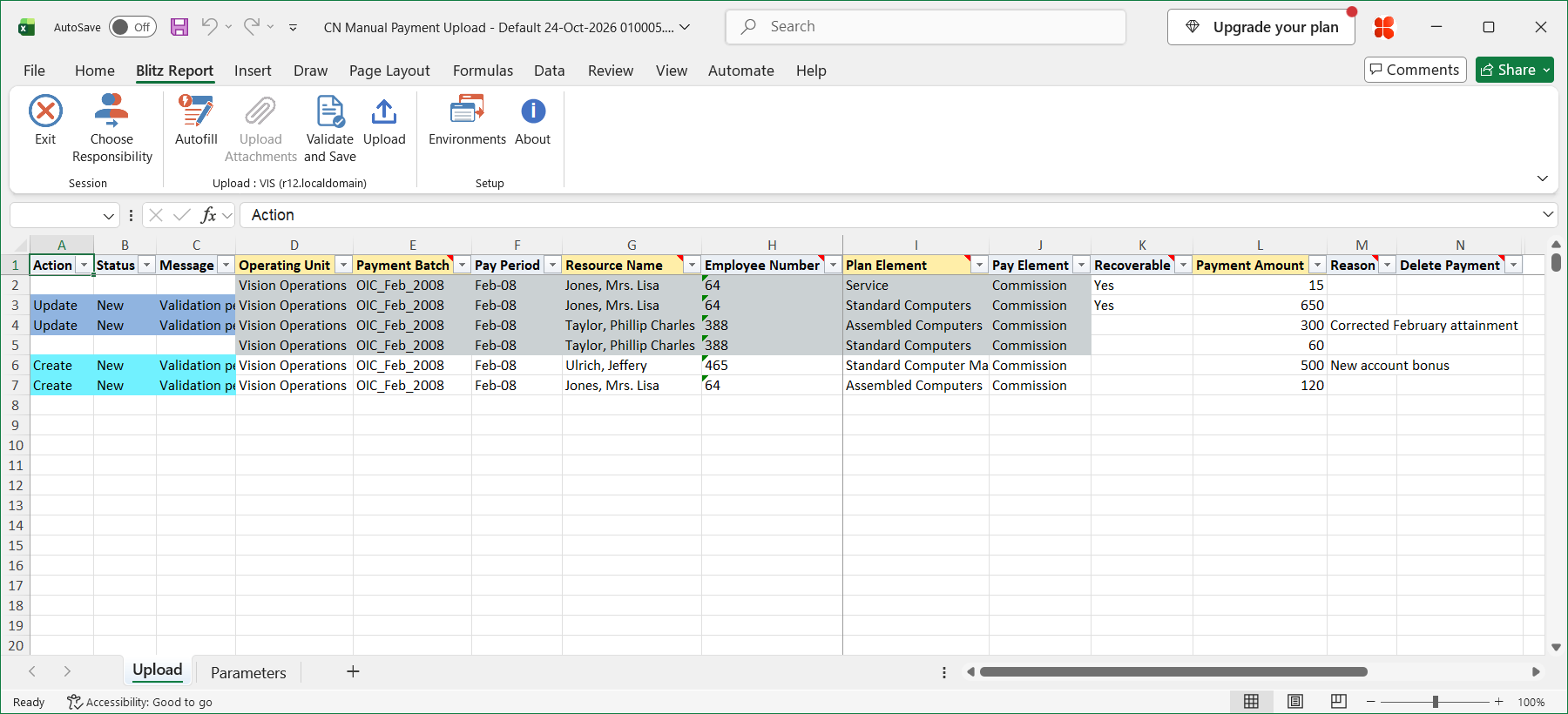
Change the downloaded rows, or add a row for each new manual payment.
- Operating Unit and Payment Batch – a payment batch of the operating unit that is not paid yet. Pay Period shows the pay period of the batch.
- Resource Name – a resource with a paysheet in the payment batch. Employee Number is filled in from the resource; enter it when the payment batch has paysheets of more than one resource with the same name.
- Plan Element – a plan element of the resource in the pay period of the payment batch. Plan elements assigned to a payee are not listed. Pay Element shows the pay element of the plan element.
- Payment Amount – required.
- Recoverable – Yes recovers the manual payment from the resource’s future earnings. Leave it blank for a payment that is not recoverable.
- Reason – added as a user note on the paysheet. Existing notes are shown on the Notes tab of the Paysheet Detail page.
- Delete Payment – Yes deletes a downloaded manual payment.
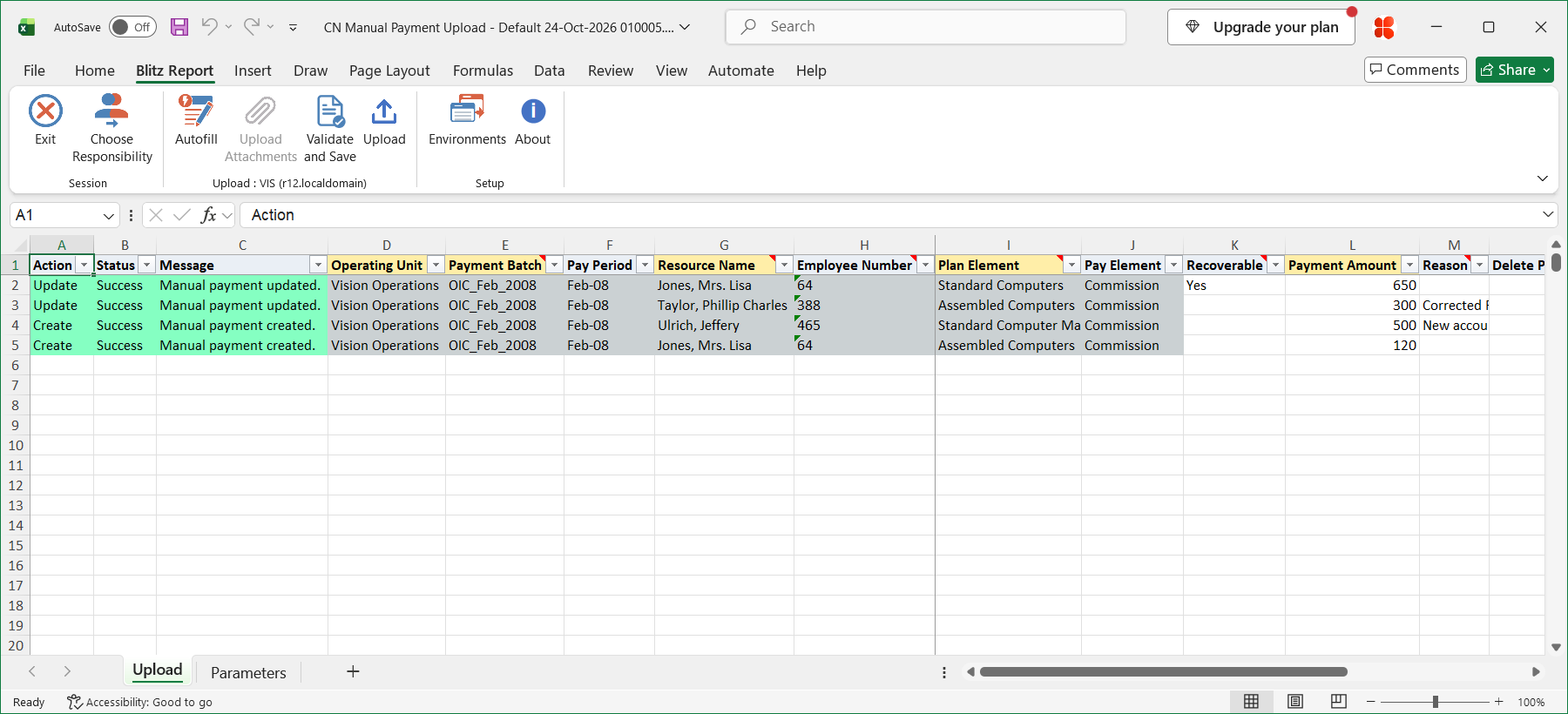
In the example, the manual payment of Phillip Charles Taylor for Assembled Computers in payment batch OIC_Feb_2008 is corrected from 250.50 to 300, the payment of Lisa Jones for Standard Computers is made recoverable from future earnings, and new manual payments are entered for Jeffery Ulrich (Standard Computer Manager, 500) and Lisa Jones (Assembled Computers, 120).
Step 4 – Validate and Save
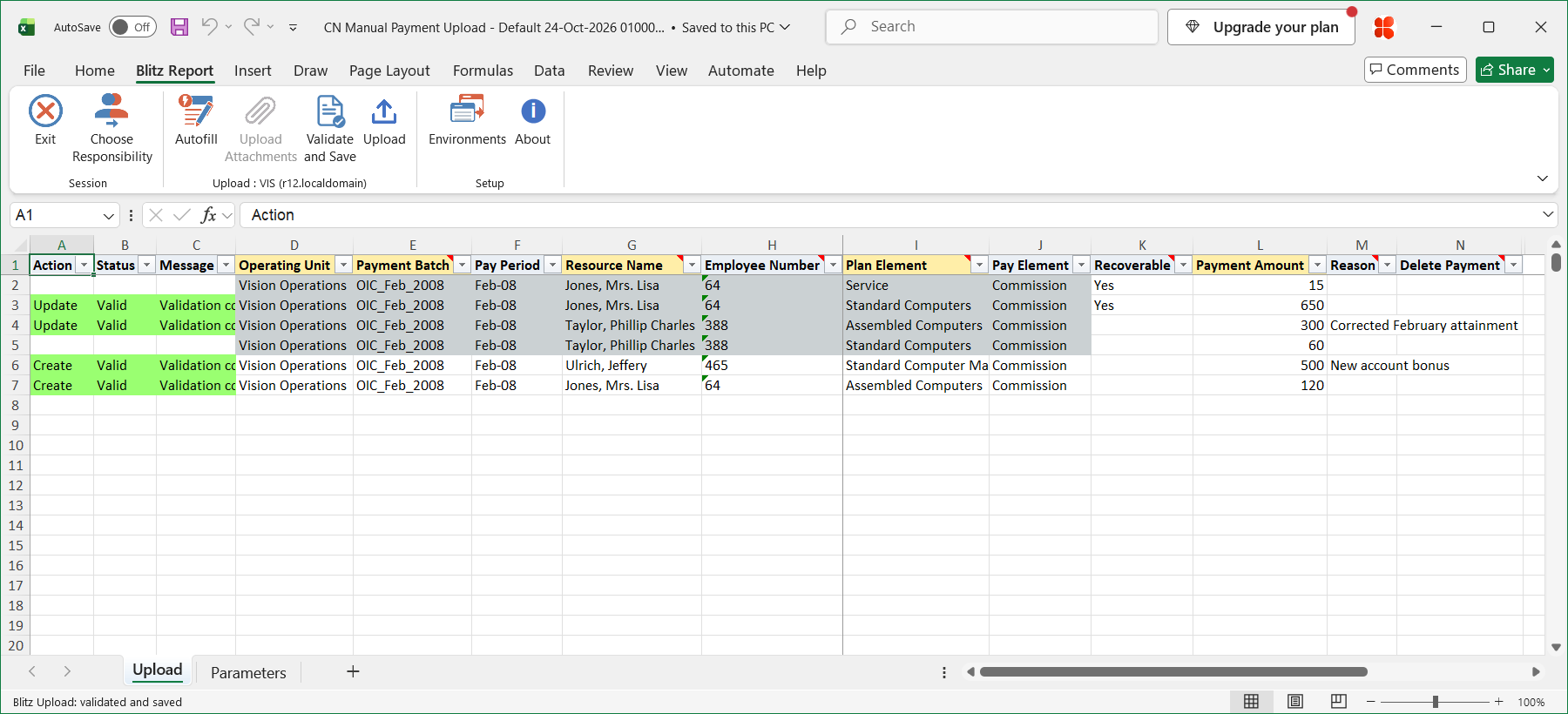
Click Validate and Save on the Blitz Report tab. This checks for missing required values and for values that are not in their lists, marks the rows Valid and saves the file. Correct any rows it flags before uploading.
Step 5 – Upload the file
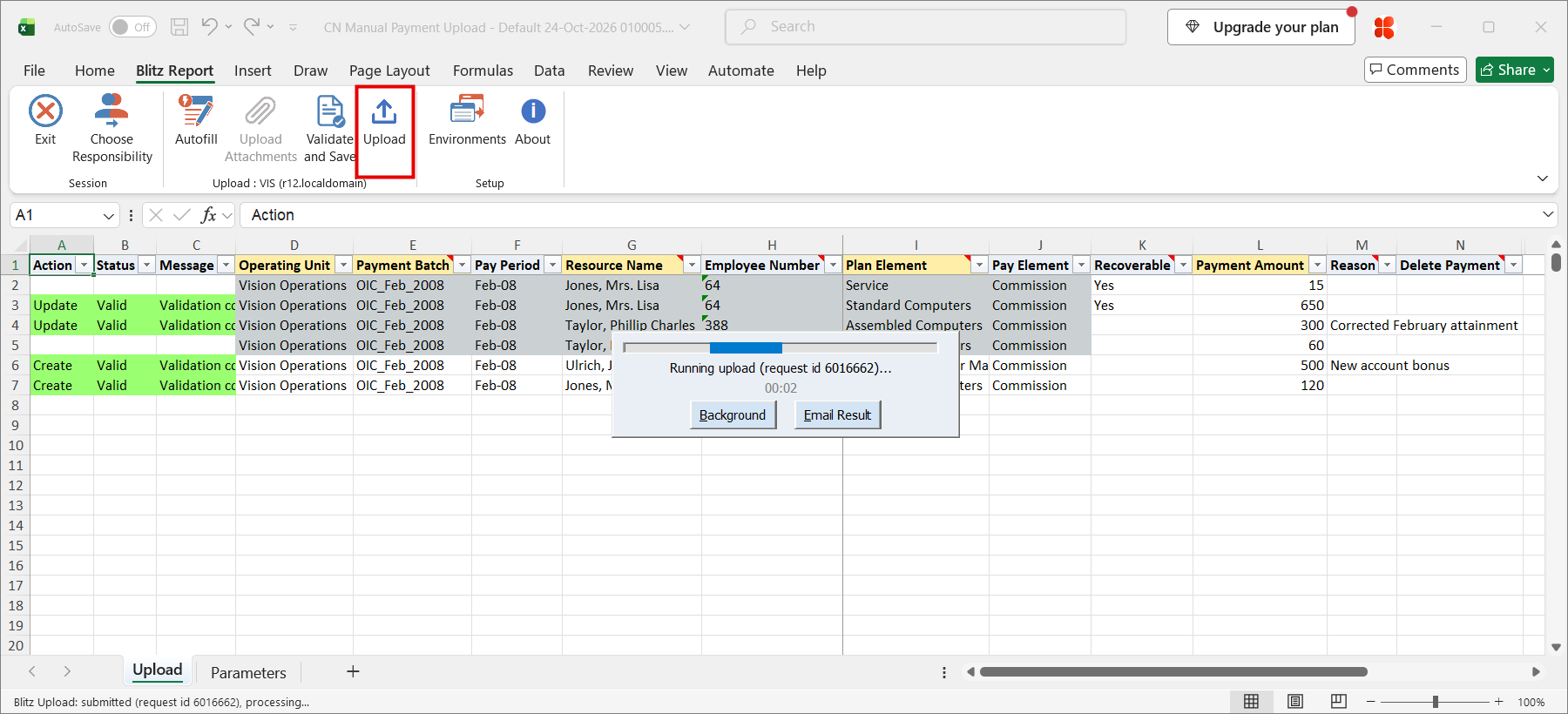
Click Upload on the Blitz Report tab. The add-in sends the valid rows to Oracle and submits the upload request. The upload request processes the rows in order. Each row is saved or rejected on its own, so a rejected row leaves nothing behind and does not affect the other rows.
Step 6 – Review the result
When the request completes, the add-in writes the result to the sheet, listing every uploaded row with its status and a message, for example Manual payment created., Manual payment updated. or Manual payment deleted., or the reason the row was rejected. The result shows the values as they were saved in Oracle.
What’s produced
- Manual payments on the paysheets of the payment batch, saved as the Paysheet Detail page saves them.
- The same system notes on the paysheet as the Paysheet Detail page writes for each created, changed or deleted manual payment, and the Reason as a user note.
- A rejected row leaves nothing behind and does not affect the other rows.
- The result in the Excel file, listing every row with a status (success or error) and a message.
Common questions
Can I move a manual payment to another plan element?
No. Only the Payment Amount and Recoverable flag of an existing manual payment can be changed. Enter Yes in Delete Payment on the downloaded row and add a new row with the other plan element.
Which notes are written on the paysheet?
Each created, changed or deleted manual payment writes the same system note as the Paysheet Detail page, for example New Manual Payment Adjustment with Payment Amount 250.00 and Recoverable Flag value N was created. Text entered in Reason is added as a user note, once per paysheet and text, so the same reason on several rows of a paysheet is added once.
Can I download the manual payments of paid batches?
Yes. Clear Unpaid Batches Only. Manual payments of a paid payment batch cannot be changed or deleted.
Does the upload create payment batches or paysheets?
No. Create the payment batch and the resource’s paysheet in Payments, Payment Batches first.
What does Recoverable mean?
A recoverable manual payment is recovered from the resource’s future earnings.
Troubleshooting
| Message | Cause | What to do |
|---|---|---|
| Missing values for required field/s: Payment Amount | Payment Amount is blank. | Enter the amount. |
| Operating Unit “…” not found or not accessible for the current responsibility. | Your responsibility has no access to the operating unit of the row. | Use a responsibility with access to the operating unit. |
| No access granted. Type = paysheet , Access = adjust | Your user does not have the permission to adjust paysheets. | Ask your Incentive Compensation administrator to grant it. |
| The specified payment batch does not exist. Please enter a valid payment batch name. | The Payment Batch does not exist in the operating unit. | Choose a payment batch from the list. |
| The payment paysheet does not exist in the application. | The resource has no paysheet in the payment batch. | Create the paysheet in the payment batch first, or choose a resource from the list. |
| Payment batch “…” has more than one paysheet for resource “…”. Enter the Employee Number to identify the resource. | Several resources with the same name have a paysheet in the payment batch. | Enter the Employee Number. |
| Quota name does not exist in the database. | The Plan Element is not a plan element of the resource in the pay period of the payment batch, or it is assigned to a payee. | Choose a plan element from the list. |
| You cannot modify a paysheet when it is locked or submitted for approval. | The resource’s paysheet is locked or submitted for approval. | Make sure the paysheet is unlocked and not submitted for approval, then upload the row again. |
| The payment batch is paid or frozen and cannot be modified. | The payment batch is paid or frozen. | Use a payment batch that is not paid yet. |
| The salesperson is currently on hold. Please release the hold if you wish to pay the salesperson. | Payments of the resource are on hold. | Release the hold of the resource first. |
| The plan element of an existing manual payment cannot be changed. Delete the manual payment and create a new one. | The Plan Element of a downloaded manual payment was changed. | Delete the manual payment and add a new row with the other plan element. |
| Manual payment … no longer exists. | The manual payment was deleted in Oracle after the download. | Download the manual payments again. |