
WIP Completion Upload creates assembly completions and returns from Excel, the way the Completion Transactions form does. It downloads the jobs and repetitive schedules that have a quantity to complete or to return, processes each row immediately through the inventory transaction manager, and returns a result report with the outcome of every row.
When to use it
- Complete many discrete jobs or repetitive schedules into inventory in one step, for example at the end of a shift.
- Return completed assemblies from inventory to their jobs or schedules.
- Complete lot or serial controlled assemblies, or overcomplete a job within its overcompletion tolerance.
- Load completions recorded outside Oracle, for example on the shop floor.
Before you start
- You are signed in to a responsibility with access to the WIP organization and to the upload in Blitz Report.
- The jobs or repetitive schedules are Released or Complete. Jobs are created and changed with the WIP Job Upload.
- To overcomplete, an overcompletion tolerance is set for the job, the repetitive line and assembly, or the organization.
Choose a template
The default template is Completion.
| Template | Use it for |
|---|---|
| Completion (default) | Assembly completions with the main fields of the Completion Transactions form, without the flexfields. Upload Mode defaults to Create. |
| Return | Assembly returns. Transaction Type defaults to WIP Completion Return and Upload Mode to Create, Update, which downloads the completed jobs and schedules with their completed quantity as return rows. |
| All Columns | Every column of the upload, including the job quantities, the lot expiration date and the transaction descriptive flexfield. |
Step 1 – Set the parameters
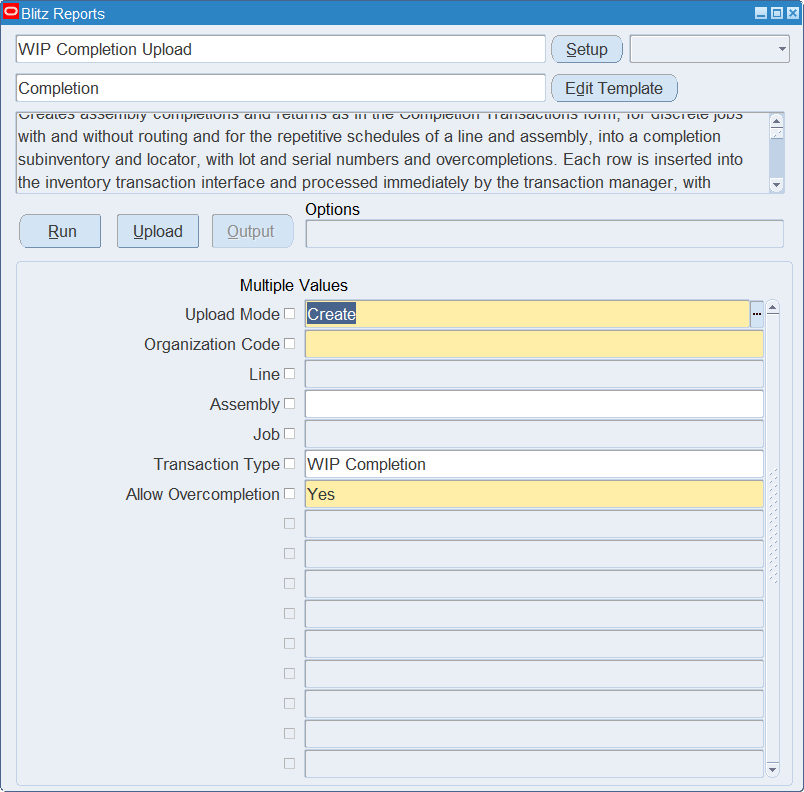
Open WIP Completion Upload in Blitz Report, choose the template and set the parameters. They decide which jobs and schedules are downloaded.
| Parameter | Meaning |
|---|---|
| Upload Mode | Create (default) gives you an empty sheet for new transactions. Create, Update also downloads the jobs and schedules that have a quantity to complete, or to return, as new transaction rows. |
| Organization Code | The WIP organization. Required, defaults to your current organization and is also the organization of new rows. |
| Line | Restricts the download to the repetitive schedules of the production line. |
| Assembly | Restricts the download to the jobs and repetitive schedules of the assembly. |
| Job | Restricts the download to the job. |
| Transaction Type | WIP Completion (default) downloads the quantity to complete, WIP Completion Return the completed quantity. |
| Allow Overcompletion | Yes (default) allows rows with Overcompletion. No refuses them, as the Completion Transactions form does for users without the function to allow overcompletions. |
Step 2 – Run to download the Excel file
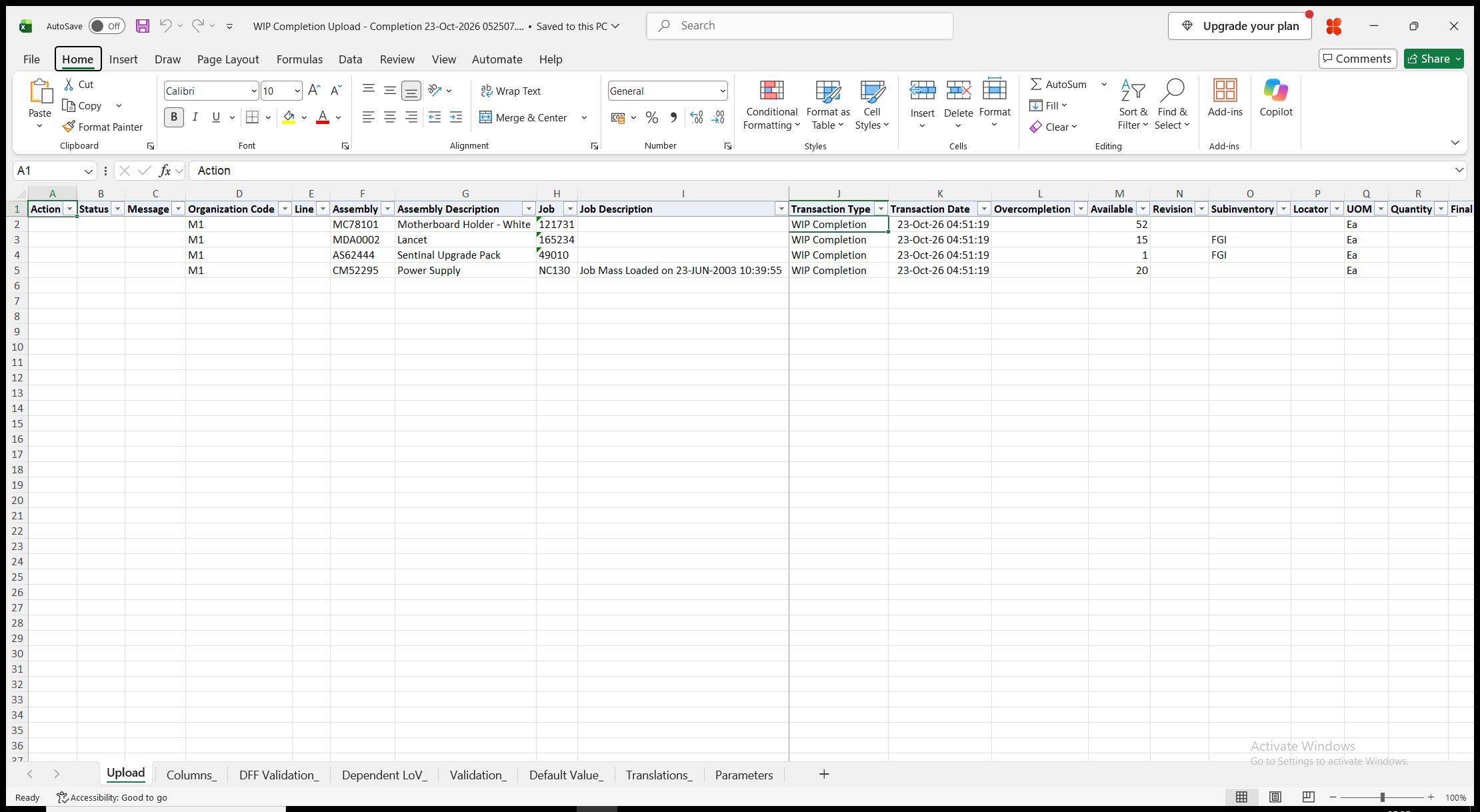
Click Run. With Create, Update, the file has one row per job, or per line and assembly of repetitive schedules, with the defaults of the form filled in. Available shows what the row can transact: for a completion the quantity at To move of the last operation, or for a job without routing the quantity not completed yet; for a return the completed quantity. Organization Code, Assembly Description, Job Description and Available are read-only. With Create, the sheet is empty.
Step 3 – Enter the completions
Enter a Quantity on the downloaded rows you want to transact, or add rows for new transactions. Downloaded rows you leave unchanged are not uploaded.
- Job for a discrete job, or Line and Assembly for repetitive schedules. Assembly defaults from the job.
- Transaction Type – WIP Completion or WIP Completion Return – and Transaction Date, which defaults to the current date and time.
- Quantity and UOM, which defaults to the primary unit of measure of the assembly.
- Overcompletion – Yes completes a quantity above Available as an overcompletion. Completions only.
- Final Completion – completions only. Blank takes the default of the form: No, or the computed value where the WIP parameters compute final completions.
- Revision (revision controlled assemblies, defaults to the bill revision), Subinventory and Locator, which default to the completion subinventory and locator of the job or of the line and assembly.
- Lot Number (defaults to the lot of the job; a completion creates a lot that does not exist yet), From Serial Number and To Serial Number (blank transacts the From Serial Number only). Each row carries one lot and one serial number range, so enter several lots as several rows.
- Reason and Reference.
Step 4 – Validate and Save
Click Validate and Save. This checks for missing required values, for values that are not in their lists and for the checks of the form, such as a quantity above Available without Overcompletion, marks the rows Valid and saves the file. Correct any rows it flags before uploading.
Step 5 – Upload the file
In Blitz Report click Upload and select the saved file. The upload request processes the rows in order. Each row is processed immediately by the inventory transaction manager, with backflush of the assembly pull and operation pull components, and is committed on its own, so a rejected row does not affect the other rows.
Step 6 – Review the result report
When the request completes, a result report opens listing every uploaded row with its status and a message, for example WIP Completion transaction 12345678 processed., or the reason the row was rejected. The result report shows the transactions as they were posted in Oracle.
What’s produced
- Assembly completion and return transactions of the jobs and repetitive schedules, with the backflush transactions of their assembly pull and operation pull components, as for a completion entered in the form.
- Each row is committed on its own. A row that fails leaves nothing behind and does not affect the other rows.
- A result report listing every row with a status (success or error) and a message.
Common questions
Can I change or reverse a completion?
A transaction is never updated. Correct a completion with a WIP Completion Return row, for example with the Return template.
How do I complete several lots of a job?
Enter one row per lot, each with its own quantity.
How do I complete more than Available?
Set Overcompletion to Yes on the row. The quantity above Available must be within the overcompletion tolerance, and Allow Overcompletion must be Yes.
How do I stop users from overcompleting?
An administrator copies the template, locks Allow Overcompletion to No in the copy and shares it as restricted with those users or responsibilities.
Which jobs can I complete?
Released and Complete discrete jobs and repetitive schedules. Serialized jobs are not supported.
Is anything else not supported?
Sales order reservations and kanban replenishment, e-records and e-signatures, and entering lots and serial numbers for backflush components. A completion fails when a backflush component is serial controlled, or lot controlled with a lot that cannot be derived.
How do I enter descriptive flexfield values?
Use the All Columns template, which shows the segment prompts of the transaction descriptive flexfield.
Troubleshooting
| Message | Cause | What to do |
|---|---|---|
| Missing values for required field/s: … | A required column is blank, for example Subinventory or Quantity. | Fill in the columns named. |
| Job/Schedule is required | The row has neither a Job nor a Line and Assembly. | Enter a Job, or a Line and Assembly. |
| Enter either a Job or a Line and Assembly. | The row has both a Job and a Line. | Clear the Line for a job, or the Job for a repetitive schedule. |
| Assembly does not match the job. | The Assembly is not the assembly of the job. | Correct or clear the Assembly. |
| Overcompletion applies to completions only. / Final Completion applies to completions only. | A return row has Overcompletion or Final Completion. | Clear the column. |
| Lot/serial numbers must be entered for item … | The assembly is lot or serial controlled and the row has no Lot Number or From Serial Number. | Enter the lot or serial numbers. |
| Total transaction quantity must be greater than 0 | Quantity is zero or negative. | Enter a positive quantity. A return is entered as a positive quantity with Transaction Type WIP Completion Return. |
| Total transaction quantity must be less than or equal to available to complete / … job complete quantity | The quantity is above Available. | Lower the quantity, or set Overcompletion to Yes on a completion. |
| Total transaction quantity must be greater than available to complete | Overcompletion is Yes but the quantity is not above Available. | Clear Overcompletion. |
| The transaction quantity exceeds the overcompletion tolerance set for the Job, Repetitive Line/Assembly, or the Organization. | The overcompletion is above the tolerance. | Lower the quantity, or raise the tolerance. |
| Overcompletion needs Allow Overcompletion. | Overcompletion is Yes while the Allow Overcompletion parameter is No. | Clear Overcompletion, or run the upload with Allow Overcompletion Yes where you are allowed to. |
| Transaction … has already been processed. | A row of a result report was uploaded again. | Enter new transactions on new rows. |
| Other messages, for example Transaction processor error | The inventory transaction manager rejected the transaction, for example for a backflush component. | Correct the cause named in the message and upload the row again. |