
ENG Engineering Change Order Upload creates and updates engineering change orders (ECOs) from Excel, together with their revised items and revised components, the way the Engineering Change Orders form does. It downloads the ECOs of an organization for editing, saves each row with the validations of the form, and returns a result report with the outcome of every row.
When to use it
- Create many ECOs in one step, each with its revised items and component changes, for example a component swap on many assemblies.
- Add, change or disable components on the bills of many revised items.
- Reschedule revised items, or change their status, new revision, disposition or MRP and WIP settings.
- Update ECO details such as requestor, department, reason, priority, approval status or implementation costs.
Before you start
- You are signed in to a responsibility with access to the inventory organization and to the upload in Blitz Report.
- The ECO types, reasons, priorities and departments you use are defined, and the revised items and components exist in the organization.
- A component you change or disable is implemented on the bill of the revised item.
Choose a template
The default template is Default.
| Template | Use it for |
|---|---|
| Default (default) | ECOs with their revised items and revised components, without the descriptive flexfields. |
| Create | An empty sheet for new ECOs, revised items and revised components. Upload Mode is locked to Create and the download filters are hidden. |
| Revised Items | The revised item columns, to reschedule revised items or change their status, revision and disposition. A revised item with several revised components is downloaded once per component; change it on one of these rows. |
| Flexfields | The descriptive flexfield attributes of ECOs, revised items and revised components, with the columns that identify the row. |
Step 1 – Set the parameters
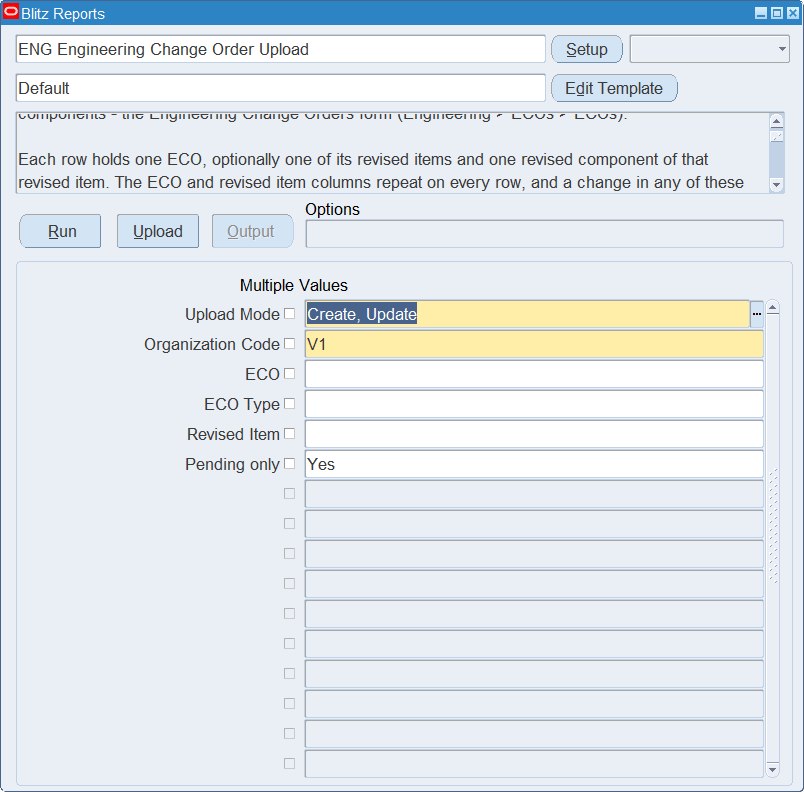
Open ENG Engineering Change Order Upload in Blitz Report, choose the template and set the parameters. They decide which ECOs are downloaded.
| Parameter | Meaning |
|---|---|
| Upload Mode | Create gives you an empty sheet. Create, Update (default) also downloads the existing ECOs with their revised items and revised components. |
| Organization Code | The inventory organization. Required, defaults to your current organization and is also the organization of new rows. |
| ECO | Restricts the download to the ECO. |
| ECO Type | Restricts the download to the ECOs of the type. |
| Revised Item | Downloads only the ECOs that revise the item, with this revised item only. |
| Pending only | Yes (default) leaves out implemented and cancelled ECOs. |
Step 2 – Run to download the Excel file
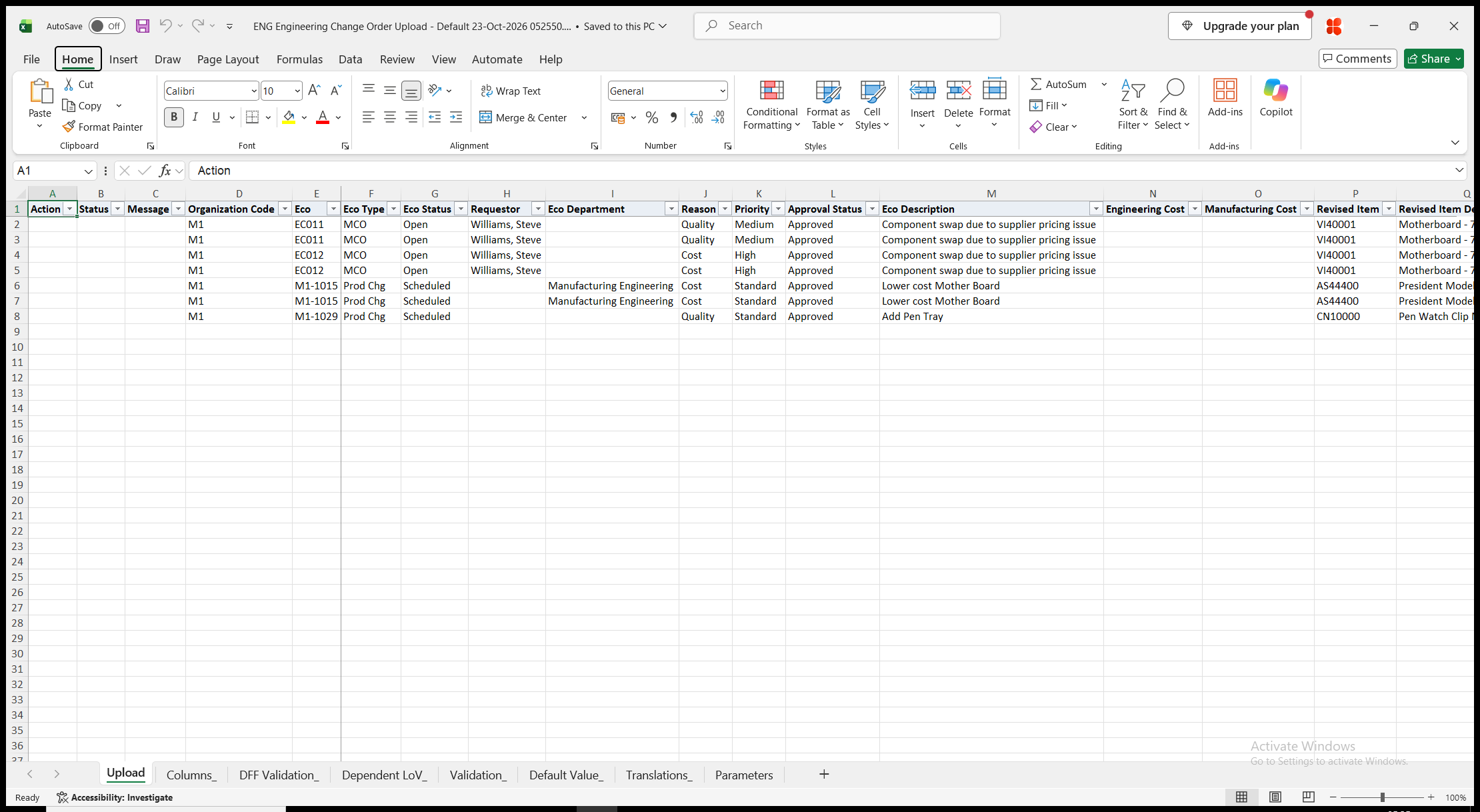
Click Run. With Create, Update, the file has one row per ECO, revised item and revised component: an ECO without revised items has one row, and a revised item without revised components has one row. The ECO columns repeat on every row of the ECO, the revised item columns on every row of the revised item. Organization Code and Eco of a downloaded row, Eco Status, Revised Item Description, Implemented Date and Component Description are read-only. With Create, the sheet is empty.
Step 3 – Enter the ECOs, revised items and components
Change the downloaded rows, or add rows for new ECOs, revised items and revised components. Repeat the ECO and revised item values on every row that belongs to them; a change on any of those rows is saved.
- Eco, Eco Type (required for a new ECO), Requestor, Eco Department, Reason, Priority, Approval Status, Eco Description, Engineering Cost and Manufacturing Cost. A new ECO is created with status Open.
- Revised Item and Alternate – identify the revised item and cannot be changed on an existing one.
- New Item Revision, Item Revision Description and New Routing Revision.
- Effective Date – required for a new revised item and defaults to today. A date in the past is moved to the current date, as in the form. Early Effective Date must not be after it.
- Revised Item Status (Open, Hold, Scheduled or Cancelled), Mrp Active (defaults from the profile ENG: MRP Active flag default for ECO), Update Jobs (defaults to Yes for items built in WIP), Disposition (defaults to No change required) and Change Description.
- Component Action – Add adds the Component to the bill. Change and Disable refer to the implemented component of the bill at Old Operation Seq, or at Operation Seq when Old Operation Seq is blank, effective at the revised item’s Effective Date. For Change, enter only the values that change.
- Operation Seq (1 for a new component), Item Seq, Basis, Quantity, Disable Date, Planning Percent, Yield, Enforce Int Requirements, Include In Cost Rollup, Supply Type, Supply Subinventory and Check Atp.
- Optional, Mutually Exclusive, Minimum Quantity, Maximum Quantity, Include On Ship Docs, Required To Ship, Required For Revenue and Component Comments.
- Delete Component – Yes removes a pending revised component from the ECO.
Step 4 – Validate and Save
Click Validate and Save. This checks for missing required values and for values that are not in their lists, marks the rows Valid and saves the file. Correct any rows it flags before uploading.
Step 5 – Upload the file
In Blitz Report click Upload and select the saved file. The upload request processes the rows in order. Each row is saved or rejected on its own, so a rejected row leaves nothing behind and does not affect the other rows.
Step 6 – Review the result report
When the request completes, a result report opens listing every uploaded row with its status and a message naming what was created, updated or deleted, for example ECO created. Revised item VI40001 created. Revised component VI12618A created., or the reason the row was rejected. The result report shows the values as they were saved in Oracle.
What’s produced
- Engineering change orders, revised items and revised components, saved as the Engineering Change Orders form saves them.
- Each row is saved or rejected on its own. A row that fails leaves nothing behind and does not affect the other rows.
- A result report listing every row with a status (success or error) and a message.
Common questions
How do I enter an ECO with several revised items and components?
Enter one row per revised component and repeat the ECO and revised item columns on each of them. A revised item without component changes takes one row of its own.
How do I reschedule a revised item?
Change its Effective Date. Its revised components are rescheduled with it.
How do I change the new revision of a revised item?
Change New Item Revision on the downloaded row. The downloaded row identifies the revised item, so the revision is renamed.
Can I delete a revised item?
No. Set its Revised Item Status to Cancelled instead.
How do I replace a component on an existing revised item?
The component and action of an existing revised component cannot be changed. Remove it with Delete Component and add a new row for the other component.
Can I approve or implement ECOs with the upload?
No. Approval, implementation, substitute components, reference designators and revised operations are maintained in the Engineering Change Orders form.
How do I enter descriptive flexfield values?
Use the Flexfields template. Its attribute columns show the segment prompts of your flexfield setup.
Troubleshooting
| Message | Cause | What to do |
|---|---|---|
| Missing values for required field/s: … | A required column is blank, for example Type of a new ECO, Effective Date of a new revised item, Component Action of a new revised component, or Revised Item on a row with a component. | Fill in the columns named. |
| The revised item and alternate of an existing revised item cannot be changed. | Revised Item or Alternate was changed on a downloaded row. | Restore the values, and enter the other item on a new row. |
| The earliest effective date for revised item … must not be after the effective date. | Early Effective Date is after Effective Date. | Correct one of the two dates. |
| The component and action of an existing revised component cannot be changed. | Component or Component Action was changed on a downloaded row. | Restore the values. Use Delete Component and a new row to replace the component. |
| You cannot change or disable component … because it does not exist on the bill with an effectivity date … and an operation sequence number …. | For Change or Disable, the component is not implemented on the bill at that operation sequence on the revised item’s Effective Date. | Correct Old Operation Seq, the component or the Effective Date, or use Add. |
| Revised component … does not exist on this revised item. | Delete Component is Yes for a component that is not on the revised item. | Clear Delete Component, or correct the component. |
| Other messages | The Oracle engineering change order processing rejected the ECO, revised item or component. | Correct the value named in the message. |