
JTF Salesperson Upload creates and updates salespersons from Excel, the way the Resources form of Resource Manager does: the resource, its salesperson in an operating unit with the Receivables tab fields, and the salesperson territories. It downloads the salespersons of your operating units for editing, saves each row with the same validations as the form, and returns a result report with the outcome of every row.
When to use it
- Set up the salespersons of a new operating unit in one step, together with their resources and territories.
- Create salespersons for many employees at once.
- Change the sales credit type, dates, email or accounts of many salespersons.
- Assign territories to salespersons, or end their territory assignments.
- Renumber salespersons, or end-date them.
Before you start
- You are signed in to a responsibility with access to the Resources form, to the operating units and to the upload in Blitz Report.
- The sales credit types, territories and accounts you want to use exist.
- An employee salesperson exists as an employee in the business group of the operating unit. Resources of categories other than Employee and Other exist in Resource Manager.
Choose a template
The default template is Default.
| Template | Use it for |
|---|---|
| Default (default) | Salespersons with the fields of the Resources form’s Receivables tab and their territories, without the descriptive flexfield. |
| New Salespersons | An empty sheet for new salespersons. Upload Mode is locked to Create and the download filters are hidden. Enter an Employee Number for an employee, or Category Other and a Resource Name. |
| Territories | The territories of salespersons and their dates, one row per salesperson and territory. |
| Flexfield | The salesperson descriptive flexfield of existing salespersons, with the columns that identify the salesperson. |
Step 1 – Set the parameters
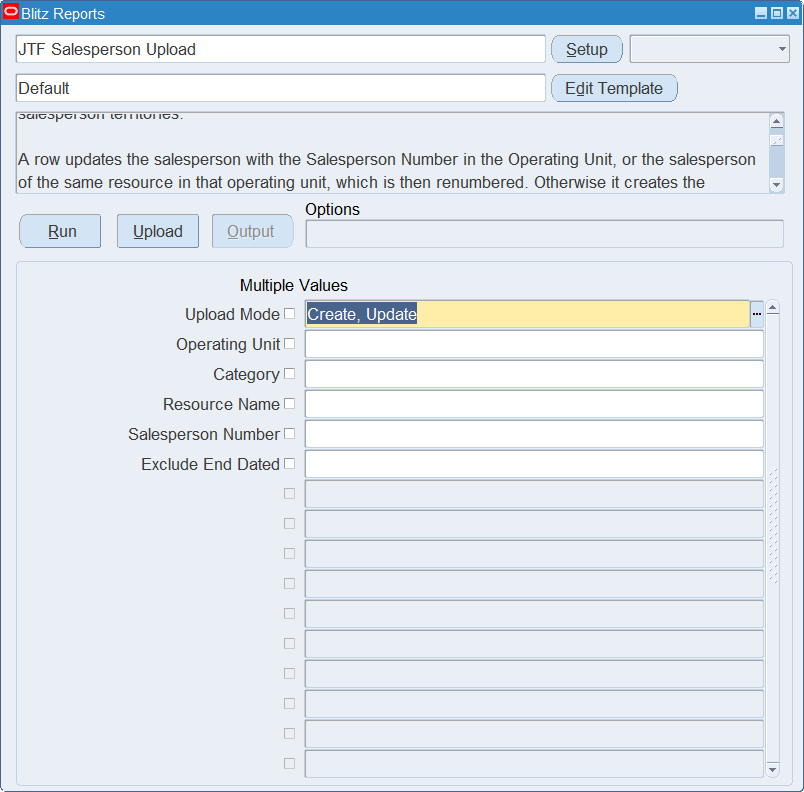
Open JTF Salesperson Upload in Blitz Report, choose the template and set the parameters. They decide which salespersons are downloaded.
| Parameter | Meaning |
|---|---|
| Upload Mode | Create gives you an empty sheet. Create, Update (default) also downloads the existing salespersons with their territories. |
| Operating Unit | Restricts the download to the operating unit. Only the operating units your responsibility can access are downloaded. |
| Category | Restricts the download to salespersons whose resource has the category, for example Employee or Other. |
| Resource Name | Restricts the download to the salespersons of the resource. |
| Salesperson Number | Restricts the download to the salesperson number. |
| Exclude End Dated | Yes leaves out salespersons whose end date has passed. |
Step 2 – Run to download the Excel file
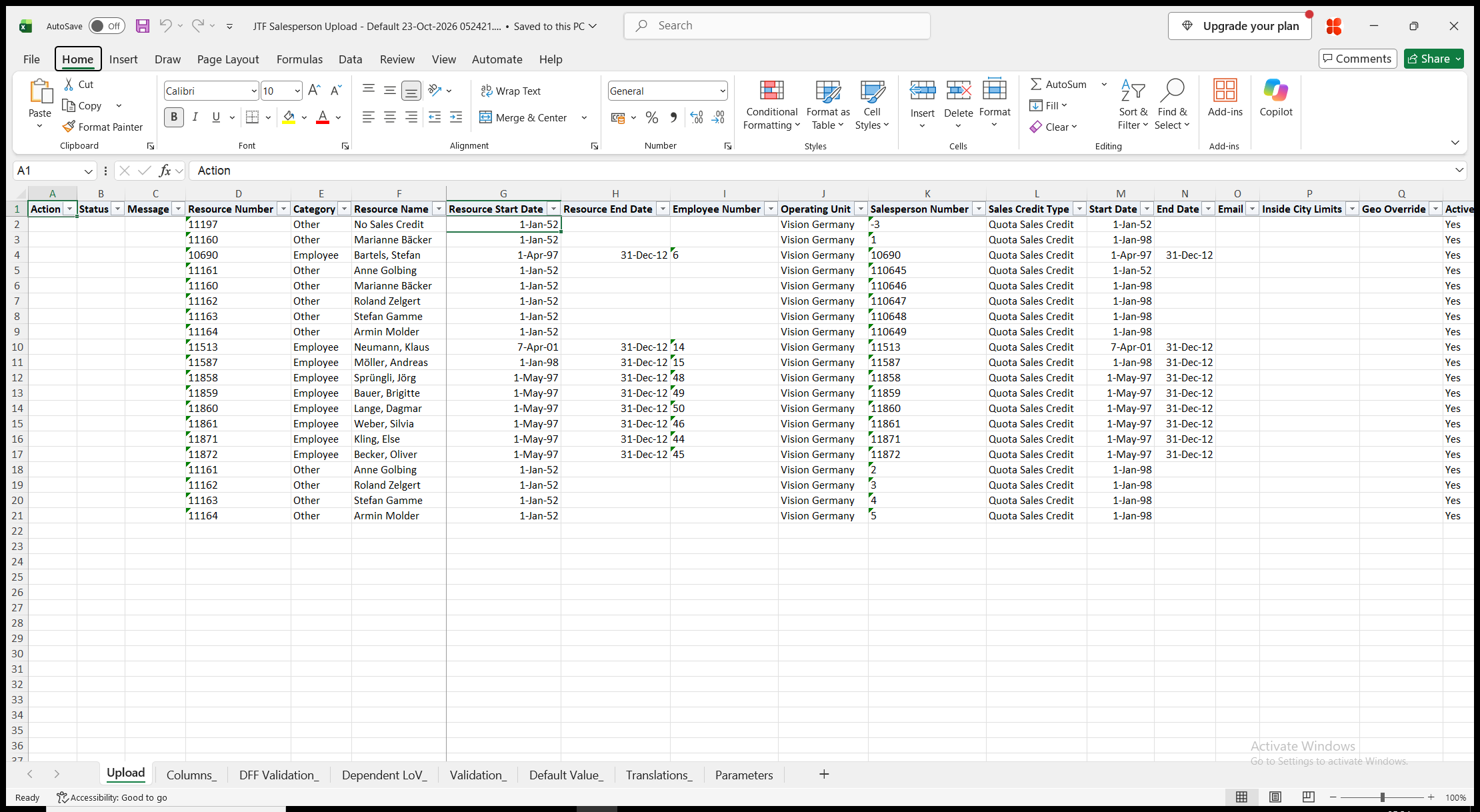
Click Run. With Create, Update, the file has one row per salesperson and territory: a salesperson without territories has one row, and the resource and salesperson columns repeat on every territory row. Resource Number, Category, Employee Number, Operating Unit and Territory Name are read-only on downloaded rows. With Create, the sheet is empty.
Step 3 – Enter the salespersons and territories
Change the downloaded rows, or add rows for new salespersons and territories. A row updates the salesperson with the Salesperson Number in the Operating Unit, or the salesperson of the same resource in that operating unit. Otherwise it creates the salesperson.
- Resource Number – identifies the existing resource of a new salesperson, for example to add a salesperson in another operating unit. Leave it blank to have the resource found or created from the Category and the Employee Number or Resource Name.
- Category (Employee for a new row), Employee Number for a resource of category Employee, and Resource Name, which defaults from the employee. The upload creates resources of category Employee or Other when they do not exist.
- Resource Start Date and Resource End Date. A new resource starts on the salesperson Start Date when you leave Resource Start Date blank. Resource Name and the resource dates apply to the resource and so to its salespersons in every operating unit.
- Operating Unit and Salesperson Number (both required), Sales Credit Type (required for a new salesperson), Start Date (today for a new row), End Date and Email.
- Inside City Limits (Yes or blank) and Geo Override, the sales tax settings of the salesperson.
- Active For Receivables – Yes for a new row. A salesperson that is not active for Receivables needs an End Date.
- Freight Account, Revenue Account and Receivable Account – accounts of the chart of accounts of the operating unit’s ledger.
- Territory with its Territory Start Date (today when you enter a territory) and Territory End Date. Each row carries one territory; enter further territories of a salesperson on further rows. Territory Name is filled in from the territory.
Step 4 – Validate and Save
Click Validate and Save. This checks for missing required values and for values that are not in their lists, marks the rows Valid and saves the file. Correct any rows it flags before uploading.
Step 5 – Upload the file
In Blitz Report click Upload and select the saved file. The upload request processes the rows in order. Each row is saved or rejected on its own, so a rejected row leaves nothing behind and does not affect the other rows.
Step 6 – Review the result report
When the request completes, a result report opens listing every uploaded row with its status and a message naming what was created or updated, for example Resource 11201 created. Salesperson created. Territory assigned., Salesperson updated. or No change., or the reason the row was rejected. The result report shows the values as they were saved in Oracle.
What’s produced
- Resources, salespersons and salesperson territories, saved as the Resources form saves them.
- A row that fails leaves nothing behind and does not affect the other rows.
- A result report listing every row with a status (success or error) and a message.
Common questions
Can I delete a salesperson or a territory assignment?
No. End-date the salesperson with its End Date, and a territory with its Territory End Date.
How do I renumber a salesperson?
Change the Salesperson Number on the downloaded row. The Resource Number of the row identifies the salesperson of that resource in the operating unit, which is then renumbered.
How do I make an existing resource a salesperson in another operating unit?
Add a row with its Resource Number, the other Operating Unit, a new Salesperson Number and a Sales Credit Type.
How do I create salespersons for employees?
Use the New Salespersons template. Enter Category Employee and the Employee Number; the upload creates the employee’s resource when it does not exist yet.
Can I create resources of other categories?
No. Only resources of category Employee or Other are created. Resources of other categories must exist in Resource Manager; enter their Resource Number, or their Category and Resource Name.
Why did a name change show up in other operating units?
Resource Name and the resource dates belong to the resource, which all its salespersons share.
How do I enter descriptive flexfield values?
Use the Flexfield template. Its attribute columns show the segment prompts of your flexfield setup.
Troubleshooting
| Message | Cause | What to do |
|---|---|---|
| Missing values for required field/s: … | A required column is blank, for example the Sales Credit Type of a new salesperson, or the Employee Number or Resource Name of a new resource. | Fill in the columns named. |
| Resource Number … does not exist. | The Resource Number of a new salesperson is not a resource. | Correct the Resource Number, or leave it blank to have the resource found or created. |
| The employee matches more than one resource. Enter the Resource Number of the resource to use. / Resource Name … matches more than one resource. … | More than one resource has the employee or the name. | Enter the Resource Number of the resource to use. |
| Resource … does not exist. Only resources of category Employee or Other can be created by this upload. | No resource of the category has the Resource Name, and the category is neither Employee nor Other. | Create the resource in Resource Manager first, or correct the name. |
| The category and employee of an existing salesperson’s resource cannot be changed. | Category or Employee Number was changed for an existing salesperson. | Undo the change. Create a new salesperson for the other resource. |
| Salesperson End Date is required when the salesperson is not Active for Receivables. | Active For Receivables is blank and End Date is blank. | Enter an End Date, or set Active For Receivables to Yes. |
| Salesperson Start Date Cannot be Less than Resource Start Date | The salesperson Start Date is before the Resource Start Date. | Use a later Start Date, or move the Resource Start Date. |
| Start Date Active cannot be greater than the End Date Active | A start date is later than its end date. | Correct the dates. |
| Salesperson Start Date … is Invalid | The Territory Start Date is before the salesperson’s Start Date. | Use a Territory Start Date on or after the Start Date. |
| Salesperson End Date Cannot be Null / Salesperson End Date … is Invalid | The salesperson has an End Date, and the Territory End Date is blank or later. | Enter a Territory End Date on or before the salesperson’s End Date. |