
PO Advance Shipment Notice Upload creates advance shipment notices (ASN) and advance shipment and billing notices (ASBN) against approved purchase order shipments from Excel, as a supplier sends them through iSupplier Portal or EDI, and cancels shipment notices that have not been received. It loads the rows into the receiving open interface, runs the Receiving Transaction Processor and returns a result report with the outcome of every row.
When to use it
- Enter shipment notices for suppliers that send their shipping details by email or in a spreadsheet.
- Load many shipment lines at once, across several purchase orders of the same supplier site.
- Create ASBNs, so that the supplier invoice is passed on to Payables together with the shipment.
- Cancel shipment notices for goods that will not arrive.
- Review the open lines of the shipment notices expected at an organization.
Before you start
- You are signed in to a responsibility with access to the ship-to organization and to the upload in Blitz Report.
- The purchase orders are approved, and their shipments to the organization are open for receiving: not cancelled, closed, closed for receiving or finally closed.
Choose a template
The default template is Default.
| Template | Use it for |
|---|---|
| Default (default) | Shipment notices with the main shipment header and line columns, and the cancellation of downloaded shipments. |
| Advance Shipment and Billing Notice | An empty sheet for ASBNs, with the invoice columns. Upload Mode is locked to Create and the download filters are hidden. |
| All Columns | All shipment header and line columns, including the invoice, weight and packaging columns. |
| Cancel Shipments | The open lines of existing shipment notices, to cancel them. Upload Mode is locked to Create, Update. |
Step 1 – Set the parameters
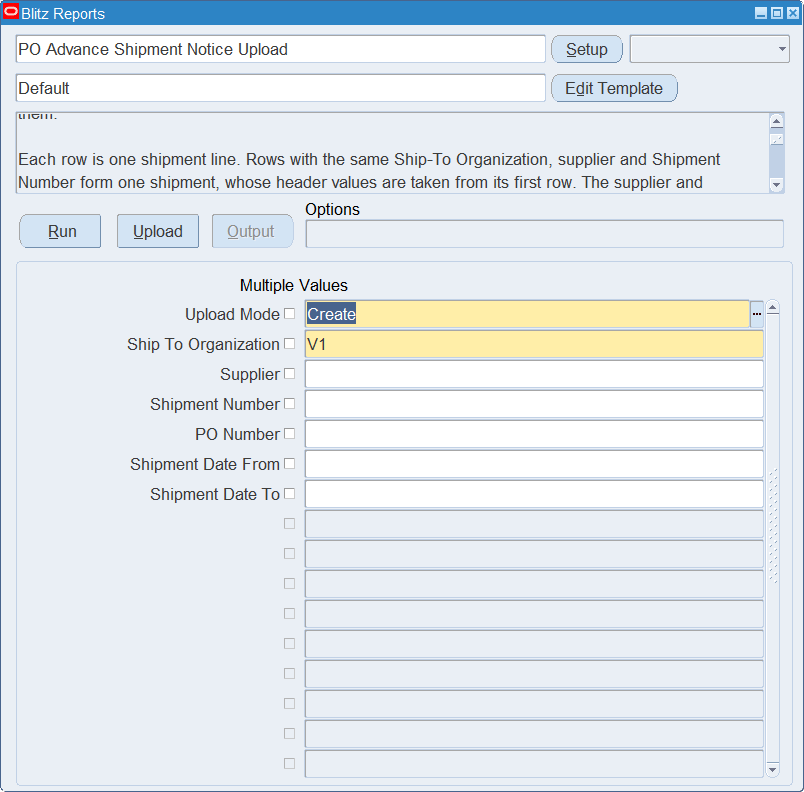
Open PO Advance Shipment Notice Upload in Blitz Report, choose the template and set the parameters. With Create, Update, they decide which shipment lines are downloaded.
| Parameter | Meaning |
|---|---|
| Upload Mode | Create (default) gives you an empty sheet. Create, Update also downloads the open lines of the existing shipment notices. |
| Ship To Organization | Required. The receiving organization. It restricts the download and is the ship-to organization of new rows. |
| Supplier | Restricts the download to the shipment notices of the supplier. |
| Shipment Number | Restricts the download to the shipment. |
| PO Number | Restricts the download to the shipment lines of the purchase order. |
| Shipment Date From, Shipment Date To | Restrict the download to the shipments shipped in the date range. Shipment Date To defaults to Shipment Date From. |
Step 2 – Run to download the Excel file
Click Run. With Create, Update, the file has one row per open shipment line, in status Expected or Partially Received, of the ASNs and ASBNs to the organization. The shipment header columns repeat on every row of the shipment. Supplier, Supplier Site, Item, Item Description, Unit Of Measure, Quantity Ordered, Quantity Received, Quantity Shipped and Line Status are read-only. With Create, the sheet is empty.
Step 3 – Enter the shipment notices
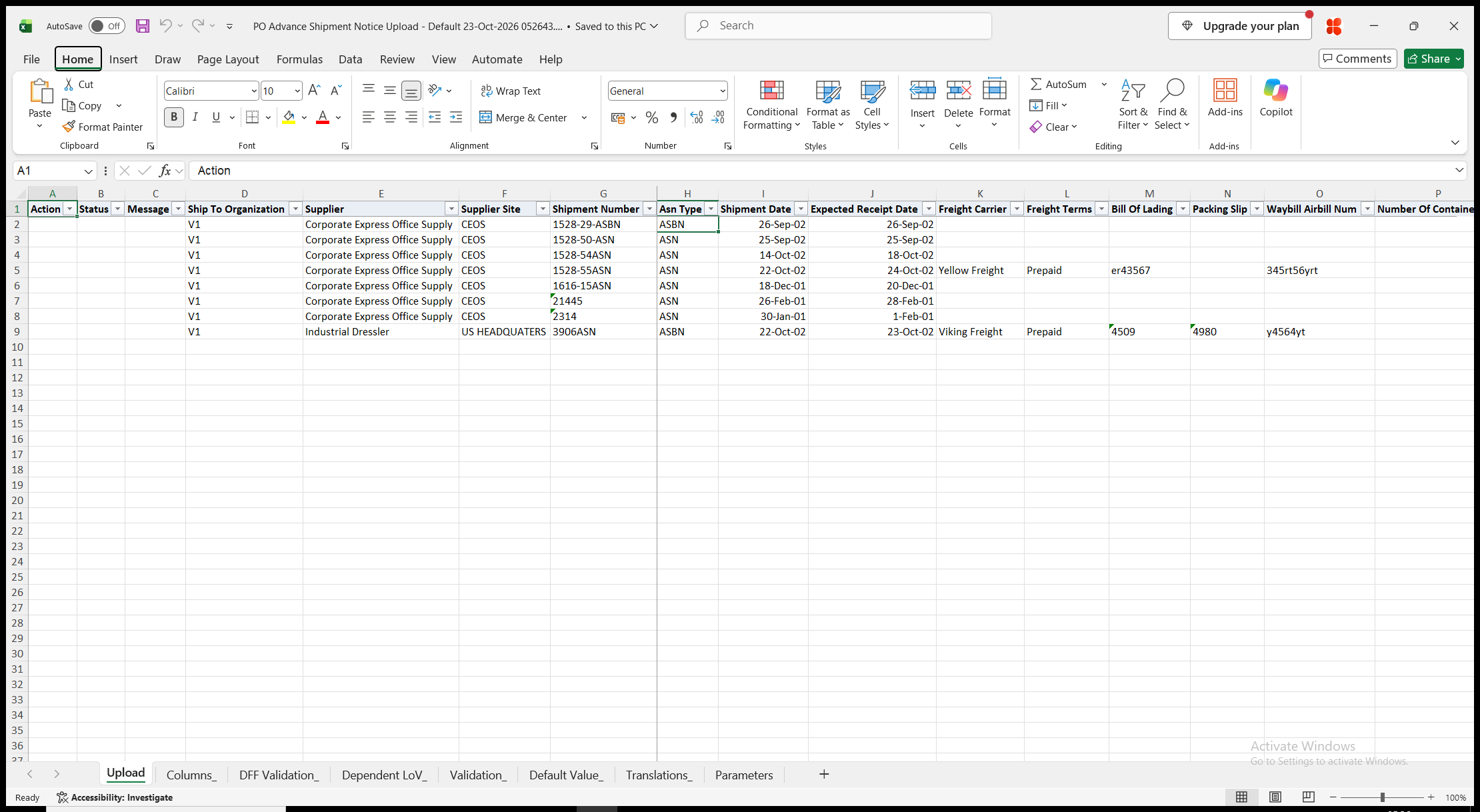
Each row is one shipment line. Rows with the same Ship To Organization, supplier, supplier site and Shipment Number form one shipment, and its header values are taken from its first row. A shipment can carry lines of several purchase orders of the same supplier site.
- Ship To Organization, Shipment Number and Asn Type – ASN (default) or ASBN.
- Shipment Date (defaults to today) and Expected Receipt Date (defaults to the Shipment Date).
- Freight Carrier (the carriers of the organization), Freight Terms, Bill Of Lading, Packing Slip, Waybill Airbill Num, Number Of Containers and Comments of the shipment.
- PO Number, Release Number (for a blanket or scheduled release), Line Num and Po Shipment Num – the purchase order shipment. The Po Shipment Num list shows the quantities ordered, shipped and received. Supplier, Supplier Site, Item, Item Description and Unit Of Measure are filled in from the purchase order.
- Ship Quantity – the quantity of the line, in the unit of measure of the purchase order line.
- Line Packing Slip, Vendor Lot Num, Container Num, Truck Num, Country Of Origin and Line Comments of the line.
- Cancel Shipment – Yes on a downloaded row cancels the whole shipment with all its lines.
For an ASBN, use the Advance Shipment and Billing Notice template and enter Invoice Number, Invoice Date and Invoice Amount on every row of the shipment, plus Tax Amount, Freight Amount and Payment Terms as needed. The All Columns template also has Freight Bill Number, the gross, net and tare weights with their units, Packaging Code and Special Handling Code.
Step 4 – Validate and Save
Click Validate and Save. This checks for missing required values and for values that are not in their lists, marks the rows Valid and saves the file. Correct any rows it flags before uploading.
Step 5 – Upload the file
In Blitz Report click Upload and select the saved file. The upload checks each row, loads it into the receiving open interface, and then runs the Receiving Transaction Processor for the ship-to organization and waits for it to complete. A row rejected by the upload’s own checks loads nothing into the interface.
Step 6 – Review the result report
When the request completes, a result report opens listing every uploaded row with its status and a message, for example ASN SH-1001 created., Shipment cancelled. or No change., or the reason the row was rejected, including the errors of the Receiving Transaction Processor. The result report shows the values as they were saved in Oracle.
What’s produced
- ASN and ASBN shipments with their lines against the purchase order shipments, created by the Receiving Transaction Processor as for a shipment notice sent by the supplier.
- For an ASBN, the invoice, which is passed on to Payables Open Interface Import.
- Cancelled shipments, with all their lines in status Cancelled.
- A result report listing every row with a status (success or error) and a message.
Common questions
Can I change an existing shipment?
No. A downloaded shipment can only be cancelled. To correct it, cancel it and create a new shipment notice.
How do I cancel a shipment?
Download it with the Cancel Shipments template, or with Upload Mode Create, Update, and enter Yes in Cancel Shipment on one of its rows. The whole shipment is cancelled with all its lines. A shipment cannot be cancelled once any of its quantity has been received, or when it was shipped more than 12 months ago.
Which supplier does a new shipment belong to?
The supplier and supplier site of the purchase order. They are filled in when you enter the PO Number and cannot be changed.
How do I create an ASBN?
Use the Advance Shipment and Billing Notice template, set Asn Type to ASBN and enter Invoice Number, Invoice Date and Invoice Amount on every row of the shipment. The Receiving Transaction Processor passes the invoice on to Payables Open Interface Import.
Why does a downloaded row show No change?
You uploaded it without changes and without Yes in Cancel Shipment, so nothing was done.
How do I correct rows the Receiving Transaction Processor rejected?
Correct them in the result report and upload that file again. The interface rows the rejected attempt left behind are replaced.
Troubleshooting
| Message | Cause | What to do |
|---|---|---|
| Missing values for required field/s: … | A required column is blank, for example Shipment Number or Ship Quantity, or an invoice column of an ASBN row. | Fill in the columns named. |
| Expected receipt date is missing | Expected Receipt Date is blank. | Enter the date the goods are expected. |
| Quantity entered … should be greater than zero. | Ship Quantity is zero or negative. | Enter a positive quantity. |
| Invoice Amount … is invalid. | The Invoice Amount of an ASBN is zero or negative. | Enter a positive invoice amount. |
| Invoice details apply to an ASBN only. | An invoice column is filled on an ASN row. | Clear the invoice columns, or set Asn Type to ASBN. |
| Invalid shipment number or No shipments exists for receiving against the PO … | PO Number, Release Number, Line Num and Po Shipment Num do not identify a shipment of the purchase order to the ship-to organization. | Pick the values from the lists. |
| PO Shipment (NUMBER = …) is not in approved status. / is in cancelled status. / is in finally closed status. / is not open. | The purchase order shipment is not approved, is cancelled, or is closed for receiving. | Approve or reopen the purchase order shipment, or choose another one. |
| … cannot be changed. An existing shipment can only be cancelled. | A column of a downloaded shipment was changed. | Undo the change, or cancel the shipment and create a new one. |
| Cancel Shipment applies to an existing shipment only. | Cancel Shipment is Yes on a new row. | Clear Cancel Shipment. |
| ASN … is already received. | Part of the shipment to cancel has been received. A shipment with received quantity cannot be cancelled. | Clear Cancel Shipment. |
| Shipment … does not have matching ASN. Shipments shipped more than 12 months ago cannot be cancelled. | The shipment to cancel was shipped more than 12 months ago. | Clear Cancel Shipment. |
| ASN … is cancelled. | The shipment is already cancelled. | Clear Cancel Shipment. |
| Receiving Transaction Processor request … completed with status … | The Receiving Transaction Processor did not complete normally. | Review the log of the request named. |
| No error message returned. Check the Receiving Transaction Processor request … | The Receiving Transaction Processor did not process the row and reported no error for it. | Review the log of the request named. |