
PER Payroll Element Link Upload creates, updates and end dates element links from Excel, the way the Element Link form does: the element, its eligibility criteria, the standard link, costing, qualifying conditions and the Further Information flexfield. It downloads the links of a business group as of a date for editing, saves each row date-tracked from its Effective Date, and returns a result report with the outcome of every row.
When to use it
- Link new elements to the organizations, jobs, grades, payrolls or other criteria that make employees eligible for them, many links in one step.
- Change the costing and balancing segments of many links at once, for example after new cost centers are introduced.
- Change the costable type, Transfer To G/L or the distribution set of links.
- End date the links of elements you stop paying, or remove an end date.
- Maintain qualifying conditions or the Further Information flexfield of links.
Before you start
- You are signed in to a responsibility with access to the business group and to the upload in Blitz Report.
- The elements are defined and effective on the date the links start.
- The organizations, jobs, positions, grades, locations, salary bases and payrolls you use as criteria exist in the business group. For distributed costing, the distribution set is defined.
- For costed links, the Cost Allocation flexfield of the business group has segments enabled at the Element and Balancing levels.
Choose a template
The default template is Default.
| Template | Use it for |
|---|---|
| Default (default) | Creating, updating and end dating links with the fields of the Element Link form, without the flexfield. |
| Create Element Links | An empty sheet for new links. Upload Mode is locked to Create and the download filters are hidden. |
| Costing | Changing the costable type, Transfer To G/L, distribution set and the costing and balancing segments of existing links. |
| End Date | End dating existing links, or removing their end date. |
| Further Information | The Further Information flexfield of existing links, with the columns that identify the link. |
Step 1 – Set the parameters
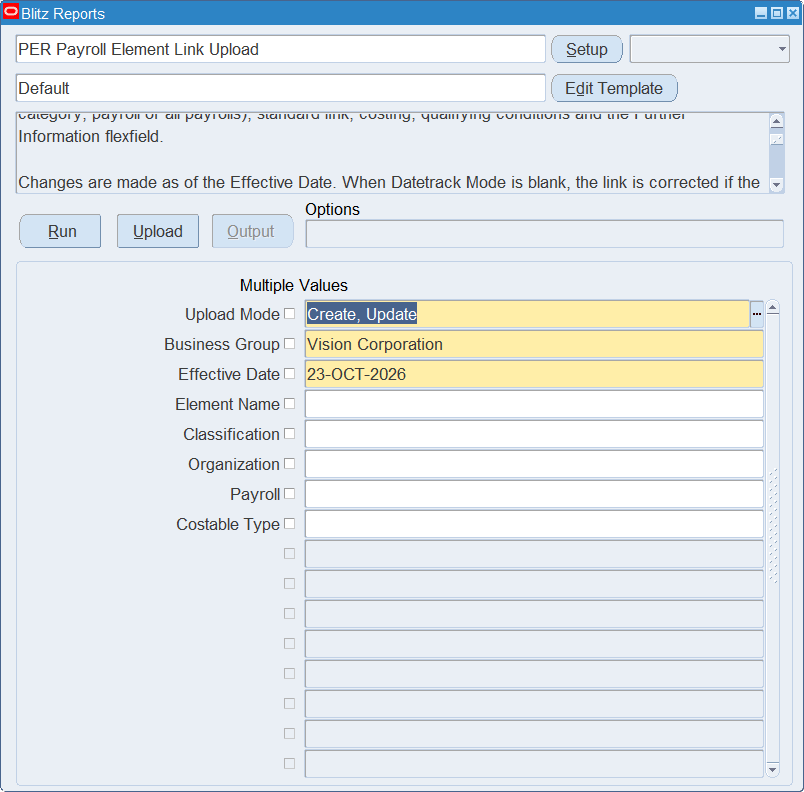
Open PER Payroll Element Link Upload in Blitz Report, choose the template and set the parameters. They decide which links are downloaded.
| Parameter | Meaning |
|---|---|
| Upload Mode | Create gives you an empty sheet. Create, Update (default) also downloads the existing links. |
| Business Group | The business group. Defaults to the business group of your responsibility and is also the business group of new rows. |
| Effective Date | The date the downloaded links are shown as of, and the default date the uploaded changes take effect. Defaults to today. |
| Element Name | Restricts the download to the links of the element. |
| Classification | Restricts the download to the links of elements of the classification, for example Earnings. |
| Organization | Restricts the download to the links with this organization as criterion. |
| Payroll | Restricts the download to the links to this payroll. |
| Costable Type | Restricts the download to the links of the costable type, for example Costed. |
Step 2 – Run to download the Excel file
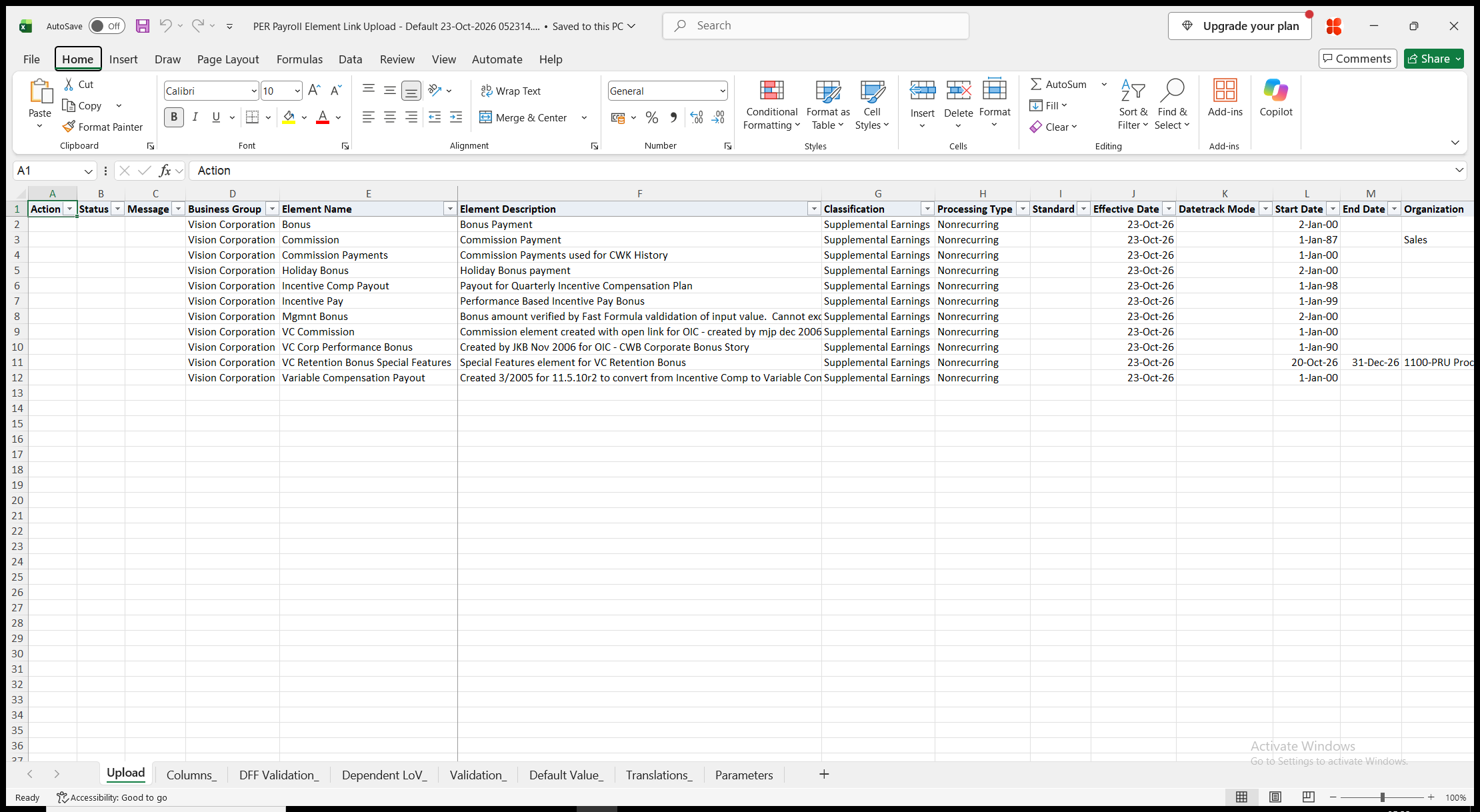
Click Run. With Create, Update, the file has one row per element link that is effective on the Effective Date, with its criteria, costing and qualifying conditions as of that date. Start Date and End Date show the first and the last day of the link; End Date is blank for an open link. Element Description, Classification, Processing Type and Start Date are read-only, and the element and the eligibility criteria can only be entered on new rows. With Create, the sheet is empty.
Step 3 – Enter the element links
Change the downloaded rows, or add rows for new links.
- Element Name and the eligibility criteria Organization, Job, Position, Grade, People Group, Location, Salary Basis, Employment Category and Payroll, or Link To All Payrolls instead of a payroll. Leave a criterion blank when the link does not depend on it. People Group takes the concatenated segment values of the People Group flexfield; a new combination is created when it does not exist.
- Standard – Yes creates entries of the element automatically for every assignment that is eligible for the link. Available for recurring elements only, and defaulted from the element.
- Effective Date – the date a new link starts, or the date the changes of an existing link take effect. It defaults from the Effective Date parameter.
- Datetrack Mode – Correction, Update, Update – Insert or Update with Replace. Leave it blank to correct the link when the Effective Date is the start date of its current record, and to insert a change from the Effective Date otherwise.
- End Date – the last day of the link. Entering a date end dates the link, clearing it removes the end date.
- Costable Type (Not Costed for a new row), Transfer To G/L and Distribution Set, which is required for a Distributed link.
- Costing and Balancing – the segment values of the Cost Allocation flexfield that the Element Link form shows for links, separated by the flexfield delimiter, for example 01.810.6155.1400.000. Balancing is required for a costed link. They are used when Costable Type is Costed, Fixed Costed or Distributed, and new combinations are created as needed.
- Qualifying Age, Qualifying Length Of Service and Qualifying Units, defaulted from the element.
Step 4 – Validate and Save
Click Validate and Save. This checks for missing required values and for values that are not in their lists, marks the rows Valid and saves the file. Correct any rows it flags before uploading.
Step 5 – Upload the file
In Blitz Report click Upload and select the saved file. The upload request processes the rows in order. Each row is saved or rejected on its own, so a rejected row leaves nothing behind and does not affect the other rows.
Step 6 – Review the result report
When the request completes, a result report opens listing every uploaded row with its status and a message naming what was done, for example Element link updated. Element link end dated., No change., or the reason the row was rejected. The result report shows the values as they were saved in Oracle.
What’s produced
- Element links created, updated and end dated as the Element Link form saves them, together with the costing, balancing and people group combinations they need.
- A row that fails leaves nothing behind and does not affect the other rows.
- A result report listing every row with a status (success or error) and a message.
Common questions
Can I change the element or the eligibility criteria of a link?
No. As in the Element Link form, they are fixed once the link exists. End date the link and create a new one with the new criteria.
What happens when a new row has the criteria of an existing link?
When the element already has a link with exactly the same criteria on the Effective Date, the row updates that link instead of creating a second one.
How do I make a change from a future date, or correct a link from its start?
Enter the date in Effective Date. With a blank Datetrack Mode the change starts on that date, or corrects the link when the date is the start date of its current record. Choose Correction to correct the record that is current on the Effective Date.
Can I delete a link?
No. Enter an End Date to end it. The End Date template shows only the columns needed for this.
Can I maintain link input values or element entries?
No. Maintain link input values in the Element Link form. Element entries are loaded with the PER Payroll Element Entry Upload.
How do I enter descriptive flexfield values?
Use the Further Information template. Its attribute columns show the segment prompts of your flexfield setup.
Troubleshooting
| Message | Cause | What to do |
|---|---|---|
| Missing values for required field/s: … | A required column is blank, for example Element Name of a new row. | Fill in the columns named. |
| The element link does not exist on … | The link is not effective on the Effective Date or on the End Date entered, for example it starts later or the End Date is before its start. | Use dates between the link’s Start Date and End Date. |
| This element link is not mutually exclusive. … | Another link of the element has criteria that overlap with the new link, so a person could be eligible through both. | Make at least one criterion different, or end date the other link first. |
| You can link an element to a single payroll or select Link To All Payrolls in the current business group | Both Payroll and Link To All Payrolls are entered. | Enter one of them. |
| The Position must be valid for the Organization and/or Job specified | The position does not belong to the organization or job of the row. | Correct the Position, Organization or Job. |
| You must enter Balancing and the Distribution Set must be null for Costed or Fixed Costed. | A Costed or Fixed Costed link has no Balancing, or has a Distribution Set. | Enter the Balancing segments and clear the Distribution Set. |
| Balancing and Distribution Set are mandatory for Distributed. | A Distributed link has no Balancing or no Distribution Set. | Enter both. |
| Distribution Set,Costing, Balancing must not be entered and Transfer To GL must not be selected if your element link is Not Costed. | Transfer To G/L or a Distribution Set is entered for a Not Costed link. | Clear them, or choose another Costable Type. |
| Costable type must be corrected over the whole lifetime of the link. … | The Costable Type was changed as an update from the Effective Date. | Set Datetrack Mode to Correction. |
| You cannot set the standard flag to Yes for this element link. … | Standard is Yes for a nonrecurring element. | Clear Standard. |
| You cannot change the standard flag from No to Yes. … | Standard was set to Yes on an existing link that has entries, or as an update from the Effective Date. | For a link without entries set Datetrack Mode to Correction; otherwise leave Standard unchanged. |
| You cannot delete links which have entries within the deletion period. … | Element entries of the link exist after the End Date. | End the entries first, or use a later End Date. |
| Costing … has more than … segments. / Balancing … has more than … segments. | More segment values are entered than the form shows for links. | Enter only the segments shown in the downloaded Costing and Balancing values. |
| Further Information validation error: … | A Further Information attribute value is not valid for the flexfield setup. | Correct the attribute values named in the message. |