
PER Absence Upload creates, updates and deletes employee absences from Excel, the way the Absence Detail window does. It downloads the absences of a business group for editing, saves each row with the same validations as the window, and returns a result report with the outcome of every row.
When to use it
- Record the absences of many employees at once, for example vacation or sickness collected outside Oracle.
- Enter the actual dates and times of planned absences when they have been taken.
- Correct dates, reasons, durations, authorizers or replacements of existing absences.
- Delete absences that were recorded in error.
- Load the Additional Absence Details flexfield.
Before you start
- You are signed in to an HR responsibility with access to the upload in Blitz Report. Its HR: Business Group profile is the default business group.
- The absence types, and the reasons of each absence type, are defined in the business group.
- The employees, authorizers and replacements are employees of the business group with an employee number.
Choose a template
The default template is Default.
| Template | Use it for |
|---|---|
| Default (default) | Absences with all fields of the Absence Detail window, without the descriptive flexfield. |
| Create Absences | An empty sheet with the main columns to record new absences. Upload Mode is locked to Create and the download filters are hidden. |
| Delete Absences | Downloaded absences with the columns that identify them and the Delete Absence column. |
| Flexfields | The Additional Absence Details flexfield attributes, with the columns that identify the absence. |
Step 1 – Set the parameters
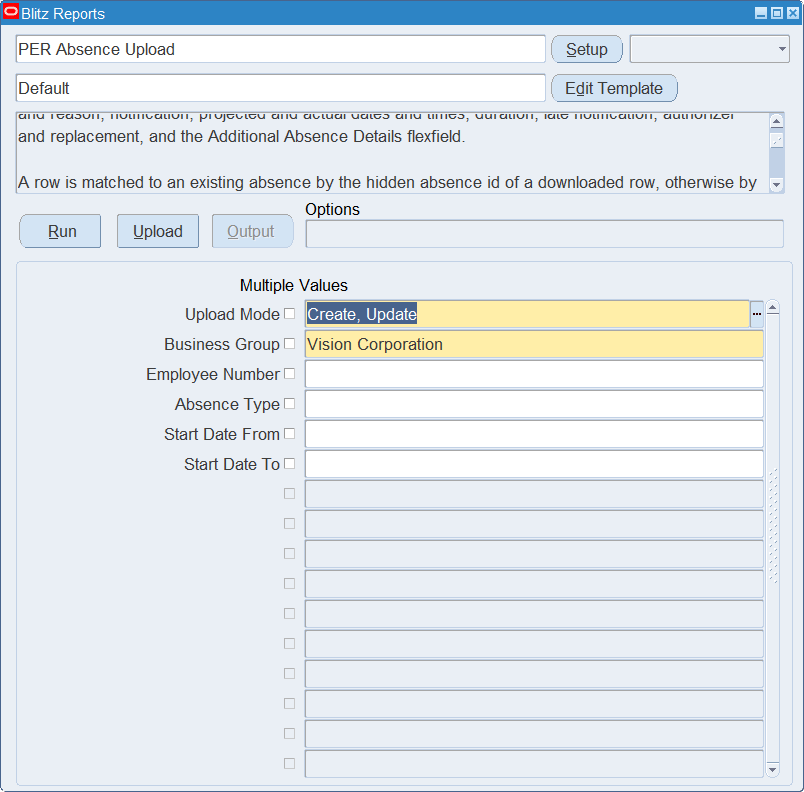
Open PER Absence Upload in Blitz Report, choose the template and set the parameters. They decide which absences are downloaded.
| Parameter | Meaning |
|---|---|
| Upload Mode | Create gives you an empty sheet. Create, Update (default) also downloads the existing absences. |
| Business Group | The business group of the employees. Defaults to the business group of your responsibility and is also the business group of new rows. |
| Employee Number | Restricts the download to the absences of the employee. |
| Absence Type | Restricts the download to the absences of the type. |
| Start Date From | Downloads the absences that start on or after the date. The start is the actual start, or the projected start when there is no actual start. |
| Start Date To | Downloads the absences that start on or before the date. Defaults to Start Date From. |
Step 2 – Run to download the Excel file
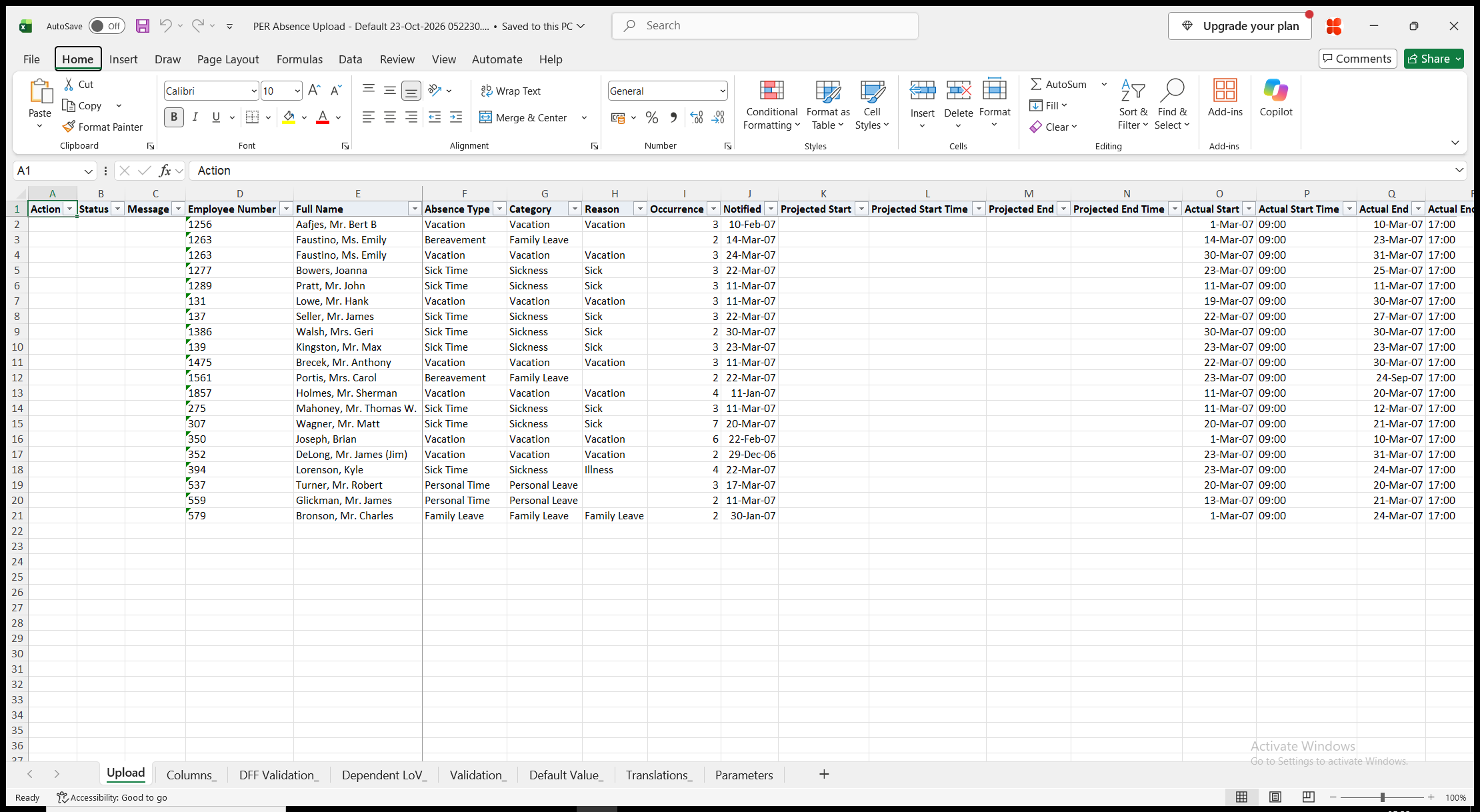
Click Run. With Create, Update, the file has one row per absence. Full Name, Category, Occurrence, Authorized By Name, Replaced By Name and Business Group are read-only. With Create, the sheet is empty.
Step 3 – Enter the absences
Change the downloaded rows, or add rows for new absences.
- Employee Number and Absence Type – Full Name and Category are filled in from them. Reason lists the reasons of the absence type.
- Notified, Projected Start and Projected End, Actual Start and Actual End. Either Actual Start or Projected Start is required.
- Projected Start Time, Projected End Time, Actual Start Time and Actual End Time – for absence types recorded in hours, in the format HH24:MI, for example 09:00.
- Duration Days and Duration Hours – left blank, they are calculated from the actual dates and times once Actual End is entered. A changed date or time recalculates them unless you enter the duration as well.
- Reason For Late Notification and Accept Late Notification.
- Authorized By Number and Replaced By Number – employees of the business group. Their names are filled in.
- Delete Absence – Yes deletes a downloaded absence.
Step 4 – Validate and Save
Click Validate and Save. This checks for missing required values and for values that are not in their lists, marks the rows Valid and saves the file. Correct any rows it flags before uploading.
Step 5 – Upload the file
In Blitz Report click Upload and select the saved file. The upload request processes the rows in order. Each row is saved or rejected on its own, so a rejected row leaves nothing behind and does not affect the other rows.
Step 6 – Review the result report
When the request completes, a result report opens listing every uploaded row with its status and a message, for example Absence created., Absence updated., Absence deleted. or No change., or the reason the row was rejected. The result report shows the values as they were saved in Oracle, including the calculated durations and the occurrence.
What’s produced
- Absences created, updated and deleted with the validations of the Absence Detail window. For absence types linked to an element, the element entry of the absence is maintained with it.
- A rejected row leaves nothing behind and does not affect the other rows.
- A result report listing every row with a status (success or error) and a message.
Common questions
How is an absence identified?
A downloaded row identifies its absence, so you can change all of its dates. A new row updates the employee’s absence of the same absence type and start date if one exists, and creates a new absence otherwise. The start date is the actual start, or the projected start when there is no actual start.
Can I change the absence type of an absence?
No. As in the Absence Detail window, the absence type of an existing absence cannot be changed. Delete the absence and enter it again with the other type.
How do I record that a planned absence was taken?
Download it and enter Actual Start and Actual End, with their times for an absence type recorded in hours. Leave the durations blank to have them calculated.
Why is the Reason list empty?
It lists only the reasons defined for the absence type of the row. Enter the Absence Type first.
What if the absence overlaps another absence of the employee?
The absence is saved, and the message adds It overlaps another absence of the employee.
How do I delete absences?
Download them with the Delete Absences template, or the Default template, and enter Yes in Delete Absence.
How do I enter descriptive flexfield values?
Use the Flexfields template. Its attribute columns show the segment prompts of your Additional Absence Details flexfield setup.
Troubleshooting
| Message | Cause | What to do |
|---|---|---|
| Missing values for required field/s: Absence Type, Actual Start or Projected Start | A new row has no absence type or no start date. | Fill in the columns named. |
| Employee number … not found in the business group. | The employee number does not exist in the business group of the upload. | Correct the Employee Number, or run the upload for the employee’s business group. |
| Absence ID … not found for employee … | The Employee Number of a downloaded row was changed, or the absence was deleted after the download. | Keep the Employee Number of downloaded rows and enter an absence of another employee on a new row. Download the absences again if they changed. |
| The absence type of an existing absence cannot be changed. | The Absence Type of a downloaded row was changed. | Delete the absence and enter it again with the other type. |
| Absence to delete not found. | Delete Absence is Yes on a row that matches no existing absence. | Delete absences from downloaded rows. |
| Additional Absence Details validation error: … | A flexfield value is not valid for its segment. | Correct the value named in the message. |
| You cannot enter the actual and projected time because the absence type’s unit of measure is set to days. | A time is entered for an absence type recorded in days. | Clear the time columns. |
| You cannot enter the duration in hours because the absence type’s unit of measure is in days. / You cannot enter duration in days because the absence type’s unit of measure is in hours. | The duration is entered in the unit the absence type does not use. | Enter Duration Days for a type recorded in days and Duration Hours for a type recorded in hours. |
| Please enter the time in the 24 hour format: HH:MM | A time is not in the format HH24:MI. | Enter the time as for example 09:00 or 17:30. |
| The actual end date must be on or after the actual start date. / The projected end date must be on or after the projected start date. | The end date is before the start date. | Correct the dates. |
| Either the absence type does not exist, or the start and end dates entered are outside the effective dates of the absence type. … | The absence dates are outside the dates of the absence type. | Use dates within the dates of the absence type, or another absence type. |
| Either the person does not exist or their period of service is not valid for the entire absence period. … | The absence starts before the employee’s hire date or ends after the termination date. | Correct the dates. |
| Authorisor is not valid for the duration of the absence. / Replacement is not valid for the duration of the absence. | The authorizer or replacement is not employed for the whole absence. | Choose another employee in Authorized By Number or Replaced By Number. |
| This person is not eligible for the element associated with this absence type. | The absence type is linked to an element that the employee’s assignment is not eligible for. | Check the element link of the absence type, or use another absence type. |