
OPM Actual Cost Adjustment Upload creates, updates and deletes OPM actual cost adjustments from Excel, the way the Actual Cost Adjustments form does. It downloads the adjustments of a process organization and period for editing, saves each row with the validations of the form, and returns a result report with the outcome of every row. The adjustments are applied by the next actual cost process.
When to use it
- Enter the cost adjustments of a period for many items at once, for example freight, rebates or corrections of purchase costs.
- Correct the cost, quantity, reason or component class of adjustments that are not posted to GL yet.
- Delete adjustments of an open period.
- Review the adjustments of a period in Excel before running the actual cost process.
Before you start
- You are signed in to a responsibility with access to the process organization and to the upload in Blitz Report.
- The period of the cost calendar is defined for the cost type in the legal entity of the organization and is not closed. Existing adjustments can be changed only in an open period.
- The component classes, analysis codes and reason codes you use are defined in OPM Financials.
Choose a template
The default template is Default.
| Template | Use it for |
|---|---|
| Default (default) | Creating, updating and deleting adjustments with the fields of the Actual Cost Adjustments form, without the descriptive flexfield. |
| Create | An empty sheet for new adjustments. Upload Mode is locked to Create and the download filters are hidden. |
| Flexfield | The descriptive flexfield of existing adjustments, with the columns that identify the adjustment. |
Step 1 – Set the parameters
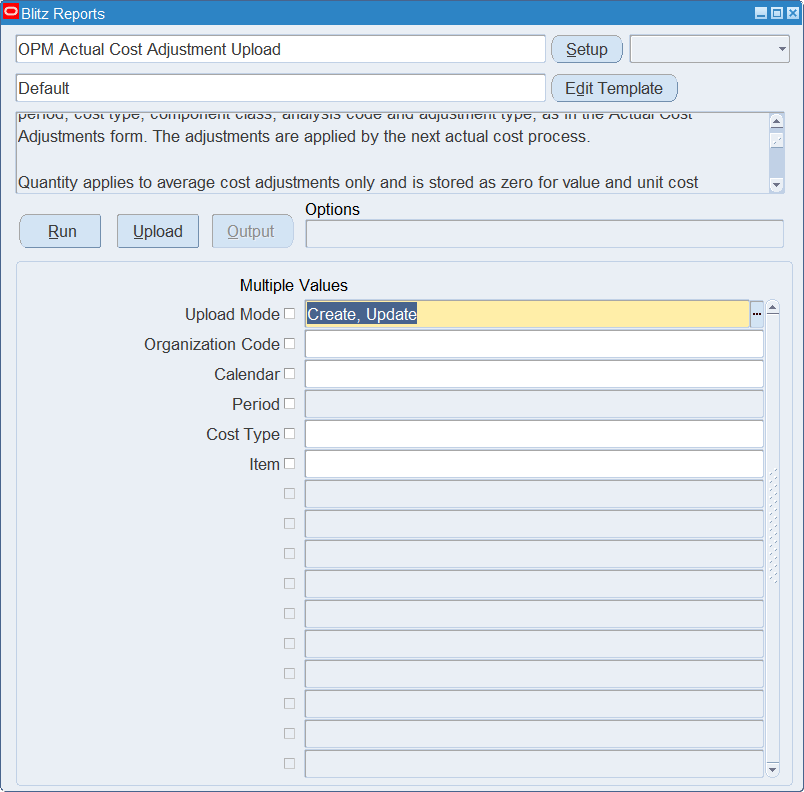
Open OPM Actual Cost Adjustment Upload in Blitz Report, choose the template and set the parameters. They decide which adjustments are downloaded.
| Parameter | Meaning |
|---|---|
| Upload Mode | Create gives you an empty sheet. Create, Update (default) also downloads the existing adjustments. |
| Organization Code | Restricts the download to the process organization. |
| Calendar | Restricts the download to the cost calendar. |
| Period | Restricts the download to the period of the calendar. |
| Cost Type | Restricts the download to the actual cost type, for example PWAC. |
| Item | Restricts the download to the item. |
Step 2 – Run to download the Excel file
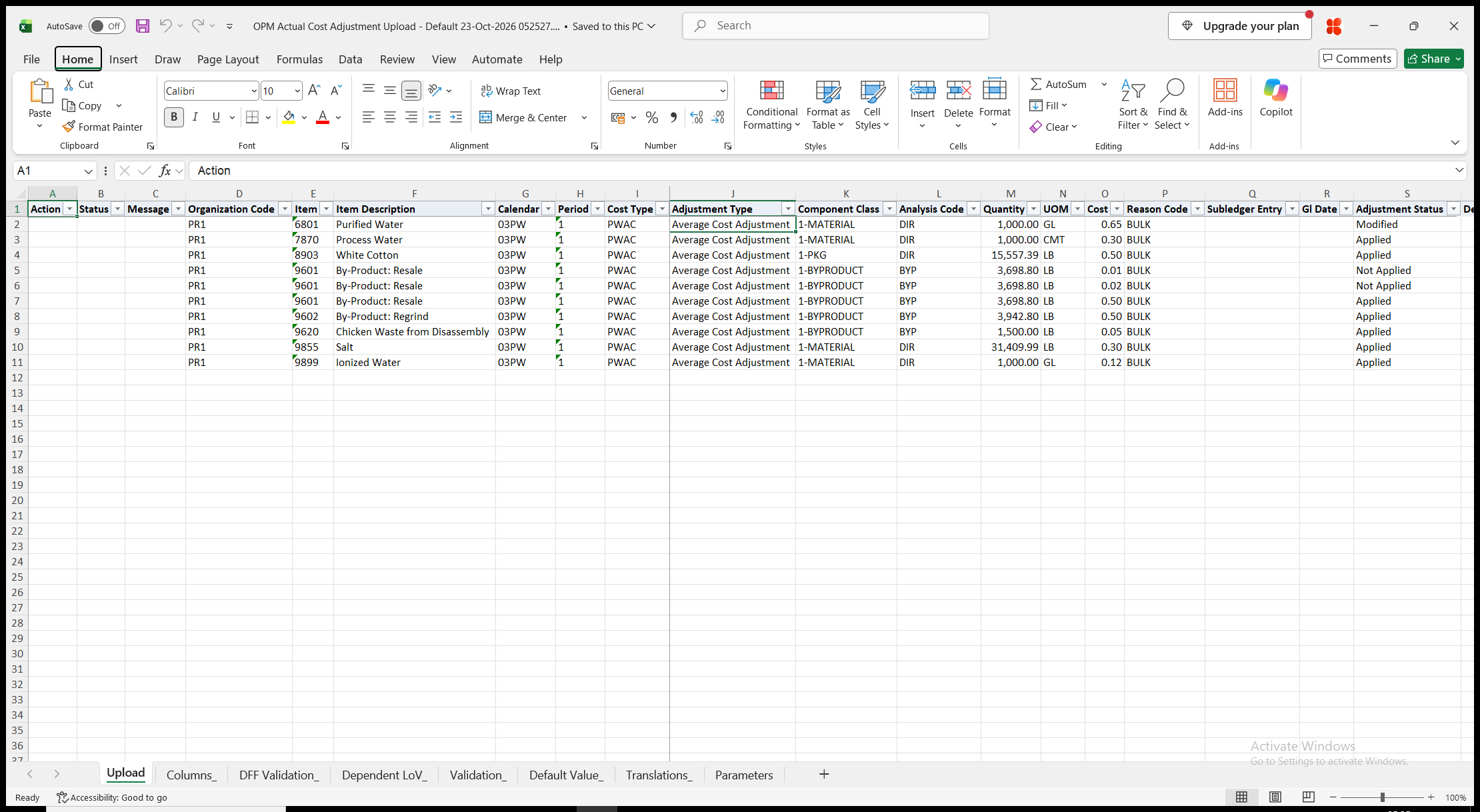
Click Run. With Create, Update, the file has one row per adjustment, leaving out adjustments that are marked for deletion. Item Description and Adjustment Status are read-only. With Create, the sheet is empty.
Step 3 – Enter the adjustments
Change the downloaded rows, or add rows for new adjustments.
- Organization Code, Item, Calendar, Period and Cost Type – where the adjustment applies. They cannot be changed on an existing adjustment.
- Adjustment Type – Average Cost Adjustment (the default for a new row), Value Cost Adjustment or Unit Cost Adjustment.
- Component Class and Analysis Code.
- Quantity and UOM, which defaults to the primary unit of measure of the item. Quantity is required for average cost adjustments and stored as zero for value and unit cost adjustments.
- Cost and Reason Code.
- Subledger Entry and Gl Date. Subledger Entry defaults to Yes for a reason code that posts to the subledger. A subledger entry is dated within the period, by default on its first day; other adjustments have no GL date.
- Delete Adjustment – Yes deletes a downloaded adjustment.
Step 4 – Validate and Save
Click Validate and Save. This checks for missing required values, for values that are not in their lists, for a period that is not open and for an average cost adjustment without a quantity, marks the rows Valid and saves the file. Correct any rows it flags before uploading.
Step 5 – Upload the file
In Blitz Report click Upload and select the saved file. The upload request processes the rows in order. Each row is saved or rejected on its own, so a rejected row does not affect the other rows.
Step 6 – Review the result report
When the request completes, a result report opens listing every uploaded row with its status and a message, for example Adjustment created., Adjustment updated., Adjustment deleted. or No change., or the reason the row was rejected. The result report shows the adjustments as they were saved in Oracle, including their Adjustment Status.
What’s produced
- Actual cost adjustments, saved as the Actual Cost Adjustments form saves them. The next actual cost process applies them to the item costs.
- Each row is saved or rejected on its own. A row that fails does not affect the other rows.
- A result report listing every row with a status (success or error) and a message.
Common questions
When do the adjustments change the item cost?
When the actual cost process runs for the period. Until then the Adjustment Status of a new adjustment is Not Applied.
What happens when I change an applied adjustment?
Its Adjustment Status becomes Modified, and the next actual cost process applies the change.
Can I delete an adjustment?
Yes. Enter Yes in Delete Adjustment on the downloaded row. As in the form, the adjustment is marked for purge.
Which adjustments cannot be changed?
Adjustments posted to GL, adjustments of frozen or closed periods, and adjustments marked for deletion.
Can I move an adjustment to another item or period?
No. Delete it and enter a new adjustment for the other item or period.
Why is the quantity of my adjustment zero?
Quantity applies to average cost adjustments only. Value and unit cost adjustments are stored with a zero quantity.
How do I enter descriptive flexfield values?
Use the Flexfield template. Its attribute columns show the segment prompts of your flexfield setup.
Troubleshooting
| Message | Cause | What to do |
|---|---|---|
| Missing values for required field/s: … | A required column is blank, for example Component Class, Analysis Code, Cost or Reason Code. | Fill in the columns named. |
| Period … of calendar … is not defined for this cost type in the legal entity of organization …. | The calendar period has no period status for the cost type in the legal entity of the organization. | Choose another period or cost type, or set up the period in OPM Financials. |
| Period is Closed/Frozen. Cannot Change Component Costs | The period is closed, or an existing adjustment belongs to a frozen or closed period. | Enter the adjustment in an open period. |
| Zero Adjustment Qty. Cost will be applied to entire Item Transaction Qty. | An average cost adjustment has no quantity. | Enter a Quantity, or choose another Adjustment Type. |
| Date should be within period start and end dates. | The Gl Date of a subledger entry is outside the period. | Enter a date within the period, or leave Gl Date blank for the first day of the period. |
| Organization, item, calendar, period and cost type of an existing adjustment cannot be changed. | One of these columns was changed on a downloaded row. | Restore the value, or delete the adjustment and enter a new one. |
| The adjustment is posted to GL and cannot be changed. | The adjustment was posted to GL. | Enter a new adjustment for the difference. |
| The adjustment is marked for deletion. | The adjustment was deleted after the download. | Download the adjustments again. |
| Only an existing adjustment can be deleted. | Delete Adjustment is Yes on a new row. | Clear Delete Adjustment. |
| Error : Invalid Actual Cost Adjustment Id | The downloaded adjustment does not exist anymore. | Download the adjustments again. |