
INV Move Order Upload creates and updates move order requisitions with their lines from Excel, approves them, and cancels or closes move order lines, the way the Move Orders window does. It downloads the move order requisitions of an organization for editing, saves each row through the Oracle move order api, and returns a result report with the outcome of every row.
When to use it
- Create many move order requisitions, or move orders with many lines, in one step, for example to restock subinventories.
- Submit the created move orders for approval in the same upload.
- Change the quantities, dates, subinventories or accounts of move order lines.
- Cancel or close many move order lines at once.
Before you start
- You are signed in to a responsibility with access to the inventory organization and to the upload in Blitz Report.
- The items are transactable in the organization, and the subinventories, locators and accounts you reference exist there.
- Allocating and transacting the approved lines is done in the Transact Move Orders window.
Choose a template
The default template is Default.
| Template | Use it for |
|---|---|
| Default (default) | Move order requisitions and their lines with all columns of the Move Orders window, without the descriptive flexfields. |
| Create Move Orders | An empty sheet to create and approve move order requisitions, one row per line. Upload Mode is locked to Create and the download filters are hidden. |
| Flexfields | Move order requisitions and their lines including the descriptive flexfields of headers and lines. |
Step 1 – Set the parameters
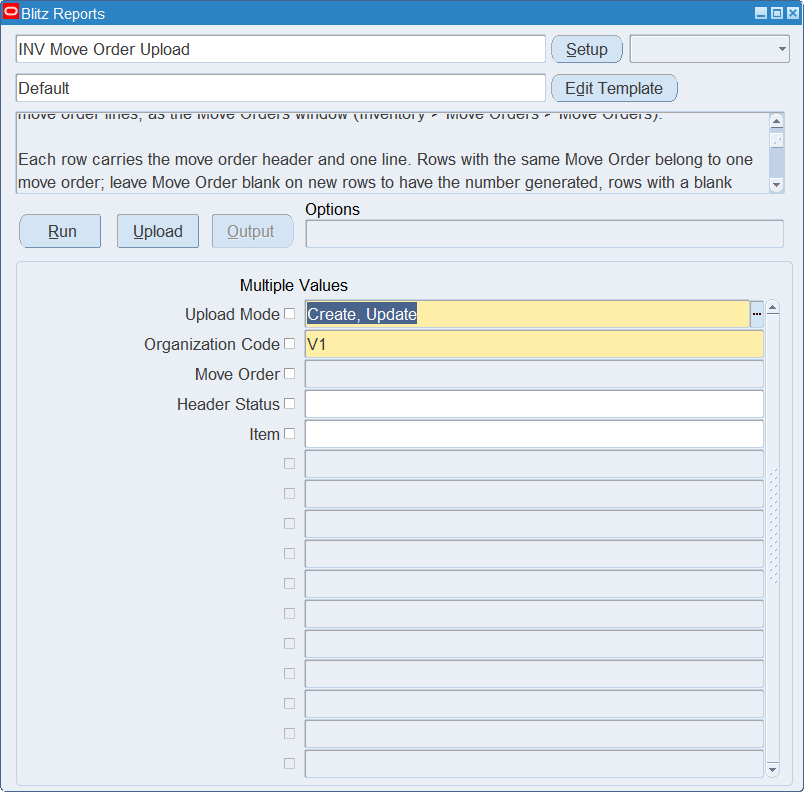
Open INV Move Order Upload in Blitz Report, choose the template and set the parameters. They decide which move orders are downloaded.
| Parameter | Meaning |
|---|---|
| Upload Mode | Create gives you an empty sheet. Create, Update (default) also downloads the existing move order requisitions with their lines. |
| Organization Code | The inventory organization. Defaults to your current organization and is also the organization of new rows. |
| Move Order | Restricts the download to the move order. |
| Header Status | Restricts the download to the move orders with the status, for example Incomplete or Approved. |
| Item | Restricts the download to the move order lines of the item. |
Step 2 – Run to download the Excel file
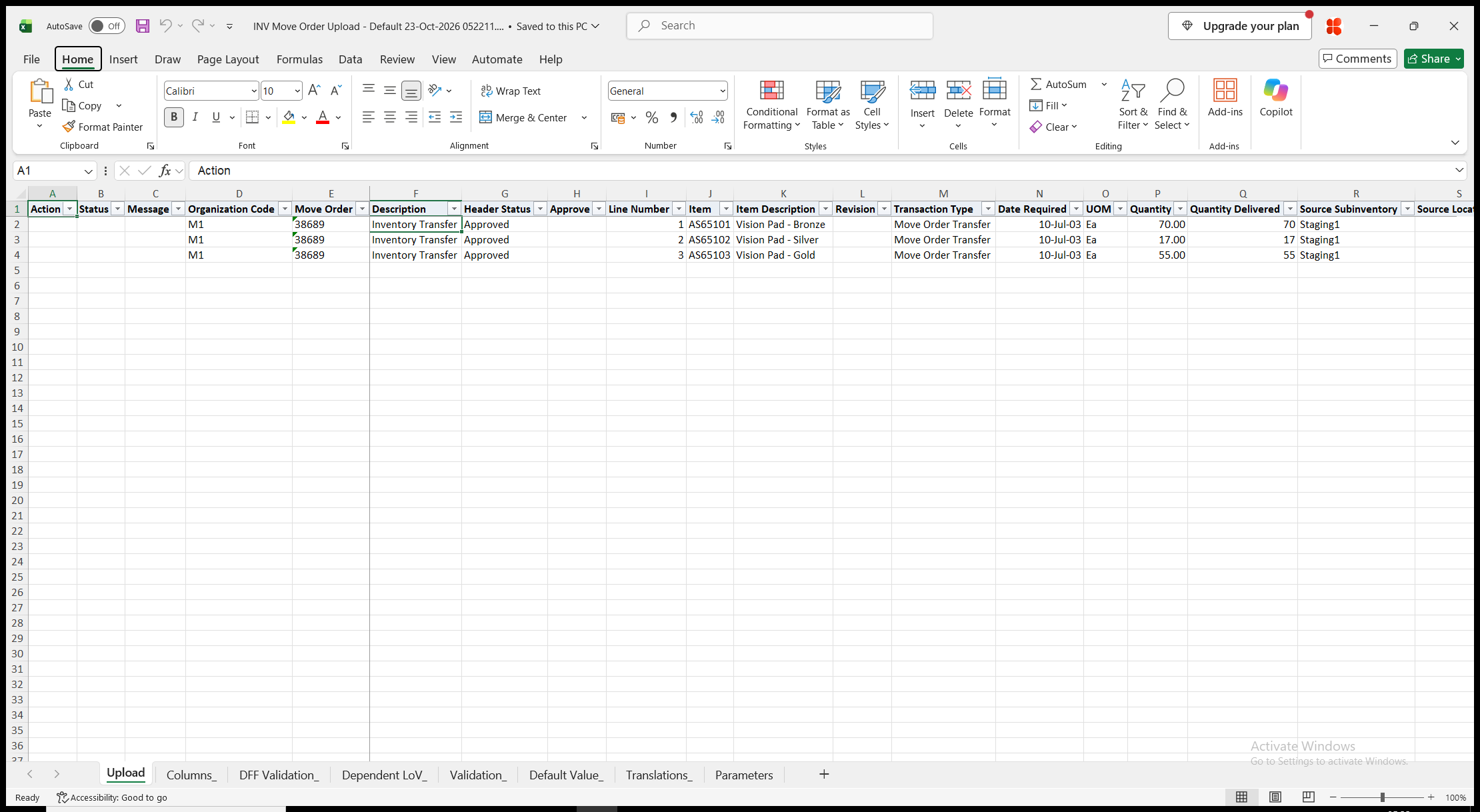
Click Run. With Create, Update, the file has one row per move order line, and the header columns repeat on every row of the move order. Organization Code, Move Order, Line Number and Item are read-only on downloaded rows, and Header Status, Item Description, Quantity Delivered and Line Status are always read-only. Only move order requisitions are downloaded, not pick wave, replenishment or other move orders. With Create, the sheet is empty.
Step 3 – Enter the move orders and lines
Change the downloaded rows, or add rows for new move orders and lines. Each row carries the move order header and one line. Keep the rows of a move order together and repeat the header values on each of them; the header is saved from the first row of the move order.
- Move Order – leave blank on new rows to have the number generated. Rows with a blank number and the same header values then form one move order. To add a line to an existing move order, enter its number.
- Description. The header can only be changed while the move order is Incomplete.
- Approve – Yes submits the move order for approval after its lines are created, as the Approve button of the Move Orders window does. It is approved immediately unless the organization’s move order approval timeout requires the approval workflow.
- Line Number – leave blank on new lines to number them after the last line of the move order.
- Item, Revision, UOM (defaults to the primary unit of measure) and Quantity. The item of an existing line cannot be changed.
- Transaction Type – Move Order Transfer (default) moves the material to the Destination Subinventory, Move Order Issue issues it to the Destination Account. Other move order transfer and issue types are listed too.
- Date Required – defaults to today.
- Source Subinventory, Source Locator, Lot Number, Serial From and Serial To – where the material comes from.
- Destination Subinventory, Destination Locator, Destination Account and Ship To Location – where it goes.
- Reason and Reference.
- Line Action – Canceled cancels the line, Closed closes it.
Step 4 – Validate and Save
Click Validate and Save. This checks for missing required values and for values that are not in their lists, marks the rows Valid and saves the file. Correct any rows it flags before uploading.
Step 5 – Upload the file
In Blitz Report click Upload and select the saved file. The upload request processes the rows in order. Each row is saved or rejected on its own, so a rejected row leaves nothing behind and does not affect the other rows. When the header of a move order is rejected, all rows of that move order are rejected with the same message. The move orders with Approve Yes are submitted for approval after all rows are processed.
Step 6 – Review the result report
When the request completes, a result report opens listing every uploaded row with its status and a message naming what was created, updated, canceled or closed, for example Move order 3904030 created. Line 1 created. Status: Approved., or the reason the row was rejected. The result report shows the values as they were saved in Oracle, including the generated move order and line numbers.
What’s produced
- Move order requisitions and their lines, created and updated through the Oracle move order api.
- Move orders submitted for approval where Approve is Yes, and canceled or closed lines.
- A row that fails leaves nothing behind and does not affect the other rows.
- A result report listing every row with a status (success or error) and a message.
Common questions
How do I add a line to an existing move order?
Add a row with the organization and the Move Order number, and the line values. The line number is generated.
Can the upload allocate or transact the move order lines?
No. Allocating and transacting the approved lines is done in the Transact Move Orders window.
Can I change an approved move order?
Its header can only be changed while it is Incomplete. Lines can be canceled or closed with Line Action.
Can I delete a move order line?
No. Cancel it with Line Action Canceled.
Where do I see the move orders of an organization?
The INV Move Orders report lists them.
How do I enter descriptive flexfield values?
Use the Flexfields template. Its attribute columns show the segment prompts of your flexfield setup.
Troubleshooting
| Message | Cause | What to do |
|---|---|---|
| … already exists | The generated number of a new move order is already used by another move order of the organization. | Enter a Move Order number. |
| The header of move order … can only be changed while it is Incomplete. | Description or a header flexfield was changed on a move order that is no longer Incomplete. | Keep the header values of the downloaded rows. |
| Move order … is not a move order requisition. | The Move Order number belongs to another kind of move order, for example a pick wave move order. | Use the number of a move order requisition. |
| The item of an existing move order line cannot be changed. | The item of a downloaded line was changed. | Cancel the line and add a new line for the other item. |
| Move order line … does not exist. | Line Action is entered on a row whose line does not exist. | Enter Line Action on the downloaded row of the line. |
| To Subinventory is required. | Destination Subinventory is blank on a line with a transfer transaction type. | Enter the destination subinventory. |
| Account is required. | Destination Account is blank on a line with an issue transaction type. | Enter the destination account. |