
INV Kanban Card Upload creates kanban cards for existing pull sequences from Excel and changes the size, card status and supply status of kanban cards, the way the Kanban Cards window does. It downloads the kanban cards of an organization for editing, saves each row with the same status rules as the window, and returns a result report with the outcome of every row.
When to use it
- Create the cards of new pull sequences in one step.
- Put many cards on hold, activate them again or cancel them.
- Change the supply status of cards, for example to Empty to trigger their replenishment.
- Change the kanban size of cards.
- Delete cards that are no longer needed.
Before you start
- You are signed in to a responsibility with access to the inventory organization and to the upload in Blitz Report.
- The pull sequences of the item, subinventory and locator are defined in the Kanban Pull Sequences window. A new card takes its source type, supplier, source organization, source subinventory and line from its pull sequence.
Choose a template
The default template is Default.
| Template | Use it for |
|---|---|
| Default (default) | Creates, updates and deletes kanban cards, with their status and source columns, without the descriptive flexfield. |
| Create Cards | An empty sheet to create kanban cards for existing pull sequences. Upload Mode is locked to Create and the download filters are hidden. |
| Card Status Change | The card status and supply status of existing kanban cards. Upload Mode is locked to Create, Update. |
Step 1 – Set the parameters
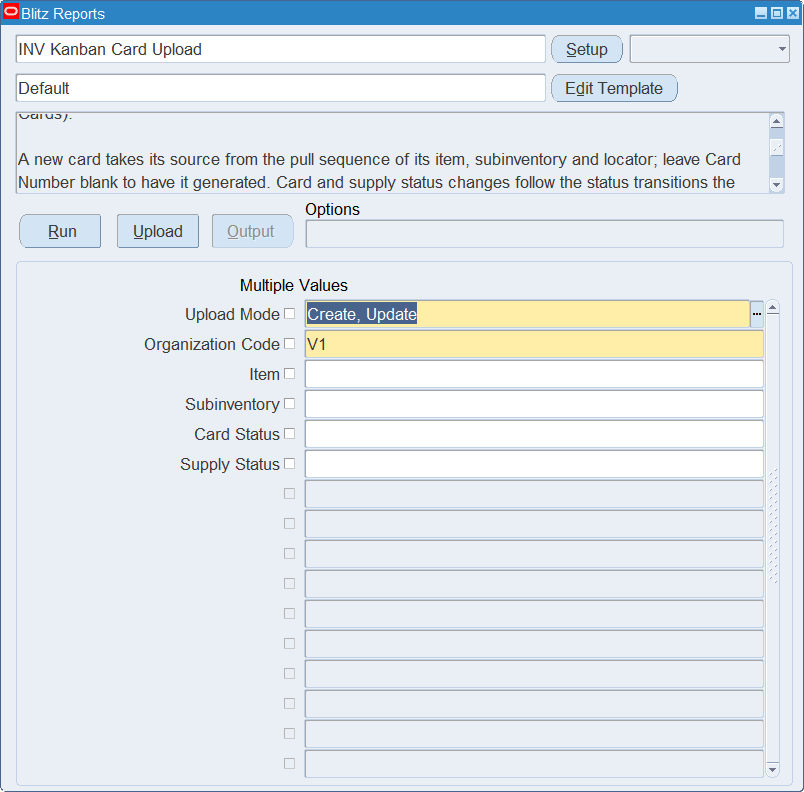
Open INV Kanban Card Upload in Blitz Report, choose the template and set the parameters. They decide which cards are downloaded.
| Parameter | Meaning |
|---|---|
| Upload Mode | Create gives you an empty sheet. Create, Update (default) also downloads the existing kanban cards. |
| Organization Code | The inventory organization. Defaults to your current organization and is also the organization of new rows. |
| Item | Restricts the download to the cards of the item. |
| Subinventory | Restricts the download to the cards of the subinventory. |
| Card Status | Restricts the download to the cards with the card status, for example Hold. |
| Supply Status | Restricts the download to the cards with the supply status, for example Empty. |
Step 2 – Run to download the Excel file
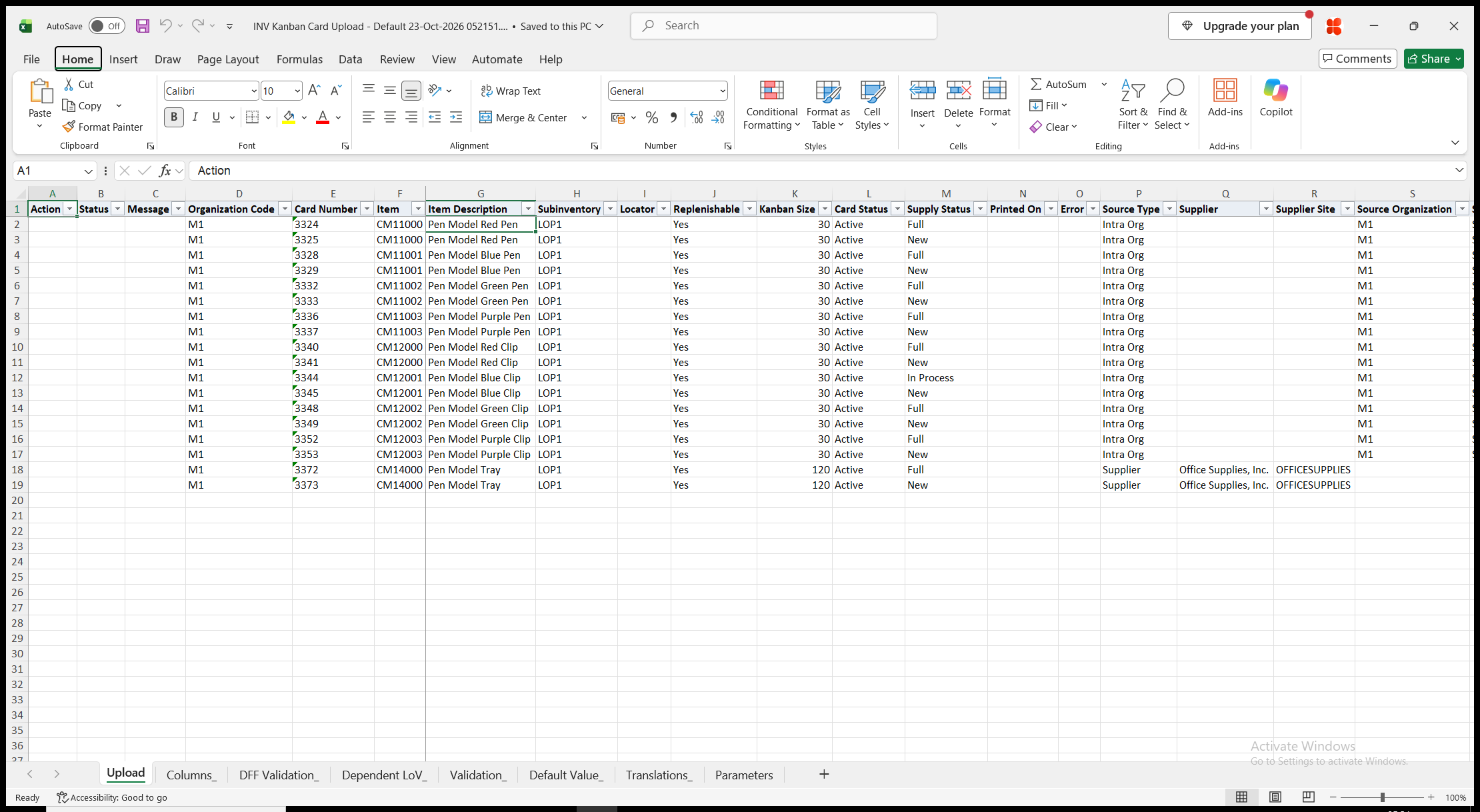
Click Run. With Create, Update, the file has one row per kanban card. Organization Code, Card Number, Item, Subinventory, Locator and Replenishable are read-only on downloaded rows. Item Description, Printed On, Error, Source Type, Supplier, Supplier Site, Source Organization, Source Subinventory, Source Locator and Line Code show the card’s information and are read-only. With Create, the sheet is empty.
Step 3 – Enter the kanban cards
Change the downloaded rows, or add rows for new cards.
- Card Number – leave blank on a new card to have the number generated.
- Item, Subinventory and Locator – a new card needs a pull sequence for them. The lists offer the items, subinventories and locators of the pull sequences.
- Replenishable – Yes for a new card. Clear it to create a non-replenishable card.
- Kanban Size – defaults to the size of the pull sequence.
- Card Status – Active (default), Hold or Canceled.
- Supply Status – New (default) or another supply status. A supply status of Empty triggers the replenishment of the card.
- Delete Card – Yes deletes the card.
Step 4 – Validate and Save
Click Validate and Save. This checks for missing required values and for values that are not in their lists, marks the rows Valid and saves the file. Correct any rows it flags before uploading.
Step 5 – Upload the file
In Blitz Report click Upload and select the saved file. The upload request processes the rows in order. Each row is saved or rejected on its own, so a rejected row does not affect the other rows.
Step 6 – Review the result report
When the request completes, a result report opens listing every uploaded row with its status and a message, for example Kanban card 3390 created., Kanban card updated. or Kanban card deleted., or the reason the row was rejected. The result report shows the values as they were saved in Oracle, including the generated card numbers.
What’s produced
- Kanban cards, saved as the Kanban Cards window saves them.
- A row that fails does not affect the other rows.
- A result report listing every row with a status (success or error) and a message.
Common questions
Can I create pull sequences with the upload?
No. A card is created for an existing pull sequence of its item, subinventory and locator. Pull sequences are defined in the Kanban Pull Sequences window.
Can I move a card to another item, subinventory or locator?
No. Create a new card for the other pull sequence and cancel or delete the old one.
Which status changes are allowed?
The same as in the Kanban Cards window. A canceled card cannot be changed. An active card can change its card status while its supply status is New, Full, Wait, Empty or In Transit, a card on hold while its supply status is New, Full, Wait, Empty, In Process or In Transit. Supply status changes follow the supply status transitions of the window.
Where do I see the cards of an organization?
The INV Kanban Cards report lists them.
Troubleshooting
| Message | Cause | What to do |
|---|---|---|
| Missing values for required field/s: … | Item or Subinventory is blank on a new card, or Kanban Size is blank or not greater than zero. | Fill in the columns named. |
| Item, subinventory and locator of an existing kanban card cannot be changed. | The item, subinventory or locator of a downloaded card was changed. | Create a new card for the other pull sequence. |
| Card Number … is Canceled. No activity is allowed for this card. | The card is canceled. | Create a new card. |
| Card Status change from … to … is not allowed for supply_status … | The card status cannot change while the card has this supply status. | Change the supply status first, or keep the card status. |
| Supply Status change from … to … is not allowed. | The window does not allow this supply status transition. | Choose an allowed supply status. |
| Kanban card … does not exist. | Delete Card is Yes on a new row whose card number does not exist in the organization. | Check the card number. |