
BOM Resource Upload creates and updates resources from Excel, the way the Resources form does. It downloads the resources of an organization for editing, saves each row with the same validations as the form, and returns a result report with the outcome of every row.
When to use it
- Set up the resources of a new organization in one step.
- Change the description, charge type, basis or unit of measure of many resources at once.
- Maintain the costing setup of resources: Costed, Standard Rate, Activity and the absorption and variance accounts.
- Set up outside processing resources with their outside processing items.
- Assign competences, skill levels and qualifications to person resources, or batching capacities to batchable resources.
- Rename resources or give them an Inactive On date.
Before you start
- You are signed in to a responsibility with access to the inventory organization and to the upload in Blitz Report.
- To create costed or currency resources, or to change the costing columns, your responsibility needs the privilege to maintain cost information, as in the Resources form.
- The activities, accounts, expenditure types and the items you reference as outside processing or billable items exist in the organization.
Choose a template
The default template is Default.
| Template | Use it for |
|---|---|
| Default (default) | Resources with all columns of the Resources form, without the descriptive flexfields. |
| Costing | The costing setup of resources: charge type, outside processing, costed, activity, standard rate and accounts. |
| Create | An empty sheet for new resources. Upload Mode is locked to Create and the download filters are hidden. |
| Flexfields | The descriptive flexfield attributes of resources, with the columns that identify the resource. |
Step 1 – Set the parameters
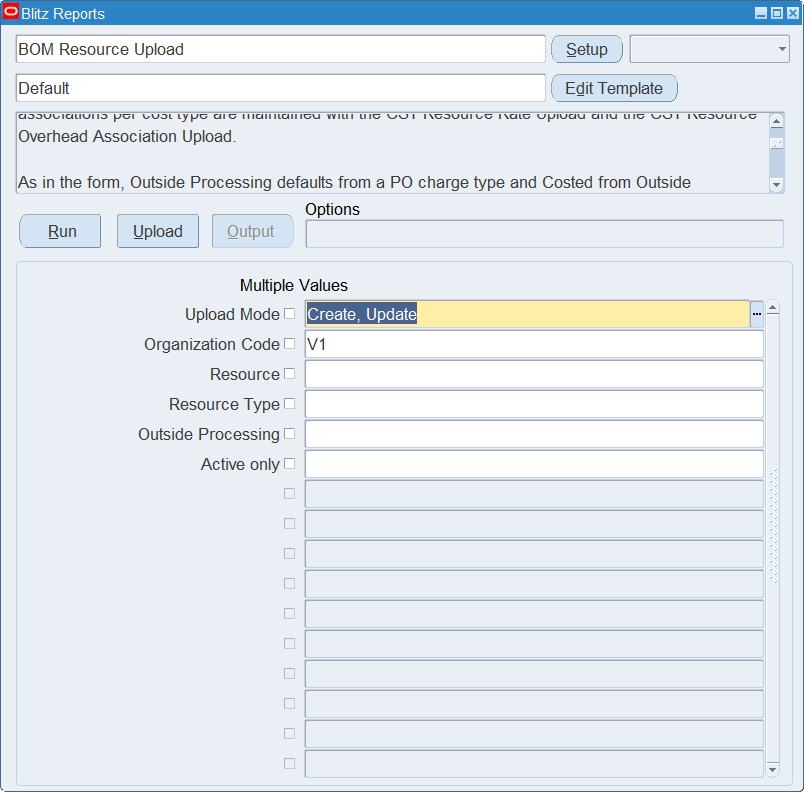
Open BOM Resource Upload in Blitz Report, choose the template and set the parameters. They decide which resources are downloaded.
| Parameter | Meaning |
|---|---|
| Upload Mode | Create gives you an empty sheet. Create, Update (default) also downloads the existing resources. |
| Organization Code | The inventory organization. Defaults to your current organization and is also the organization of new rows. |
| Resource | Restricts the download to the resource. |
| Resource Type | Restricts the download to the resources of the type, for example Machine, Person or Currency. |
| Outside Processing | Yes downloads only outside processing resources, No only the other resources. |
| Active only | Yes leaves out resources whose Inactive On date has passed. |
Step 2 – Run to download the Excel file
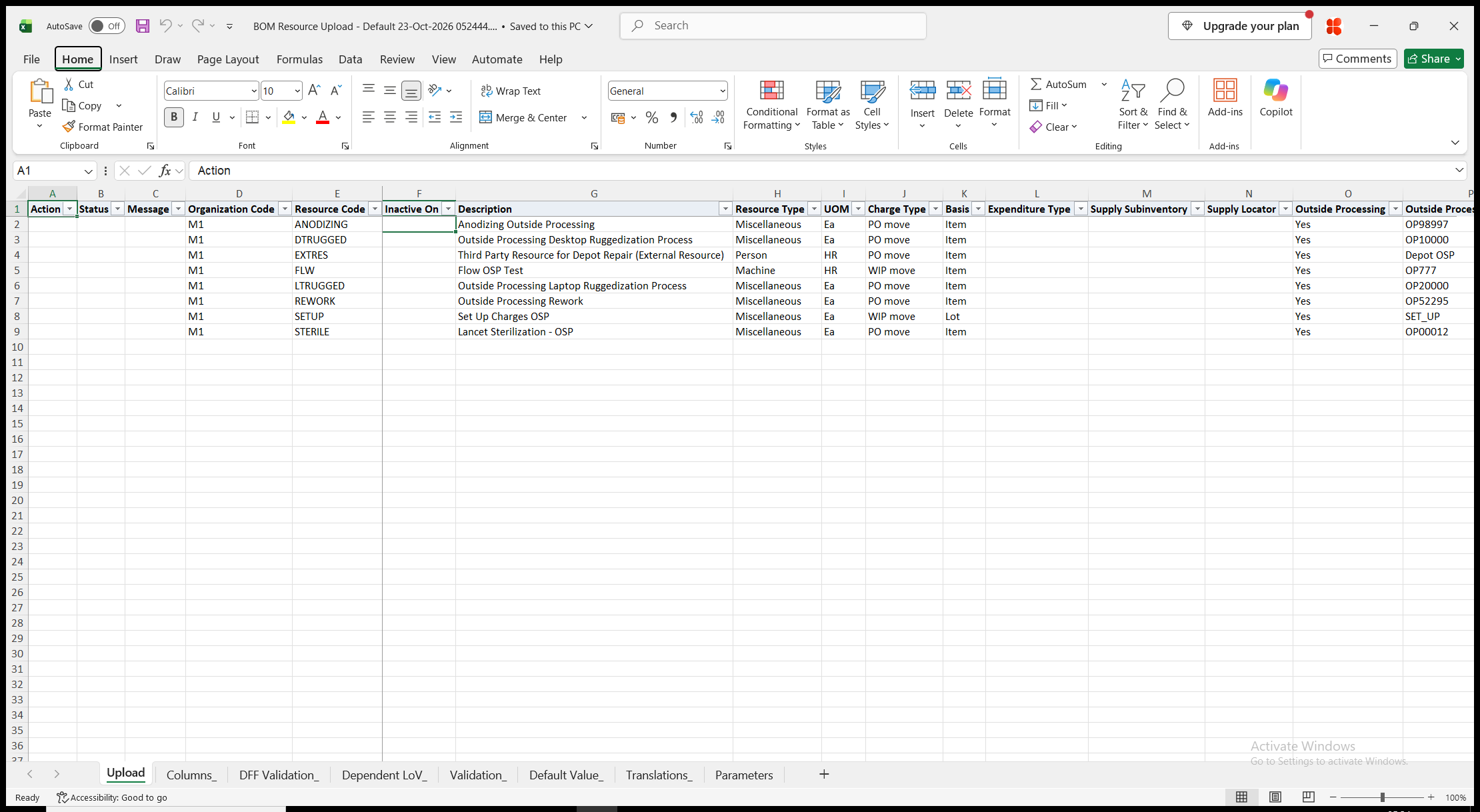
Click Run. With Create, Update, the file has one row per resource. Organization Code, Outside Processing Item Desc and Billable Item Description are read-only. With Create, the sheet is empty.
Step 3 – Enter the resources
Change the downloaded rows, or add rows for new resources.
- Resource Code, Description and Inactive On.
- Resource Type (Person for a new row), UOM, Charge Type and Basis. A Currency resource takes the functional currency of the organization as UOM and is always costed.
- Expenditure Type – required in organizations with project cost collection and project references, and not available in other organizations.
- Supply Subinventory and Supply Locator – machines only. The locator is required when the subinventory is locator controlled.
- Outside Processing and Outside Processing Item. Outside Processing defaults to Yes for the charge types PO receipt and PO move.
- Billable Item – not available for resources of type Amount.
- Costed, Activity, Standard Rate, Absorption Account and Variance Account. A costed resource needs an Absorption Account, and a resource with Standard Rate Yes a Variance Account. An outside processing resource defaults to Costed Yes, the receiving inspection account of the organization as Absorption Account and its purchase price variance account as Variance Account.
- Competence, Skill Level and Qualification – persons only. Skill Level lists the rating levels of the competence.
- Batchable, Minimum Batch Capacity, Maximum Batch Capacity, Batch Capacity Uom, Batching Window and Batching Window Uom – all required for a batchable resource, whose basis is Lot.
Step 4 – Validate and Save
Click Validate and Save. This checks for missing required values and for values that are not in their lists, marks the rows Valid and saves the file. Correct any rows it flags before uploading.
Step 5 – Upload the file
In Blitz Report click Upload and select the saved file. The upload request processes the rows in order. Each row is saved or rejected on its own, so a rejected row leaves nothing behind and does not affect the other rows.
Step 6 – Review the result report
When the request completes, a result report opens listing every uploaded row with its status and a message, for example Resource created., Resource updated. or No change., or the reason the row was rejected. The result report shows the values as they were saved in Oracle.
What’s produced
- Resources, saved as the Resources form saves them.
- Each row is saved or rejected on its own. A row that fails leaves nothing behind and does not affect the other rows.
- A result report listing every row with a status (success or error) and a message.
Common questions
Can I delete a resource?
No. Enter an Inactive On date instead.
How do I rename a resource?
Change the Resource Code on the downloaded row. The downloaded row identifies the resource, so the new code replaces the old one.
Where do I maintain resource rates, overheads and departments?
Resource rates per cost type are loaded with the CST Resource Rate Upload, overhead associations with the CST Resource Overhead Association Upload, and the assignment of resources to departments with the BOM Department Upload.
Why can’t I change Outside Processing or Costed?
As in the form, Outside Processing cannot be changed once the resource is used in routings, overheads or WIP transactions, and Costed not once it is used there or has rates.
Can I change the unit of measure of a resource?
Only when the profile BOM: Update Resource UOM allows it, and only for a resource that is not scheduled in routings and not used in standard operations.
What happens when I set Costed to No?
Standard Rate, Activity, Absorption Account and Variance Account are cleared, as in the form.
What happens when a machine becomes another resource type?
Its down codes are deleted, as in the form, and the message says so.
How do I enter descriptive flexfield values?
Use the Flexfields template. Its attribute columns show the segment prompts of your flexfield setup.
Troubleshooting
| Message | Cause | What to do |
|---|---|---|
| Missing values for required field/s: … | A required column is blank, for example the Absorption Account of a costed resource, the Expenditure Type in a project organization, the batch columns of a batchable resource or the Supply Locator in a locator controlled subinventory. | Fill in the columns named. |
| Sub-element … already exists. | A new or renamed resource uses a code that already exists in the organization. | Use another code, or download the existing resource to change it. |
| Disable date must be greater than or equal to current date | Inactive On was changed to a date in the past. | Use today or a later date. |
| … can only be entered for … | A column that does not apply to the resource has a value, for example a Supply Subinventory for a person, a Competence for a machine or an Activity for a resource that is not costed. | Clear the value, or change the column that makes it applicable. |
| You cannot change a non-currency resource type to Currency. / Type of the currency resource … cannot be changed. | The Resource Type of an existing resource was changed to or from Currency. | Create a new resource of the type instead. |
| UOM of the currency resource … must be the currency … | A currency resource has a UOM other than the functional currency. | Enter the currency named, or leave UOM blank. |
| UOM of resource … cannot be changed, as profile BOM: Update Resource UOM does not allow it or the resource is scheduled in routings or used in standard operations. | The UOM of an existing resource was changed. | Keep the UOM, or ask your administrator about the profile. |
| Outside Processing cannot be changed … / Costed cannot be changed … | The resource is used in routings, overheads or WIP transactions, or has rates. | Keep the value, or create a new resource. |
| Expenditure Type … is not valid for outside processing costs. / … for resource costs. | The expenditure type is not linked to the cost element of the resource. | Choose an expenditure type from the list. |
| Insufficient privilege to maintain cost information. / You do not have the privilege required to define Currency as a Resource Type. | Your responsibility may not maintain cost information. | Use a responsibility with that privilege, or leave the costing columns unchanged. |
| This field cannot be changed. | Competence, Skill Level or Qualification was changed for a resource with employees assigned. | Remove the employees from the resource in the Resources form first. |
| Basis Type cannot be changed | A batchable resource was given a basis other than Lot. | Keep the basis Lot, or set Batchable to No. |
| Resource cannot be made Batchable / Cannot make this resource batchable because it has been used in one or more setup standard operations. | The resource is used with basis Item in routings, or in setup standard operations. | Change those uses first, or keep the resource not batchable. |
| Batch capacity cannot be zero | Minimum or Maximum Batch Capacity is zero or negative. | Enter positive capacities. |