
OKS Service Contract Line Upload maintains the lines of existing Oracle Service Contracts from Excel. Download the lines of the contracts you want to change, update header and line values, add new service or usage lines, and add covered products or counters as sublines. The upload uses the standard Service Contracts public APIs, so Oracle applies the same validation as in the Service Contracts Authoring window.
When to use it
- Add service lines and covered products to many contracts at once, for example when customers buy additional coverage for installed equipment.
- Add usage lines and the counters they bill on.
- Change bill to and ship to accounts and locations, comments, prices, billing profiles or additional parties across many contracts or lines.
- Review the lines of many contracts in one sheet before you change them.
Before you start
- Access to the upload in Blitz Report, under a responsibility that has access to the contracts’ operating unit.
- The contracts are service contracts. Warranty and other contract types are not processed.
- To add lines, the contract must be in an Entered or Active status, and the profile option OM: Item Validation Organization must be set for the contract’s operating unit. Service and usage items are taken from that organization.
- For covered products, the customer products (installed base item instances) must exist. For usage sublines, the counters must exist.
Step 1 – Set the parameters
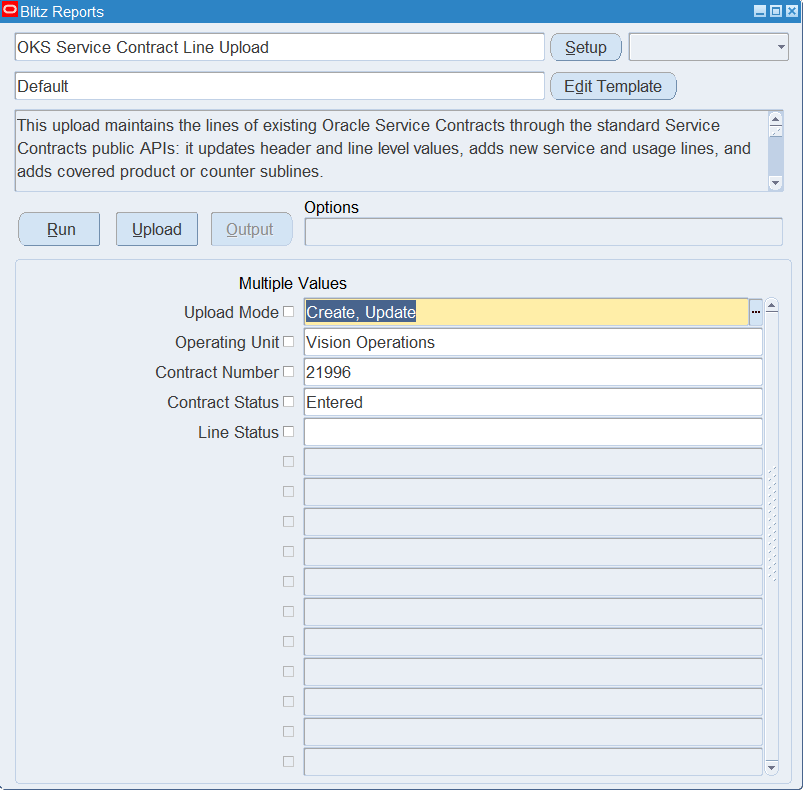
Open OKS Service Contract Line Upload in Blitz Report and set the parameters:
| Parameter | Meaning |
|---|---|
| Upload Mode | Keep the default, Create, Update, to download the existing lines and add new ones in the same sheet. Choose Create for an empty sheet if you only add lines. |
| Operating Unit | Downloads only the contracts of this operating unit. |
| Contract Number | The service contract(s) to download. |
| Contract Status | Downloads only contracts in this status, for example Entered or Active. |
| Line Status | Downloads only lines and sublines in this status. |
Step 2 – Run to download the Excel file
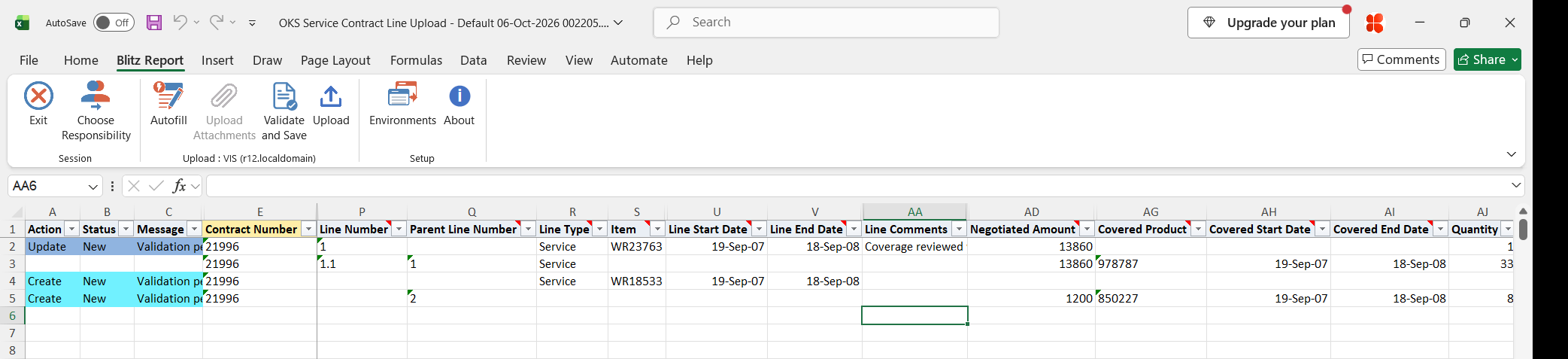
Click Run. The Excel file downloads and opens. It has one row for each service or usage line (for example 1) and each subline (for example 1.1) of the selected contracts. The header values of the contract, such as the bill to account and location, repeat on every row.

Step 3 – Enter or change the data
Change an existing line: overwrite the values on its row, for example Line Comments, Line Bill To Account, Line Bill To Location, Line Ship To Location, Unit Price or Negotiated Amount, or Minimum Quantity and Usage Period on a usage line. The row is marked Update. Values that define a line, such as Item, Line Type, the line and covered dates, Covered Product and Quantity, are set when the line is created and cannot be changed.
Change header values: change Header Bill To Account, Header Bill To Location, Header Ship To Location, Header Comments, Billing Profile, or Additional Party Role and Additional Party on any row of the contract. They are applied once per contract. If the additional party role does not exist on the contract yet, it is added; otherwise its party is updated.
Add a service or usage line: add a row with the Contract Number and leave Line Number and Parent Line Number empty. Choose the Line Type (Service or Usage), then the Item from the list, and enter the Line Start Date and Line End Date within the contract dates. Line Description defaults from the item. For a usage line, also choose the Usage Type and, for all usage types except Negotiated per Period, the Usage Period. Oracle assigns the line number.
Add a covered product or counter: add a row with the Contract Number and the Parent Line Number of the service or usage line, and enter the Covered Product, Covered Start Date and Covered End Date within the line dates. Under a service line, Covered Product is the item instance number of a customer product; under a usage line, it is the counter name. You can also enter Quantity, UOM, Unit Price and Negotiated Amount. A subline can belong to a line that an earlier row of the same file creates: enter the line number that line will get (for example 2 if the contract has one line), and type the instance number or counter directly, because the list is empty for a line that does not exist yet.
Usage sublines need additional values depending on the usage type of the parent line:
| Usage Type | Required on the subline |
|---|---|
| Fixed per Period | Fixed Quantity |
| Actual per Period | Default Quantity and Base Reading |
| Actual by Quantity | Default Quantity and Base Reading |
| Negotiated per Period | Negotiated Amount |
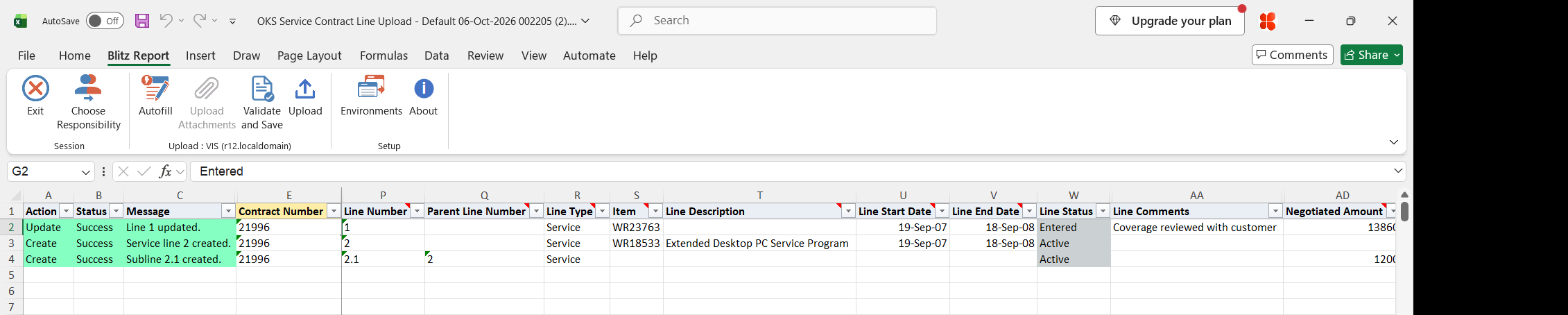
In the example, line 1 gets a comment, a new service line for an extended desktop service program is added, and a desktop computer of the customer is added as its covered product.
Step 4 – Validate and Save
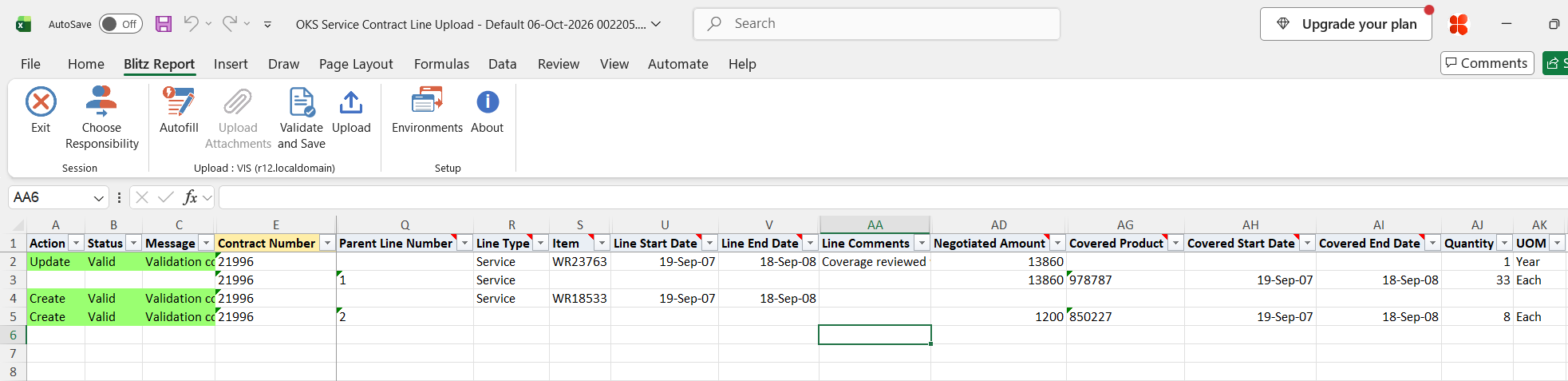
Click Validate and Save. This checks for missing required values and saves the file. Correct any rows it flags before uploading.
Step 5 – Upload the file
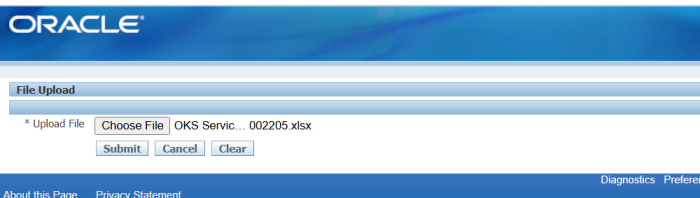
In Blitz Report click Upload and select the saved file. This submits the upload request, which updates the changed contracts and lines and creates the new lines and sublines in the order of the rows.
Step 6 – Review the result report
When the request completes, a result report opens listing every uploaded row with its status and message, for example “Line 1 updated.”, “Service line 2 created.” or “Subline 2.1 created.”, together with the line numbers Oracle assigned to the new lines.
What’s produced
- Updated contract headers, lines and sublines.
- New service and usage lines on existing contracts, created with the service or usage item, and new covered product and counter sublines.
- A result report listing every row with a status (success or error) and a message.
Common questions
Does changing the price reprice the line?
No. Unit Price and Negotiated Amount are written as entered. The line is not repriced through the price list, and an existing billing schedule is not regenerated.
Can I delete or terminate lines with this upload?
No. Use the OKS Contract Termination Upload to terminate contracts or lines, or to delete lines from Entered contracts.
How are sublines numbered?
Sublines use the parent.child format. For example, 1.2 is the second covered product of service line 1.
Can I change the item or the dates of an existing line?
No. Item, Line Type, Line Description, the line and covered dates, Covered Product, Quantity, UOM and the usage quantities are set when the line is created. To change them, change the line in the Service Contracts Authoring window.
Do I have to repeat header changes on every row?
No. Header values repeat on every row of a contract in the download and are applied once. Change them on one row.
Why was my update rejected although the values are valid?
The Service Contracts APIs reject changes that are not allowed for the current contract or line status. The result report shows the Oracle message.
Can I update descriptive flexfields?
Yes. The header and line descriptive flexfield columns are not part of the Default template. Run the upload without a template, or add the columns to your own template.
Troubleshooting
| Message | Cause | What to do |
|---|---|---|
| Contract … not found. | The contract number and modifier do not match an existing contract. | Check the Contract Number. Enter the Contract Modifier if the number exists more than once. |
| Contract … is not a service contract. | The contract is a warranty or another contract type. | Maintain it in the application that owns that contract type. |
| You do not have access to the operating unit of contract … | Your responsibility has no access to the contract’s operating unit. | Upload under a responsibility with access to that operating unit. |
| Line … not found on contract … | The Line Number or Parent Line Number does not exist on the contract. | Use a line number from a new download, or the number a line created by an earlier row gets. |
| Line … is not unique on contract … | The contract has more than one line with this number. | Change the line in the Service Contracts Authoring window. |
| Enter a Line Number to update an existing line, or Line Type and Item to create a line, or Parent Line Number and Covered Product to create a subline. | The row has line values but does not identify an existing line or a new one. | Enter the Line Number of the line to update, or the values needed to create a line or subline. |
| … is set when a line is created and cannot be changed on an existing line. | A value that defines the line, such as Item or a date, was changed on an existing line. | Restore the downloaded value. |
| Lines can only be added while the contract is in an Entered or Active status. | The contract is, for example, signed, expired or terminated. | Add lines only to Entered or Active contracts. |
| The item validation organization is not set for the operating unit of contract … | The profile option OM: Item Validation Organization has no value for the operating unit. | Ask your administrator to set the profile option. |
| Line Type, Item, Line Start Date and Line End Date are required to create a line. | A new line row is missing one of these values. | Enter the missing values. |
| Item … is not a service item in the item validation organization. Item … is not a usage item in the item validation organization. | The item does not exist in the item validation organization, or it is not a service or usage item matching the Line Type. | Choose the Line Type first, then the Item from the list. |
| Usage Type is required for a usage line. Usage Period is required for this usage type. | A new usage line is missing its usage type or period. | Choose the Usage Type and the Usage Period. |
| The line dates must fall within the contract dates … | Line Start Date or Line End Date is outside the contract dates. | Enter dates within the contract dates shown in the message. |
| Sublines can only be added to a service or usage line. | The Parent Line Number is not a service or usage line. | Enter the number of a service or usage line. |
| Covered Product, Covered Start Date and Covered End Date are required to create a subline. | A new subline row is missing one of these values. | Enter the missing values. |
| The covered dates must fall within the dates of line … | Covered Start Date or Covered End Date is outside the dates of the parent line. | Enter dates within the line dates shown in the message. |
| Covered product … not found. Counter … not found. | No item instance with this number, or no counter with this name, exists. | Enter the item instance number of the customer product or the counter name. |
| Fixed Quantity is required for a fixed per period usage line. Default Quantity and Base Reading are required for this usage type. Negotiated Amount is required for a negotiated per period usage line. | A usage subline is missing the values its usage type needs. | Enter the values listed in Step 3 for the usage type. |
| The line was rejected by Oracle. Check the item and the line dates against the contract. The subline was rejected by Oracle. Check the covered product and the covered dates against line … | Oracle did not create the line and returned no message. | Check the item, covered product and dates, and try adding the line in the Service Contracts Authoring window to see the reason. |
| Additional Party Role is required to add or update an additional party. Additional Party is required for party role … | Only one of Additional Party Role and Additional Party is entered. | Enter both. |
| Party role … exists more than once on contract … and cannot be updated through the upload. | The contract has the role more than once. | Change the party in the Service Contracts Authoring window. |