
FND Responsibility Upload creates and updates Oracle E-Business Suite responsibilities from Excel and maintains their menu and function exclusions – the definitions you would otherwise enter one at a time in the System Administrator Responsibilities form. One file can hold responsibility rows and exclusion rows together, so you can define new responsibilities with their exclusions in a single upload, or download existing responsibilities to review and change them.
When to use it
- Create many responsibilities in one pass, for example copies of an existing responsibility with a different menu or request group.
- Rename responsibilities, or change their description, menu, request group, data group or effective dates in bulk.
- Add or remove menu and function exclusions across responsibilities.
- Disable responsibilities by setting an Effective Date To.
- Review existing responsibilities and their exclusions in Excel.
Before you start
- Access to the upload in Blitz Report, which is assigned to the System Administrator Responsibilities form.
- The application, data group, menu, request group and the functions and menus to exclude already exist – each value is validated against its list.
- You know the Responsibility Key of each responsibility. Together with the Application it identifies the responsibility and cannot be changed once created.
Step 1 – Set the parameters
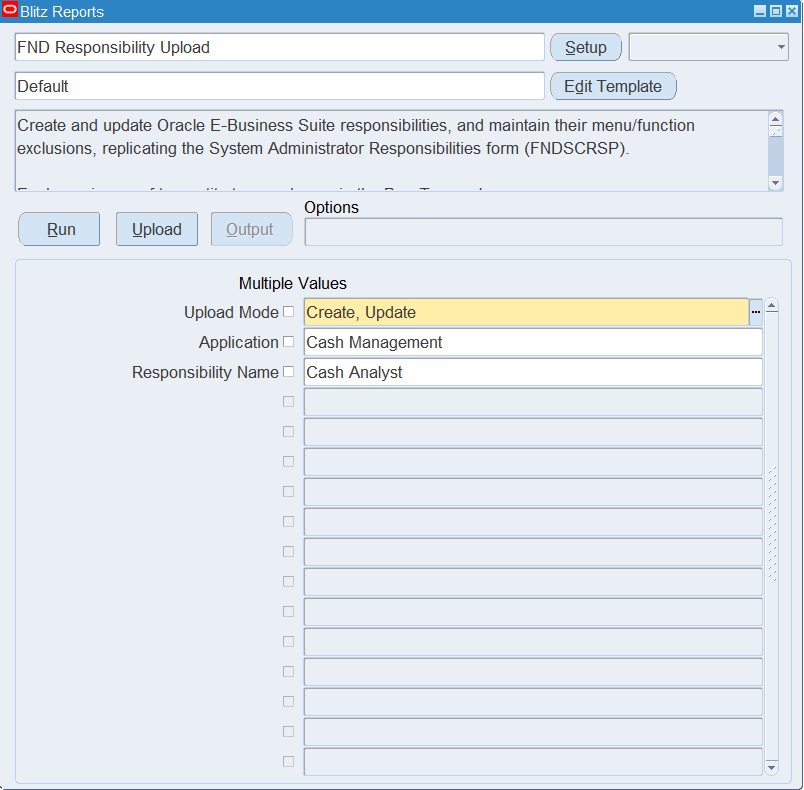
Open FND Responsibility Upload in Blitz Report and set the parameters:
| Parameter | Meaning |
|---|---|
| Upload Mode | Create (default) opens an empty sheet for new responsibilities; Create, Update downloads existing responsibilities and their exclusions for editing and lets you add new rows. |
| Application | Downloads the responsibilities of this application. |
| Responsibility Name | Downloads this responsibility. |
In Create, Update mode, set Application or Responsibility Name, or the download contains every responsibility of the instance.
Step 2 – Run to download the Excel file
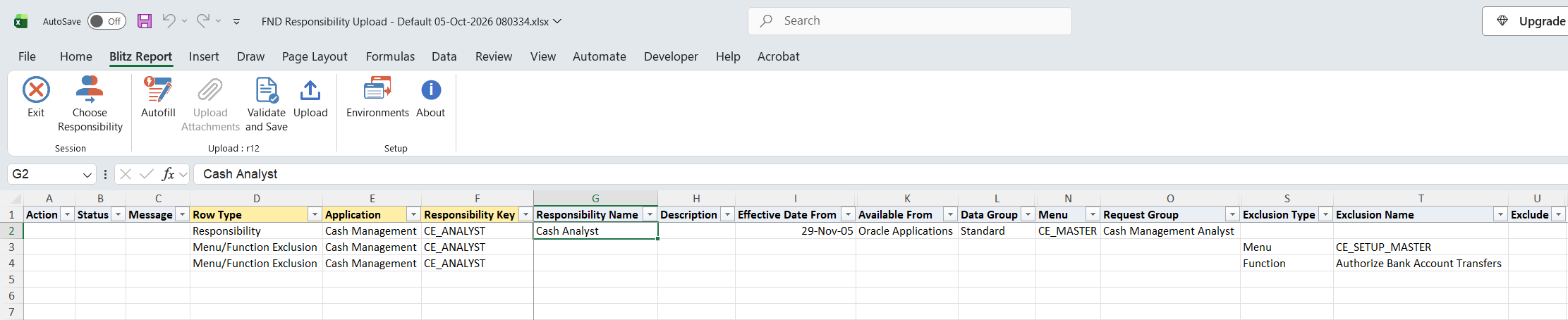
Click Run. The Excel file downloads and opens with one Responsibility row per responsibility followed by one Menu/Function Exclusion row per exclusion, or an empty sheet in Create mode.
Step 3 – Enter or change the responsibilities and exclusions
Every row starts with Row Type, Application and Responsibility Key. A row is created or updated depending on whether the Application and Responsibility Key already exist; new keys are stored in upper case.
- Responsibility rows: for a new responsibility enter the Responsibility Name (unique within the application), Effective Date From, Data Group and Data Group Application, and Menu. Effective Date From defaults to today, Available From to Oracle Applications and Data Group to Standard. Optionally enter a Description, Effective Date To, Request Group (its Request Group Application defaults from the request group), and Web Host Name / Web Agent Name. On a downloaded row change any of these values; to rename a responsibility change its Name, not its Key.
- Menu/Function Exclusion rows: set Exclusion Type (Function or Menu) and Exclusion Name. Leave Exclude blank to add the exclusion, or set it to Yes to remove an existing exclusion. The responsibility columns are not used on these rows. When a new responsibility and its exclusions are in the same file, put the Responsibility row first.
Step 4 – Validate and Save
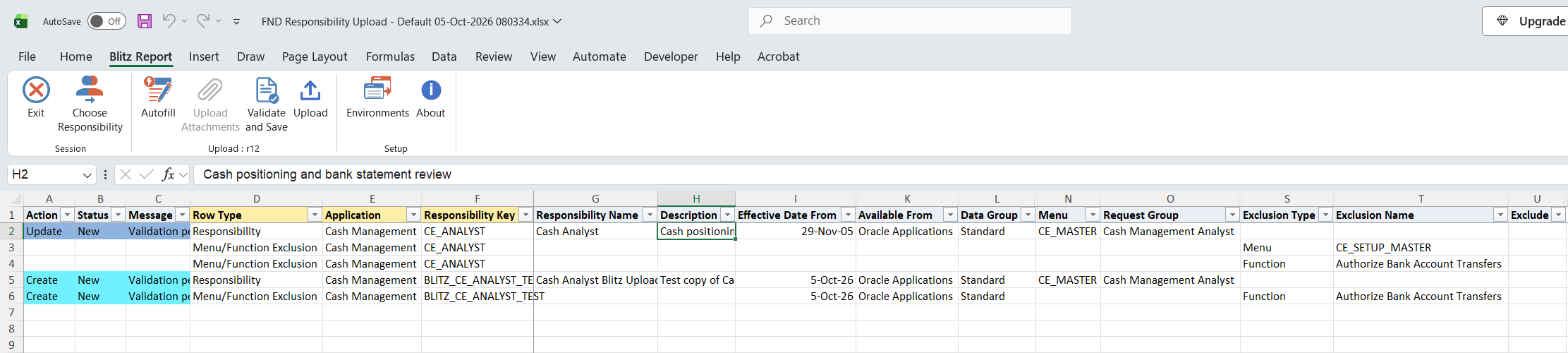
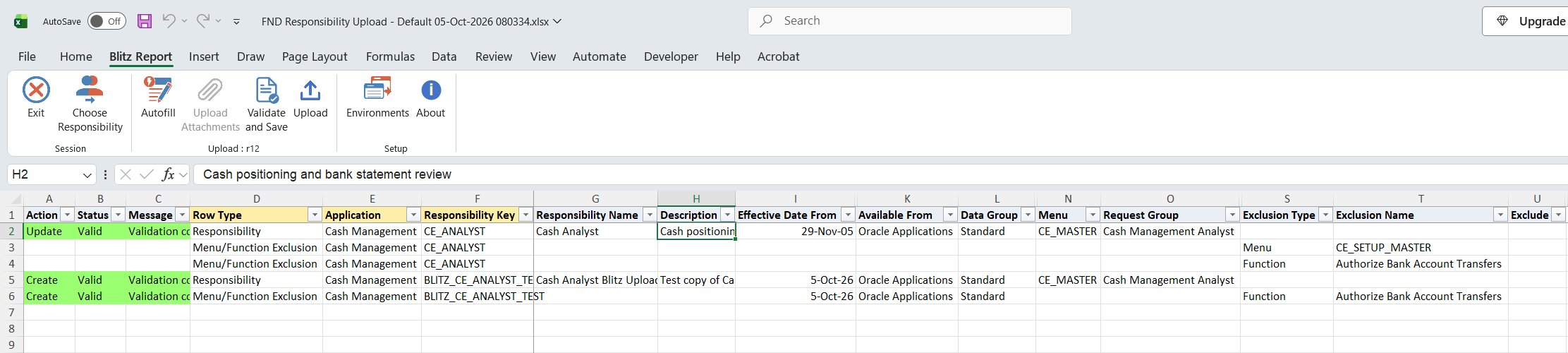
Click Validate and Save. This checks for missing required values and saves the file. Correct any rows it flags before uploading.
Step 5 – Upload the file
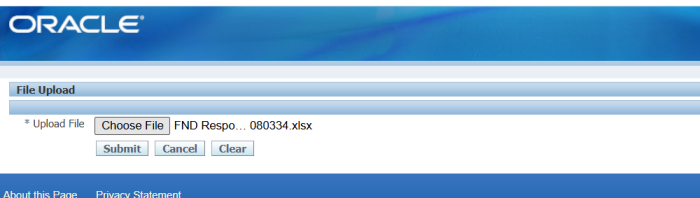
In Blitz Report click Upload and select the saved file. This submits the upload request, which creates or updates each responsibility and adds or removes each exclusion.
Step 6 – Review the result report
When the request completes, a result report opens listing every uploaded row with its status and message.

What’s produced
- Responsibilities created or updated, with their name and description in your session language.
- Menu and function exclusions added or removed.
- A result report listing every row with a status and a message such as Responsibility created., Responsibility updated., Exclusion added., Exclusion removed. or No change.
Common questions
How do I rename a responsibility?
Change its Responsibility Name and keep the Responsibility Key. A different key creates a new responsibility.
Can I delete a responsibility?
No. Set an Effective Date To to disable it.
How do I restore access to an excluded menu or function?
Upload the exclusion row with Exclude set to Yes. This removes the exclusion from the responsibility.
What is Data Group Application?
The application whose database account the responsibility uses within its data group. Choose the Data Group first; the Data Group Application list then shows the applications of that data group.
Do I need Request Group or Web Host / Web Agent Name?
No. Request Group is optional; when you enter one, its application defaults. Web Host and Web Agent Name are normally left blank.
Why does a row show No change?
The uploaded values equal the stored ones, or the exclusion to add already exists or the exclusion to remove does not exist.
Troubleshooting
| Message | Cause | What to do |
|---|---|---|
| Responsibility … does not exist. Enter the Responsibility row before its exclusions. | An exclusion row refers to an Application and Responsibility Key that do not exist. | Correct the key, or add the Responsibility row above the exclusion rows. |
| Responsibility Name … already exists for this application. | Another responsibility of the same application has that name. | Enter a unique name, or update the existing responsibility. |
| Responsibility Name is required. / Data Group Name and Data Group Application are required. / Menu is required. / Effective Date From is required. | A value needed to create a responsibility is missing. | Fill the named column. |
| Invalid Request Group / Request Group Application: … | The request group does not exist in the request group application. | Pick the Request Group from the list and keep its defaulted application, or clear both. |
| Exclusion Type and Exclusion Name are required for a Menu/Function Exclusion row. | An exclusion row without its type or name. | Set Exclusion Type and pick the Exclusion Name. |