
Blitz Upload Example (Interface Table) is a minimal, working upload of type Interface Table, shipped as a starting point for developers building their own Blitz Upload. It maintains the same small demo table as its siblings, xxen_upload_example (Id, Name, Date Of Birth), but without any PL/SQL: the upload object is the table itself, and Blitz Report inserts, updates and deletes its rows directly, with the Excel columns mapped to the table’s columns. Use it as the template for loading spreadsheet data into a custom table or an Oracle open interface table, then copy it and replace the SQL and table with your own. Upload development is described in the Blitz Report Developer Guide; the variants calling PL/SQL are Blitz Upload Example (API) and Blitz Upload Example (API without parameters).
What it demonstrates
| Part of the definition | In this example |
|---|---|
| Upload SQL | Selects the four framework columns action_, status_, message_ and modified_columns_ (hidden), then xue.rowid row_id_ (hidden), which identifies the table row to update or delete, followed by Id, Name, Date Of Birth and the who columns from xxen_upload_example. Last Updated By and Last Update Date are selected as null, so their column defaults fill them on every uploaded row, while Created By and Creation Date keep the stored values. The 1=1 anchor in its where clause is where the Name parameter is injected. |
| Parameter | Name, filtering the download with xue.name=:name on the 1=1 anchor, so it also allows multiple values. Leave it blank to download all rows. |
| Upload columns | Id (Number), Name and Date Of Birth (Date), all required; Name has a custom list of values (Oracle EBS user names). Created By, Creation Date, Last Updated By and Last Update Date are hidden, with the defaults fnd_global.user_id and sysdate. The Action column offers Create, Update and Delete. |
| Upload type and object | Type Interface Table with the upload object xxen_upload_example, a table name instead of a procedure (Interface table). |
| Upload parameters | One per table column, named like the column: id, name, date_of_birth, created_by, creation_date, last_updated_by and last_update_date, each mapped to the Excel column of the same name (Upload parameters). Only mapped columns are written. |
| Delete condition and post procedure | Not used. A delete condition removes matching table rows before the insert, for example to replace previously loaded data. A post procedure runs after the table is populated, for example to submit the Oracle import program for an open interface table. |
| Result SQLs | The default Error SQL, and a Success SQL that joins the upload’s data view (xxen_blitz_upload_examp_3434_u xu) to xxen_upload_example by row_id_ for the rows with status success, so the result report shows the values stored in the table (Upload results). Order By is id. |
How the rows are written: after validation, Blitz Report collects the Create, Update and Delete rows and processes them in bulk. Delete rows are deleted and Update rows updated by the rowid in row_id_, setting every mapped column; Create rows are inserted with the mapped columns. Each row gets its own status: Record has been inserted., Record has been updated. or Record has been deleted., or, when the database rejects that row, status error with the Oracle error, for example Error inserting data into xxen_upload_example: ORA-00001: unique constraint … violated. The other rows are written regardless. Columns with a list of values that has an id column are written as the id, as for an API with parameters.
Before you start
- Profile option Blitz Report Access set to System, to see the Setup window and to copy an upload with its upload definition.
- The example table is installed with Blitz Report; nothing else needs to be set up to run it.
Use it as a starting point
- Select the example in Blitz Report and use Tools > Copy Report (Copy Report). The copy is named COPY OF: Blitz Upload Example (Interface Table); rename it in Setup.
- Replace the upload SQL with a query on your own table, keeping the four framework columns first and the table’s rowid as
row_id_if downloaded rows are to be updated or deleted. - Enter your table as the upload object: a table in the APPS schema, or a custom schema table with an APPS synonym. The upload parameters are populated from the table’s columns and mapped to the SQL columns by name.
- Set the column validations (lists of values, defaults, required and read-only columns), add a delete condition or post procedure if needed, and change the Success SQL to join the uploaded rows to your table.
Step 1 – Set the parameters
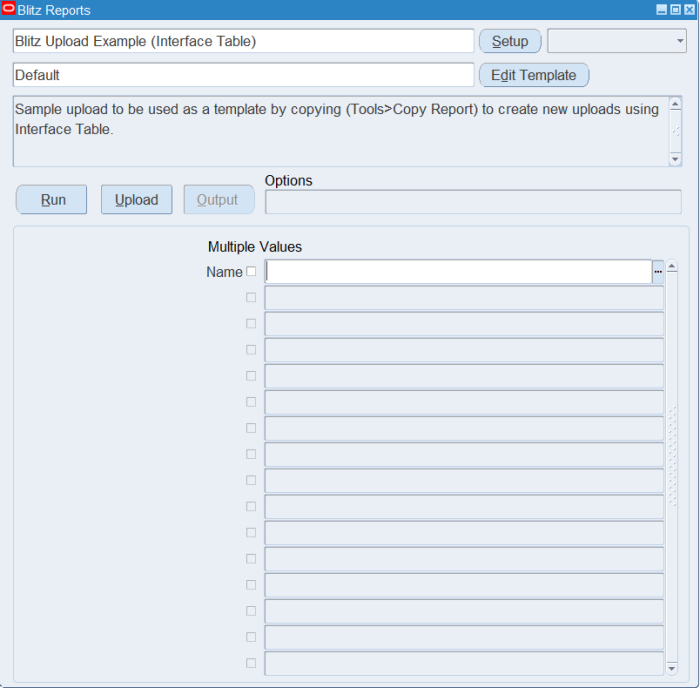
Open Blitz Upload Example (Interface Table) in Blitz Report and set the parameter:
| Parameter | Meaning |
|---|---|
| Name | Downloads only the rows with this name. Leave it blank to download all rows of the example table. |
The example has no Upload Mode parameter: the file always contains the existing rows, and you can add new rows below them.
Step 2 – Run to download the Excel file
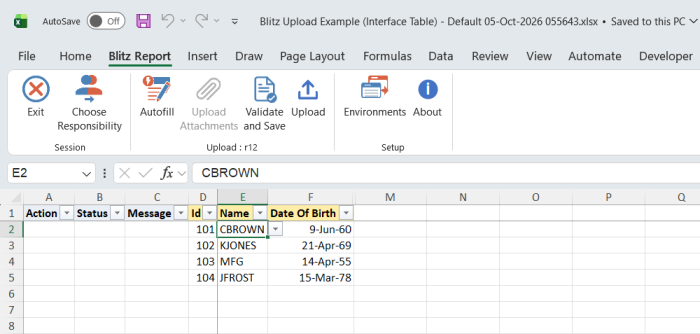
Click Run. The Excel file downloads and opens with one row per existing record.
Step 3 – Enter or change the data
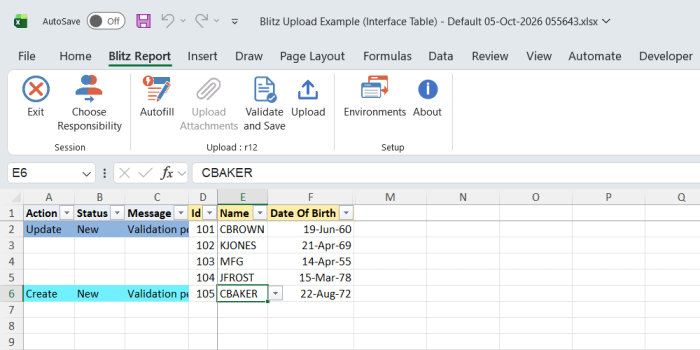
Change the Id, Name or Date Of Birth of a downloaded row, which marks it Update, or add a row with a new Id, a Name from the list of values and a Date Of Birth, which marks it Create. To remove a downloaded record, set its Action to Delete. Updates and deletes find the record by its hidden rowid, so changing the Id of a downloaded row changes that record’s Id.
Step 4 – Validate and Save
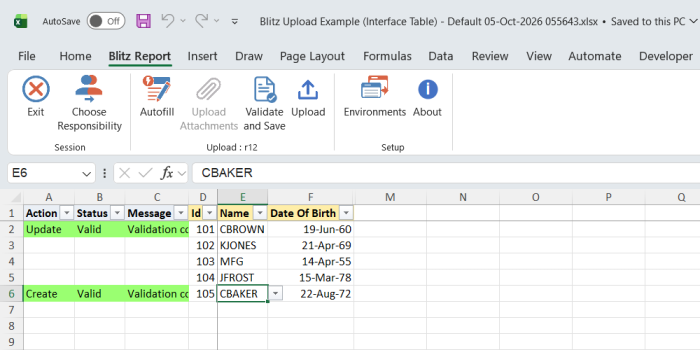
Click Validate and Save. This checks for missing required values and saves the file. Correct any rows it flags before uploading.
Step 5 – Upload the file
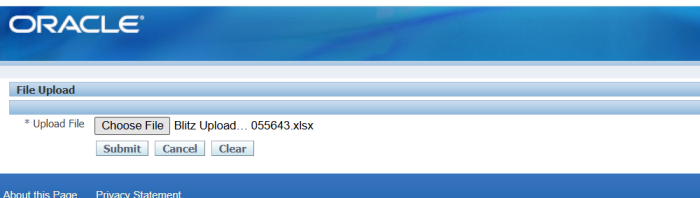
In Blitz Report click Upload and select the saved file. This submits the upload request, which writes the changed and new rows into the table.
Step 6 – Review the result report
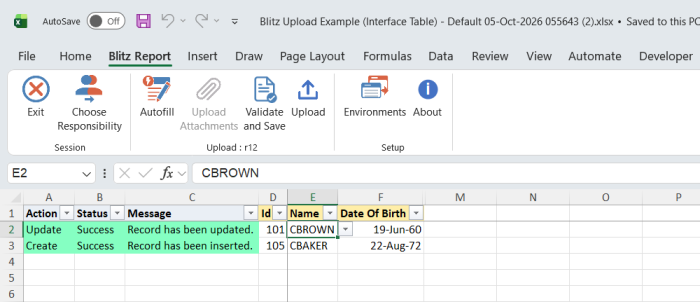
When the request completes, a result report opens listing every uploaded row with its status and message, and the values read back from the table by the Success SQL.
What’s produced
- Rows inserted, updated or deleted in the example table
xxen_upload_example. - A result report listing every uploaded row with a status (success or error) and a message.
Common questions
When should I use an interface table instead of an API?
When the data goes into a custom table that needs no validation beyond the upload’s column validations, or into an Oracle open interface table that the standard import program validates. Data in Oracle base tables must be written through the standard Oracle API instead, as in Blitz Upload Example (API) and Blitz Upload Example (API without parameters). The upload types section of the developer guide compares the types.
How do I load an Oracle open interface table and run the import?
Enter the interface table as the upload object and a post procedure that submits the import concurrent program. The post procedure is called after the table is populated, only when at least one row was written successfully, and its parameters are mapped to columns like the upload parameters.
How are the who columns filled?
By the hidden columns’ defaults, fnd_global.user_id and sysdate. Because the SQL selects Last Updated By and Last Update Date as null, the defaults also stamp them on updated rows.
Why are the upload columns and parameters missing from my copy?
Copy Report copies the upload type, object, columns, parameters and result SQLs only when your Blitz Report Access is System. Set the profile and copy again.
Does my copy still read the example’s data view?
No. The copy gets its own data view, and the copied Success and Error SQLs are pointed to it automatically.
How do I see what the framework executes?
See upload debugging in the developer guide. The request log shows the generated insert, update and delete block.
Troubleshooting
| Message | Cause | What to do |
|---|---|---|
| Error inserting data into xxen_upload_example: ORA-00001: unique constraint … violated | A Create row with an Id that is already in the table, or a second new row with the same Id in the file. | Use a new Id, or download the record and change it as an Update row. |
| Error inserting data into, Error updating data in or Error deleting data from xxen_upload_example: followed by another Oracle error | The database rejected that row, for example a value too long for its table column. | Correct the value shown in the error and upload the row again. The other rows are written independently. |
| Missing values for required field/s | Id, Name or Date Of Birth is blank. | Fill all three columns. |