
Blitz Report Column Translation Upload maintains the column headings Blitz Report shows in each language and the Excel number format of each column, from Excel. Translations are matched to report columns by column name when a report runs, so one row applies to every report that produces a column of that name. Download the existing translations of a language, correct or complete them, add translations for new column names, or delete translations.
When to use it
- Translate report column headings into an installed language, for example to complete the translations of your own custom reports.
- Correct or standardise headings in bulk, for example abbreviations such as BOM, PO or GL.
- Find the column names that have no translation yet in a language and fill them in.
- Set the Excel number format of a column, for example #,##0.00 for amounts, for all reports at once.
- Remove translations that are no longer wanted, so the default heading is shown again.
Before you start
- Access to the upload in Blitz Report.
- The column names you want to translate. A column name is the column alias of the report SQL in lower case with underscores, for example bom_or_recipe; this is how the names are listed in the Excel file.
- Headings are shown in the language of the user’s session, so translate into installed languages only.
Step 1 – Set the parameters
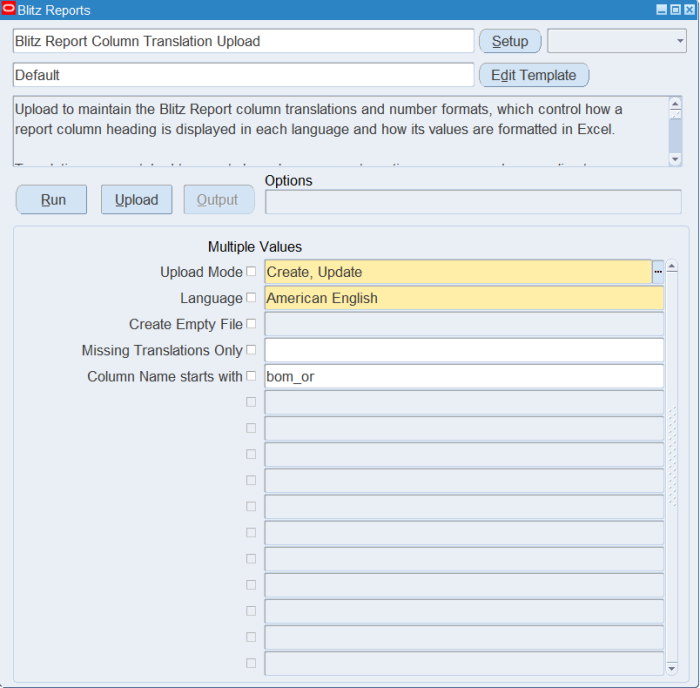
Open Blitz Report Column Translation Upload in Blitz Report and set the parameters:
| Parameter | Meaning |
|---|---|
| Upload Mode | Create, Update (default) downloads the column names with their existing translations in the chosen language, for editing; Create is for entering new translations. |
| Language | The language to download and translate. Required; defaults to your session language. |
| Create Empty File | Yes opens an empty sheet to enter column names and translations. Available with Upload Mode Create. |
| Missing Translations Only | Yes downloads only the column names that have no translation yet in the chosen language. Use it with Upload Mode Create, Update. |
| Column Name starts with | Restricts the download to column names beginning with this text, for example bom_. |
A language covers tens of thousands of column names, so restrict the download with Column Name starts with or Missing Translations Only.
Step 2 – Run to download the Excel file
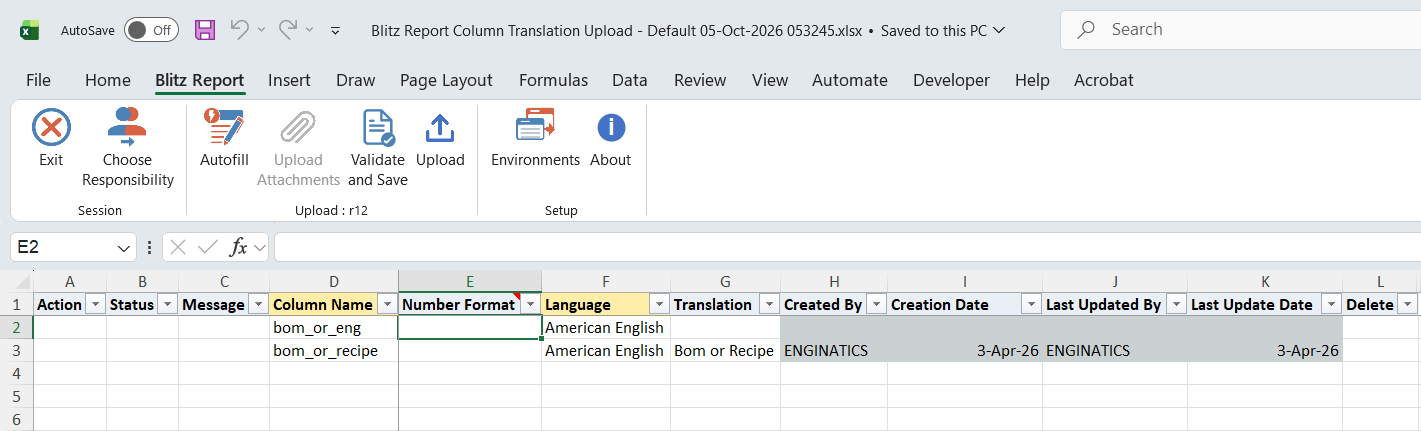
Click Run. The Excel file downloads and opens with one row per column name, showing its Number Format and its Translation in the chosen language. Column names without a translation have a blank Translation.
Step 3 – Enter or change the translations
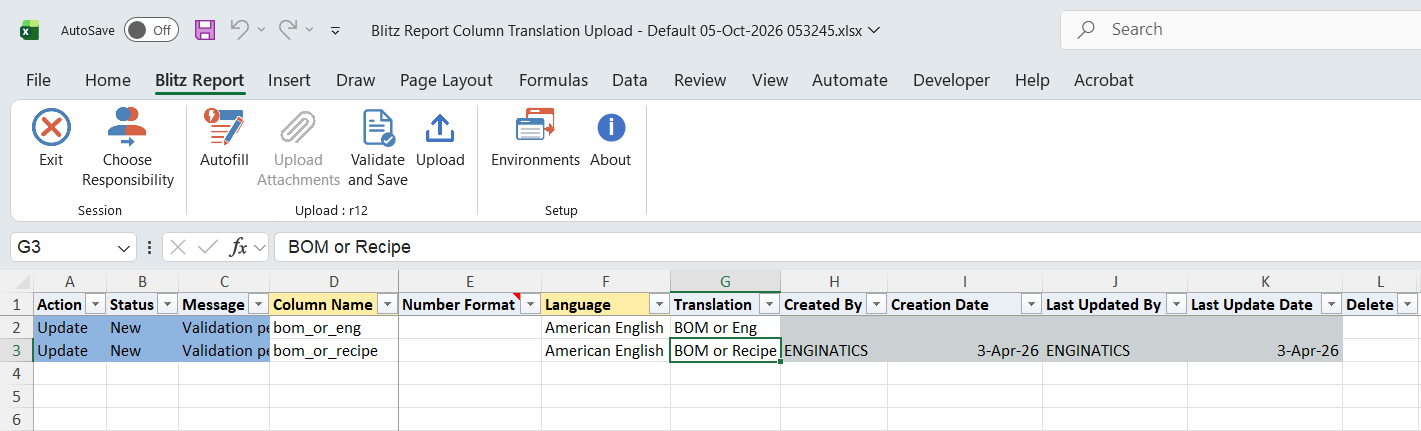
Enter or change the Translation of a row. A row with a blank Translation that you fill in creates the translation; a changed Translation updates it. To add a column name that is not listed, add a row with the Column Name, Language and Translation; enter the column name in lower case with underscores, exactly as the report’s column alias. A new column name is registered when it is uploaded.
The Number Format is an Excel format mask held once per column name, not per language, and it applies to that column in every report. It repeats on every language row of the same column and is written only when it differs from the stored value, so changing it on one row is enough. Without a number format, the report’s own number format applies.
To remove a translation, clear its Translation and set Delete to Yes. Created By, Creation Date, Last Updated By and Last Update Date are for information only.
Step 4 – Validate and Save
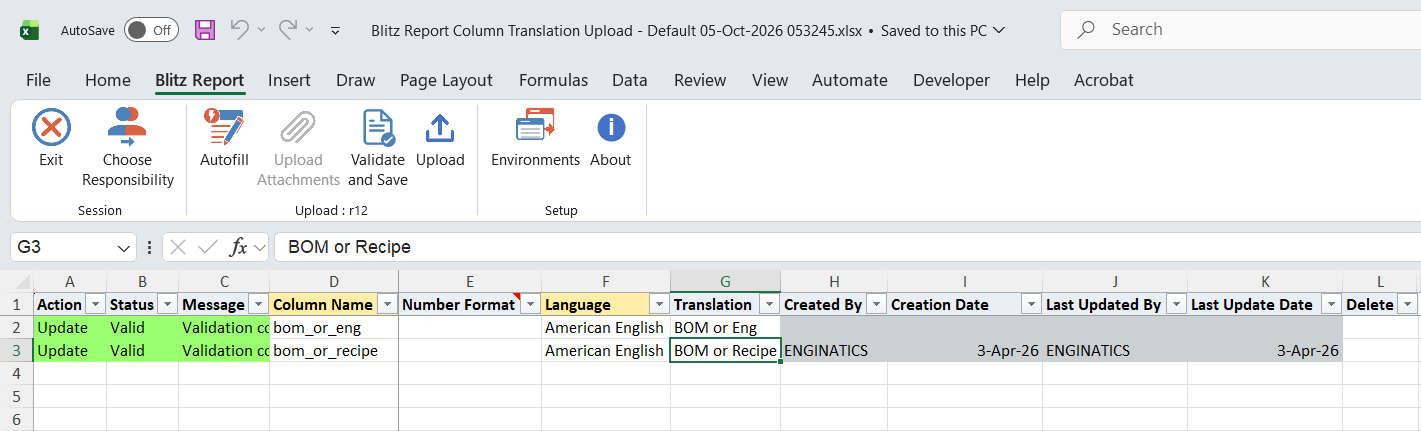
Click Validate and Save. This checks for missing required values and saves the file. Correct any rows it flags before uploading.
Step 5 – Upload the file
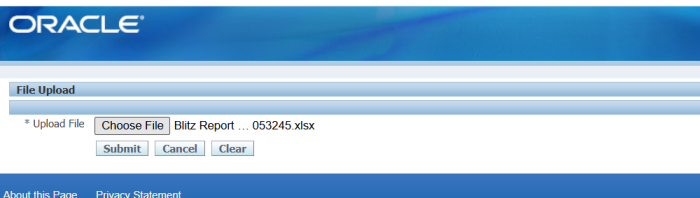
In Blitz Report click Upload and select the saved file. This submits the upload request, which creates, updates or deletes each translation.
Step 6 – Review the result report
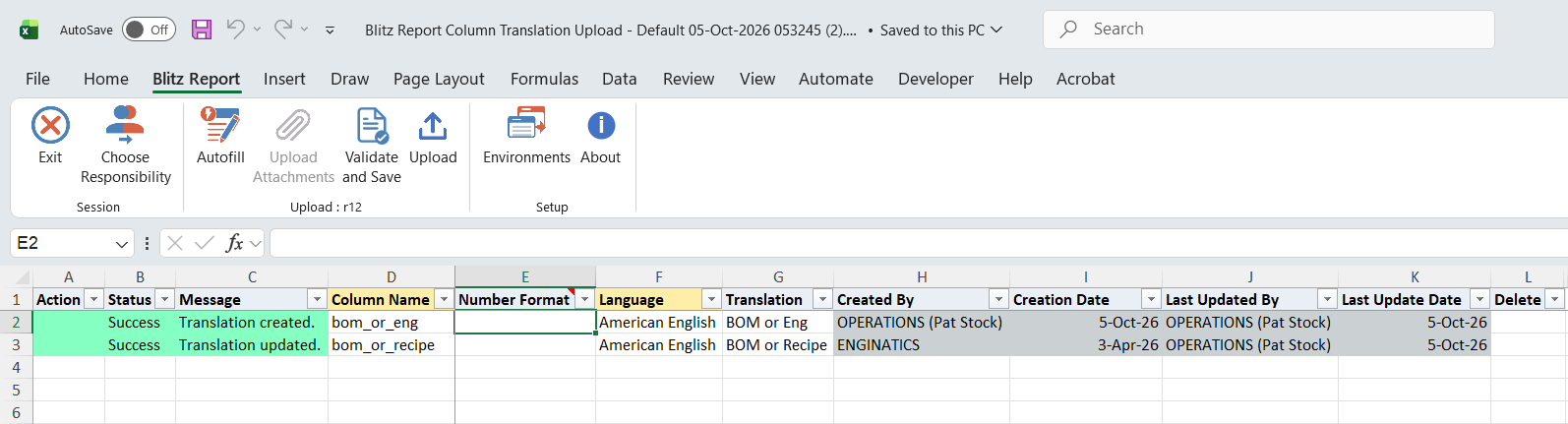
When the request completes, a result report opens listing every uploaded row with its status and message, for example Translation created., Translation updated. or No change.
What’s produced
- Column translations created, updated or deleted for the chosen language, used as column headings in every report that produces these column names.
- Column names and number formats registered or updated.
- A result report listing every row with a status (success or error) and a message.
Common questions
Which reports does a translation change?
Every report with a column of that name, in the language of the translation. Translations are matched by column name when a report runs, not stored per report.
What heading is shown for a column without a translation?
The column name with underscores replaced by spaces and each word capitalised, for example Bom Or Recipe for bom_or_recipe.
Why is my translation not used?
The Column Name must match the report’s column alias. Enter it in lower case with underscores, as in the downloaded file. Column aliases written in double quotes in the report SQL, such as “Supplier Name”, are shown as written and are not translated.
How do I find the columns that still need a translation?
Run with Upload Mode Create, Update, the language and Missing Translations Only = Yes, optionally restricted by Column Name starts with.
Can I translate into several languages in one file?
Yes. Each row carries its own Language, so rows for different languages can be uploaded together. The download covers one language at a time.
Troubleshooting
| Message | Cause | What to do |
|---|---|---|
| Translation is required. | The Translation is blank on a row that is not a delete. | Enter the translation, or set Delete to Yes to remove it. |
| Translation must be blank when deleting. | Delete is Yes but the Translation still has a value. | Clear the Translation on the row to delete. |
| Record not found. | Delete is Yes but there is no translation for this column name and language. | Check the Column Name and Language. |
| Column Name is required. / Language is required. | A new row without a Column Name or Language. | Fill in both columns. |
| Column created. | The Column Name did not exist and was registered with its translation. | Check that the name is spelled exactly as the report’s column alias; a misspelled name is never matched. |