
Blitz Report Category Assignment Upload maintains the categories that Blitz Report reports and uploads are grouped under. Download the existing category assignments of a set of reports, assign reports to additional categories, or remove them from a category, all from Excel. A category that does not exist yet is created automatically.
When to use it
- Assign many reports to a category in one go, for example all reports of a module or all your own custom reports.
- Create a new category, such as a department or project name, and assign reports to it.
- Review which categories a set of reports belongs to.
- Remove reports from a category they no longer belong to.
Before you start
- Access to the upload in Blitz Report.
- The names of the reports to categorize, or a category, report type or name prefix that selects them.
Step 1 – Set the parameters
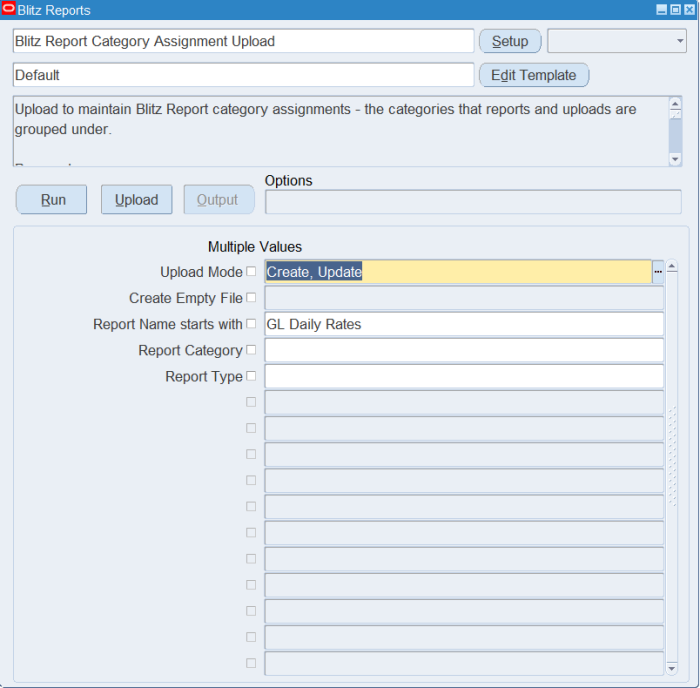
Open Blitz Report Category Assignment Upload in Blitz Report and set the parameters:
| Parameter | Meaning |
|---|---|
| Upload Mode | Create (default) downloads an empty sheet or a list of reports without their categories, to assign new categories. Create, Update downloads the existing category assignments of the selected reports, which you can remove, and lets you add new ones. |
| Create Empty File | Available in Create mode only. Yes opens an empty sheet to enter report and category rows. Defaults to Yes in Create mode when no report name is entered. |
| Report Name starts with | Selects the reports whose name starts with this text (not case sensitive). |
| Report Category | Selects the reports assigned to this category. In Create, Update mode all categories of these reports are downloaded, not only this one. |
| Report Type | Selects reports of this type, for example Upload. Not available when Create Empty File is Yes. |
Unless you create an empty file, restrict the download with at least one of the report parameters.
Step 2 – Run to download the Excel file
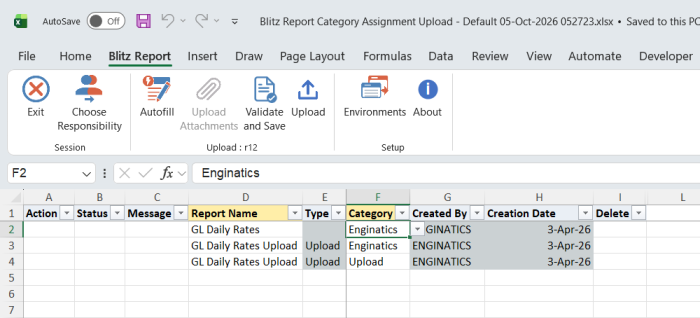
Click Run. The Excel file downloads and opens with one row per report and category, or with one blank-category row per report in Create mode, or an empty sheet.
Step 3 – Enter or change the category assignments
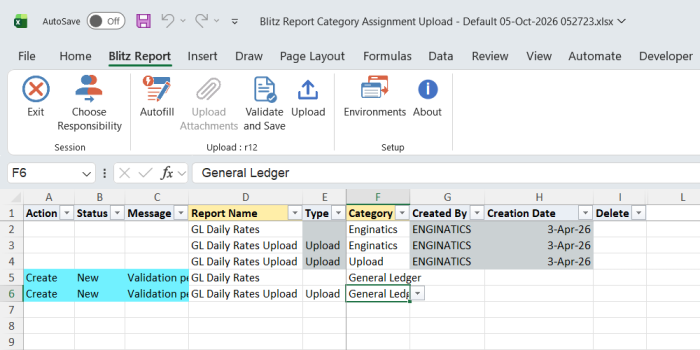
To assign a report to a category, add a row with the Report Name and the Category, or fill the Category of a downloaded blank-category row. Pick an existing category from the list of values, or type a new category name: it is created in all installed languages and the report is assigned to it. To assign a report to several categories, enter one row per category. To remove a report from a category, set Delete to Yes on its downloaded row. Type, Created By and Creation Date are display only.
Step 4 – Validate and Save
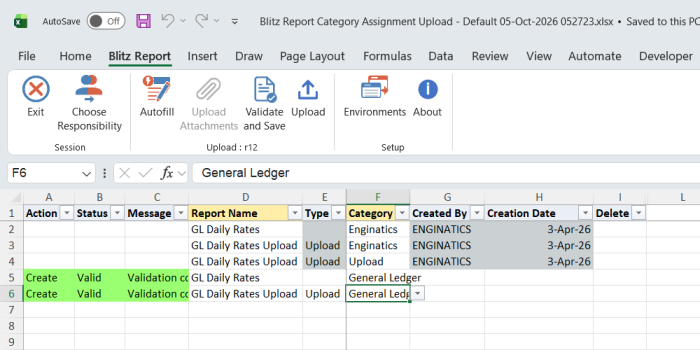
Click Validate and Save. This checks for missing required values and saves the file. Correct any rows it flags before uploading.
Step 5 – Upload the file
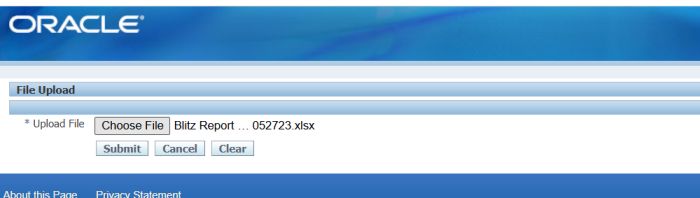
In Blitz Report click Upload and select the saved file. This submits the upload request, which assigns the reports to their categories or removes them.
Step 6 – Review the result report
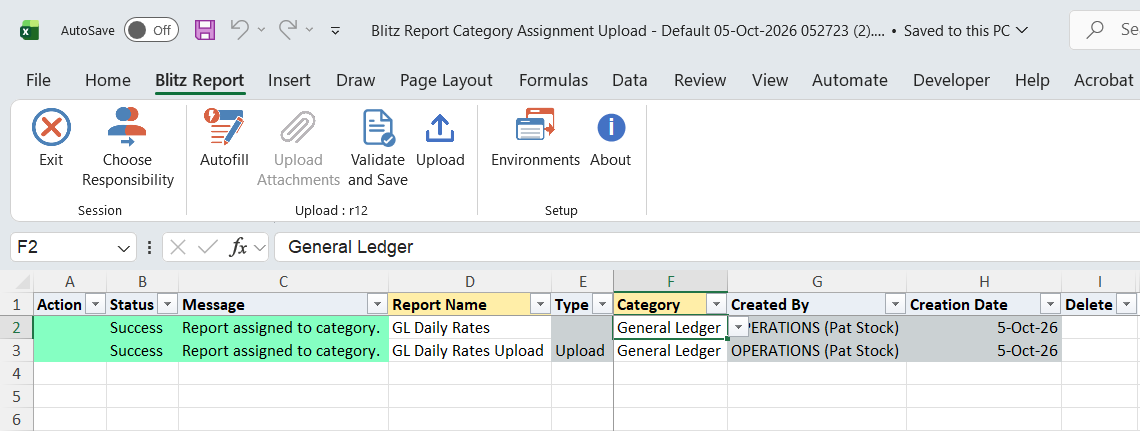
When the request completes, a result report opens listing every uploaded row with its status and message.
What’s produced
- Reports and uploads assigned to, or removed from, their categories.
- New categories, created in all installed languages, for category names that did not exist yet.
- A result report listing every row with a status (success or error) and a message.
Common questions
Is a category deleted when its last report is removed from it?
No. The category is kept, even when it becomes empty, and can be used again later.
Can I rename a category with this upload?
No. Typing a different name creates a new category. To move reports to another category, assign them to the new category and set Delete to Yes on their rows for the old one.
What happens if a report is already in the category?
The row completes with the message No change; no duplicate assignment is created.
Can a report belong to more than one category?
Yes. Enter one row per category.
Troubleshooting
| Message | Cause | What to do |
|---|---|---|
| Category is required. | The row has no Category. | Enter the category, or remove the row. |
| Record not found. | Delete is Yes, but the report is not assigned to this category, or the category does not exist. | Check the Report Name and Category; download the current assignments in Create, Update mode and set Delete on those rows. |
| Category ‘…’ created and report assigned. | The category did not exist, so it was created. If this was not intended, the category name was mistyped. | Assign the report to the intended category and remove it from the new one with Delete = Yes. |