
GL Mass Allocation Upload creates, updates and deletes MassAllocation and MassBudget batches, their formulas and formula lines from Excel, the way the Define MassAllocations and Define MassBudgets forms do. It downloads the batches of your chart of accounts for editing, validates the formulas as the forms do, and returns a result report with the outcome of every row.
When to use it
- Set up the allocation batches of a new company, cost pool or ledger in one step.
- Change the accounts, segment types or constant amounts of many formulas at once, for example after a reorganization.
- Review all formulas of a batch side by side in Excel and correct them.
- Maintain MassBudget formulas that derive budget amounts from other balances.
- Delete obsolete batches and formulas.
Before you start
- You are signed in to a General Ledger responsibility with access to the upload in Blitz Report. The upload works in the chart of accounts of the data access set of the responsibility.
- Batches secured by definition access sets are downloaded when you can view them and saved only when you can modify them.
- The journal categories, budgets and encumbrance types used on the formulas exist, and a budget is defined for the ledger of the line.
Choose a template
The default template is Default.
| Template | Use it for |
|---|---|
| Default (default) | All columns of the batches, formulas and formula lines, including their validation status and the delete columns. |
| New Formulas | An empty sheet to create new batches and formulas, one row per formula line. Upload Mode is locked to Create and the download filters are hidden. |
Step 1 – Set the parameters
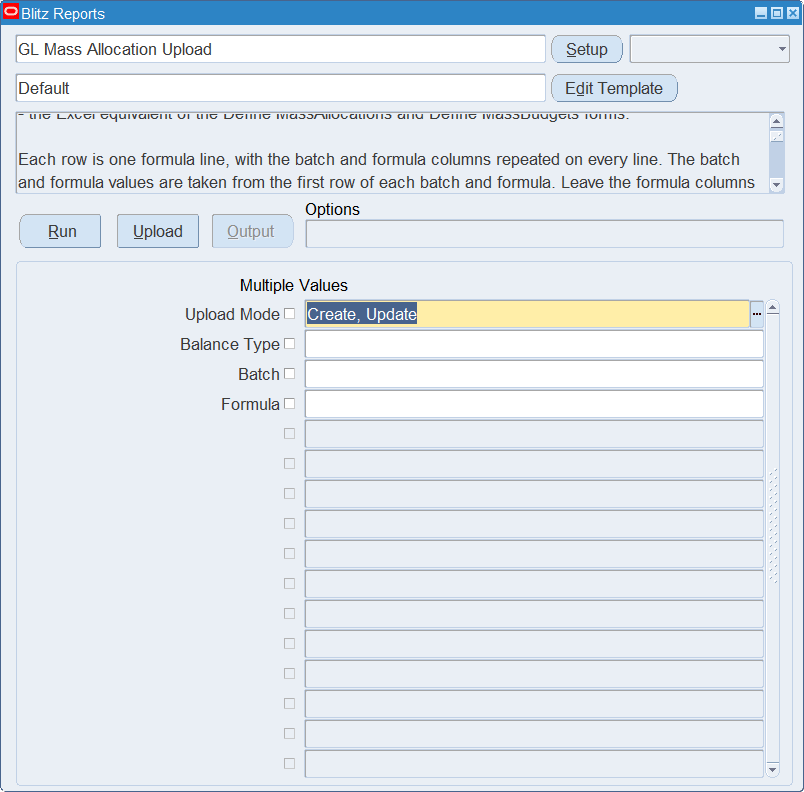
Open GL Mass Allocation Upload in Blitz Report, choose the template and set the parameters. They decide which batches are downloaded.
| Parameter | Meaning |
|---|---|
| Upload Mode | Create gives you an empty sheet. Create, Update (default) also downloads the existing batches with their formulas and lines. |
| Balance Type | Downloads only the MassAllocation batches (Actual, Encumbrance) or only the MassBudget batches (Budget). |
| Batch | Restricts the download to the batch. |
| Formula | Restricts the download to the formula. The list shows the formulas of the selected batch. |
Step 2 – Run to download the Excel file
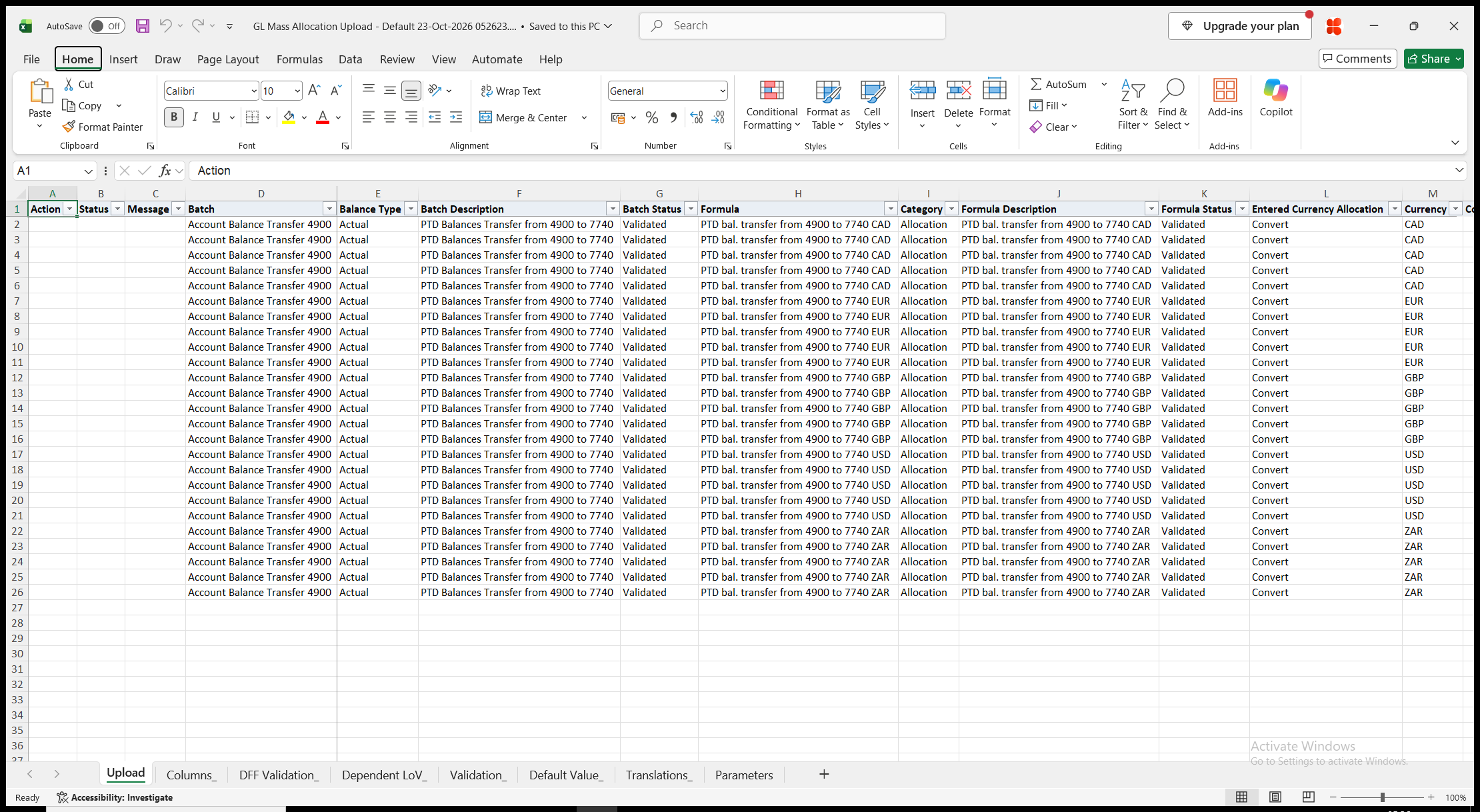
Click Run. With Create, Update, the file has one row per formula line: five rows for a MassAllocation formula, with the lines A, B, C, T and O, and one row for a batch without formulas. The batch columns repeat on every row of the batch, the formula columns on every row of the formula. Batch Status and Formula Status are read-only. With Create, the sheet is empty.
Step 3 – Enter the batches, formulas and lines
Change the downloaded rows, or add one row per formula line for new formulas. Repeat the batch and formula values on every row that belongs to them, as they are taken from the first row of each batch and formula. To create or update a batch only, leave the formula columns blank.
- Batch, Balance Type and Batch Description. Balance Type is Actual or Encumbrance for a MassAllocation batch and Budget for a MassBudget batch, and cannot be changed for an existing batch.
- Formula, Category and Formula Description. The formula name is unique within the batch, and Category, the journal category of the generated journals, is required.
- Entered Currency Allocation, Currency, Conversion Type and Full Cost Pool Allocation. Convert (default) allocates the converted amounts in the formula currency. Calculate, for Actual batches only, calculates the allocation in the entered currency and needs a Conversion Type. Currency is the transaction currency of the formula and is required.
- Line – A, B, C, Target (T) or Offset (O), with the formula A * B / C. A MassAllocation formula has all five lines, a MassBudget formula A, B, C and T and optionally O.
- Amount – a constant for line A, B or C instead of an account.
- Ledger, Ledger Type, Account and Segment Types – the account of the line, entered as in the account flexfield of the form. Ledger is the short name of a ledger or ledger set and is optional for Actual and Encumbrance balances. Ledger Type is C (Constant) for a ledger, L (Looping) or S (Summing) for a ledger set. Account takes the segment values and Segment Types one type per segment, C, L or S, both separated by the segment delimiter of the chart of accounts, for example 01-000-4900-0000-000 and C-C-C-C-C. Summing is for lines A, B and C only. Parent values are allowed for Looping and Summing segments, and the balancing segment can be left blank for Actual and Encumbrance balances.
- Ledger Currency, Currency Type, Entered Currency, Amount Type, Relative Period, Line Balance Type and Budget Or Encumbrance Type – the balance that an A, B or C line with an account reads. They default to the ledger currency, Total, PTD, Current Period and the balance type of the batch. Ledger Currency is required when no ledger is entered, Entered Currency for the Entered currency type (STAT for Statistical), and Budget Or Encumbrance Type for the Budget and Encumbrance balance types. Average balance amount types need an average balance ledger. Target and Offset lines always use PTD, the current period and the balance type of the batch.
- Delete Batch, Delete Formula or Delete Line – Yes deletes the batch with all its formulas, the formula with all its lines, or the Offset line of a MassBudget formula. Set Delete Batch or Delete Formula on any row of the batch or formula, and Delete Line on the Offset line.
Step 4 – Validate and Save
Click Validate and Save. This checks for missing required values and for values that are not in their lists, marks the rows Valid and saves the file. Correct any rows it flags before uploading.
Step 5 – Upload the file
In Blitz Report click Upload and select the saved file. The lines are validated as in the form, and each batch is saved as a whole: when one of its rows is rejected, none of the rows of that batch are saved. The other batches are not affected.
Step 6 – Review the result report
When the request completes, a result report opens listing every uploaded row with its status and a message naming what was created, updated or deleted, for example Formula updated. Line A updated., or the reason the row was rejected. The first row of a changed batch also names the Validate MassAllocations request that was submitted. The result report shows the values as they were saved in Oracle.
What’s produced
- MassAllocation and MassBudget batches, formulas and formula lines, saved as the Define MassAllocations and Define MassBudgets forms save them.
- A changed batch is set to Not Validated, and the upload submits the Validate MassAllocations program, as the form does when it is closed.
- Each batch is committed as a whole. A batch with a rejected row leaves nothing behind and does not affect the other batches.
- A result report listing every row with a status (success or error) and a message.
Common questions
Can I change the balance type of a batch?
No. As in the form, the balance type of an existing batch cannot be changed. Create a new batch with the other balance type.
How do I rename a batch or a formula?
Change the Batch or Formula on all downloaded rows of it. The downloaded row identifies the batch and the formula, so the new name replaces the old one.
Why does my batch show Not Validated?
Every saved change sets the batch to Not Validated, as in the form. The upload submits Validate MassAllocations, and the status changes when that request completes.
Does the upload generate the allocation journals?
No. It maintains and validates the batch definitions. Generate the journals in General Ledger as for batches defined in the form.
Can I delete a single formula line?
Only the Offset line of a MassBudget formula, which is optional. The other lines are required, so delete the whole formula with Delete Formula instead.
Why can a batch not be deleted?
A batch that is used in an AutoAllocation set cannot be deleted; remove it from the set first. A batch with security enabled is deleted in the Define MassAllocations form.
How do I allocate across a ledger set?
Enter the ledger set in Ledger with Ledger Type L to loop through its ledgers, or S on lines A, B and C to sum them. The Ledger Currency of lines A, B and C must be one of the currencies of the ledger set.
Troubleshooting
| Message | Cause | What to do |
|---|---|---|
| Missing values for required field/s: … | A required column is blank, for example Batch. | Fill in the columns named. |
| Not saved because of errors in other rows of batch … | Another row of the same batch was rejected. | Correct the rejected row and upload the batch again. |
| Batch values are taken from the first row of the batch. Enter batch changes on its first row. / Formula values are taken from the first row of the formula. Enter formula changes on its first row. | A batch or formula column was changed on a later row only. | Enter the same value on every row of the batch or formula. |
| Balance Type cannot be changed for an existing batch. | The balance type of a downloaded batch was changed. | Create a new batch with the other balance type. |
| A MassAllocation batch with this name already exists. / A MassAllocation formula with this name already exists. | A new or renamed batch or formula uses a name that is already taken in the chart of accounts or the batch. | Use another name. |
| Batch … is being validated and cannot be changed. | Validate MassAllocations is running for the batch. | Upload again when the request has completed. |
| You do not have access to change batch … | Definition access set security allows you to view the batch, but not to modify it. | Ask for modify access to the batch, or use a responsibility that has it. |
| Please complete all formula lines. / Please complete the A, B, C, and Target formula lines before saving your work. | A formula line is missing. | Add a row for each missing line of the formula. |
| Enter either an Amount or an Account for line … / Line … requires an Amount or an Account. / Line … cannot have an Amount. | Line A, B or C has both an amount and an account or neither, or a Target or Offset line has an amount. | Enter an amount or an account on lines A, B and C, and an account on lines T and O. |
| Account must have … segments separated by … / Please specify an action for each segment. | The Account or the Segment Types do not have one value per segment of the chart of accounts. | Enter every segment, separated by the segment delimiter, in both columns. |
| All segments except the ledger segment and the balancing segment are required. / All segments are required for budget allocations. | A segment of the account is blank. | Enter the segment. For a Budget balance, enter the ledger and the balancing segment too. |
| Please select the Constant action for a single ledger. / Please select the Looping or Summing action for a ledger set. | The Ledger Type does not fit the ledger or ledger set entered. | Use C for a ledger, and L or S for a ledger set. |
| Target and Offset lines use the PTD amount type, the current period and the balance type of the batch. | Amount Type, Relative Period or Line Balance Type was changed on a Target or Offset line. | Clear these columns on the line. |
| For transaction currencies using a foreign currency with the converted option and non-STAT currency, the currency of the A line must be the same as the transaction currency. | With the Convert method, the currency that line A reads, the Ledger Currency for the Total currency type or the Entered Currency for Entered, differs from the formula Currency. | Use the formula currency on line A, or the Calculate method. |
| You cannot delete a MassAllocation, MassBudget, or MassEncumbrance batch that is used in an AutoAllocation set. | Delete Batch was set for a batch in an AutoAllocation set. | Remove the batch from the AutoAllocation set first. |